The Grammar and Punctuation Evaluation capability enables QEval to use AI to assess language quality in Chat and Email interactions. You can configure the grammar and language scenarios you want to evaluate and define a guardrail for each selected scenario to establish the threshold used during evaluation.
When the form is configured and used for an evaluation, QEval AI detects applicable errors, counts the detected errors for each selected scenario, and compares the results against the configured guardrail. Based on this comparison, QEval automatically determines whether the scenario is Within limit or a Breach and applies the corresponding Yes/No response.
The capability supports the following seven scenarios:
- Grammatical Issues
- Punctuation Issues
- Spelling Issues
- Capitalisation
- Verb Tenses
- Word usage
- Sentence Structure Correction
Each selected scenario is automatically added as a separate Yes/No question under the Grammar and Punctuation Error category. For example, selecting three scenarios creates three corresponding questions.
This guide explains how to enable the capability, select scenarios, configure guardrails, and review AI-generated evaluation results.
Configure Grammar and Punctuation
Step 1: Create or Edit a Form
- Navigate to Forms.
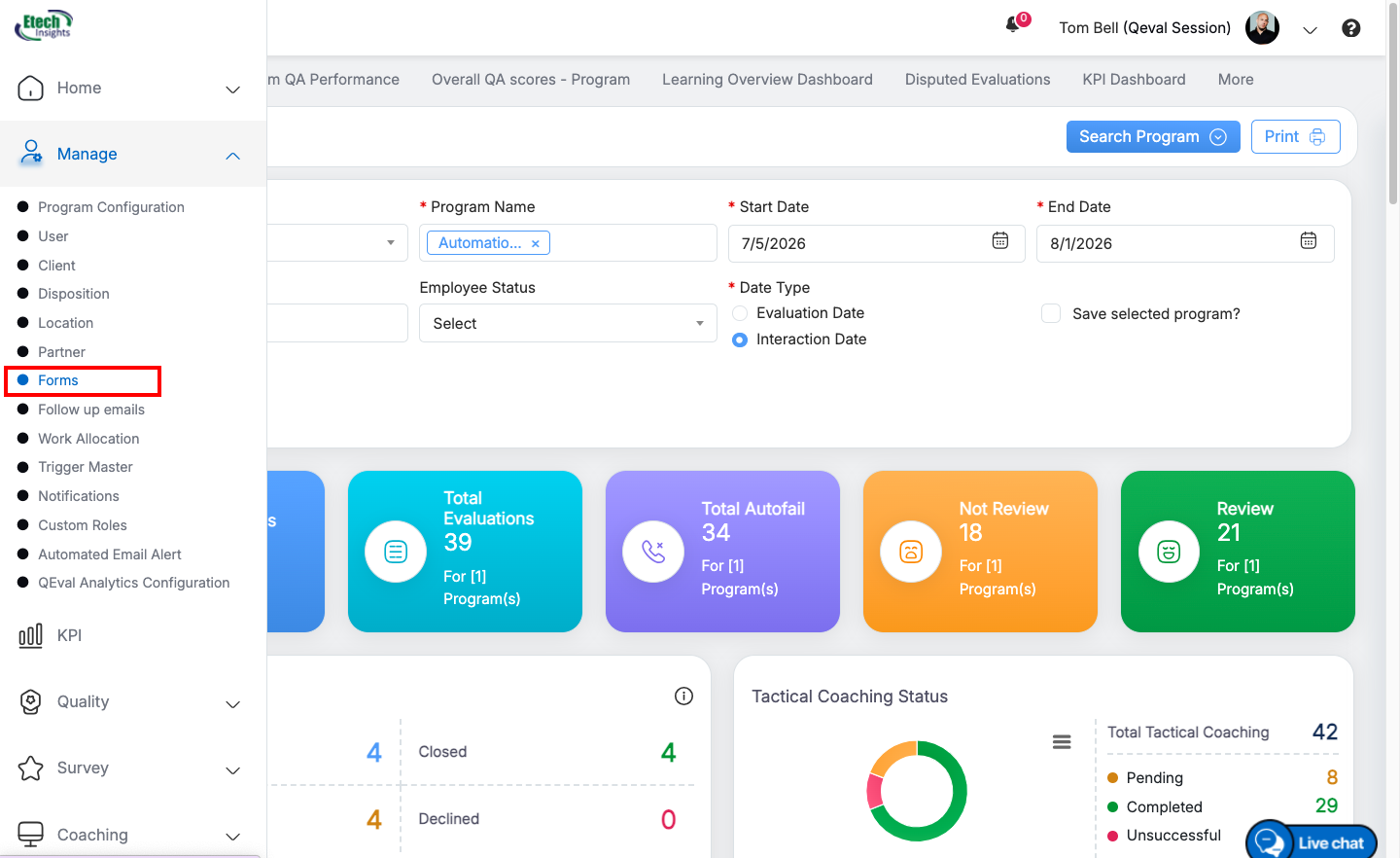
QEval Main Menu
- Create a new evaluation form or edit an existing form.
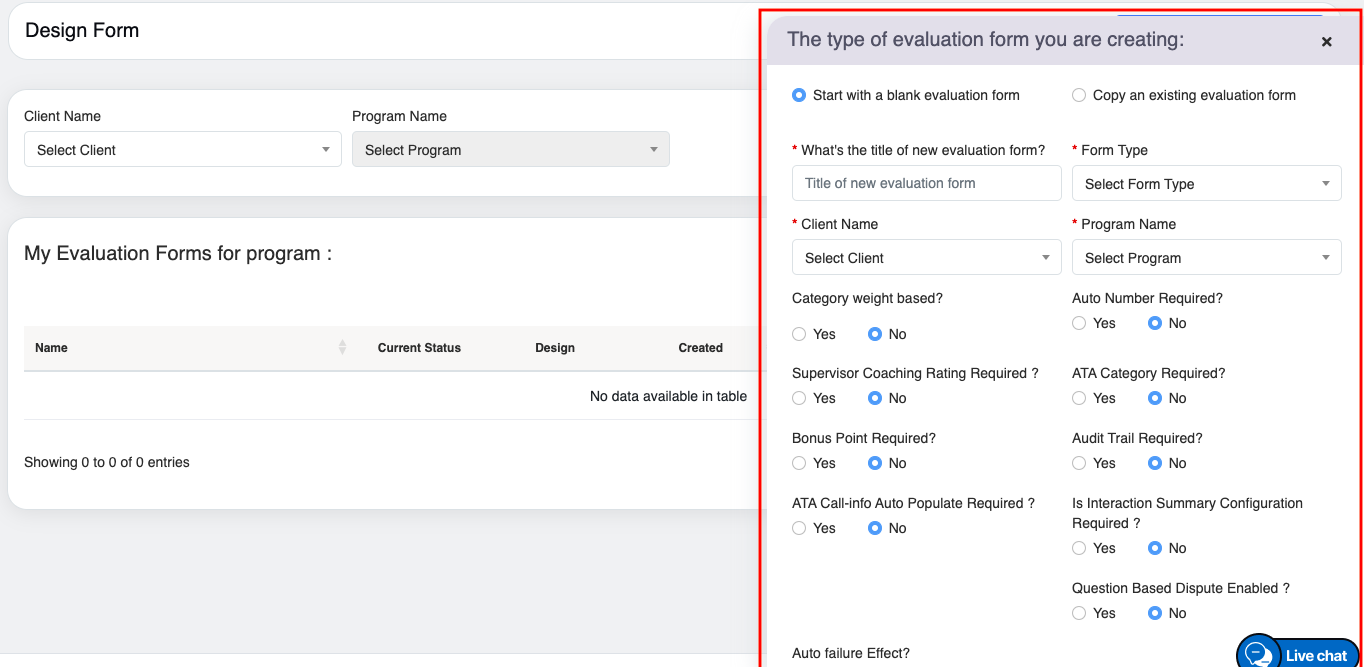
Design Form Tab
- Select Chat or Email as the Form Type.
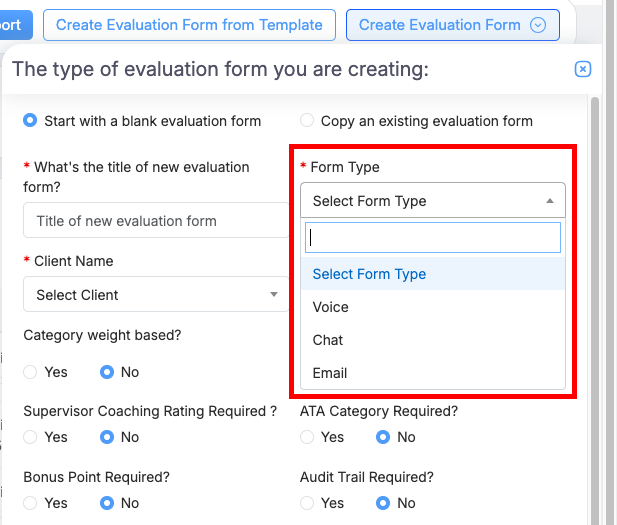
Select Form Type
- Set Grammar and Punctuation Required? to Yes.
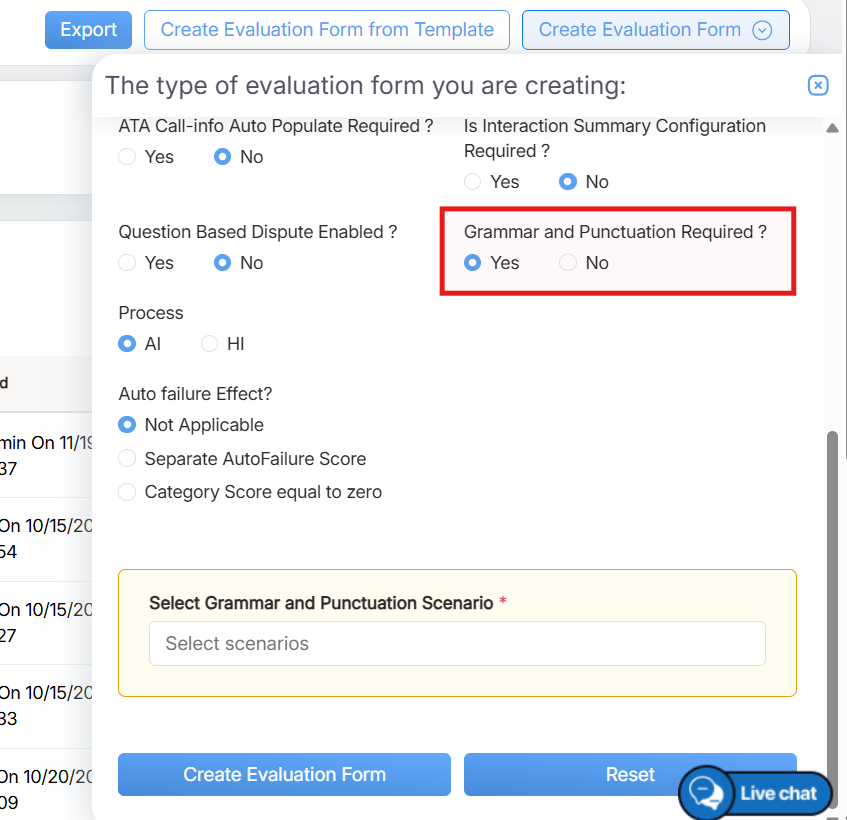
Set Grammar and Punctuation Required? to Yes.
Note: The Grammar and Punctuation option is not available for Voice forms.
Step 2: Select Scenarios
Under Select Grammar and Punctuation Scenario, select one or more scenarios.
Available scenarios:
- Grammatical Issues
- Punctuation Issues
- Spelling Issues
- Capitalisation
- Verb Tenses
- Word usage
- Sentence Structure Correction
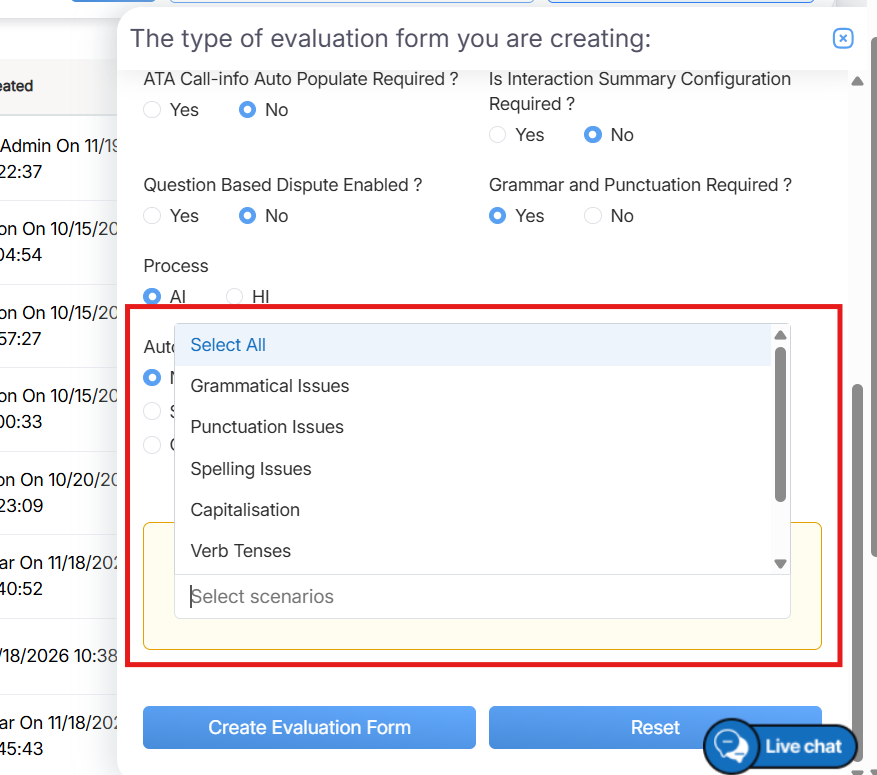
Select Grammar and Punctuation Scenario
A configuration row is displayed for each selected scenario.
Step 3: Set Guardrails
For each scenario, enter a Guardrail value.
- The guardrail accepts a numeric value from 1–999.
- The configured value is used to determine whether the detected errors are within the configured limit or constitute a breach.
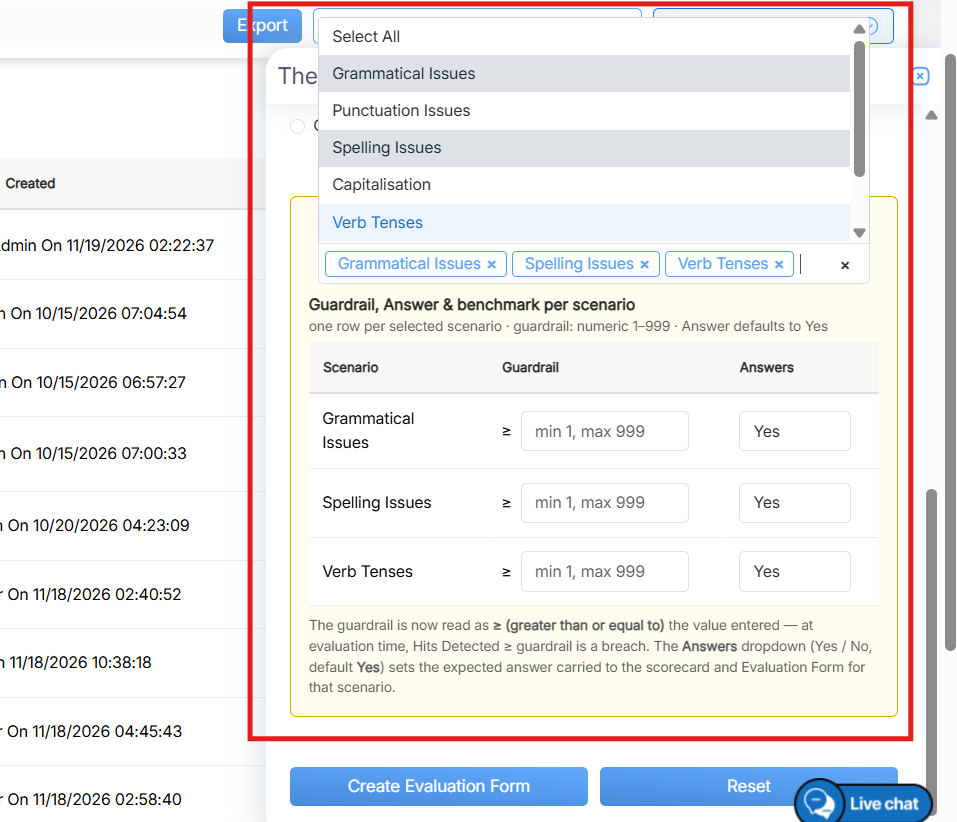
Set Guardrails
Step 4: Set the Answer
For each scenario, select the required value under Answers:
- Yes
- No
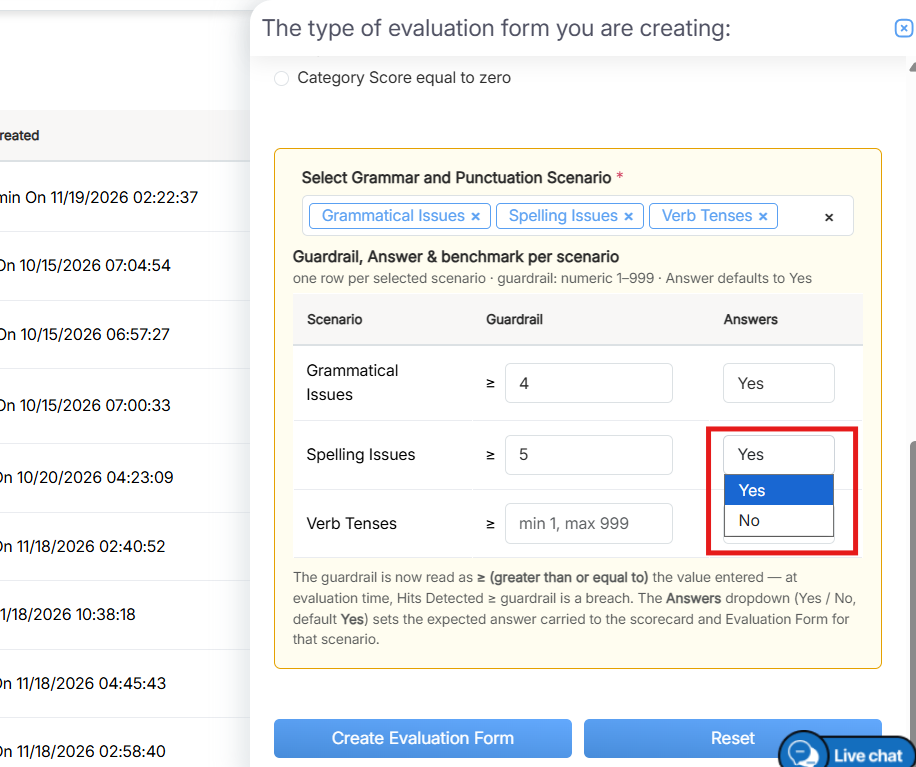
Set the Answer
The default value is Yes.
The selected answer is carried forward to the corresponding evaluation parameter.
Step 5: Save the Configuration
Click Create Evaluation Form to save the configuration.
QEval automatically creates the Grammar and Punctuation Error category with one Yes/No question for each selected scenario.
Note: The number of questions in the Grammar and Punctuation Error category depends on the scenarios selected during configuration. For example, selecting three scenarios creates three corresponding questions under the category. The system-generated question text cannot be modified.
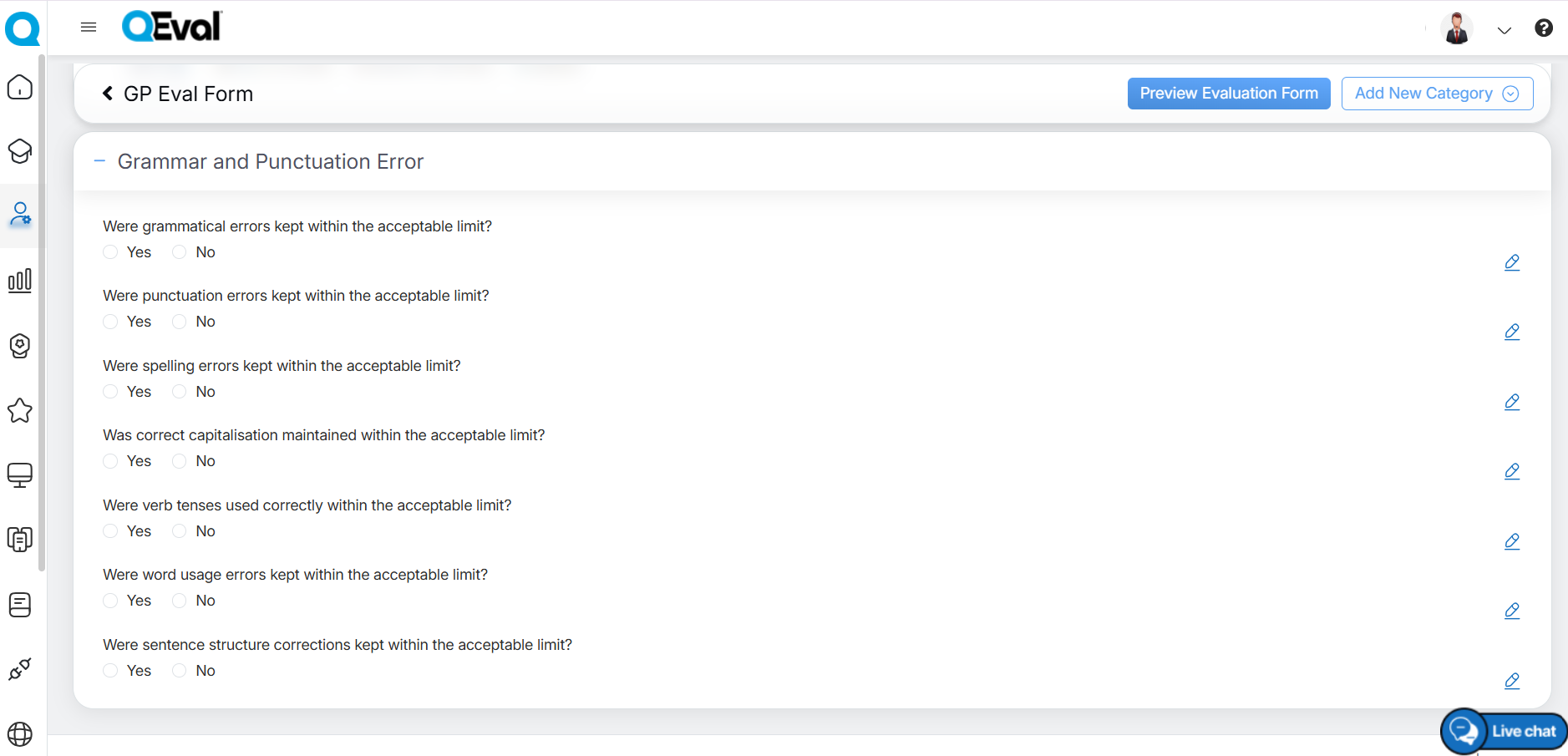
Grammar and Punctuation Error Category added into the form
| Selected Scenario | Automatically Generated Question |
|---|---|
| Grammatical Issues | Were grammatical errors kept within the acceptable limit? |
| Punctuation Issues | Were punctuation errors kept within the acceptable limit? |
| Spelling Issues | Were spelling errors kept within the acceptable limit? |
| Capitalisation | Was correct capitalisation maintained within the acceptable limit? |
| Verb Tenses | Were verb tenses used correctly within the acceptable limit? |
| Word usage | Were word usage errors kept within the acceptable limit? |
| Sentence Structure Correction | Were sentence structure corrections kept within the acceptable limit? |
Configure Parameter Options
Each automatically created parameter includes a pencil icon for editing standard question-level settings.
Available options include:
- Training Require?
- Is Good Call?
- Is Critical Call?
- Compliance Question?
- Is Report Required?
- Category show/hide question?
- Is Show/Hide Question?
- Question Description
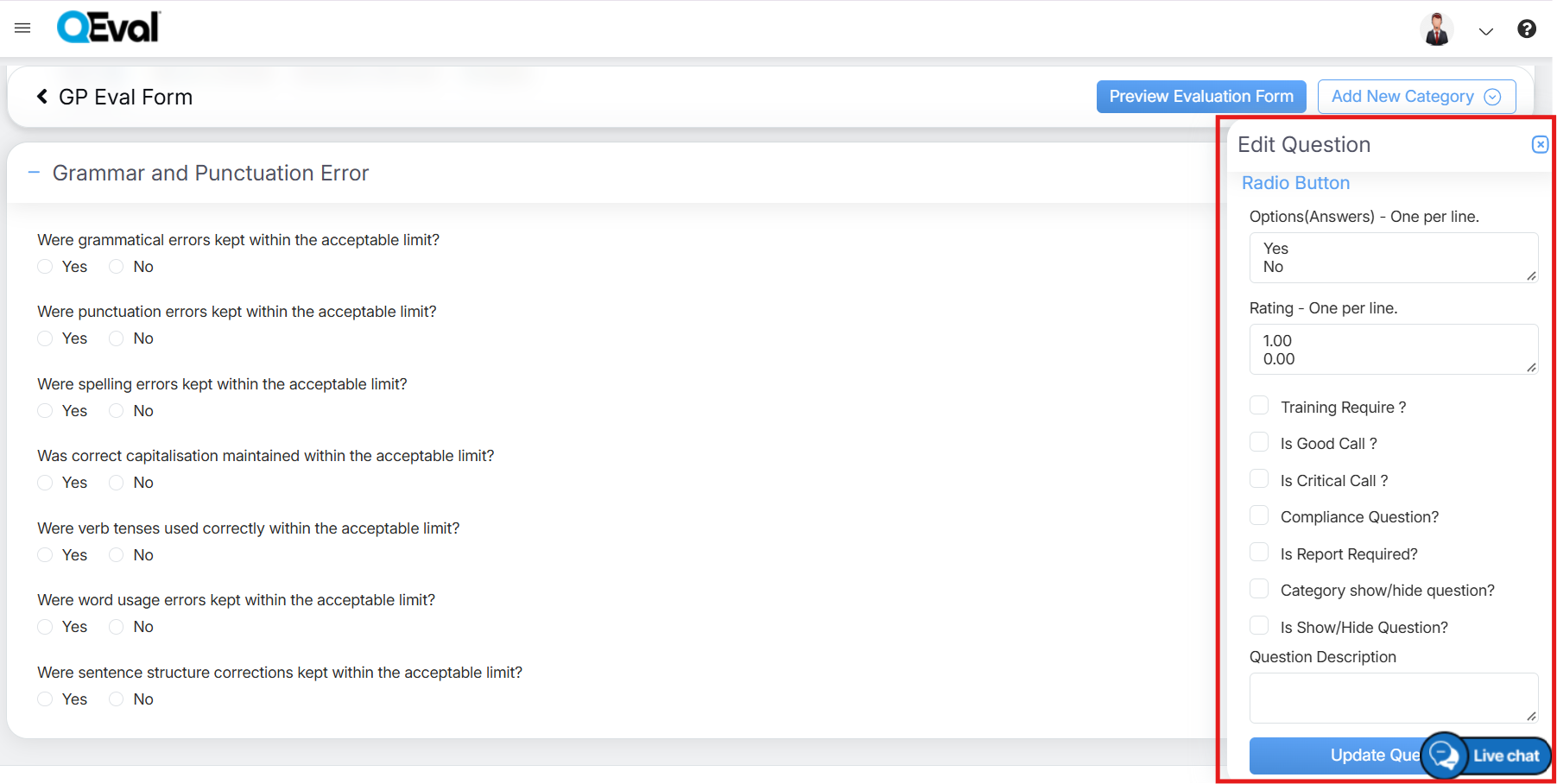
Edit Question Tab Highlighted
Note: The system-generated question text is read-only.
Review AI Evaluation Results
When an applicable interaction is evaluated, QEval AI checks the agent’s comments in the interaction transcript for the configured scenarios.
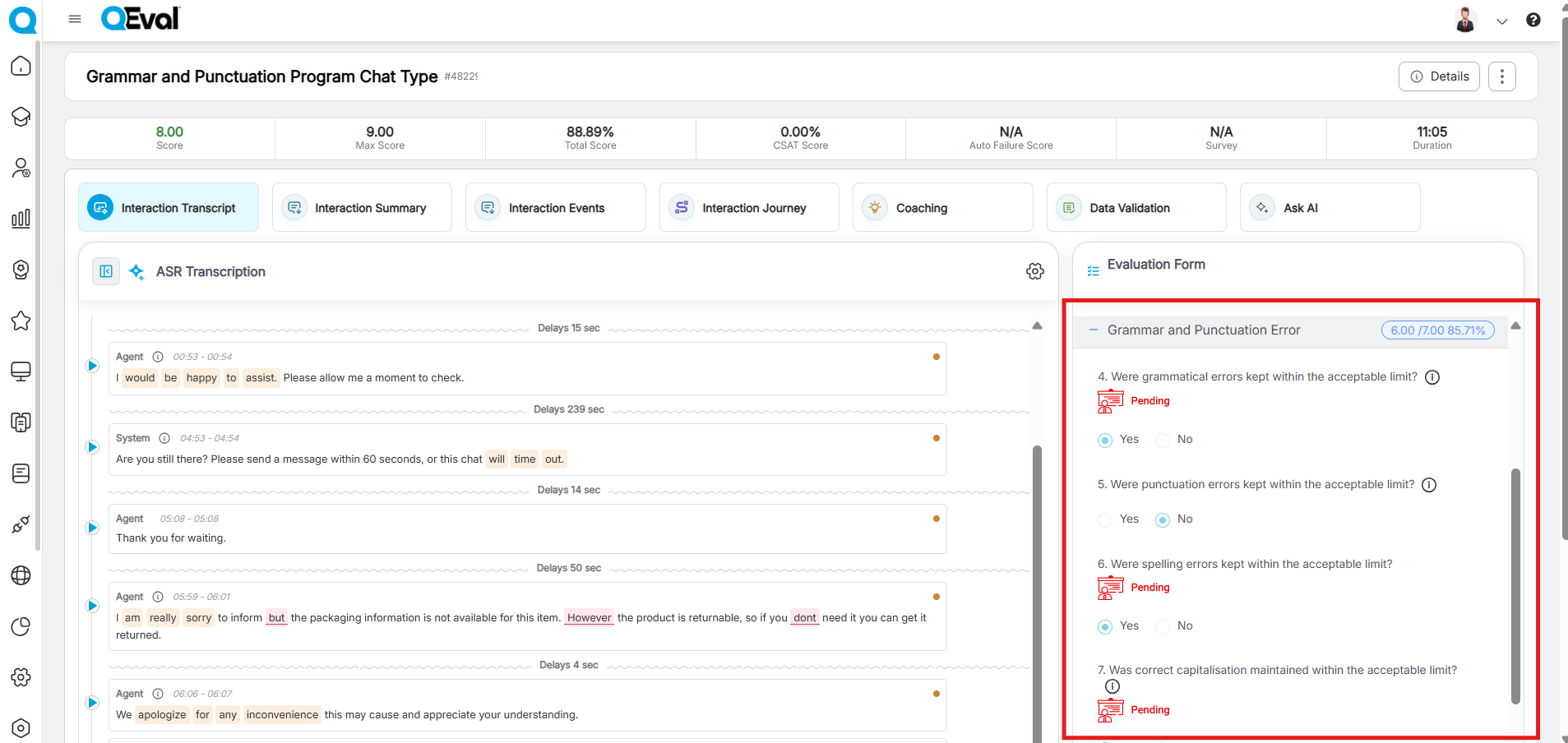
Grammar and Punctuation Error Highlighted
For each scenario, QEval:
- Detects applicable errors.
- Counts the detected errors.
- Compares the count with the configured guardrail.
- Determines the result as Within limit or Breach.
- Applies the configured Yes/No answer.
Guardrail Logic
- Hits detected < Guardrail → Within limit → Yes
- Hits detected ≥ Guardrail → Breach → No
Example: If the Punctuation Issues guardrail is 2:
- 0 hits → Within limit
- 1 hit → Within limit
- 2 hits → Breach
- 4 hits → Breach
View AI Findings
On the Evaluation Form, hover over a Grammar and Punctuation parameter to view:
- Scenario
- Hits detected
- Guardrail
- Status
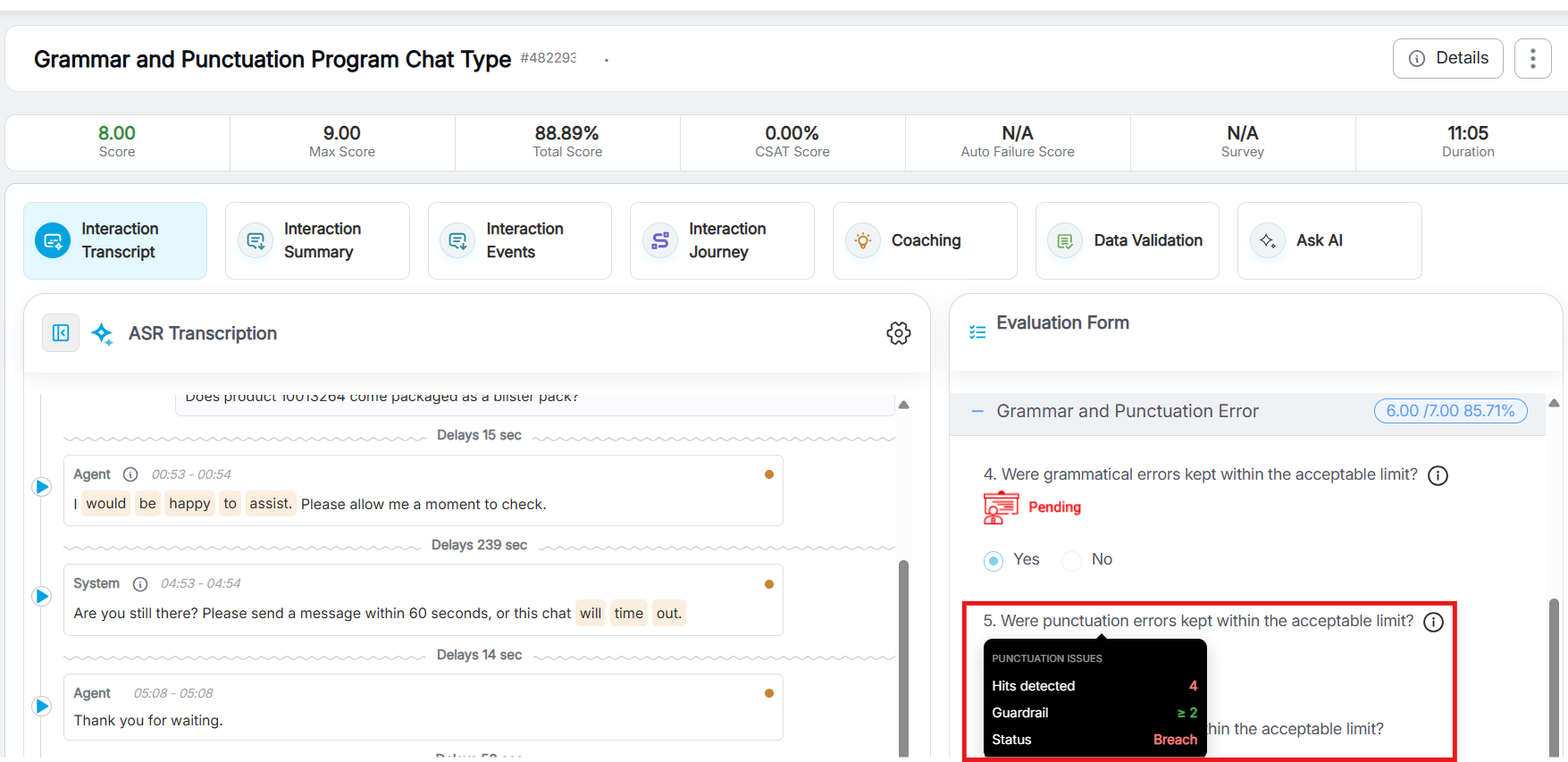
Grammar and Punctuation Parameter Showing Status
The status indicates whether the scenario is Within limit or a Breach.
Detected issues are also highlighted in the interaction transcript. Hover over a highlighted issue to view the applicable scenario and AI-generated suggestion.
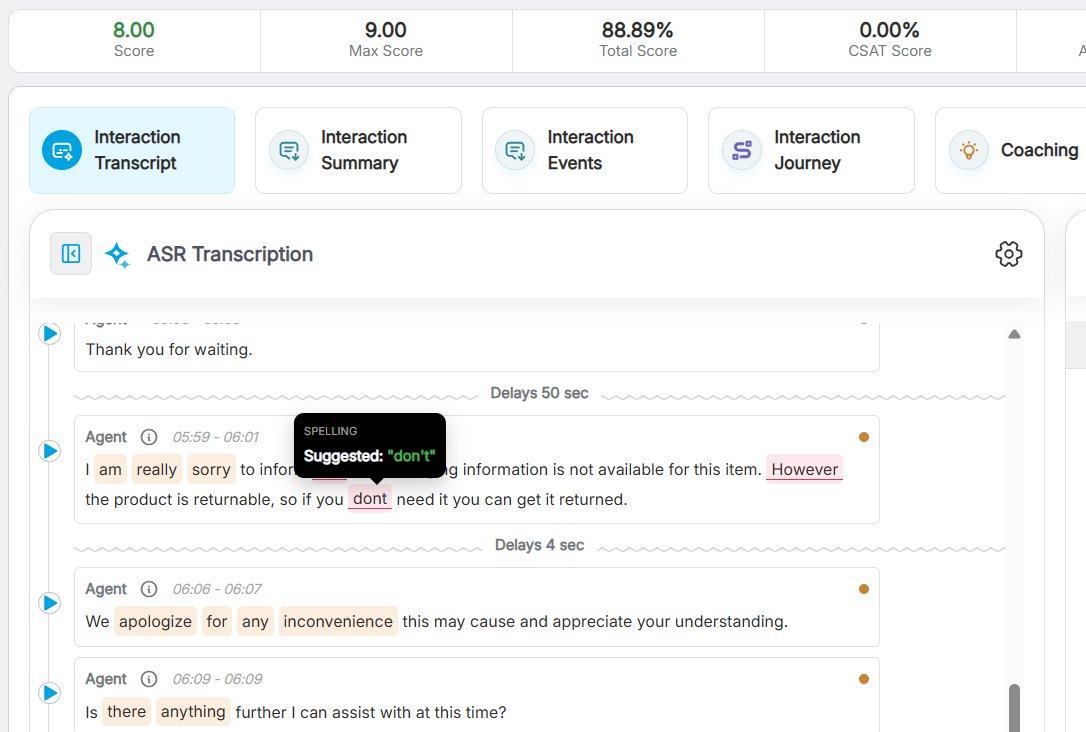
Detected issues highlighted
Example: If Punctuation Issues has a guardrail of 2 and QEval detects 4 hits, the result is Breach and the answer is No.
Summary
Grammar and Punctuation Evaluation provides an AI-powered approach to assessing language quality in Chat and Email interactions. It allows administrators to select the required evaluation scenarios and define acceptable error thresholds through guardrails.
Based on the configured settings, QEval automatically generates the corresponding evaluation questions and uses AI to analyze the agent-side transcript during evaluation. Detected errors are counted and compared against the configured guardrail to determine whether each scenario is Within limit or a Breach.
The evaluation results provide visibility into the detected errors, hit counts, guardrail values, and AI-generated suggestions, helping evaluators understand the outcome and make informed decisions during evaluation.
Overall, the capability helps standardize grammar and language-quality assessment by combining configurable evaluation criteria, defined error thresholds, and AI-based analysis within the QEval evaluation workflow.
Video