Overview
The Learning Hub integration enables QEval users to access the EtechRU Learning Hub directly from the QEval platform. It provides a centralized learning environment where administrators can manage company information, users, courses, and learning programs, while learners can access assigned courses, complete learning activities, and track their learning progress.
With this integration, users can access the Learning Hub without requiring a separate login. User accounts and assigned roles are automatically provisioned and synchronized between QEval and EtechRU, reducing manual onboarding efforts and simplifying learning access.
Key Features
The Learning Hub integration offers the following capabilities:
- Seamless Access: Access the EtechRU Learning Hub directly from QEval without an additional login.
- Automated User Provisioning: User accounts are automatically created when users access the Learning Hub for the first time.
- Role-Based Access: Provides dedicated access based on the assigned Administrator or Learner role.
- User Synchronization: Existing user profile information and role changes are automatically synchronized during the Learning Hub launch process.
- Centralized Administration: Enables administrators to manage company settings, users, courses, enrollments, and learning programs.
- Learning Progress Tracking: Allows learners to access assigned courses, complete learning activities, and monitor their learning progress.
Assigning Learning Hub Access to Users
Administrators can grant Learning Hub access to users directly through the Manage Users section in QEval. Access is controlled through the user’s assigned access rights, allowing administrators to provide either Administrator or Learner permissions.
Follow these steps to enable Learning Hub access for a user:
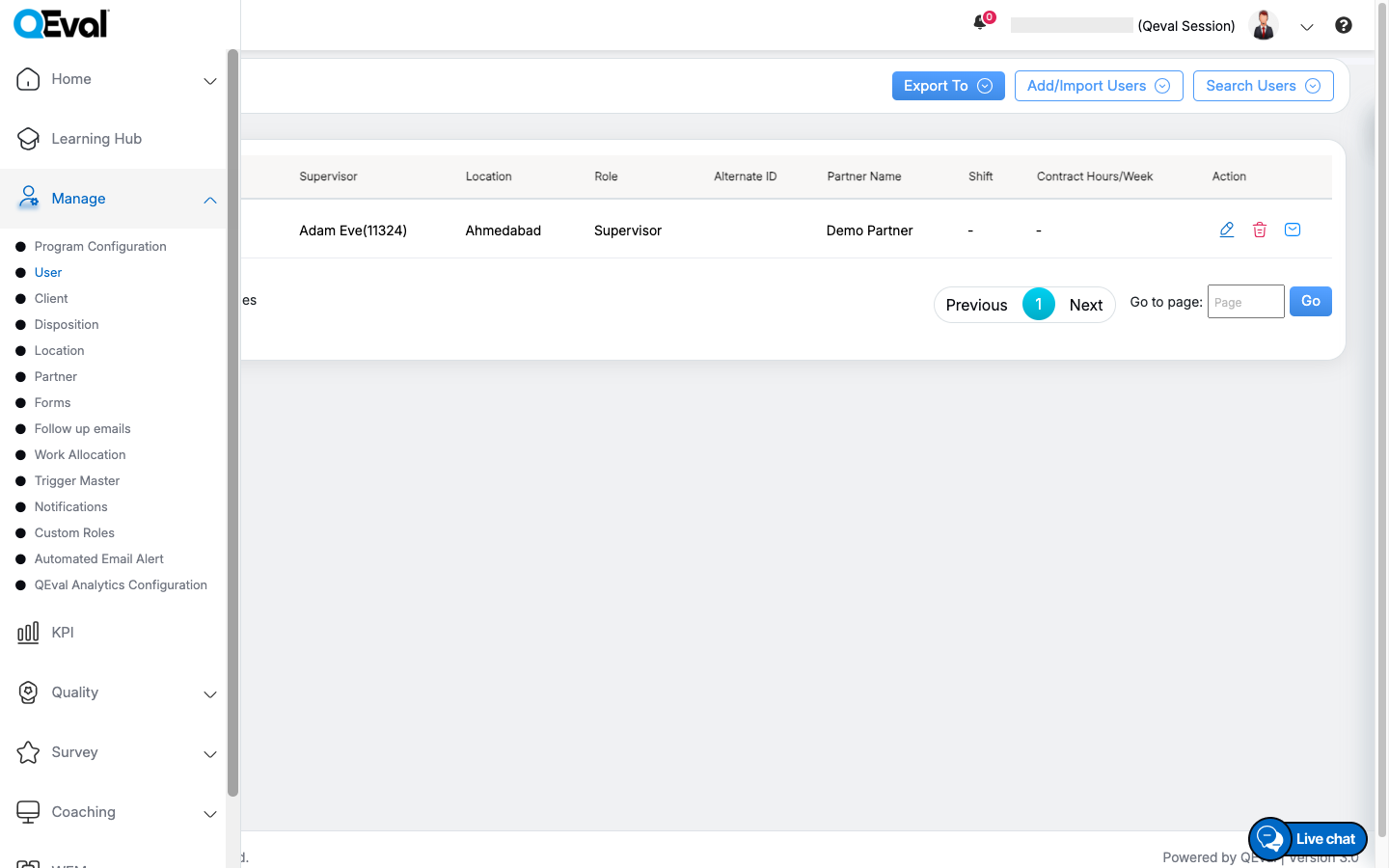
- Log in to QEval using your administrator credentials.
QEval Menu
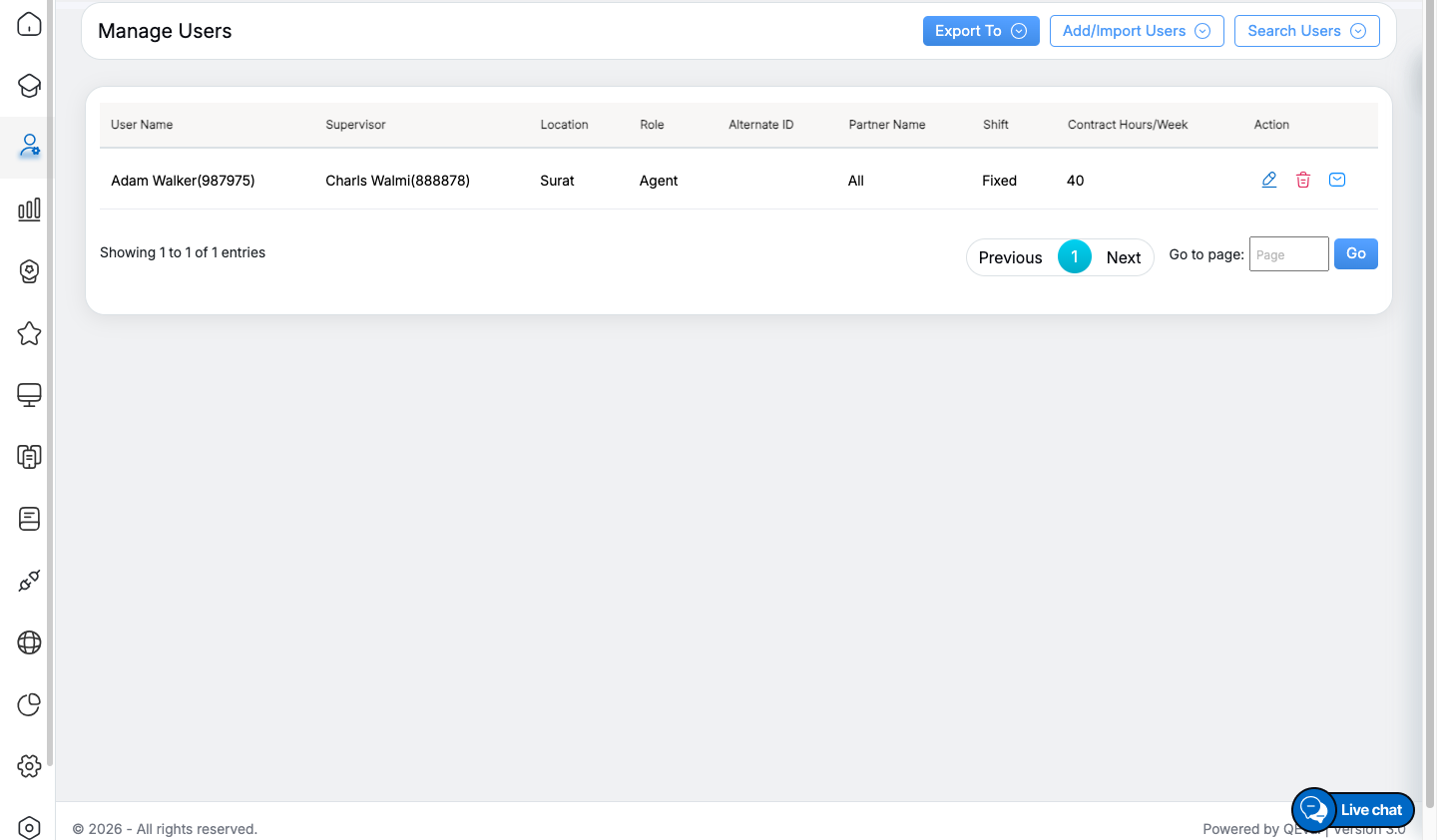
- Navigate to Manage > User from the left navigation menu.
Manage User
- Locate the required user using the available search options.
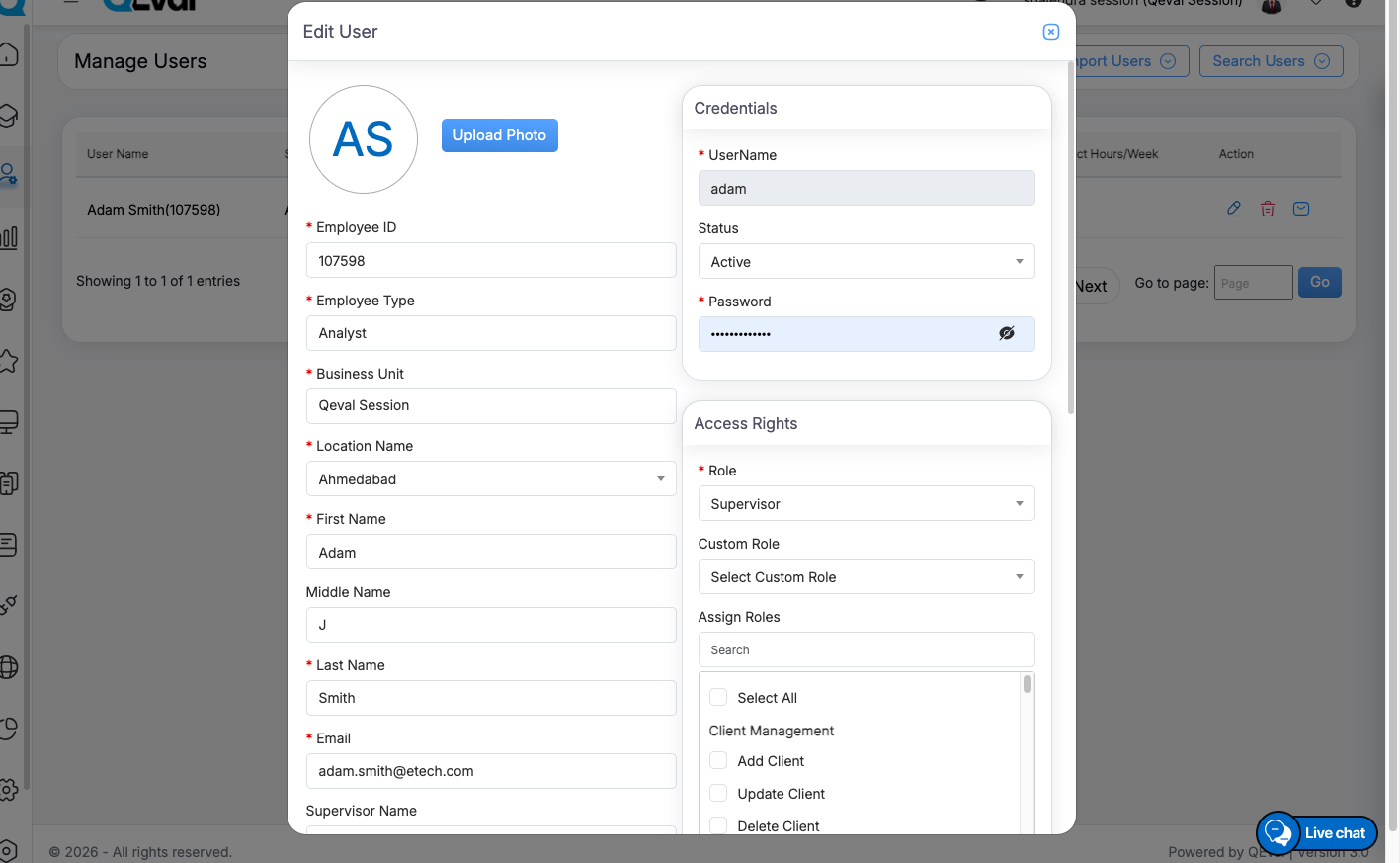
- From the user list, click the Edit (pencil) icon corresponding to the user.
- In the Edit User window, navigate to the Access Rights section.
Edit User Window
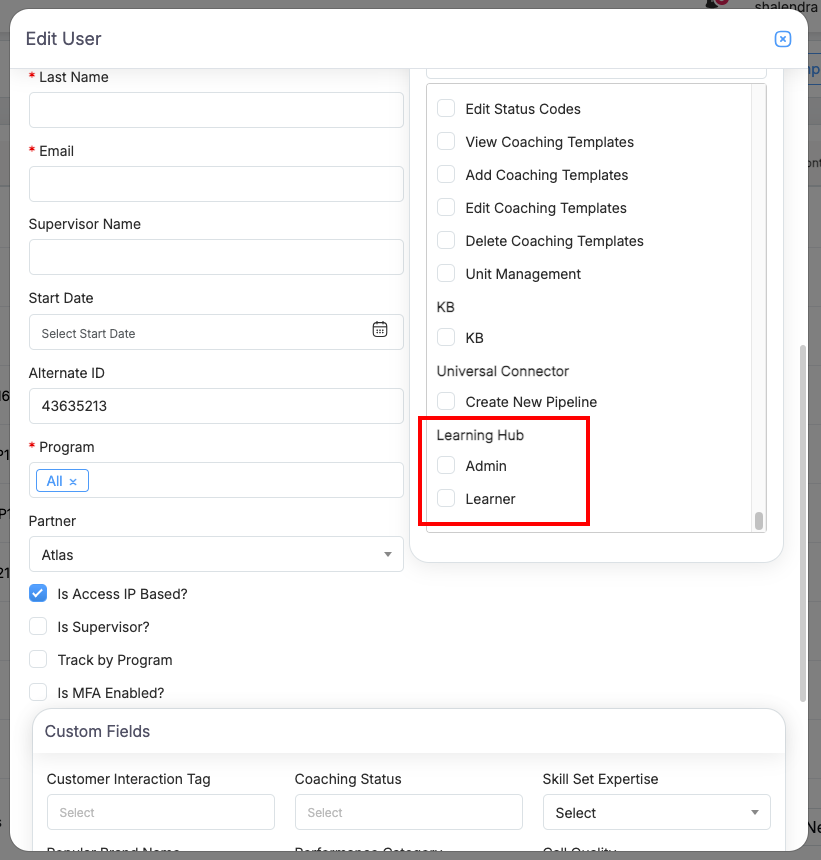
- Locate the Search field under the access rights panel and enter Learning Hub.
- The system displays the following access permissions:
Admin: Provides administrative access to the Learning Hub, including company, user, and course management capabilities.
Learner: Provides access to learner-specific functionalities, including enrolled courses and learning activities.
Learning Hub
- Select the appropriate permission based on the user’s responsibilities.
- Save the changes to update the user’s access rights.
Important Notes
- Only users with the appropriate administrative permissions in QEval can modify user access rights.
- Assign Admin permission to users responsible for managing the Learning Hub.
- Assign Learner permission to users who need to access and complete learning activities.
- Once access is configured, the user can launch the Learning Hub directly from the QEval navigation menu without requiring a separate login.
- If the user cannot access the Learning Hub, verify the assigned access rights and user account status.
Accessing the Learning Hub
Follow these steps to access the Learning Hub:
- Log in to the QEval platform using your credentials.
- Navigate to the Learning Hub option from the left navigation menu.
- Click Learning Hub to launch the integrated EtechRU Learning Hub.
- The Learning Hub opens within QEval, providing access according to your assigned permissions.
Note: No additional login is required to access the Learning Hub through QEval.
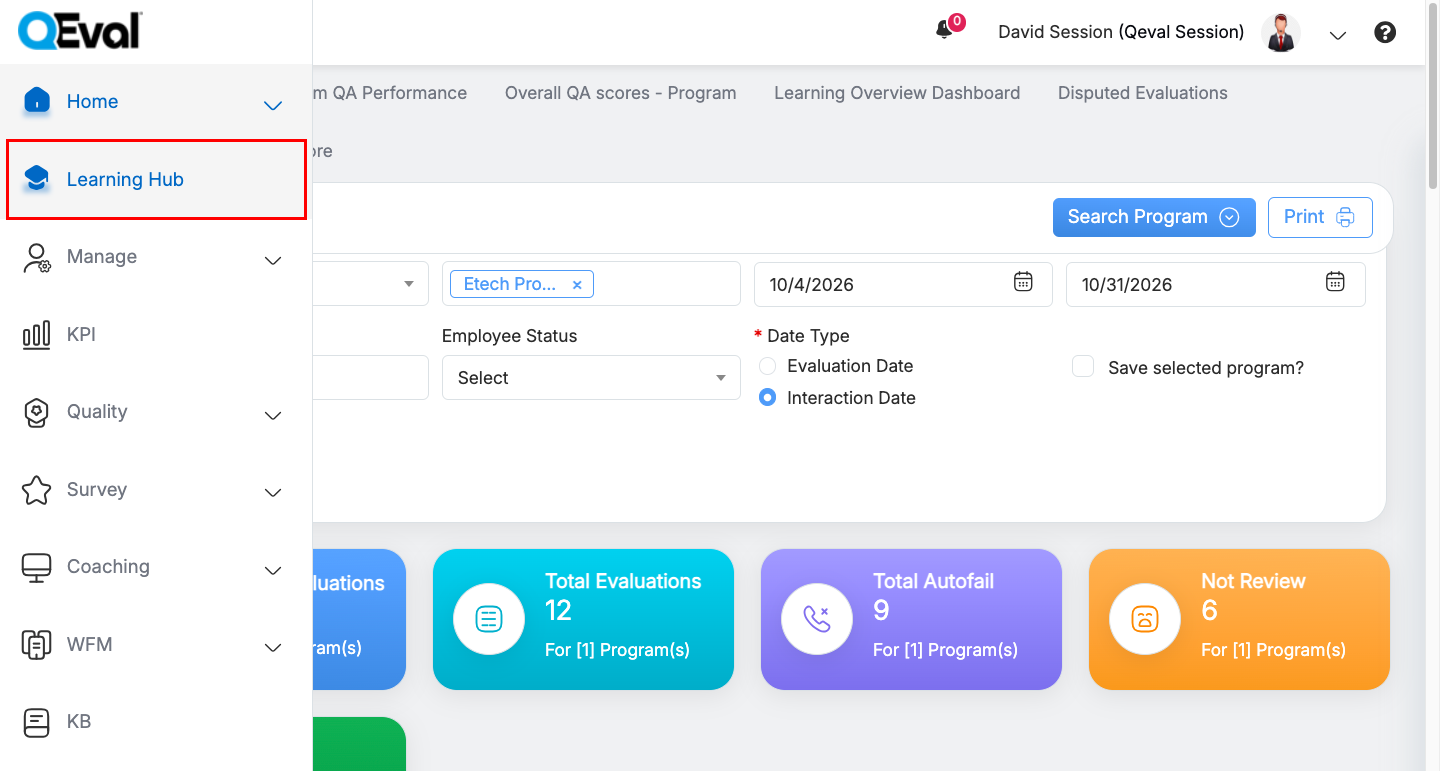
Learning Hub Navigation
User Roles and Access
The Learning Hub supports two user roles, each providing access to specific functionalities.
Administrator
Administrators can manage and oversee the Learning Hub environment through dedicated management sections.
Key capabilities include:
- Managing company information and organizational settings.
- Managing users and user-related activities.
- Creating and managing courses.
- Managing user enrollments and learning assignments.
- Organizing company groups and learning paths.
- Managing learning content and training activities.
- Accessing available learning reports.
For more information, refer to Learning Hub – Administrator Guide.
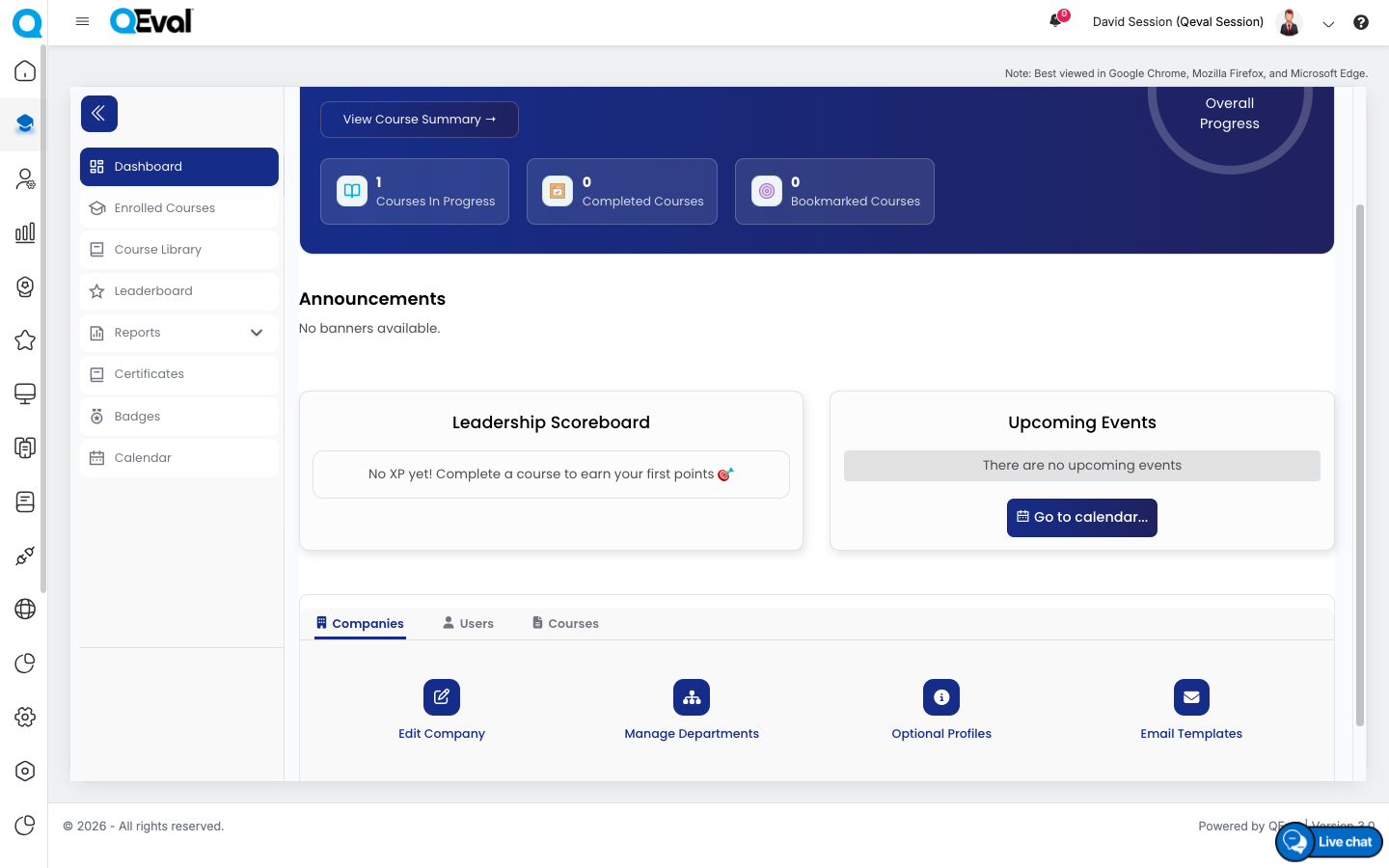
Administrator View
Learner
Learners can access available learning resources and monitor their learning activities.
Key capabilities include:
- Accessing enrolled courses and available learning resources.
- Completing assigned learning activities.
- Tracking course completion and overall learning progress.
- Viewing certificates and badges.
- Accessing learning reports and the leaderboard.
- Viewing upcoming learning events through the calendar.
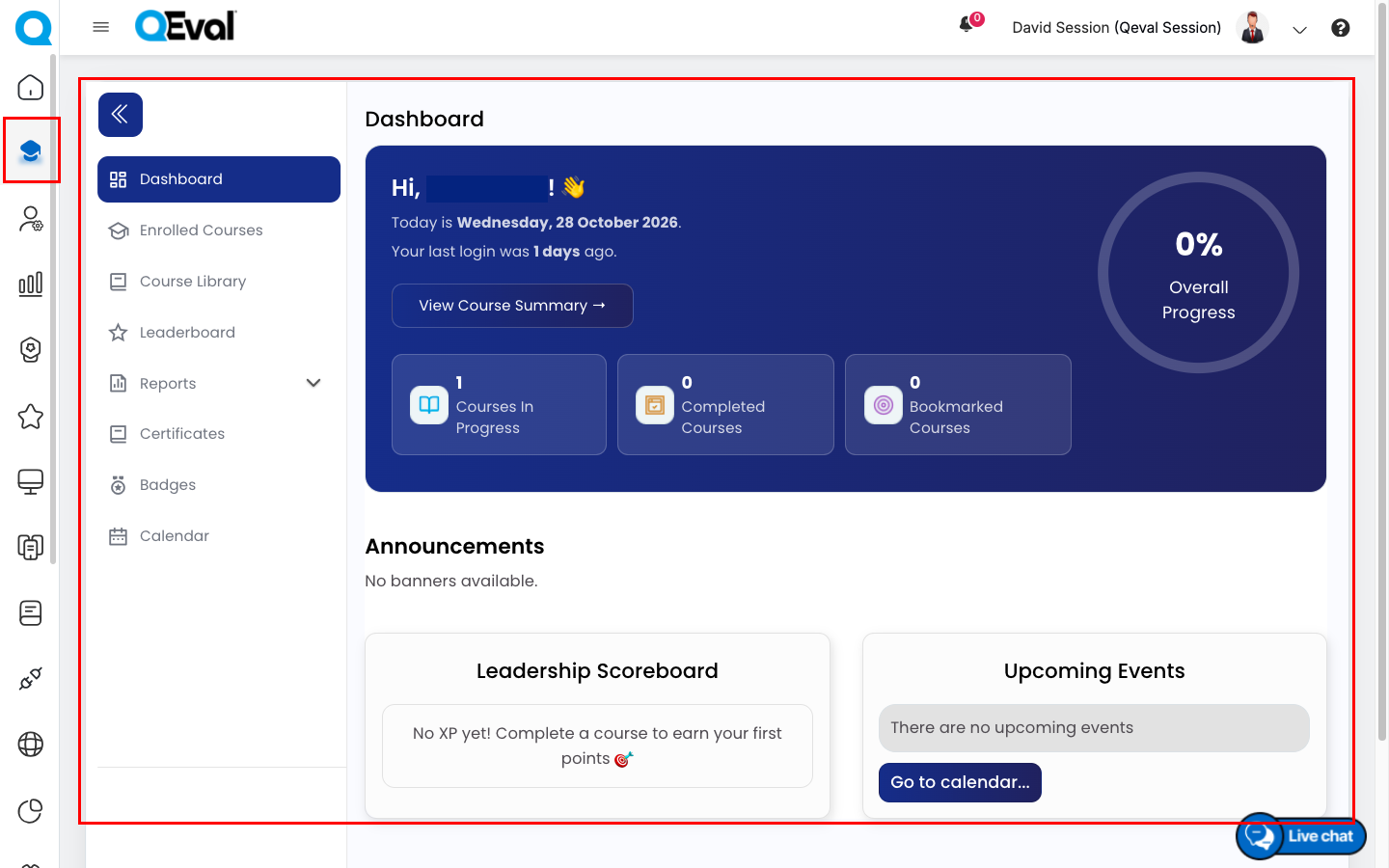
Learner View
For more information, refer to Learning Hub – Learner Guide.
Video