Table of Contents
- Overview
- Accessing the QEval Login Portal
- QEval Login Console
- Login Methods
- Multi-Factor Authentication (MFA)
- First-Time Login (New Users)
- Forgot Password
- Admin Password Reset
- Setting Security Questions
- Password Policy
- Important Notes
Overview
The login process enables registered users to securely access the QEval platform. The QEval login interface provides a modern, secure, and user-friendly experience with multiple authentication options, including Password, Magic Link, and Single Sign-On (SSO), depending on your organization’s configuration.
In this article, you will learn how to:
- Log in using the available authentication methods.
- Complete the first-time login setup.
- Set or reset your password.
- Configure or update your security questions.
Accessing the QEval Login Portal
To access the QEval application, open your preferred web browser and visit the assigned QEval URL shared with you.
Depending on your environment, this may be a variation such as https://app.qevalpro.com or https://ai.qevalpro.com.
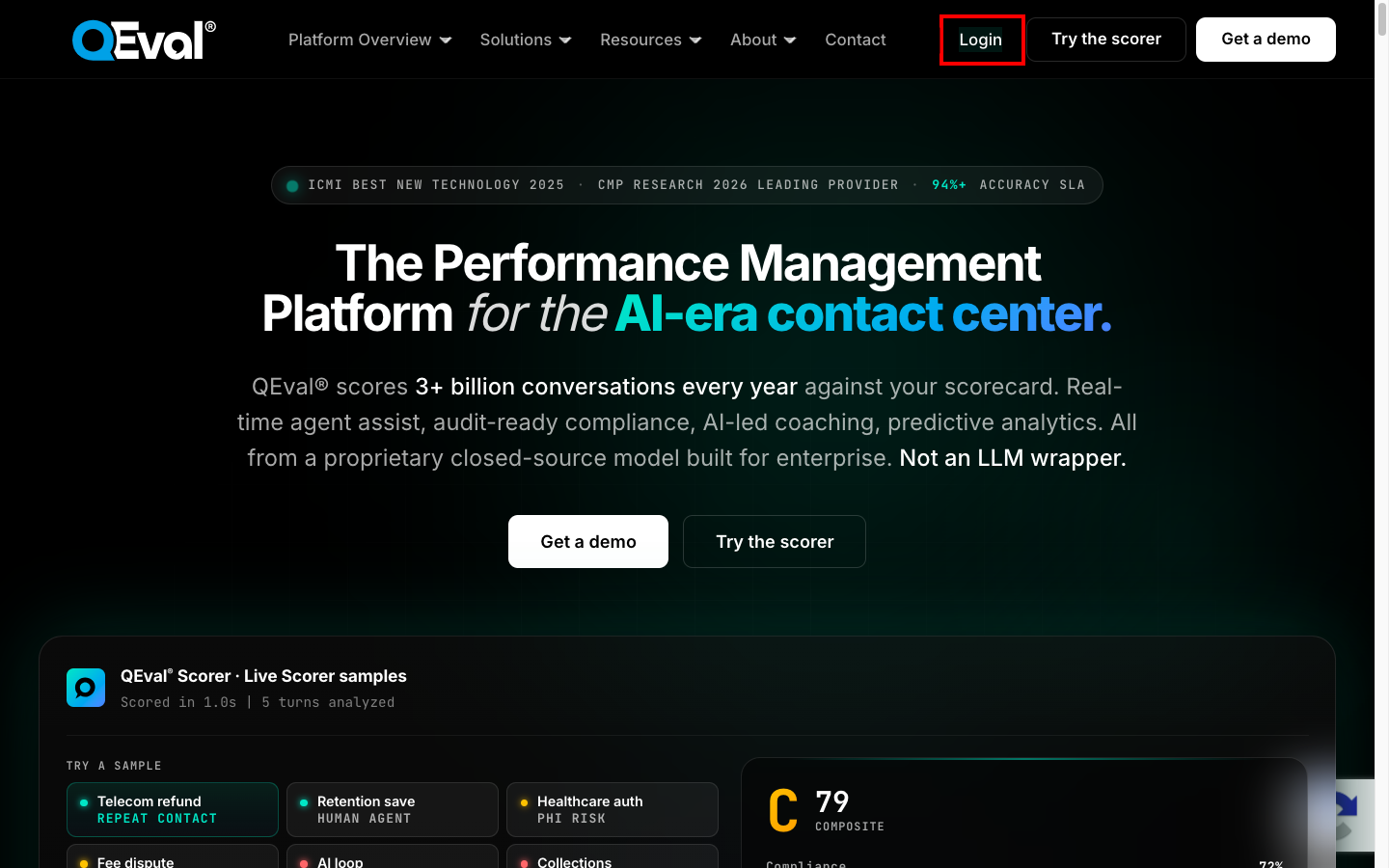
https://qeval.ai/
After opening your assigned URL (for example, https://qeval.ai/), click the Login button as displayed on the screen above.
A new tab will open, directing authorized users to the QEval login Console Page, where user can securely log in and access the portal as described below.
QEval Login Console Page
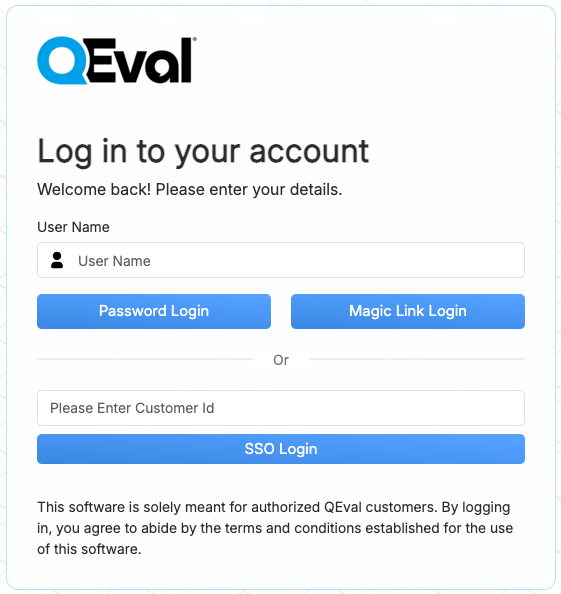
The login console is designed for a faster, cleaner, and more intuitive experience.
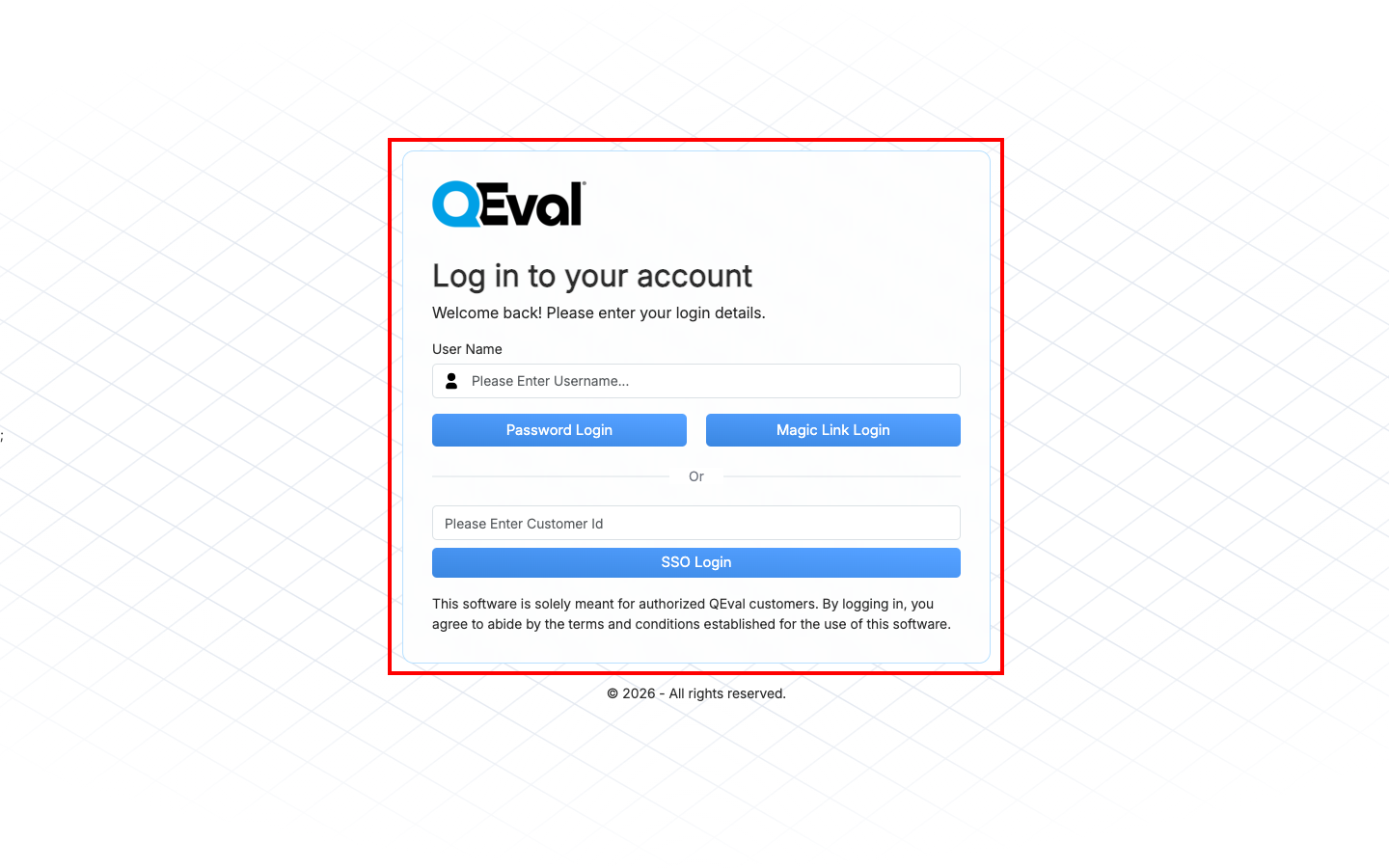
QEval Login Console Page
You will see the following fields and options:
- User Name – Enter your registered QEval username.
- Password Login – Log in using your password.
- Magic Link Login – Access your account using a secure login link sent directly to your registered email.
- SSO Login – Access using your organization’s Single Sign-On credentials.
Note: Only authorized QEval users can access this platform.
Login Methods
1. Password Login
Use this option if you have a valid username and password.
Steps:
- Enter your Username in the text box.
- Click Password Login.
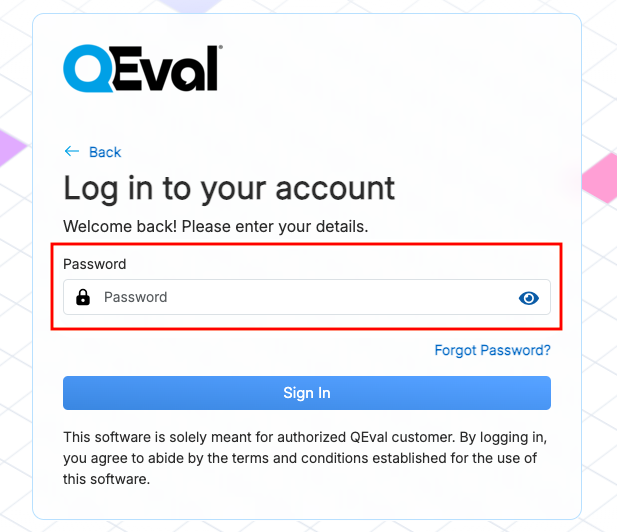
Enter password
- Enter your Password in the password field.
- Click Sign In to access your dashboard.
Enter Password Page
You will be securely logged into your QEval account.
2. Magic Link Login
This new feature allows you to log in without entering your password.
Steps:
- Enter your Username.
- Click on Magic Link Login.
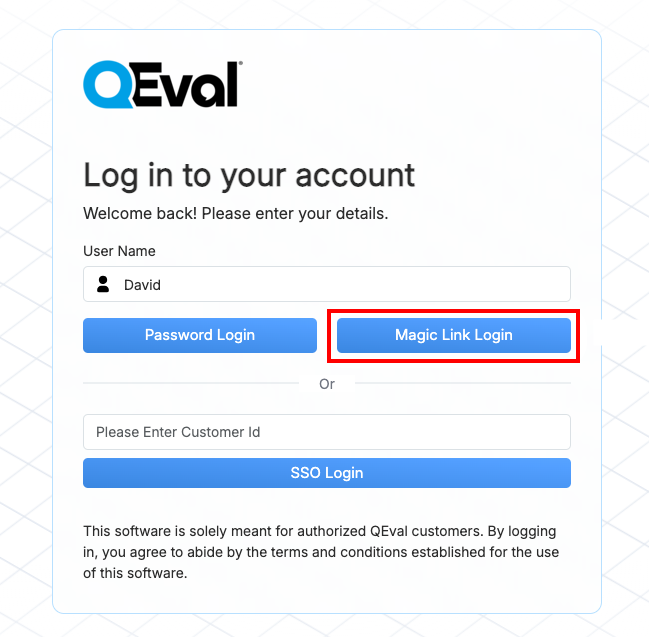
Magic Link Login Button
-
An Acknowledgement message appears: “If that user is in our database, we will send a link to you an email.”
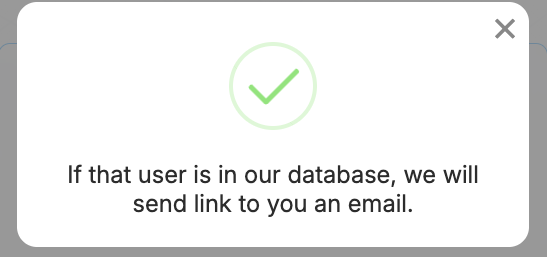
Confirmation Message
-
Check your registered email inbox – Click the Magic Link to log in instantly.
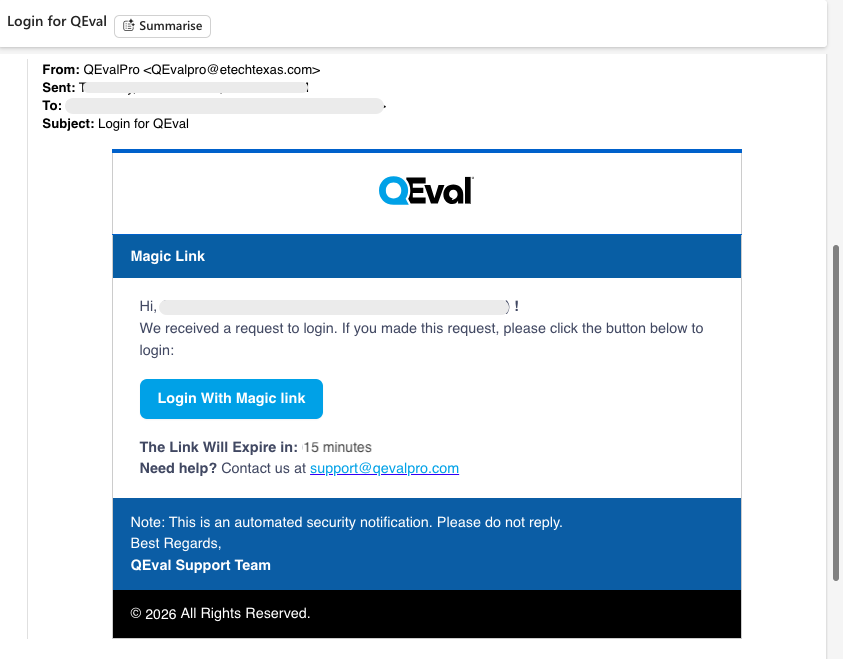
Magic link
Once authenticated, you’ll be redirected to your QEval dashboard.
Tip: Magic Link are available only for users with valid registered email addresses and Expire in 15 minutes.
3. Single Sign-On (SSO) Login
Users can securely log in and seamlessly access the QEval portal using the Single Sign-On (SSO) option. The QEval Support Team configures and provides a Customer ID to each user based on the client’s requirements.
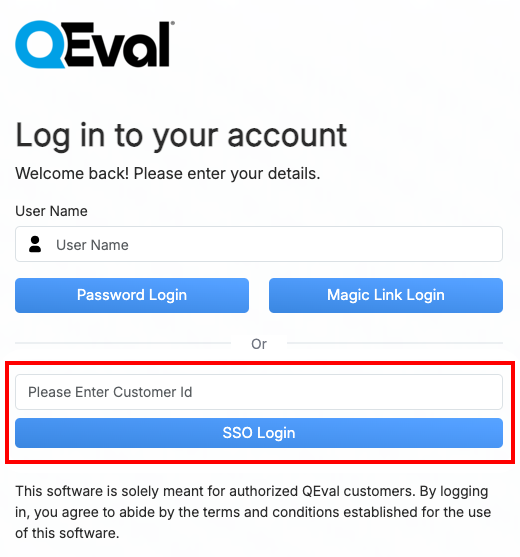
SSO Login
The system will authenticate the entered customer ID and will be redirected to the Secure Login page. Here the user can enter their valid credentials to access the portal, ensuring a seamless and secure Single Sign-On (SSO) experience.
Note: For assistance or to request a new Customer ID, please refer to the Contact Us section to connect with the QEval Support Team.
Multi-Factor Authentication (MFA)
Multi-Factor Authentication (MFA) is a security measure that requires users to verify their identity using two or more authentication methods before accessing a system, account, or application. This adds an additional layer of protection beyond the traditional password, reducing the risk of unauthorized access.
If MFA is enabled for a specific user role in QEval, users will be required to complete two-step verification:
- Login using QEval account credentials — either User ID and Password or Magic Link.
- Enter the One-Time Password (OTP) sent to the registered email address to complete authentication.
Note: For additional information, please refer to the Multi-Factor Authentication (MFA) page.
First-Time Login (New Users)
If you are a newly created user, you will receive a Setup Link via email to complete your initial login process.
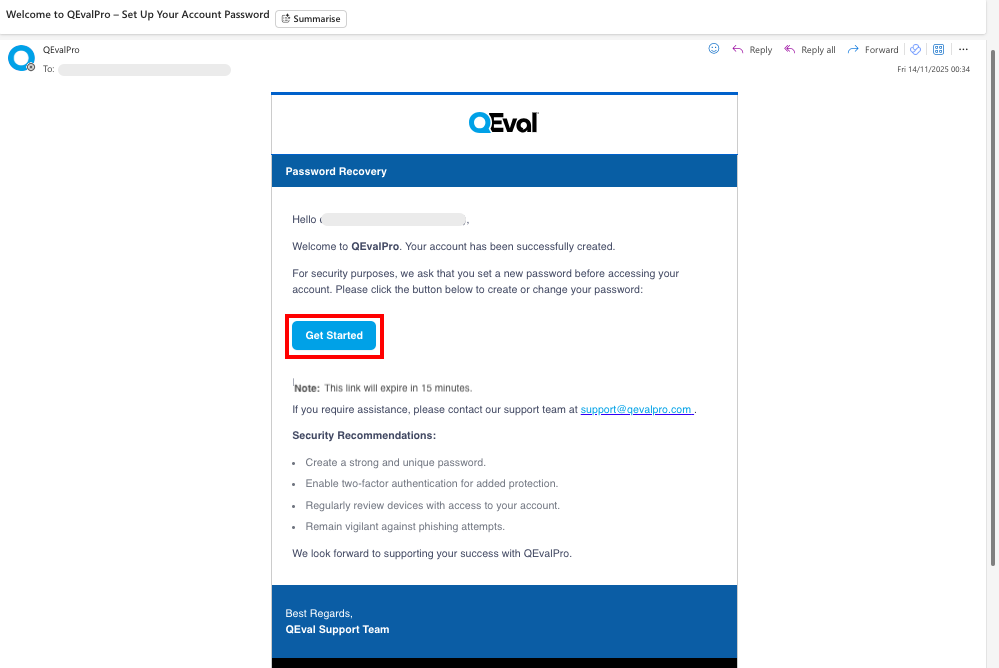
- Click the Get Started Button to open the Change Password page.
- Enter and confirm your new password, then save it.
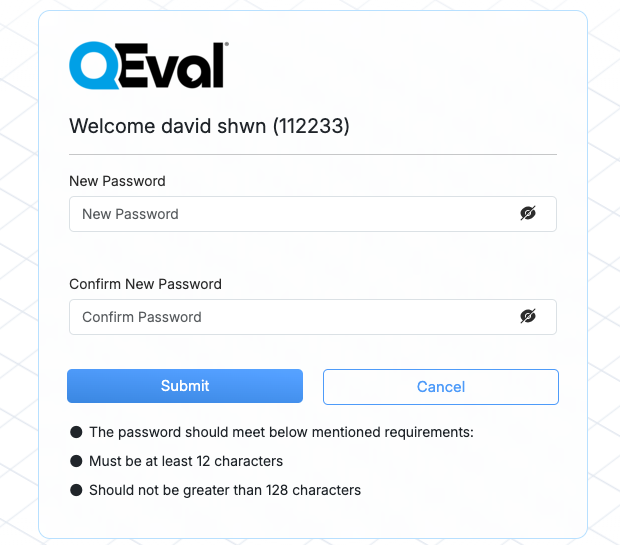
- You will be redirected back to the Login Page.
- Log in using your username and new password.
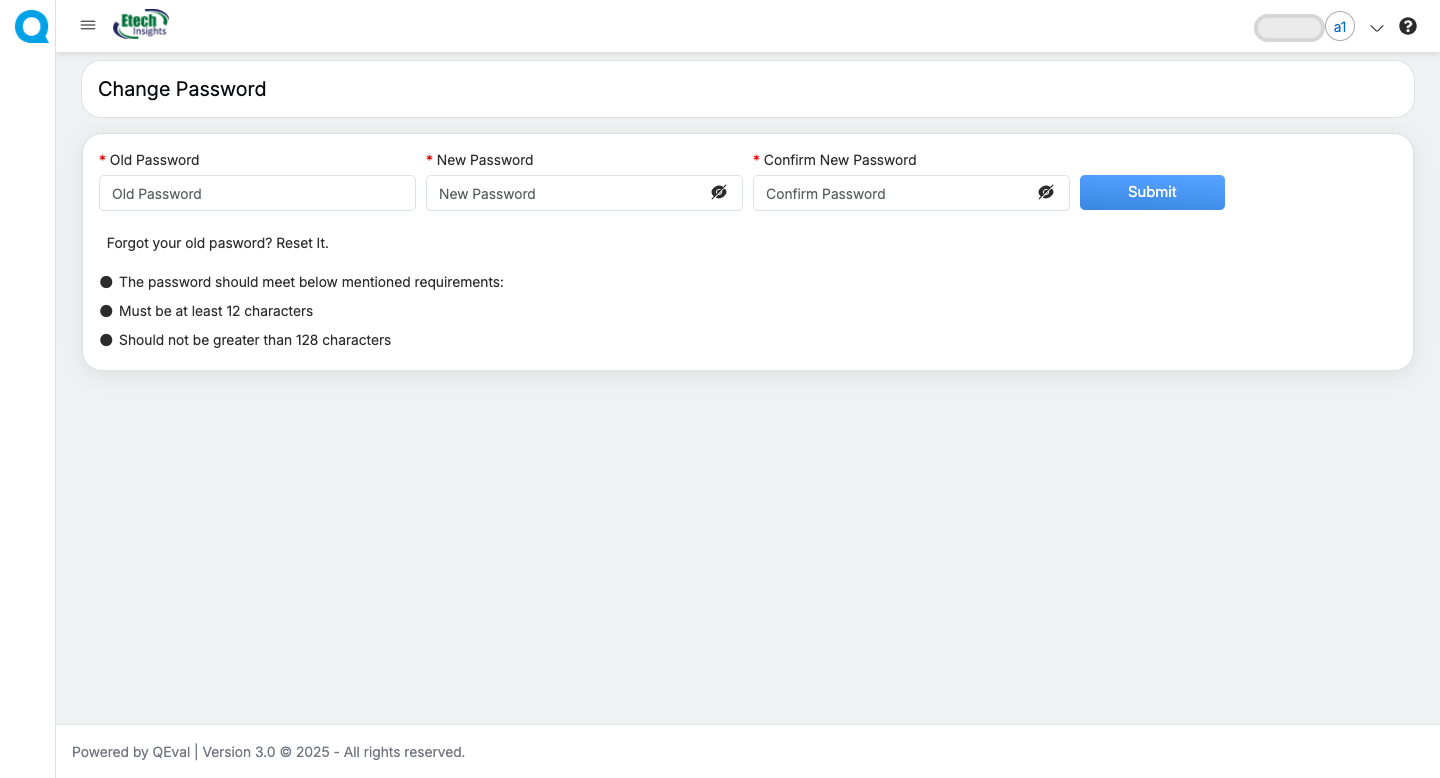
If in case, Admin provides either a temporary password to help you access your account. user can follow the below steps.
-
If you receive a temporary password, go to the login page, enter the User name provided and the temporary password, then log in. After logging in, you’ll be prompted to Change and set a new password for your account as shown below. Create and save your new password, after which you’ll be redirected back to the Login Page to sign in with your updated credentials.
Forgot Password
If you forgot your password, you can reset it directly from the login screen.
Steps:
-
Enter your Username and click on Password login.
Login page
-
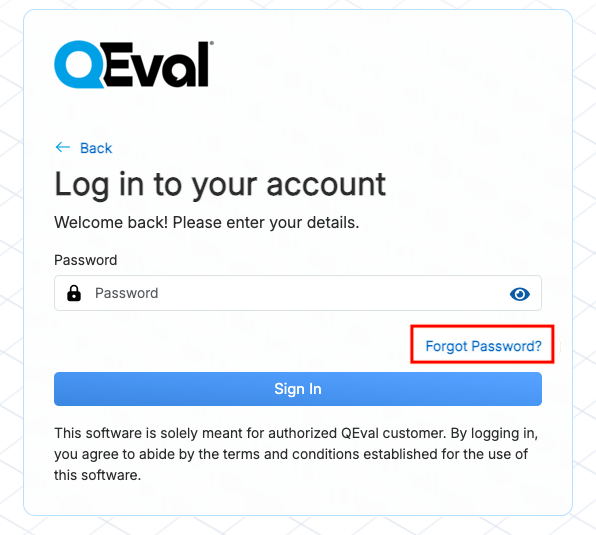
Click on the Forgot Password link.
Forgot Password button
- Choose one of the reset methods:
1) Send Reset Link
Click Send Reset Link to send a password reset link to your registered email address.
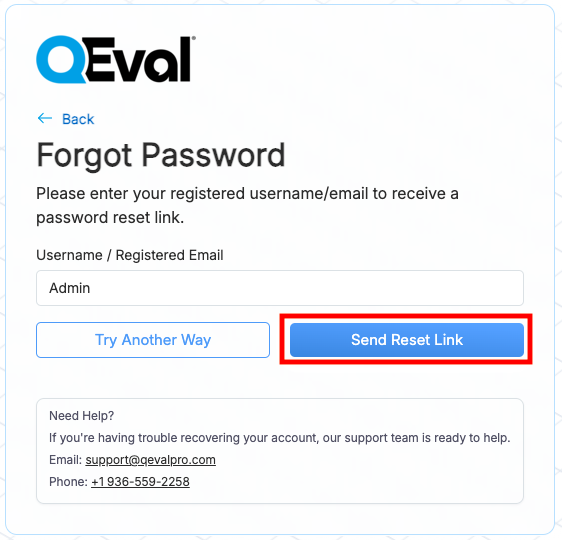
Send Reset Link button
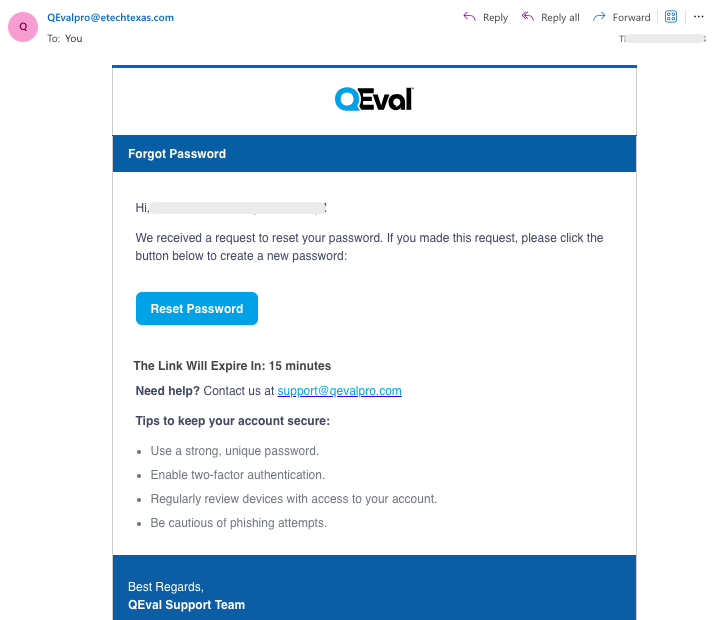
Password reset link
You can use Reset Password link to securely access the password reset page and create a new password for your account as shown below.
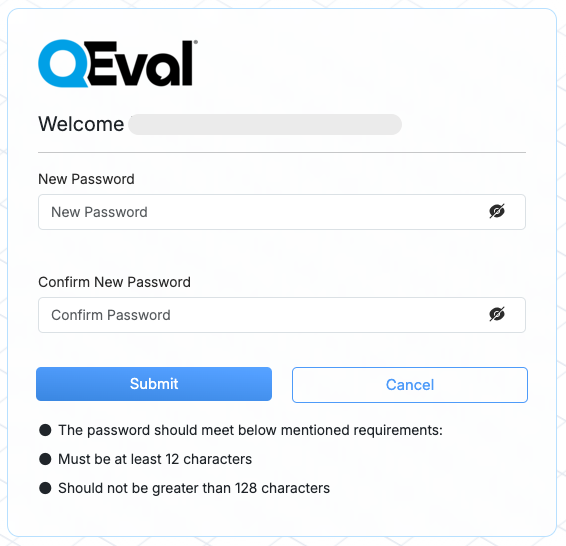
Password Reset Page
Resend Expired Password Reset Link
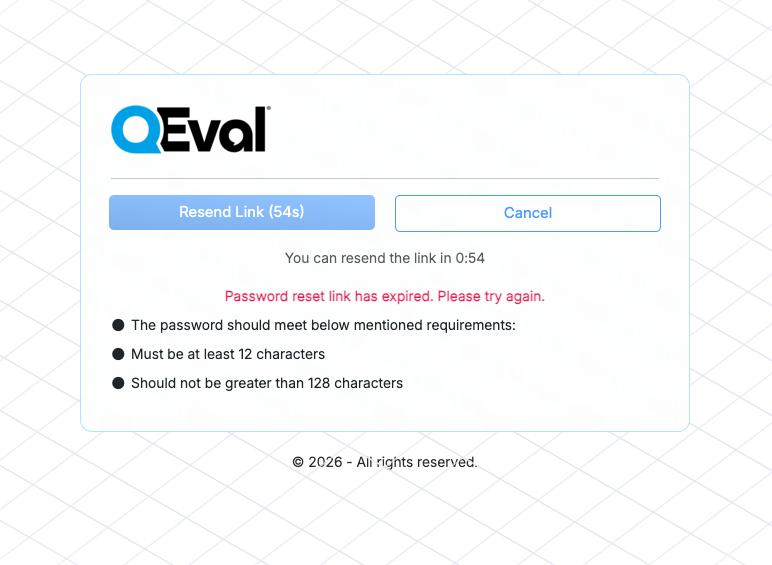
If you open a password reset link after it has expired, the Password Reset Link Expired page is displayed. Click Resend Link, as shown below, to request a new password reset link without restarting the password recovery process.
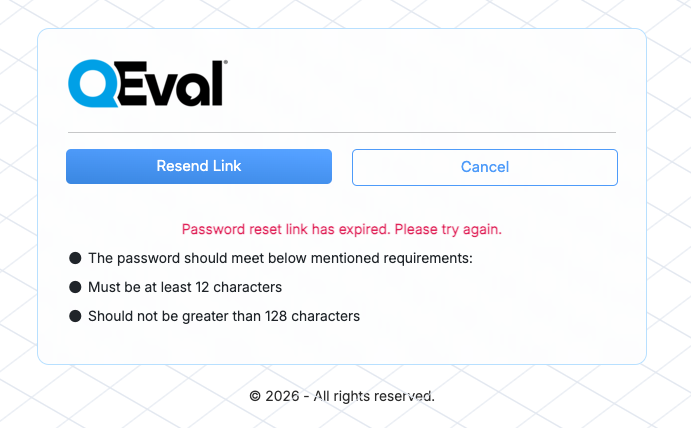
Resend Request Limits
To enhance security and prevent misuse, the following limits apply when requesting a new password reset link:
- After clicking Send Reset Link or Resend Link, the Resend Link button is disabled for 60 seconds. A countdown timer is displayed, and the button becomes available again once the cooldown period expires.
- Users can request a maximum of five password reset links within a one-hour period. If this limit is reached, additional resend requests are blocked until the one-hour window resets.
2) Try Another Way
Click on Try Another Way, then choose one of the available options — either Answer Your Secret Question or Get a Temporary Password sent to your registered POC email.
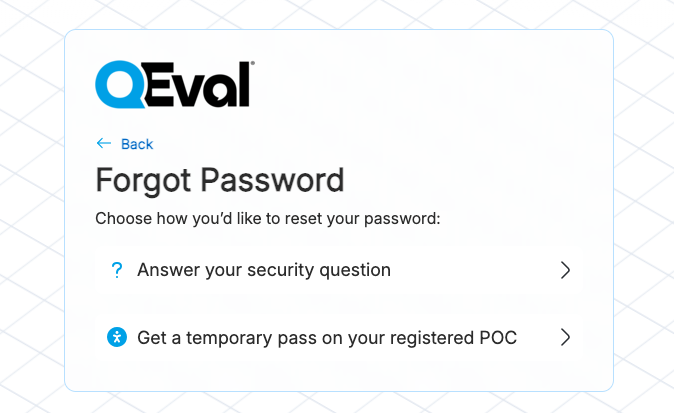
- If the user selects “Answer Your Security Question”: Choose this option to reset your password by answering your configured security question and completing the CAPTCHA.
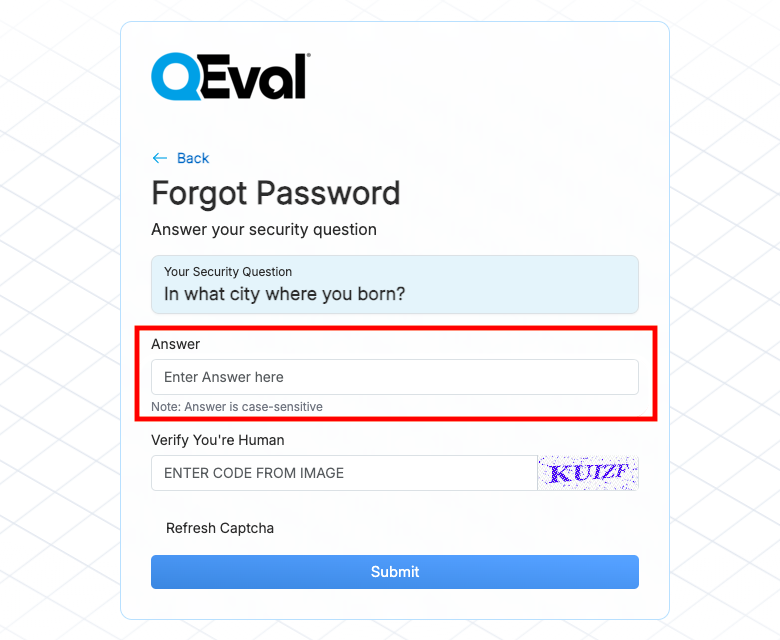
Below your Security Question, Enter the correct answer in the provided field, complete the CAPTCHA, and click Submit.
Once authenticated, You’ll then be redirected to the Reset Password page, where you can set a new password.
Password Reset Page
Once your new password is successfully created, you can log in again to access your QEval Dashboard.
- If User Selects Get a Temporary Password sent to your registered POC. A reset request will be sent to your POC.
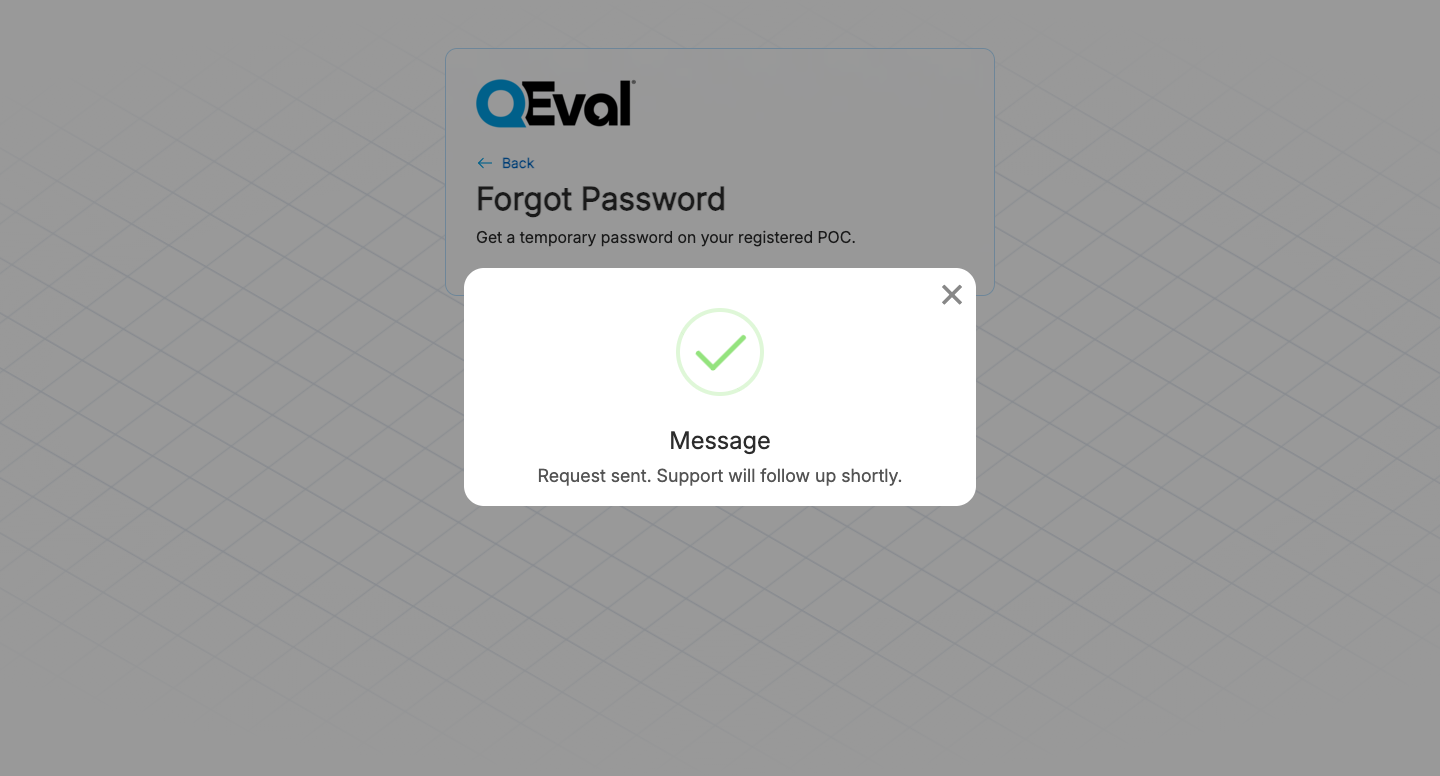
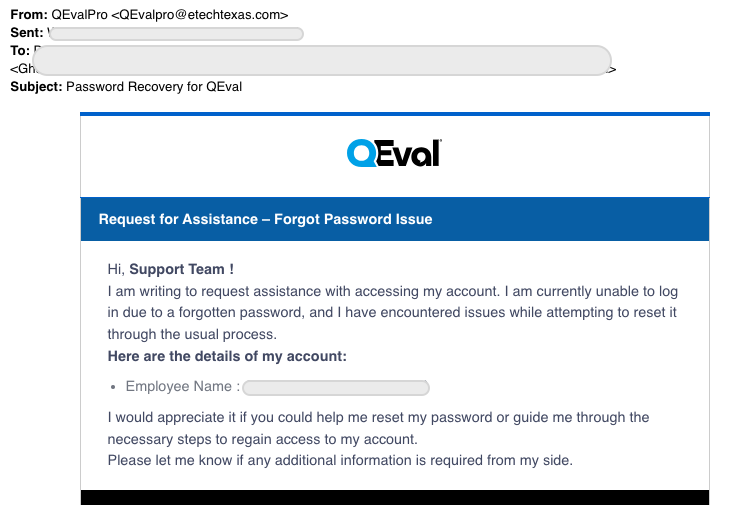
Once you reset or receive your temporary password, log in again and set your new password.
Admin Password Reset
1. After logging in, the Admin should navigate to the Manage Users section.
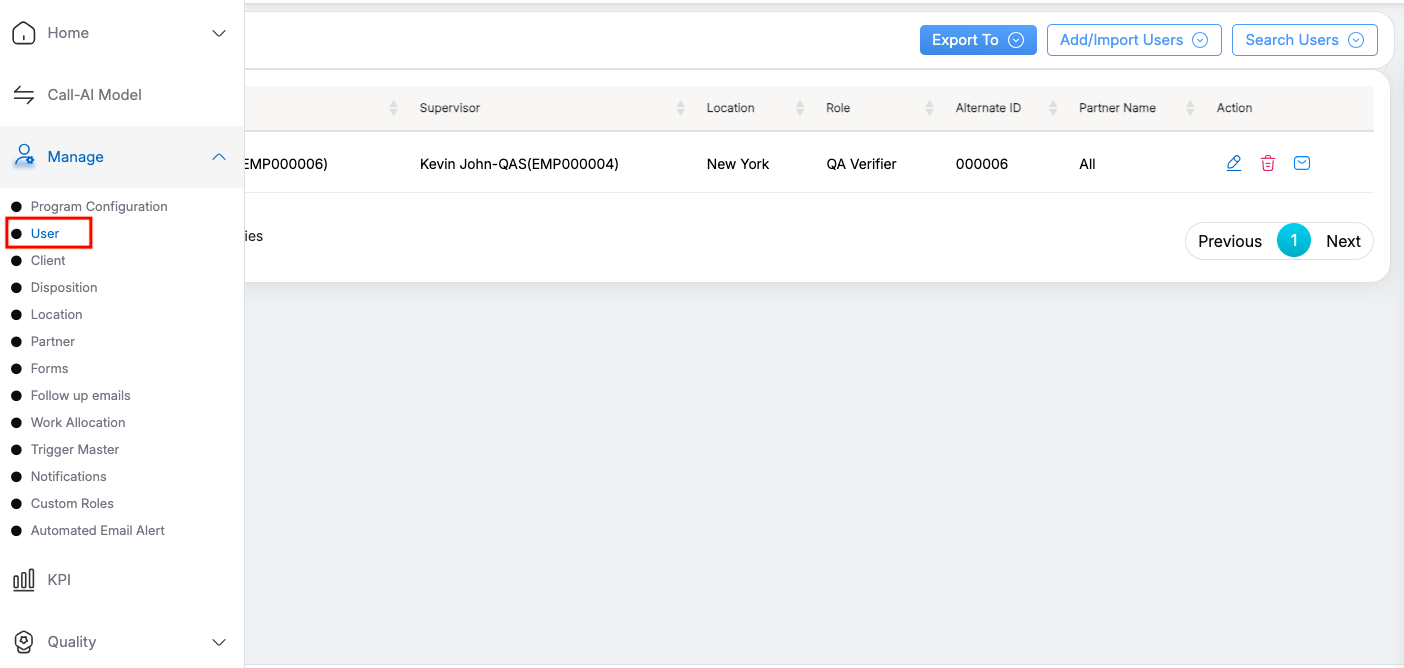
Navigate to Manage User Page
- Search for the specific user whose password needs to be reset.
- In the Action column next to the user, you will find three options — Edit User, Delete User, and a Email icon.
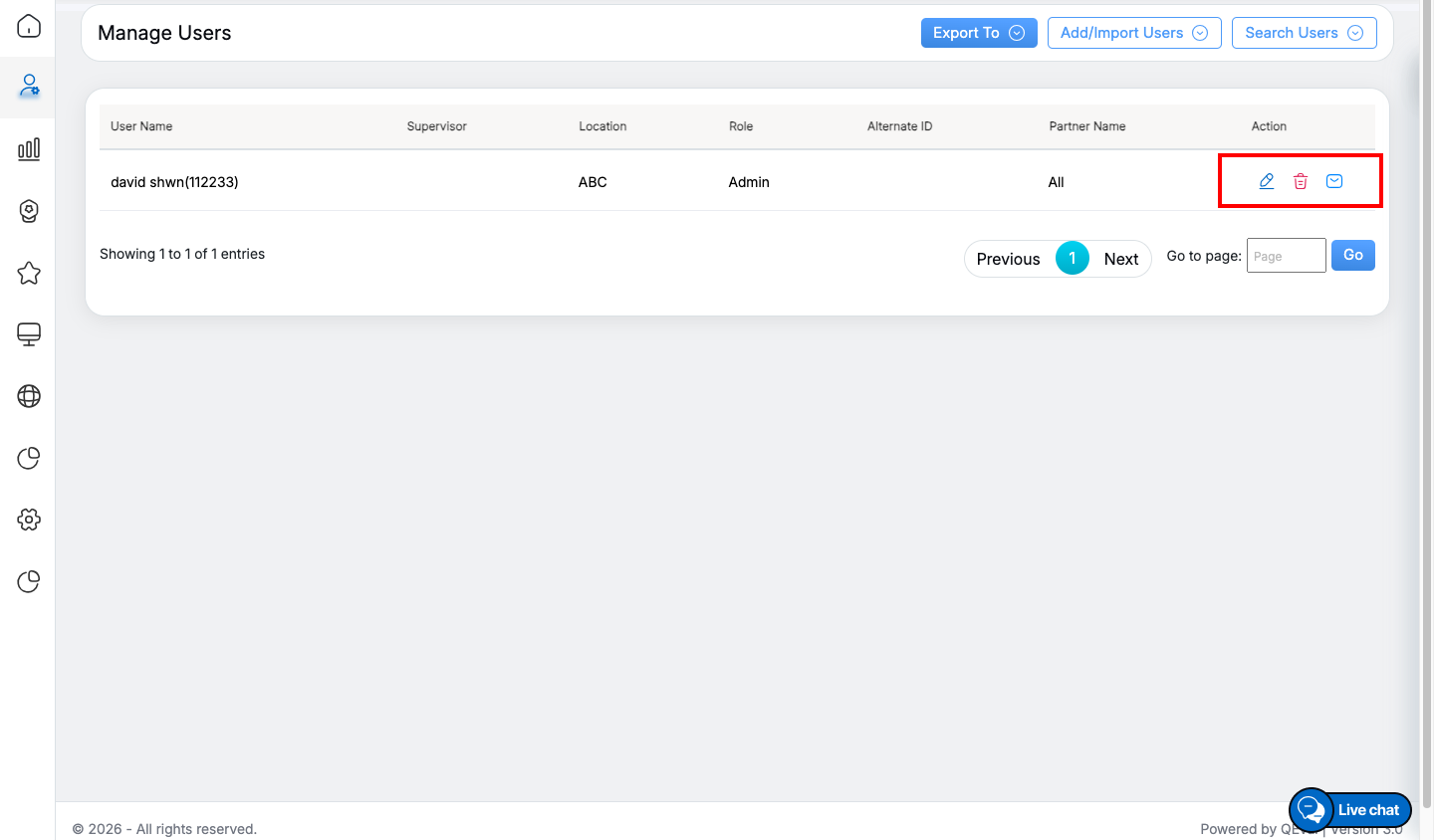
Action Button
-
Click the Email icon to send a Password Reset Link to the user.
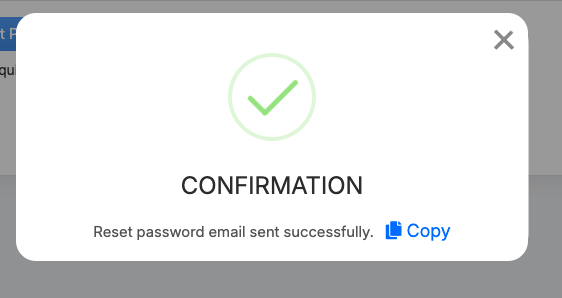
Confirmation Pop-up
- The user will receive the reset link via email as shown below.
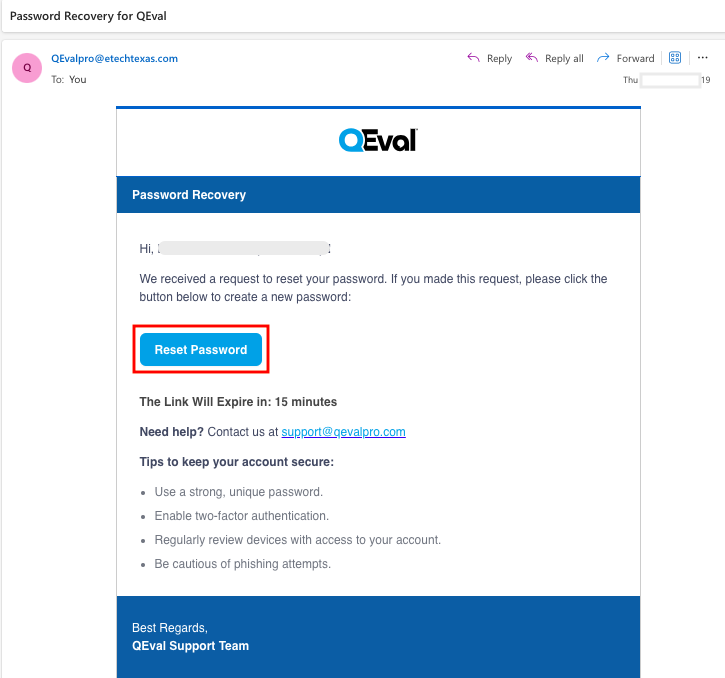
Password reset link
- Upon clicking the link, the user can set and save a new password for their account as shown below.
Enter New Password
2. Alternatively, the Admin can reset a user’s password through the Settings tab:
-
Navigate to the Settings tab and search for the username whose password needs to be reset.
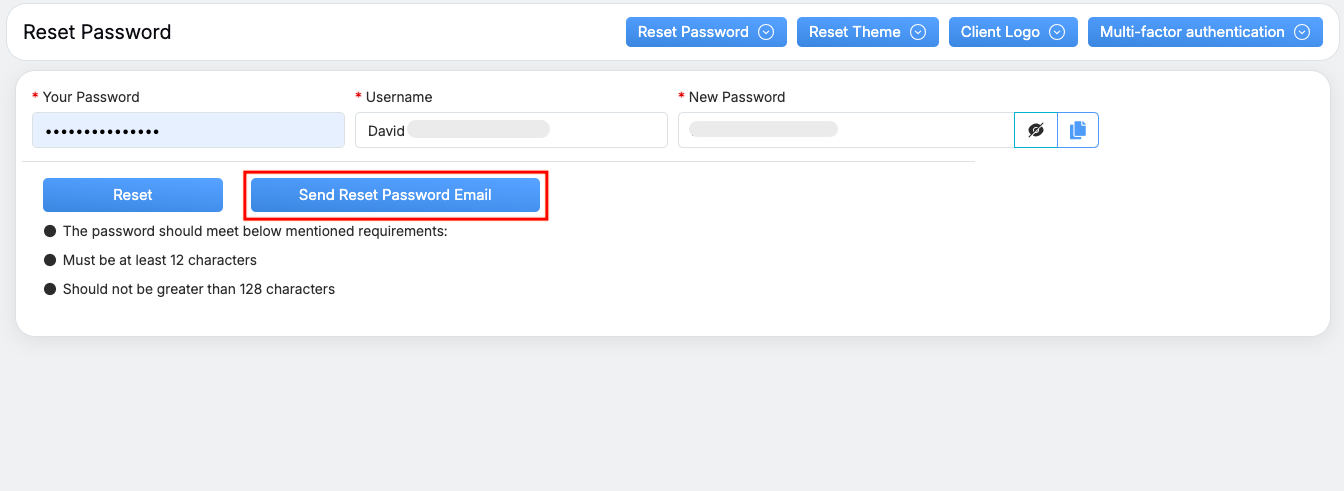
Reset Password
-
Click on the Send Reset Password Email button as highlighted above — a Password Reset Link will be sent to the user’s registered email address.
Confirmation Popup
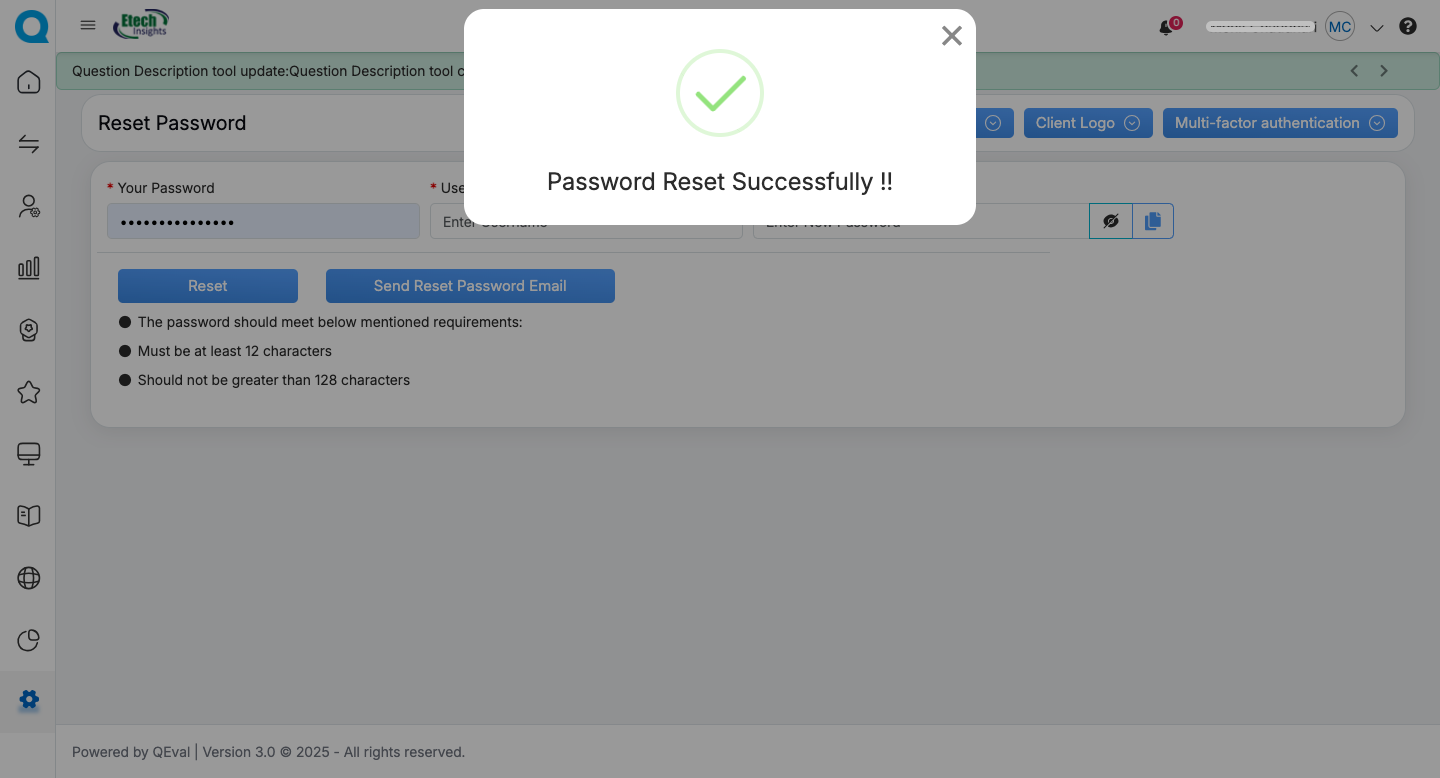
- The admin can also manually reset a user’s password by entering the username, setting a new password, copying it, and clicking the Reset button as shown below. The admin may then share this temporary password with the user, who can log in using it and will be prompted to create a new password on their next login.
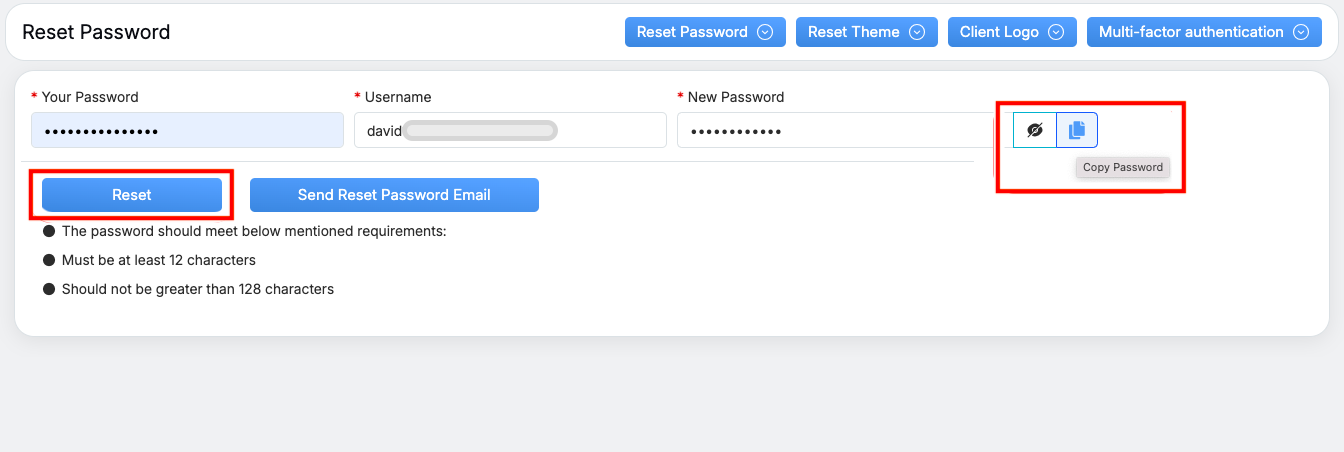
Reset Password
Setting Security Questions
To enhance account security, users can set or update their Security Questions from their profile.
Steps:
-
Log in to QEval using your assigned credentials. Then, click the drop-down arrow in the top-right corner next to your name and select View Profile as shown below.
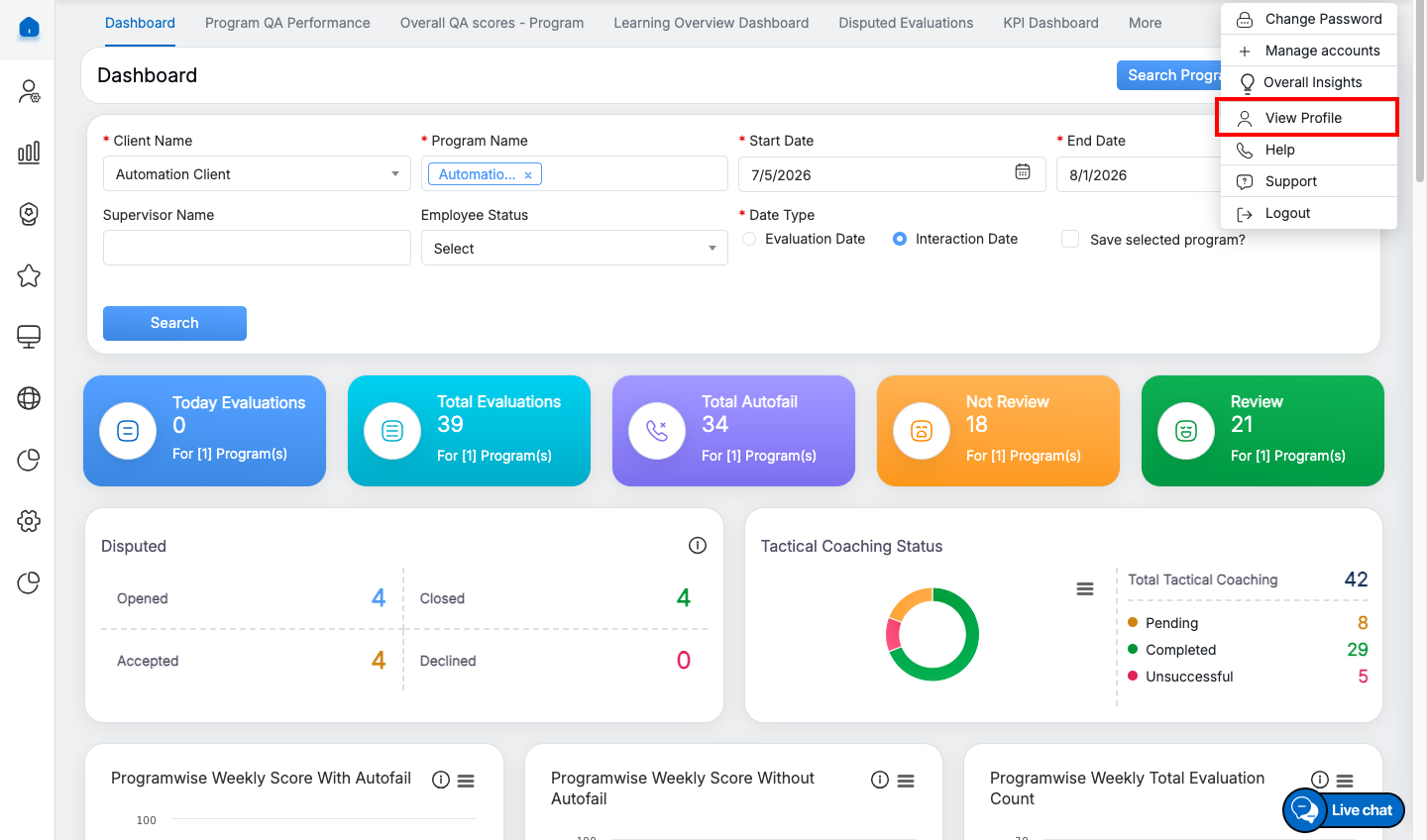
View Profile
- Clicking View Profile opens the My Profile page. From there, navigate to My Profile → Set Security Question.
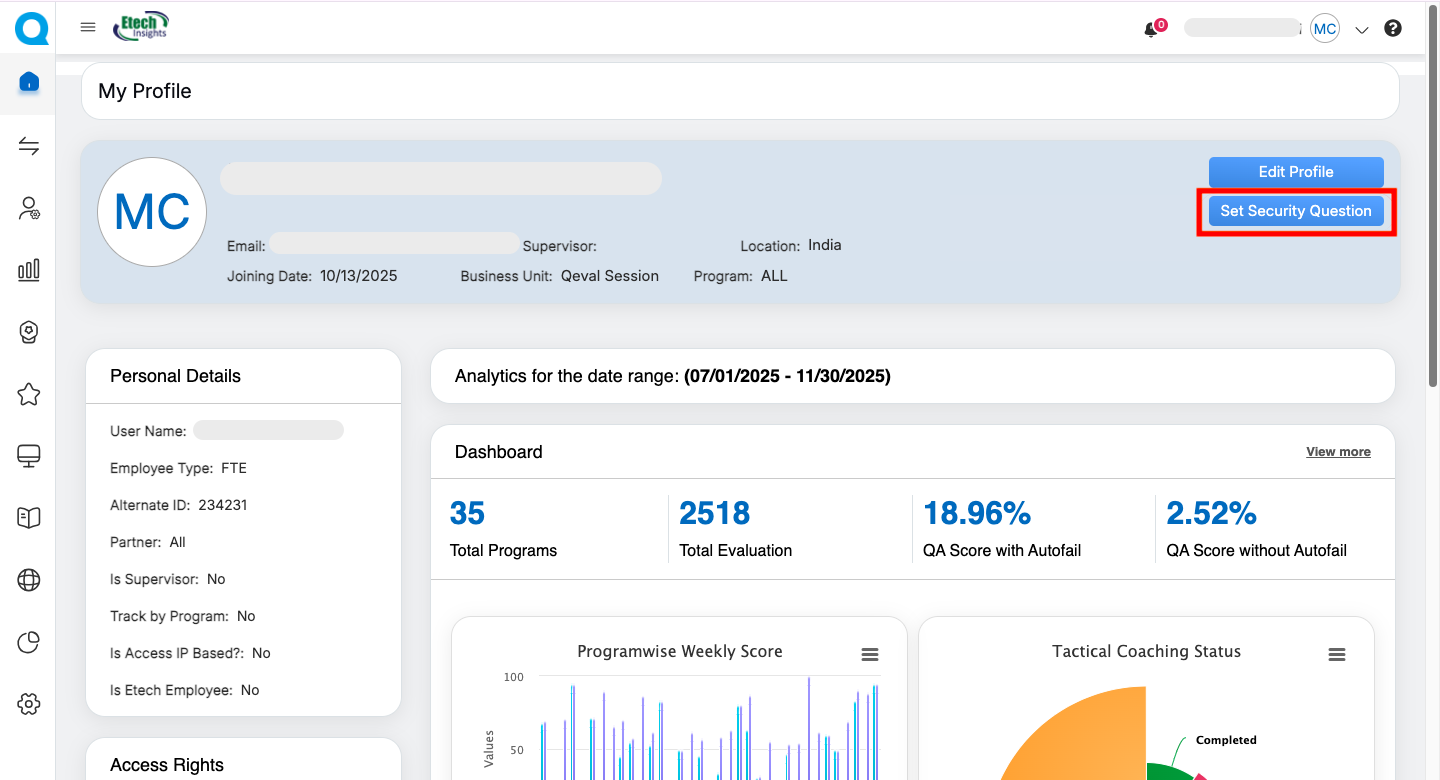
My Profile
-
Enter Password, Choose your question from the dropdown and Enter your answer and Click Submit.
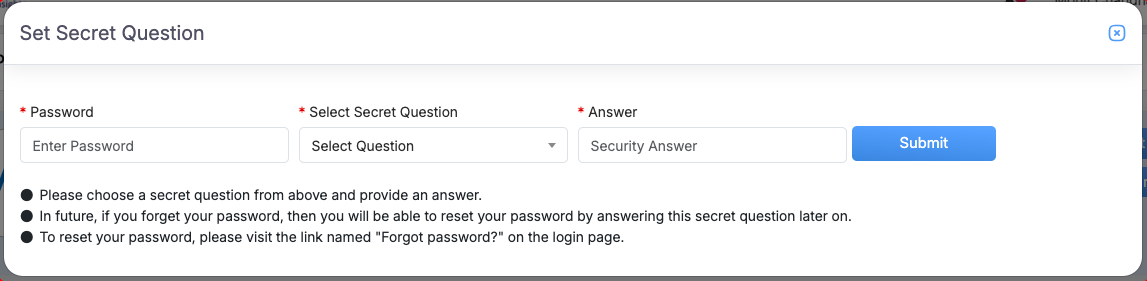
Set Secret Question
-
An acknowledgment message will confirm successful setup.
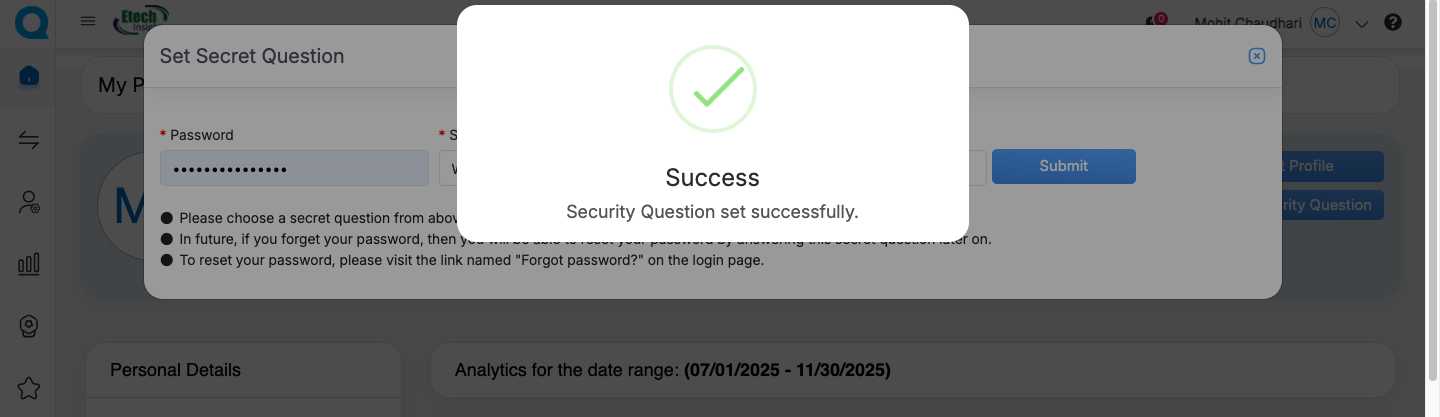
Note : Setting security questions helps during password recovery.
Password Policy
- Temporary passwords are auto-generated for new users.
- Passwords must meet QEval’s minimum security criteria.
- Magic Links are available only for users with a registered email address and expire within 15 minutes of issuance.
Important Notes
- Security questions are optional during the initial setup.
- Admins can reset passwords for dummy email accounts if needed.
- The new QEval login experience enhances usability, flexibility, and security for all users.
You can now choose between Password, Magic Link, or SSO methods for a smoother, more secure sign-in process.
Video