Table of Contents
Introduction
The Preview Evaluation Form feature allows you to view the evaluation form as it will appear to the evaluator. This helps you review the form and make any necessary changes before it is used.
To preview an evaluation form:
- Open the Design View of the required evaluation form.
- Click the Preview Evaluation Form link located in the top-right corner of the page.
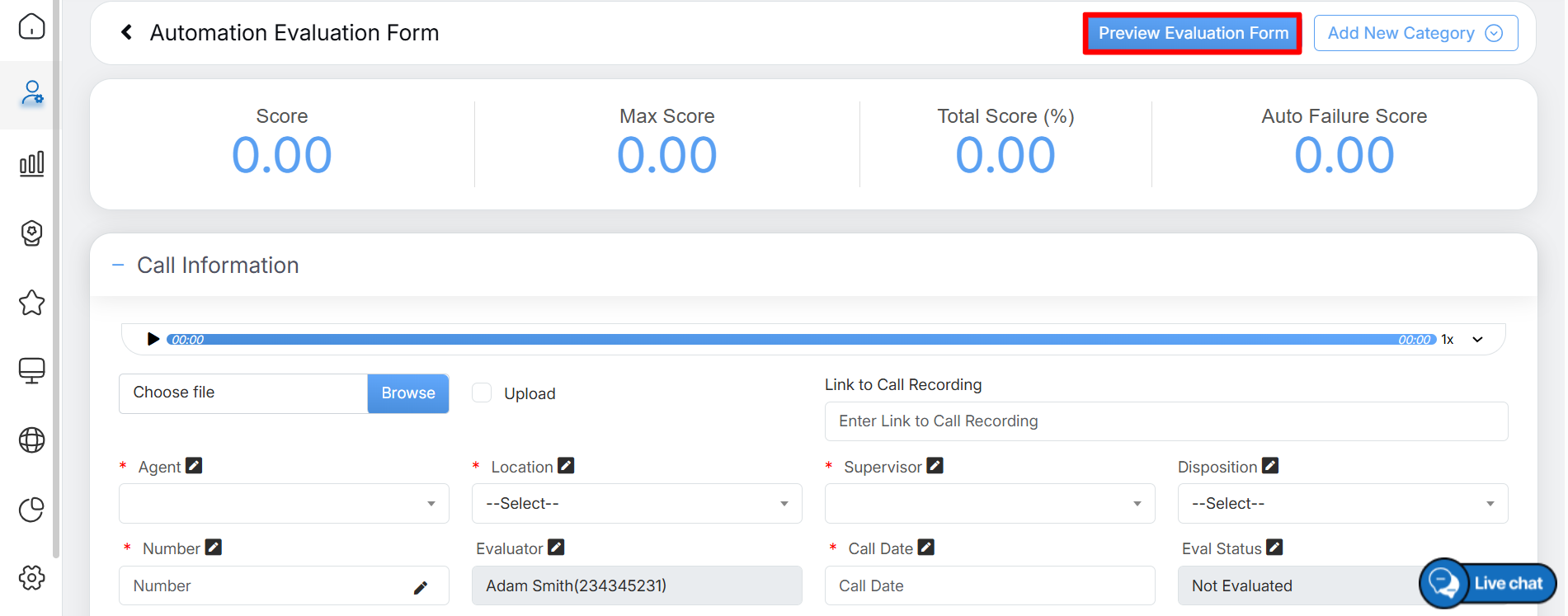
Preview Evaluation Form
The following screen appears.
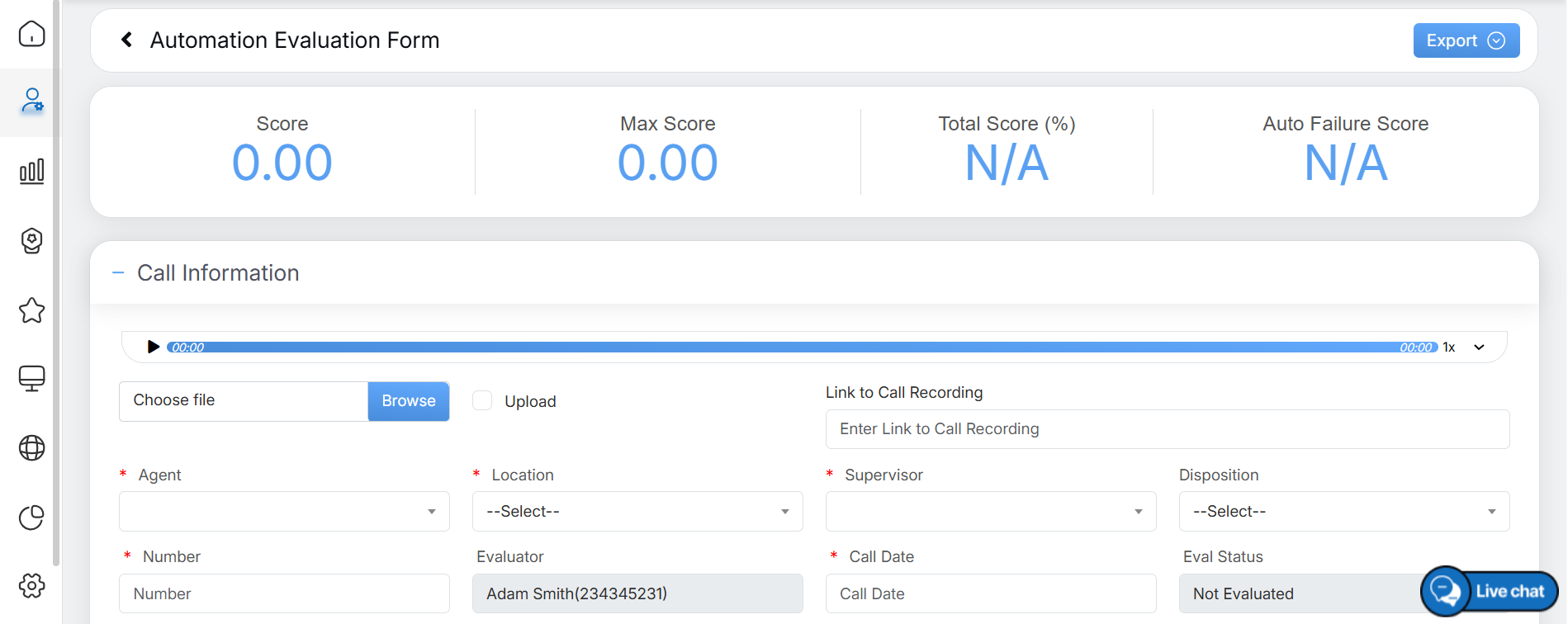
Preview Details
The Preview Evaluation Form screen displays two categories and their associated questions.
The preview includes the following types of categories:
- Default Category – Displays either Call Information or Chat Information, depending on whether the form type is Voice or Chat.
- Custom Categories – Displays all user-created categories.
For scorable categories, the preview also displays the score achieved for each category, as shown in the image below.
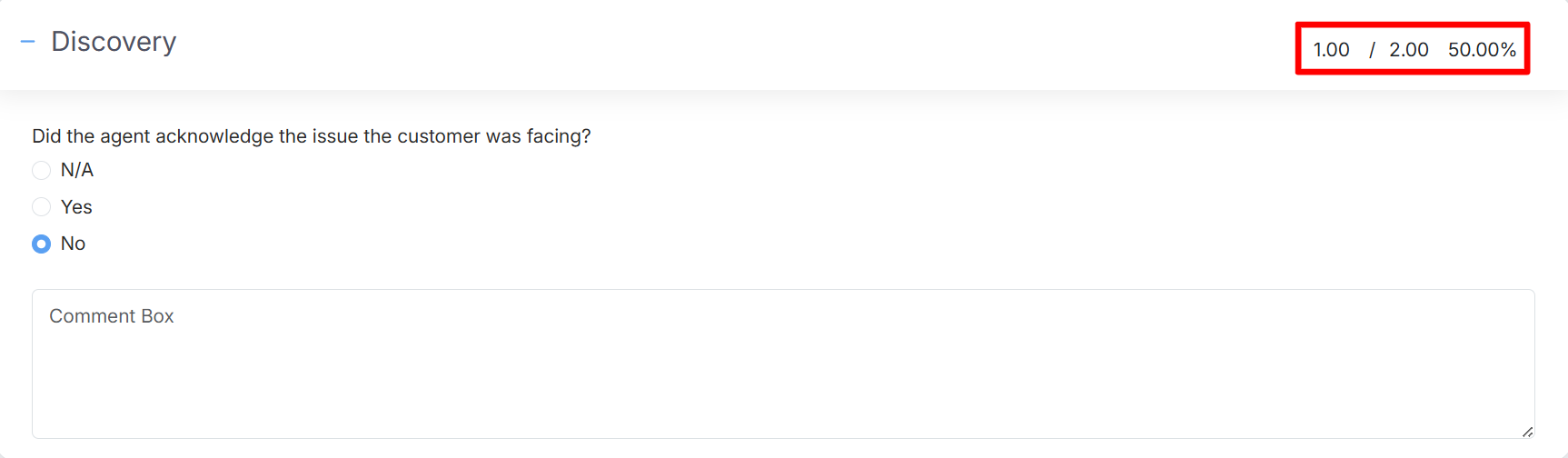
Scorable Categories
For example, in the screen above, the Discovery category displays a score of 1.00/2.00 because it is a scorable category. This indicates that 50% of the total score has been achieved, as the selected answer for the first question (Getting It) carries a weight of 50.
Similarly, for each scorable category, the score is calculated based on the question weightage, and the total score for that category is displayed accordingly.
Based on the scores calculated for the evaluation form, the panel at the top of the Preview Evaluation Form page displays the following information:
- Score: Displays the total score obtained.
- Max Score: Displays the maximum score achieved in the evaluation form.
- Total Score (%): Displays the overall score as a percentage.
- Auto Failure Score: Displays the score deducted due to any auto-failure conditions triggered in the evaluation form.
After completing the evaluation, the evaluator can perform any of the following actions, depending on the requirement.
- Click Submit to save and submit the completed evaluation form.
- Click Cancel to discard the changes and exit the evaluation form without submitting it.
Video