Overview
The EtechRU Learning Hub provides learners with a centralized platform to access assigned courses, complete learning activities, and track their learning progress.
Through the QEval integration, learners can directly access the Learning Hub without requiring a separate login. The available learning features are displayed based on the permissions associated with their assigned Learner role.
Accessing the Learning Hub
Follow these steps to access the Learning Hub:
- Log in to the QEval platform using your credentials.
- Navigate to the Learning Hub option from the left navigation menu.
- Click Learning Hub to open the integrated learning environment.
- The system automatically authenticates your account and redirects you to the Learning Hub dashboard.
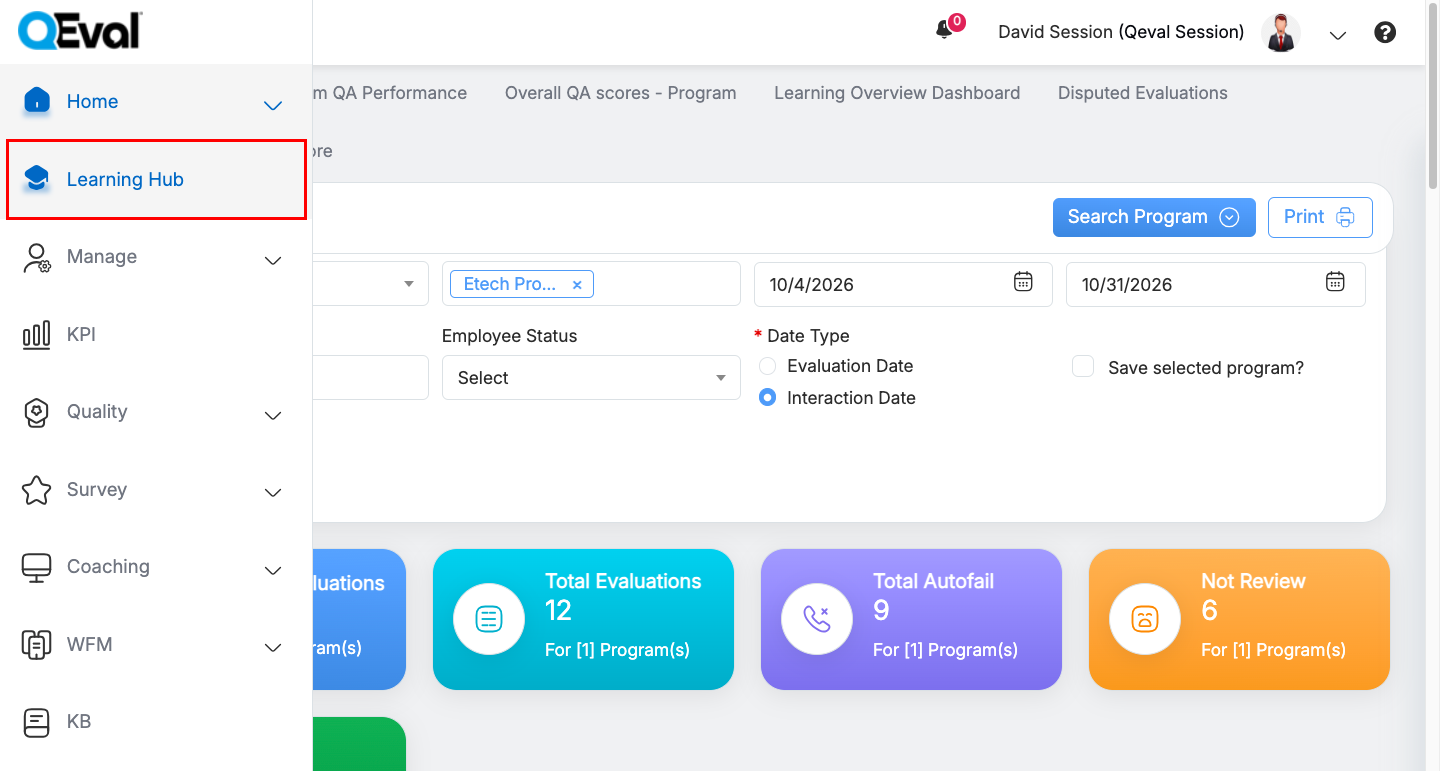
Learning Hub Navigation
Navigating the Learning Hub
The Learning Hub provides a dedicated navigation panel to access different learning sections.
The following options are available:
| Navigation Option | Description |
|---|---|
| Dashboard | Displays an overview of your learning activities, course progress, and upcoming learning events. |
| Enrolled Courses | Provides access to courses in progress, completed courses, and bookmarked courses. |
| Course Library | Provides access to the available course library. |
| Leaderboard | Displays the learning leaderboard and associated rankings. |
| Reports | Provides access to available learning reports. |
| Certificates | Provides access to earned course certificates. |
| Badges | Displays badges earned through learning activities. |
| Calendar | Provides access to the learning calendar and scheduled events. |
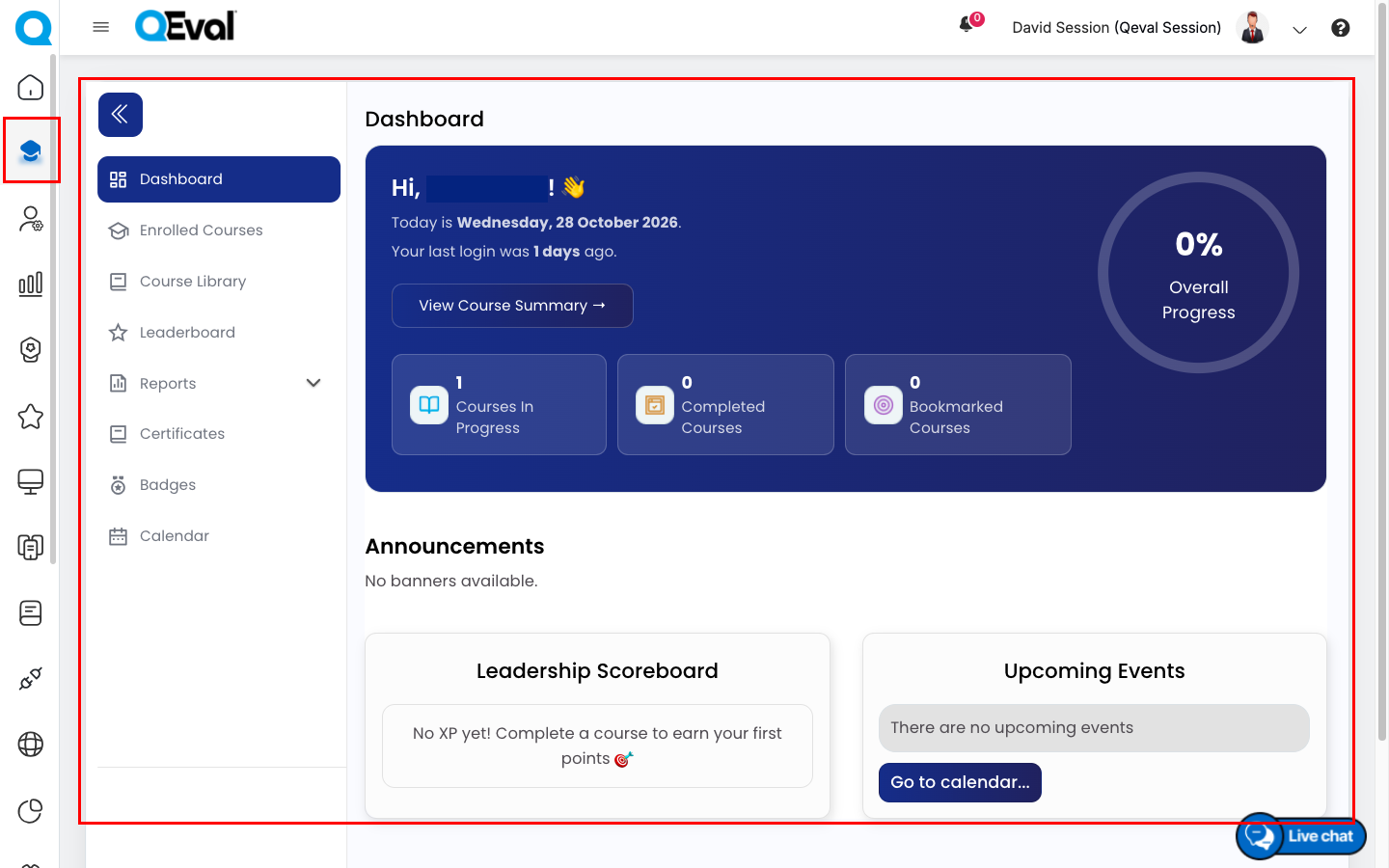
Learner View
1. Dashboard
The Dashboard provides an overview of your learning activities and progress in the Learning Hub.
It includes the following sections:
Overall Progress
Displays your overall learning progress as a percentage, providing a quick view of your learning activity.
Course Summary
The dashboard displays key course-related information, including:
- Courses in Progress: Displays the number of courses currently in progress.
- Completed Courses: Displays the number of courses you have completed.
- Bookmarked Courses: Displays the number of courses you have bookmarked.
Announcements
Displays learning-related announcements, when available.
Leadership Scoreboard
Displays the learning scoreboard and associated points. If no points have been earned, the dashboard displays a message encouraging you to complete a course.
Upcoming Events
Displays upcoming learning events, when available. You can use the Go to Calendar option to navigate to the learning calendar.
[Insert Screenshot: Learning Hub Dashboard showing Overall Progress, Course Summary, Announcements, Leadership Scoreboard, and Upcoming Events]
2. Enrolled Courses
The Enrolled Courses section allows you to browse and manage your enrolled learning courses.
To access this section:
- Navigate to Enrolled Courses from the Learning Hub navigation panel.
- The Learning Center displays your enrolled courses.
- Use the available course status filters to view courses based on their progress.
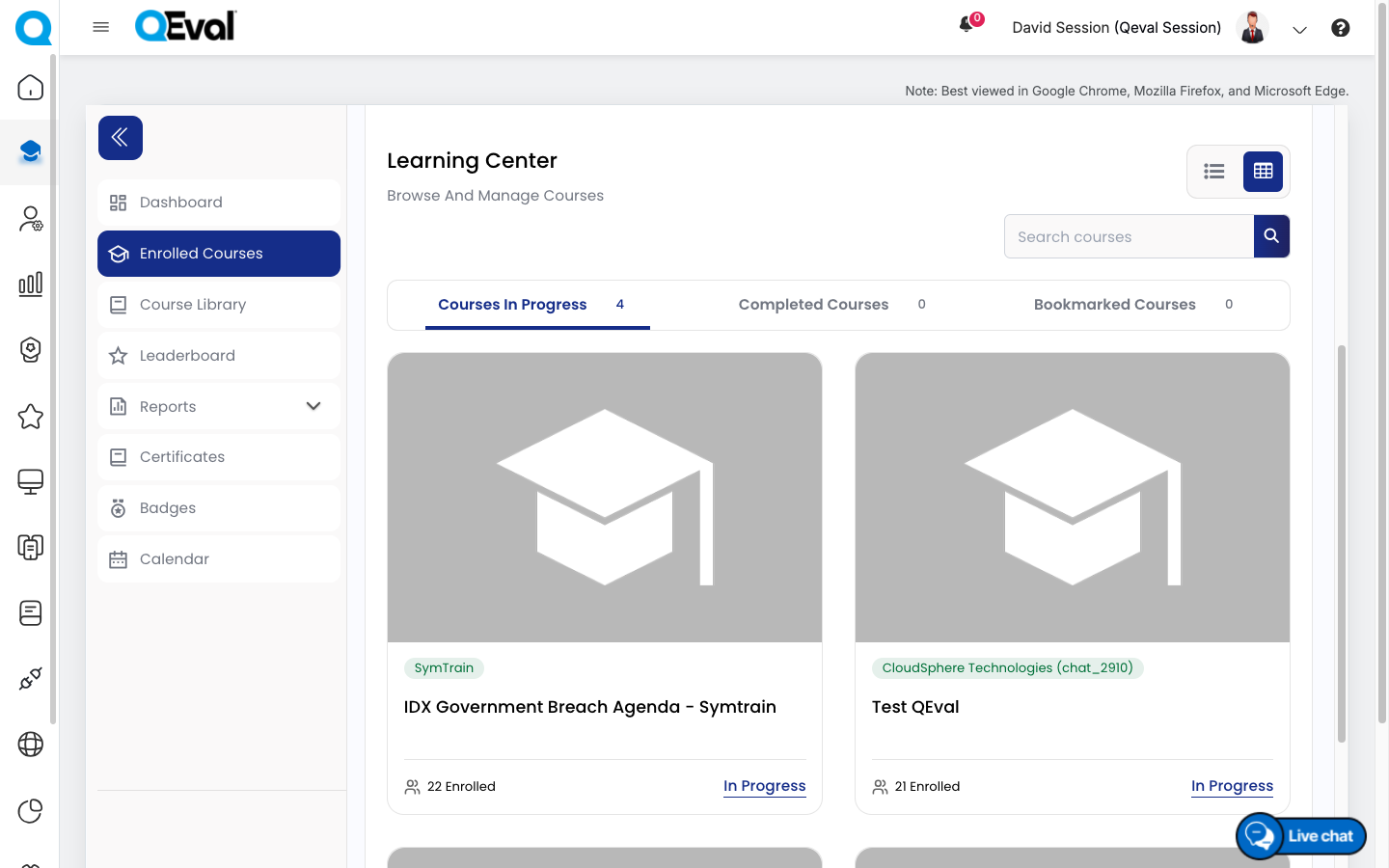
Enrolled Course
Course Status Filters
The Learning Center provides the following course categories:
- Courses in Progress: Displays courses that you have started but not yet completed.
- Completed Courses: Displays courses that you have successfully completed.
- Bookmarked Courses: Displays courses that you have bookmarked for future reference.
Search Courses
Use the Search Courses field to locate a specific course.
- Enter the course name in the search field.
- Use the search icon to find the matching course.
Change Course View
The Learning Center provides two display options:
- List View: Displays enrolled courses in a list format.
- Grid View: Displays enrolled courses as individual course cards.
Select the required view option to change how your courses are displayed.
Course Information
Each course card displays available course information, such as:
- Course thumbnail.
- Associated company or organization.
- Course name.
- Course completion percentage.
- Number of enrolled learners.
- Current course status.
Select the course’s In Progress option to access the course.
3. Course Library
The Course Library provides access to the available learning courses.
Navigate to Course Library from the navigation panel to explore the available learning resources.
Browse the available courses and access the relevant learning content based on your assigned permissions.
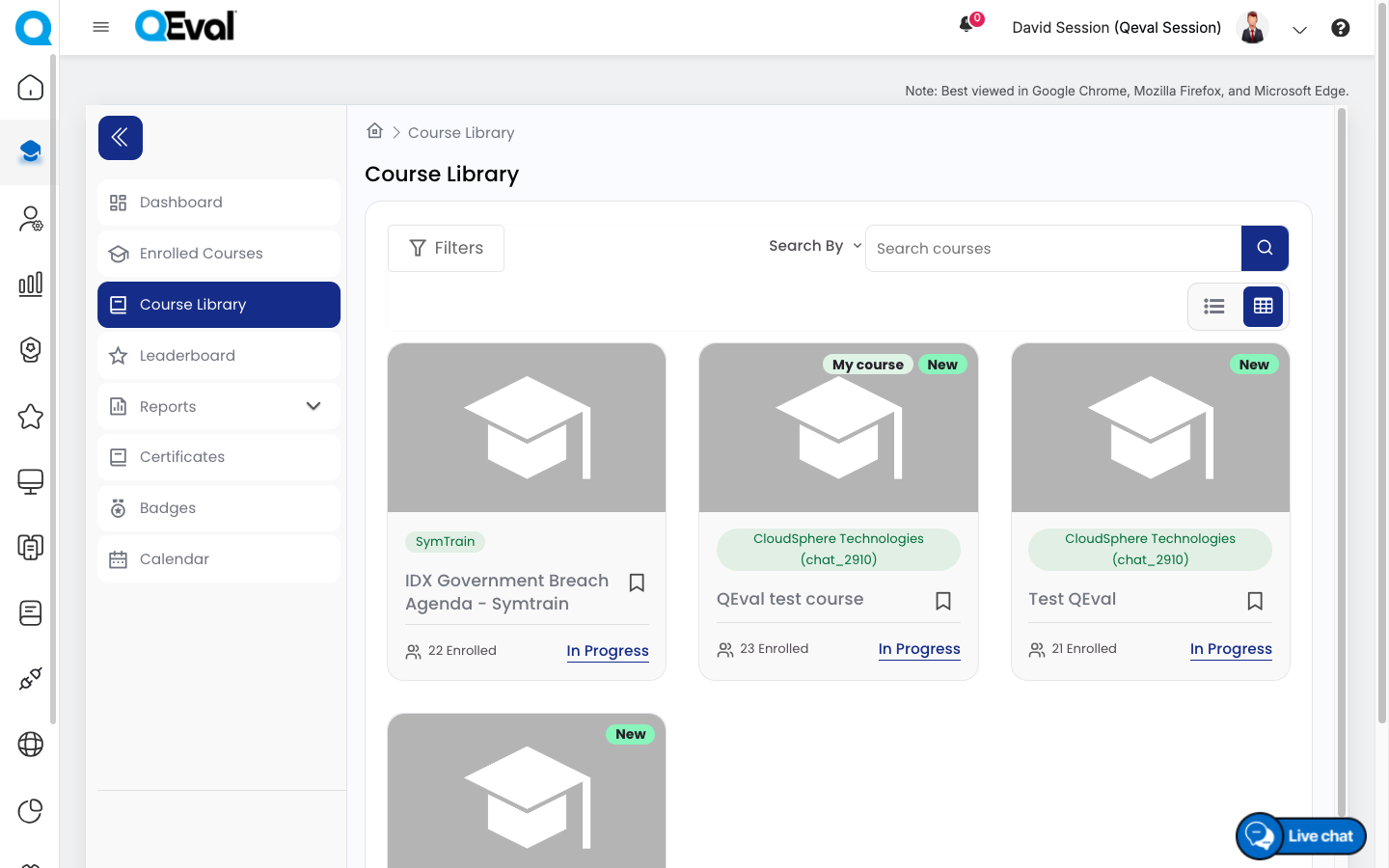
Course Library
4. Leaderboard
The Leaderboard provides visibility into learning-related rankings and performance.
Navigate to Leaderboard from the navigation panel to view the available leaderboard information.
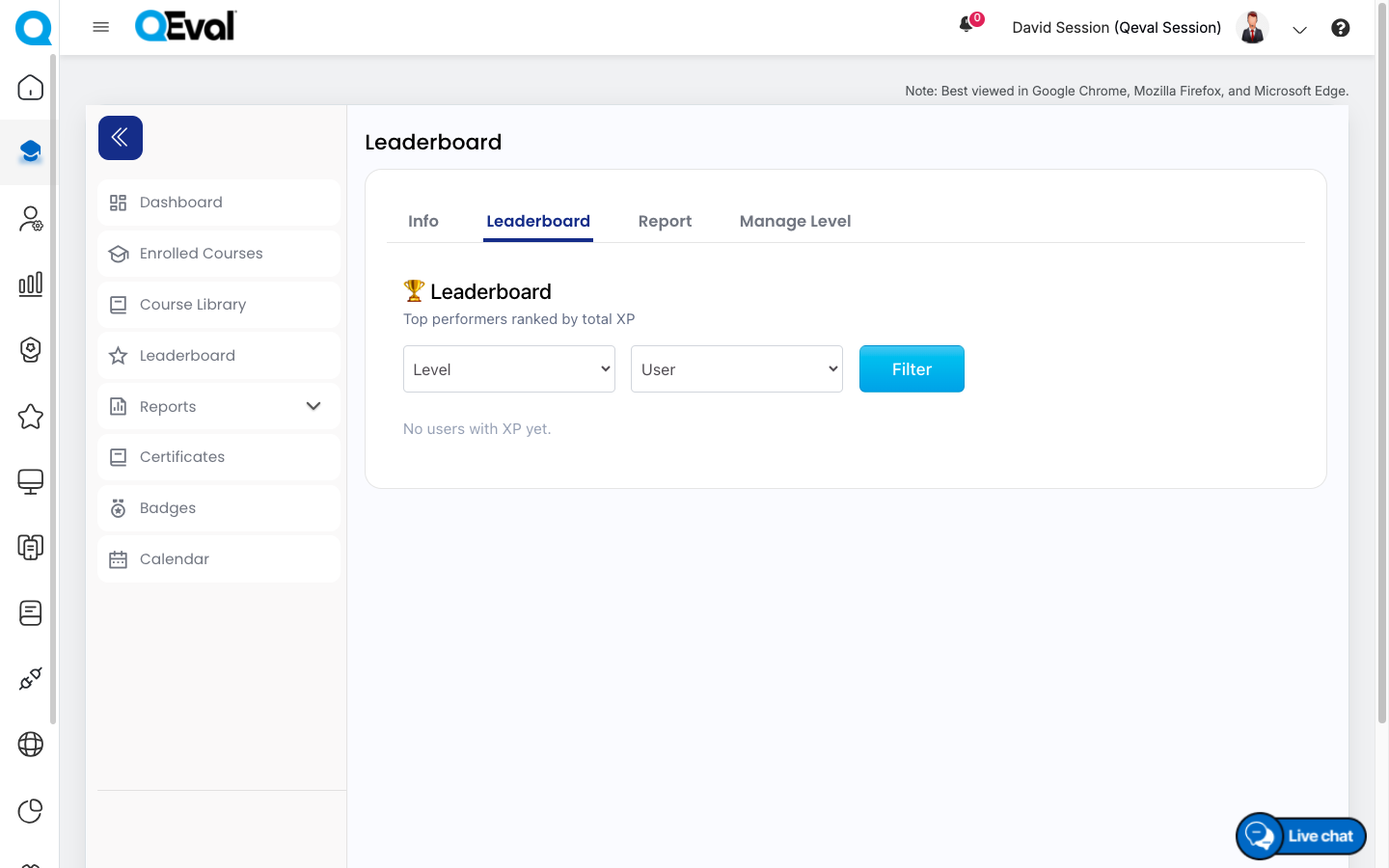
Leaderboard
5. Reports
The Reports section provides access to available learning reports.
Navigate to Reports from the navigation panel to access the reports available to your account.
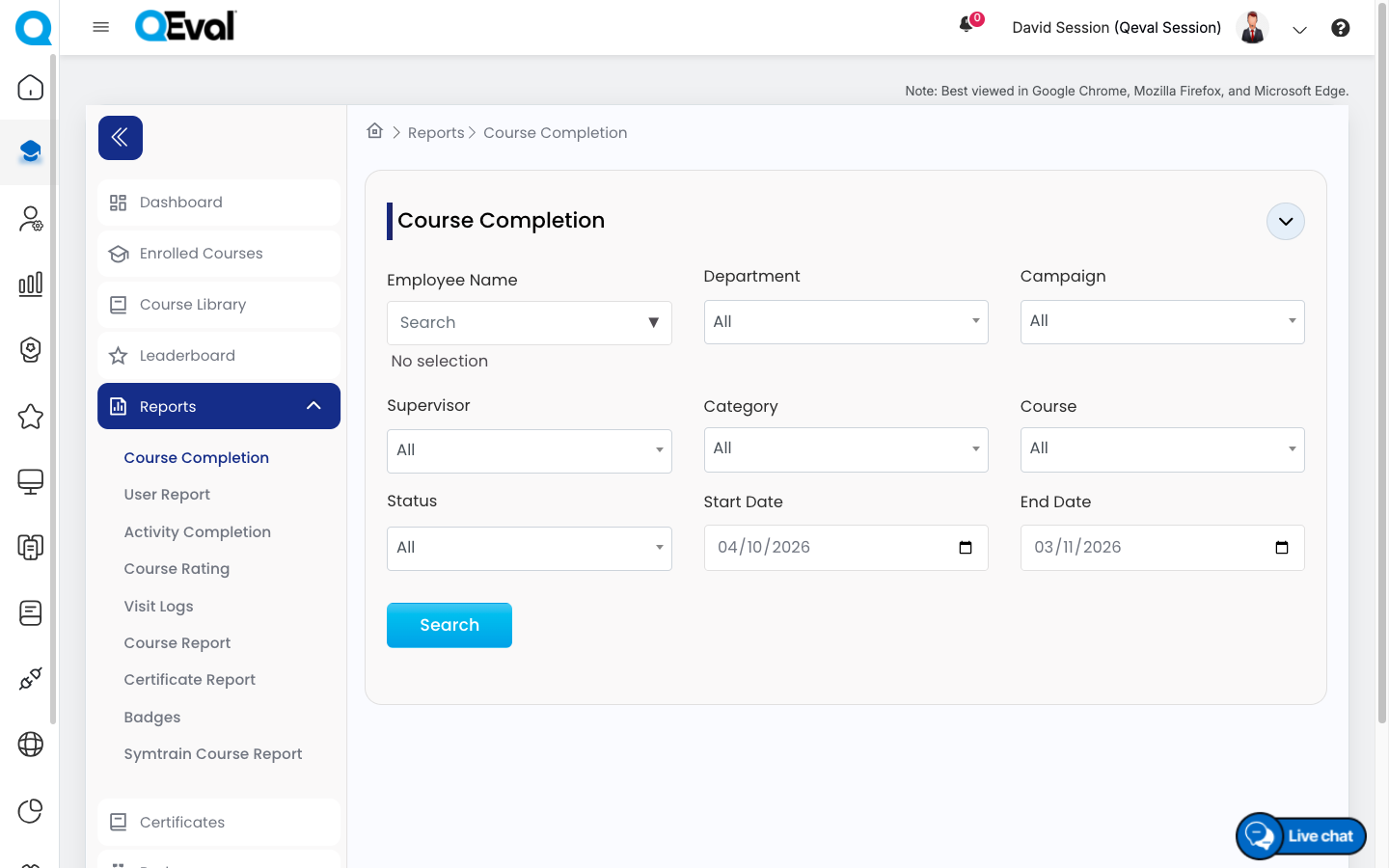
Reports Tab
6. Certificates
The Certificates section allows you to view certificates earned through completed learning activities.
Navigate to Certificates from the navigation panel to access your available certifications.
7. Badges
The Badges section displays badges earned through learning activities.
Navigate to Badges from the navigation panel to view your available badges and learning achievements.
8. Calendar
The Calendar section provides access to learning-related calendar information.
Navigate to Calendar from the navigation panel to view the available learning events and scheduled activities.
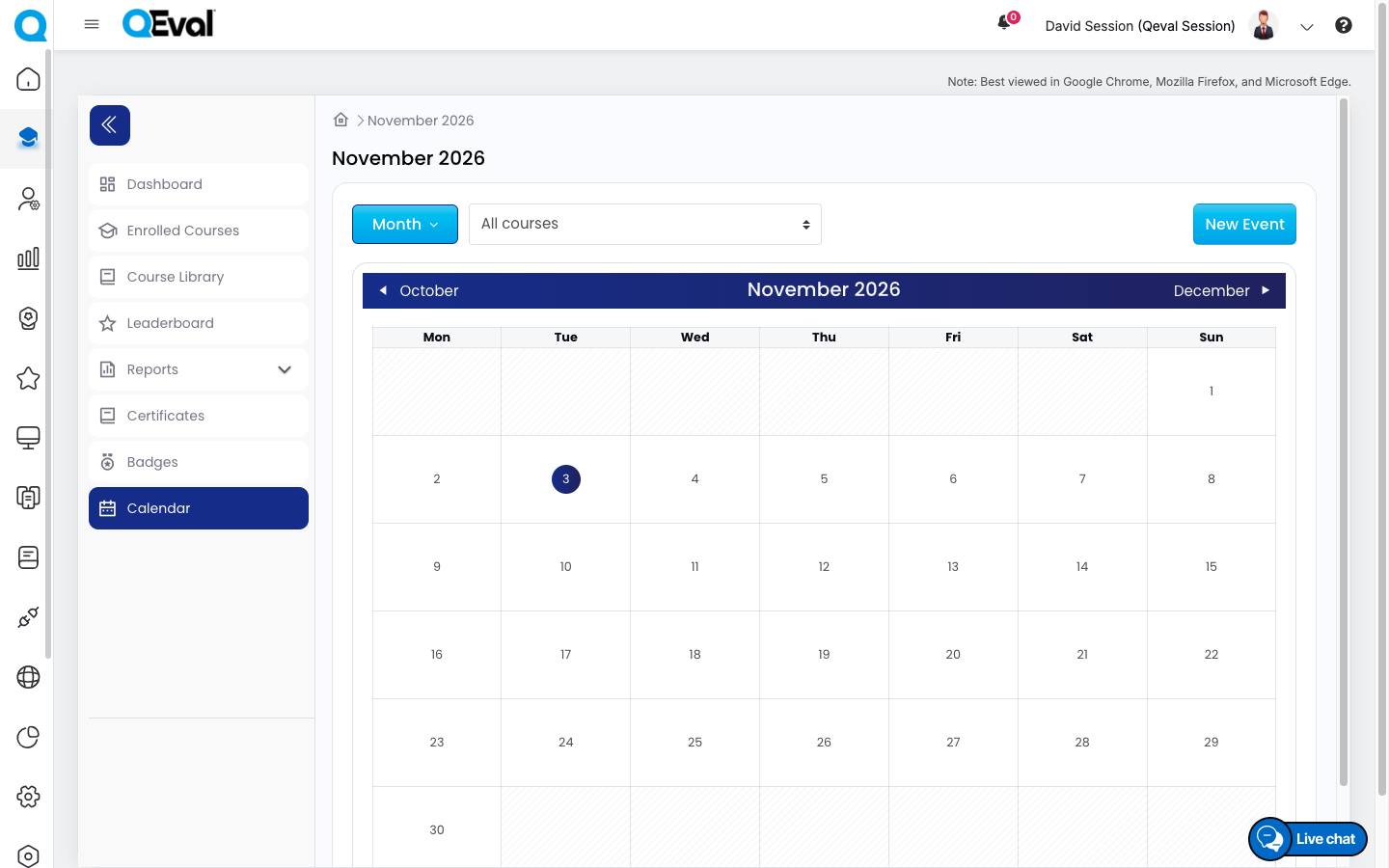
Calendar
Important Notes
- Your access to courses and learning resources depends on your assigned permissions and available learning assignments.
- Course progress is displayed within the Learning Hub.
- Completed courses, certificates, and badges are available through their respective sections.
- The availability of learning content and features may vary based on your assigned access and the configuration of the Learning Hub.
- If you cannot access the Learning Hub or an assigned course, contact your administrator or support team for assistance.
Video