Table of Contents
- Overview
- Review Score Summary
- Use the Call Player
- Evaluate Chat and Email Forms
- Access Interaction Insights
- Use Canned Responses
Overview
When you click View for any evaluation, the Evaluation Form opens, providing access to the interaction details and supporting evaluation tools. In addition to the standard fields available in the Evaluation / ATA form, QEval includes several built-in capabilities that enhance the evaluation experience and improve reviewer efficiency. These capabilities include real-time score summaries, advanced call playback controls, AI-powered interaction insights, chat and email evaluation support, and quick access to canned responses, enabling evaluators to review interactions more accurately and efficiently.
This article explains each of these evaluation form elements and how they assist users throughout the evaluation process.
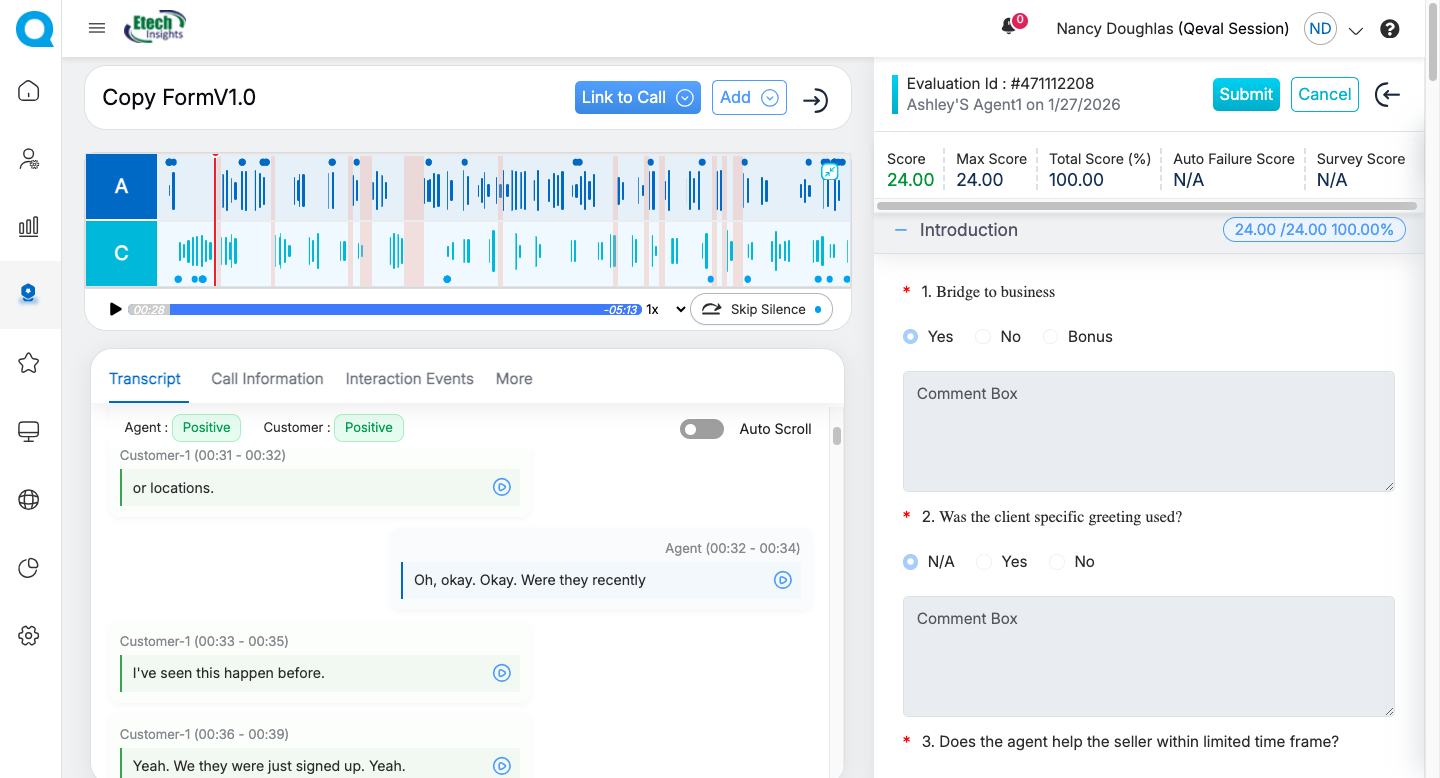
Evaluation Form
Let’s understand each element in detail.
Review Score Summary
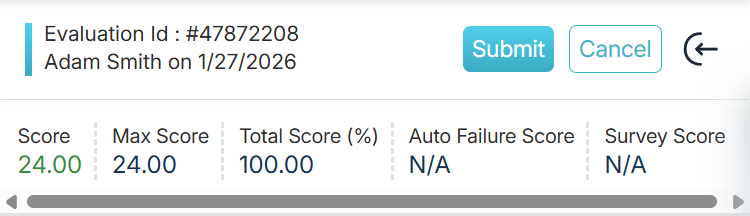
Score bar: Every evaluation form includes a score bar displayed at the top right corner of the form. It is designed and formulated to display scores for individual agents based on the evaluated scores provided by the QA Verifiers.
Score Bar
The following scores will be displayed in the score bar in every evaluation form.
- Score: This section displays the score obtained by an agent during evaluation.
- Max Score: The highest score available for a question. For Example: If the options are A–10, B–20, C–30, and D–40, then the Max Score is 40.
- Total Score(%): It shows the total percentage obtained by an agent. The value of this field is determined as (Score/Max Score)*100.
- Auto Failure Score: If any question of a category is set to Autofail then this field would display the score in zero (0). Further, if the category has been kept free from Autofail then the Failed section displays the status as N/A.
- Survey Score: Displays the score provided by the customer in the post-call survey.
Note: The scores will be calculated only if the categories in Create Evaluation are scorable.
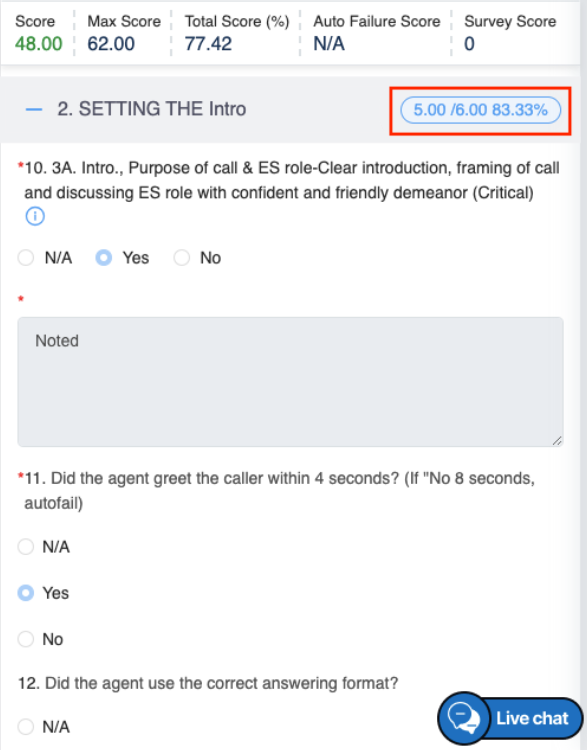
The score bar calculates and displays the overall score of the user obtained from various categories of the screen as shown in the figure:
Score Bar
Use the Call Player
The Call Play information will allow the authorized user to listen the call recording and view the transcript, interaction events, interaction summary and metadata of that specific evaluation.
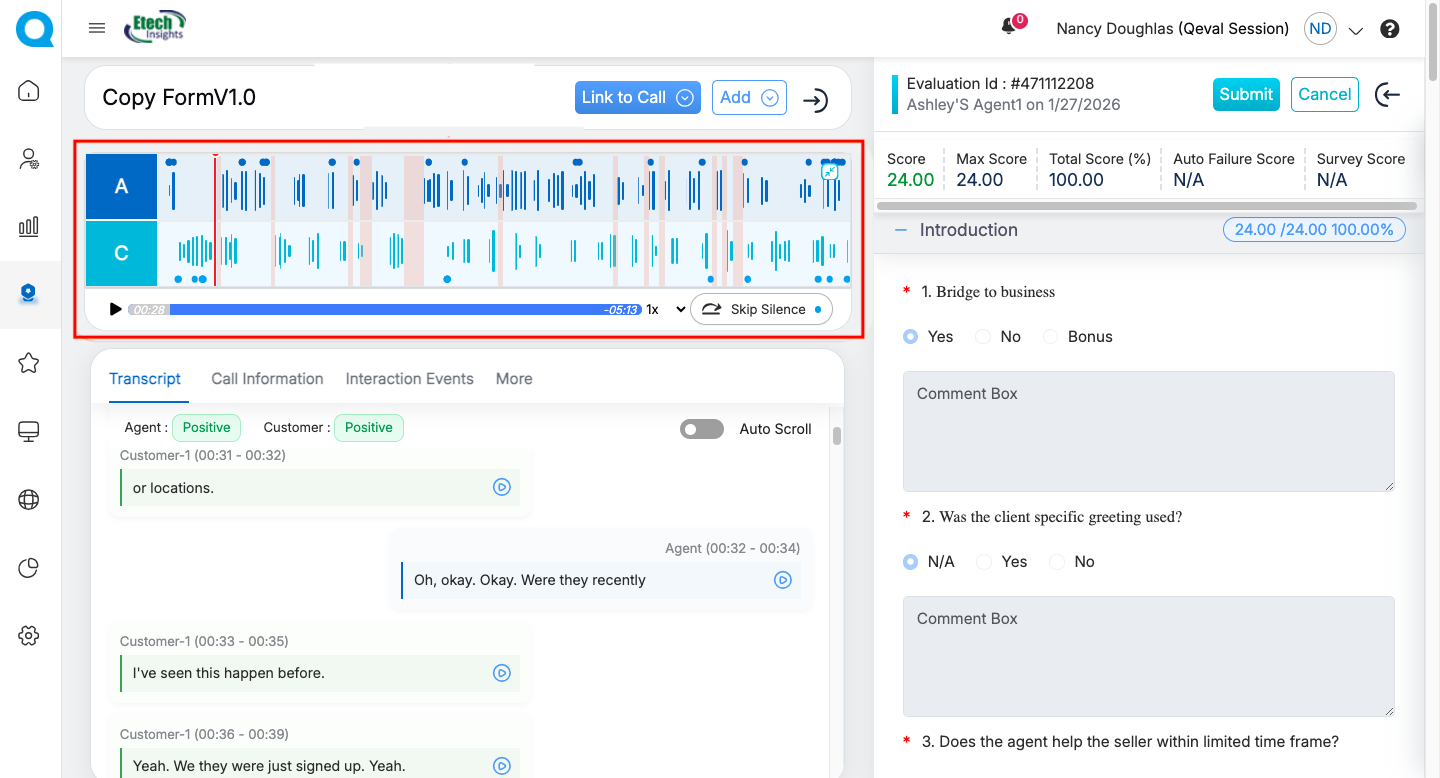
Call Information section allows the user to listen to the evaluated call.
Call Player Module
Player Elements
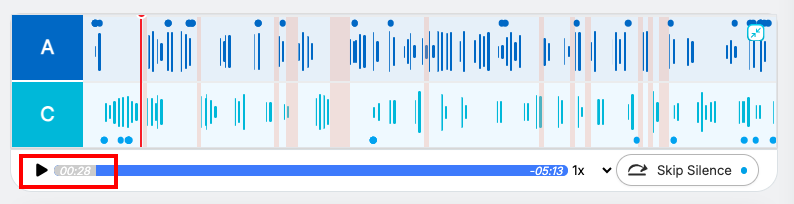
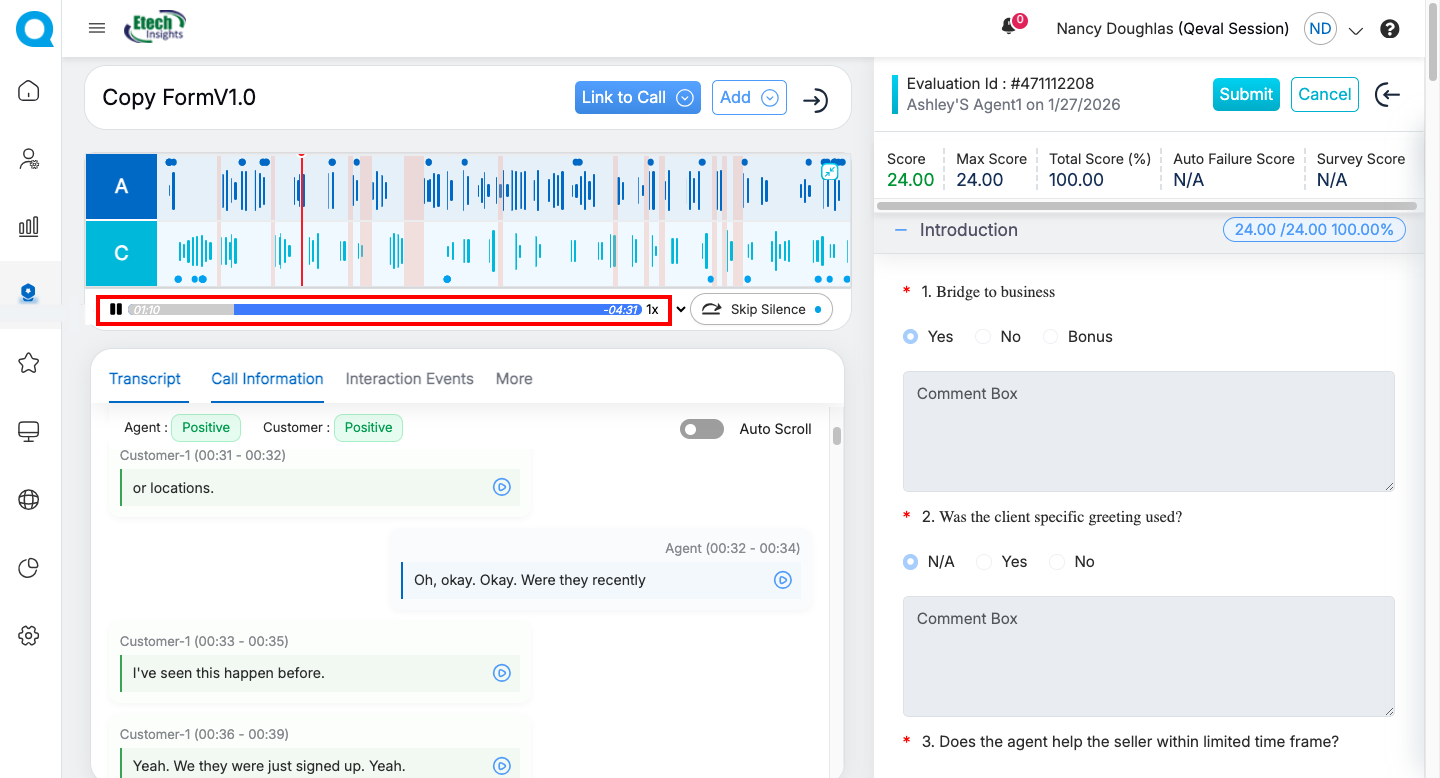
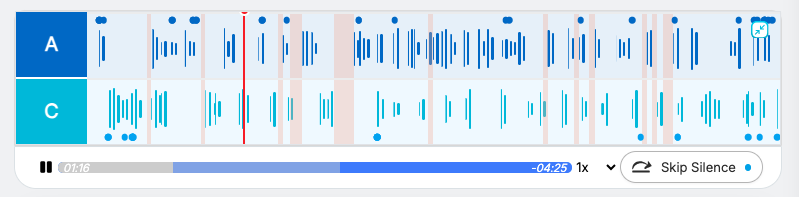
Once the required call recording is attached, you can use the Play/Pause button to control playback.
You can also adjust the system volume to increase or decrease the audio level as needed.
Call Player Module
Speed:
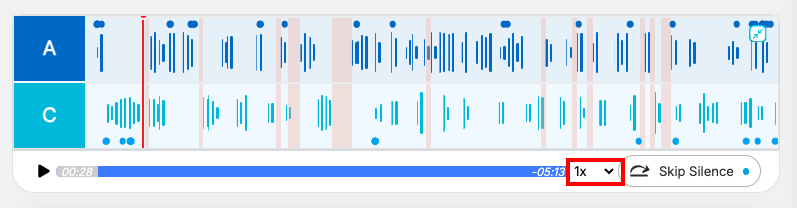
Users can adjust the playback speed of the recording using the dropdown next to “1x” on the player.
Call Player Module
Available speed options include 1x, 1.5x, 2x, 2.5x, 3x, and more, allowing faster or slower playback as needed.
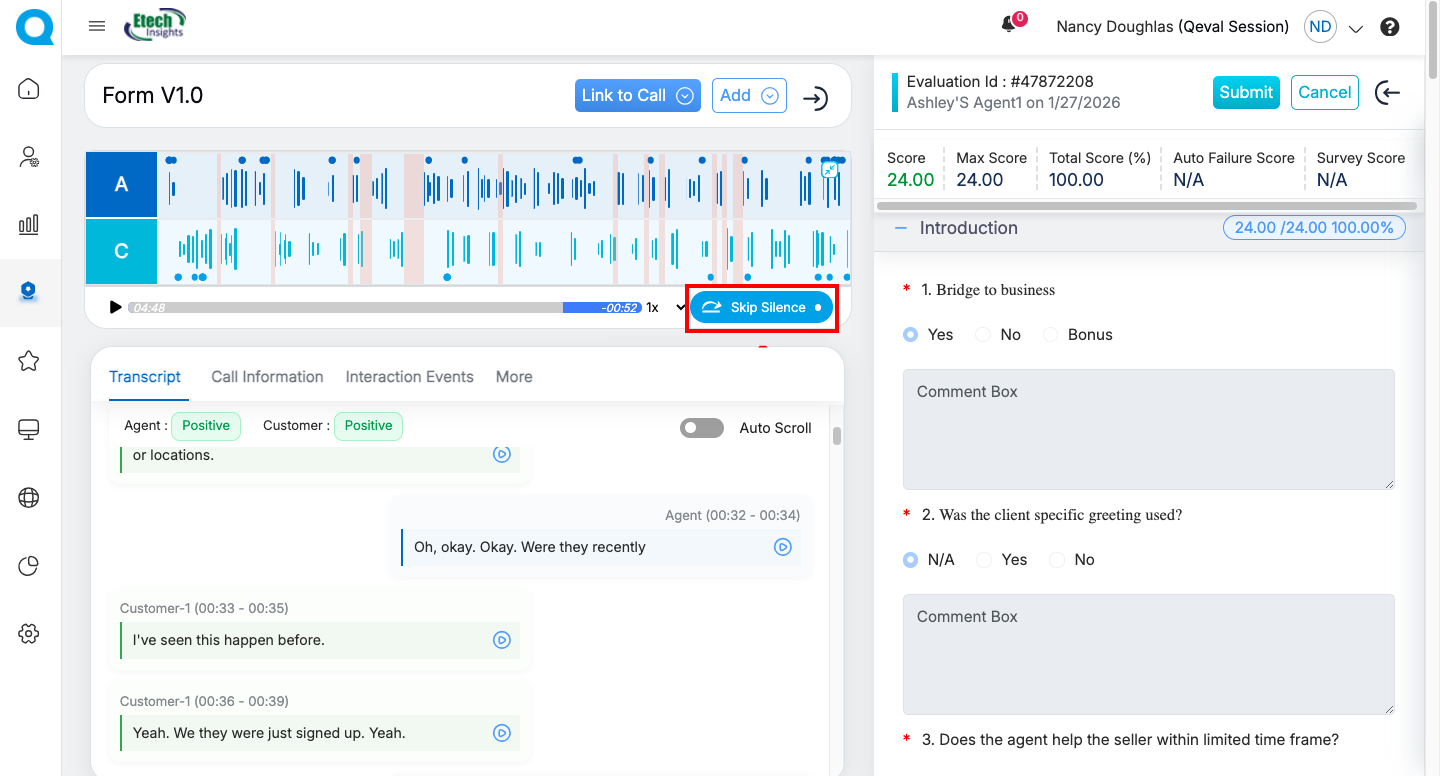
Silent Highlighted Waveform (Non-Speech Detection) and Hover Tooltip
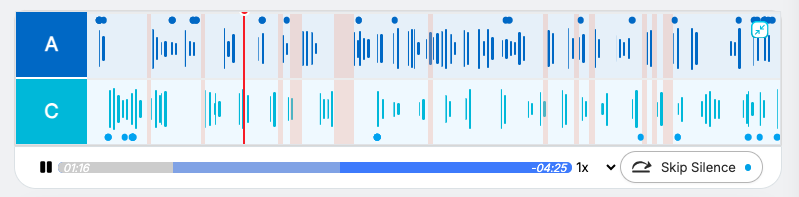
Silent segments—where both the Agent (A) and Customer (C) are not speaking—are automatically identified and visually highlighted on the waveform. These Non-Speech sections are clearly distinguished from active speech across both tracks, making it easier for evaluators to spot pauses during the call without manually scrubbing through blank waveform areas.
Call Player Module
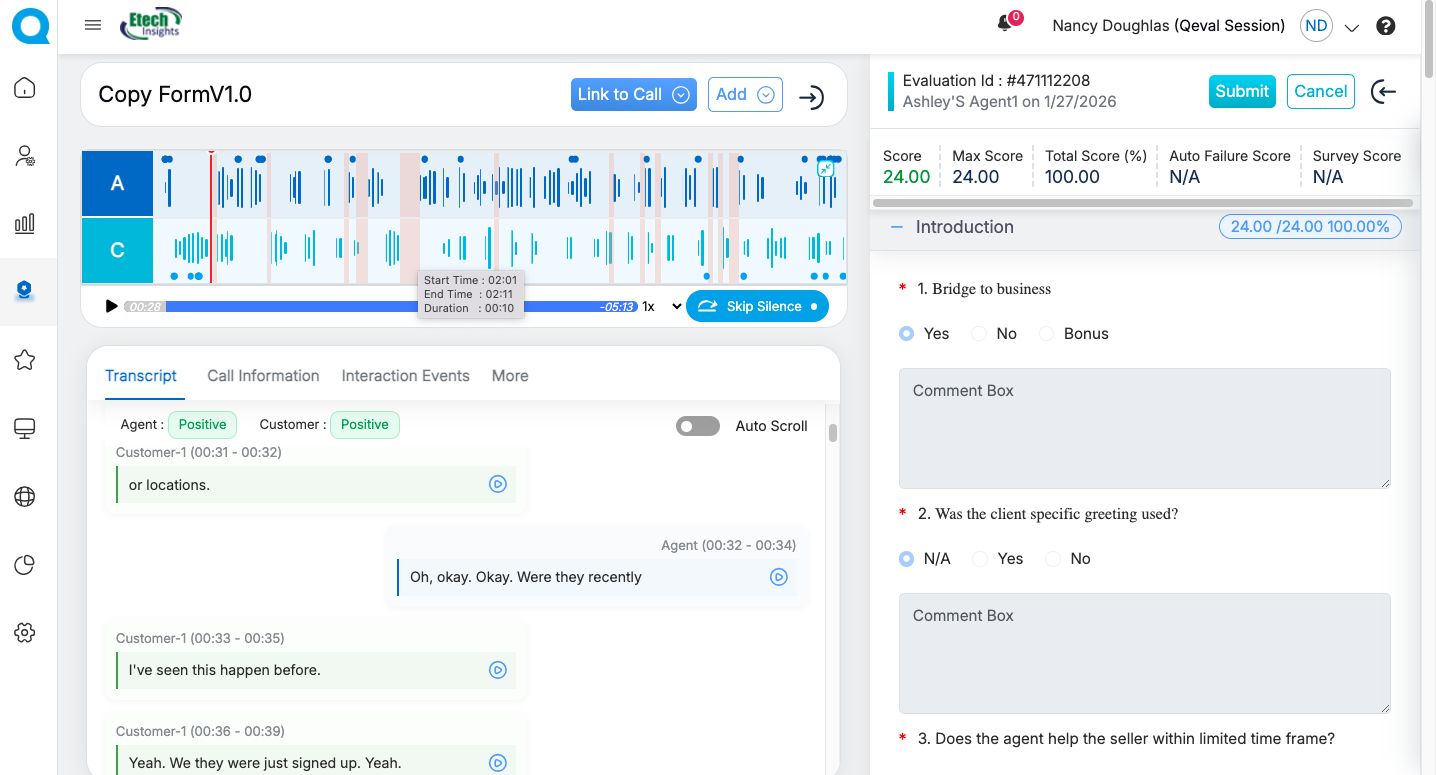
When hovering over a highlighted silent section, a dynamic tooltip appears displaying segment metadata.
Tooltip Displays:
- Start Time: HH:MM:SS
- End Time: HH:MM:SS
- Duration: Auto-calculated (End Time – Start Time)
Evaluation Form
The tooltip appears instantly on hover, follows the cursor near the highlighted area, and disappears once the cursor is moved away. All timestamps are system-generated and accurate, providing clear time-based context without requiring users to open additional panels or navigate away from the playback screen.
Mini Call Player:
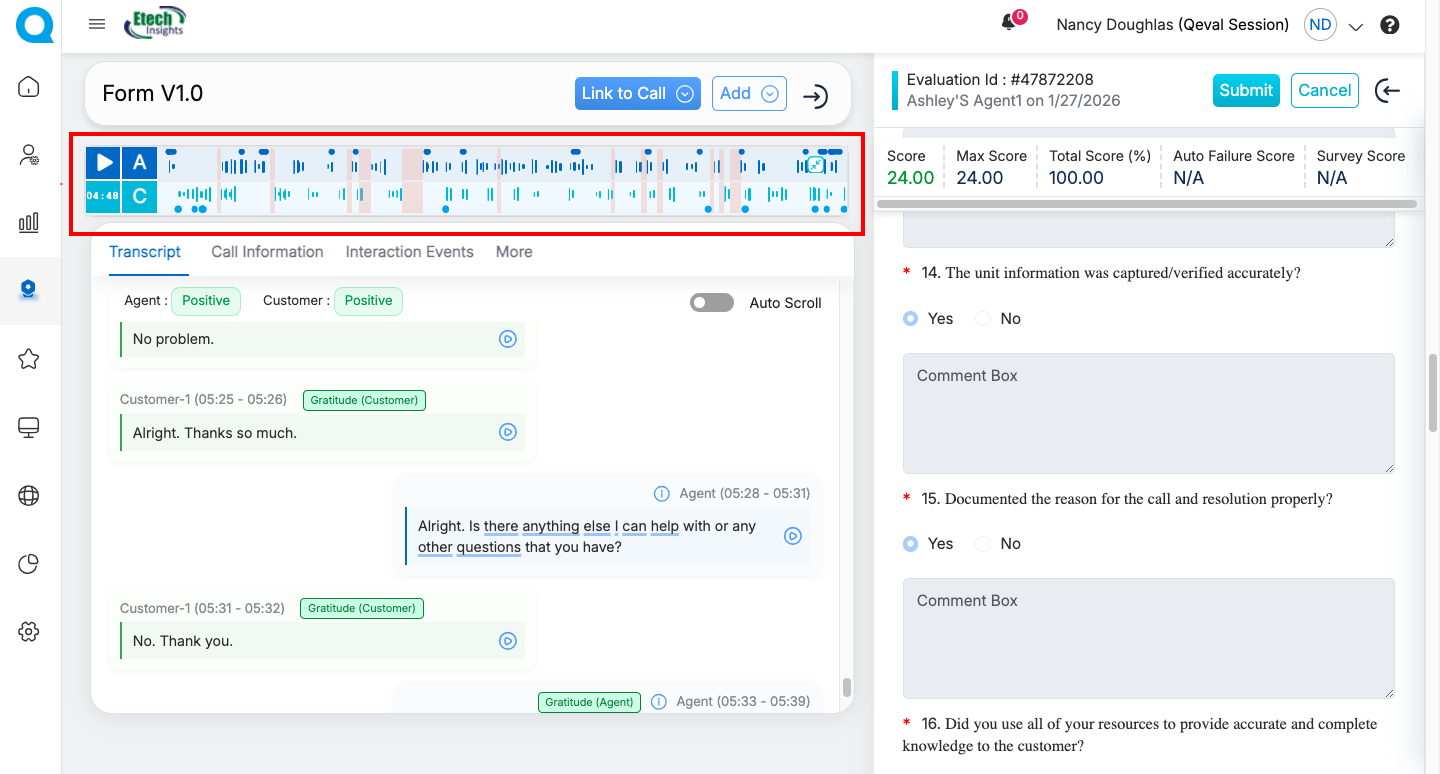
Mini Call Player
Call Player Module
Evaluate Chat and Email Forms
Chat form
When the form type is Chat, the Link to Chat feature is available to add a chat link. Users can click Link to Chat to open a field where they can paste the chat URL, and the system automatically converts it into a transcript, as shown below.
Click Link to Chat as shown below.
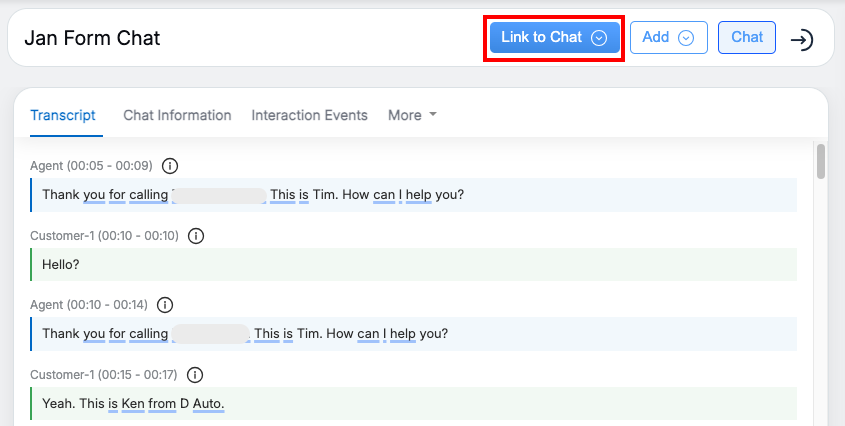
Chat Form
This opens a field where you can paste the chat link, and the system automatically converts it into a transcript, as shown below.
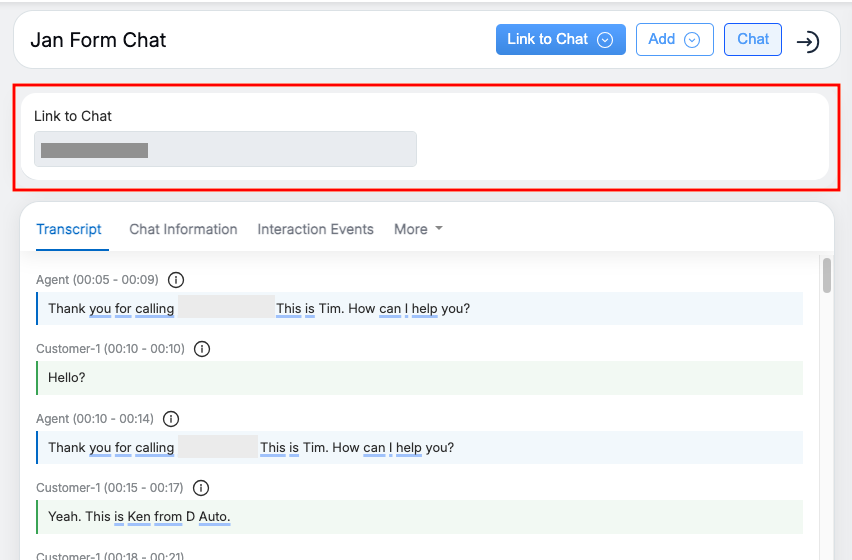
Chat Form
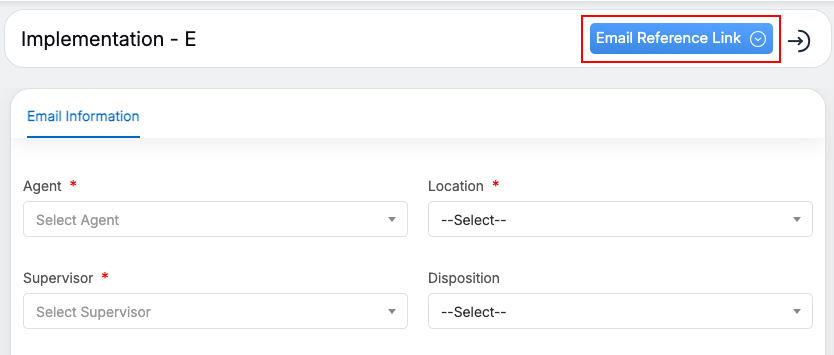
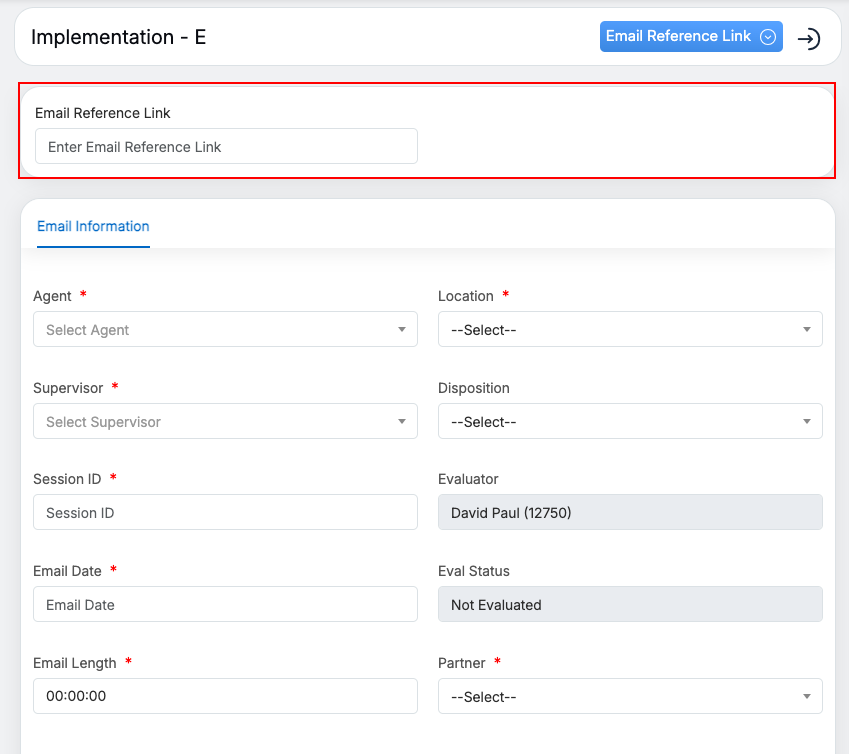
Email reference link field is highlighted
Access Interaction Insights (AI Summary)
In this section the uploaded call information will be available where the user will be able to view the mentioned below details:
-
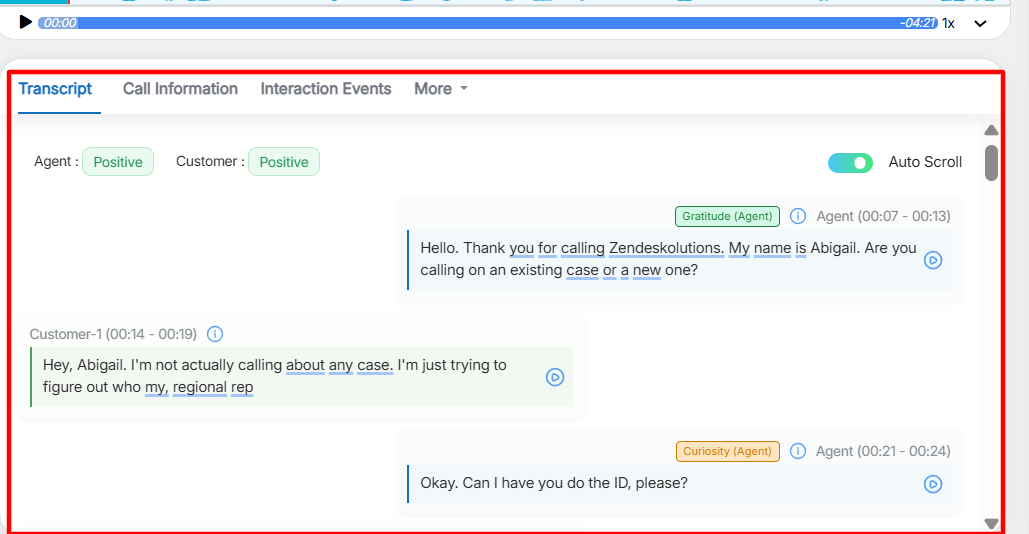
Transcript:
The call transcript, displayed in the highlighted section, provides a detailed, time-stamped record of the conversation captured during the call. The transcript uses a chat-style layout that clearly differentiates Agent and Customer messages, making conversations easier to read and review. Each message includes the speaker role and precise timestamps, enabling quick identification of participants and efficient call navigation. The streamlined visual design reduces clutter and improves scannability, especially during long or fast-paced interactions.
Call transcript
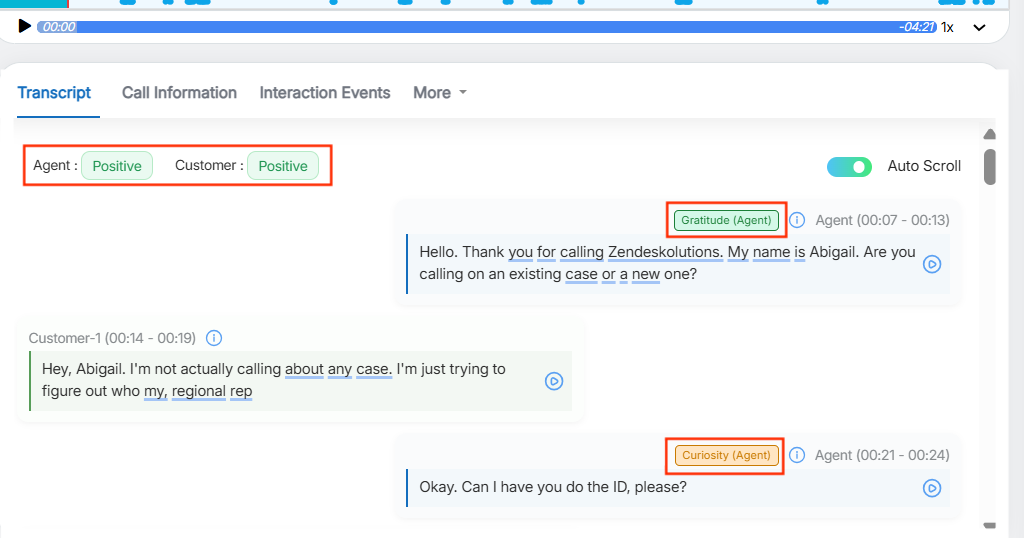
- Sentiment Tags
Sentiment insights are integrated directly into the transcript for better context. Overall sentiment for both the Agent and Customer is displayed at the top, while sentiment tags at the message level highlight the emotional tone of individual snippets. This allows evaluators to quickly identify positive, neutral, or negative moments and improves accuracy during evaluations and quality checks.
Transcript View
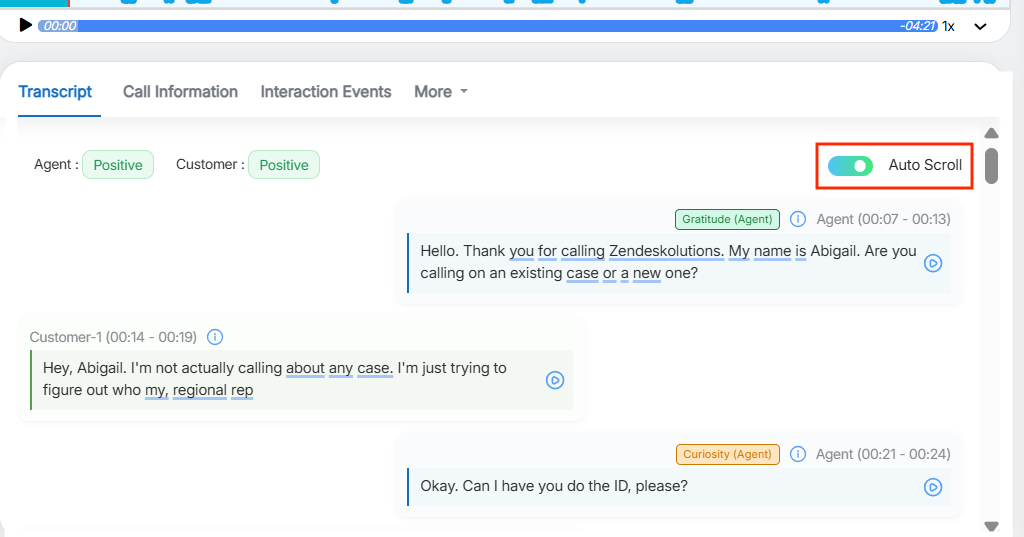
- Auto Scroll: When call playback starts, the transcript synchronizes with the audio in real time and automatically scrolls to follow the current playback position; seeking, pausing, or resuming the call updates the transcript immediately.
Transcript View
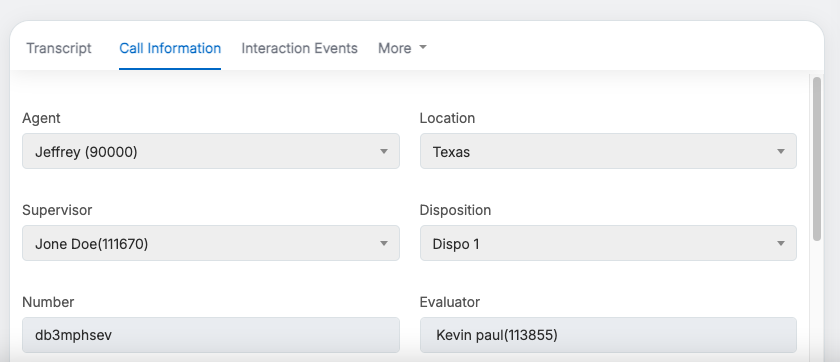
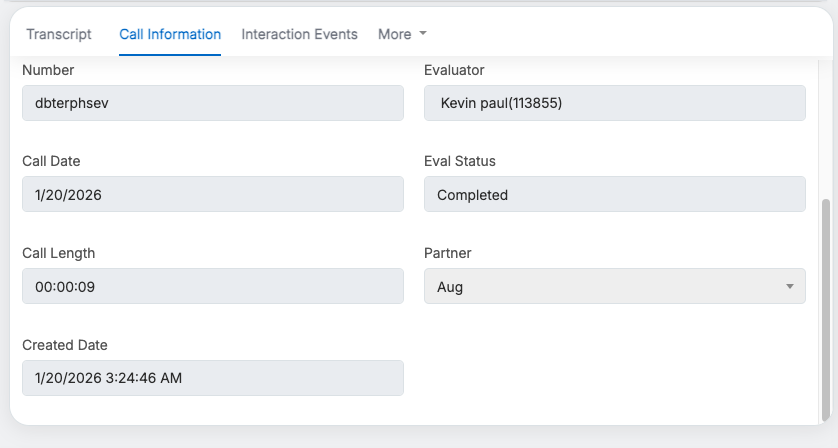
- Call Information: The Call Information tab provides a quick overview of key call details, including agent and supervisor names, disposition, location, evaluator name, evaluation status, call length, call type, call date and partner name. It helps users access essential call data and evaluation context at a glance.
- Interaction Events: The Interaction Events tab displays a chronological list of key events and actions that occurred during the call for detailed evaluation insights.
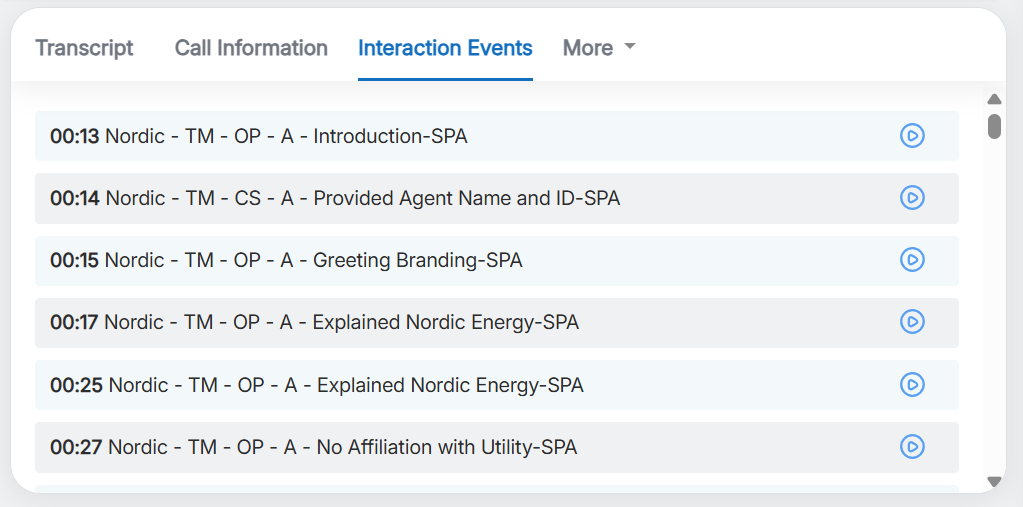
Interaction Events tab
- Meta Data: The Metadata tab displays key technical and contextual information about a call — such as the country, state, customer, and program. This information helps evaluators understand the background and structure of the call for accurate analysis.
Note: The Metadata tab is available only for AI-ingested calls. For manually evaluated calls, this tab will not display any data, as the details are fixed and depend on the information received through the AI-ingested call process.
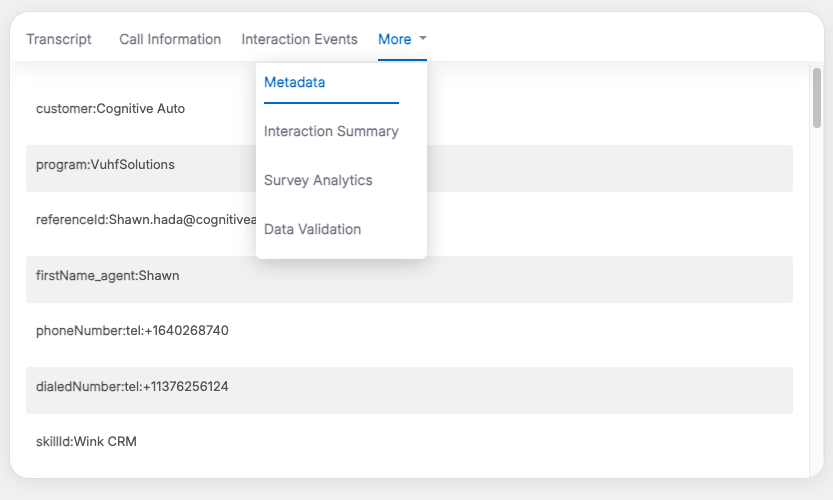
Metadata tab
- Interaction Summary: The Interaction Summary tab provides a detailed overview of the call, featuring evaluation questions alongside AI-generated responses derived from the call content. This helps evaluators quickly assess call quality and agent performance with contextual insights. User can scroll down to access summary details.
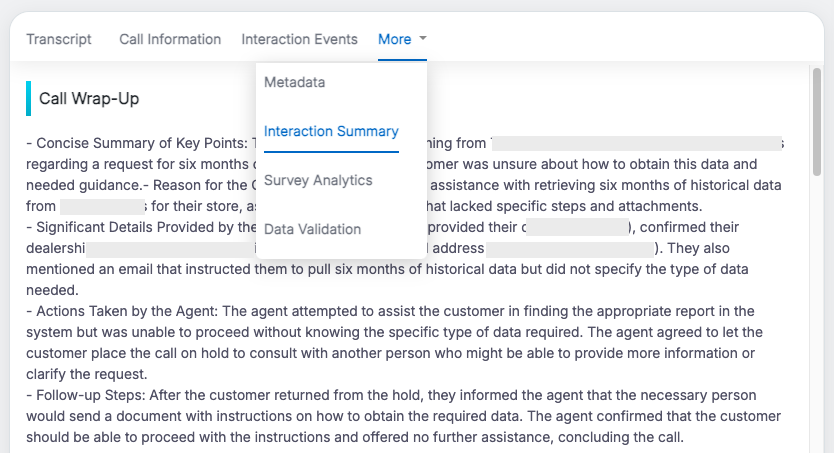
Interaction Summary tab
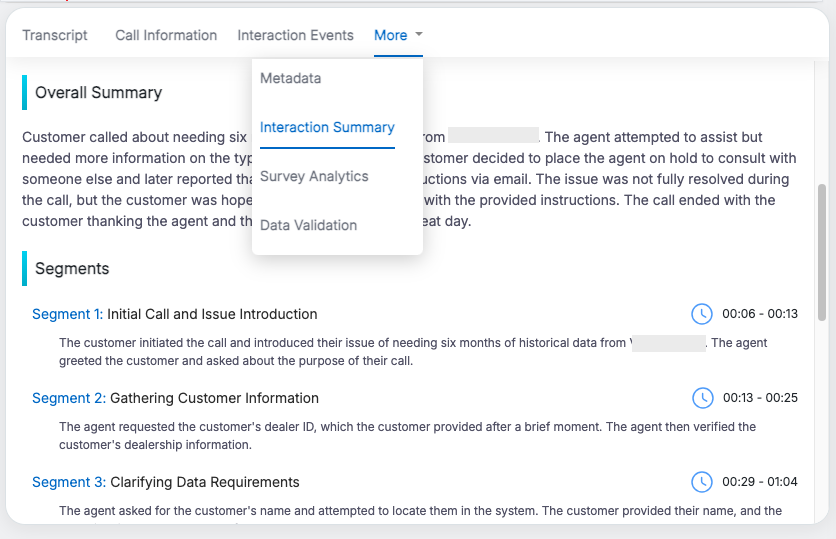
Interaction Summary tab
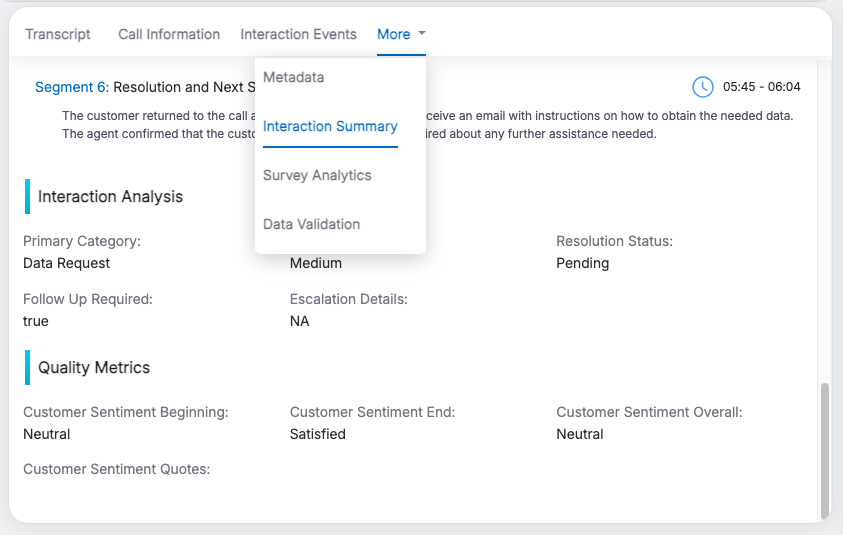
Interaction Summary tab
- Survey Analytics: The Survey Analytics tab on the Call Evaluation page provides a comprehensive overview of survey-based insights when surveys are enabled for the selected campaign. It highlights key metrics such as ratings, sentiments, reasons, and effort categories to support deeper analysis.
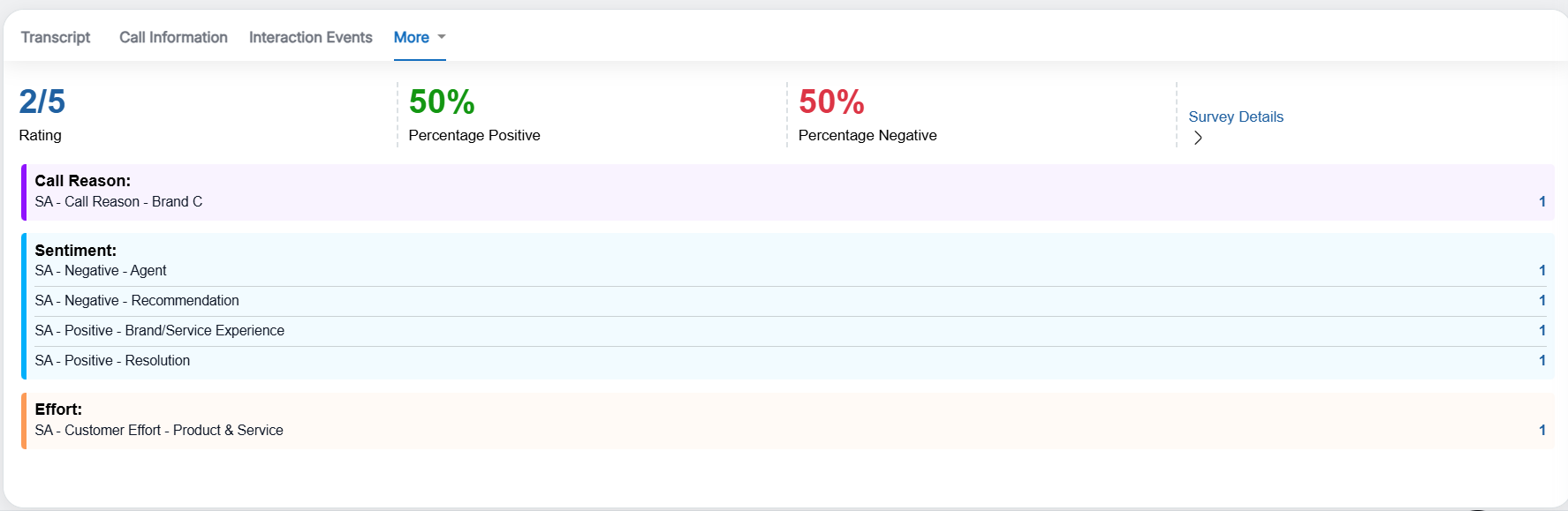
Survey Analytics tab
Use Canned Responses
A Canned Response is a ready-made collection of questions or answers. This feature lets users quickly pick questions from the repository instead of typing them out manually. The Admin can add or update questions in the canned responses whenever needed.
This feature is represented by the highlighted icon shown below.
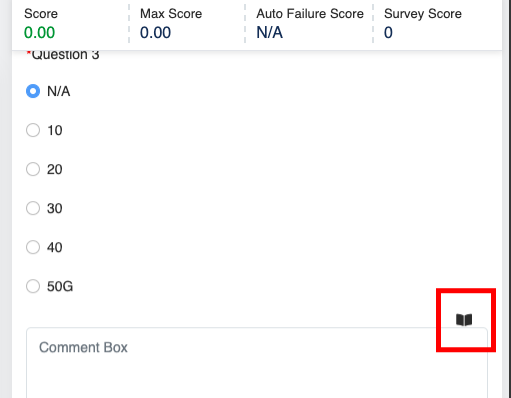
Canned Responses
Clicking the Canned Response icon will open up a Canned Response window which is shown as follows:
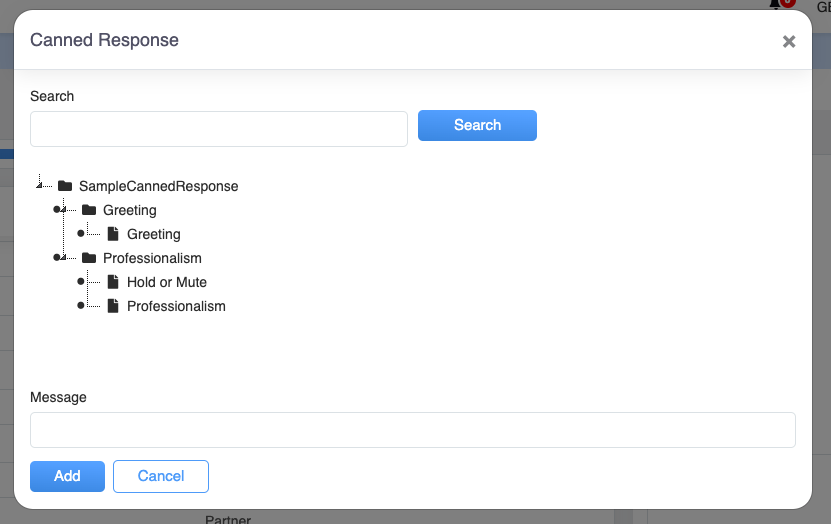
Canned Response
The user can select the question based on the set categories. When the question is selected from the screen, the pre-set answer gets visible on the message box located below in the window as shown:

Canned Response
For the selected question 1 in the box above on the screen, the relative answer is displayed in the message box below in the window.
Click Add button to add the answer to the Create Evaluation screen.
To know more about Canned Response, refer to Canned Responses.
Video