Table of Contents
- Configure Auto Numbering
- Create Numbered Category
- Add Numbered Questions
- Preview Auto Numbering
- View Numbering in Reports
The Auto Numbering functionality allows administrators to automatically assign numbers to questions while designing an evaluation form, making each question easier to identify and reference during evaluation.
Configure Auto Numbering
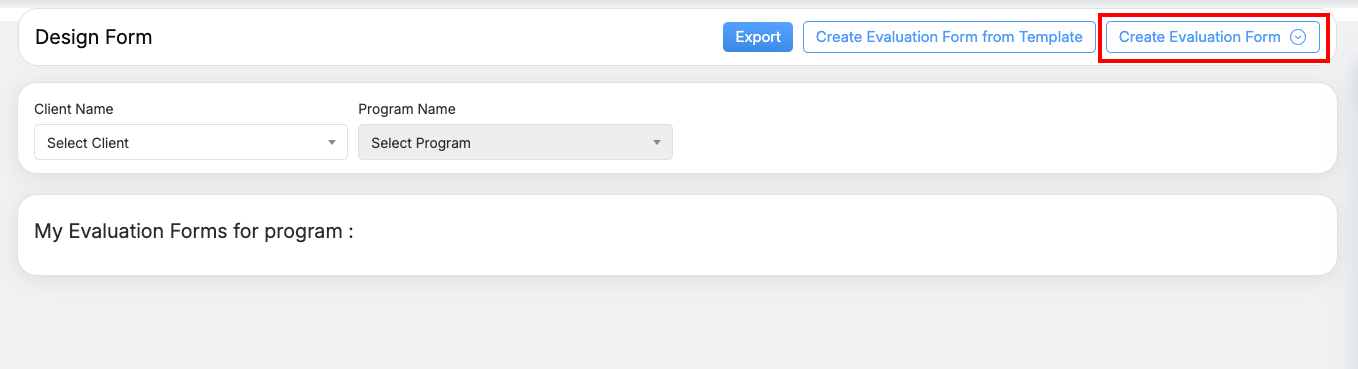
Design Form page
- Select Start with a Blank Evaluation Form, as shown below.
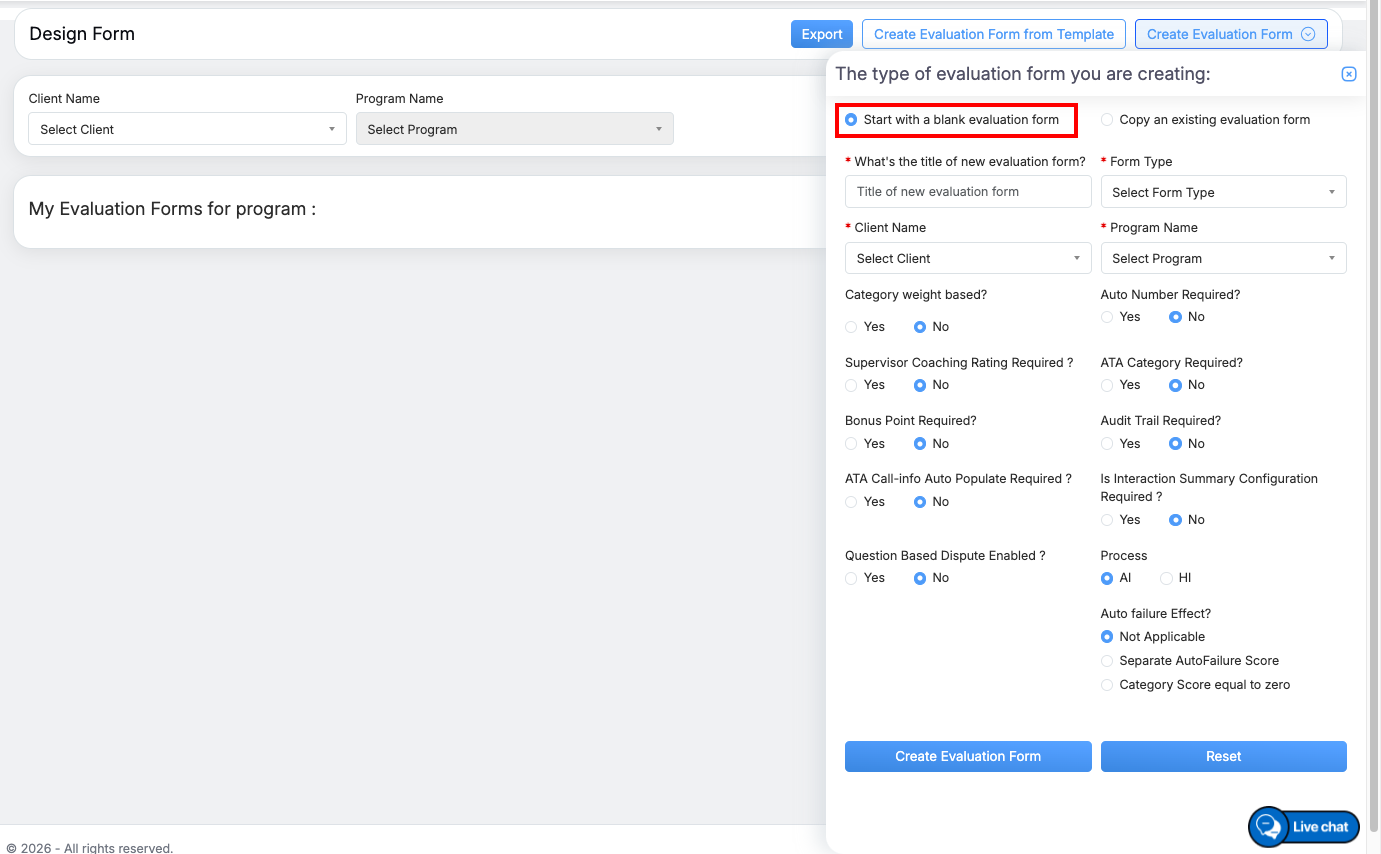
Create Evaluation Form
- To enable Auto Numbering, select Yes for the Auto Number Required field, as shown above.
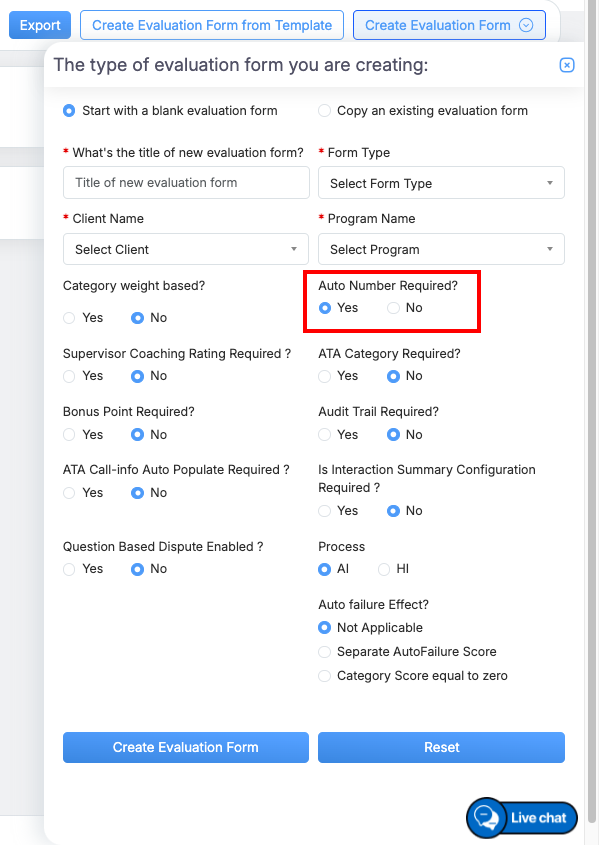
Auto Number Selection
- Once the form configuration is complete, click
 to create the evaluation form. The newly created form will be displayed as shown below.
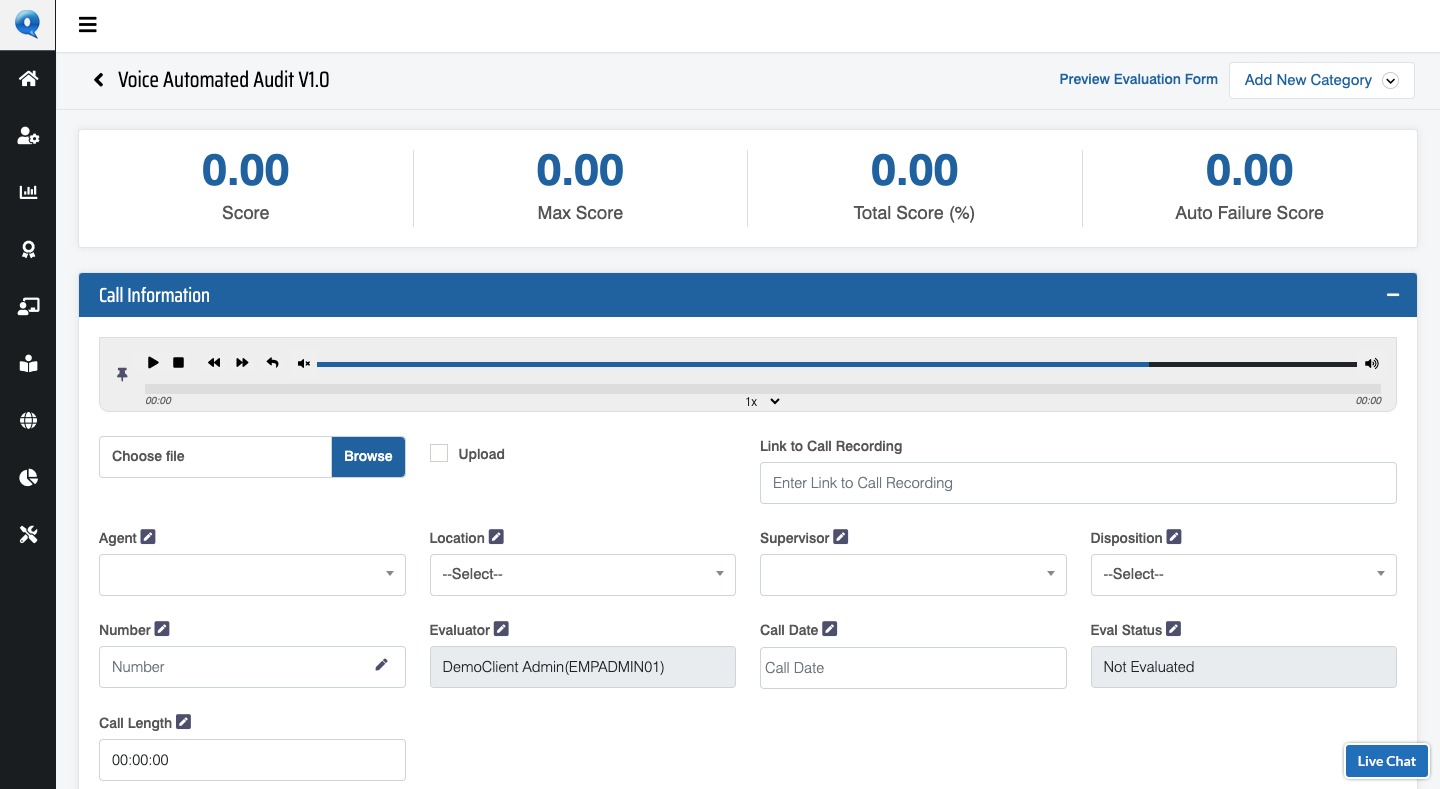
Create Numbered Category
- From the form page, click Add New Category.
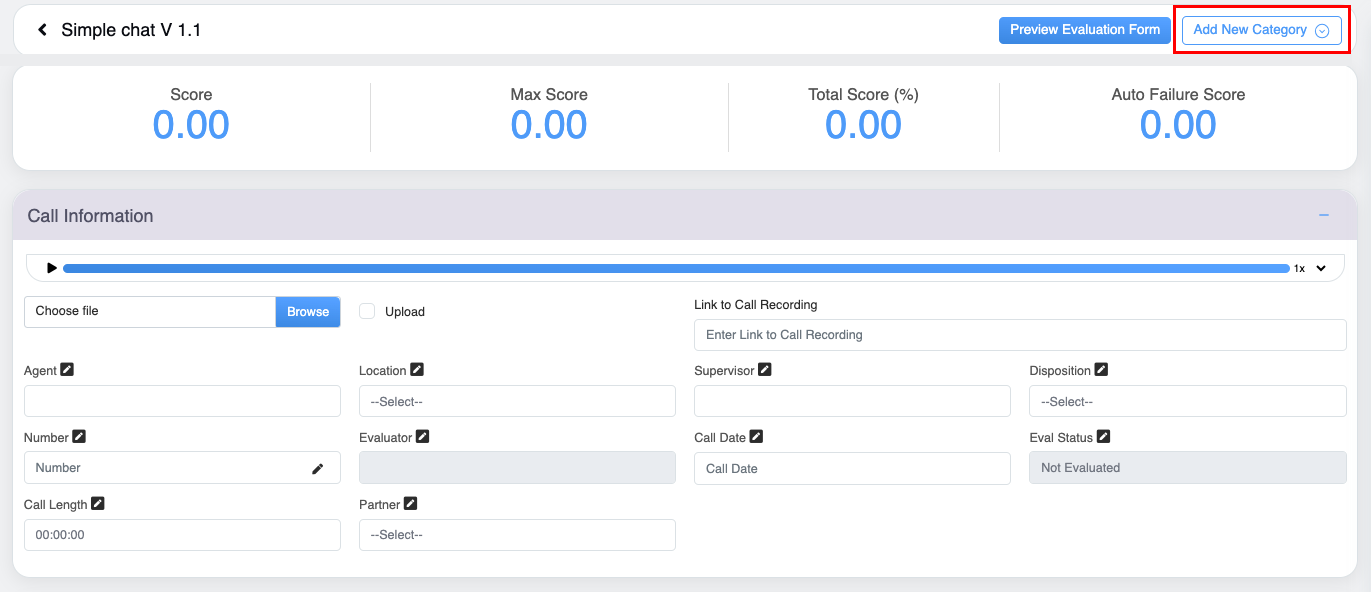
The following window will be displayed:
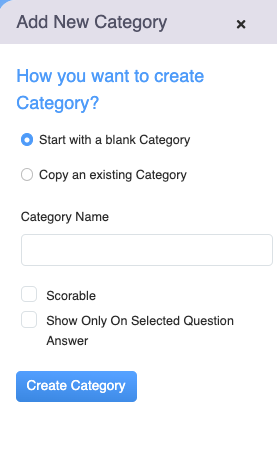
- Select Start with a blank Category option and the following screen appears:
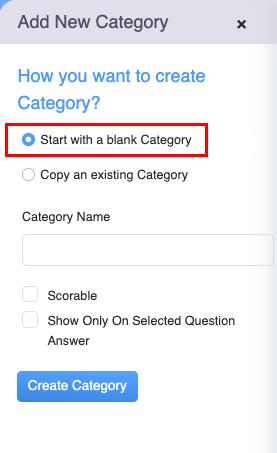
- Select the Scorable option highlighted in the following screen for Auto Number Parameter functionality.
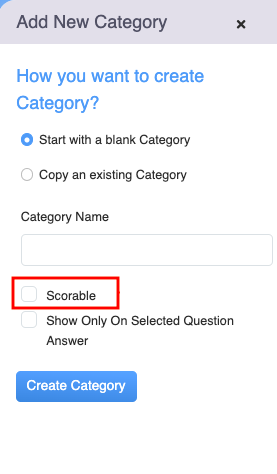
- The Auto Number Required option will be displayed once the Scorable checkbox is selected. Select the Yes option for this field.
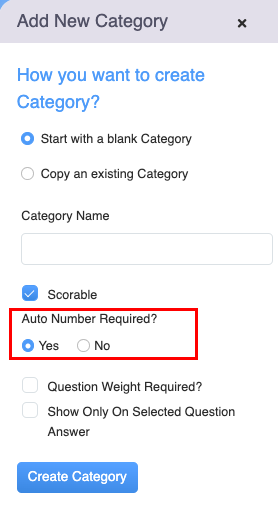
- Once done, click
 button to create a category.
Once the categories are added to the evaluation form, the next step is to add the questions under these categories.
Add Numbered Questions
- On the design view page of the form, click on the Add Question button displayed at the bottom of each category of the form.

- Select the Basic field type option displayed on this screen.
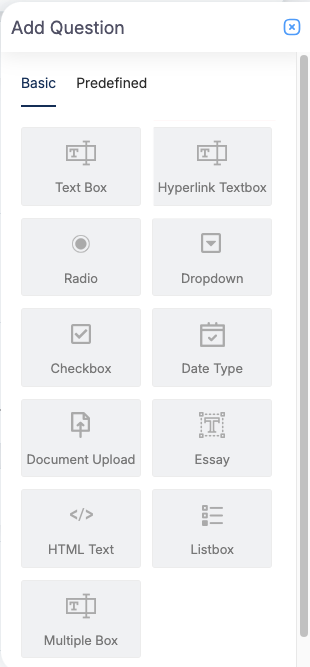
- Configure the details of the question, select the Scorable field to keep the parameters auto-numbered as shown below:
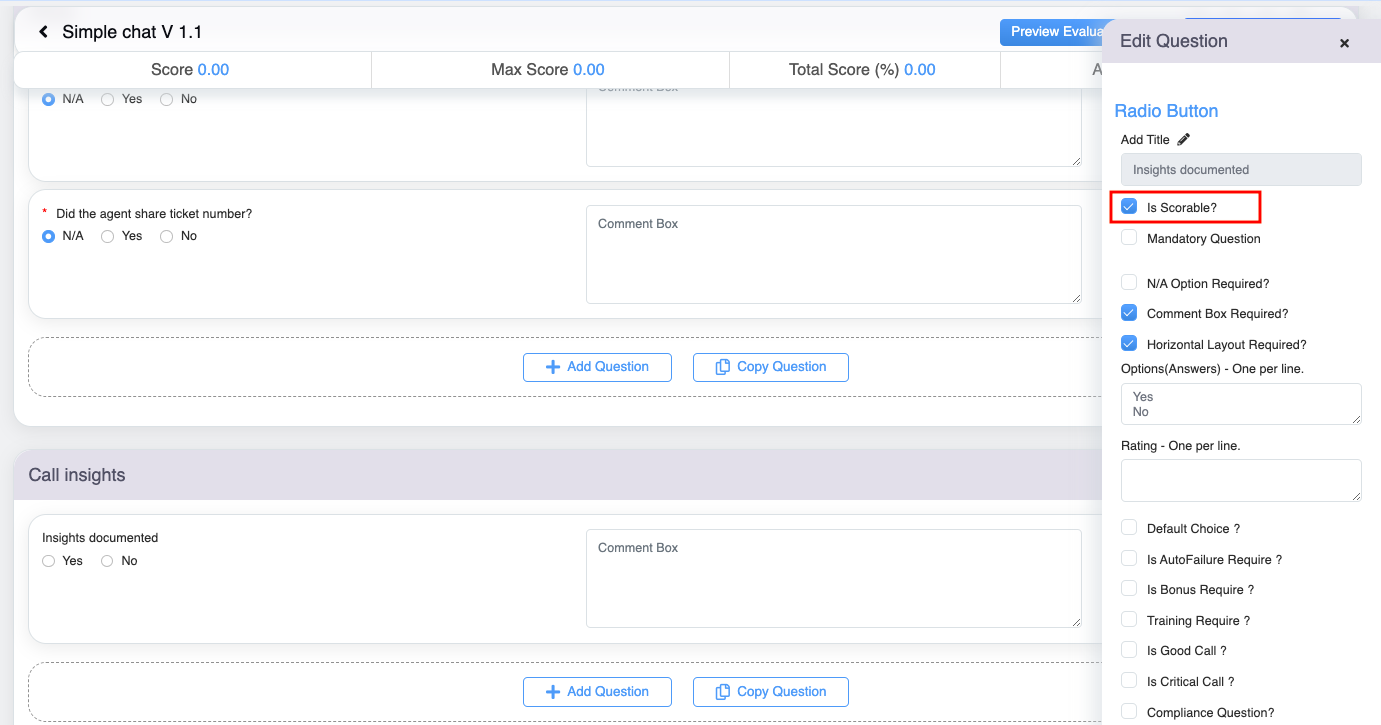
- The Auto Number Required option will be displayed once the Scorable checkbox is selected. Select the Yes option for this field. To know more about the configuration of these properties, refer to Questions.
- Once all the necessary properties are configured, click on the
 button.
Preview Auto Numbering
- Once the form is designed, from the design view page of the evaluation form, click on the Preview Evaluation Form link displayed at the top right corner of the design view of the form.
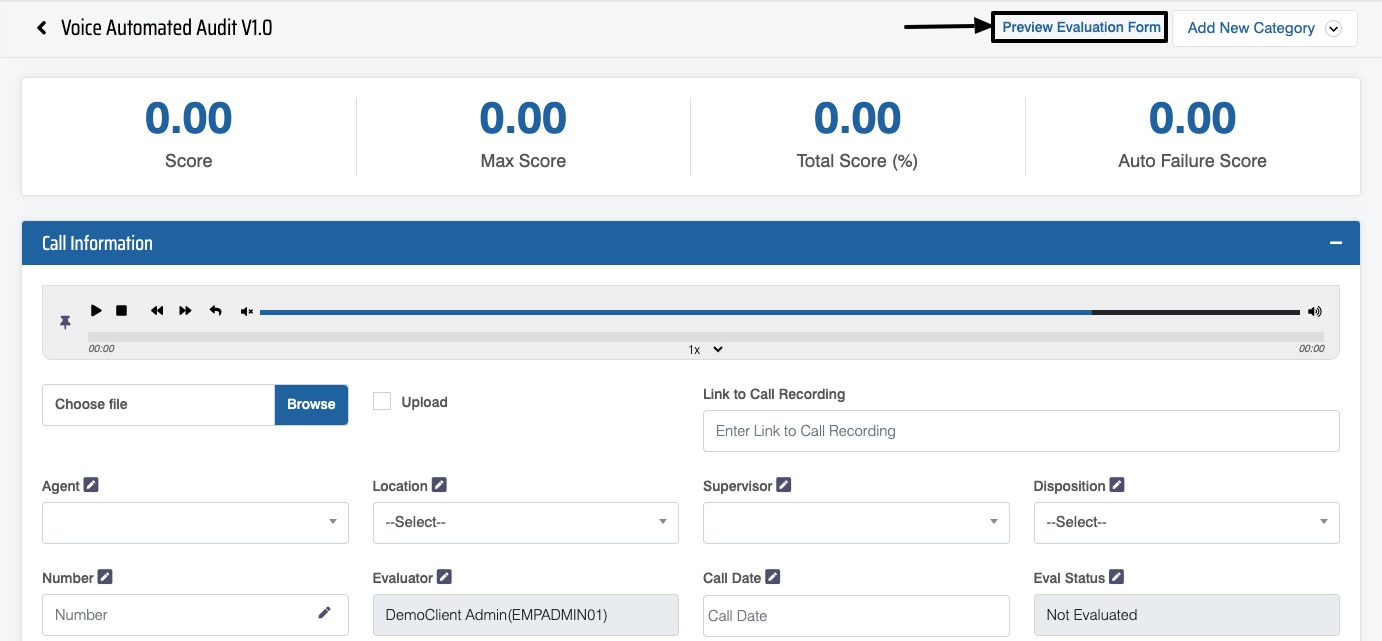
Preview Evaluation Form
The preview of the form will display the actual form with Auto numbering for Questions.
View Numbering in Reports
When Auto Numbering is enabled for questions, the assigned question numbers and the corresponding selected option values are reflected in the reports. The report displays each numbered question along with its performance and other relevant details, as shown in the example below.
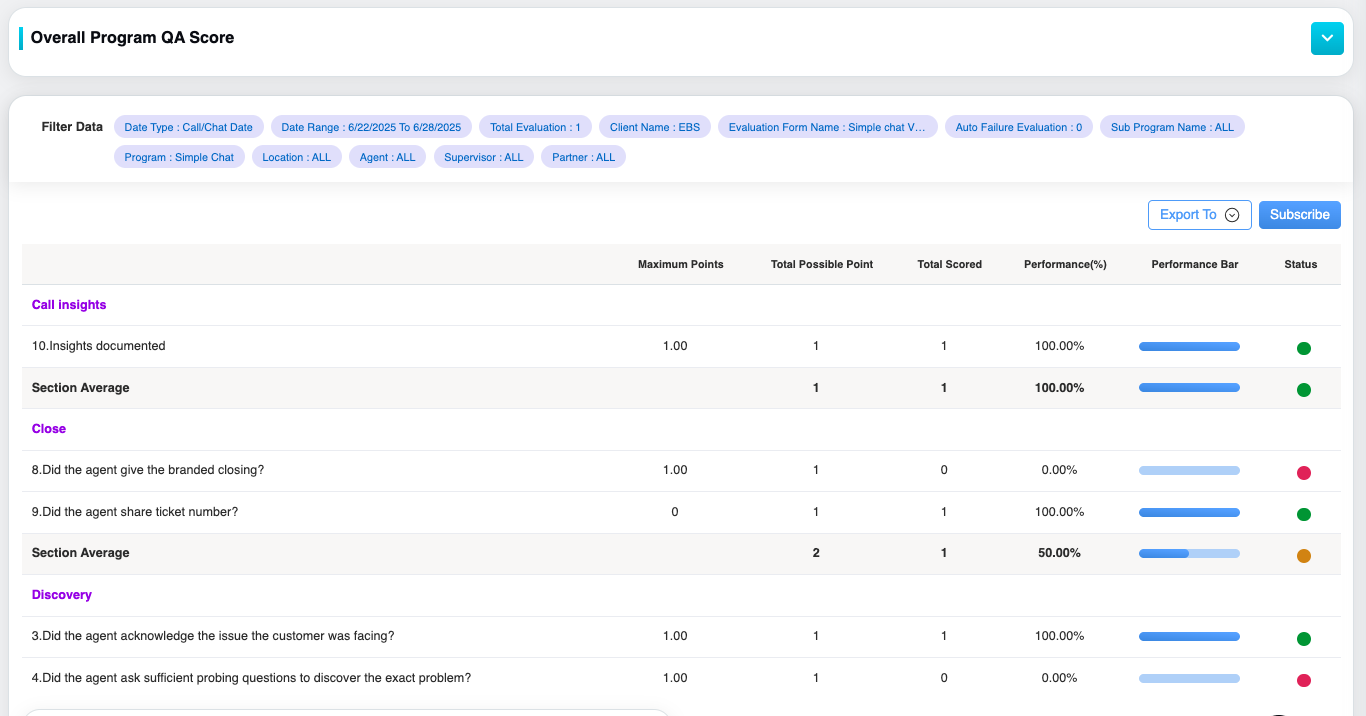
The above screen includes the questions with their respective numbering along with their performances and other details.
Video