Table of Contents
The Search KPI feature enables administrators to quickly locate specific Key Performance Indicators (KPIs) by applying search filters such as Client, Program, Evaluation Form, Date Range, KPI Type, and KPI Name. It also allows users to view, edit, and delete existing KPI records based on the search results.
Accessing Search KPI
Click on the Search KPI button as shown below:
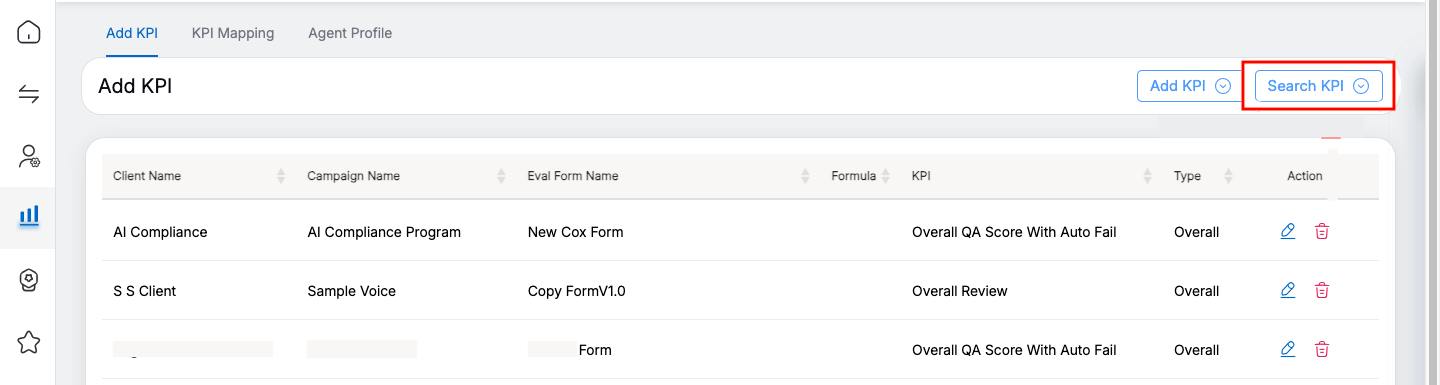
Search KPI button
The following screen appears:
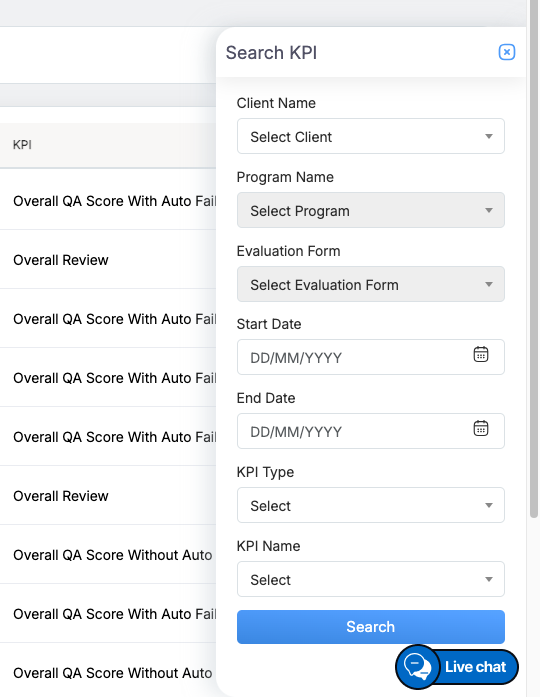
Search KPI
Search Criteria
The page displays search criteria based on which one can search for a particular KPI. A KPI can be searched on the basis of the following criteria:
| Search Elements | Description |
| Client Name |
Select the name of the client from the dropdown list. One can even search the client’s name, by entering keyword in the search textbox displayed under the dropdown list. |
| Program Name |
Select the specific program from the dropdown list which will display the Program Name as per the selection of the Client Name. One can even search the program name, by entering keyword in the search textbox displayed under the dropdown list. |
| Evaluation Form Name |
Evaluation Forms are displayed as per the client’s name and program name selected. Select the Evaluation Form Name from the dropdown list. One can even search the evaluation form name, by entering keyword in the search textbox displayed under the dropdown list. |
| Start Date | Select the start date using date picker option to search for KPI. |
| End Date | Select the end date using date picker option to which KPI should be searched. |
| KPI Type | Select the KPI type that includes Overall, Performance, or Quality from the dropdown list. |
| KPI Name | Select the KPI name from the dropdown list. |
Once the necessary details are configured, click on the Search button for specific KPI. Based on the applied search filters, all the KPIs will be visible on the Add KPI page as shown on the screen below:
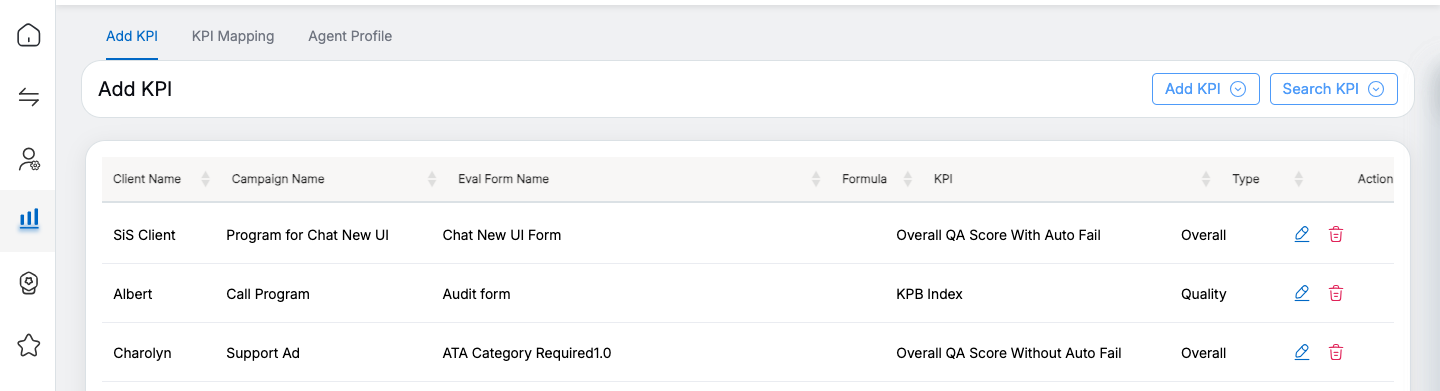
Add KPI
Search Results
The following information will be displayed in the grid:
- Client Name – Displays the name of the client to which the KPI is mapped.
- Campaign Name – Displays the name of the campaign of the client to which the KPI is mapped.
- Eval Form Name – Displays the name of the evaluation form created for the client.
- Formula – Displays the formula created by the selected field name and operator while adding the KPI.
- KPI – Displays the name of the KPI which is mapped to the certain client and its campaign.
- Type – Displays the name of the KPI type of the KPI.
Edit KPI
- Action – Edit icon is displayed to edit the set KPI. To do so, click on the Edit
 icon displayed under the Action column. The Edit KPI window will be displayed. Once necessary changes are completed, click on the Update button to update the added KPI. Click on the Cancel button will discard the process as shown below:
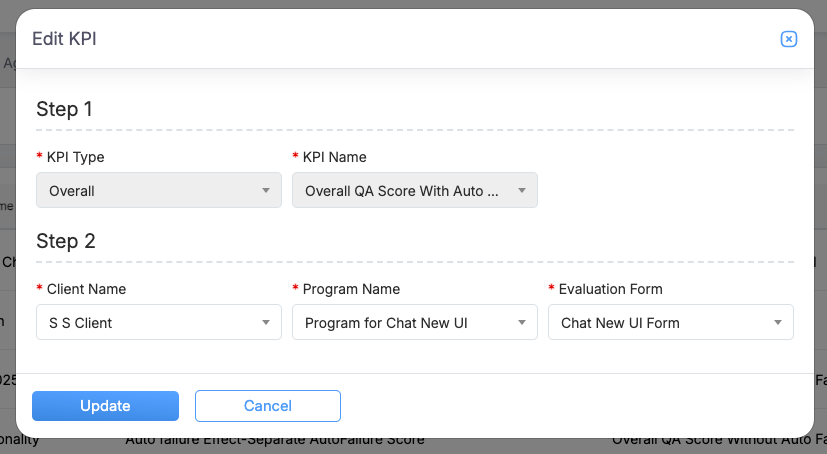
Edit KPI
A confirmation message will be displayed and the added KPI will be updated as shown below:
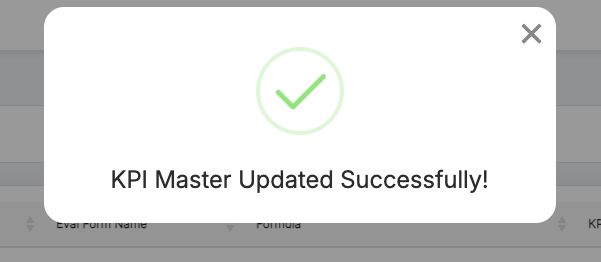
Confirmation message
Delete KPI
- Action – Delete icon is displayed to delete the added KPI. To do so, click on the Delete
 icon displayed under the Action column. A confirmation message will be displayed on the same page. Click on the Delete It button, to delete the added KPI or click on the Cancel button to discard this process as shown below:
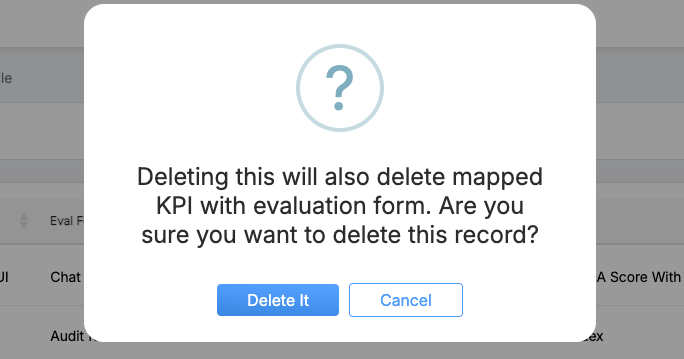
Delete Confirmation pop-up
An acknowledgement message will be displayed and the selected KPI will be deleted from the list.
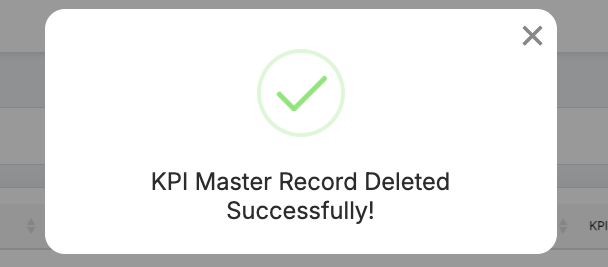
Confirmation message
Video