Table of Contents
Edit Work Allocation
Once a work allocation is added, users can edit or delete the existing work allocations.
To access this functionality, select Manage > Work Allocation > Manage Work Allocation from the left panel as shown below:
To edit a work allocation, click the Edit icon under the Action column on the Work Allocation page.
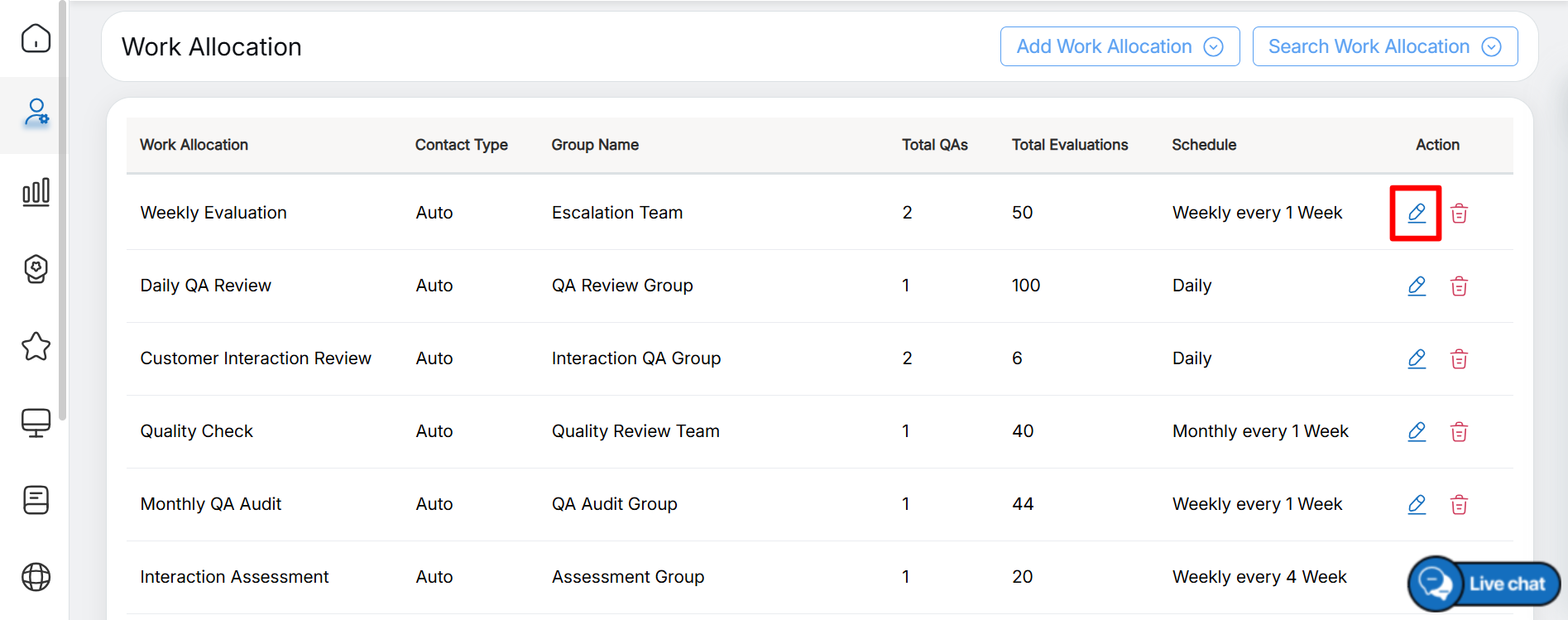
Edit Work Allocation
The Work Allocation page is displayed, as shown below:
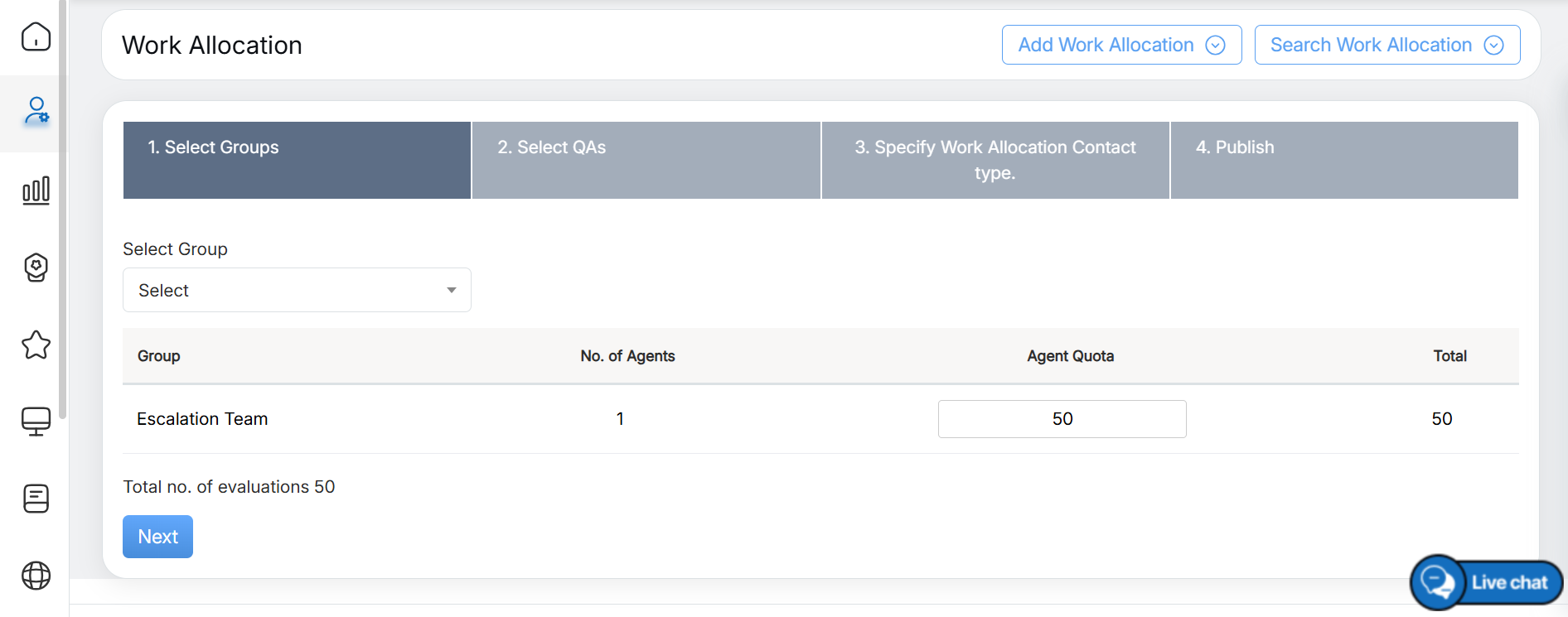
Work Allocation Page
Once the allocation details are updated, click the Update button on the fourth step. For more information about the steps, refer to Add Work Allocation.
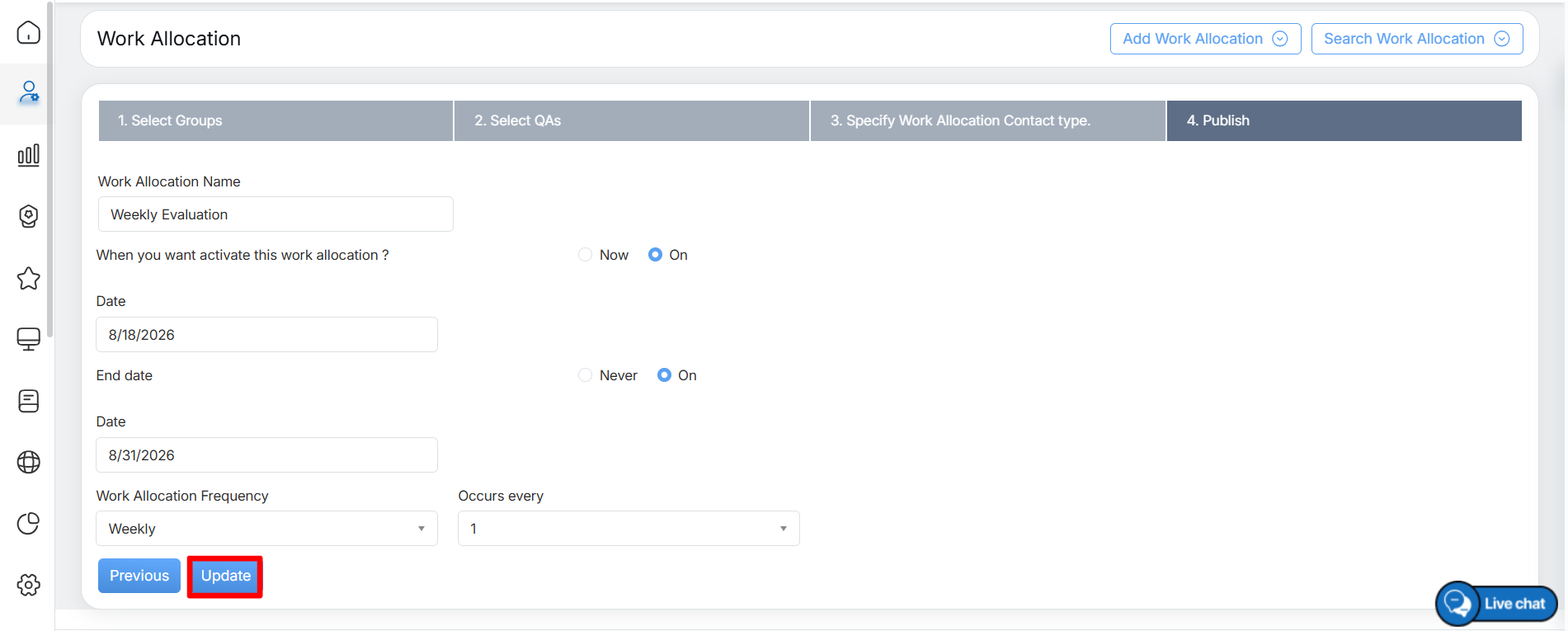
Update
An acknowledgement message is displayed, confirming that the work allocation has been updated, as shown below:
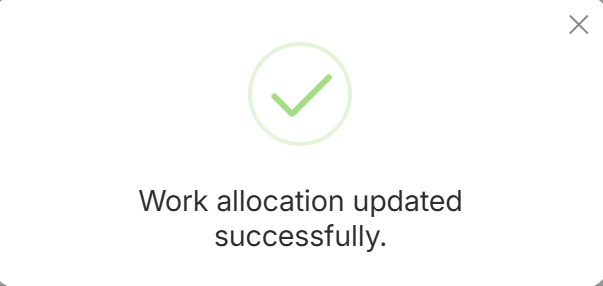
Acknowledgement Message
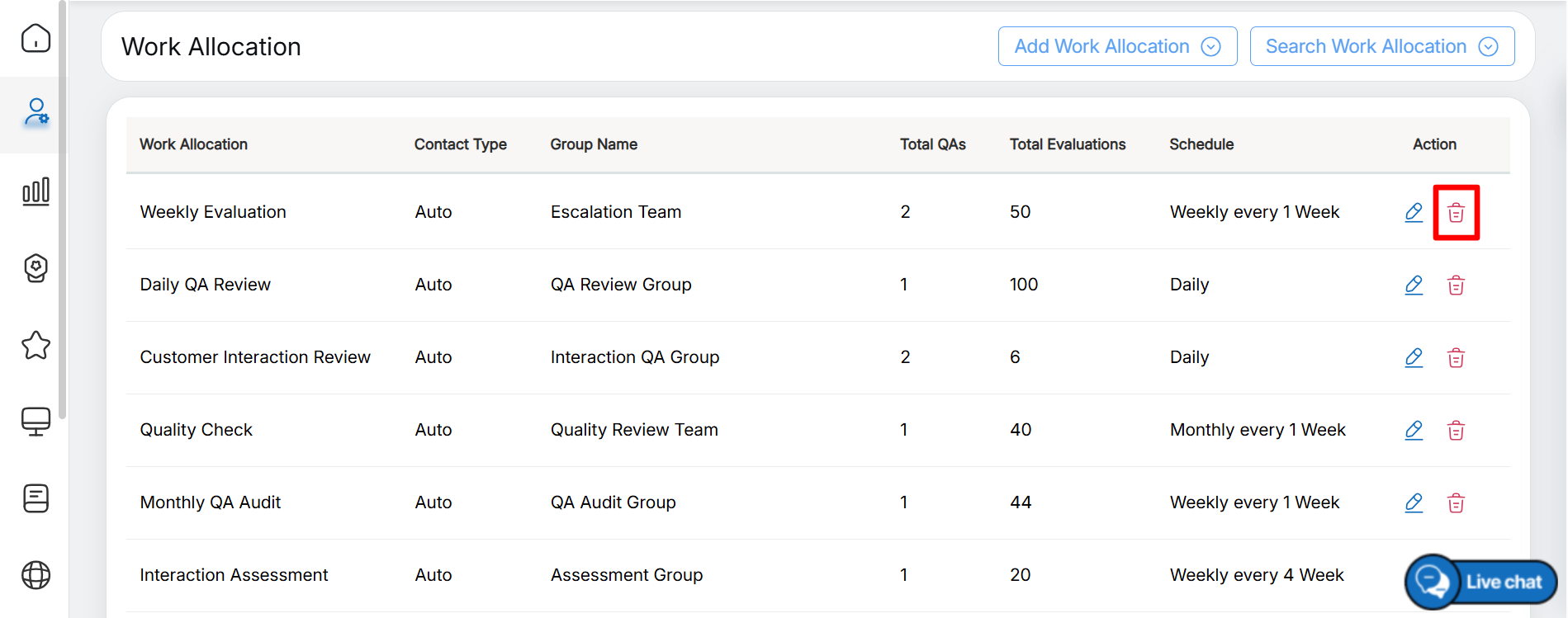
Delete Work Allocation
A confirmation message is displayed. Click Yes to confirm the deletion, or click No to cancel the action, as shown below:
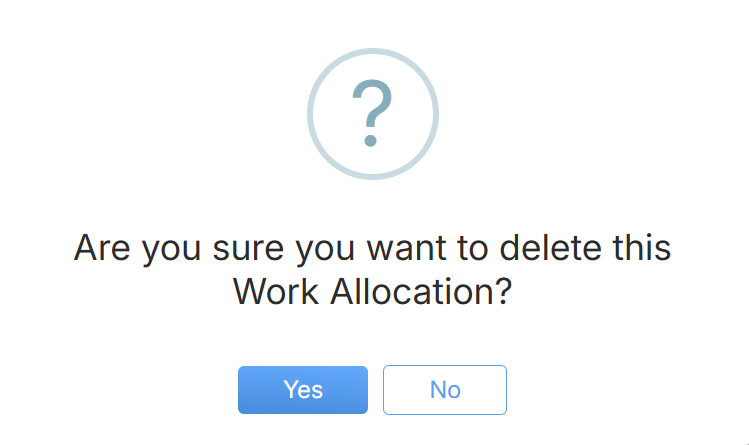
Delete Dialog Box
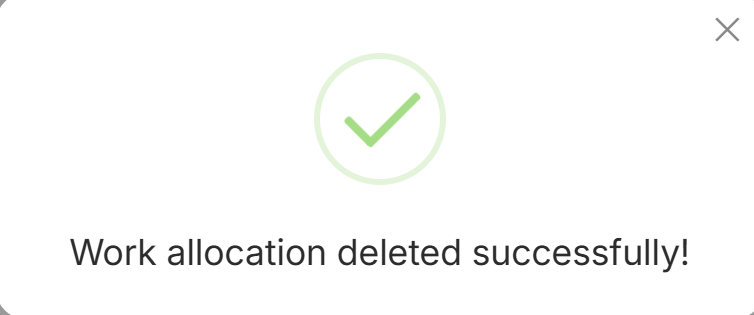
Acknowledgement Message
In this way, users can edit or delete any specific work allocation as required.
Video