Table of Contents
Introduction
The Audit Trail Report displays the changes made to an evaluation form after it has been submitted, helping users track updates made to the submitted evaluation.
Audit Trail Report
The Audit Trail Report page will be displayed, as shown below.
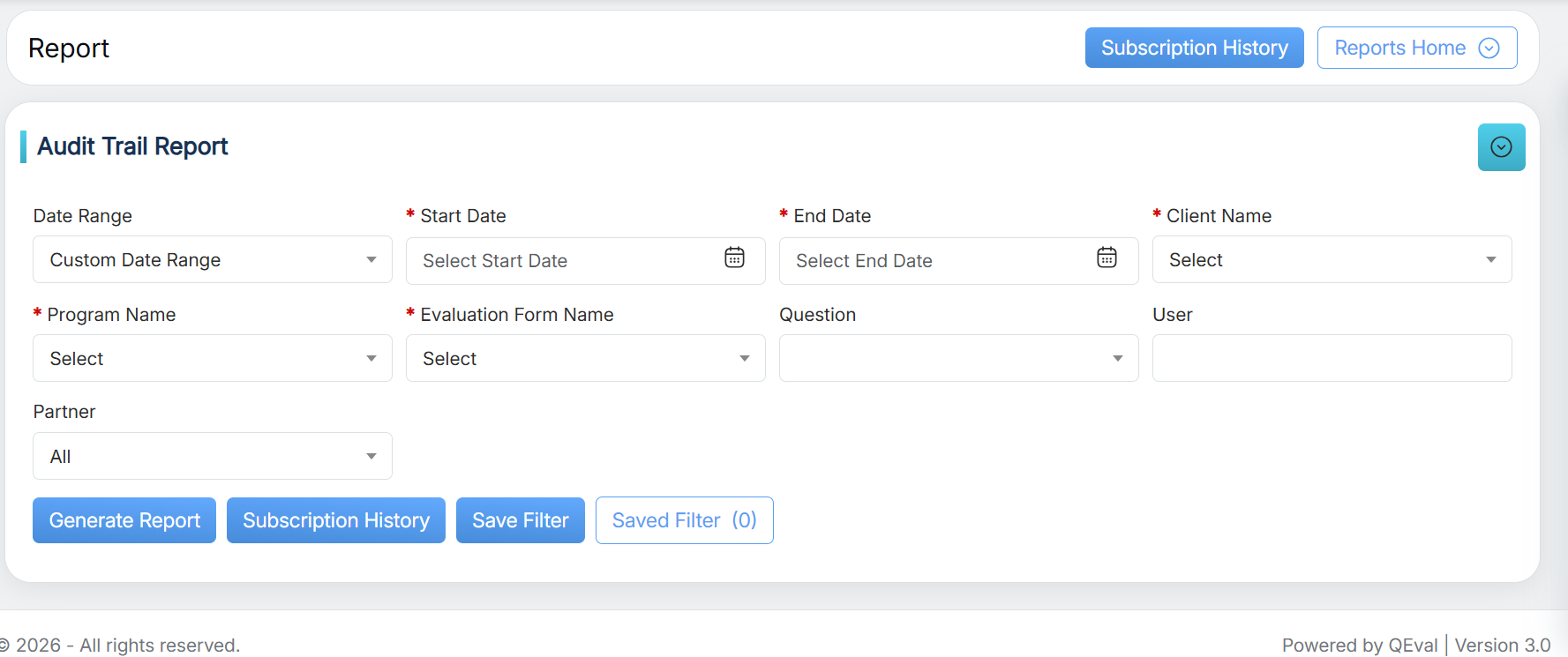
Audit Trail Report Details
|
Screen Elements |
Description |
|---|---|
|
Date Range |
User can define a date range by either selecting from predefined timeframes in the dropdown or specifying a custom range based on the need. Available filters include Today, Last 7 Days, Last 10 Days, Last 30 Days, Last 12 Weeks, Last 6 Months, Week to Date, Month to Date, Previous Day, Previous Week, Previous Month, and Custom Date Range. Select the option that best suits your requirements. |
|
Start Date |
If Custom Date Range is selected, the user can specify the Start Date and End Date to view the report for the required period. |
|
End Date |
Select the end date. |
|
Client Name |
Select the required Client Name from the dropdown list. |
|
Program Name |
Select a Program Name from the dropdown list. The list displays the programs associated with the selected Client Name. |
|
Evaluation Form Name |
Select the required Evaluation Form Name from the dropdown list. |
|
Question |
Select the question from the dropdown list which displays the questions added in the selected Evaluation Form. |
|
User |
Enter the initial characters of the user’s name and select the name from the dropdown list displayed. Note: If the user name is not selected, it displays the reports for all the agents. |
|
Partner |
Select the required Partner Name from the dropdown list. The list displays the partners associated with the selected Client Name. |
Once all the required search criteria are configured, click the Generate Report button.
The report matching the selected search criteria will be displayed, as shown below.
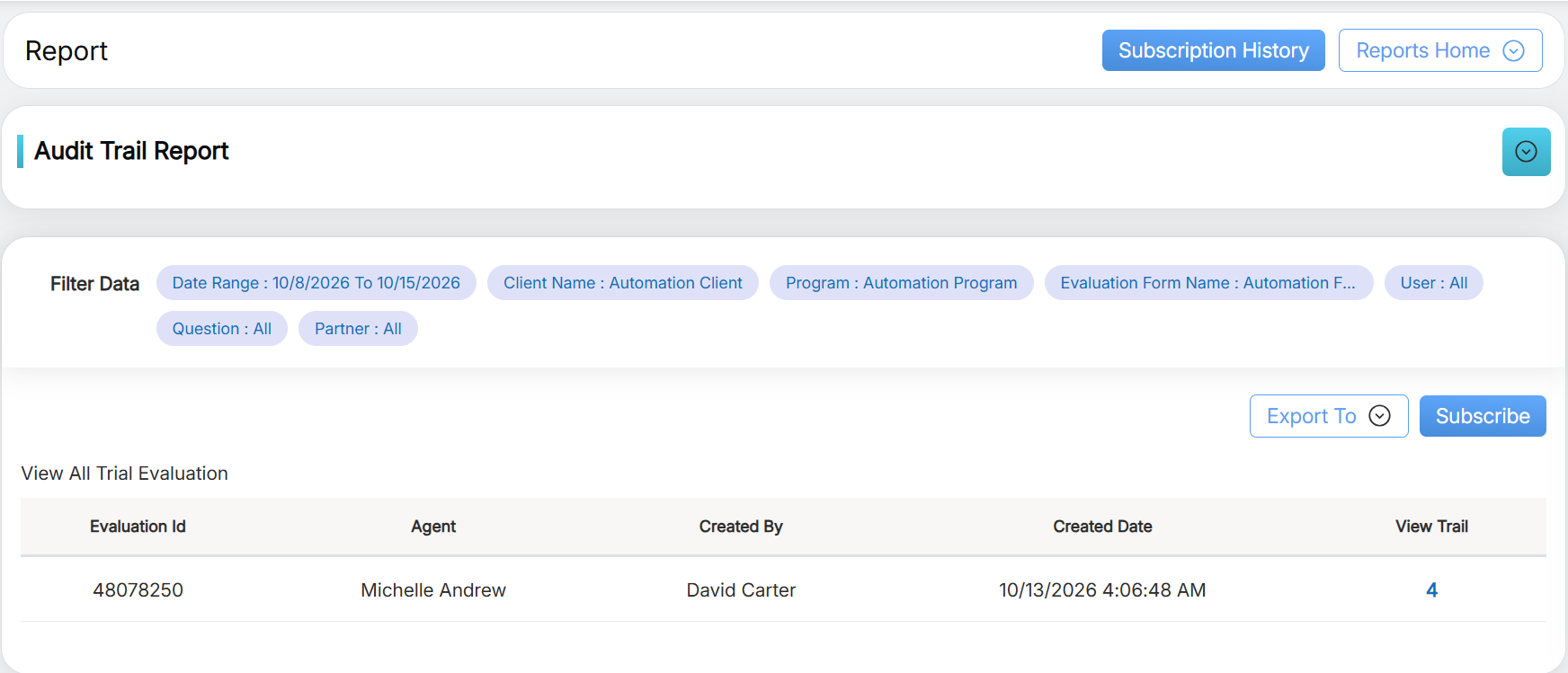
Generated Report
The report can be exported in Excel or CSV format. Click the Excel or CSV button to download the report in the required format.
To view all evaluations associated with the audit trail, click the View All Trial Evaluation link highlighted in the report, as shown below.
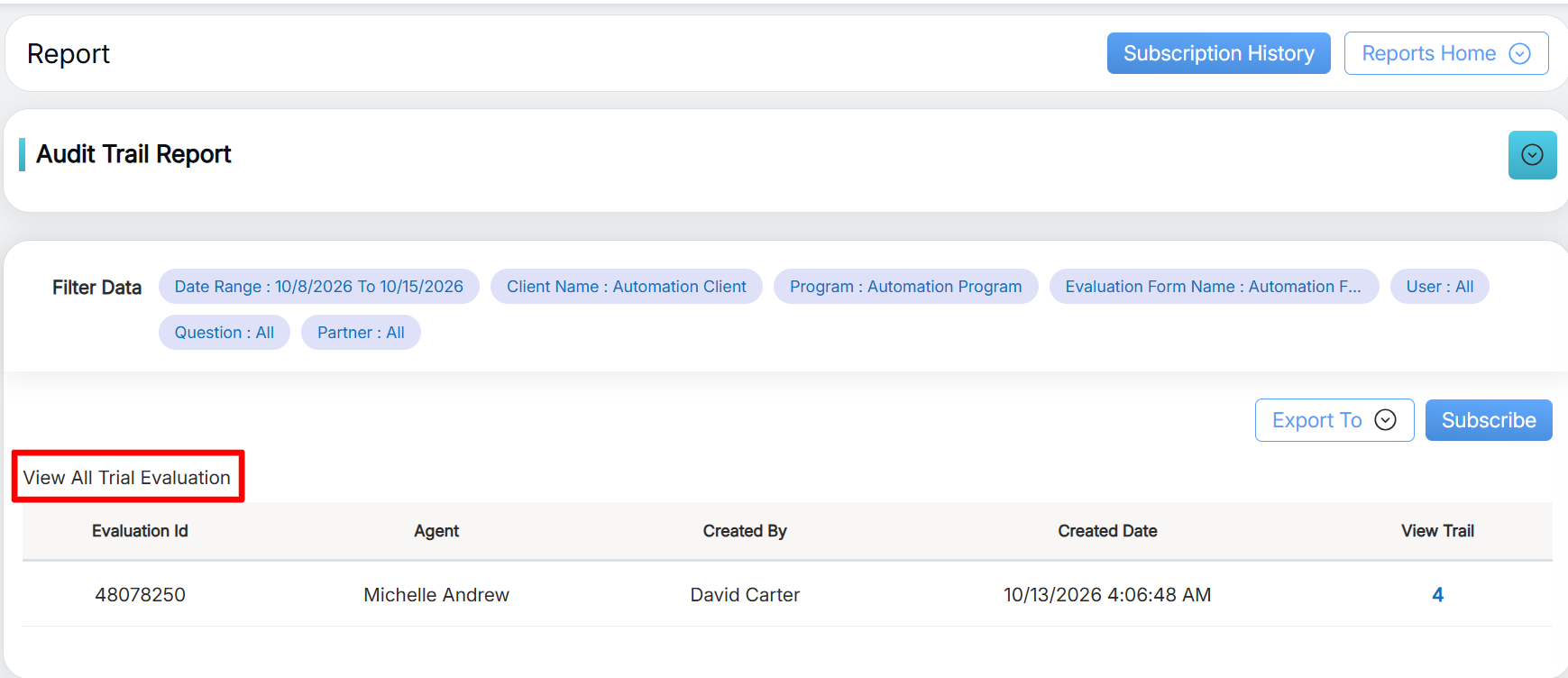
View All Trial Evaluation
The user will be redirected to the following console, which displays all audit trail evaluations in one place.
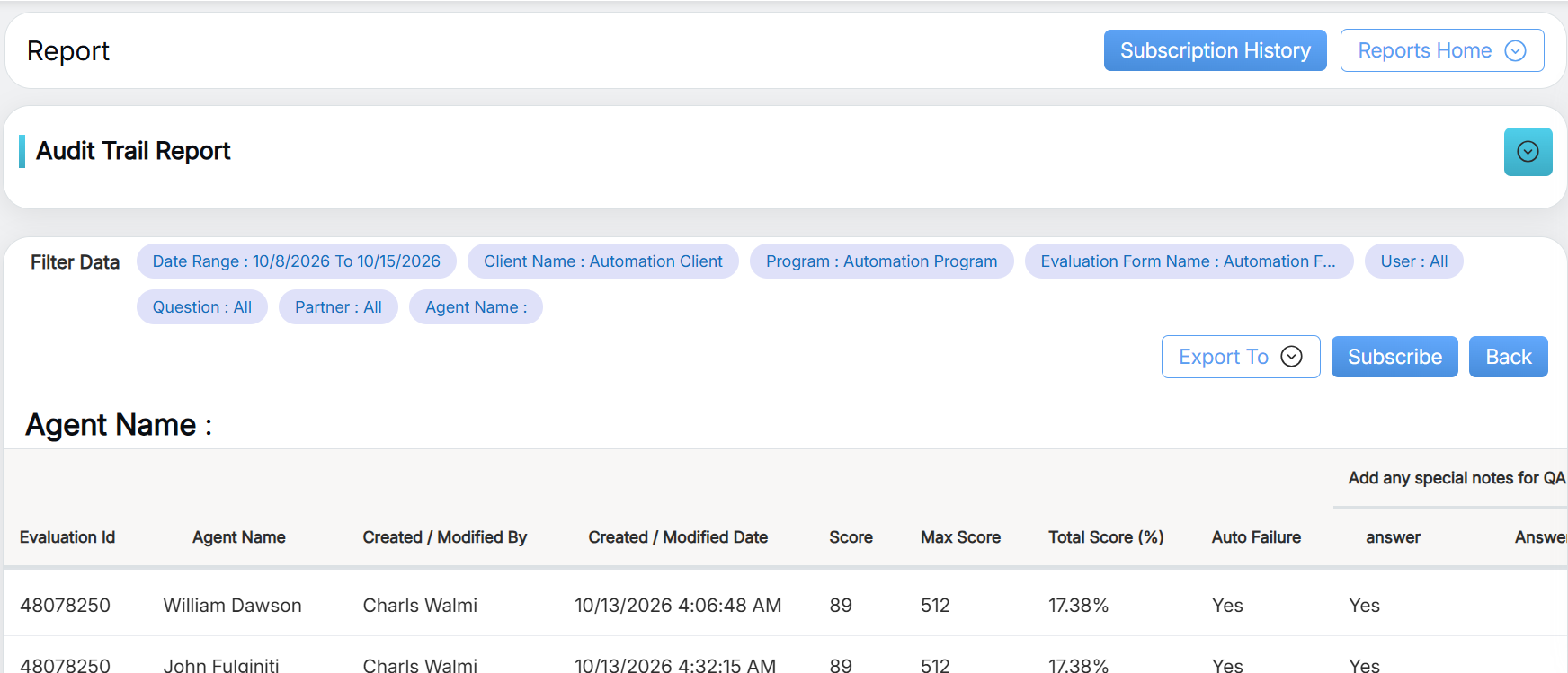
Audit Trial Evaluations
Video