Table of Contents
- Introduction
- Configuring Coaching Effectiveness
- Method 1: Creating a New Evaluation Form
- Method 2: Editing an Existing Form
Introduction
While reviewing an evaluation, the agent can rate the coach. The coach rating is provided on a 1 to 5 scale, where 1 represents the lowest rating and 5 represents the highest rating.
To rate the coach, the agent can select the appropriate rating from the available options. The rating submitted by the agent is not visible to the coach.
Configuring Coaching Effectiveness
The Coaching Effectiveness feature in QEval can be configured by the admin for agents using two different methods.
Method 1: Creating a New Evaluation Form
The Coaching Effectiveness feature can be configured while creating a new evaluation form.
- Select Manage > Forms. The Design Form page is displayed, as shown below.
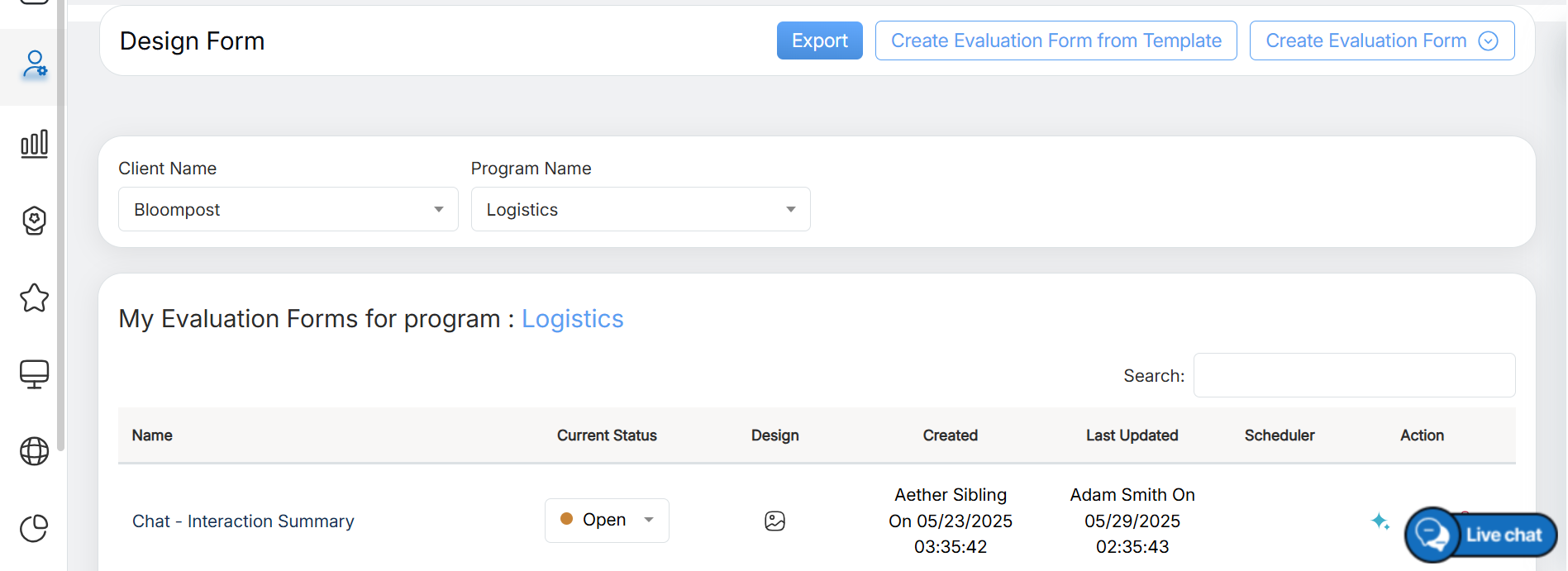
Design Form Page
- To create a new evaluation form, click Create Evaluation Form.
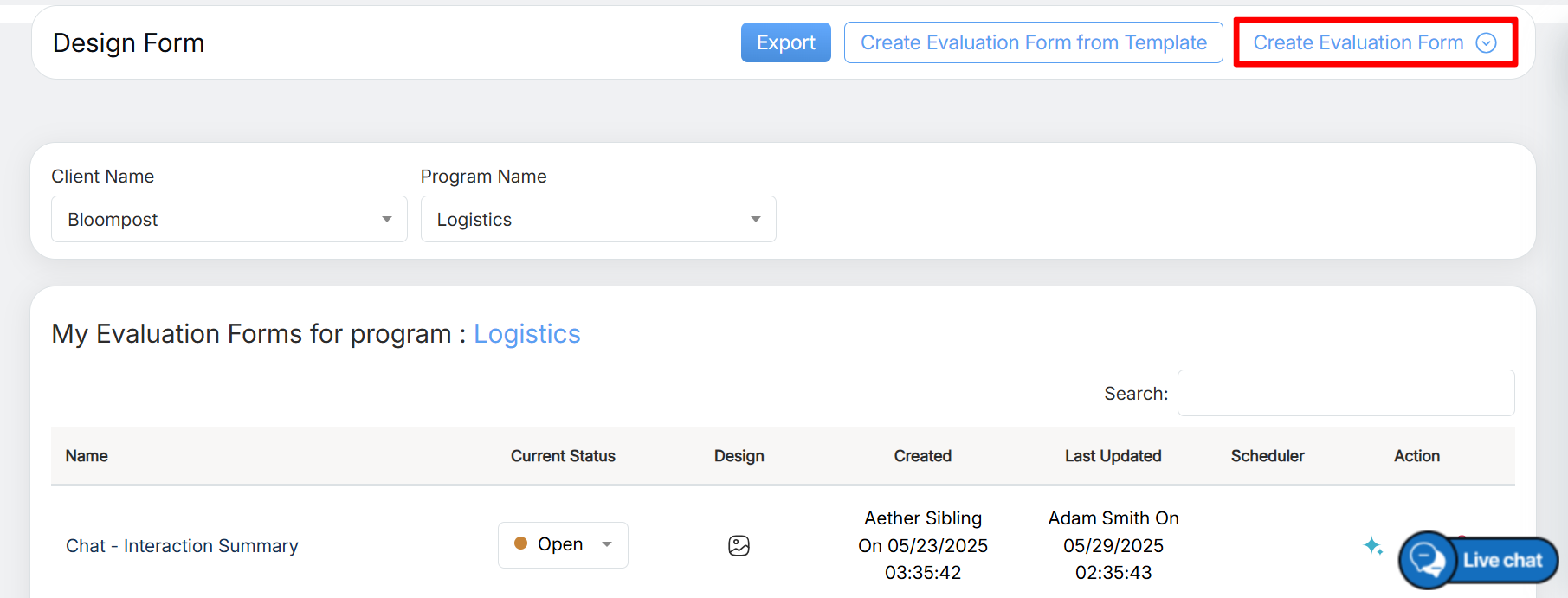
Create Evaluation Form
- Select Start with a Blank Evaluation Form. The following screen is displayed.
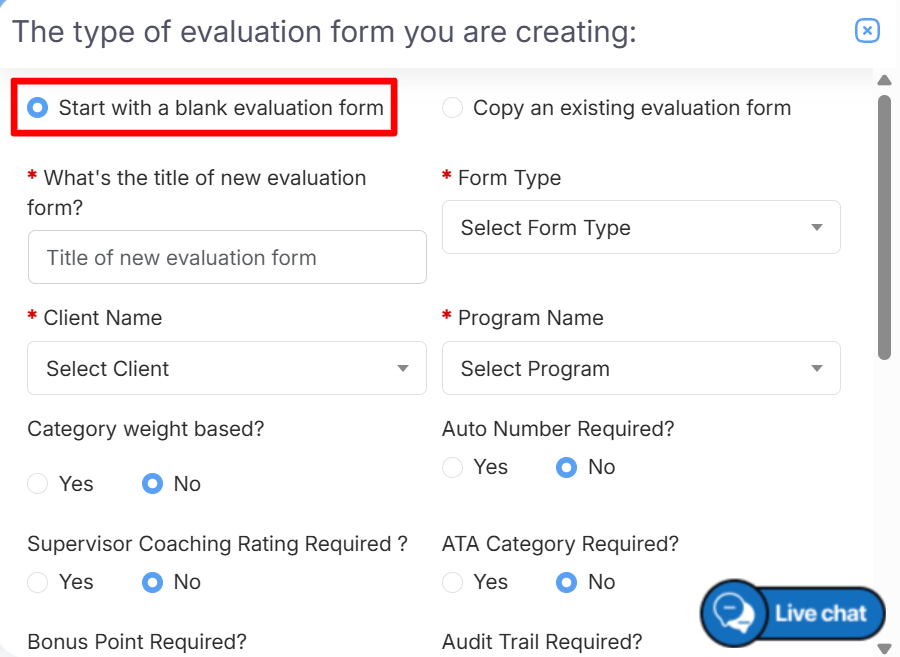
Start with a blank evaluation form
- Along with the other required configurations, select Yes for the Supervisor Coaching Rating Required? field, as shown below.
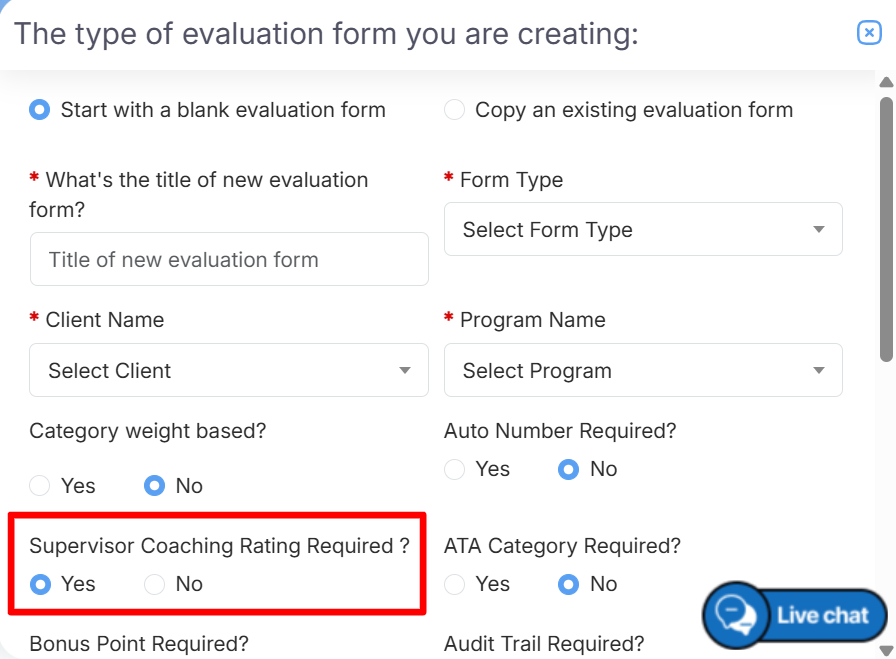
Supervisor Coaching Rating Required
- Once all form configurations are complete, click Create Evaluation Form to create the evaluation form.
Method 2: Editing an Existing Form
The Coaching Effectiveness feature can also be enabled while editing an existing evaluation form. Follow the steps below to enable this functionality:
- Select Manage > Forms. The Design Form page is displayed, as shown below.
Design Form Page
- Click the Edit icon under the Action column for the required evaluation form. The Edit Form window is displayed, as shown below.
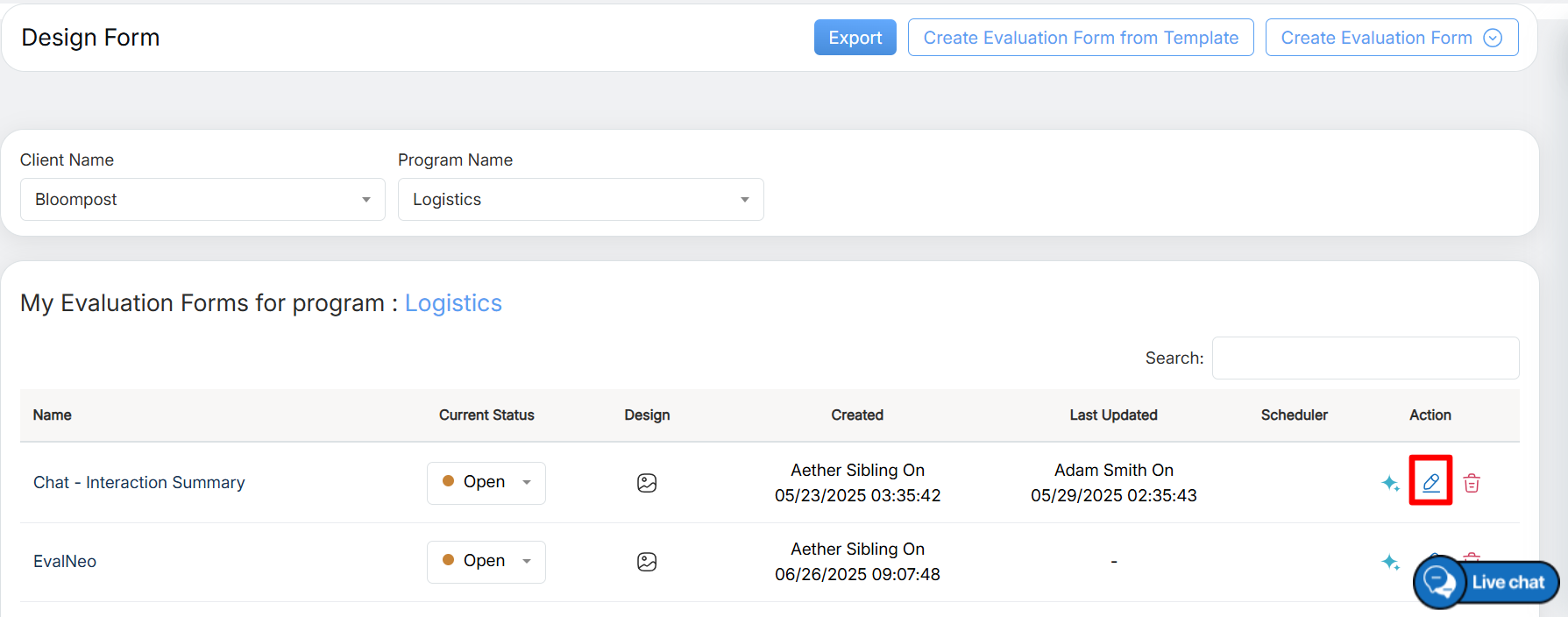
Edit Form
- Along with the other required configurations, select Yes for the Supervisor Coaching Rating Required? field, as shown below.
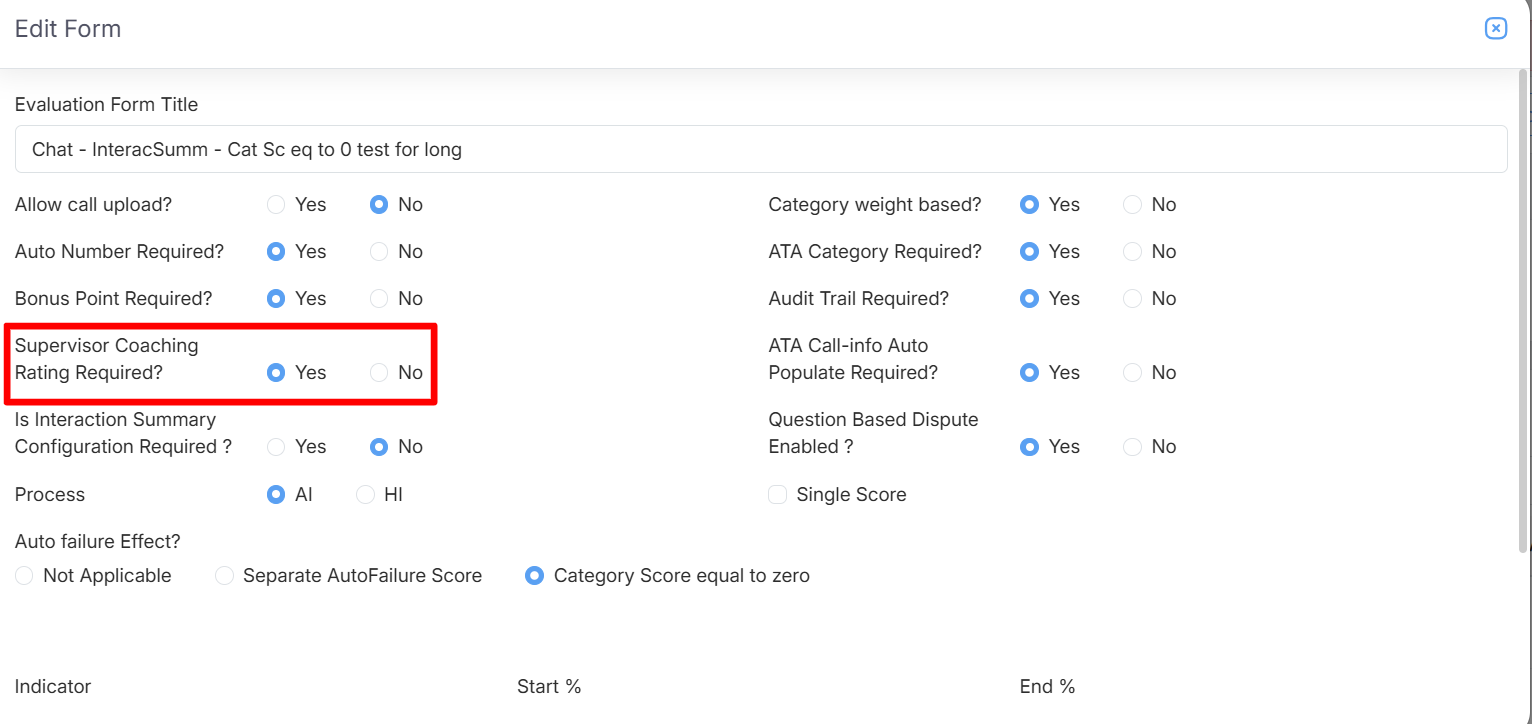
Edit Form Page
- Once all required changes are complete, click Update to save the changes.
Agent’s Role
Once the Coaching Effectiveness feature is enabled by the admin, the Coaching Effectiveness option is visible to agents.
To view and complete the coaching review, follow the steps below:
- Navigate to Home Page > Training. From the grid, click the required Evaluation ID link to view and complete the coaching review, as shown below.
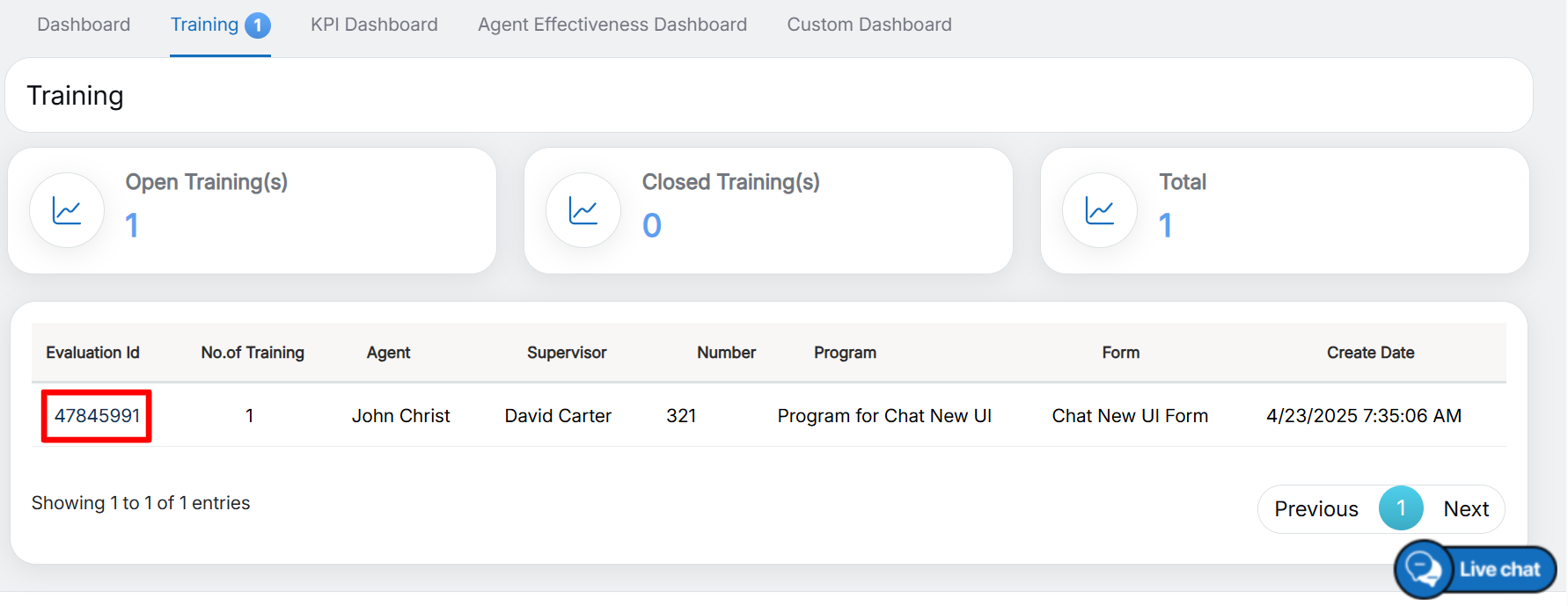
Evaluation ID
- Click the Evaluation ID link to open the View Evaluation page for the selected evaluation form and program, as shown below.
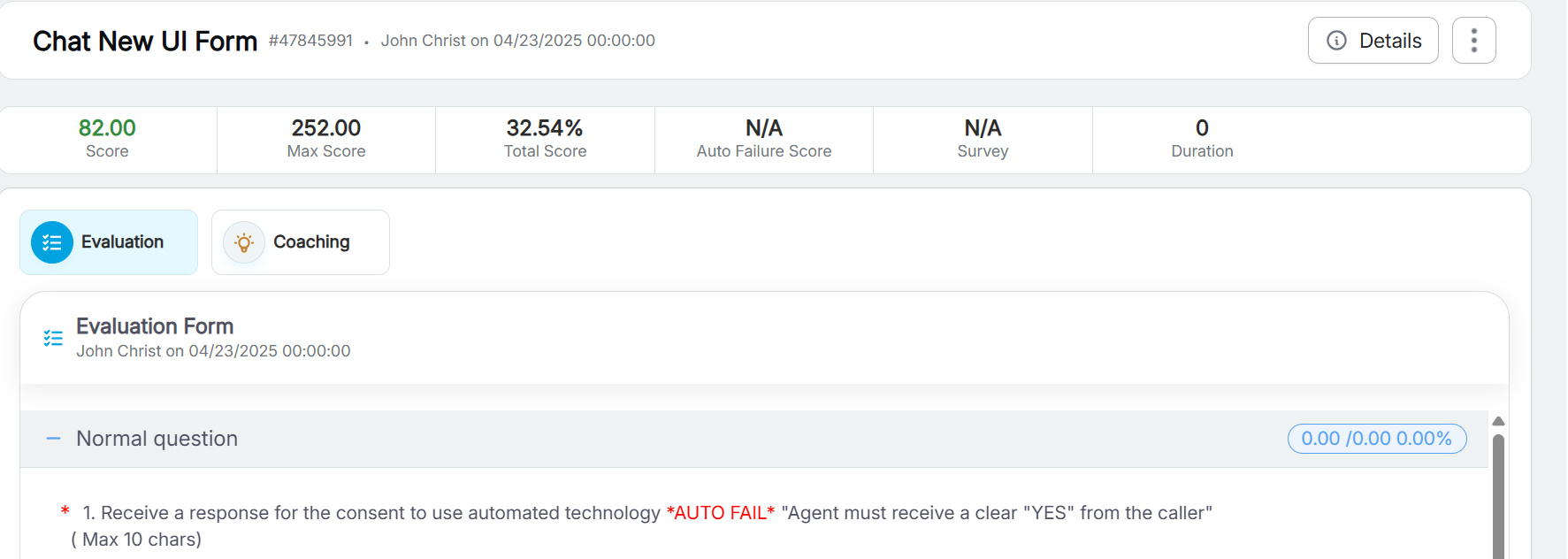
View Evaluation Page
- Based on whether the supervisor has provided the coach review, the agent may encounter one of the following two scenarios:
Case 1
If the supervisor has not provided a coaching review, select the Self Review radio button for the Self Review/Coach Review field and submit the evaluation.
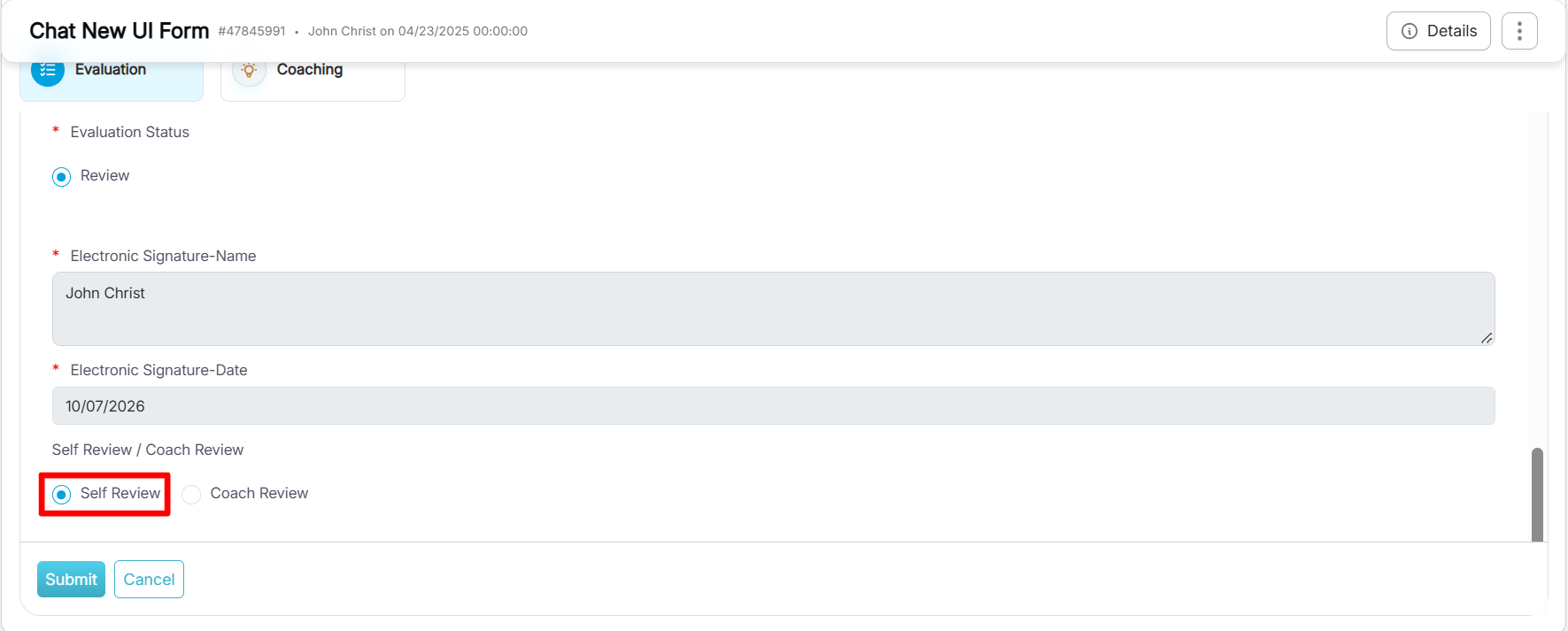
Self Review
Case 2
If the supervisor has provided a coaching review, select the Coach Review radio button for the Self Review/Coach Review field. The coaching feedback survey is displayed.
The agent has to rate the supervisor’s coaching on a 1 to 5 scale, where 1 represents the lowest rating and 5 represents the highest rating.
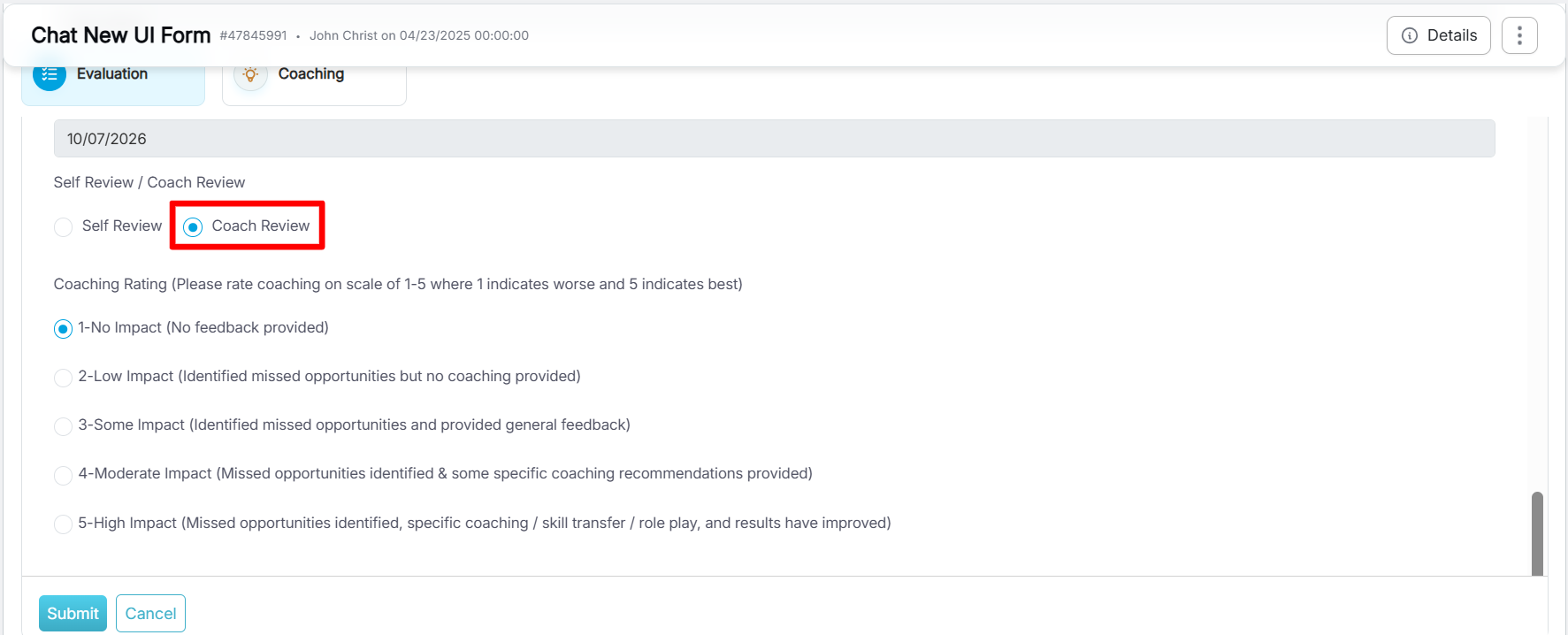
Coach Review
Video