Table of Contents
Agent Coaching Dashboard
The Agent Coaching Dashboard provides agents with a centralized view of their evaluations and coaching sessions assigned by their supervisor. It includes customizable date range filters, program selection options, and trend analysis tools that help agents review their performance over time. Agents can monitor their daily or weekly QA scores, identify strengths and areas for improvement across different programs, and access relevant modules directly from the dashboard. These insights support continuous learning, encourage self-improvement, and help agents enhance their overall performance.
After logging in to QEval using your assigned User ID and Password (refer to QEval Login for detailed login instructions), you will be directed to the Agent Dashboard.
You can also access the Agent Coaching Dashboard by clicking the Menu button or by moving your cursor to the left side of the screen to open the Menu Bar. From the menu, select Home, and then click Coaching Dashboard:
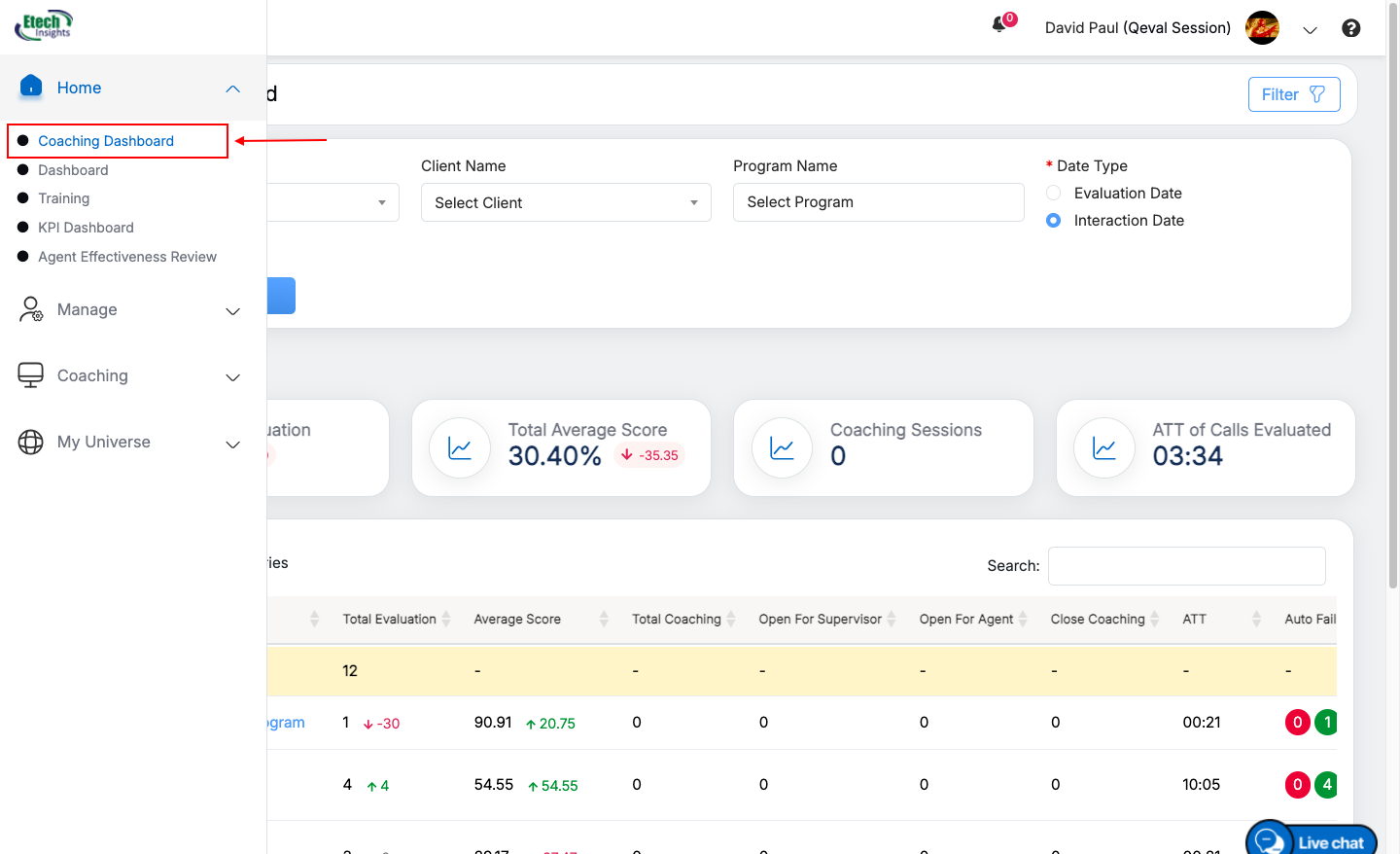
Coaching Dashboard
The logged-in agent will be directed to the Agent Dashboard page. Here the agent will be able to view, monitor, search and review the evaluations and coaching.
Agent Dashboard
The Agent Dashboard page displays the numeric data of various categories of Total Evaluation, Total Average Score, Coaching Sessions, and ATT of Calls Evaluated. The default view displays the summary of the last four week’s data on the dashboard.
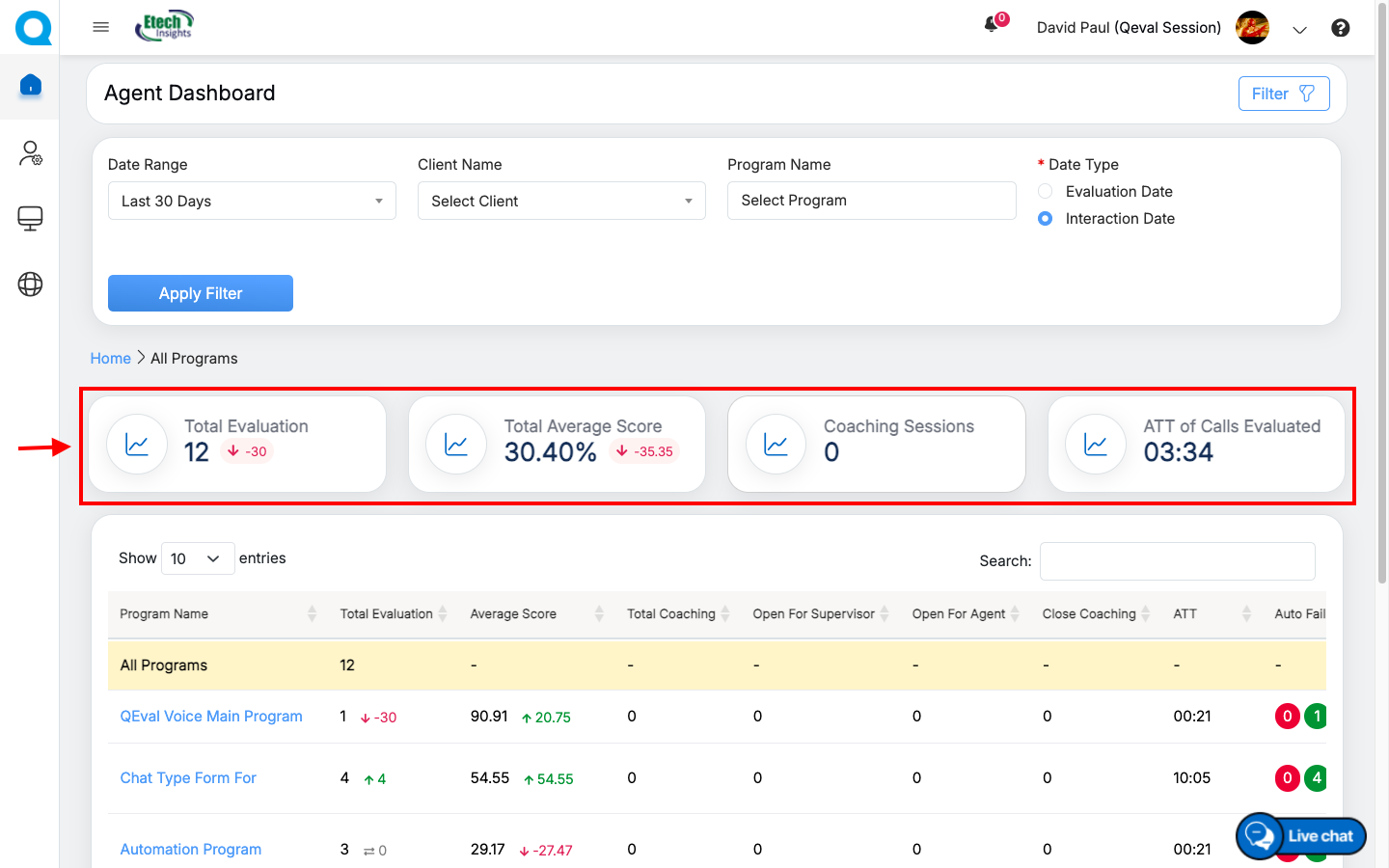
Numeric Data on Agent Dashboard
-
Here’s a cleaner, more user-friendly version with the arrow references removed:
Total Evaluations: Displays the total number of evaluations completed for the agent. The corresponding numeric value shows the evaluation count for each program. It also indicates the change compared to the previous date range, highlighting whether the number of evaluations has increased or decreased.
Total Average Score: Displays the agent’s overall average score as a percentage. The corresponding numeric value shows the average score for each program. It also indicates the change compared to the previous date range, showing whether the average score has improved or declined.
Coaching Sessions: Displays the total number of coaching sessions assigned to the agent. The corresponding numeric value shows the coaching session count for each program.
AHT of Evaluated Calls: Displays the agent’s average handling time (AHT) for evaluated calls. The corresponding numeric value shows the average handling time for each program.
By default, 10 program entries will be displayed in the table grid. To view more entries on the same page, click on the Show drop-down menu, and select the number of entries to view the coaching details.
The All Programs row, displayed at the top of the table, summarizes the combined metrics for all programs. The rows below display review and performance details for each individual program.
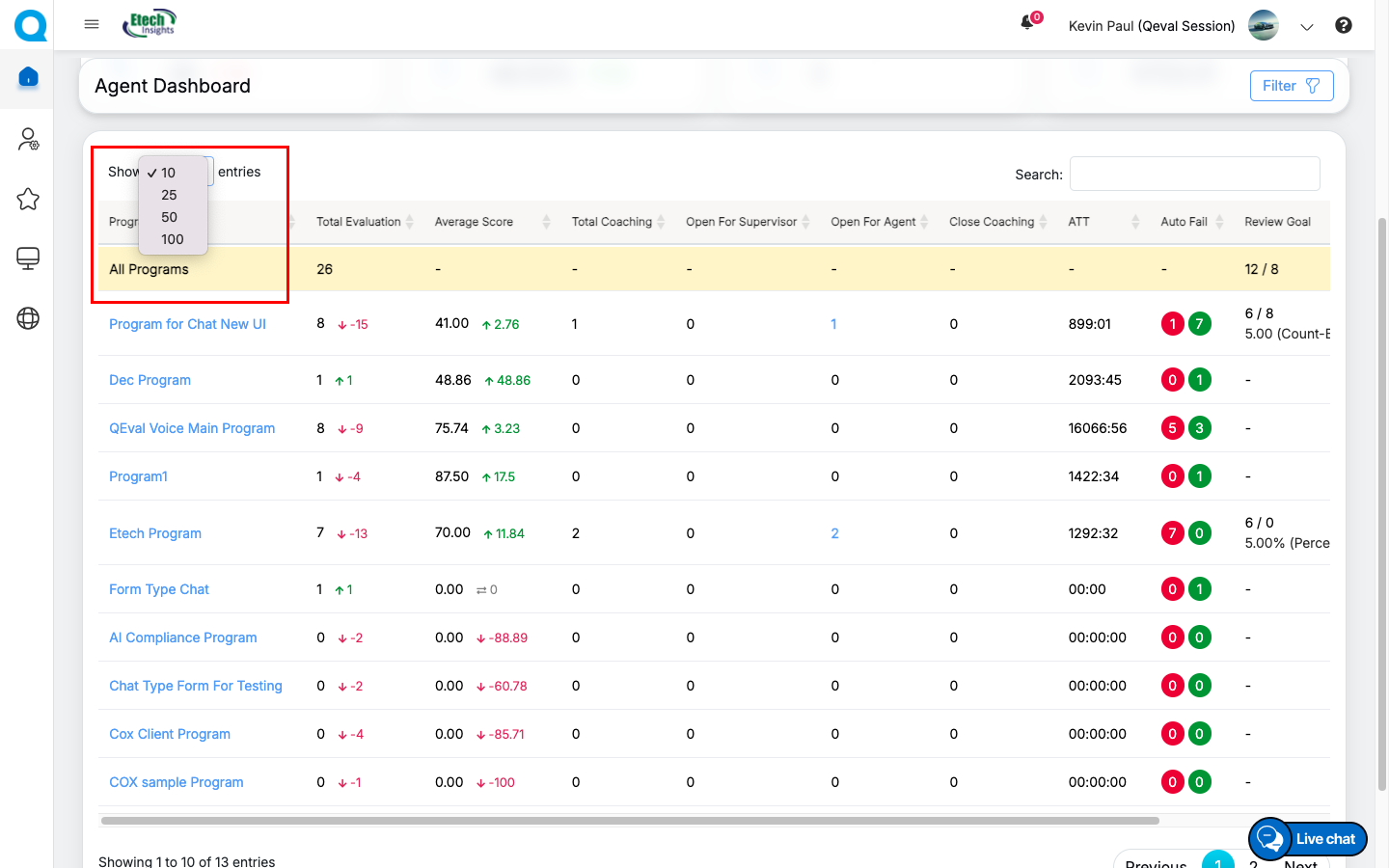
Show Entries
The logged-in agent can search specific coaching details displayed in the table grid by entering the keywords in the Search Bar Text-Box. Based on the entered keyword, the specific coaching details will be displayed in the table grid.
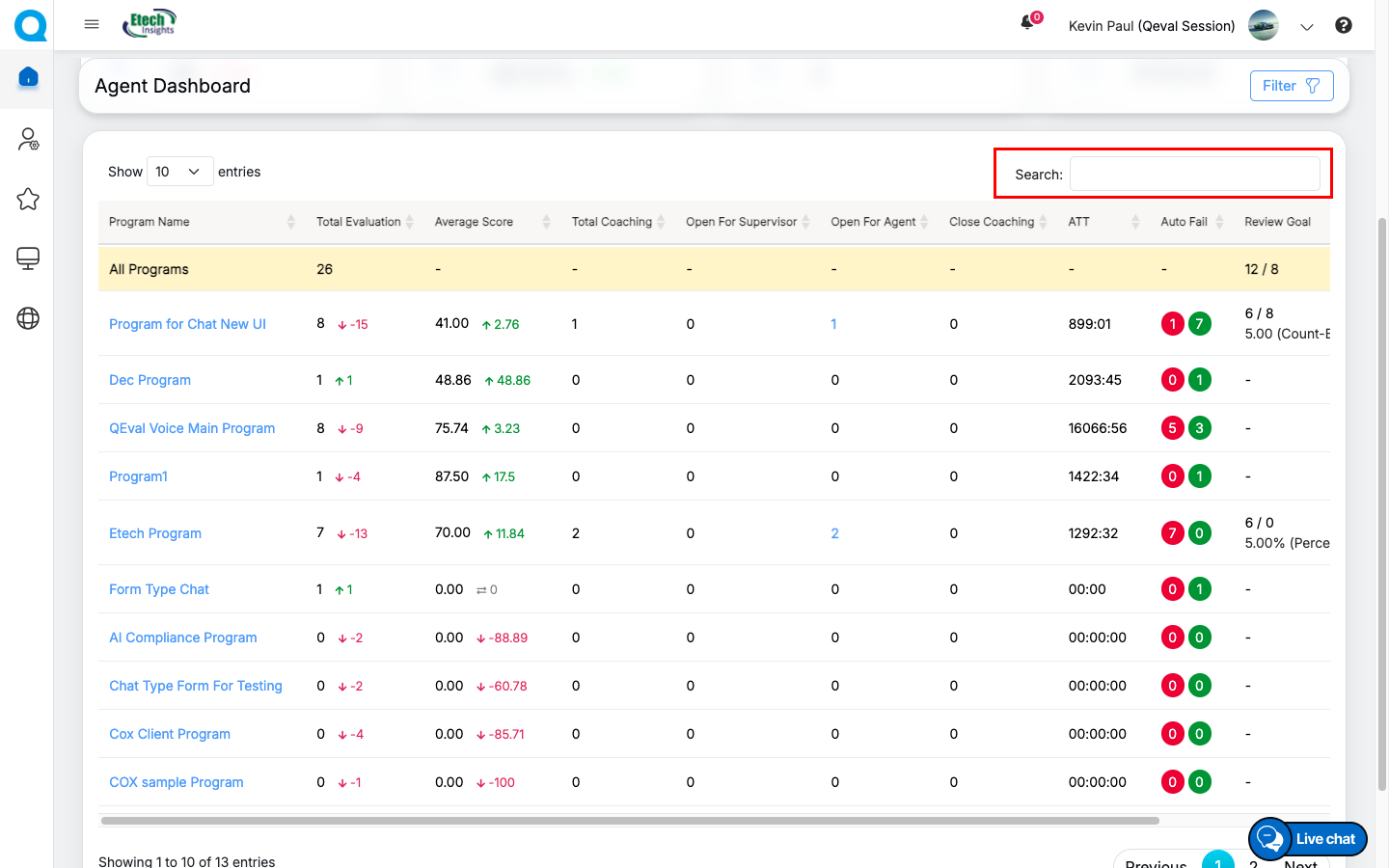
Search tab
The data elements displayed on the table grid are explained below:
| Table Elements | Description |
| Program Name |
Displays the name of the programs. The program name link allows the agent to view coaching details of specific program page for specific form. |
| Total Evaluation | Displays the number of the total evaluations of the agent and the numeric value displays the data of the specific program. It also shows the difference with the previous date range with Up Arrow  and numeric value in green color or with Down Arrow and numeric value in green color or with Down Arrow  and numeric value in red color. and numeric value in red color. |
| Average Score | Displays the average score of the agent and the numeric value displays the data for specific program. It also shows the difference with the previous date range with Up Arrow and numeric value in green color or with Down Arrow and numeric value in red color. |
| Total Coaching | Displays the total number of coaching sessions of the agent for the specific program. |
| Open for Supervisor | Displays the total number of coaching open for supervisor. |
| Open for Agent | Displays the total number of assigned coaching open for the agent for specific program. The number link allows the agent to view all the coaching feedback given by the supervisor, submit the coaching status and close the coaching assigned by the supervisor for specific program. |
| Close Coaching | Displays the total number of coaching closed by the supervisor. |
| ATT | Displays the agent’s average time handling of the evaluated calls for specific program. |
| AutoFail | Displays the agent’s autofail scores of the evaluated calls for specific program. |
| Review Goal | Displays the review progress for each program by comparing Completed Reviews against the required review target. For Count-Based goals, it shows Completed Reviews / Configured Review Goal. For Percentage-Based goals, it shows Completed Reviews / Calculated Required Reviews along with the configured review percentage. |
| Review % | Displays the review goal achievement percentage, calculated by comparing completed reviews with the required review target. The value is color-coded to indicate performance: Red (0–40%), Yellow (41–80%), and Green (Above 81%). |
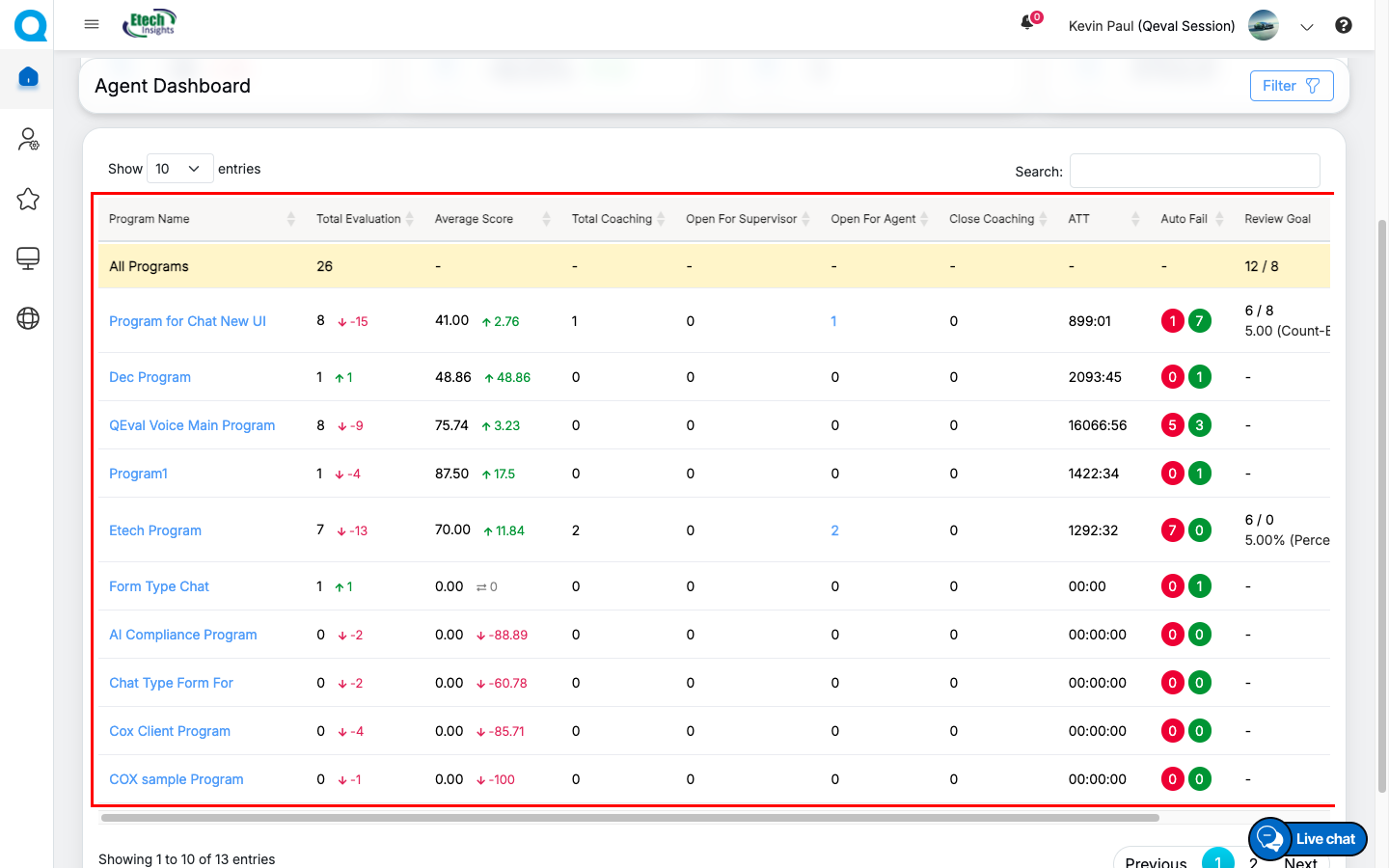
Agent Dashboard
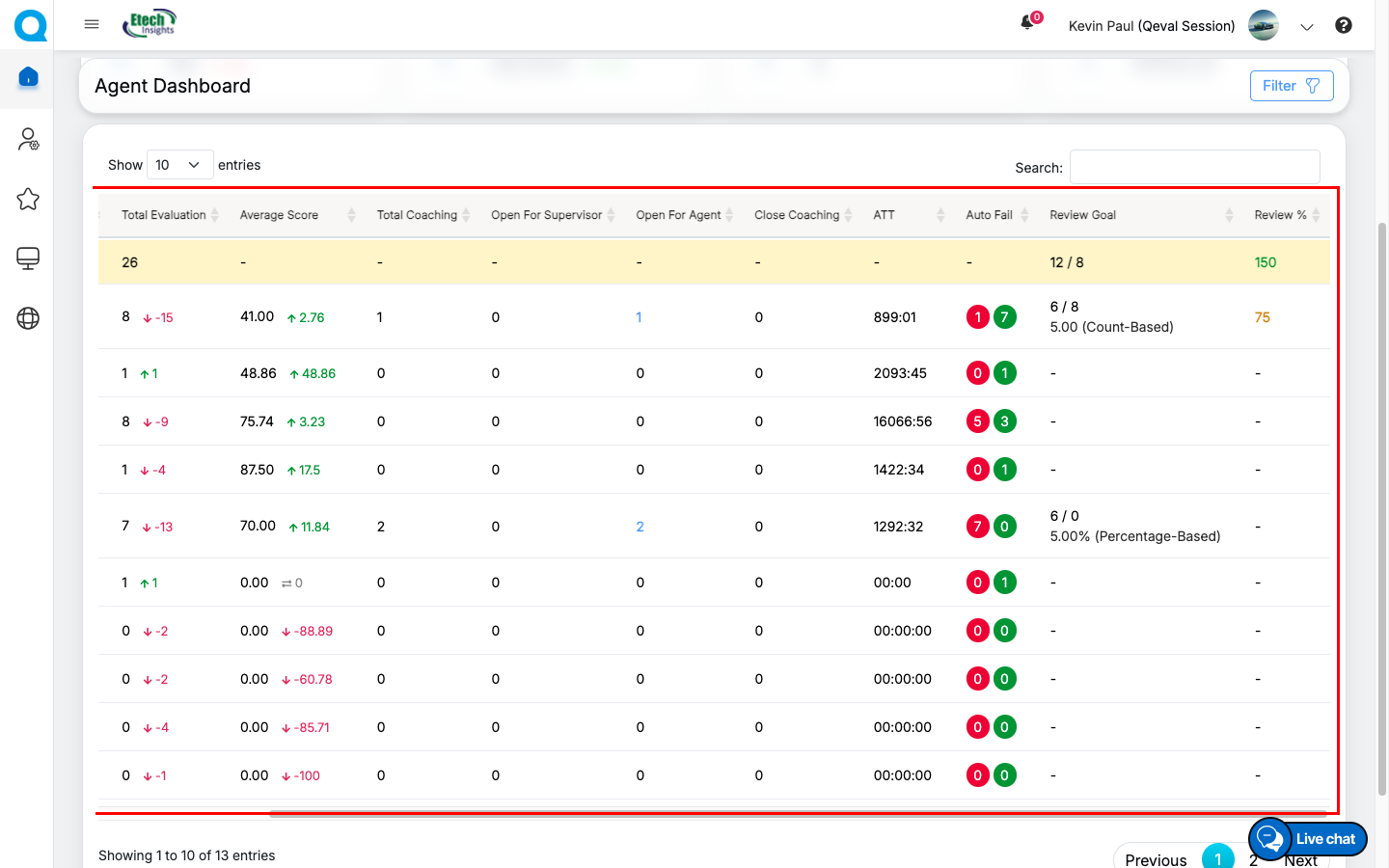
Agent Dashboard
Search Coaching
The logged-in agent will have an option to search specific coaching details based on client and program names and can view the coaching details assigned by their supervisor.
To access this feature, navigate to the Agent Dashboard and select the Date Range, Client Name, and Program Name from the respective drop-down menus. Then choose the required date type – Evaluation Date or Interaction Date – as explained below.
- Select the Date Range from the drop-down menu for the specific program which includes:
- Last 7 Days
- Last 15 Days
- Last 30 Days
- Last 90 Days
- Last 180 Days
- Last 365 Days
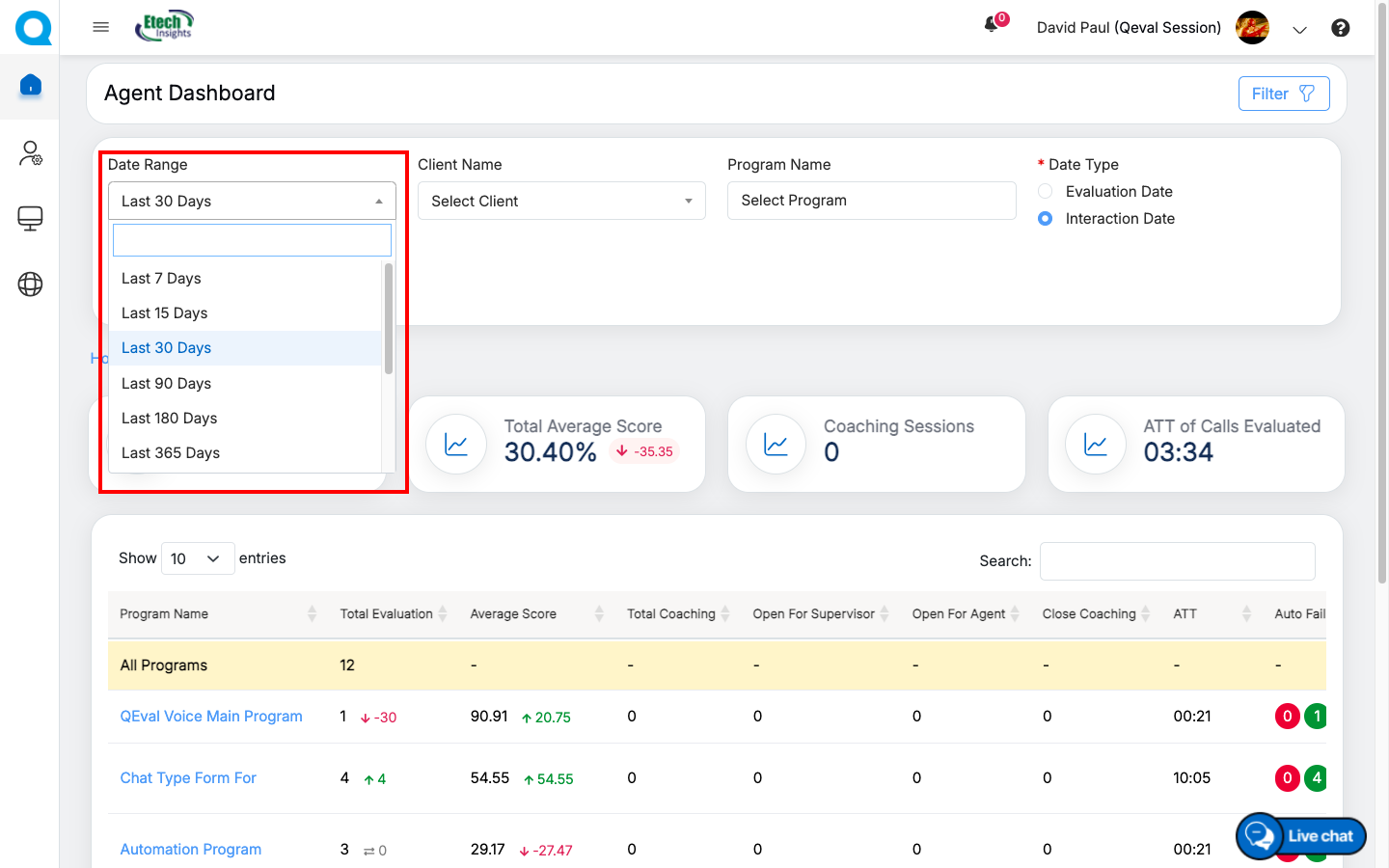
Date Range Drop Down Menu
- The Client Name drop-down menu displays the list of clients. Select the name of the client from the list. One can also search for the name of the client by entering keywords in the Search Bar Text-Box displayed under the drop-down field.
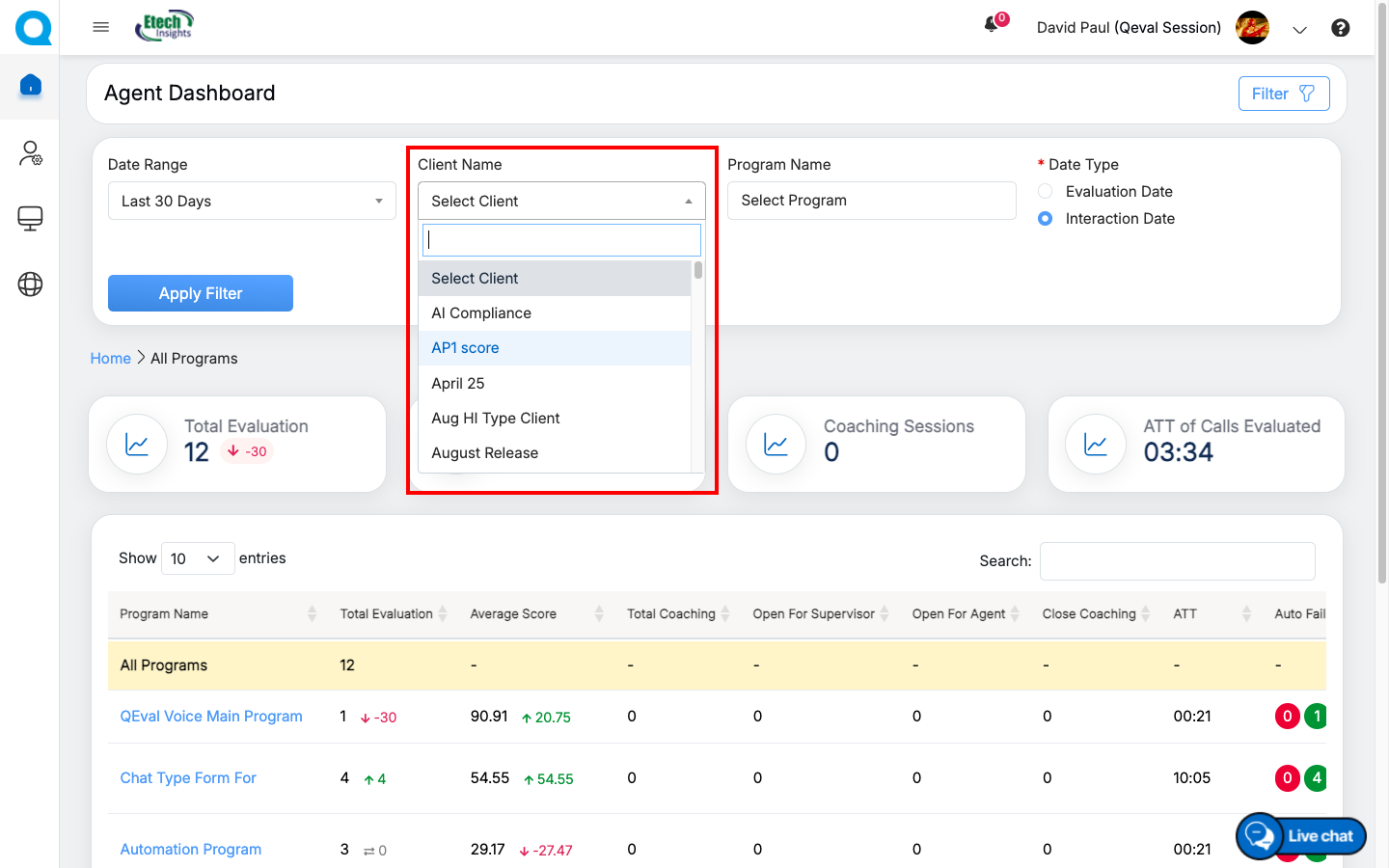
Client Name Drop Down Menu
- The Program drop-down menu displays the list of program names as per the selection of client name. Select the name of the program from the list. One can search the name of the program by entering the keywords in the Search Bar Text-Box displayed under the field.
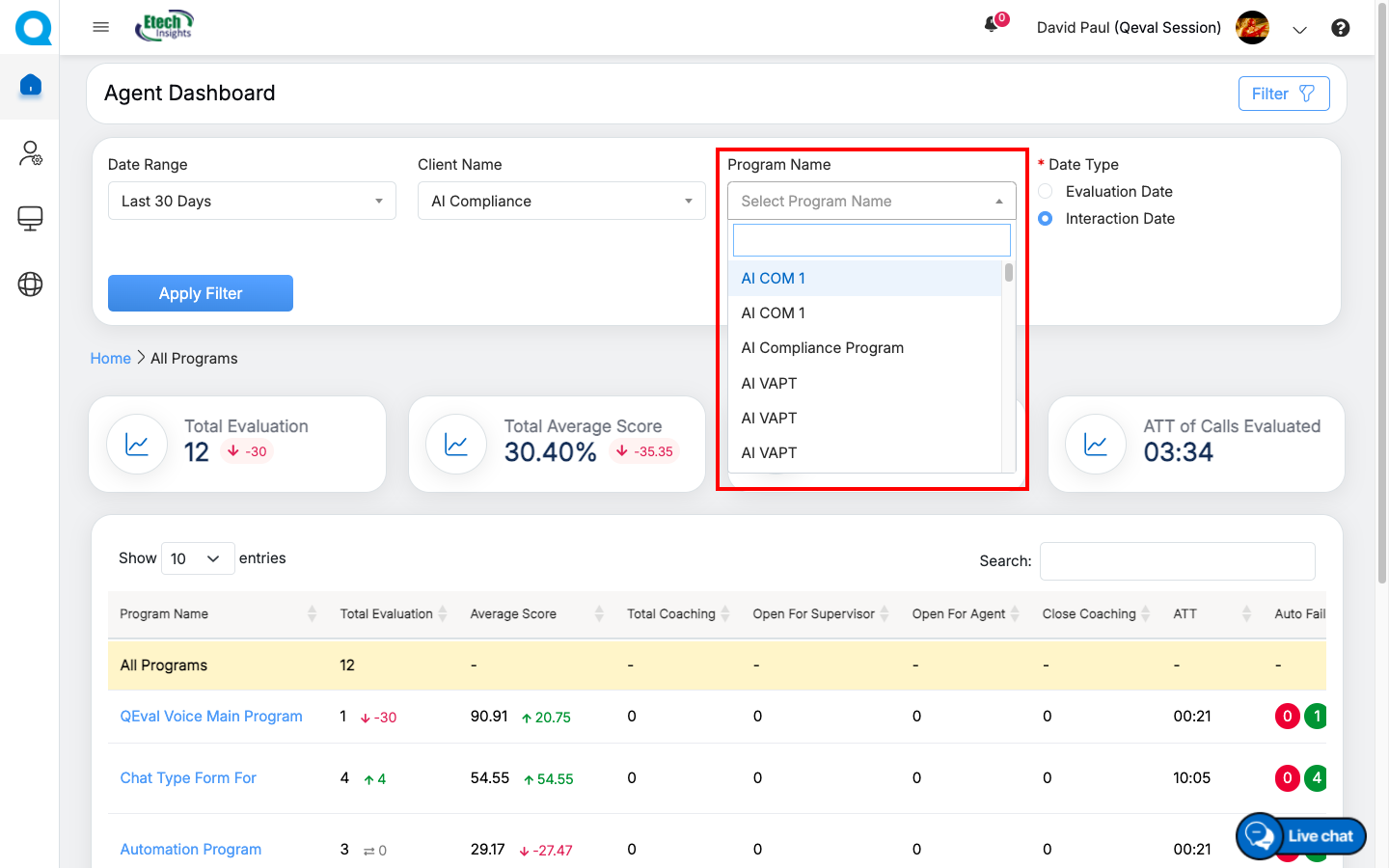
Program Name Drop Down Menu
- Next, choose the date type by selecting the appropriate radio button-Evaluation Date or Interaction Date.
Note: In QEval AI instances, Interaction Date is selected by default as the Date Type in the filter panel. You can change the Date Type to Evaluation Date whenever required.
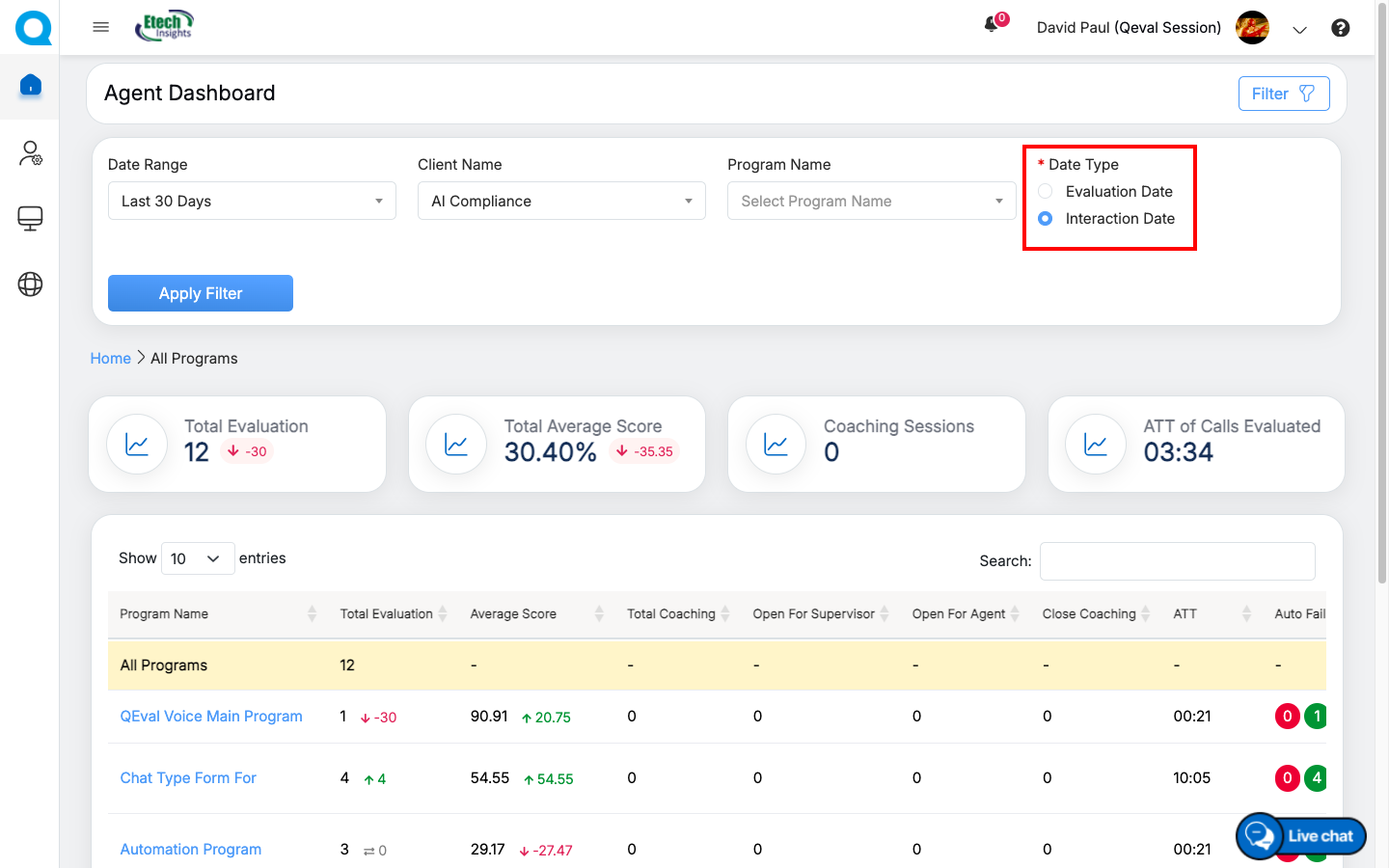
Date Type filter
Once the necessary specific details are selected, click on the Apply Filter button to search specific coaching details.
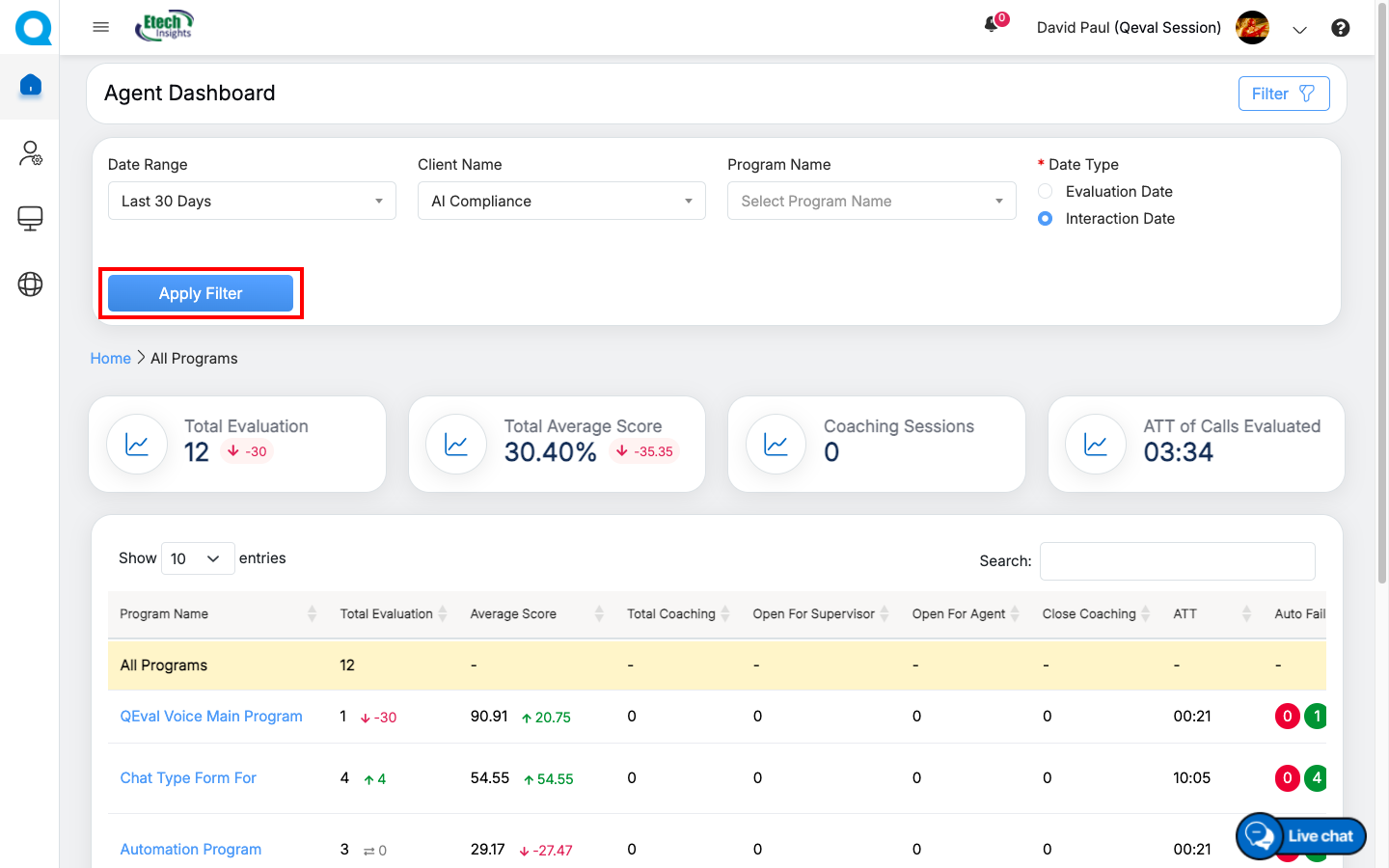
Apply filter button
Based on the selected criteria the search results will be displayed in the table grid :
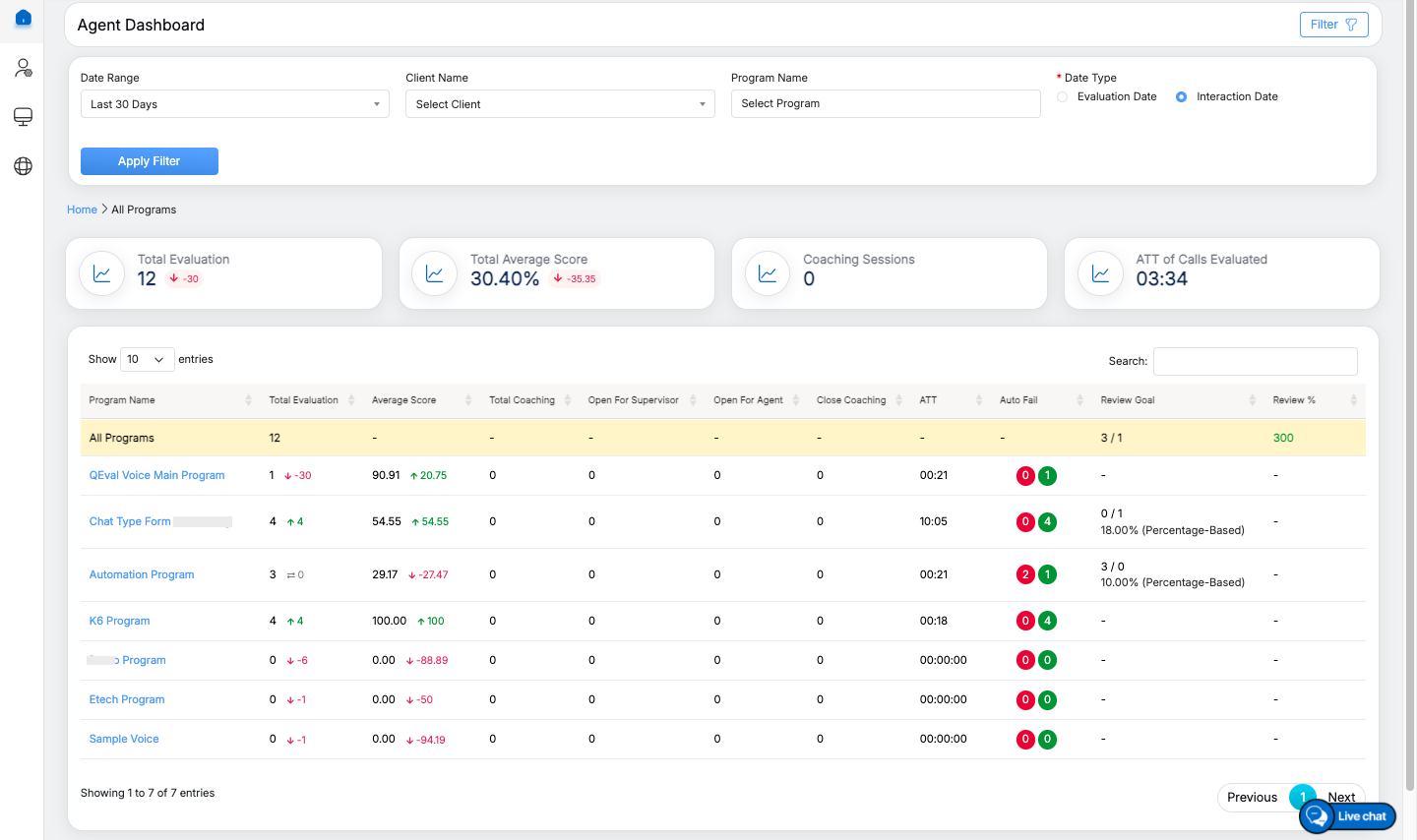
Search Results
The data elements displayed on the table grid are explained below:
| Table Elements | Description |
| Program Name |
Displays the name of the programs. The program name link allows the agent to view coaching details of specific program page for specific form. |
| Total Evaluation | Displays the number of the total evaluations of the agent and the numeric value displays the data of the specific program. It also shows the difference with the previous date range with Up Arrow and numeric value in green color or with Down Arrow and numeric value in red color. |
| Average Score | Displays the average score of the agent and the numeric value displays the data for specific program. It also shows the difference with the previous date range with Up Arrow and numeric value in green color or with Down Arrow and numeric value in red color. |
| Total Coaching | Displays the total number of coaching sessions of the agent for the specific program. |
| Open for Supervisor | Displays the total number of coaching open for supervisor. |
| Open for Agent | Displays the total number of assigned coaching open for the agent for specific program. The number link allows the agent to view all the coaching feedback given by the supervisor, submit the coaching status and close the coaching assigned by the supervisor for specific program. |
| Close Coaching | Displays the total number of coaching closed by the supervisor. |
| ATT | Displays the agent’s average time handling of the evaluated calls for specific program. |
| AutoFail | Displays the agent’s autofail scores of the evaluated calls for specific program. |
| Review Goal | Displays the review progress for each program by comparing Completed Reviews against the required review target. For Count-Based goals, it shows Completed Reviews / Configured Review Goal. For Percentage-Based goals, it shows Completed Reviews / Calculated Required Reviews along with the configured review percentage. |
| Review % | Displays the review goal achievement percentage, calculated by comparing completed reviews with the required review target. The value is color-coded to indicate performance: Red (0–40%), Yellow (41–80%), and Green (Above 81%). |
Agent Dashboard
Agent Dashboard
View Coaching Details
The Agent can view coaching details for various coaching parameters for specific program by clicking on the Program Name link displayed in the table grid:
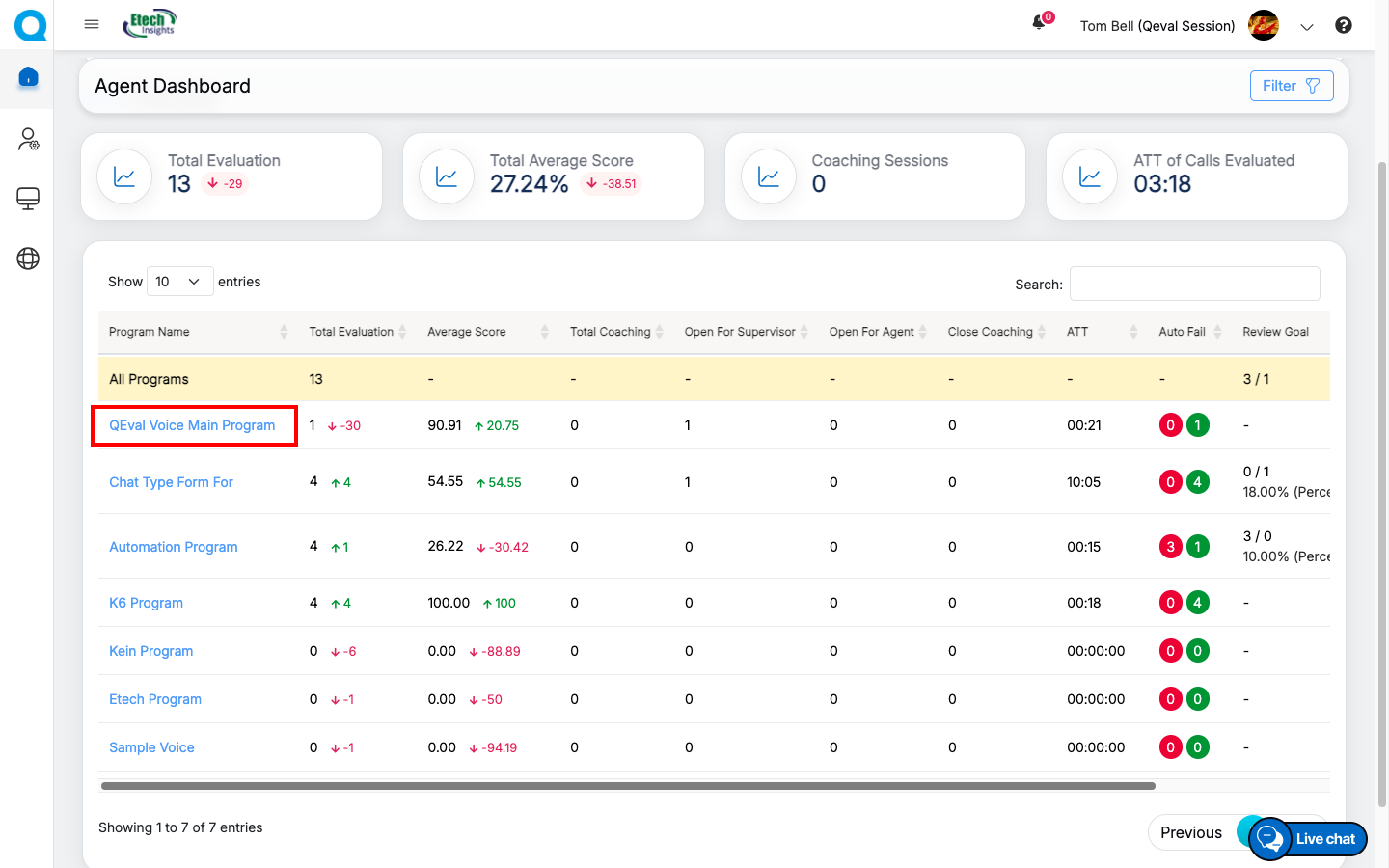
Program Name Link
The Agent Coaching Drawer of the specific program will be opened in the same table grid. The list of coaching parameters for selected program will be displayed under the agent name as highlighted in the screen below:
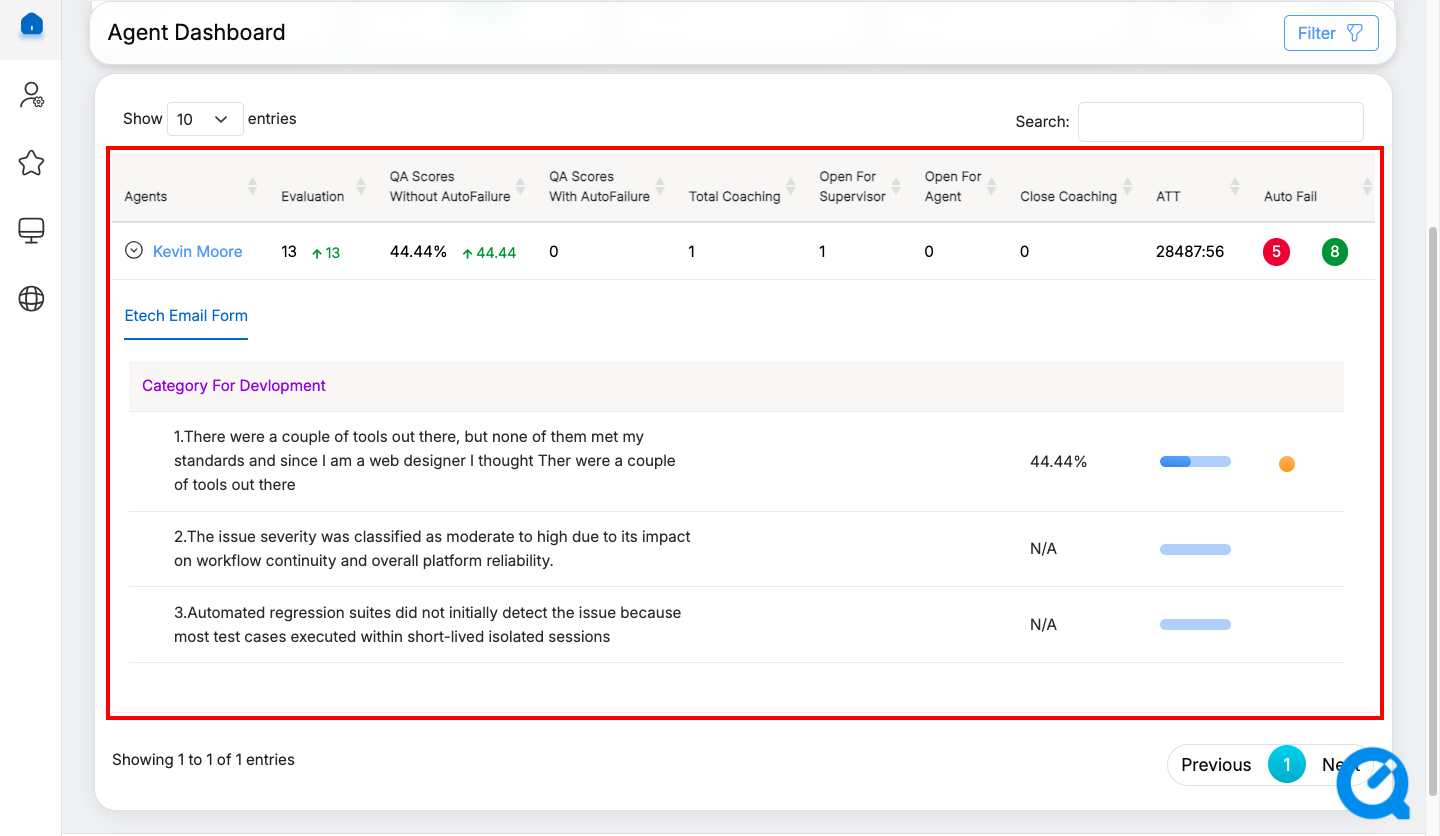
Agent Coaching Drawer
The data elements displayed on the table grid are explained below:
| Table Elements | Description |
| Agent Name | Displays the name of the agent. The agent will be able to view the coaching parameter details for specific program by clicking on the link. |
| Evaluation | Displays the number of the total evaluations of the agent and the numeric value displays the data of the specific program. It also shows the difference with the previous date range with Up Arrow and numeric value in green color or with Down Arrow and numeric value in red color. |
| QA Scores Without Autofail | Displays the total QA scores without autofailure scored by the logged-in agent in the percentage. It also shows the difference with the previous date range with Up Arrow and numeric value in green color or with Down Arrow and numeric value in red color. |
| QA Scores With Autofail | Displays the total QA Scores with autofailure scored by the logged-in agent on completion of assigned coaching. |
| Total Coaching | Displays the total number of coaching assigned to the agent for specific program. |
| Open for Supervisor | Displays the total number of coaching open for supervisor |
| Open for Agent | Displays the total number of assigned coaching open for the agent for specific program. The number link allows the agent to view all the coaching feedback given by the supervisor, submit the coaching status and close the coaching assigned by the supervisor for specific program. |
| Close Coaching | Displays the total number of coaching closed by the supervisor. |
| ATT | Displays the agent’s average time handling of the evaluated calls for specific program. |
| Autofail | Displays the agent’s autofail scores of the evaluated calls for specific program. |
By clicking on any coaching parameter, the evaluation details will be displayed in the table grid.
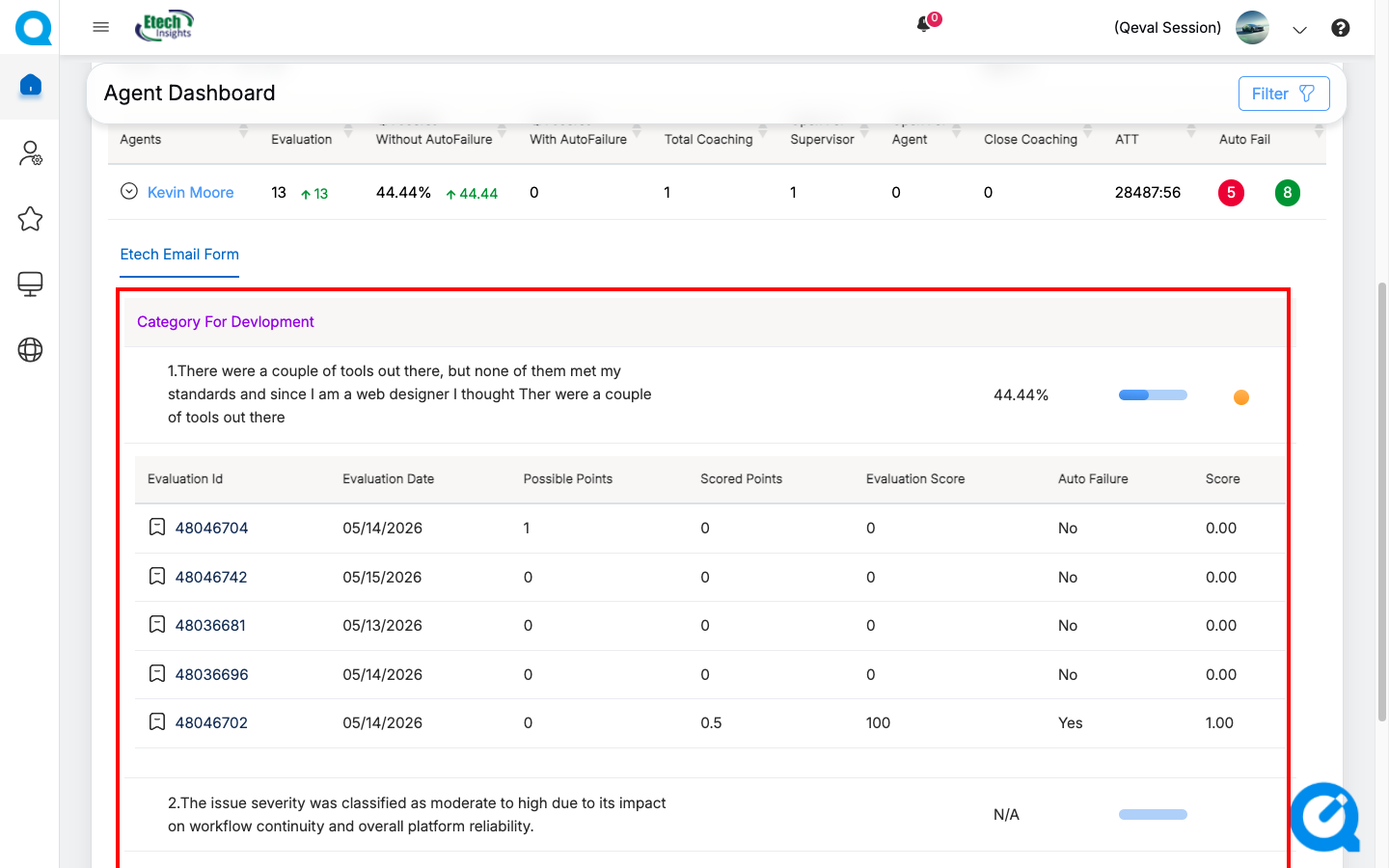
Evaluation Details
The data elements displayed on the table grid are explained below:
- Evaluation ID: The agent can view the evaluation form details by clicking on any Evaluation ID.
- Date (Evaluation Date/Interaction Date) – Displays the relevant date based on the selected Date Type filter. Depending on the filter selection, both the column name and the displayed values are updated accordingly. The column will show either Evaluation Date or Interaction Date, along with the corresponding date associated with the Call, Chat, or Email record.
- Possible Points: Displays the number of points that can be scored by the agent.
- Scored Points: Displays the number of points scored by the agent for the specific parameter.
- Evaluation Score: Displays the evaluation score of the agent for the specific parameter
- Auto Failure: Displays the auto failure results for the specific evaluation.
- Score: Displays the total number of score gained by the agent for the specific evaluation.
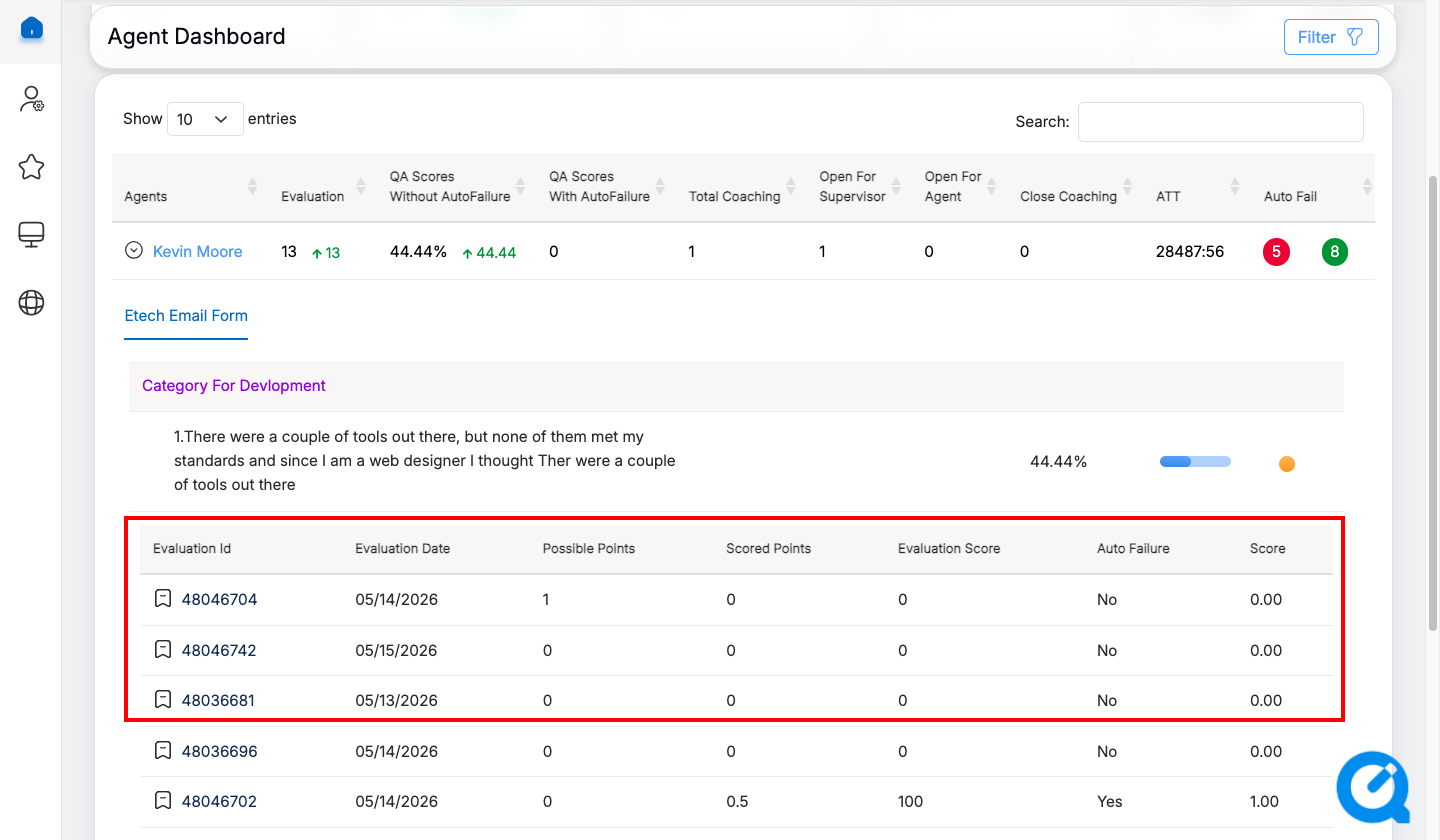
Evaluation details
Open for Agent
The Open for Agent allows the logged-in user to view all the open coaching details for specific program. Based on the coaching feedback share by the supervisor for specific program, the agent can enter the commitment and status for the all the open coaching.
To view all the open coaching details for specific program, click on the Number link displayed under the Open for Agent column available on the table grid as shown below:
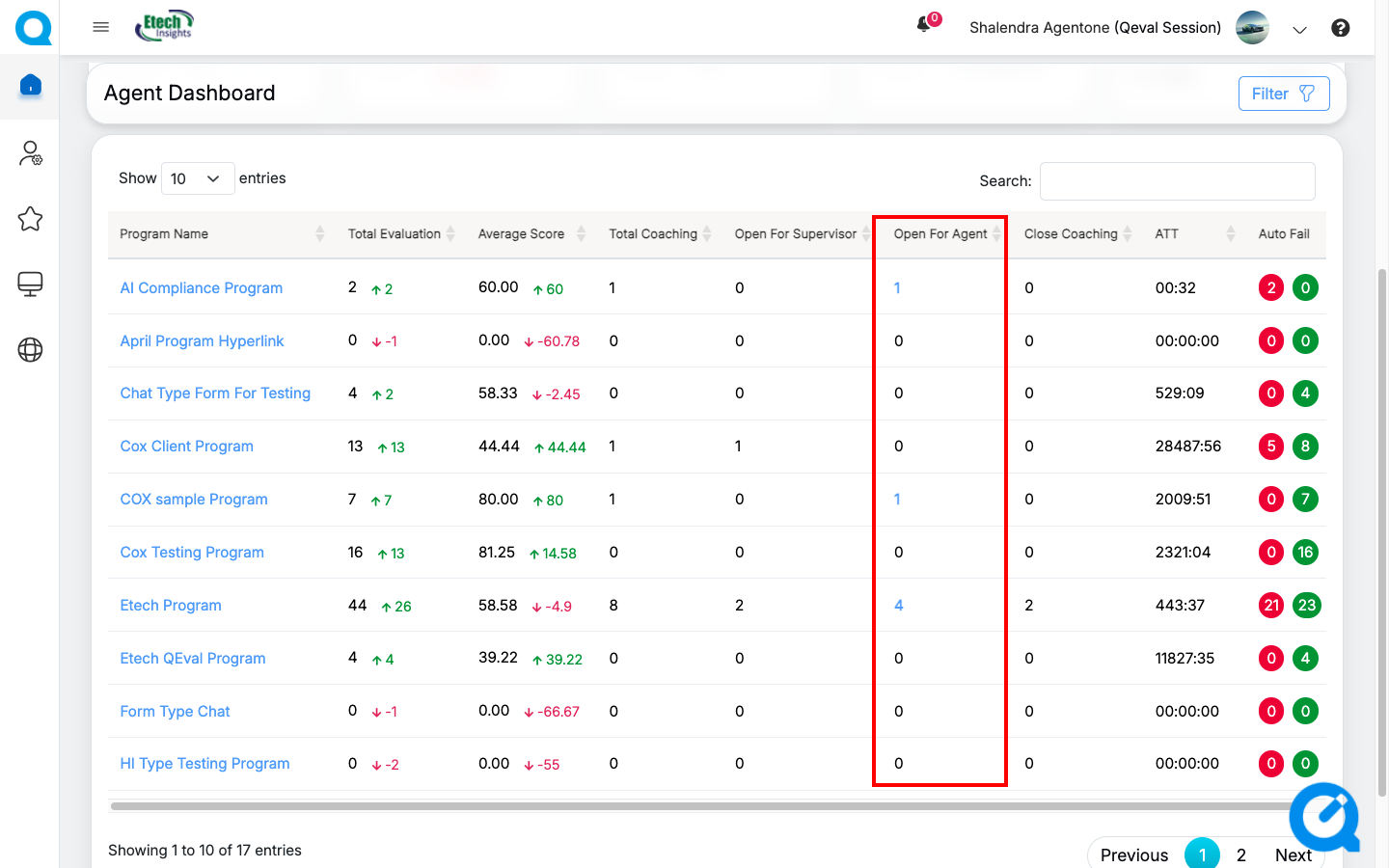
Open for Agent (Number Link)
The logged-in agent will be directed to the specific program page where the coaching details will be available as shown below:
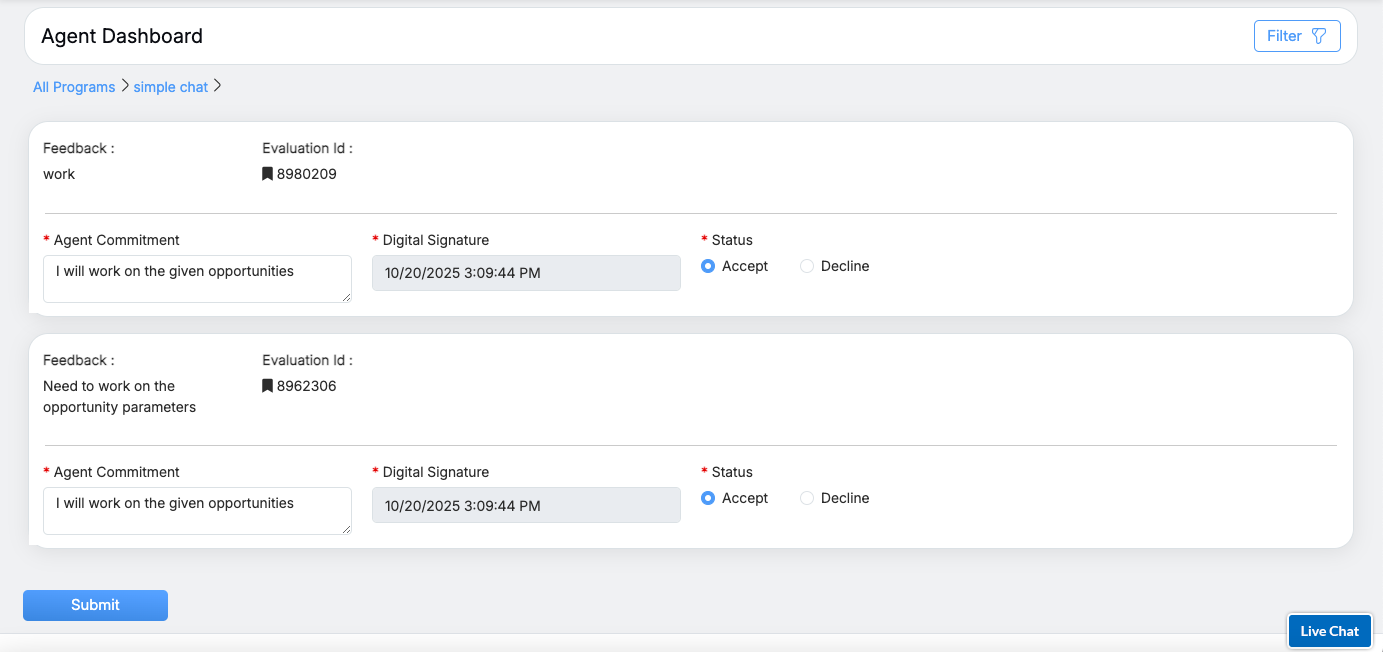 Based on the coaching feedback shared for the specific program, the agent needs to enter the comments in the Agent Commitment text-box and select the Agent Status by clicking on either Accept or Decline radio button.
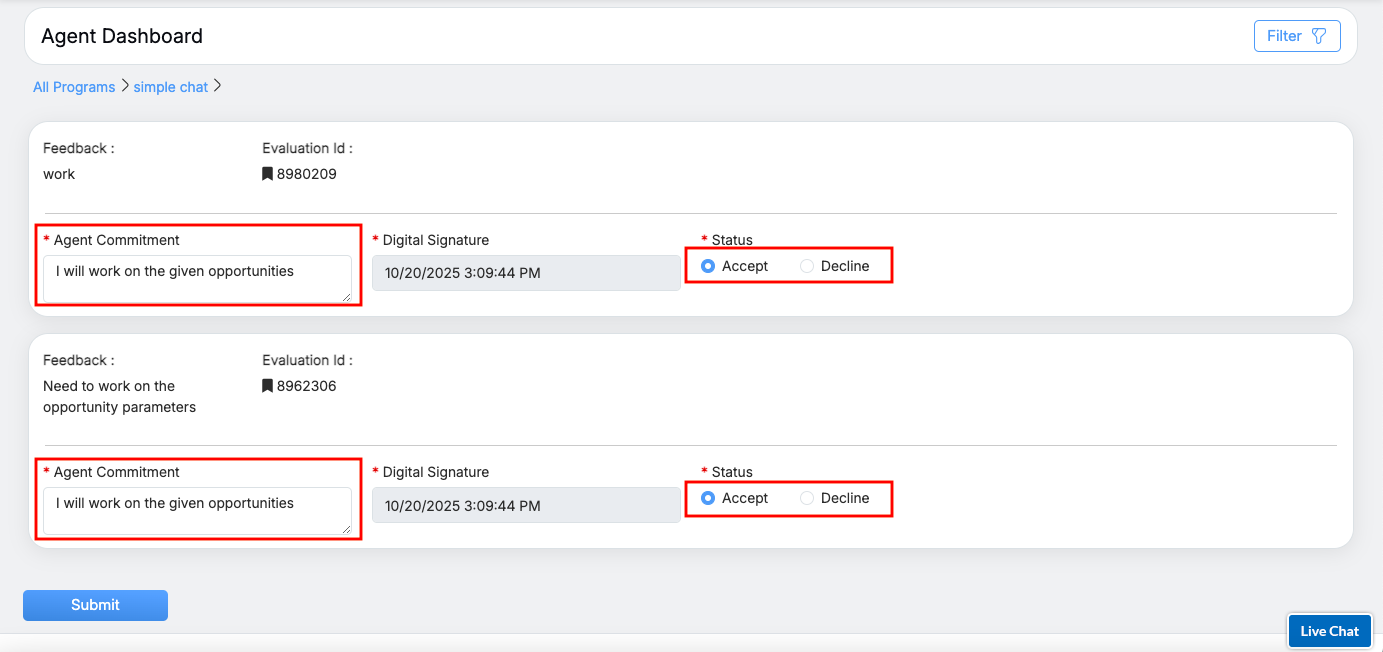
Agent Coaching Feedback Status
Once all the coaching feedback for specific program is entered by the logged-in agent, click on the Submit button to close the open coaching feedback.
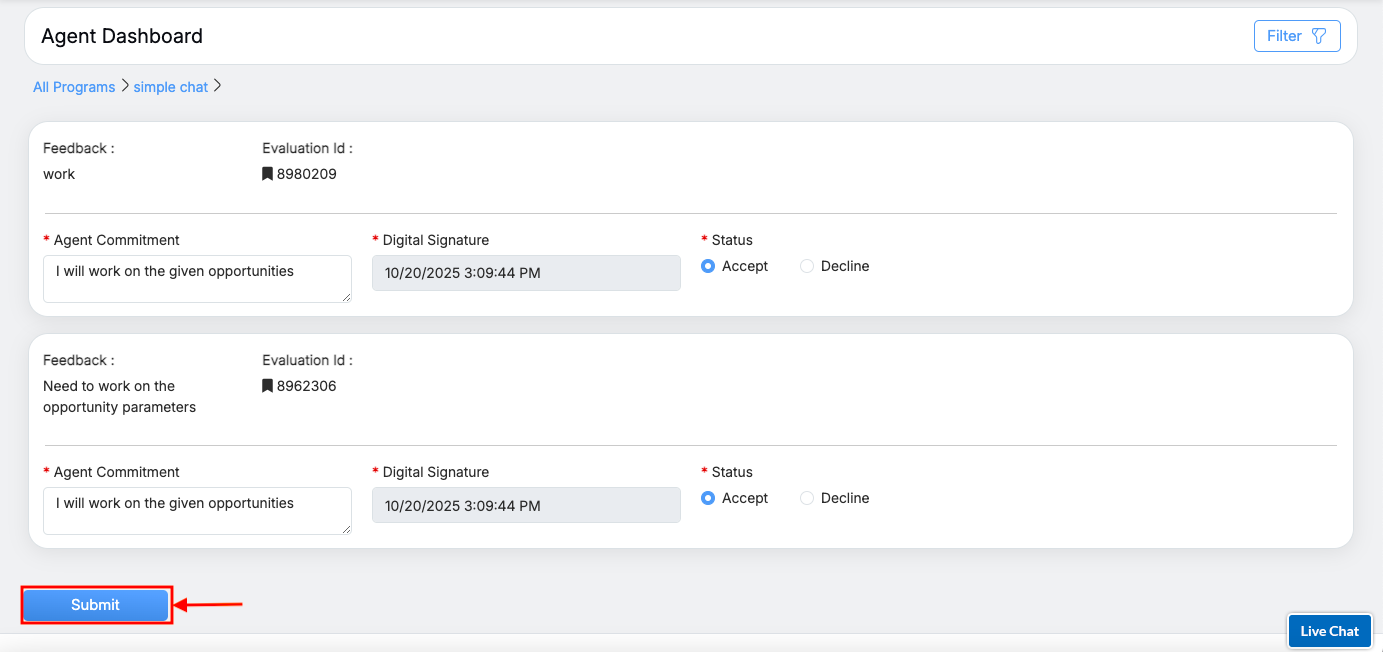
Submit Coaching Feedback
Once the coaching feedback is submitted by the agent, that coaching details will be sent to the supervisor and on the Agent Dashboard page the Open for Agent and Open for Supervisor details will be updated and displayed in the table grid.
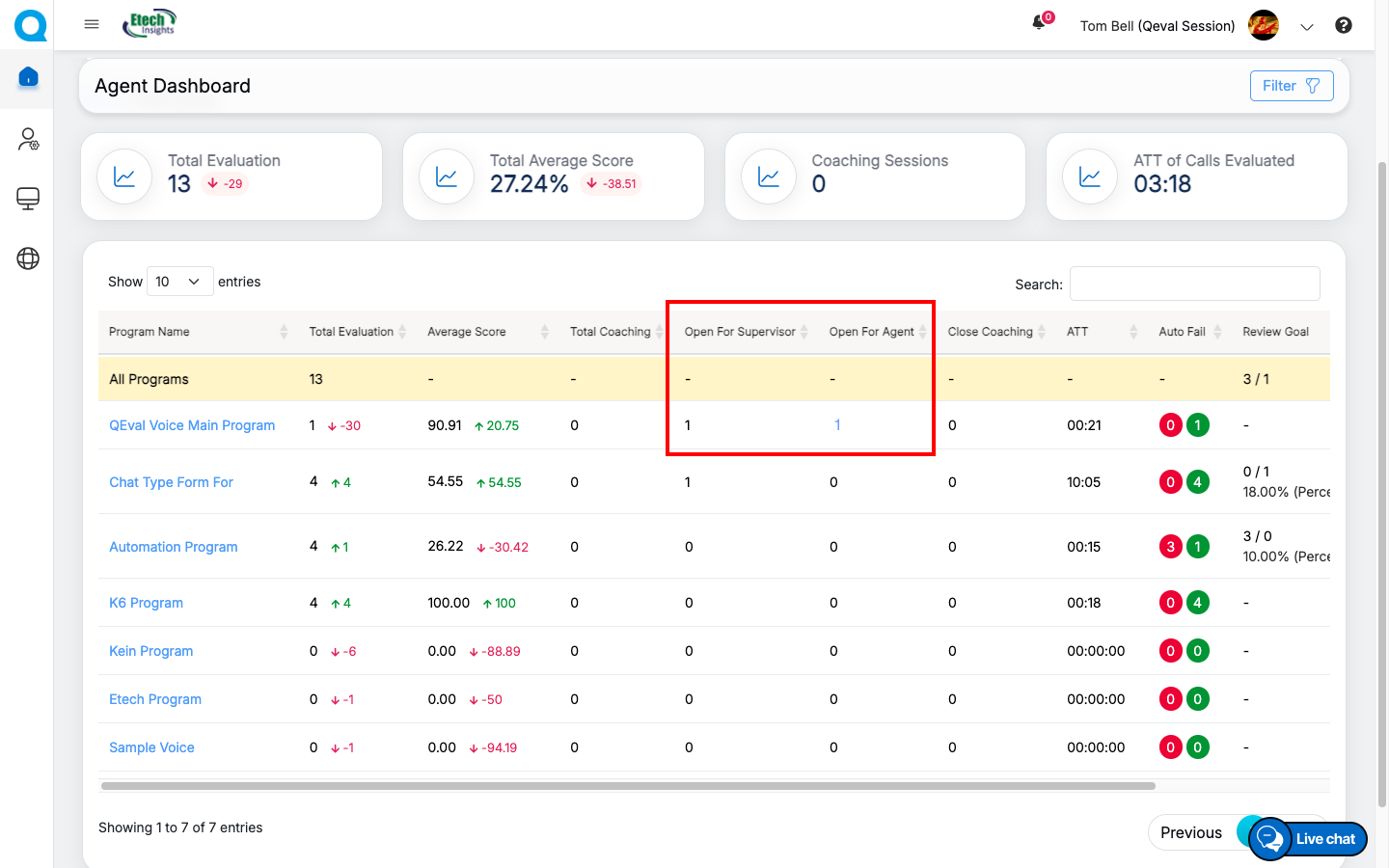
Updated Coaching Details
The data elements displayed on the table grid are explained below:
| Table Elements | Description |
| Program Name |
Displays the name of the programs. The program name link allows the agent to view coaching details of specific program page for specific form. |
| Total Evaluation | Displays the number of the total evaluations of the agent and the numeric value displays the data of the specific program. It also shows the difference with the previous date range with Up Arrow and numeric value in green color or with Down Arrow and numeric value in red color. |
| Average Score | Displays the average score of the agent and the numeric value displays the data for specific program. It also shows the difference with the previous date range with Up Arrow and numeric value in green color or with Down Arrow and numeric value in red color. |
| Total Coaching | Displays the total number of coaching sessions of the agent for the specific program. |
| Open for Supervisor | Displays the total number of coaching open for supervisor. |
| Open for Agent | Displays the total number of assigned coaching open for the agent for specific program. The number link allows the agent to view all the coaching feedback given by the supervisor, submit the coaching status and close the coaching assigned by the supervisor for specific program. |
| Close Coaching | Displays the total number of coaching closed by the supervisor. |
| ATT | Displays the agent’s average time handling of the evaluated calls for specific program. |
| AutoFail | Displays the agent’s autofail scores of the evaluated calls for specific program. |
Auto-Fail
The Auto-Fail feature allows the logged-in user to view all evaluations that have been flagged with critical errors resulting in an immediate failure. This feature enables quick identification of essential issues, facilitating efficient follow-up and corrective coaching actions within the Agent’s Dashboard.
To view all the auto-fail coaching details for specific program, click on the auto-fail box displayed under Auto-Fail column available in the table grid as shown below:
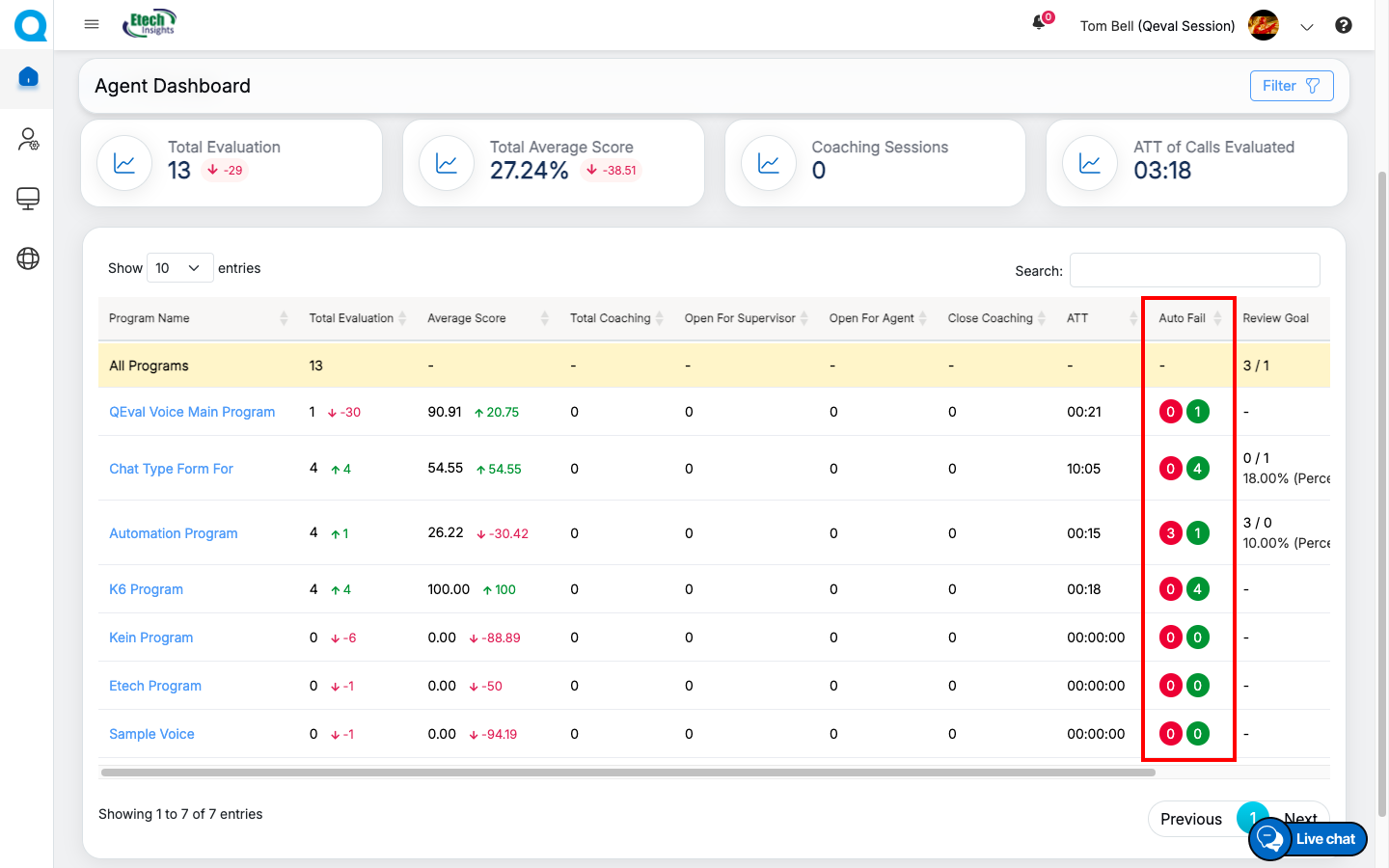
Auto-fail Count
Upon clicking on the Auto-Fail box, the Auto-Fail pop-up will be displayed as highlighted in the screen below-
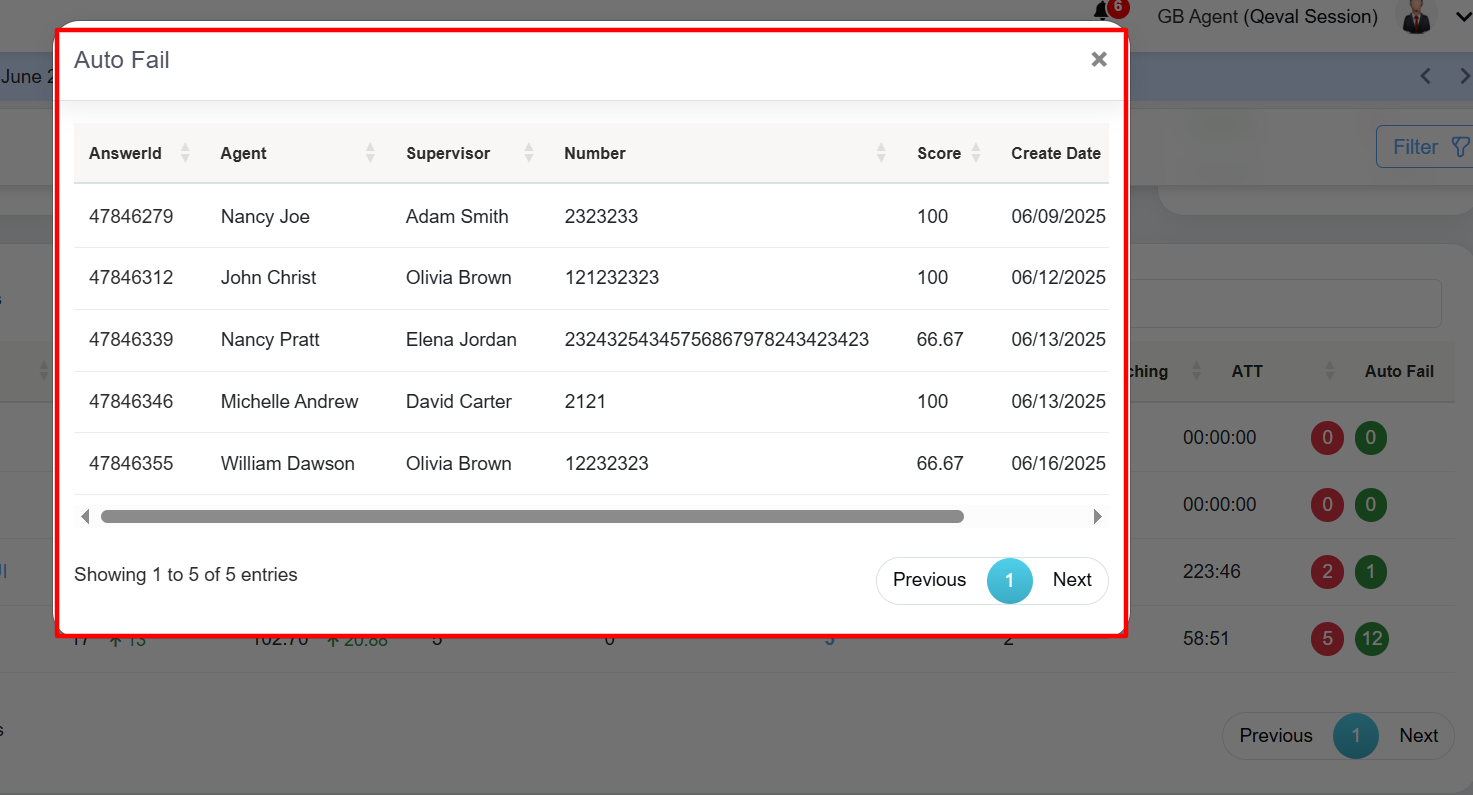
Auto Fail Pop Up
The agent can access a detailed view of a specific evaluation by selecting the highlighted IDs within the “AnswerID” section-
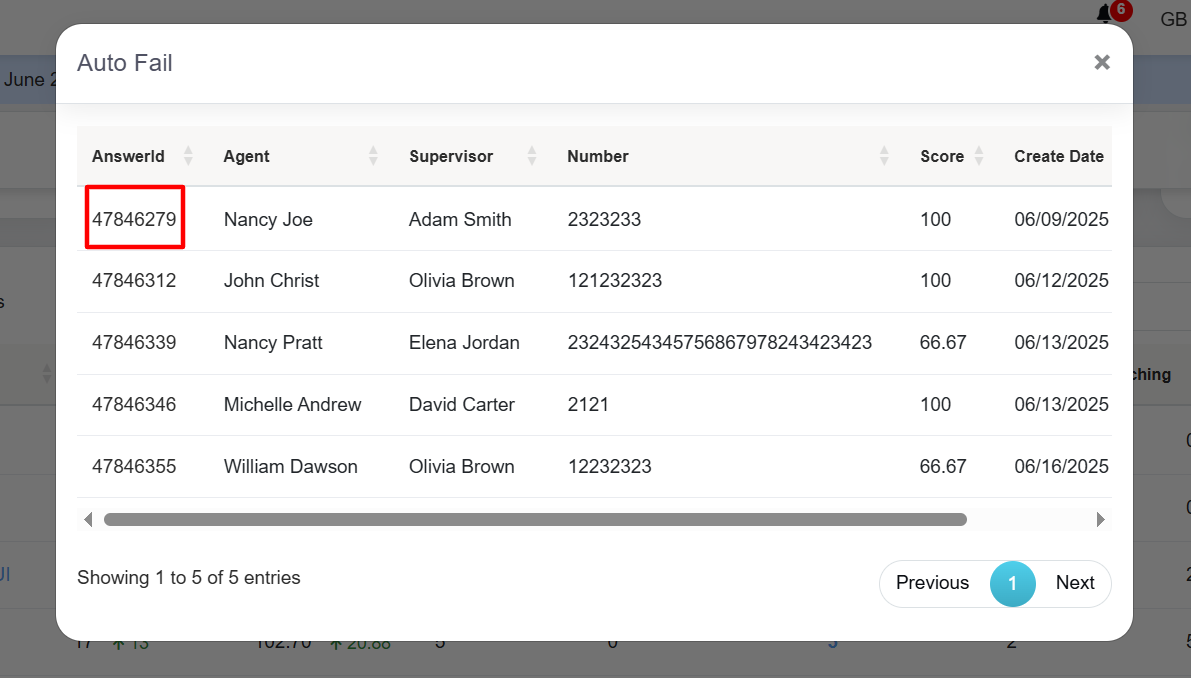
Clickable IDs
Upon clicking on the specific IDs, the agent will redirect to the detailed evaluation page.
The data elements displayed on the table grid are mentioned below:
| Table Elements | Description |
| Program Name |
Displays the name of the programs. The program name link allows the supervisor to Initiate Coaching for the specific agent. |
| Total Evaluation | Displays the number of the total evaluations of the agent and the numeric value displays the data of the specific program. It also shows the difference with the previous date range with Up Arrow and numeric value in green color or with Down Arrow and numeric value in red color. |
| Average Score | Displays the average score of the agent and the numeric value displays the data for specific program. It also shows the difference with the previous date range with Up Arrow and numeric value in green color or with Down Arrow and numeric value in red color. |
| Total Coaching | Displays the total number of coaching sessions of the agent for the specific program. |
| Open for Supervisor | Displays the total number of coaching open for supervisor of all the agents for specific program. The number link allows the supervisor to view all the coaching details completed by agent, submit the feedback and close the coaching completed by the agents for specific program. |
| Open for Agent | Displays the total number of assigned coaching open for the agent for specific program. |
| Close Coaching | Displays the total number of assigned coaching completed and closed by the supervisor. |
| ATT | Displays the agent’s average time handling of the evaluated calls for specific program. |
| AutoFail | Displays the agent’s autofail scores of the evaluated calls for specific program. |
Video