Table of Contents
Introduction
The Audit Trail feature enables users to view the history of updates made to evaluations, including the details of the changes and the parameters that were modified.
When an evaluation is updated, the system sends email notifications to the associated agents and supervisors, provided that email notification access has been enabled for them in the Admin panel.
The Audit Trail feature also allows users to generate reports based on the recorded evaluation changes.
Follow the steps below to access and use this feature.
Add Program
To enable Audit Trail email notifications for agents and supervisors:
- Navigate to Manage > Program Configuration > Program.
- The Manage Program page is displayed.
- To enable the Audit Trail feature for a new program, click Add Program to create a new program.
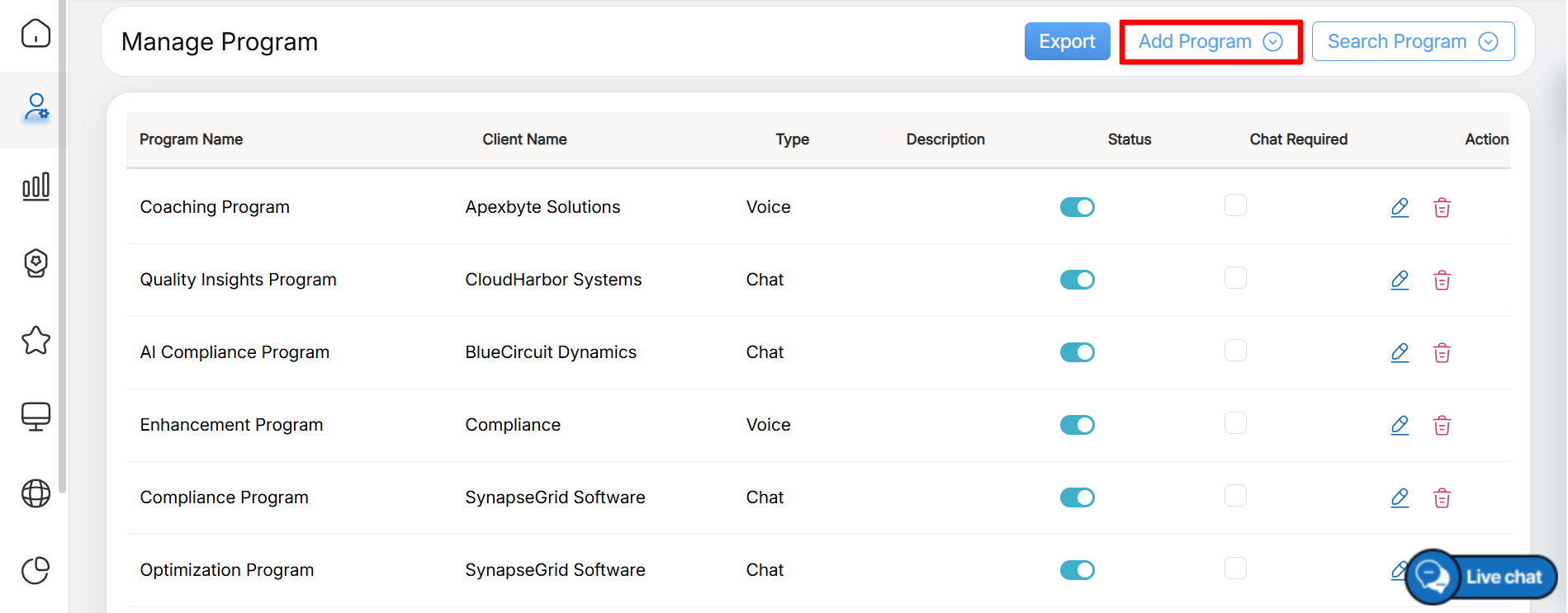
Add Program
The Add Program page is displayed, where you can enter and configure the details required to create a new program. Select the Is Audit Trail mail required? checkbox.
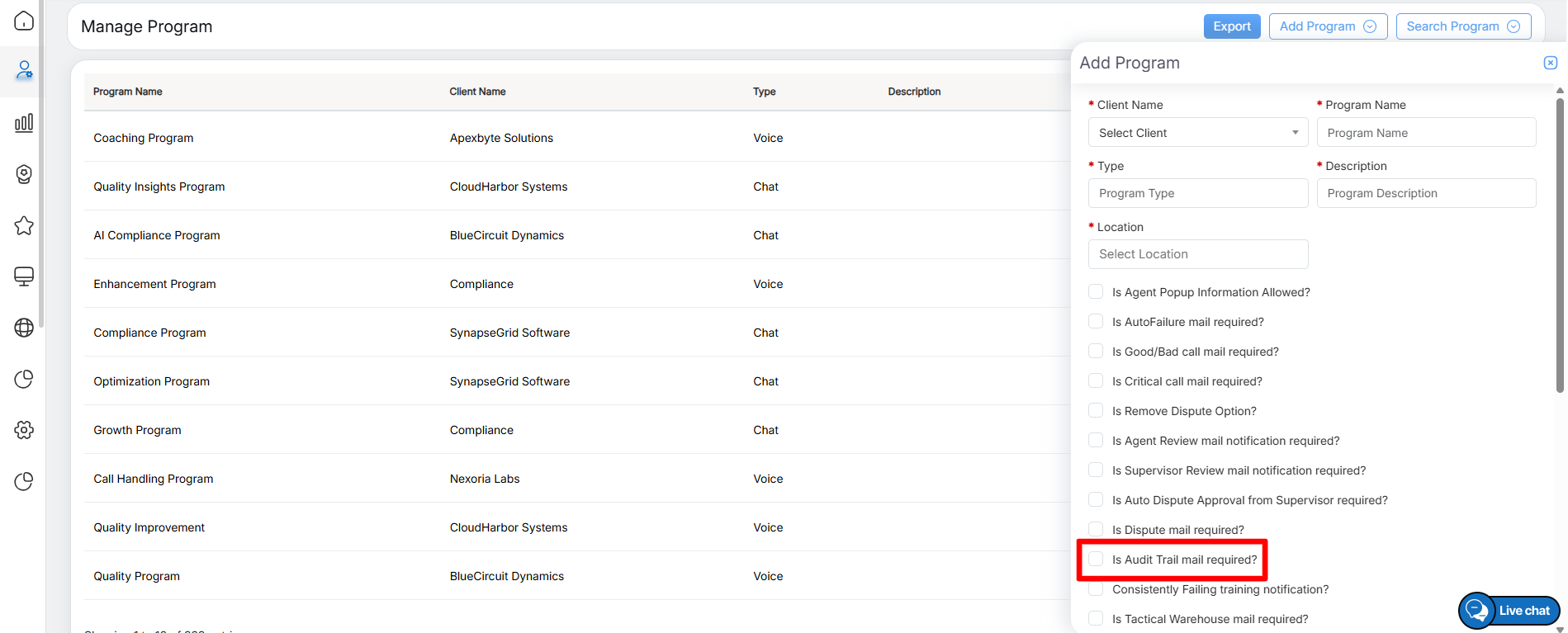
Is audit trail mail required
Once the Is Audit Trail mail required? checkbox is selected, three additional options are displayed: Agent, Supervisor, and Other.
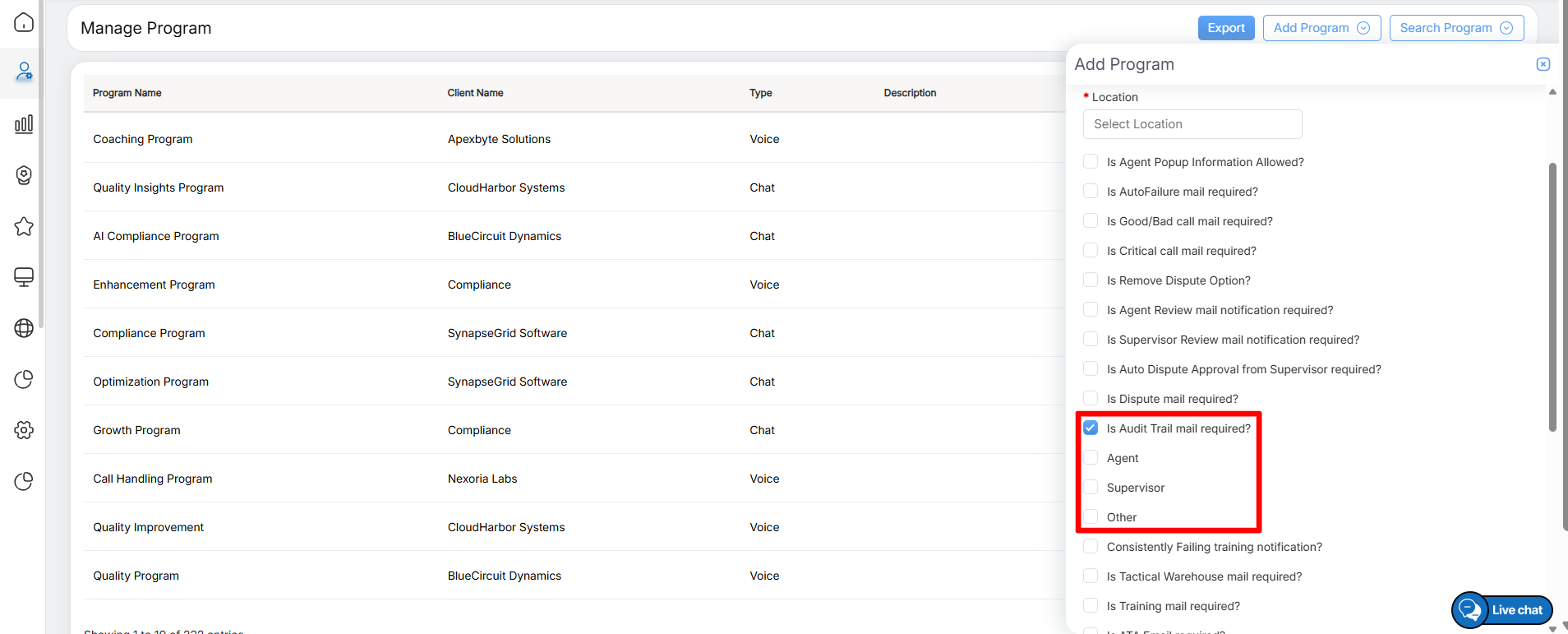
Audit trail options
Admin can select the required checkbox(es) as per the requirement.
When the Other checkbox is selected, the Distribution List field is displayed. In this field, the administrator can enter one or more email addresses of additional recipients who should receive Audit Trail email notifications whenever changes are made to evaluations.
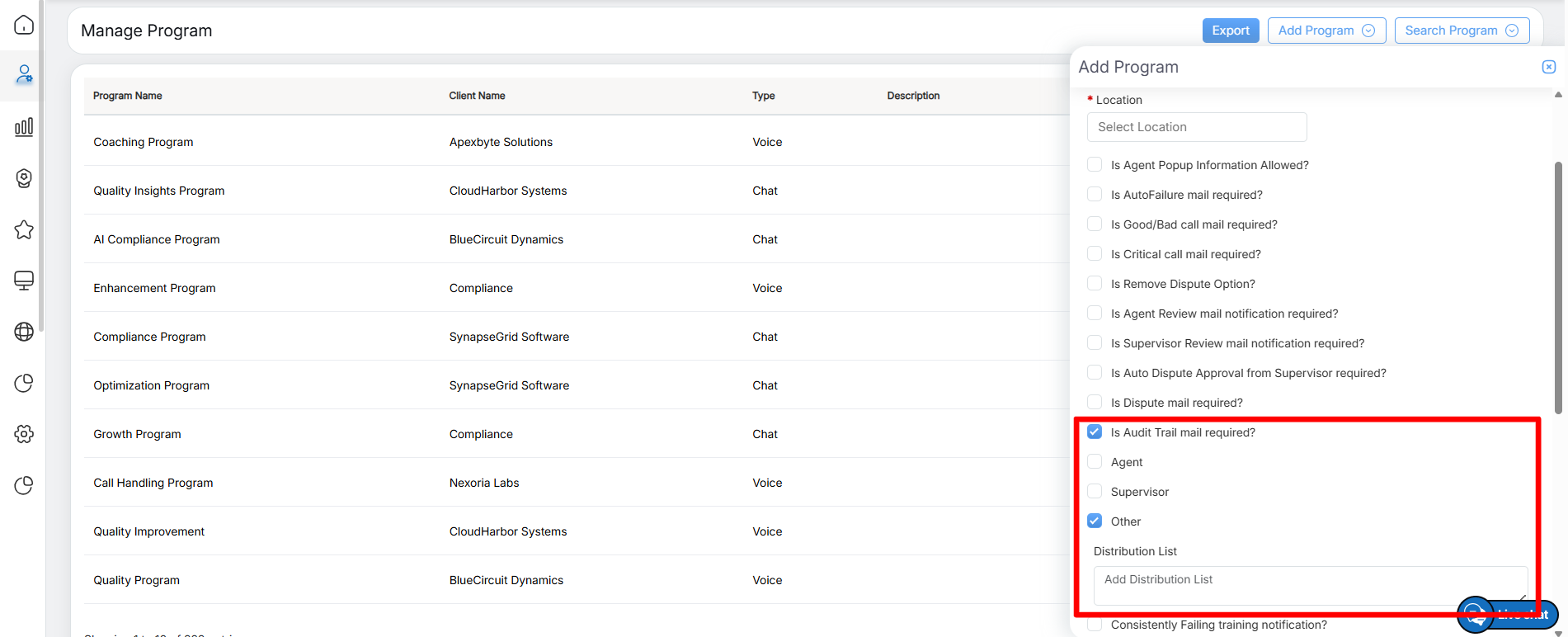
Other Options
Once the configuration is complete, click Submit to save the program. After the program is added successfully, the system displays a confirmation message, as shown in the following screen.
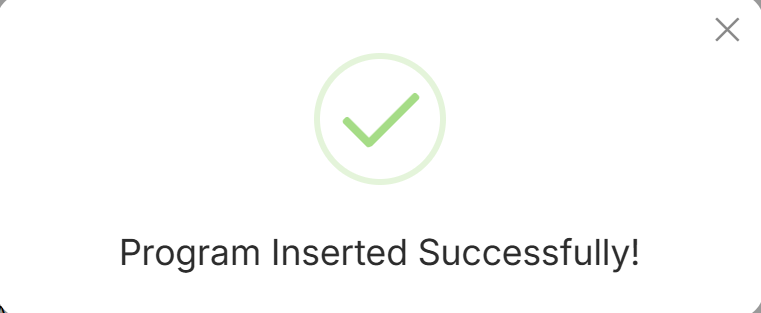
Acknowledgement Message
The Audit Trail feature is available at the Evaluation Form level. To enable this feature, the administrator must grant Audit Trail access while creating a new evaluation form.
Create Evaluation Form
To create a new evaluation form:
- Navigate to Manage > Forms.
- The Design Form page is displayed, as shown in the following screen.
- On the Design Form page, click Create Evaluation Form to create a new evaluation form.
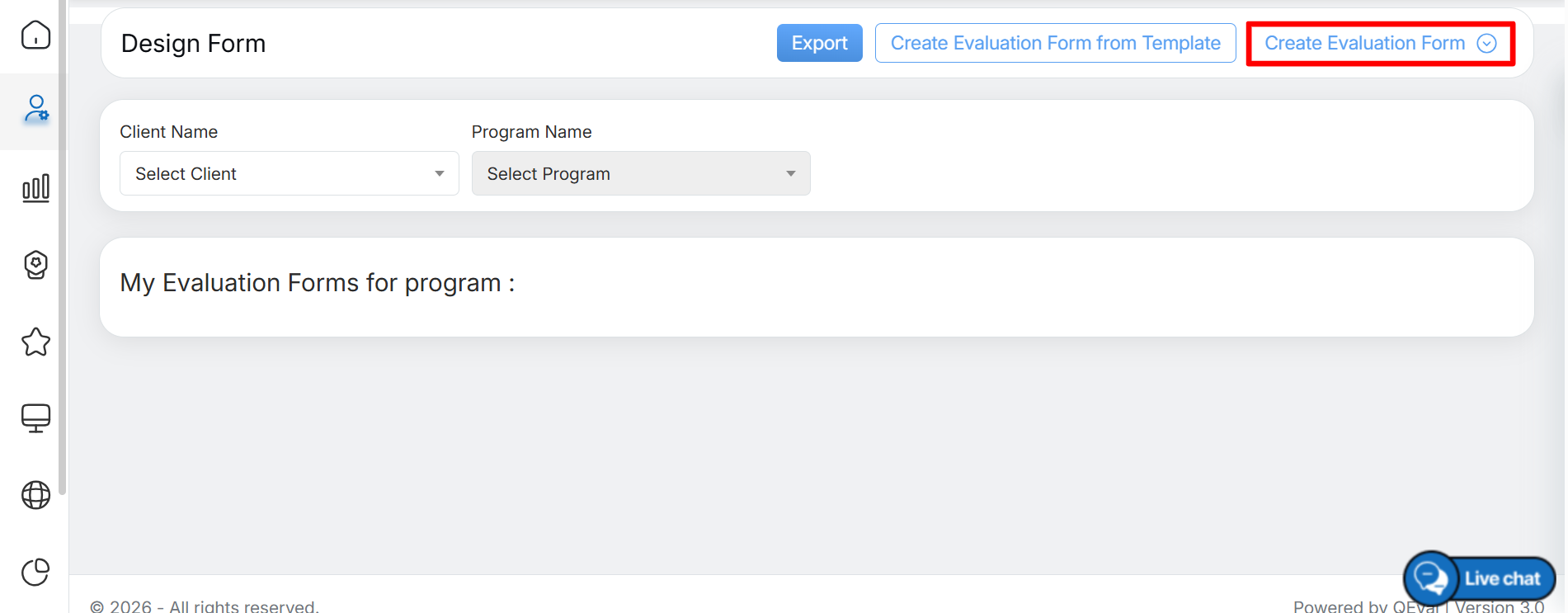
Create Evaluation Form
The following screen is displayed. To create a new evaluation form from scratch, select the Start with a Blank Evaluation Form option, as shown in the following screen.
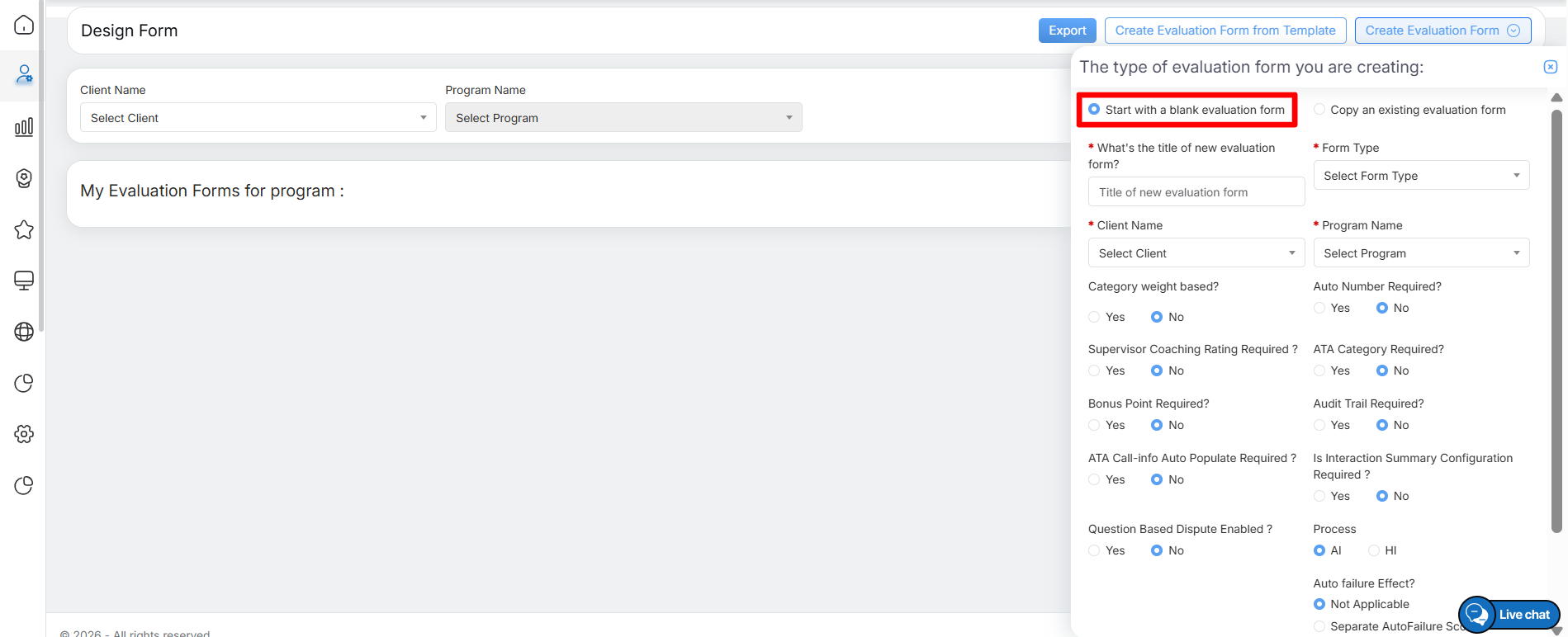
Start with blank evaluation
Configure all the required details for the new evaluation form.
To enable the Audit Trail feature for the form, select Yes for the Audit Trail Required? field.
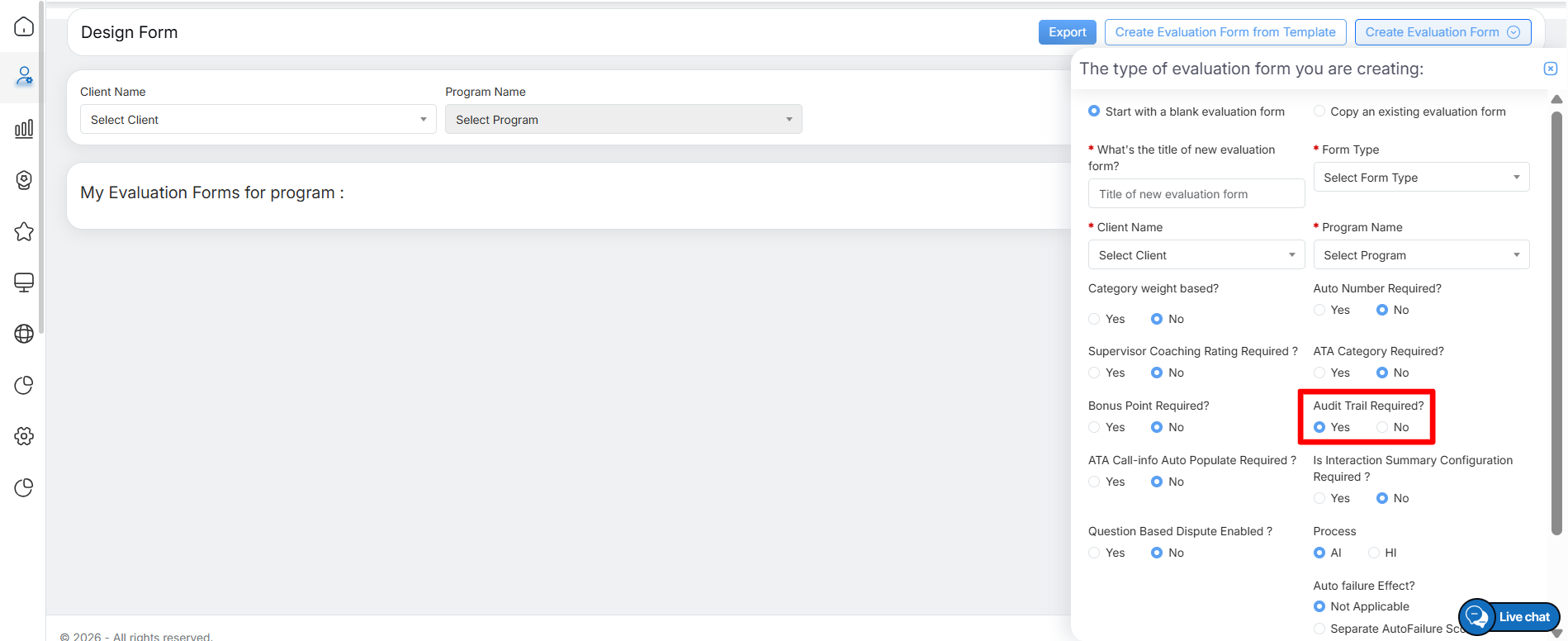
Audit trail option
Once all the required details are configured, click Create Evaluation Form to create the evaluation form. After the form is created successfully, the system displays a confirmation message, as shown in the following screen.
Acknowledgement Message
After the evaluation form is created successfully, the system redirects you to the Design View of the newly created form.
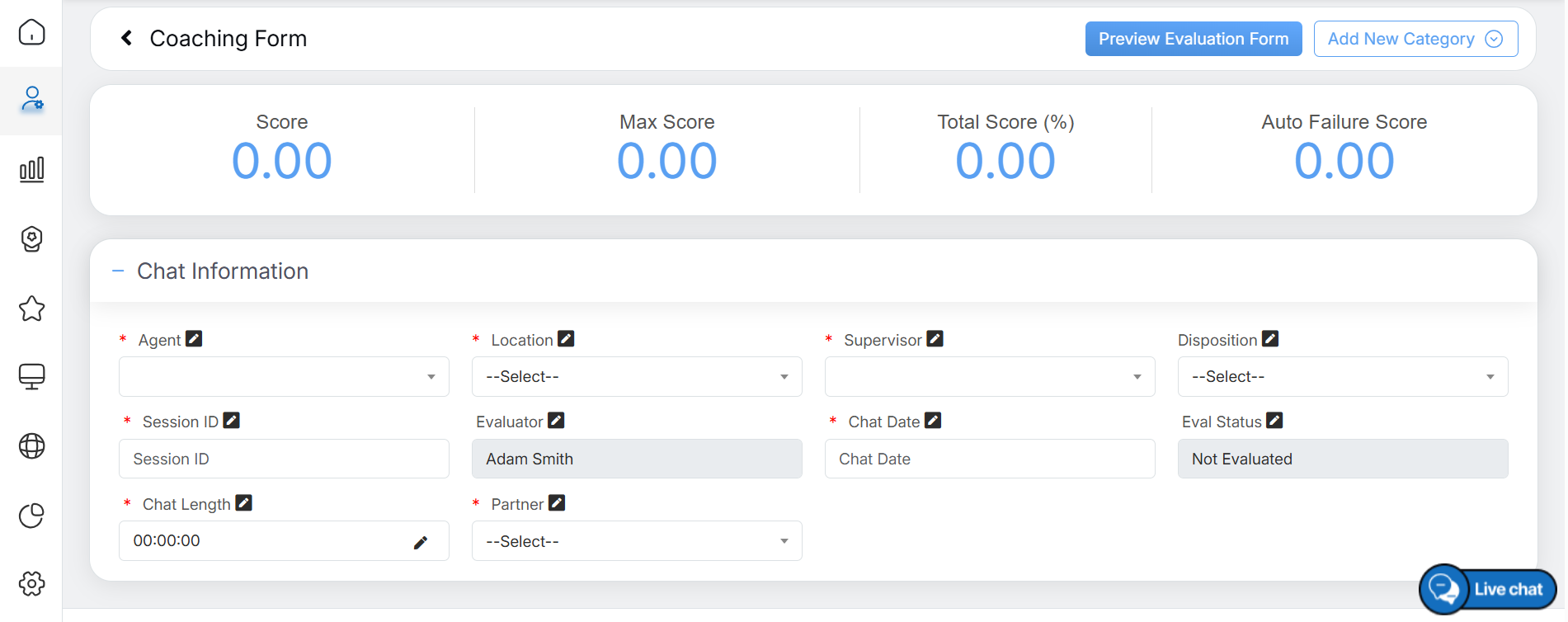
Evaluation form
On this page, the administrator can create and manage categories within the evaluation form. For detailed instructions on creating categories, refer to the Design Form section.
After adding the categories to the evaluation form, the next step is to add questions under each category. For detailed instructions on adding questions, refer to the Add Questions section.
While adding a question to a category in the evaluation form, the administrator can enable the Audit Trail feature for that specific question.
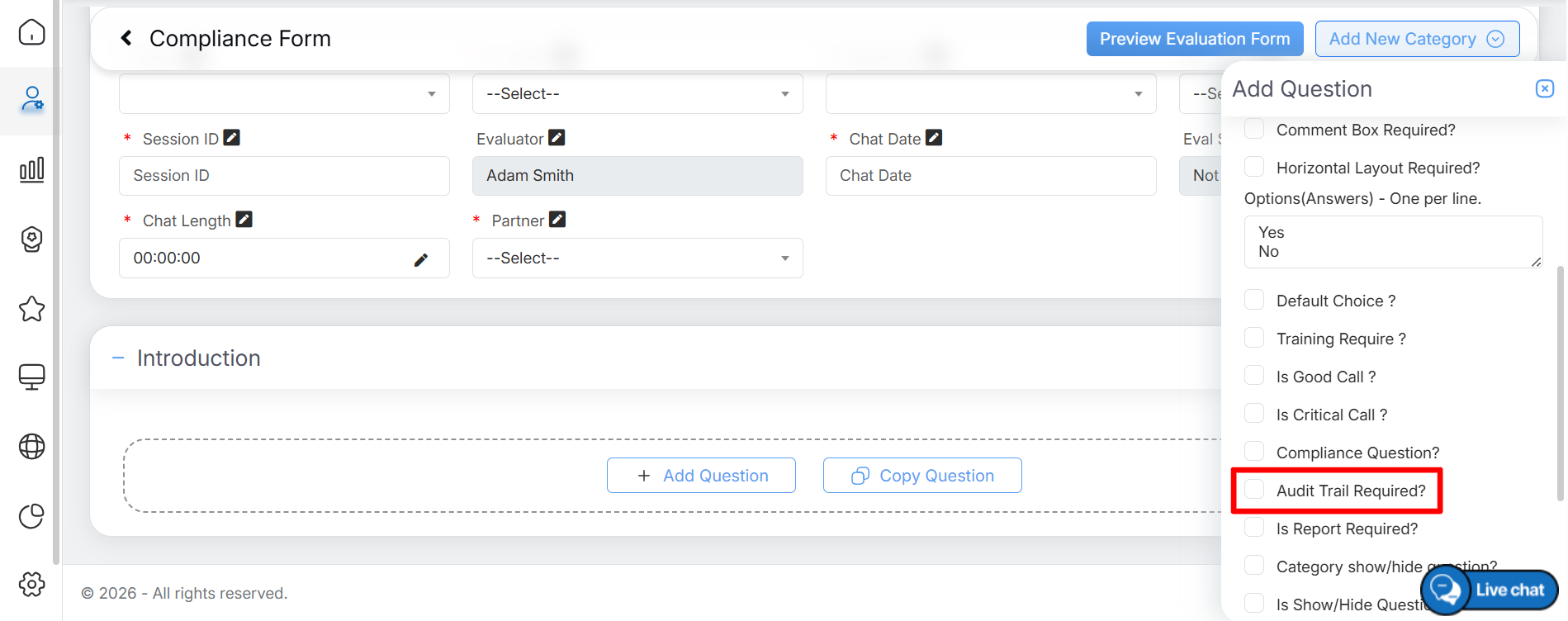
Audit trail required
Note: Only questions assigned with Audit Trail functionality will be displayed in the report.
After the first evaluation is completed, any subsequent updates made to the same evaluation form trigger an Audit Trail email notification. The associated agent and supervisor receive an email informing them that the evaluation has been updated. A sample email notification is shown in the following format.

Sample email
Video