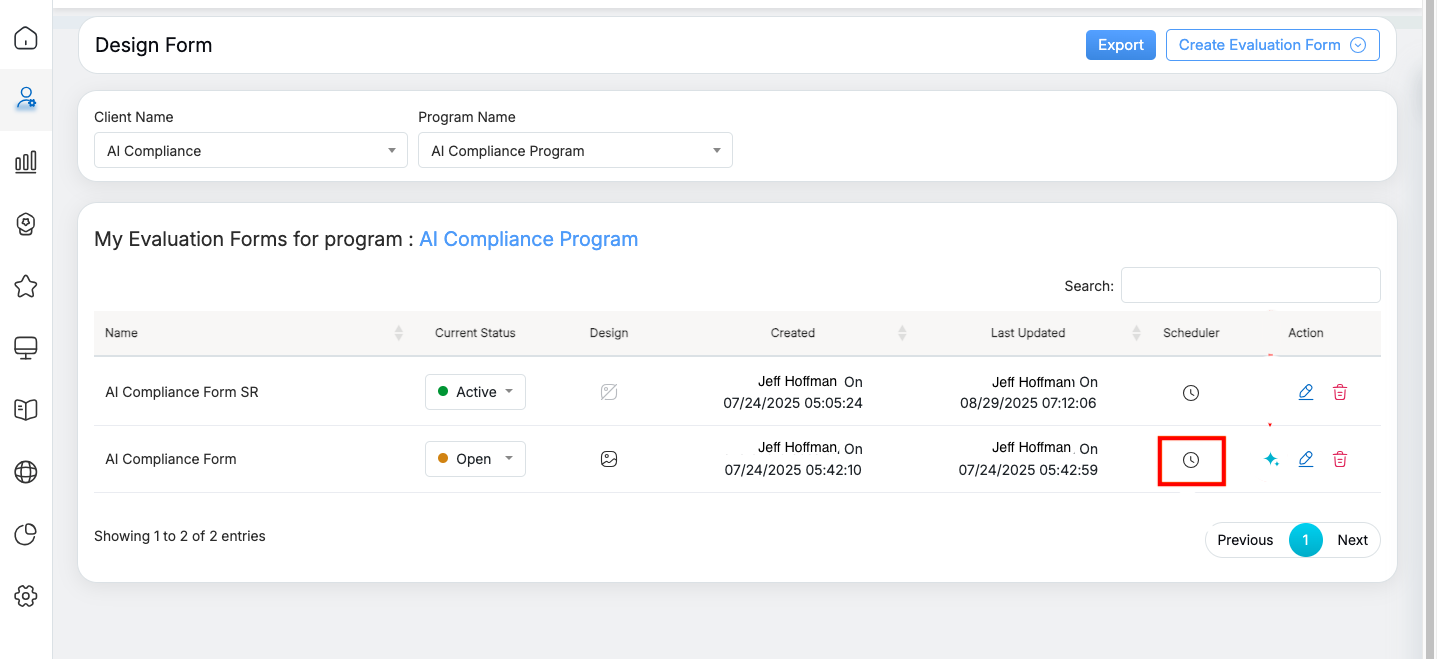
Once compliance rules are configured and saved, users can schedule automated compliance jobs using the Scheduler (Clock icon) available next to each evaluation form.
The Frequency Scheduler allows users to automate the execution of compliance evaluations at predefined intervals.
- The scheduler can be accessed by clicking the clock icon in the Scheduler column on the Manage Form screen.
- This action opens the Frequency Scheduler pop-up, where users can configure when and how often the evaluation should run.
- The scheduler can only be configured for forms in Open status. Once scheduled, compliance jobs will run automatically at the defined frequency (Hourly, Daily, Weekly, or Monthly).
Accessing the Scheduler
Accessing the Scheduler
- From the Evaluation Form List, locate the desired form and click the Clock icon in the Scheduler column.
- The Prompt-Based AI Process Subscribe window will open.
Managing Scheduled Processes
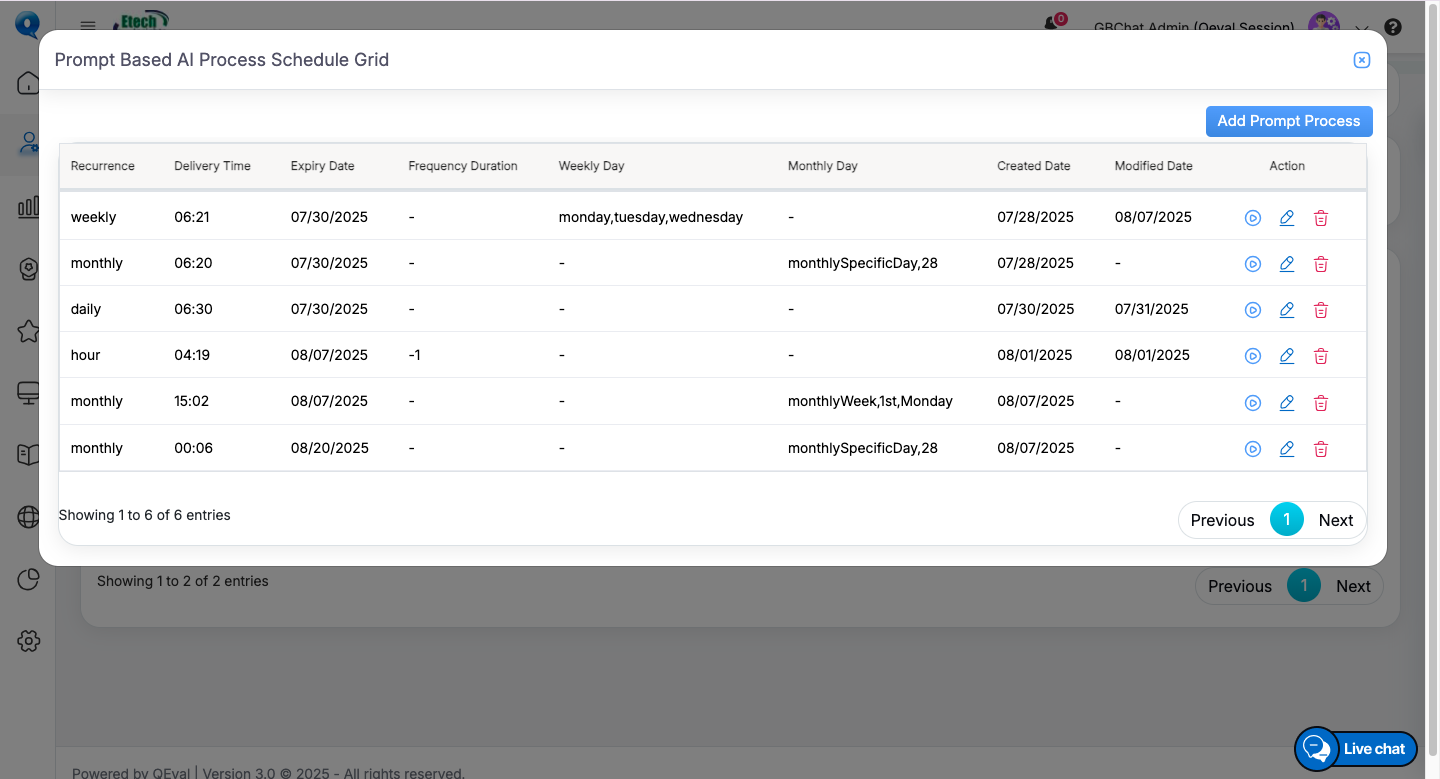
All the scheduled processed appears here, in the Prompt Based AI Process Schedule Grid shown below.
From here, you can also:
- Add Prompt Process → Create a new scheduled job.
- Edit → Modify an existing schedule.
- Delete → Remove a schedule.
- Play → Run a job Manually using this button.
Prompt Based AI Process Schedule Grid
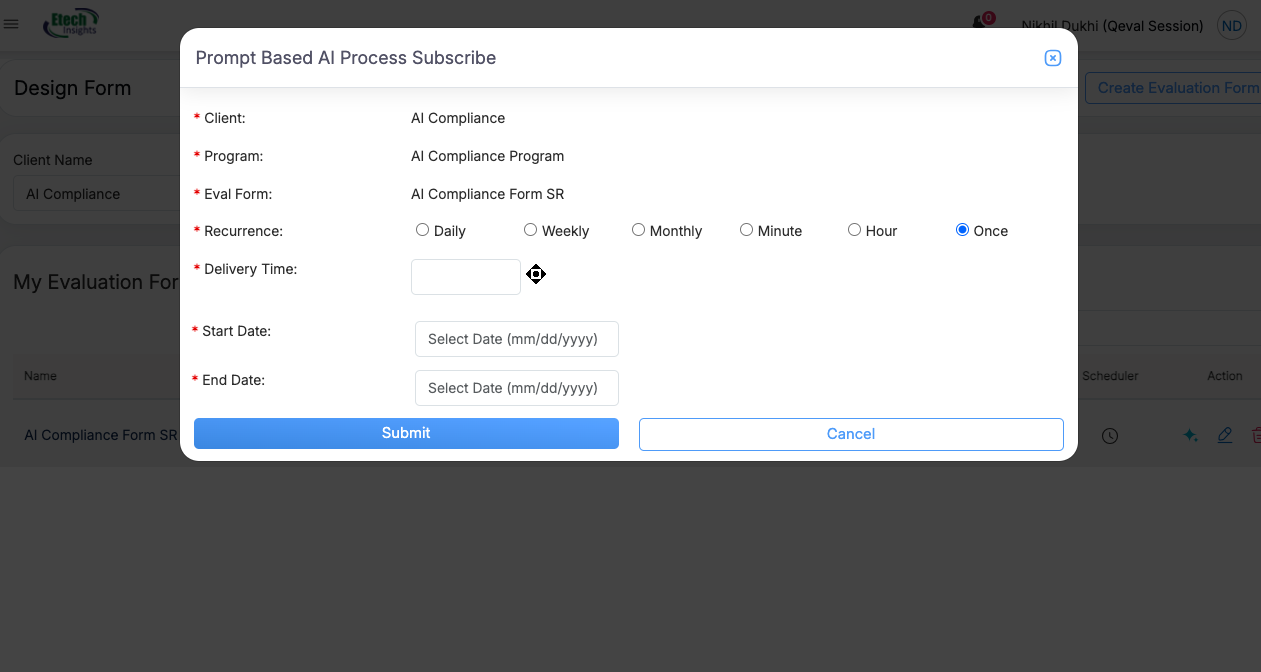
Scheduling Options when you click Add or edit button, Recurrence Options:
Users can choose between Repeat or Does Not Repeat for recurrence.
-
Does Not Repeat (default):
-
Requires the user to specify a one-time execution Date and Time.
-
-
Repeat:
Provides multiple scheduling options:- Once – Allows users to run a one-time compliance review for a selected Scope, Rule Set, and Execution Date, ideal for historical audits and targeted checks.
-
Hourly – Specify the frequency duration in hours.
-
Daily – Choose a fixed time for daily execution.
-
Weekly – Select both the execution time and specific day(s) of the week.
-
Monthly – Configure one of the following:
-
On the Following Day: Define the schedule using a numeric value (1st, 2nd, etc.) and day of the week (e.g., Every 1st Monday).
-
On This Day of the Month: Select a specific calendar day (e.g., 1, 15, 31).
-
Prompt Based AI Process Schedule
Once saved, the system will automatically trigger the evaluation process according to the defined schedule.
Example:
Schedule → Repeat Weekly, every Monday, Tuesday and Wednesday at 06:21 AM until 07/30/2025.
Best Practice
Always double-check recurrence, delivery time, and expiry date before hitting Submit to avoid missed or duplicate compliance runs.
Compliance AI ensures accurate, consistent, and automated compliance verification within QEval. With metadata filters, sub-questions, and logical conditions, Users can configure compliance checks tailored to their workflows. The scheduler further enables recurring automated evaluations, ensuring continuous compliance monitoring.
Video