Intelligent QA is a guided AI-powered workspace in QEval that enables users to build, train, test, validate, and activate AI-based compliance scorecards against real interactions.
With Intelligent QA, users can configure the scorecard independently by mapping interaction data, defining the call population, breaking parameters into sub-questions, and providing guidelines and trigger phrases for the AI model. Users can then test the configured parameters against real calls, review the AI-generated answers and reasoning, provide analyst corrections, and measure the resulting accuracy before activating the scorecard.
The Intelligent QA workflow helps users:
- Configure the interaction data used for AI scoring.
- Define which calls each sub-question applies to.
- Train parameters using Guidelines and Trigger phrases.
- Test parameters against real interactions.
- Review AI answers and LLM reasoning.
- Compare AI results with analyst outcomes.
- Identify Pass, Uncertain, and Disagree results.
- Review overall test readiness before activation.
- Activate the scorecard to evaluate in-scope calls in real time.
Access Intelligent QA
- Go to the Forms In QEval Main Menu.
- Locate the form you want to configure.
- Click the Intelligent QA star icon next to the form.
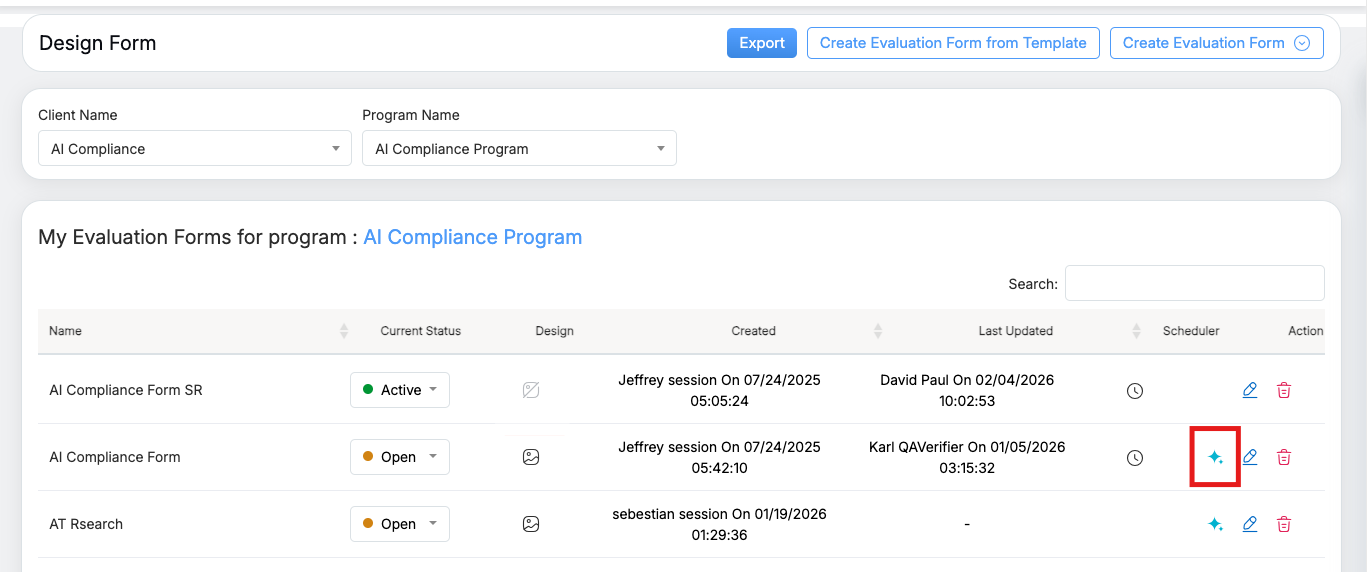
Design Form Page
The Intelligent QA workspace opens on the Field Mapping screen.
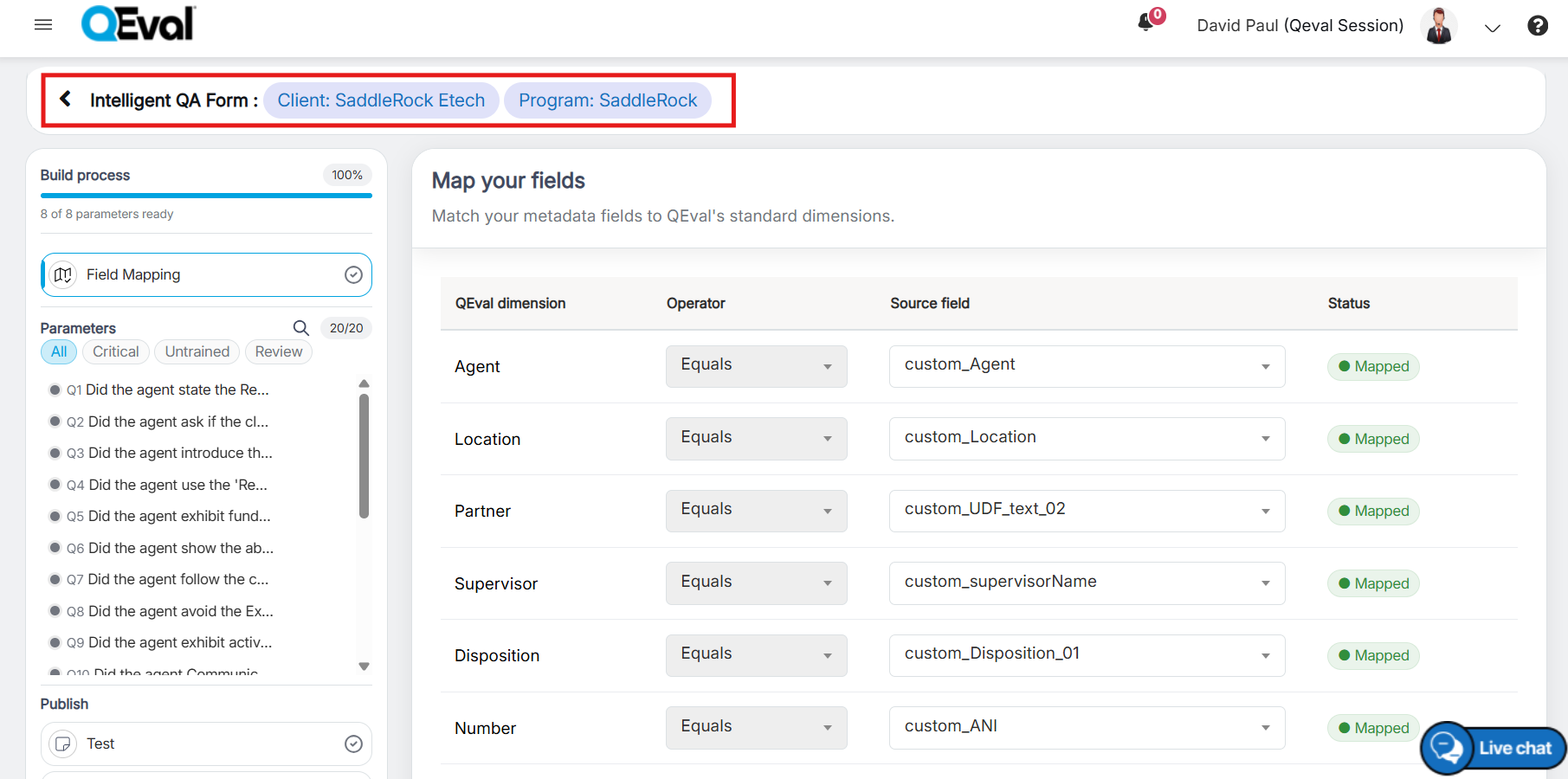
Field Mapping Screen
Note: Client, Program, and Connector selection is not required.
Intelligent QA Workflow
The Intelligent QA journey follows these major stages:
Field Mapping → Call Scope → Parameter Training → Testing → Publish → Review and Activate
Each stage builds on the previous configuration, while the system saves progress so the user can leave and resume the setup when required.
Field Mapping
Field Mapping connects the source interaction metadata to the standard dimensions used by QEval.
The mapping screen displays the QEval dimensions, available source fields, operators, and mapping status. All required dimensions must show Mapped before the workflow can continue.
Configure Field Mapping
- Review the available QEval dimensions.
- Select the required Source Field for each dimension. The Operator is non-editable.
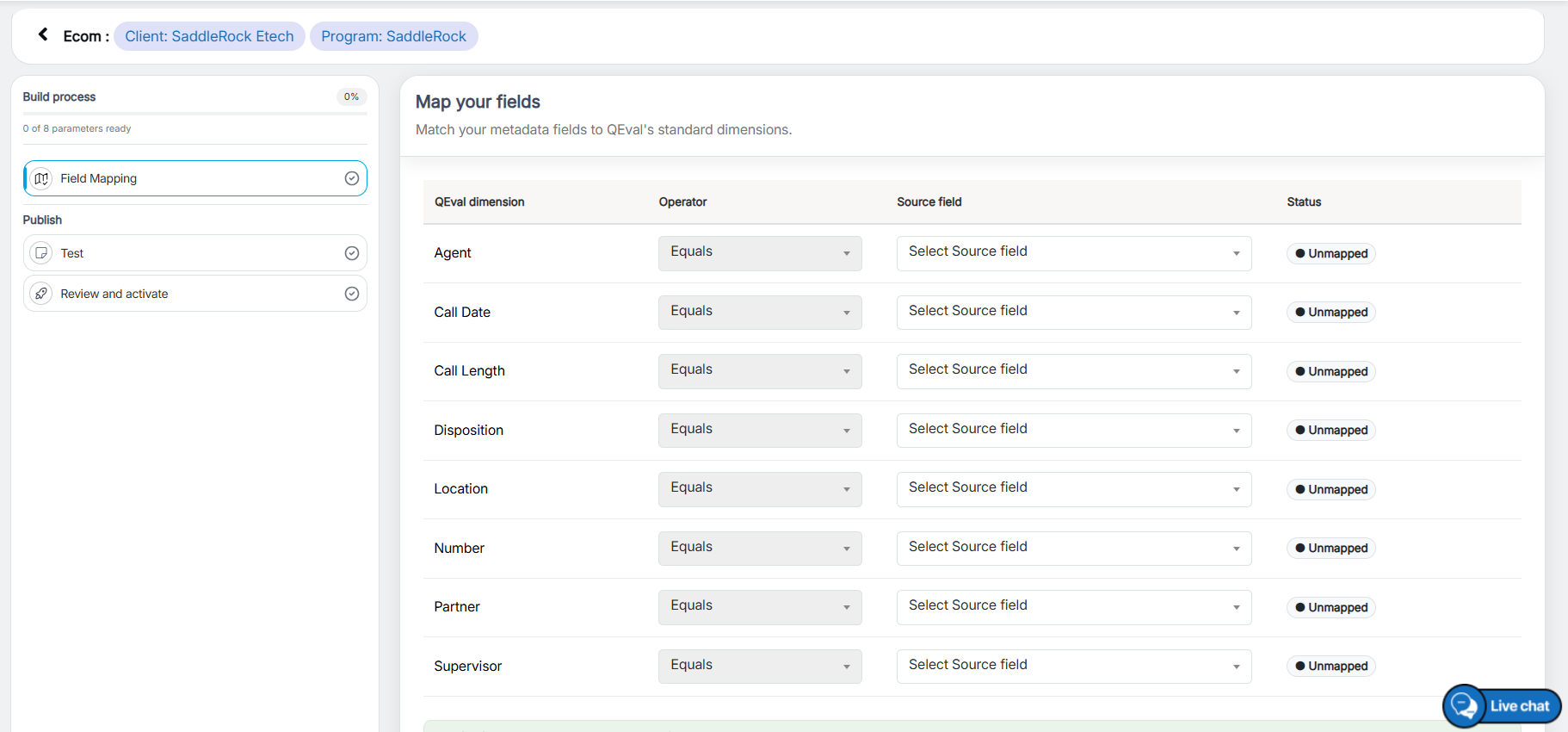
Field Mapping Screen
- Ensure all required dimensions show Mapped.
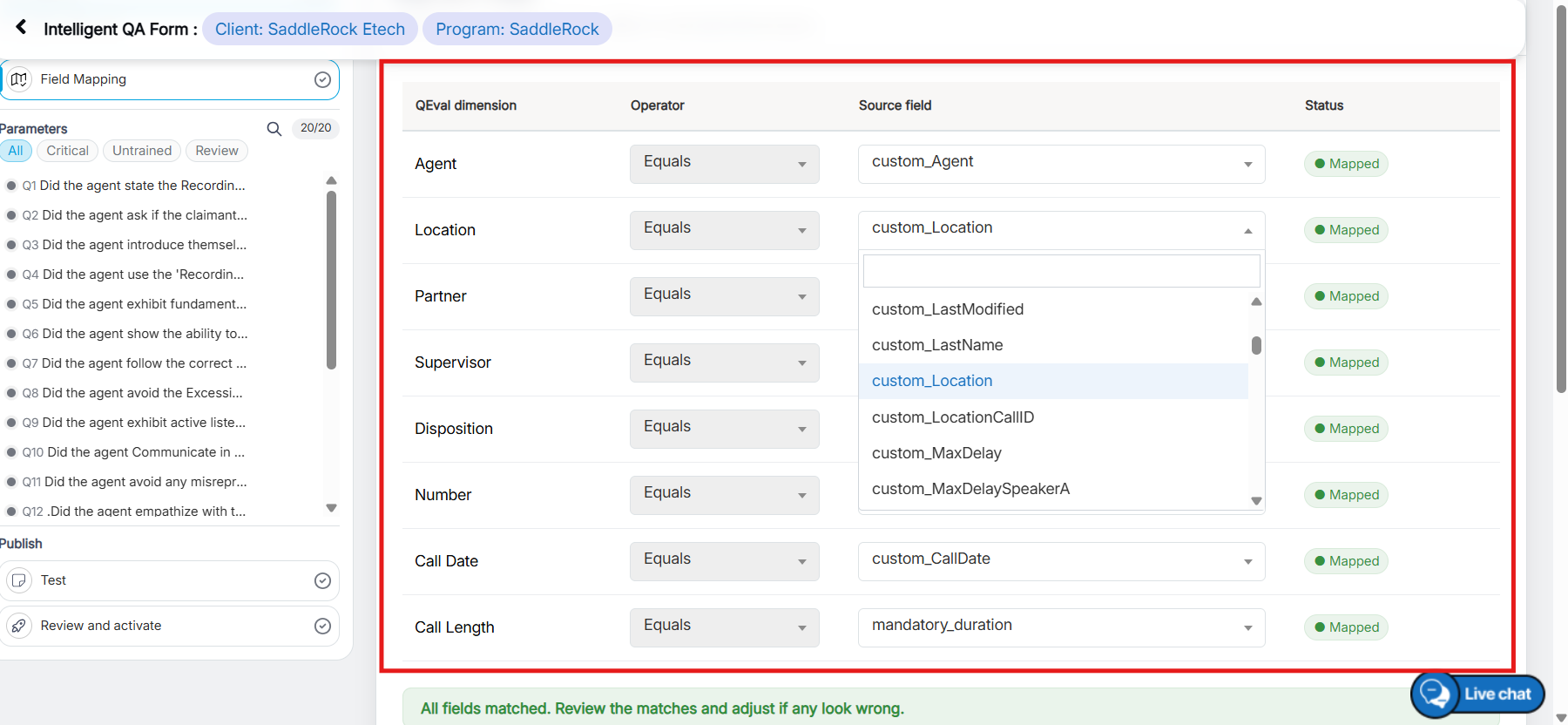
You cannot continue while any required dimension remains unmapped.
Define Call Scope
Use Call Scope to define which calls a sub-question applies to.
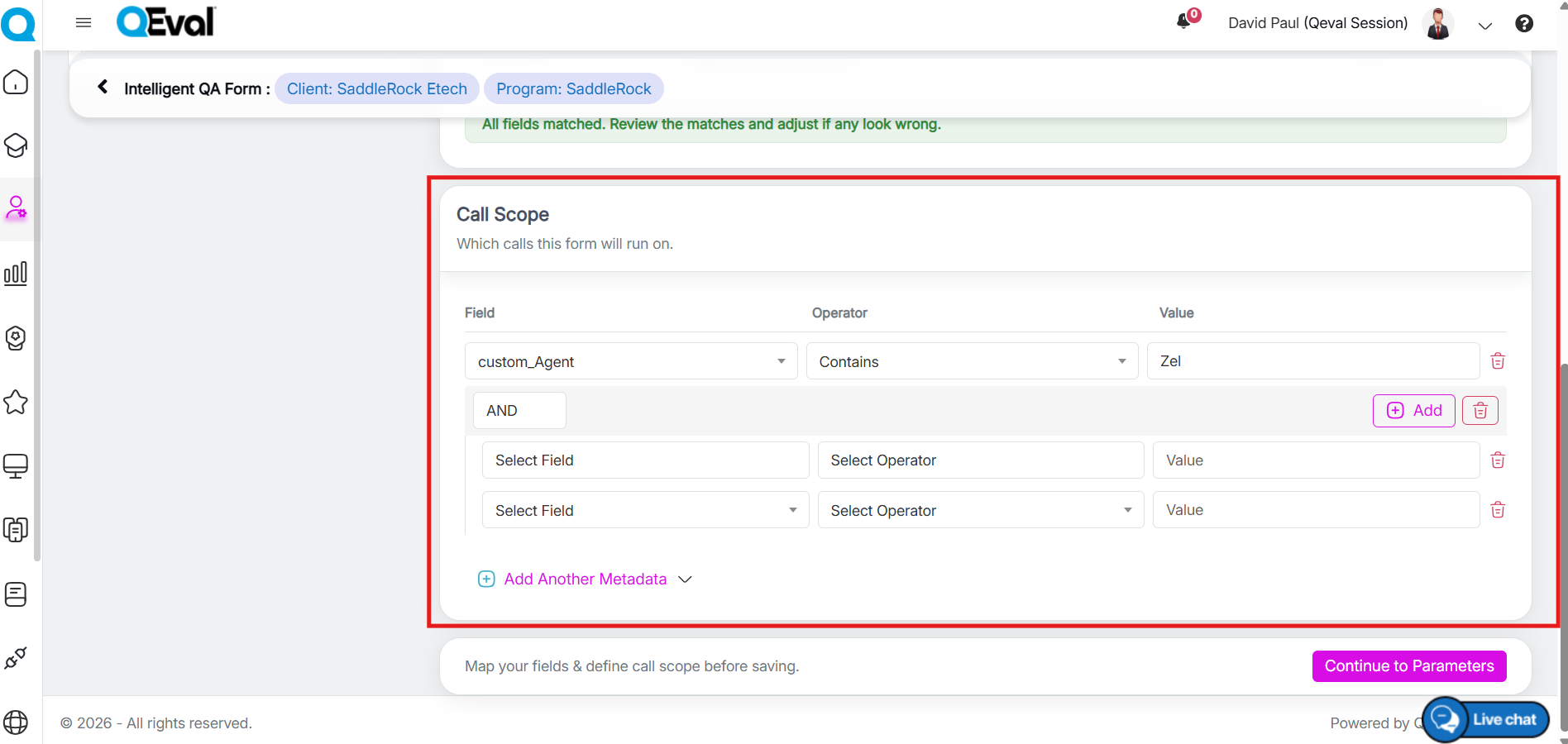
- Select the required Field.
- Select an Operator.
- Enter the required Value.
- Click Add to add additional conditions using AND.
- Use Add Another Metadata to add another metadata condition when required.
- Click Continue to Parameters to proceed to parameter configuration.
Note: Call Scope conditions can be based on Category, Metadata, or Sub Question, depending on the available condition type.
Configure Parameters
Each main parameter can be divided into Sub-questions.
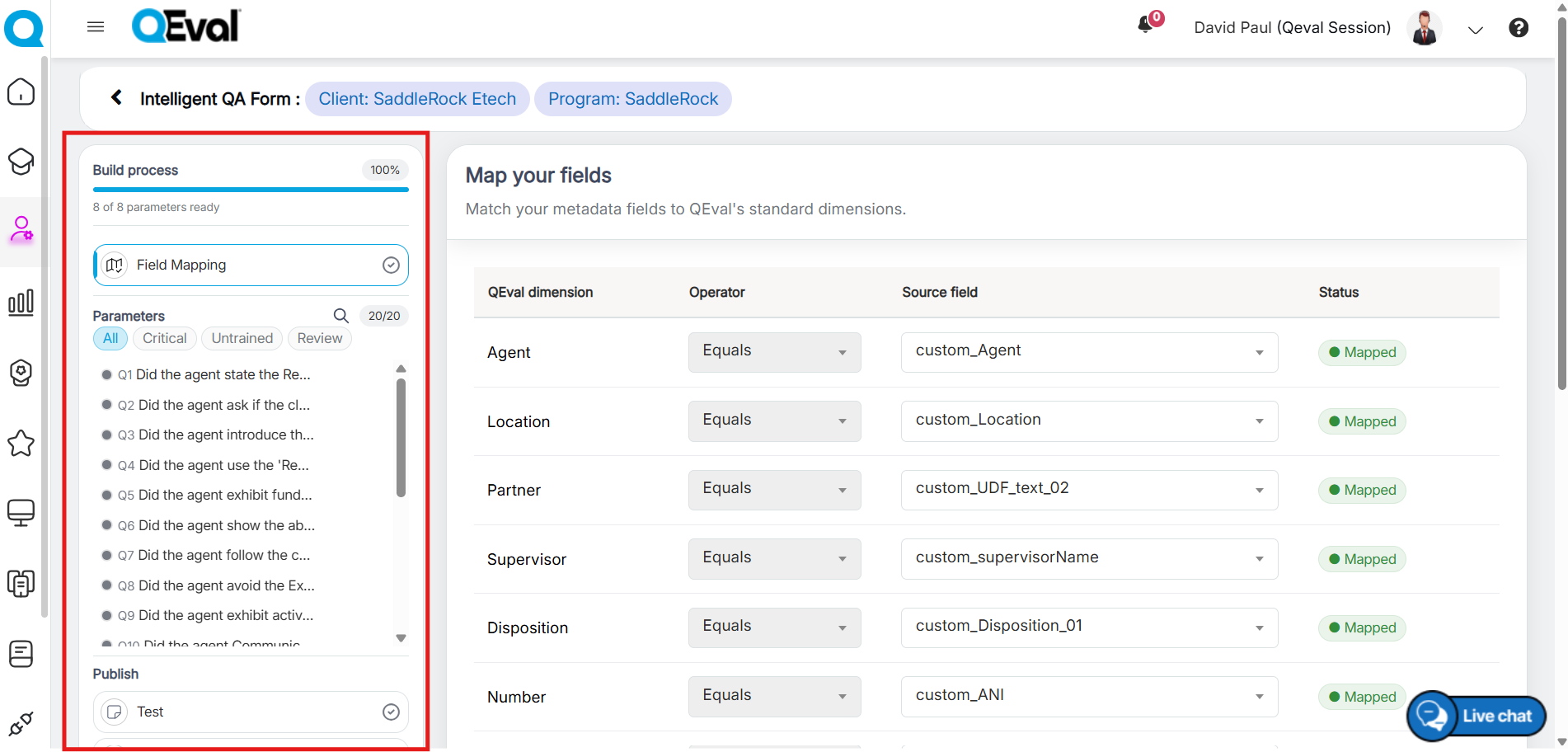
Intelligent QA Form
- Open a parameter.
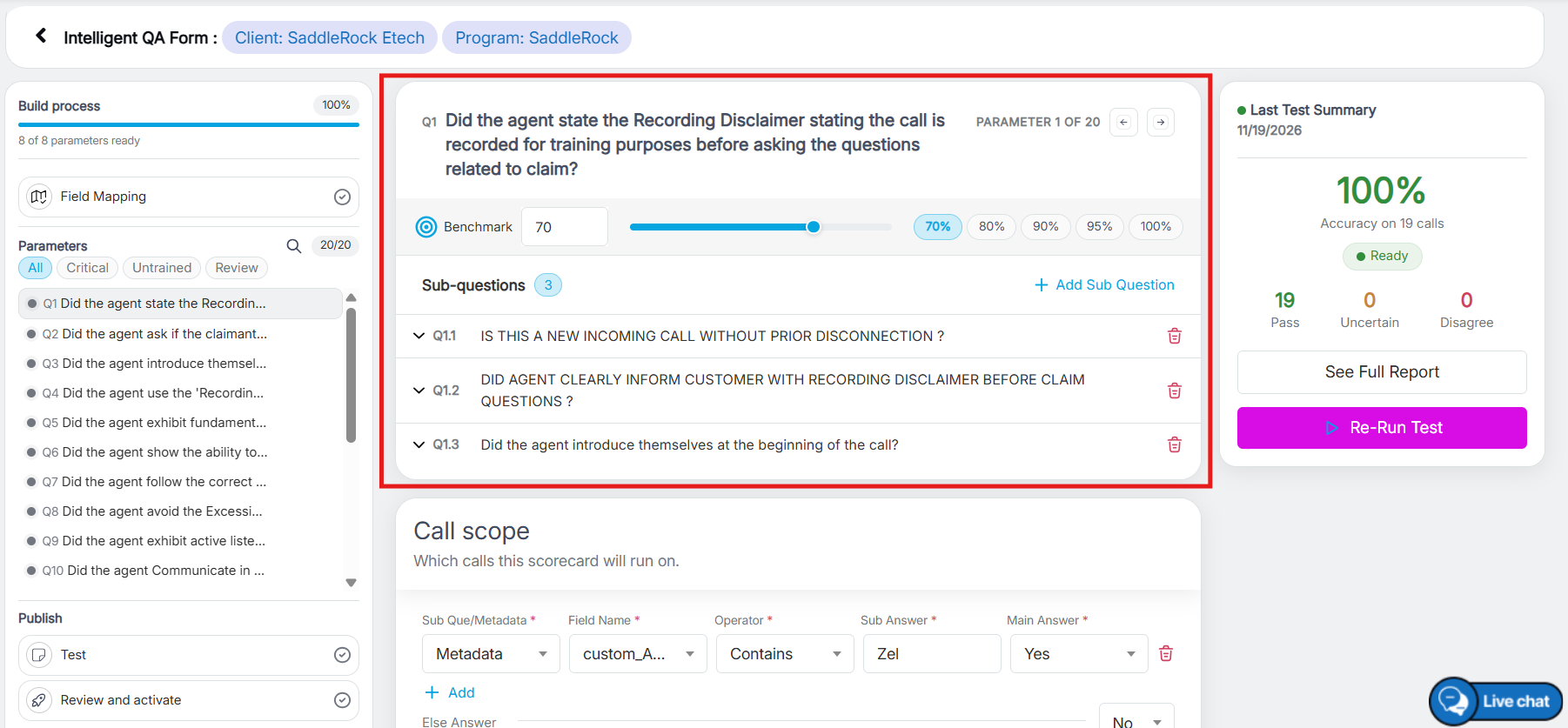
Configure Parameters
- Click Add Sub Question.
- Enter the sub-question.
- Add a Guideline to instruct the AI model.
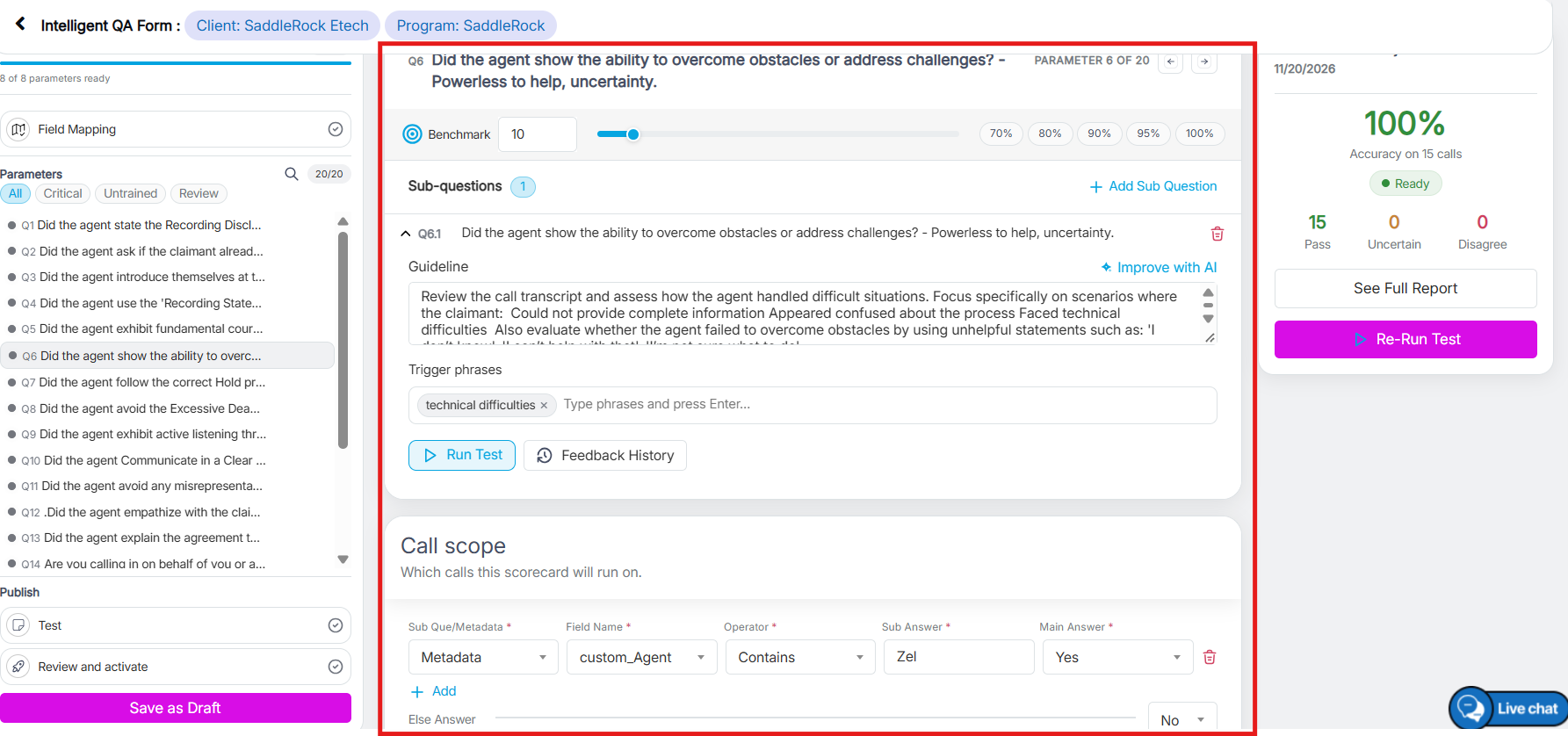
Configure Parameters
- Add relevant Trigger phrases.
- Set the Accuracy Threshold for the parameter.
- Use Improve with AI to enhance the guideline when required.
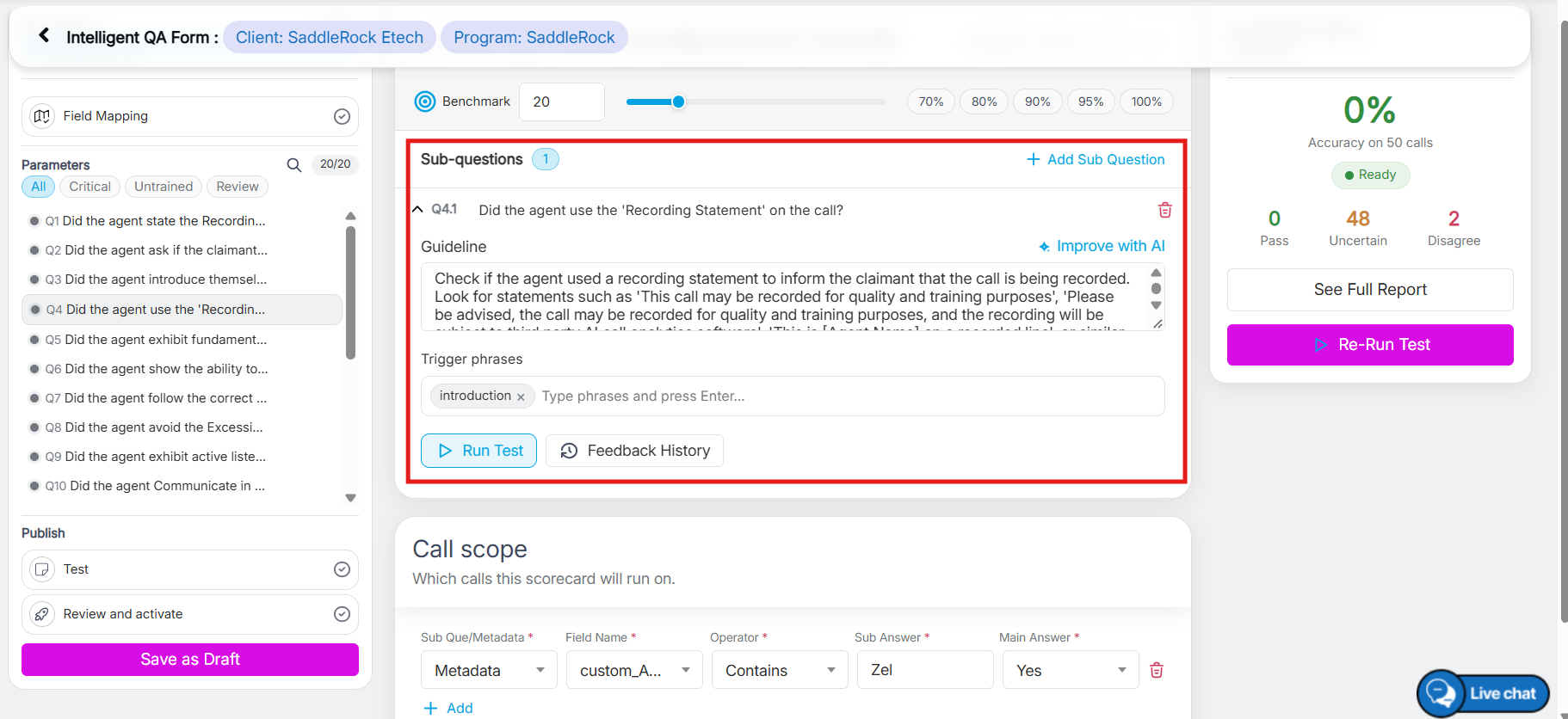
Configure Parameters
Train Parameters
- Click Run Test for a sub-question.
- Review the AI-generated Yes/No answers and reasoning.
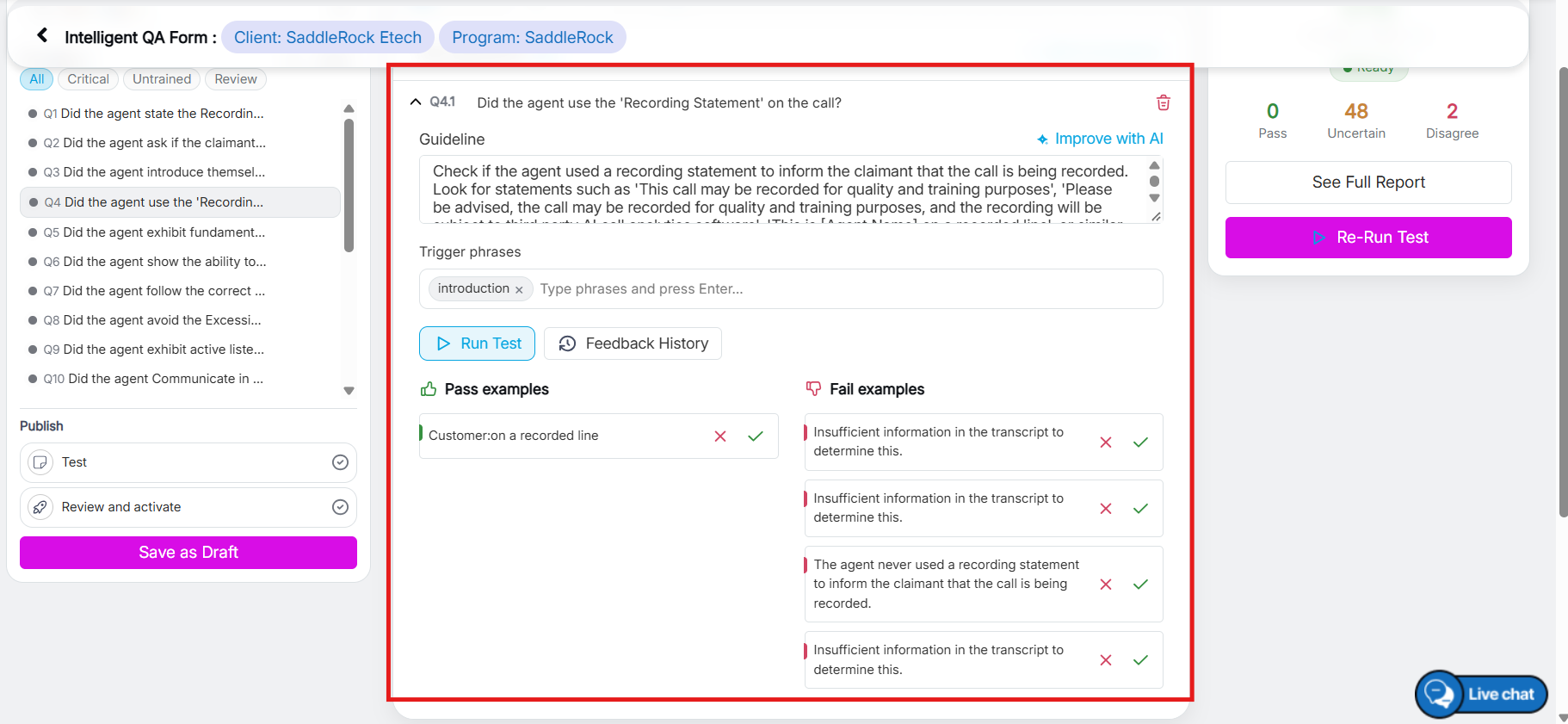
Run Test Results Shown
- Correct an answer when it does not match your judgement.
- Re-run the test to evaluate the updated configuration.
Configure Parameters
The corrections are retained as feedback and used in subsequent test cycles.
Feedback History
Click Feedback History to view the correction history for the selected sub-question, including the Timestamp, Call ID, Evidence, AI Answer, Human Answer, and available Actions.
The Feedback History window also allows you to review previous corrections and navigate between pages of feedback records.
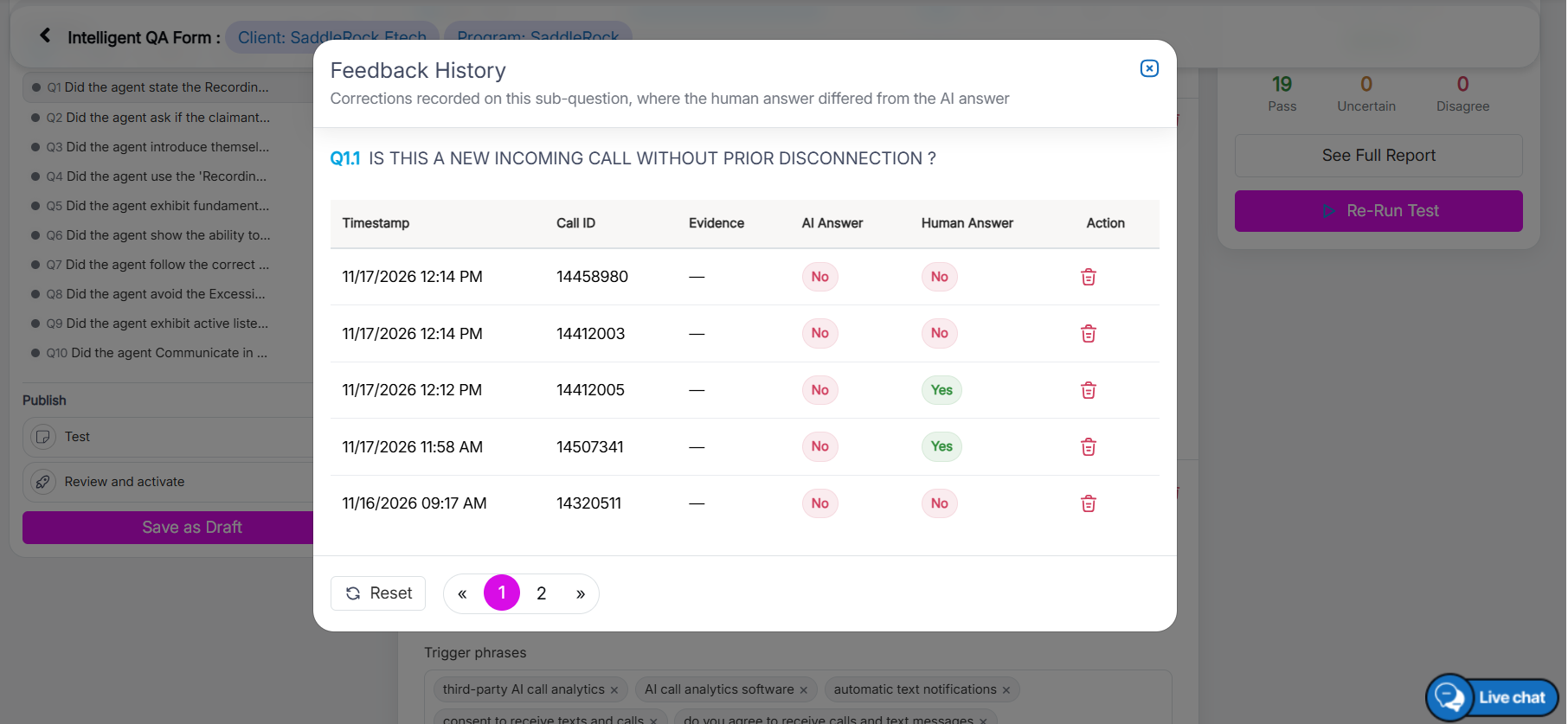
Feedback History Tab
Review Accuracy
The parameter summary displays the results of the latest test, including:
- Accuracy
- Pass
- Uncertain
- Disagree
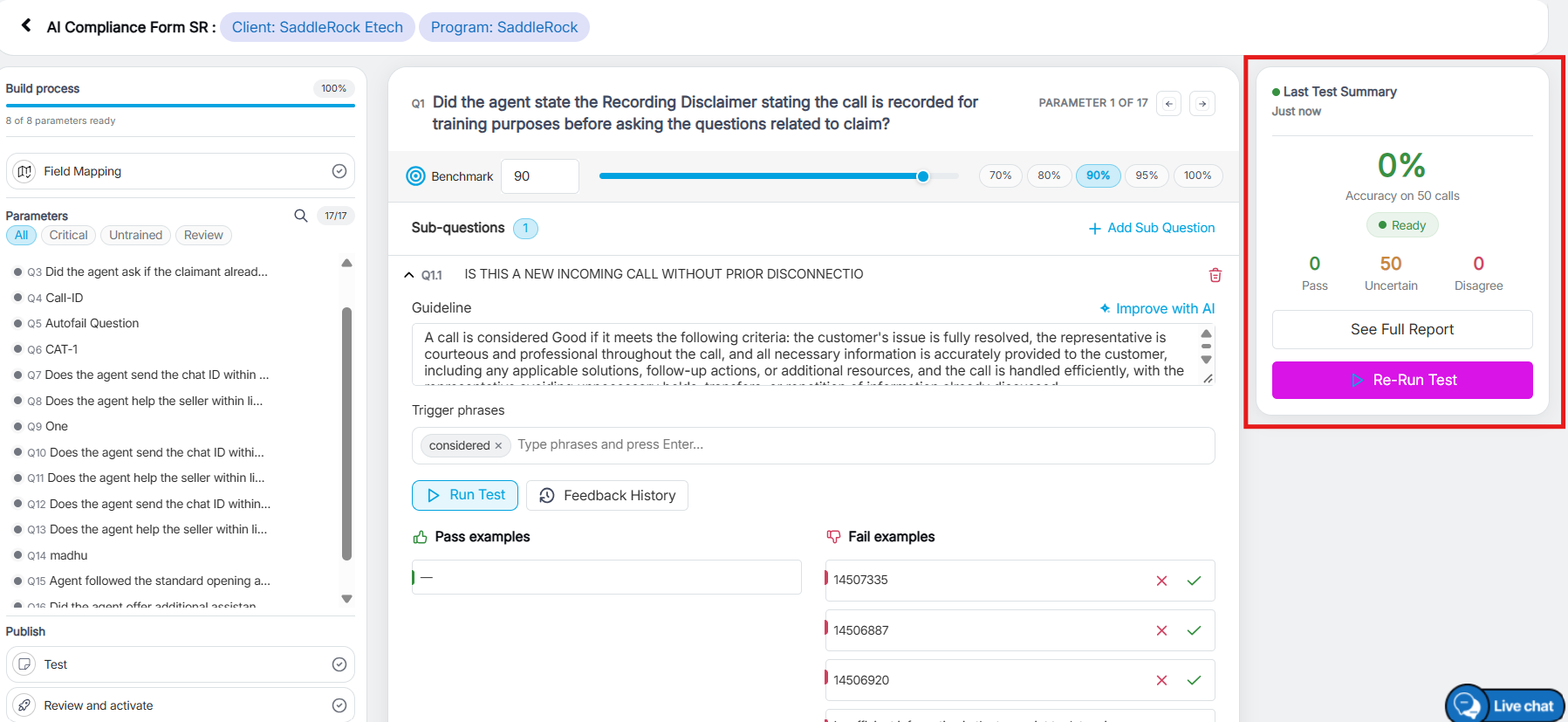
Review Parameter Test Summary
Accuracy is determined by the AI based on the sub-question evaluation. Certain/Pass represent the same measure. Uncertain and Disagree are derived by comparing the QEval result with the analyst outcome.
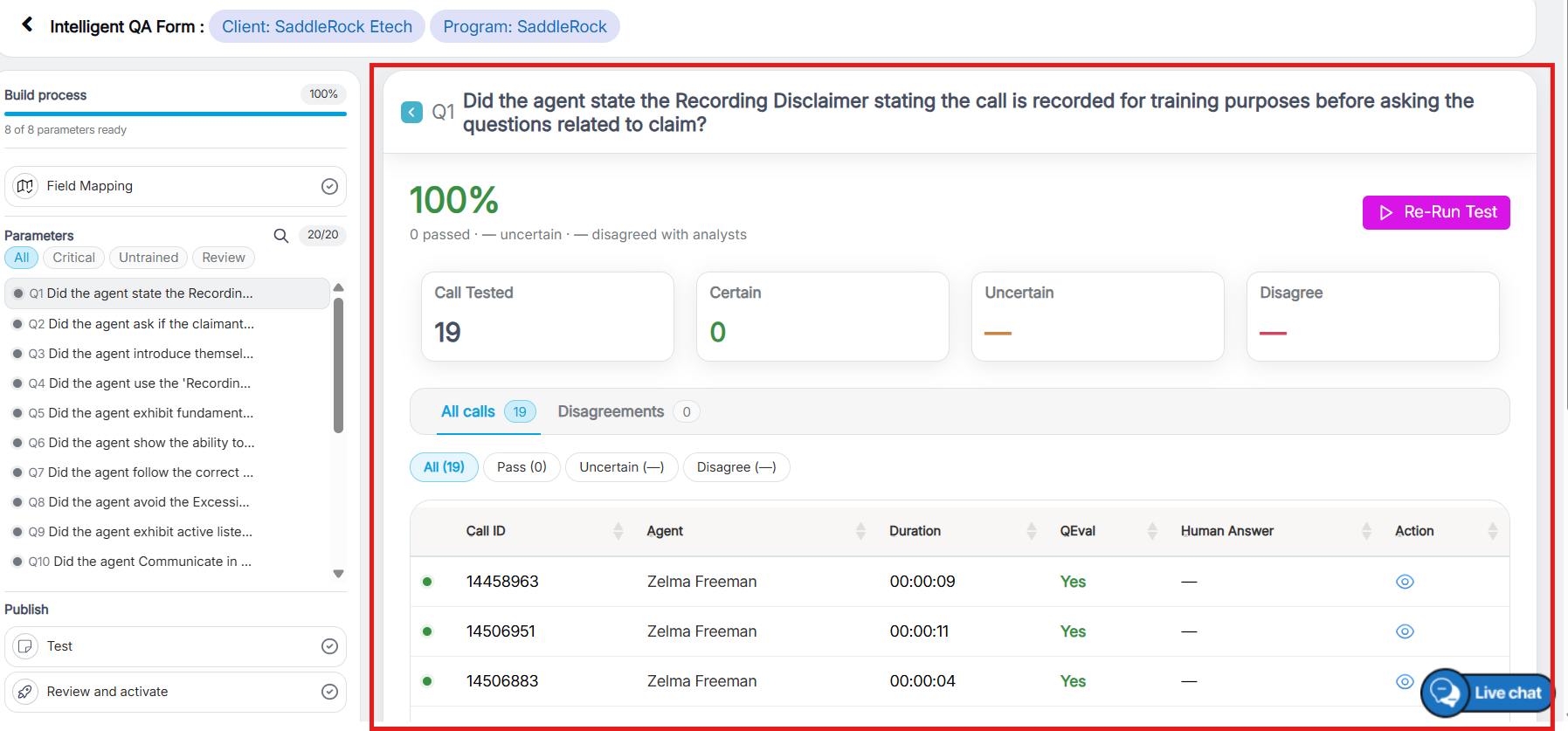
See Full Report
Note: Uncertain and Disagree results are populated only after an analyst records an outcome and the parameter is re-tested.
Review Calls
- Open the All calls tab.
- Review the QEval result for each call.
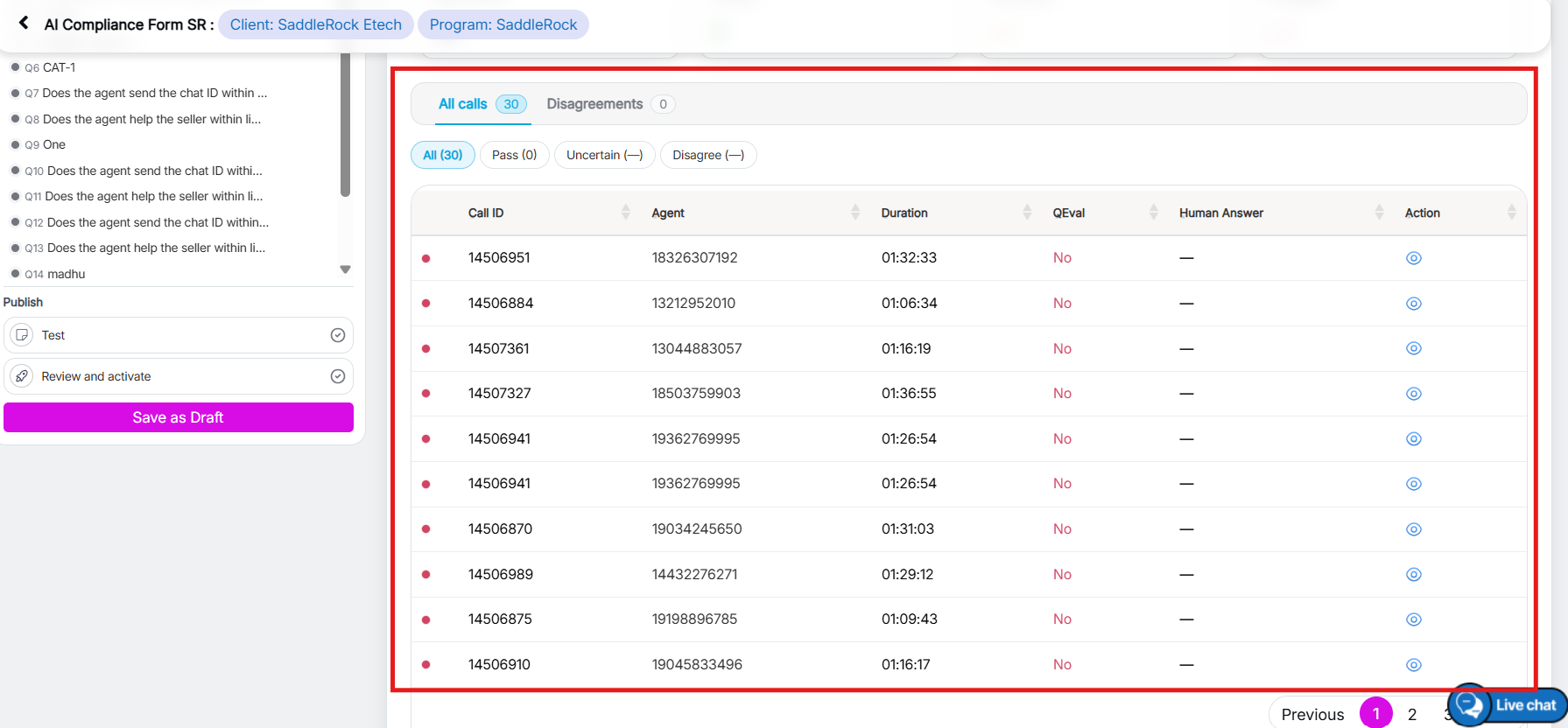
Review Calls Tab
- Click the Action icon to review the call.
- Expand Evidence to view the LLM reasoning.
- Select the appropriate Main Answer.
- Click Submit to record the analyst outcome.
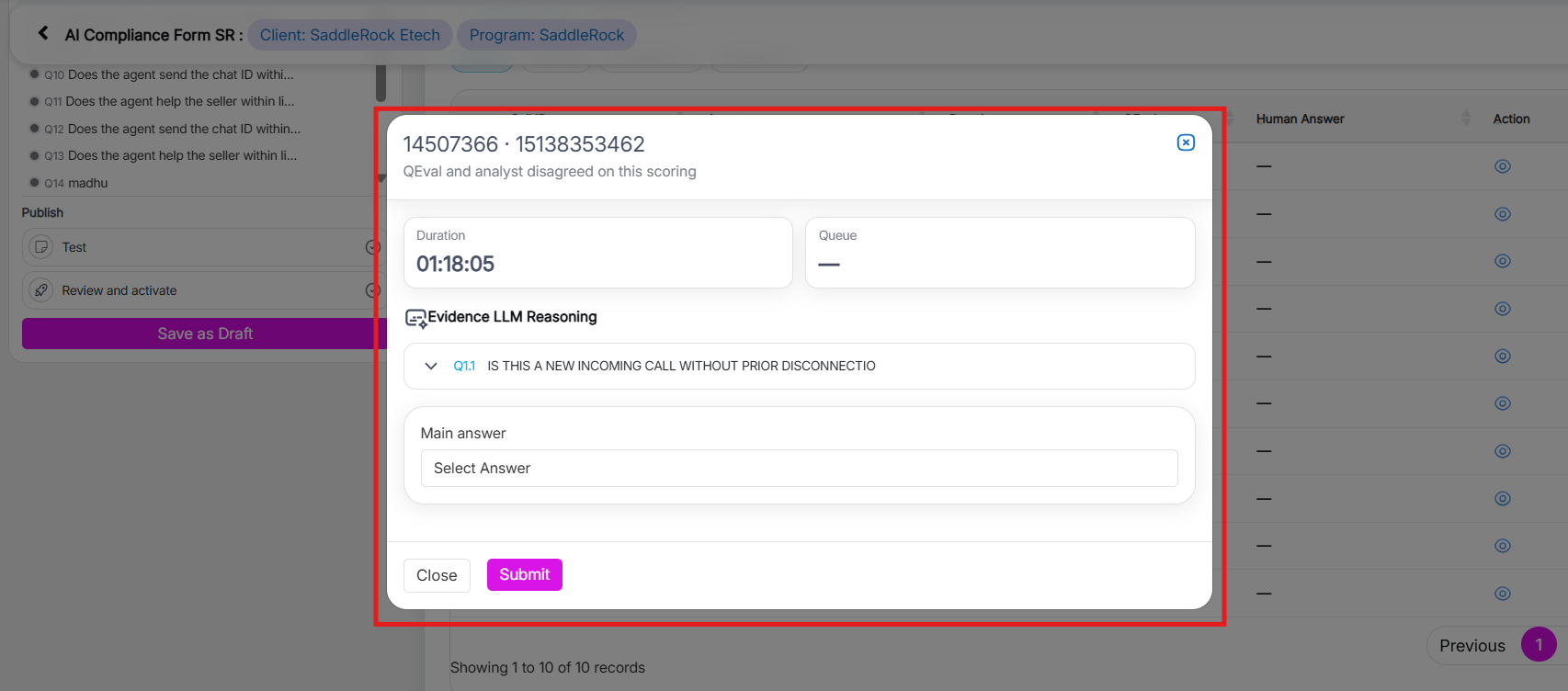
Review Call
The analyst outcome is then compared with the QEval result to identify agreement or disagreement.
Test the Scorecard
- Open the Test step.
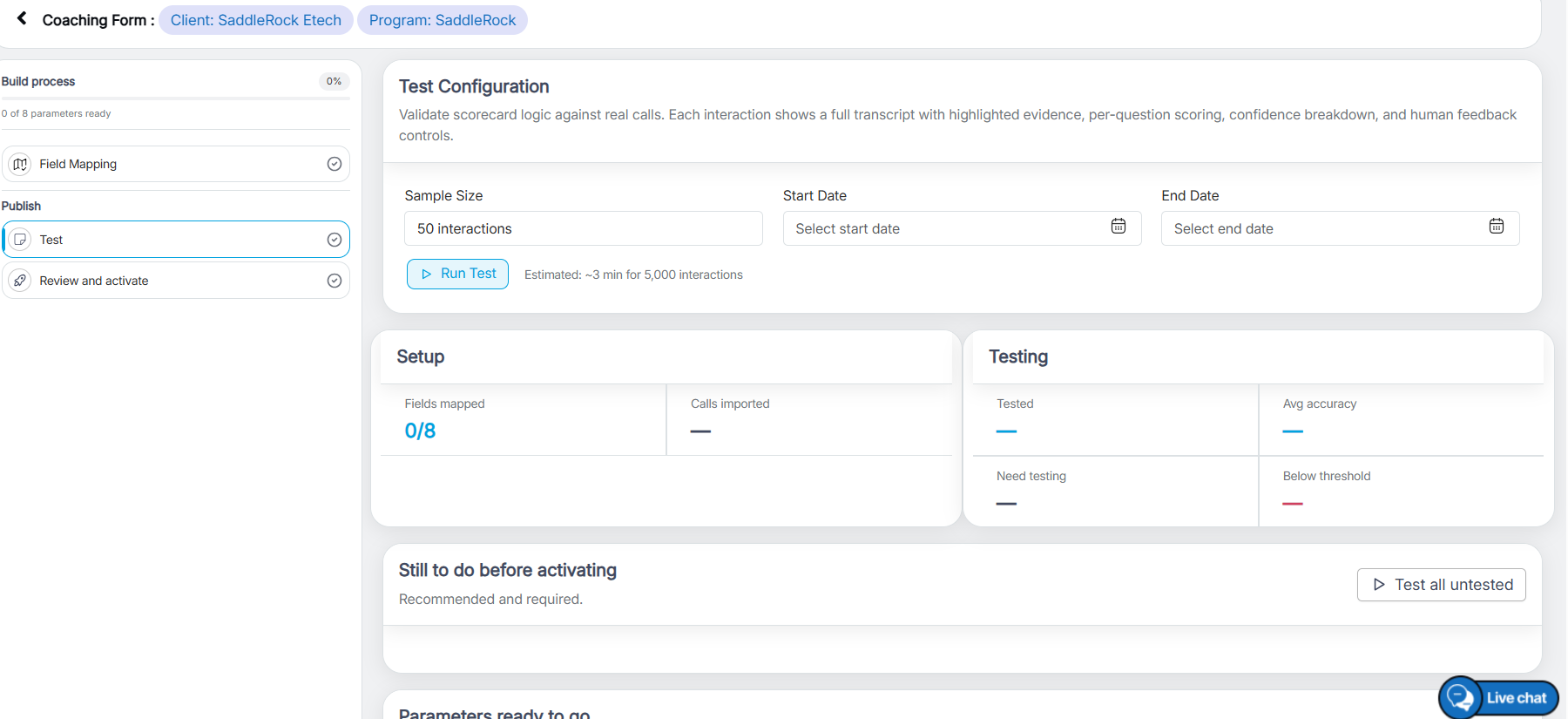
Test Configuration Tab
- Review the Sample Size and Date Range.
- The sample size is fixed at 50 interactions.
- Set the Start Date and End Date to begin the test.
- Click Run Test.
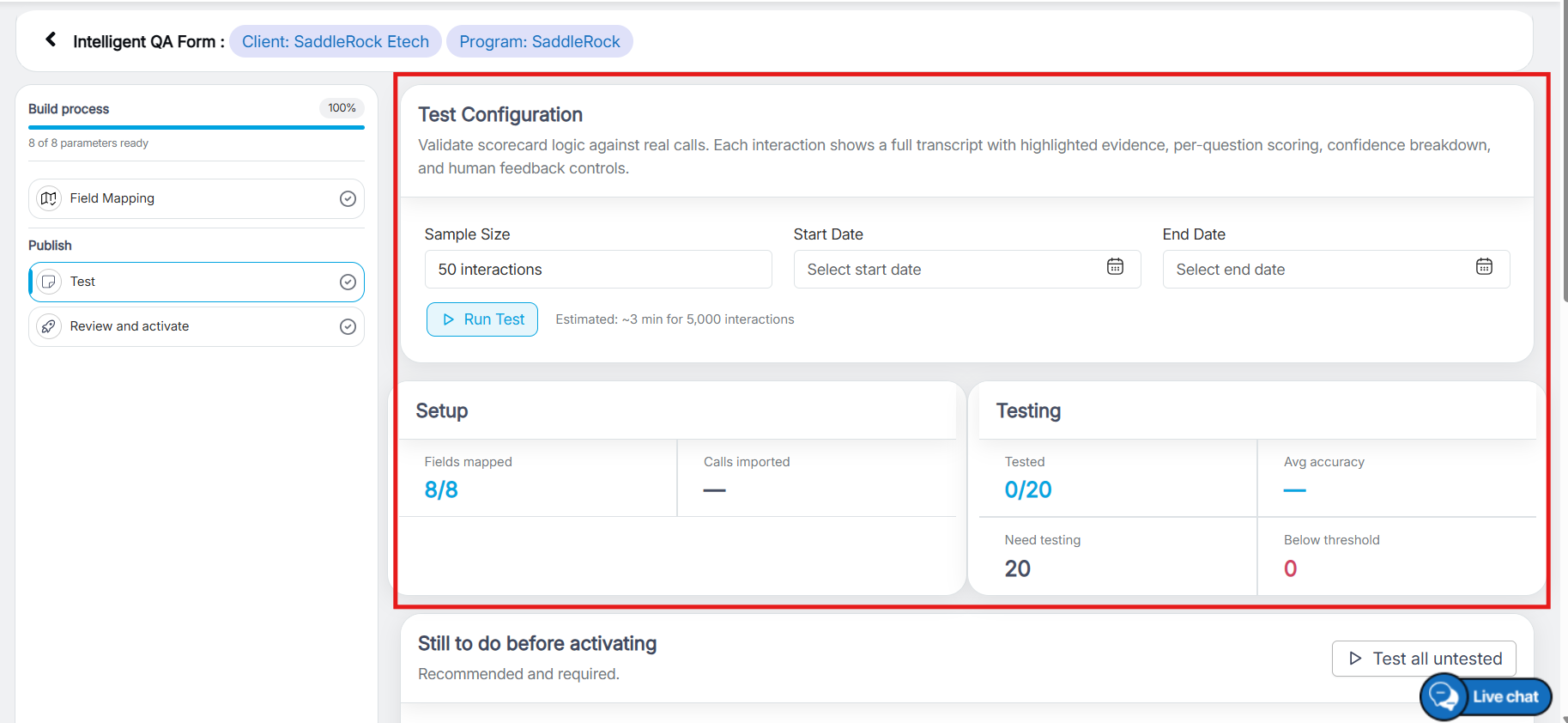
Test Result View
- Review tested, untested, accuracy, and below-threshold parameters.
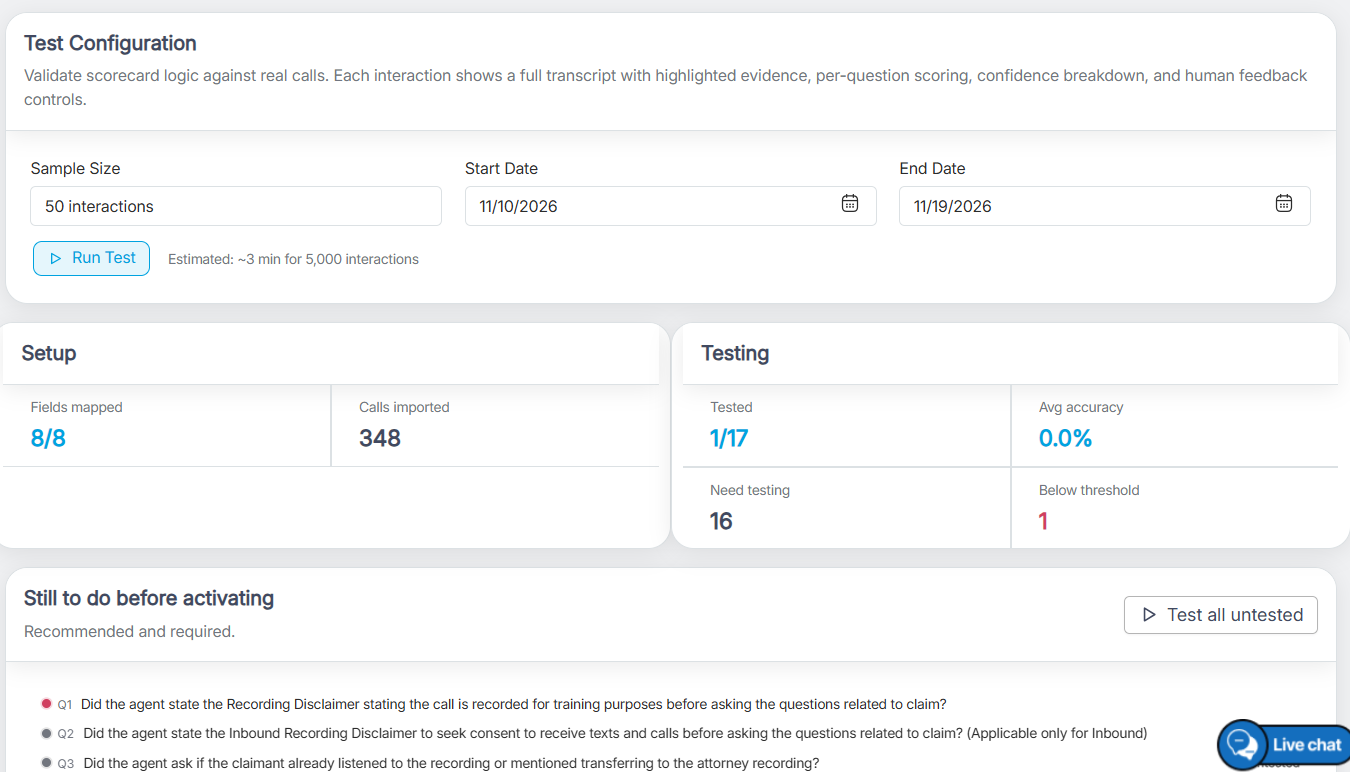
Review Test Result and Retest the untested
- Use Test all untested to test parameters that have not yet been tested.
Parameter testing is recommended but not mandatory for activation.
Review and Activate
- Open Review and activate.
- Review the mapping, tested parameters, and accuracy information.
- Confirm the scorecard configuration.
- Click Activate scorecard.
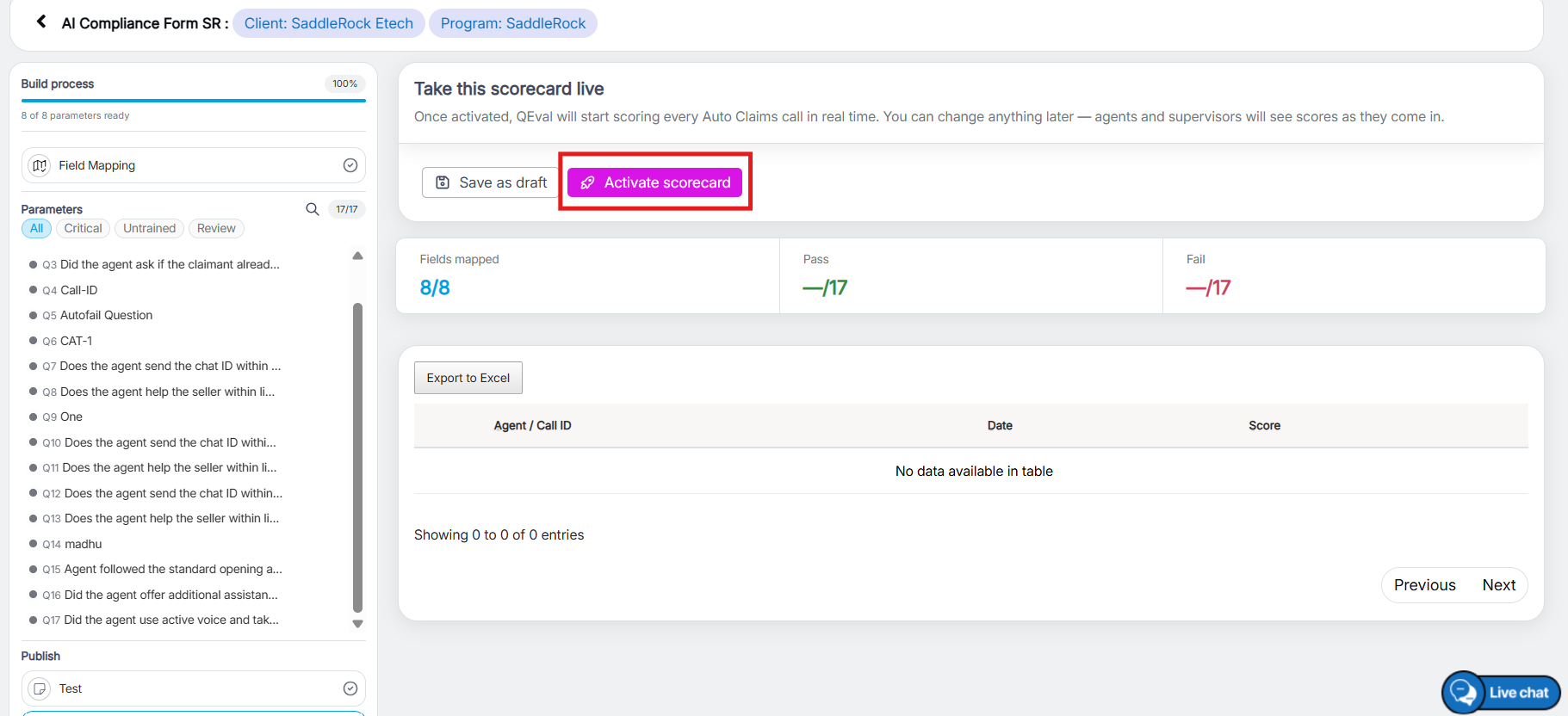
Review and Activate Tab
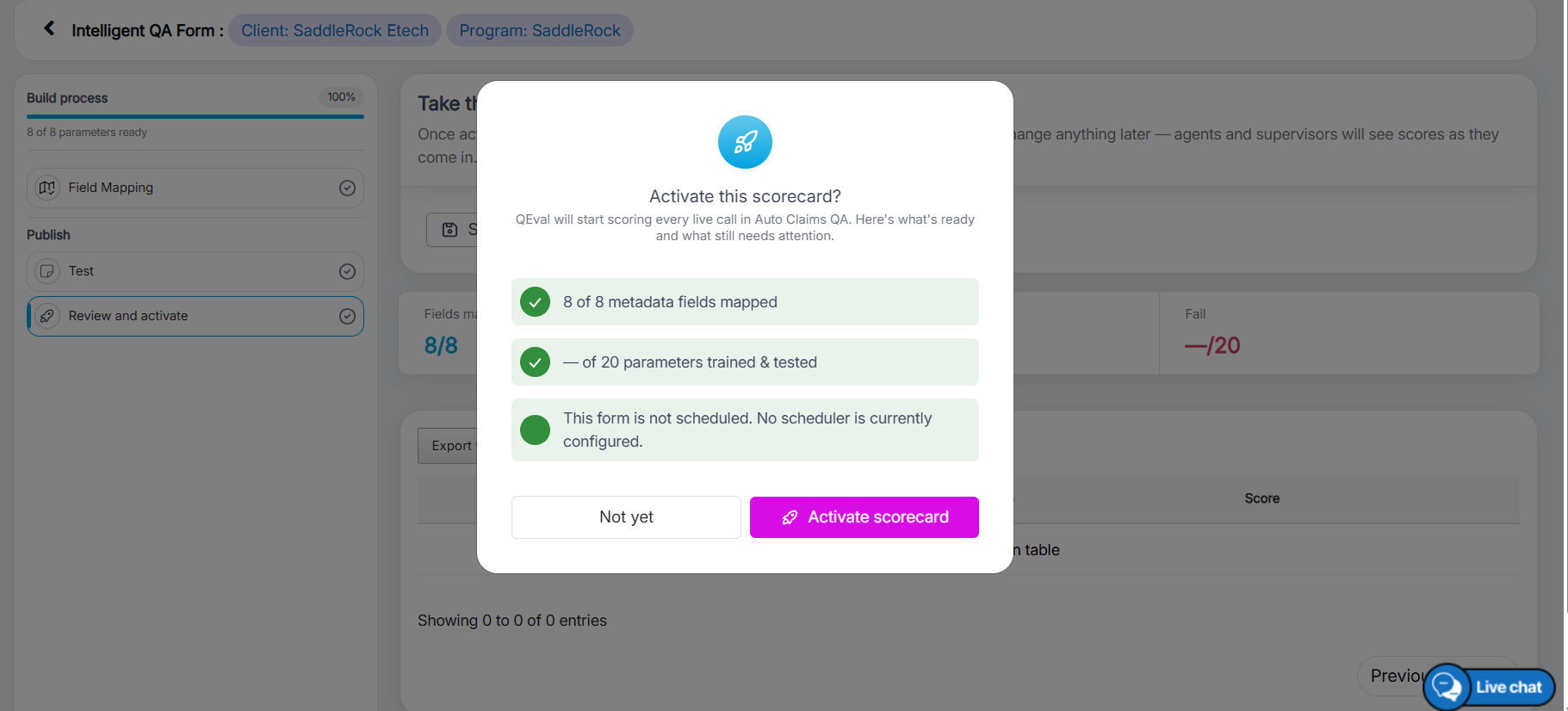
Activate Scorecard Tab
Activation is available once field mapping is complete. Once activated, the scorecard evaluates calls within the defined Call Scope.
Key Benefits
- Configure AI scorecards without requiring an analyst to author the scoring logic.
- Train parameters using sub-questions, guidelines, trigger phrases, and human feedback.
- Validate AI results against analyst outcomes.
- Review AI reasoning for individual calls.
- Test scorecard parameters before activation.
- Apply scoring only to calls within the defined Call Scope.
Video