Table of Contents
- Overview
- Manage MFA Access
- Pre-requisites for Enabling MFA
- Enable or Disable MFA for User Roles
- Login Using Multi-Factor Authentication
Overview
Multi-factor authentication (MFA) is a security process that requires users to provide two or more forms of identification to access a system, account, or application. This approach adds an extra layer of security to traditional password-based authentication, helping protect user accounts even if passwords are compromised.
To access the QEval account, if MFA is enabled for any user role, users must complete the following authentication process:
- Login using QEval account credentials – User ID and Password.
- Enter the 6-digit security code generated by a supported Authenticator application.
Unlike the previous implementation, authentication codes are now generated through an Authenticator application instead of being sent to the registered Email ID.
The Admin of QEval can manage the MFA access for all user roles.
Manage MFA Access
As an Administrator, Navigate to Settings > Multi-factor Authentication to manage MFA access for user roles, as shown below.
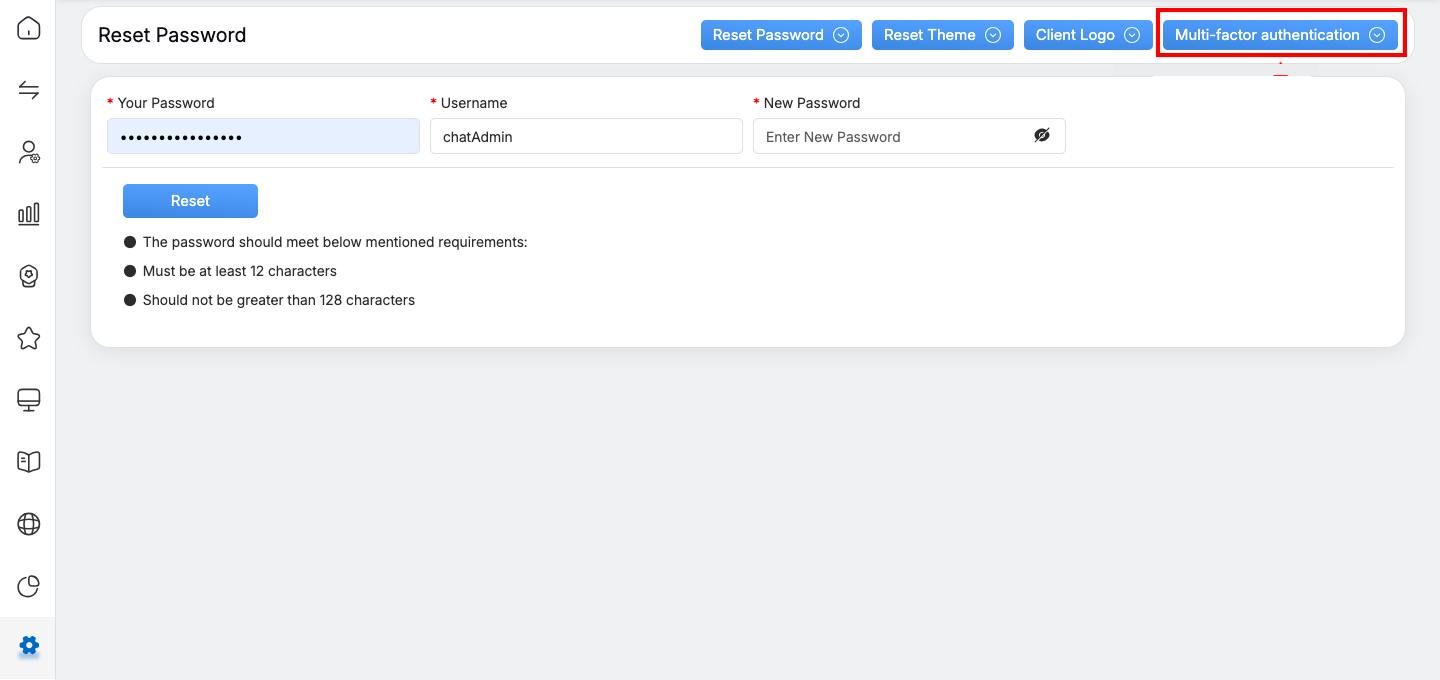
Multi-factor authentication
The following screen appears:
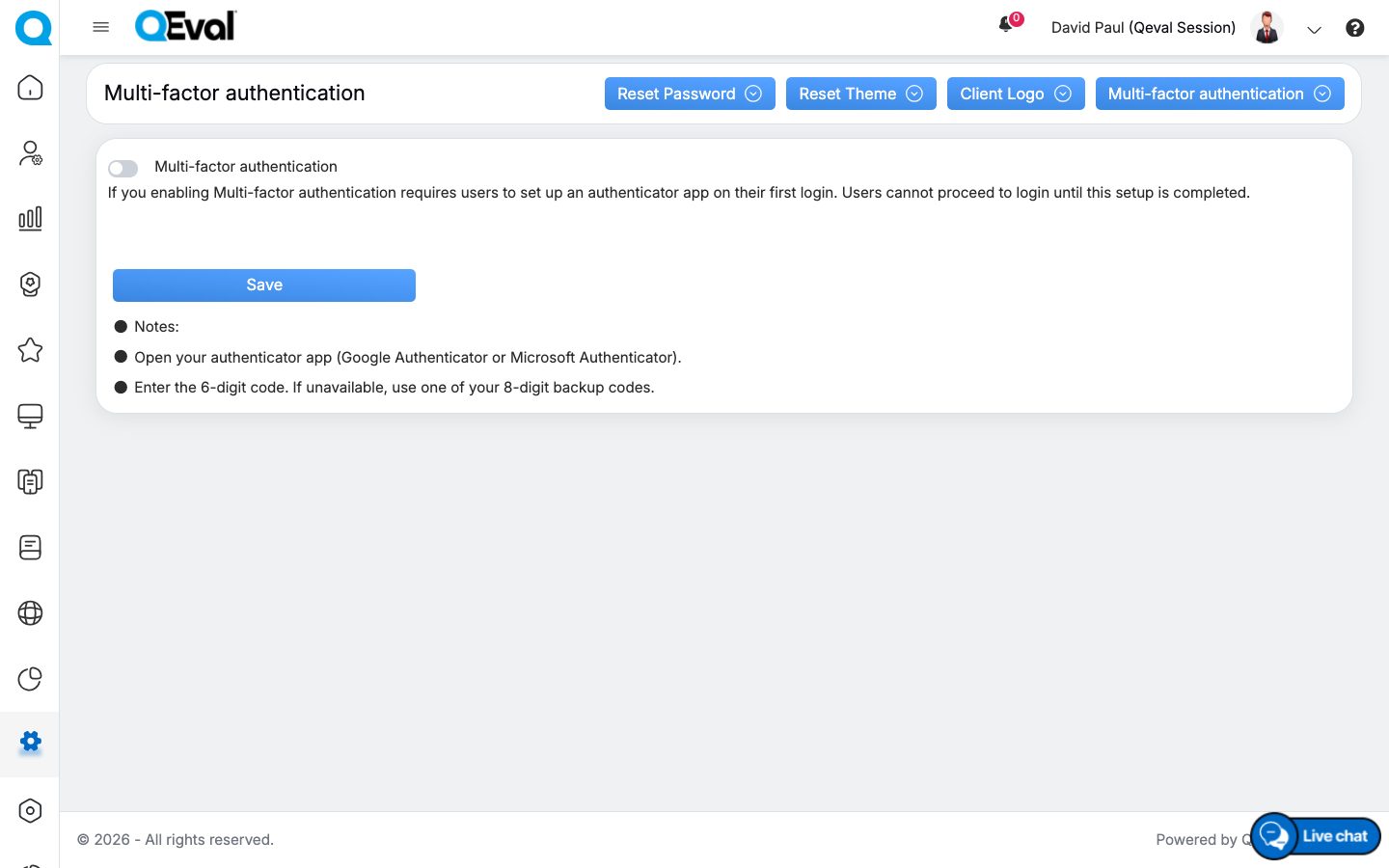
Multi-factor authentication Page
By default, the Multi-factor authentication feature is disabled. In this state, users can sign in to their QEval account using only their User ID and Password.
To enable MFA, click the Multi-factor authentication toggle.
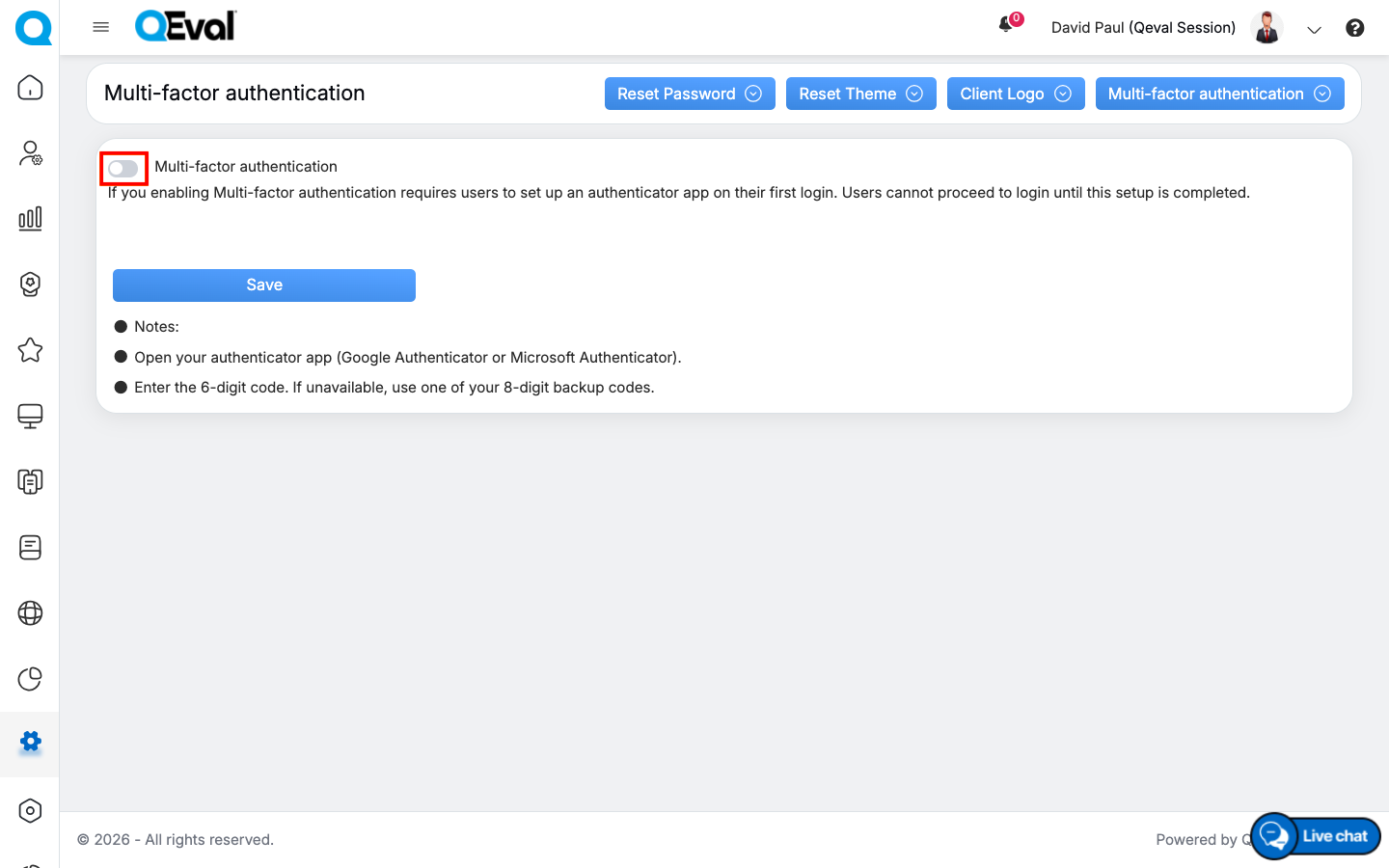
Multi-factor authentication
Once enabled, all available user roles for the client account are displayed.
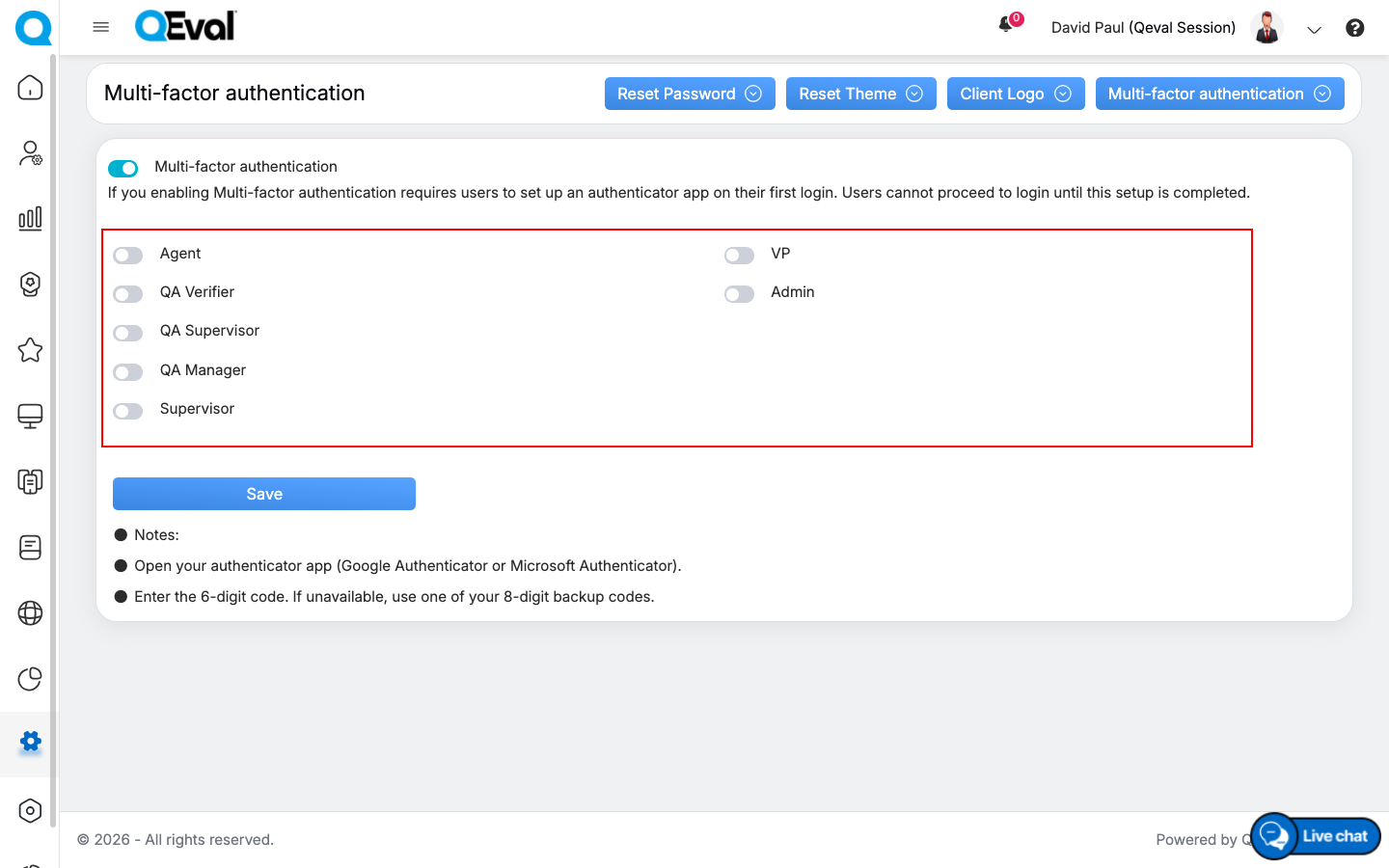
Multi-factor authentication
From the displayed list, Admins can enable or disable MFA individually for each user role.
Supported Authenticator Applications
QEval supports industry-standard Time-based One-Time Password (TOTP) authenticator applications. Users can complete MFA setup using any of the following applications:
- Google Authenticator
- Microsoft Authenticator
- Authy
- Supported browser authenticator extensions (Chrome, Firefox, Microsoft Edge)
These applications are available free of charge for both Android and iOS devices.
Pre-Requisite for Enabling MFA
Before enabling MFA for any user role:
- Users should have access to a supported authenticator application installed on their mobile device or browser.
Enable or Disable MFA for User Roles
To enable or disable MFA feature for any particular user role, click on the toggle button displayed besides that role as shown below:
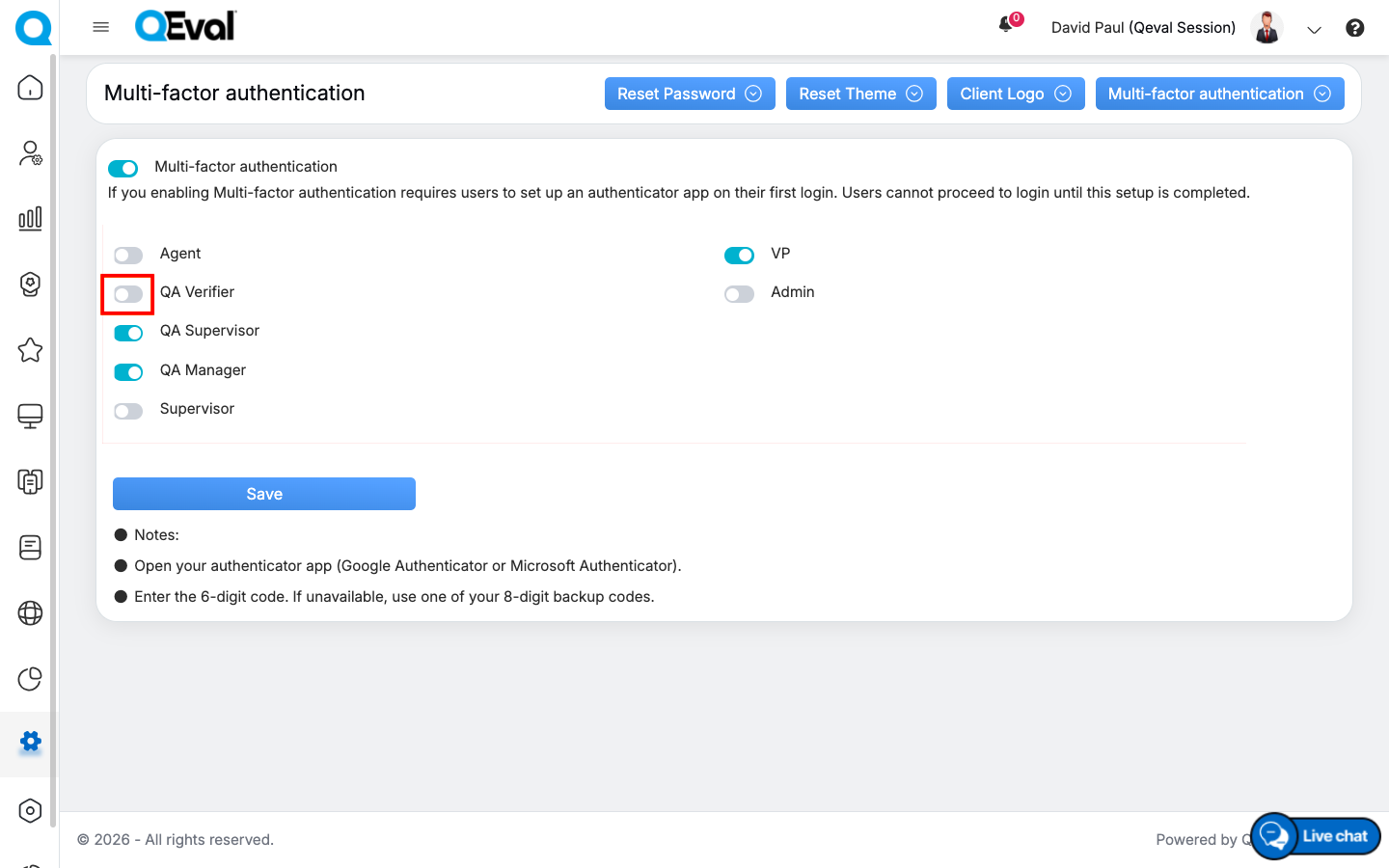
Multi-Factor Authentication
Once the MFA feature is enabled or disabled for any QEval user role, click on Save button to save the changes.
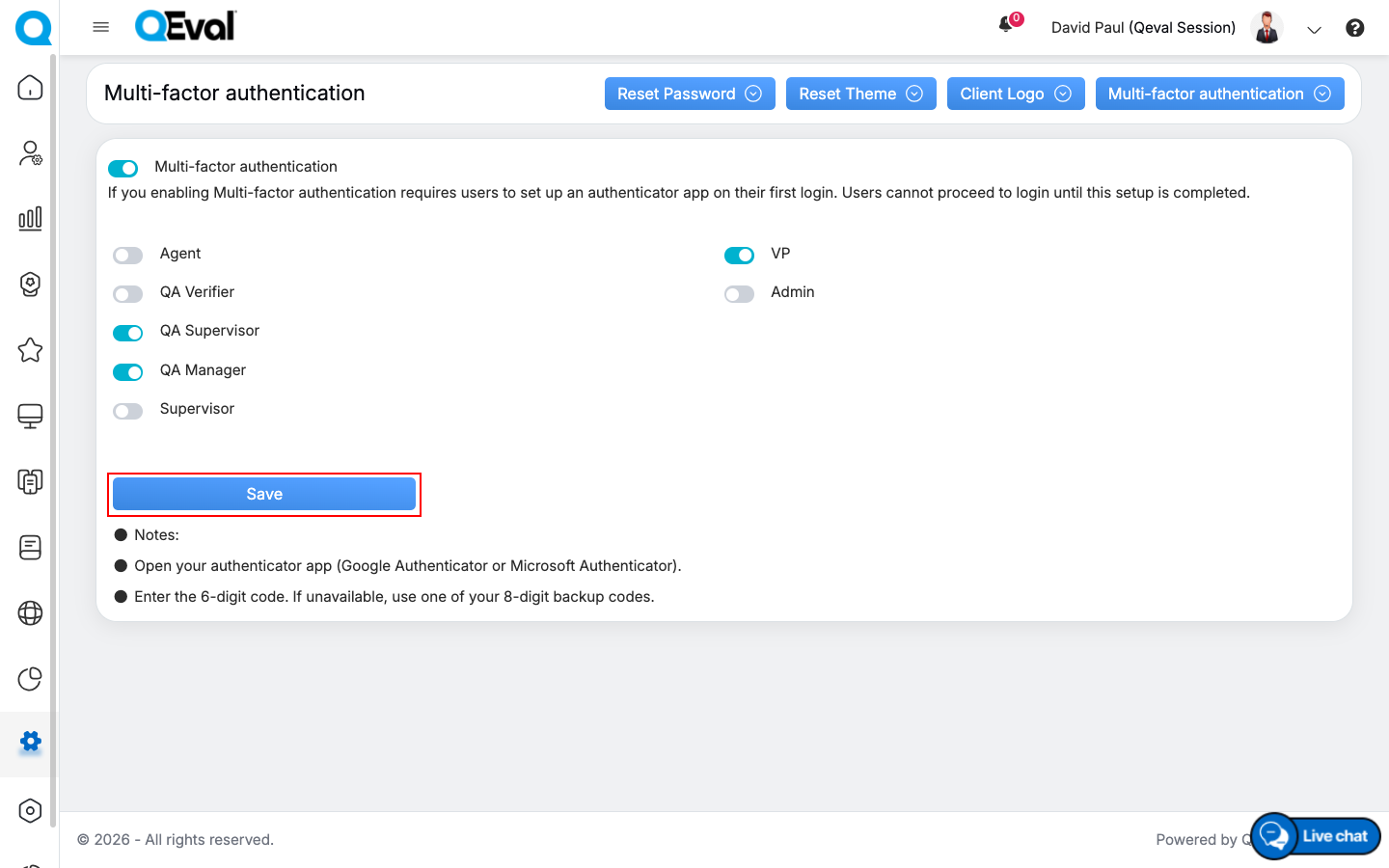
Multi-Factor Authentication
Following confirmation pop-up will be displayed. Click on Yes button to save the settings, else click on No button as shown below:
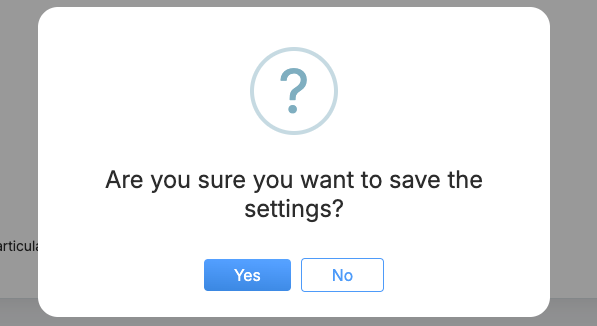
Confirmation pop-up
Once saved, following acknowledgement pop-up will be displayed:
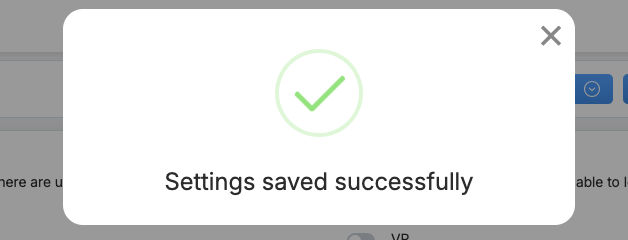
Success Message
Once the MFA feature is enabled for any user role, all the QEval users assigned with that particular role will have the multi-factor authentication step while they are signing into their QEval account.
Enable or Disable MFA While Adding or Editing a User
Administrators can enable or disable Multi-Factor Authentication (MFA) for individual users while creating a new user account or updating an existing one. When MFA is enabled, the user will be required to complete an additional authentication step using an authenticator application during sign-in.
To enable or disable MFA for a user:
- Navigate to Manage > User.
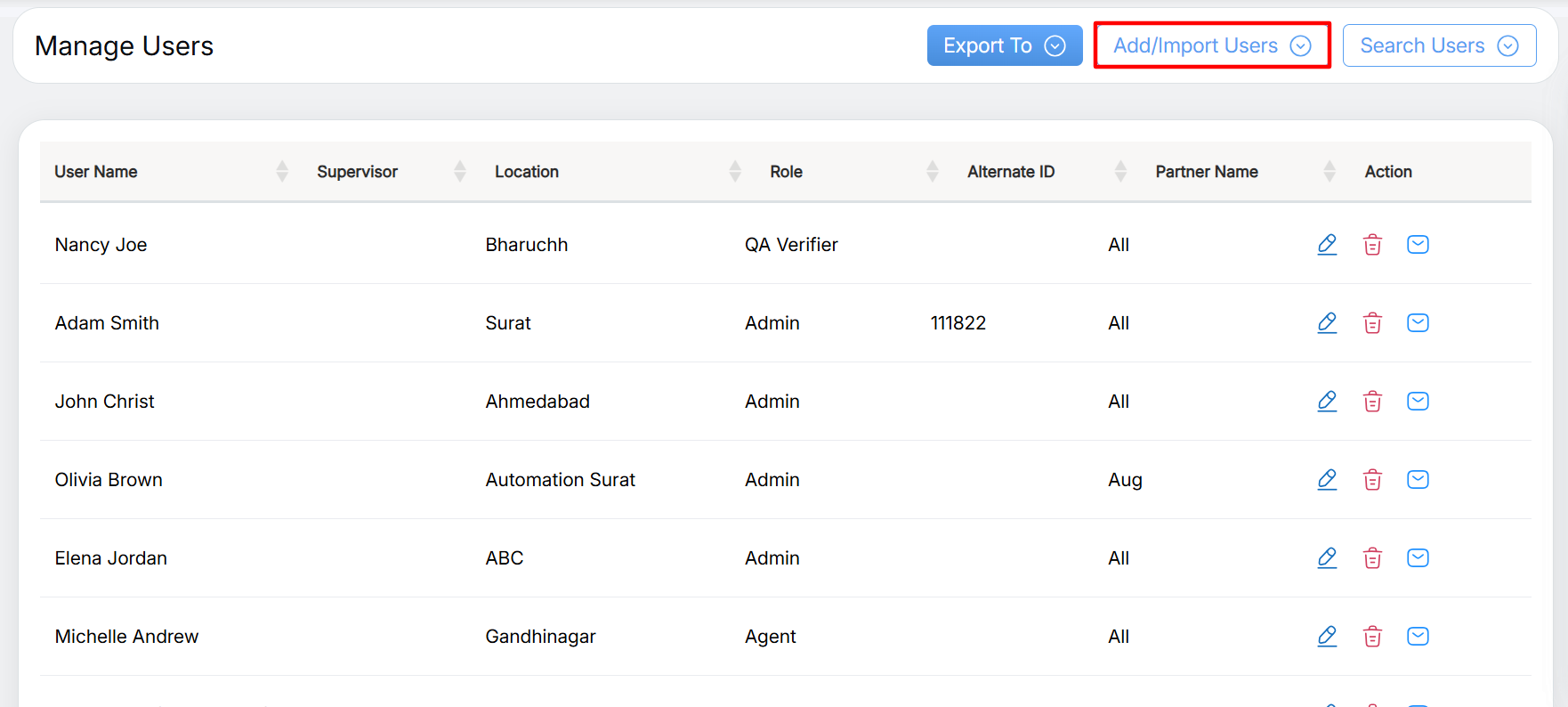
Add/Import Users
- Perform one of the following actions:
- Click Add User to create a new user account, or
- Click Edit for an existing user.
- Click Add User to create a new user account, or
- Scroll down the tab and Select the Is MFA Enabled? checkbox to enable Multi-Factor Authentication for the user. Clear the checkbox to disable MFA, if required.
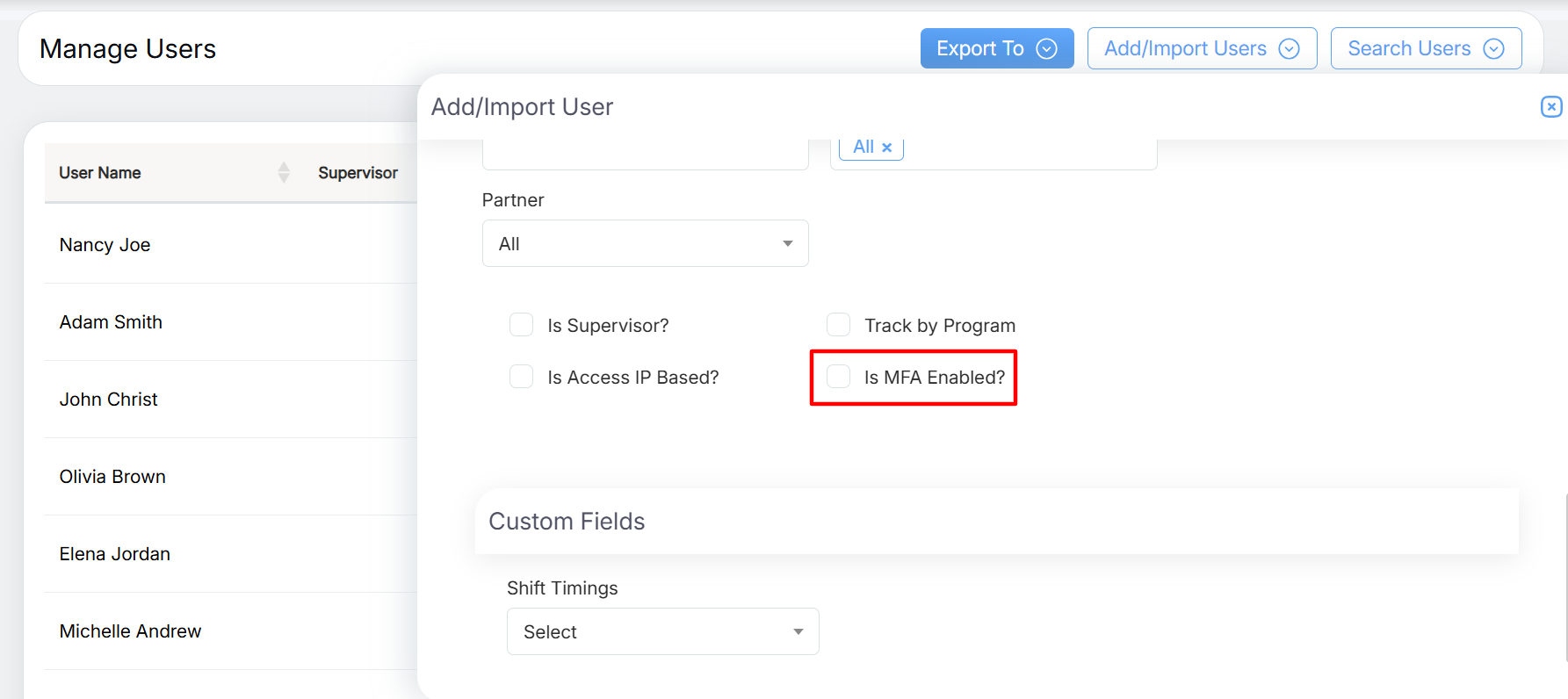
Is MFA Enabled Checkbox
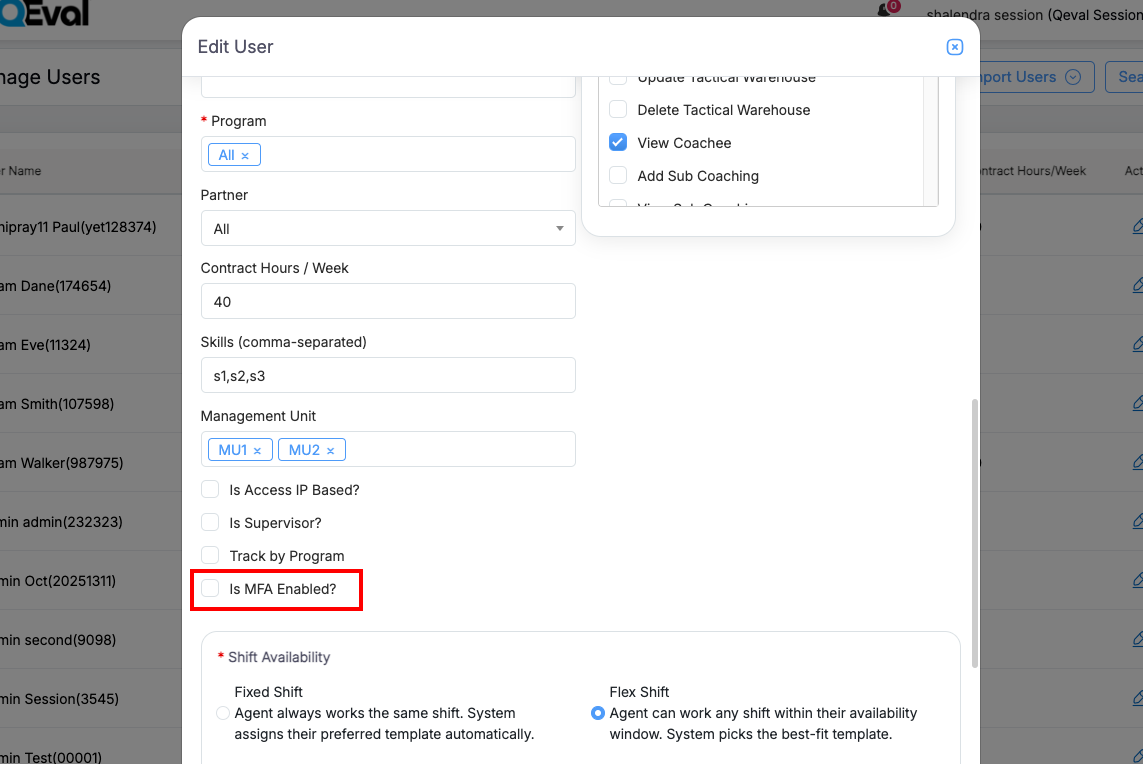
Edit User
- Click Save to apply the changes.
Note: When MFA is enabled, the user must configure a supported authenticator application (if not already configured) and enter a valid 6-digit verification code generated by the application each time they sign in to QEval.
First-Time MFA Setup
When MFA is enabled for a user role, users must complete a one-time setup before they can use Authenticator-based login.
Authentication Step 1 – Login using User ID and Password
- Open the QEval login page.
- Enter your User Name and Password.
- Click Sign In.
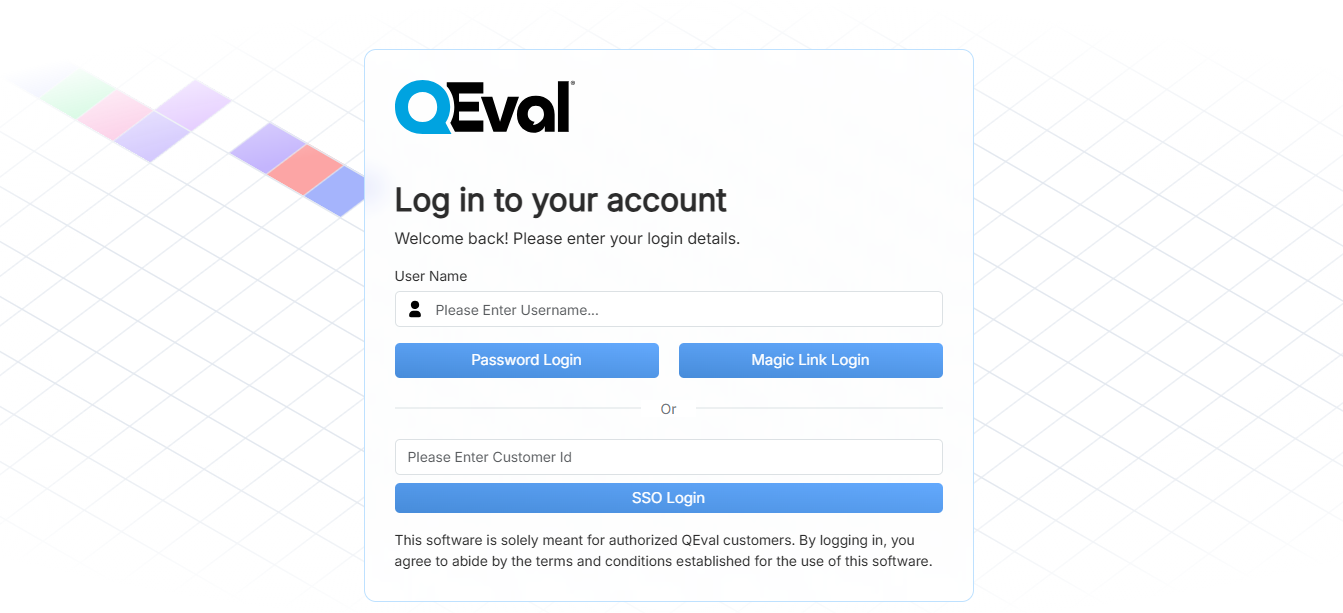
Login Page
If MFA has not been configured previously, the system redirects the user to the MFA Setup page.
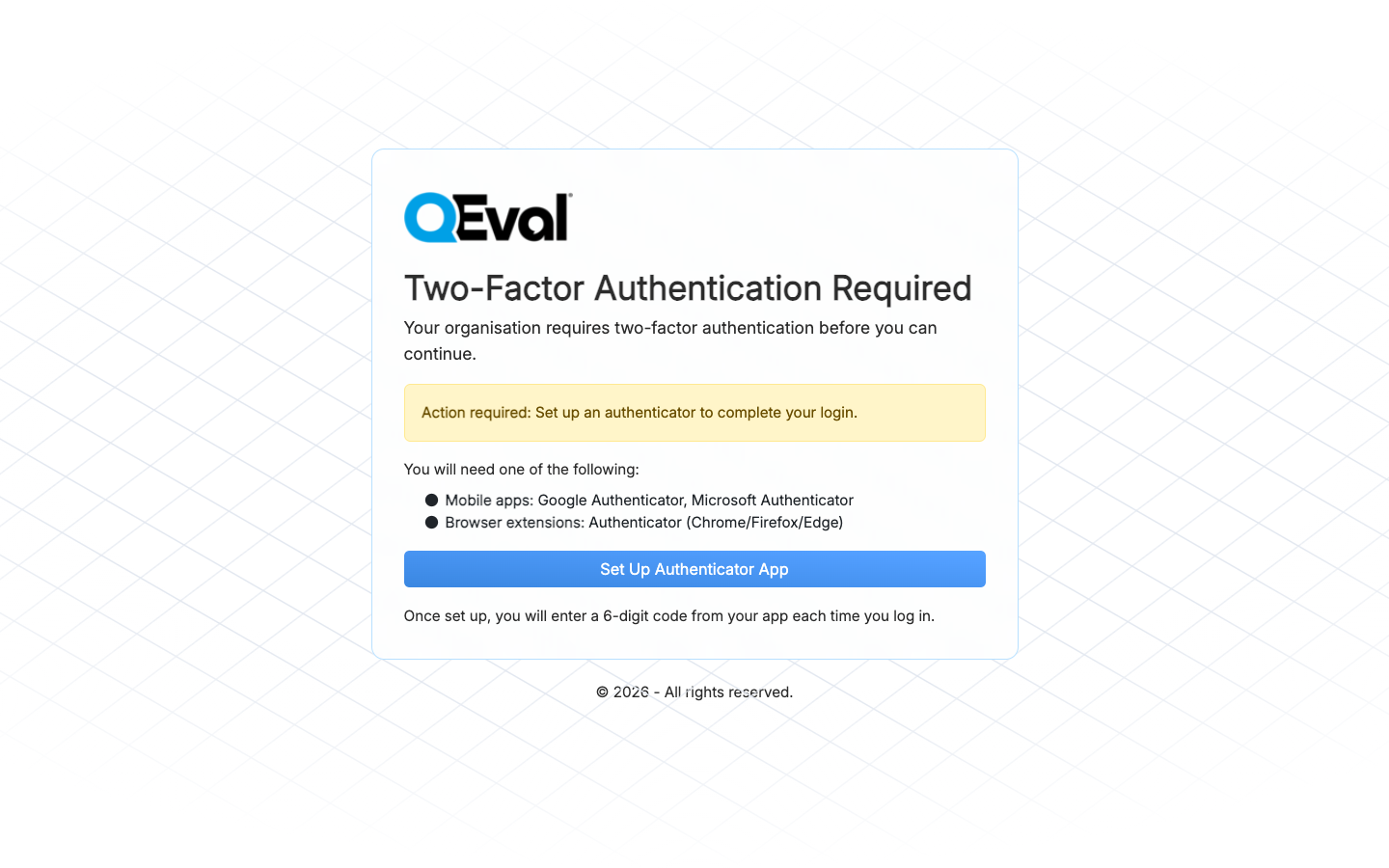
MFA Setup page
Authentication Step 2 – Configure Authenticator Application
On the MFA Setup page:
- Install or open a supported Authenticator application.
- Scan the QR Code displayed on the screen using the authenticator application.
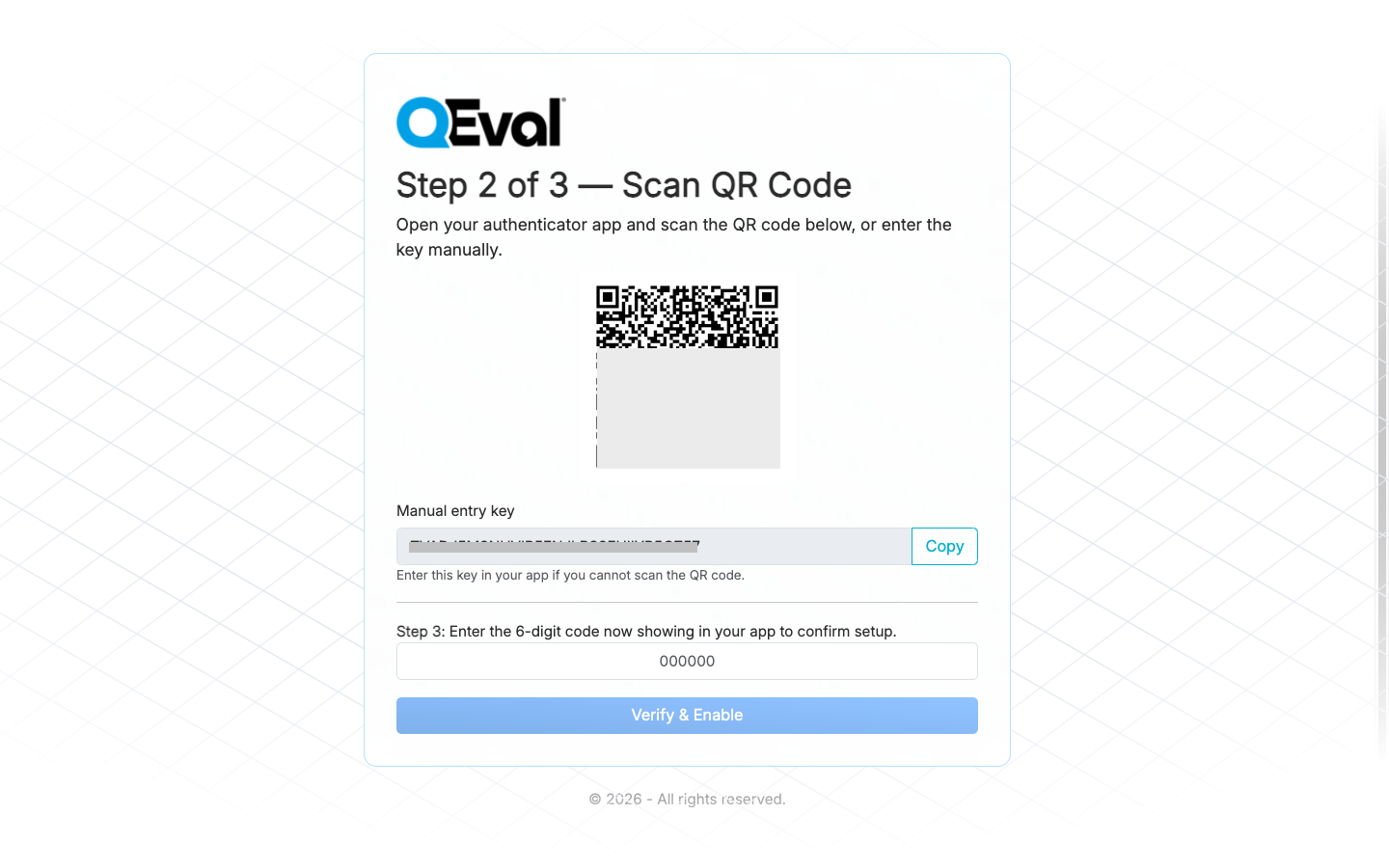
Scan QR Code
- The application automatically creates a QEval account entry and begins generating 6-digit security codes.
- Save the Backup Codes displayed on the screen in a secure location.
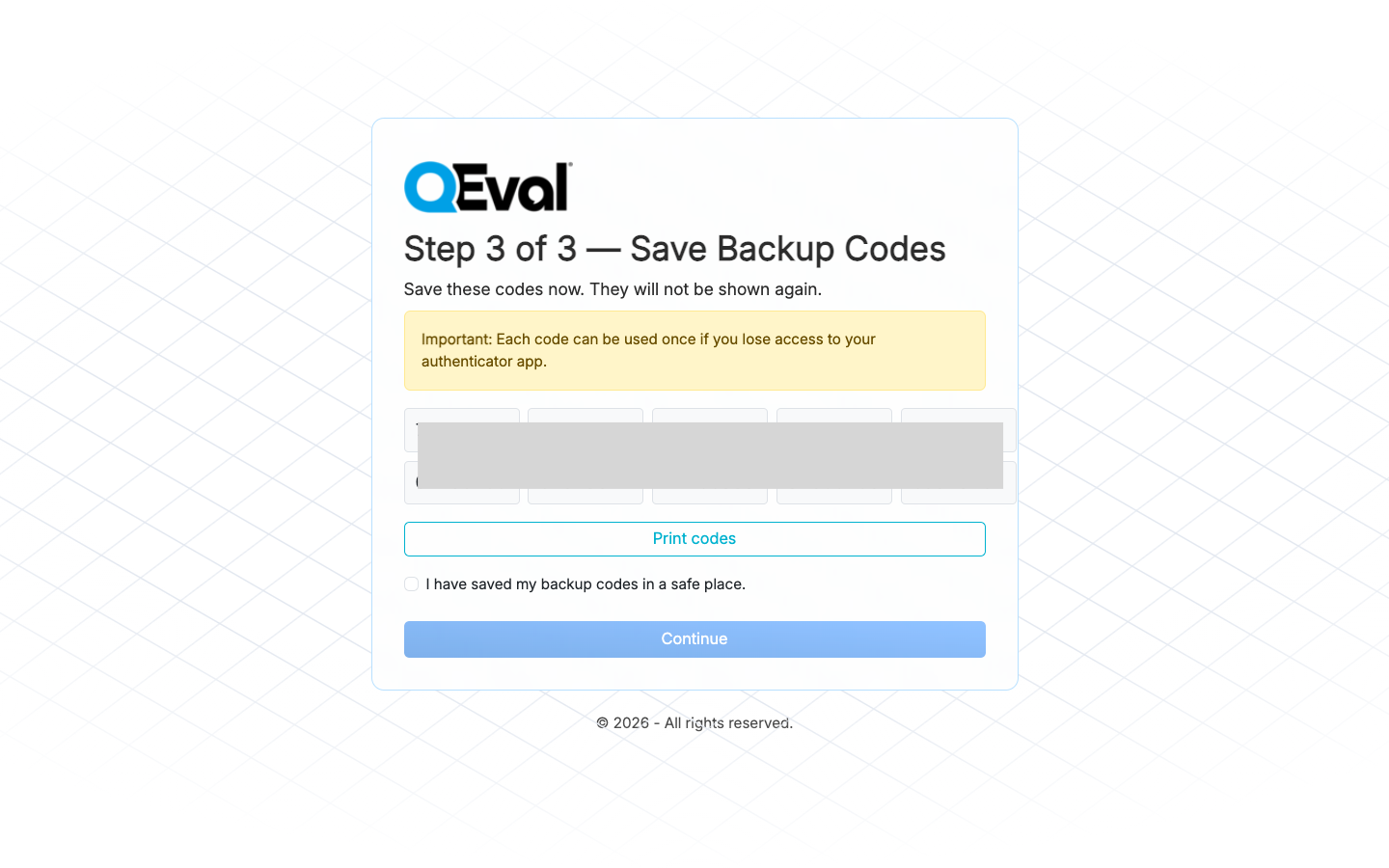
Save the Backup Codes
- Enter the generated 6-digit security code into the verification field.
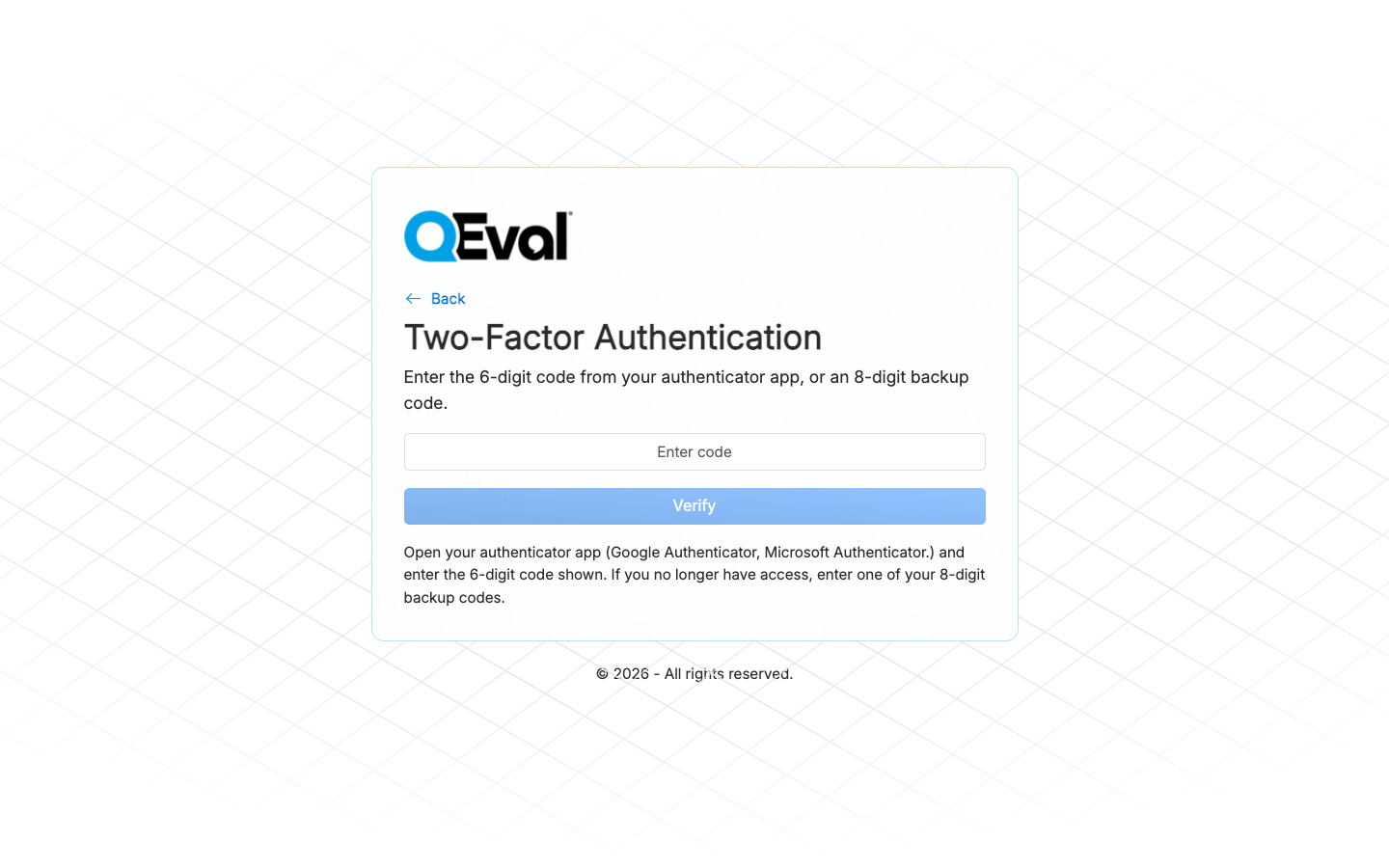
Two-Factor Authentication
- Enter code and Click Verify to complete the MFA setup.
The MFA setup process only needs to be completed once for each user account.
Backup Codes
During the initial MFA setup, QEval generates a set of Backup Codes.
Backup Codes provide an alternative method to access the account if the user loses access to the configured authenticator application or mobile device.
Backup Codes
Important information about Backup Codes:
- Generated only during the initial MFA setup
- Each Backup Code can be used only once
- Store the codes securely for future use
- Backup Codes can be used to regain access and configure MFA again on a new device if required
Login – Multi-Factor Authentication
Once MFA has been configured successfully, users can sign in using the following steps.
Authentication Step 1 – User ID and Password
- Open the QEval login page.
- Enter your User Name and Password.
- Click Sign In.
If MFA is already configured, the system redirects the user to the Add Security Code page.
Authentication Step 2 – Enter Security Code
- Open the configured Authenticator application.
- Locate the QEval account.
- Copy or enter the currently displayed 6-digit security code into the “Enter Security Code” field.
- Enter the security code and click Verify to access your QEval account.
The user is successfully logged in to the QEval account.
Disable MFA from the Admin Portal
If the Multi-Factor Authentication feature is disabled through backend configuration:
- Users are no longer prompted to enter a security code during login.
- Authentication reverts to standard User ID and Password login.
- Previously configured authenticator settings remain preserved and can be reused if MFA is enabled again.
Manage Multi-Factor Authentication (MFA) as an User
You can configure, manage, or disable Multi-Factor Authentication (MFA) for your account from the View Profile page.
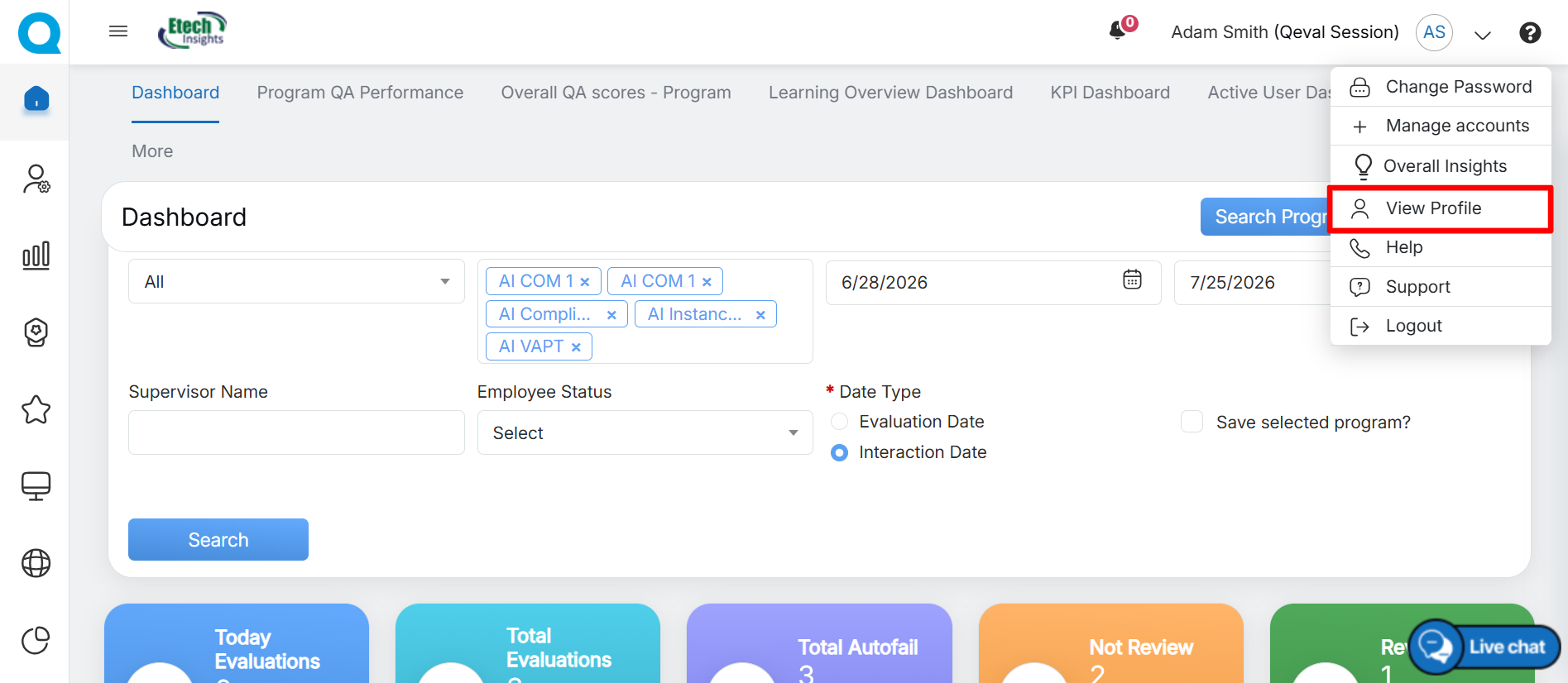
View Profile
To access the MFA settings, navigate to View Profile and click Manage MFA.
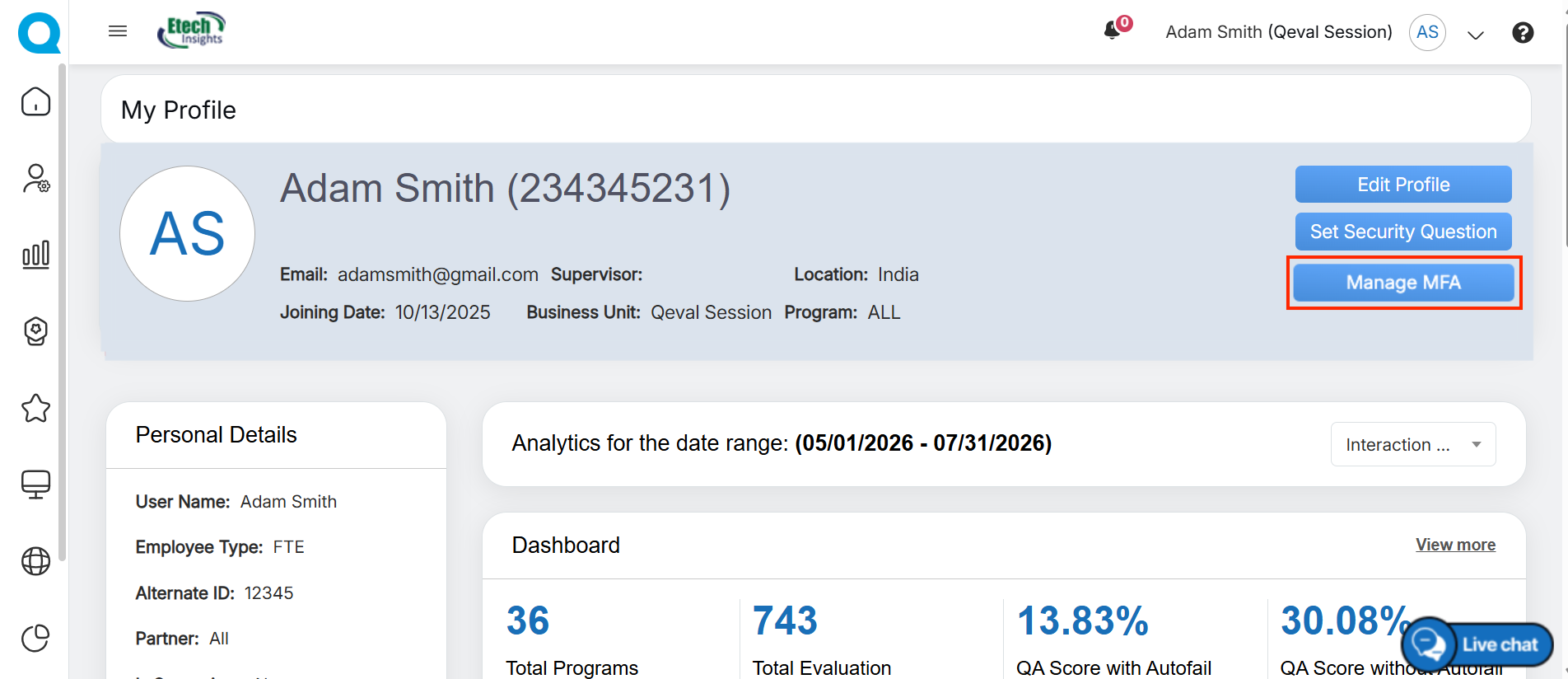
Multi-Factor Authentication (MFA) adds an extra layer of security to your QEval account by requiring a 6-digit verification code generated through a supported authenticator application during sign-in. Once MFA is enabled, users must enter this security code after providing their account credentials.
QEval supports popular authenticator applications, including:
- Google Authenticator
- Microsoft Authenticator
- Authy
- Compatible browser authenticator extensions
Configure Multi-Factor Authentication
To enable MFA for your account:
- Navigate to My Profile and Click Manage MFA.
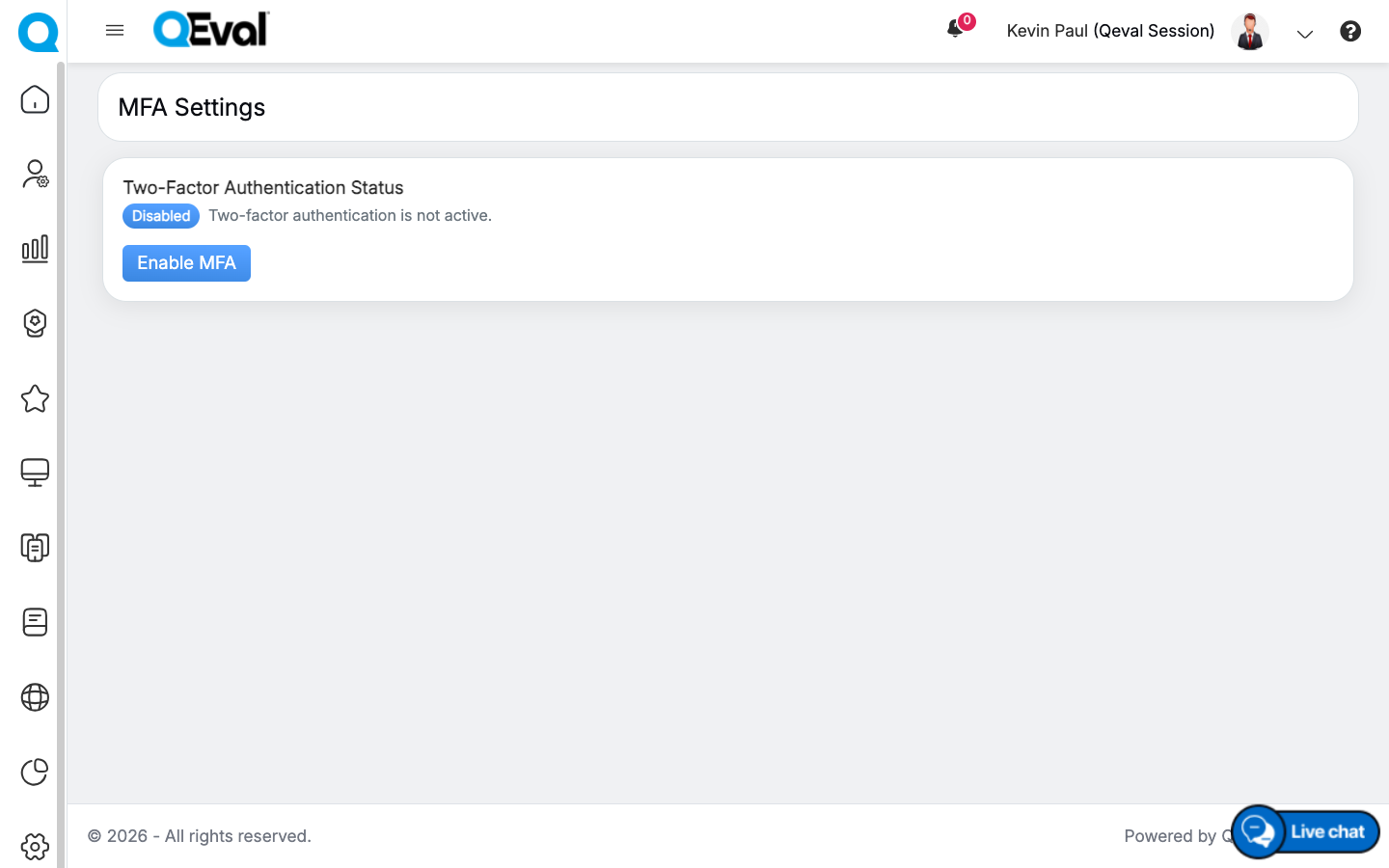
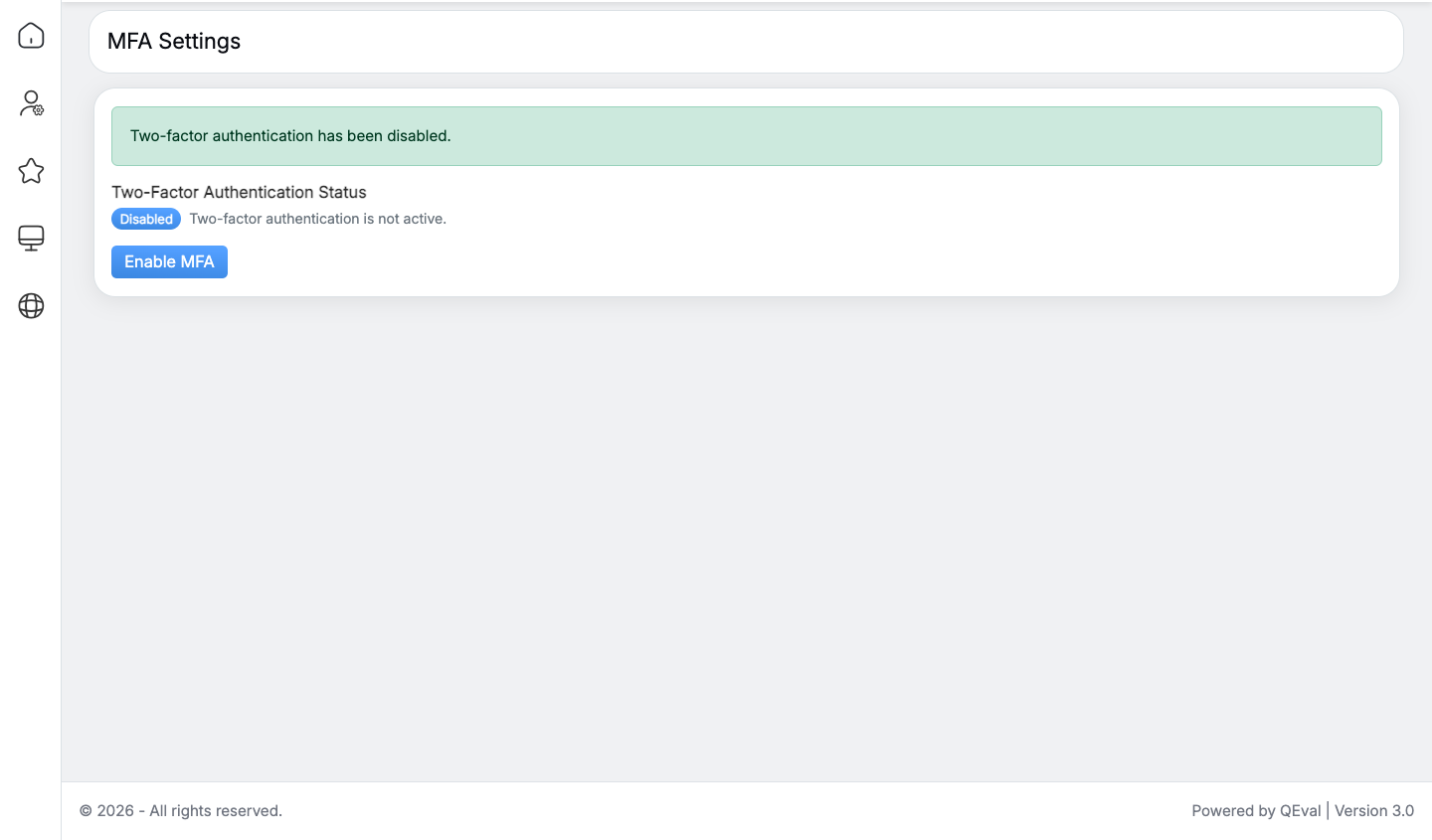
- On the MFA Settings page, Two-Factor Authentication Status is shown. Since MFA is disabled, Click Enable MFA to begin configuring Multi-Factor Authentication for your account.
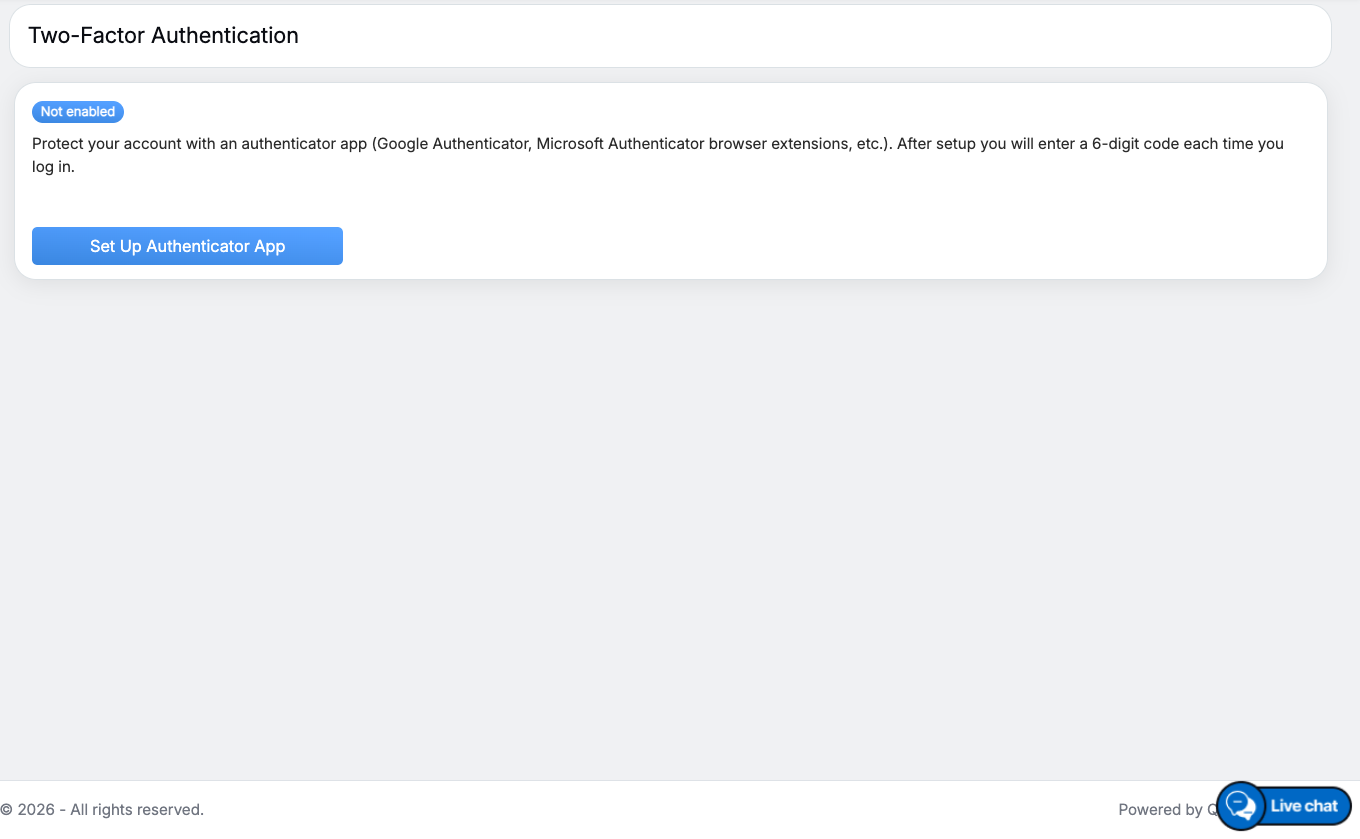
- On the next screen, click Set Up Authenticator App to start configuring your preferred authenticator application.
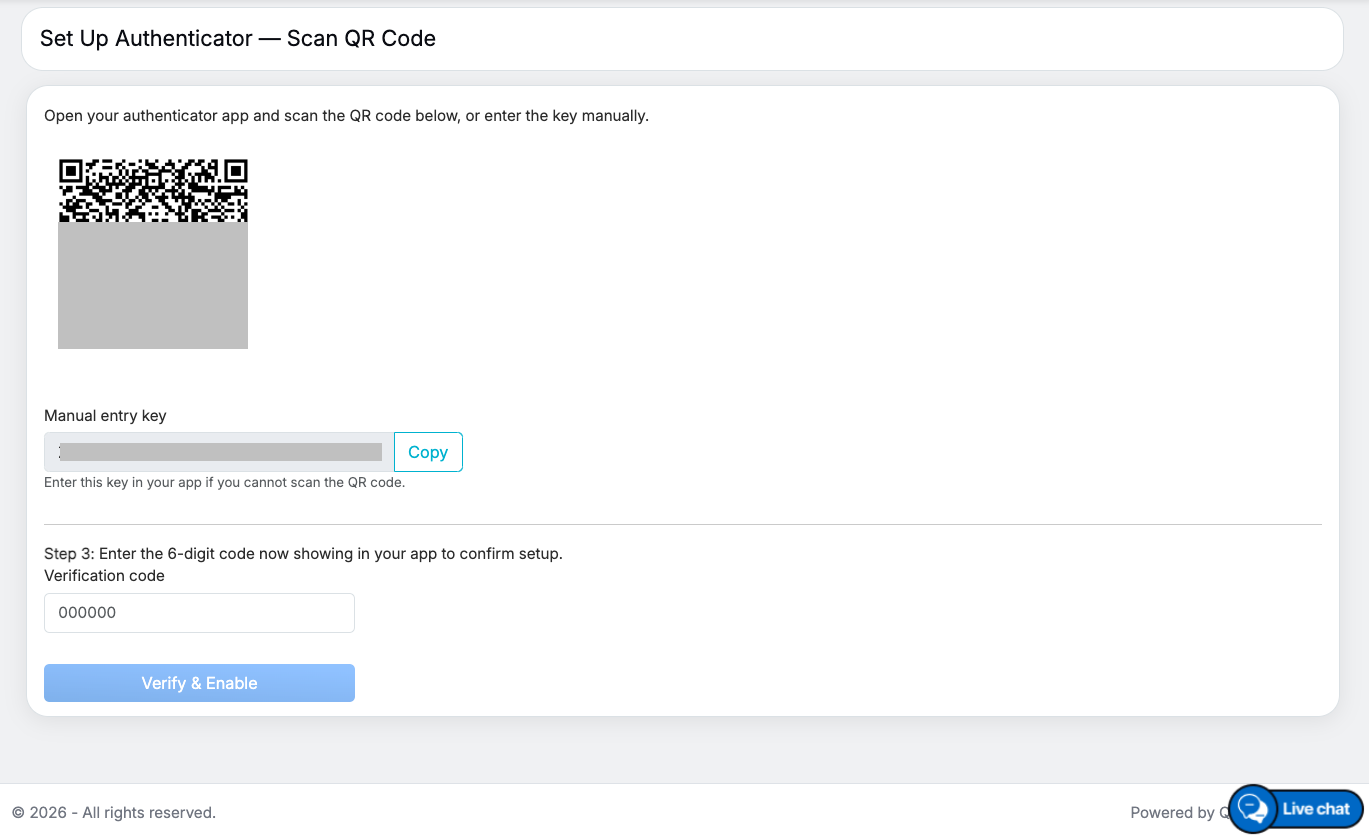
- Open your preferred authenticator application and Scan the QR code displayed on the screen or manually enter the provided setup key.
- Enter the 6-digit verification code generated by the authenticator application.
- Click Verify & Enable.
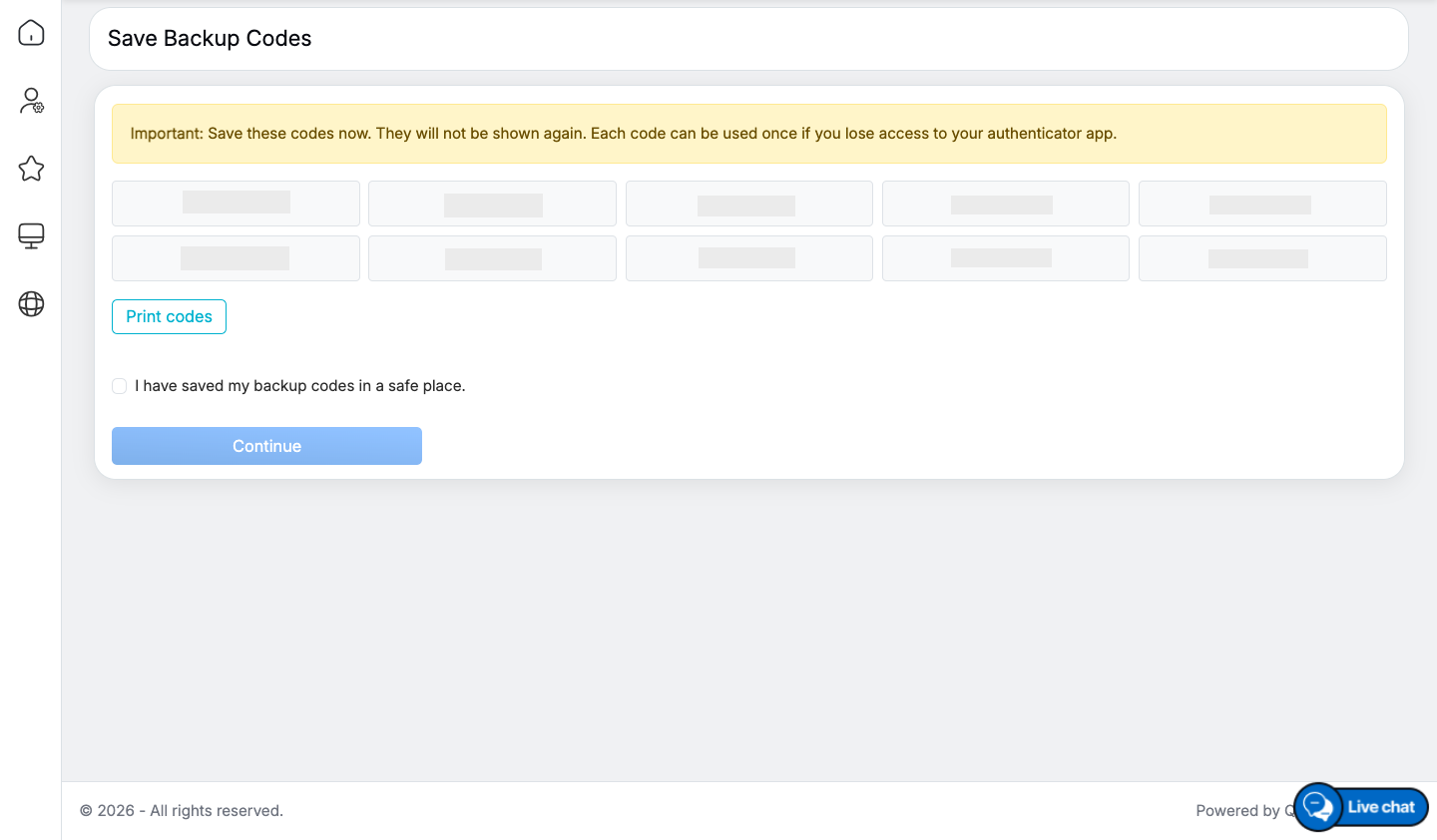
- Save the generated Backup Codes by printing or storing them securely.
- After securely saving your backup codes, select the I have saved my backup codes in a safe place checkbox, then click Continue to complete the MFA setup.
- A success message is displayed confirming that Multi-Factor Authentication has been configured successfully. Click Continue to Dashboard to navigate to the QEval Dashboard.
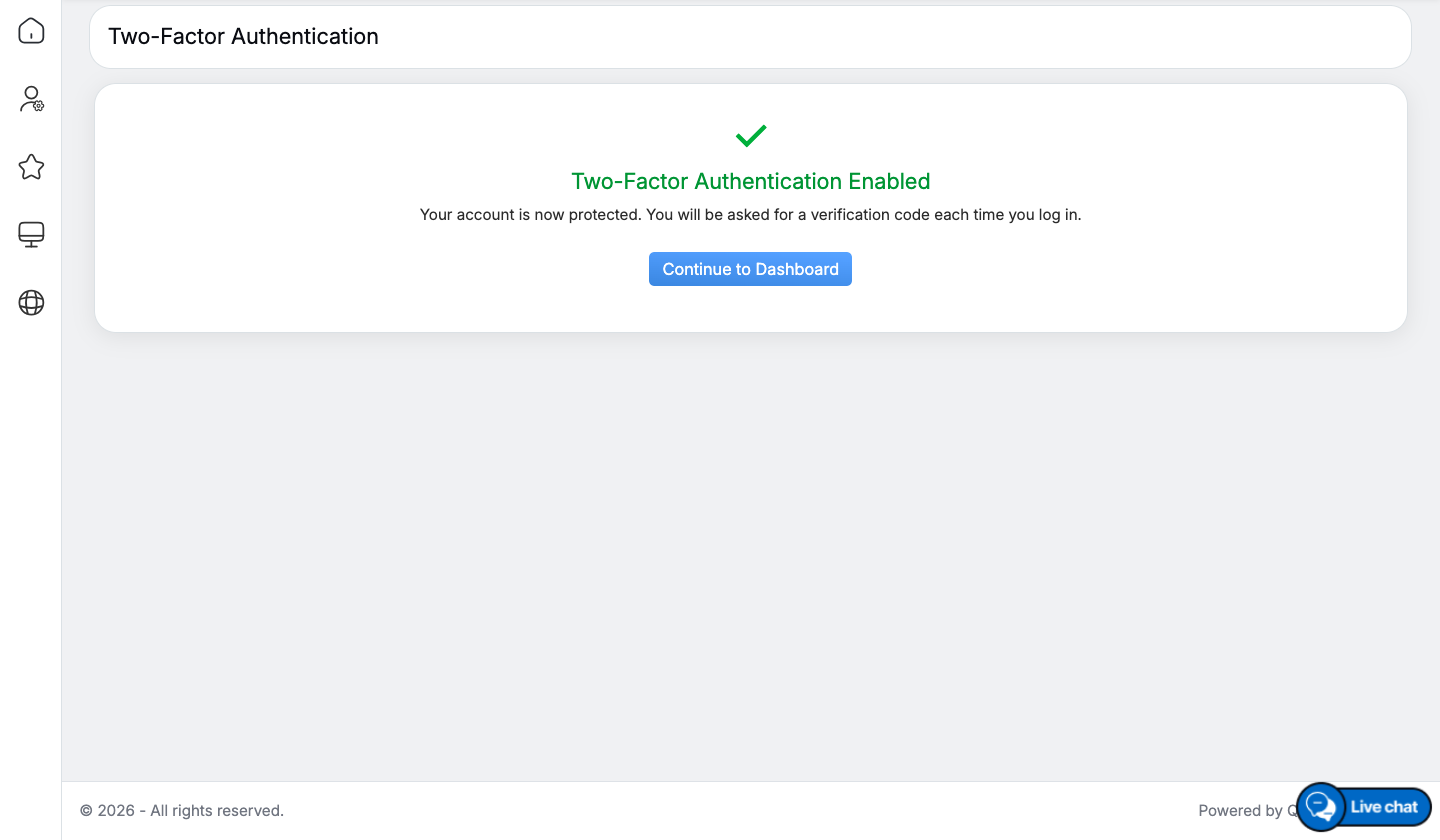
Success Pop-up
Once configured successfully, MFA is enabled for your account and will be required during every login.
Sign In Using MFA
After MFA has been configured:
- Sign in using your User Name and Password.
- Open your configured authenticator application.
- Enter the current 6-digit security code generated by the application.
- Click Verify to securely access your QEval account.
Manage Existing MFA
To manage your existing MFA configuration:
-
Navigate to My Profile > Manage MFA.
- The MFA Settings page displays the current authentication status and the number of available backup codes.
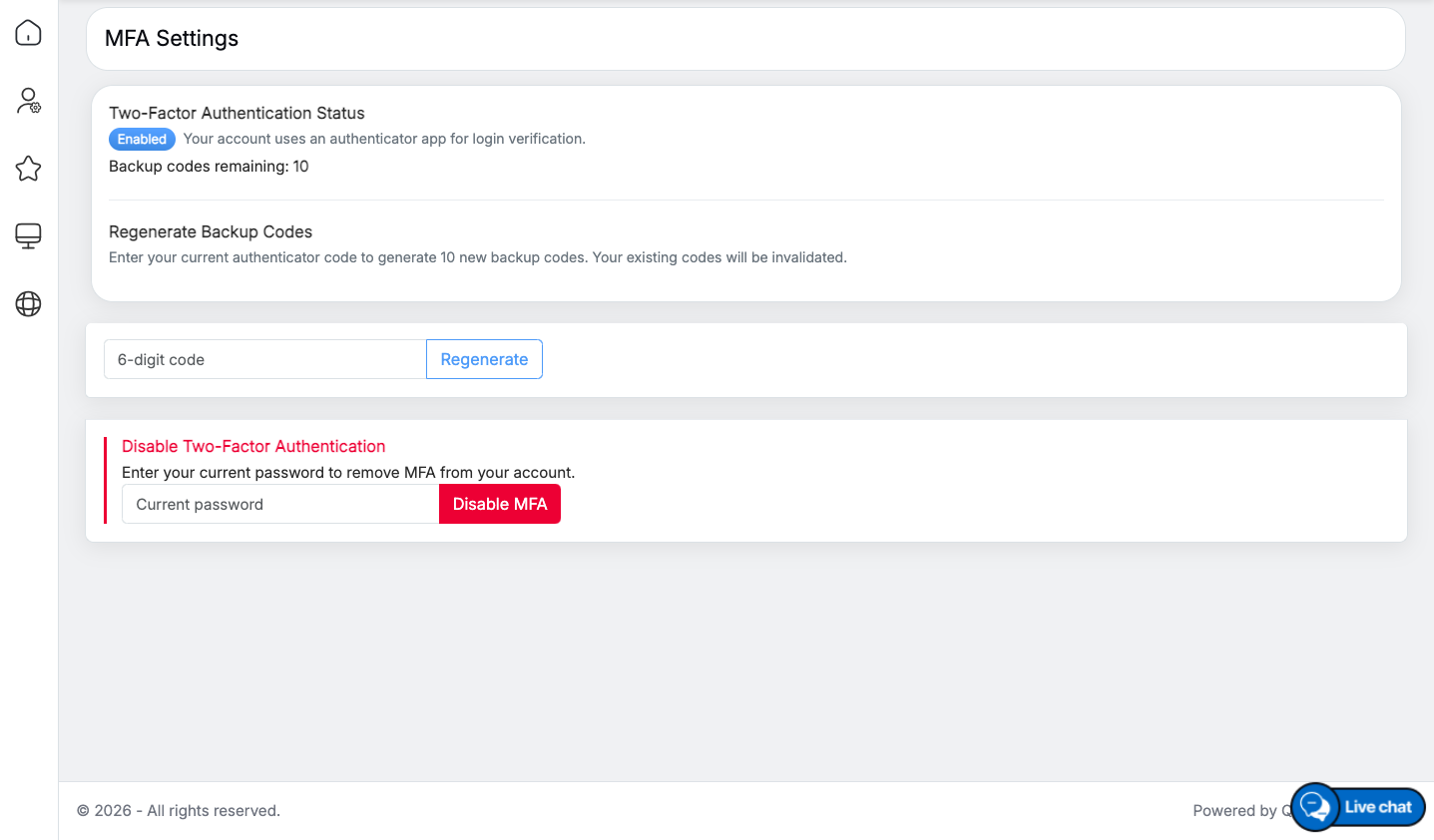
From this page, you can:
- Regenerate Backup Codes by entering the current 6-digit authenticator code and clicking Regenerate. Generating new backup codes invalidates all previously generated backup codes.
- Disable MFA by entering your current account password and clicking Disable MFA.
Important Notes
- MFA setup is required only once for each account.
- Backup codes are generated during the initial setup and should be stored securely.
- Each backup code can be used only once.
- If you lose access to your authenticator application, you can use a backup code to sign in and reconfigure MFA.
- A supported authenticator application is required to generate the 6-digit verification code used during sign-in.
Video