Introduction
Call Section Level QA Score displays the QA scores for individual call sections during the selected time period.
Call Section Level QA Score
To access the report, click the Menu button or move the mouse to the left side of the page to open the menu bar. Select Reports, then click Report, as shown below.
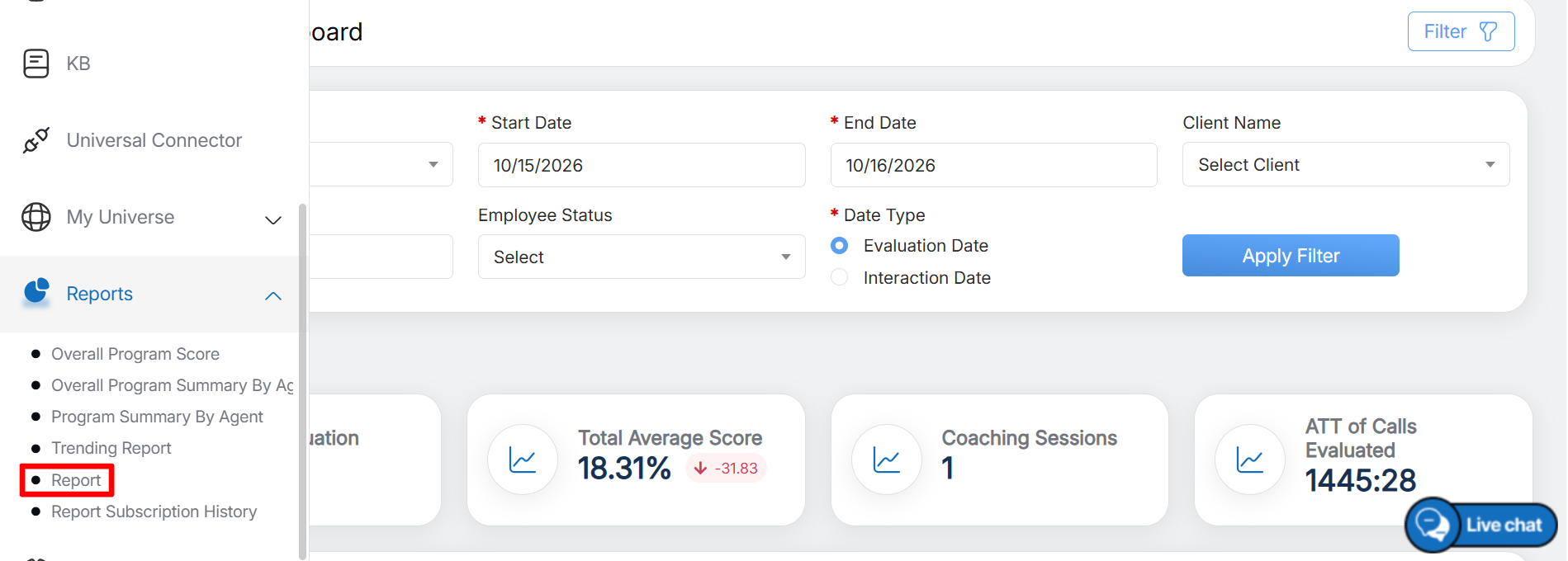
Report
The system will display the Reports page. Click the Reports Home button, as highlighted in the screen below.
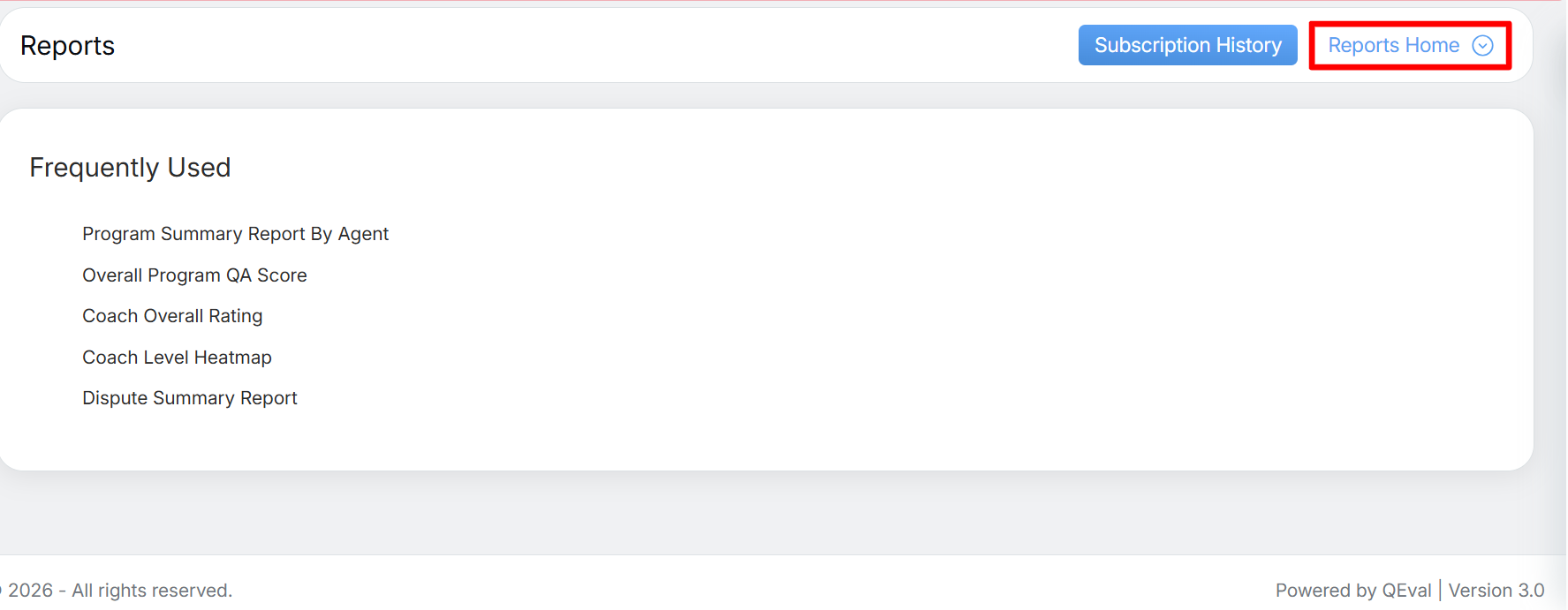
Reports Home
The Reports Home window will open on the same page. Use the Search Bar to find a specific report by entering relevant keywords in the search text box, as shown below.
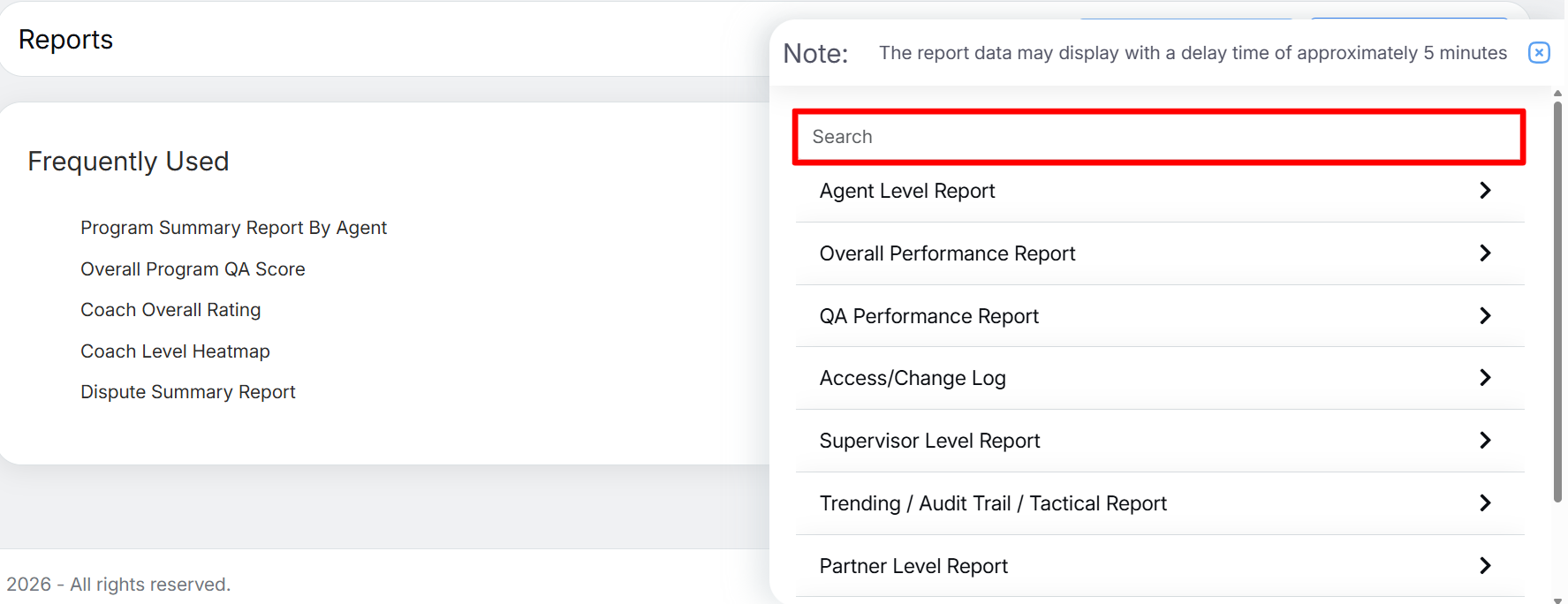
Search
To access the report, navigate to Overall Performance Report and select Call Section Level QA Score.
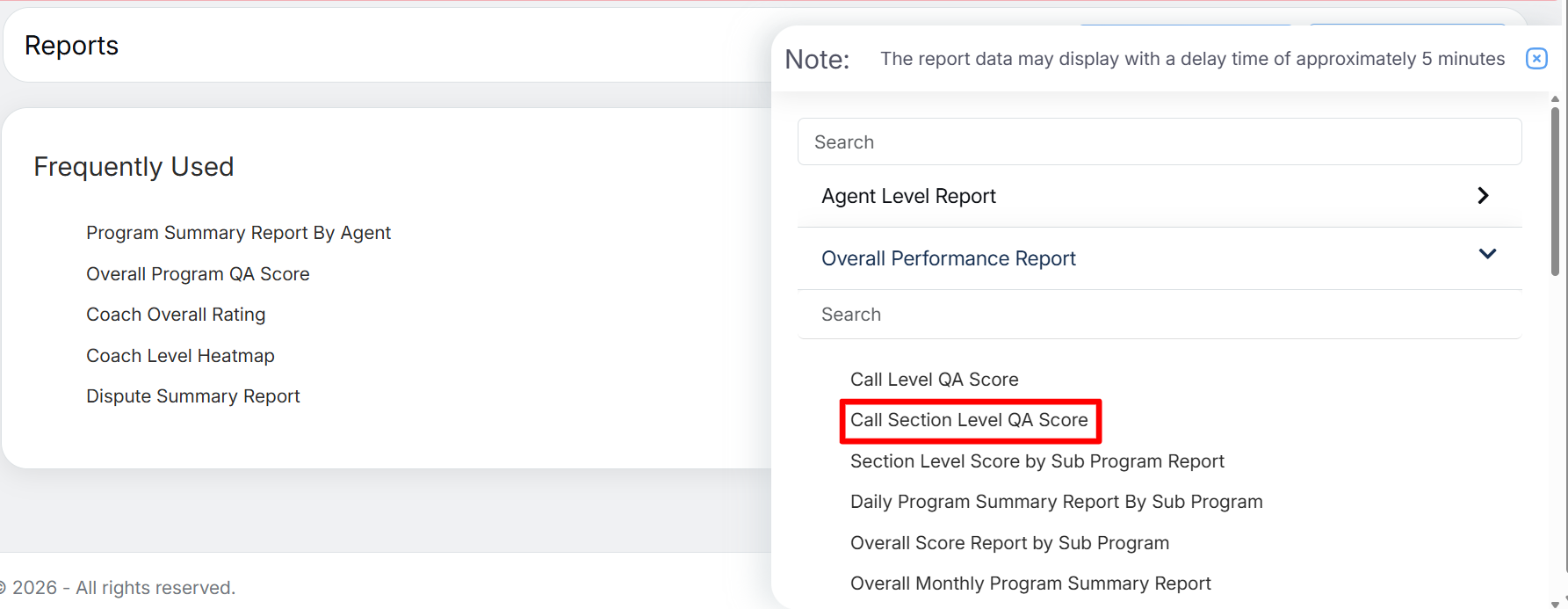
Call Section Level QA Score
The Call Section Level QA Score page will be displayed.
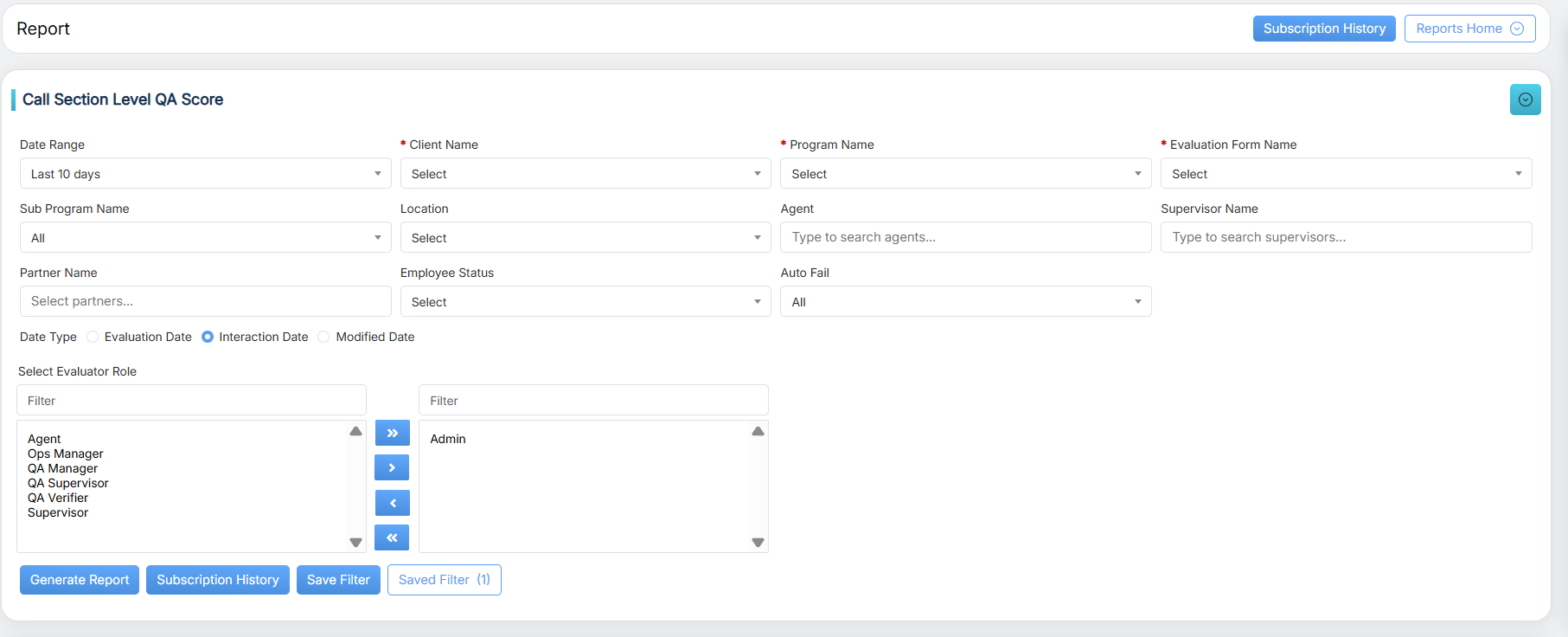
Call Section Level QA Score Details
|
Screen Elements |
Description |
|---|---|
|
Date Range |
User can define a date range by either selecting from predefined timeframes in the dropdown or specifying a custom range based on the need. Available filters include Today, Last 7 Days, Last 10 Days, Last 30 Days, Last 12 Weeks, Last 6 Months, Week to Date, Month to Date, Previous Day, Previous Week, Previous Month, and Custom Date Range. Select the option that best suits your requirements. |
|
Start Date |
If Custom Date Range is selected, the user can specify the required period by selecting the Start Date and End Date. |
|
End Date |
Select the end date. |
|
Client Name |
Select the required Client Name from the dropdown list. |
|
Program Name |
Select the required Program Name from the dropdown list. The available programs will depend on the selected Client Name. |
|
Evaluation Form Name |
Select the required Evaluation Form Name from the dropdown list. |
|
Sub Program Name |
Select the required Sub-Program Name from the dropdown list. |
|
Location |
Select the required Location from the dropdown list. |
|
Agent |
Enter the initial characters of the agent’s name and select one or multiple agent names from the dropdown list displayed. If no agent name is selected, the report displays data for all agents. Note: A maximum of 10 agents can be selected at a time. |
|
Supervisor Name |
Enter the initial characters of the supervisor’s name and select one or multiple supervisor names from the dropdown list displayed. Note: A maximum of 10 supervisors can be selected at a time. |
|
Partner Name |
|
|
Employee Status |
|
|
Auto Fail |
Select Yes, No, or All from the Auto Fail dropdown. |
|
Date Type |
Evaluation Date: Filters the report based on the date the evaluation was conducted. Interaction Date: Filters the report based on the date the interaction took place. Modified Date: Filters the report based on the date the evaluation form was last modified. Note: In QEval AI instances, Interaction Date is selected by default. Users can select Evaluation Date or Modified Date as needed. |
|
Evaluator Role |
Select the required Evaluator Role from the list displayed in the left-hand box. The list includes the following user roles:
To find a specific role, enter its name in the Filter field. To move the selected evaluator roles from the left-hand box to the right-hand box, select the required roles and click the Right Arrow button. To move all roles at once, click the Double Right Arrow button. To move selected roles from the right-hand box back to the left-hand box, select the required roles and click the Left Arrow button. To move all roles back at once, click the Double Left Arrow button. |
After setting the required search criteria, click the Generate Report button.
The report will be generated and displayed based on the selected search criteria, as shown below.
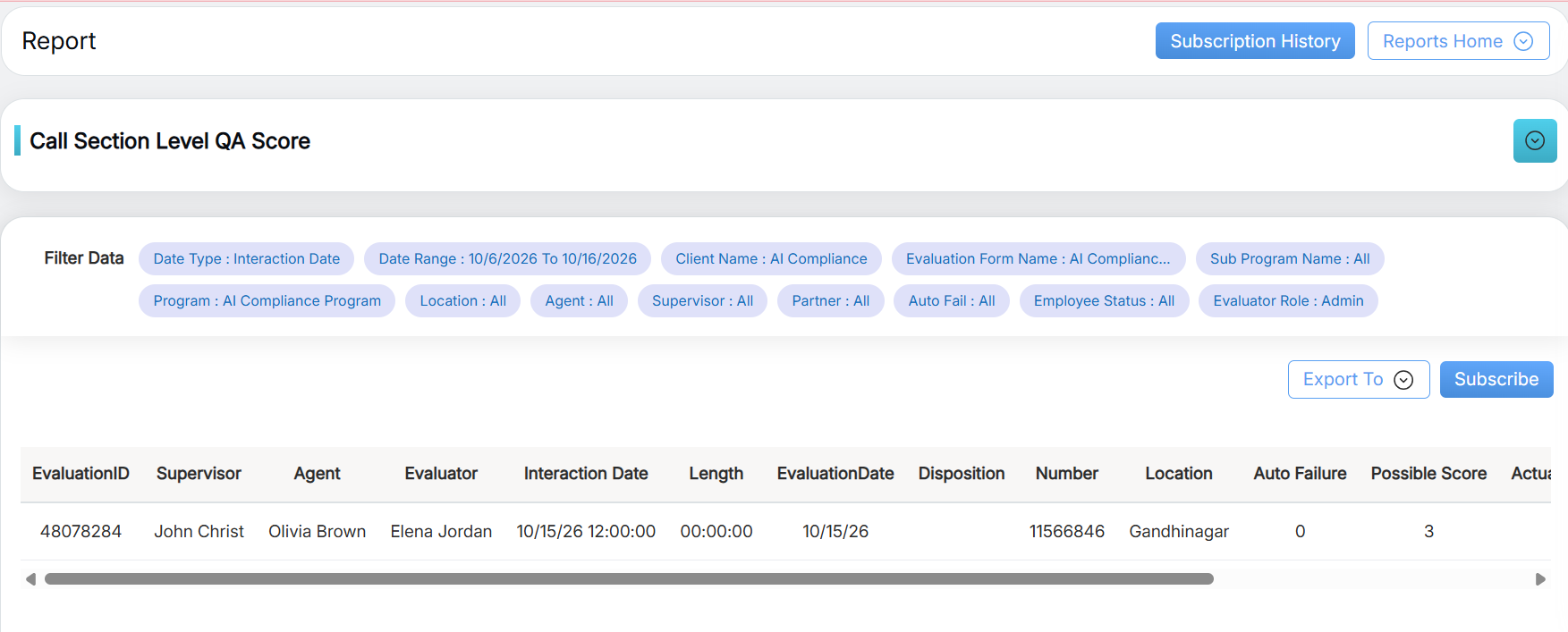
Generated Report
After generating the Call Section Level QA Score report, the pagination controls will appear, as highlighted in the screen below.
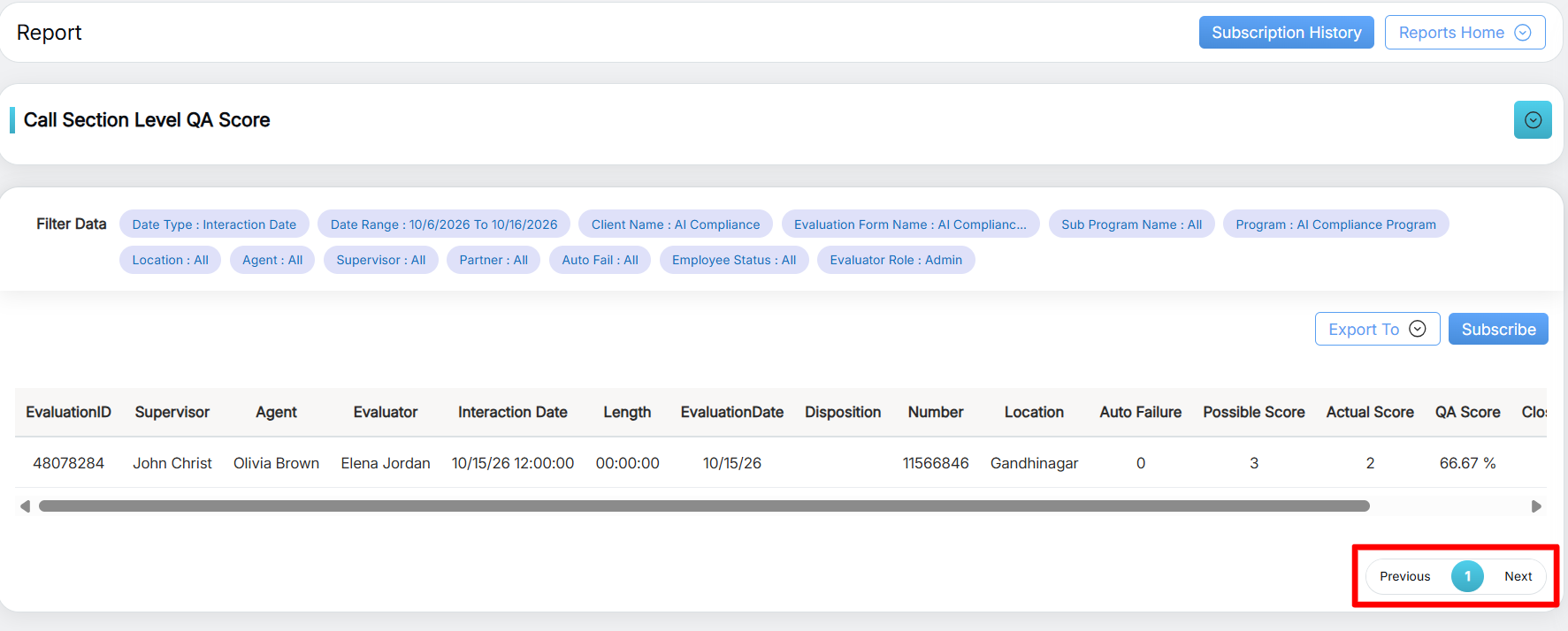
Navigation
Users can export the displayed report in Excel or CSV format. To download the report, click the Export To button and select the required format. The report will be downloaded in the selected file format.
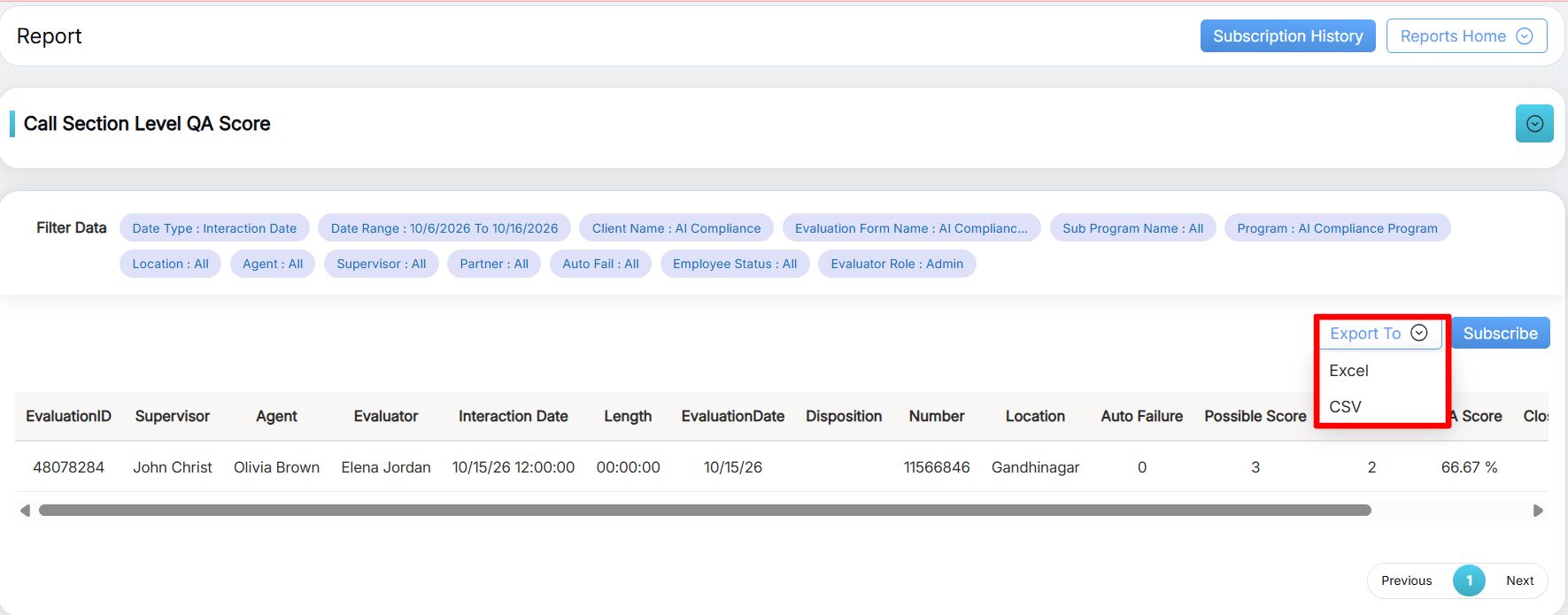
Export To
Users can also click the Subscribe button to schedule the report and receive it automatically, as highlighted in the screen below.
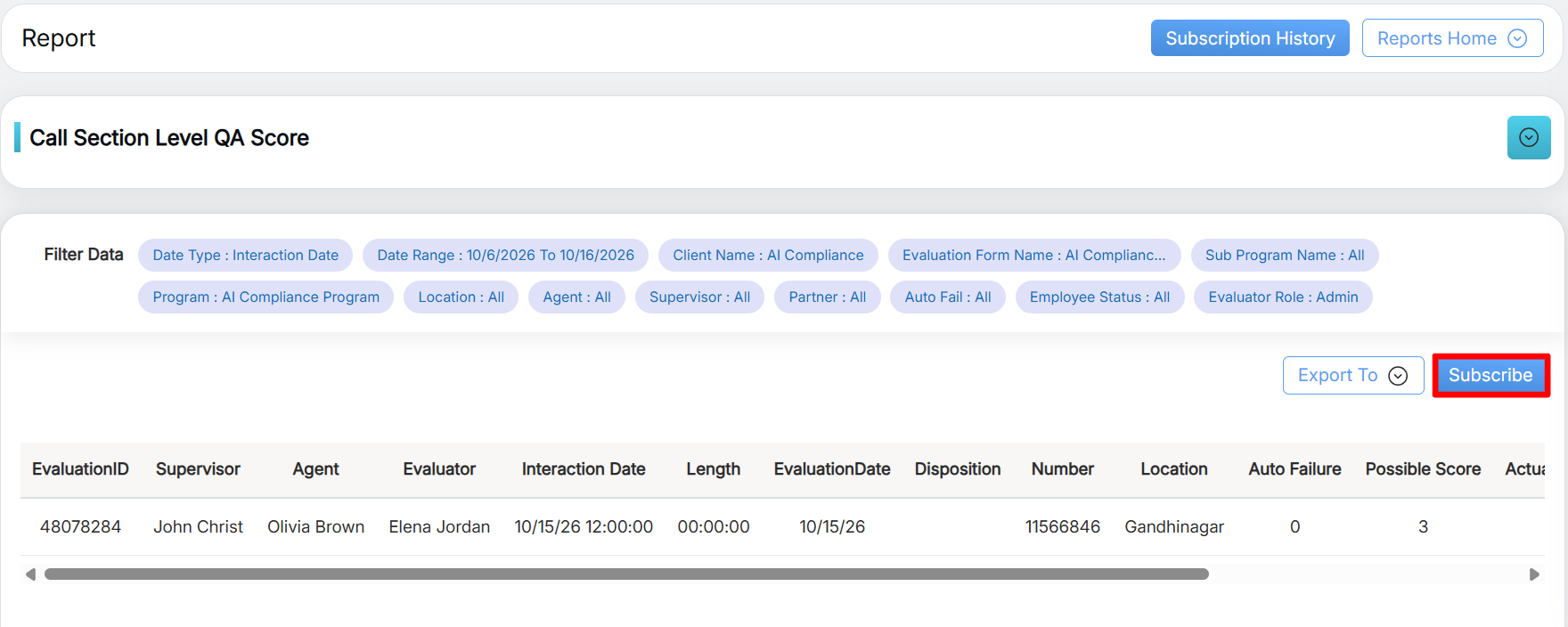
Subscribe
Video