Table of Contents
- Introduction
- Search Calibrations
- View All Calibrations
- End Calibration
- Edit Calibration
- Delete Calibration
Introduction
From the Manage Calibrations page, users can search for, view, edit, delete, or end a calibration. The following sections explain each functionality in detail.
Search Calibrations
The Search functionality allows calibrators to find calibrations based on their status or campaign. Calibrations can be searched under three statuses: Active, Inactive, and Ended.
To search for a specific calibration, go to Quality > Calibration > Manage Calibrations and click Search Calibrations.
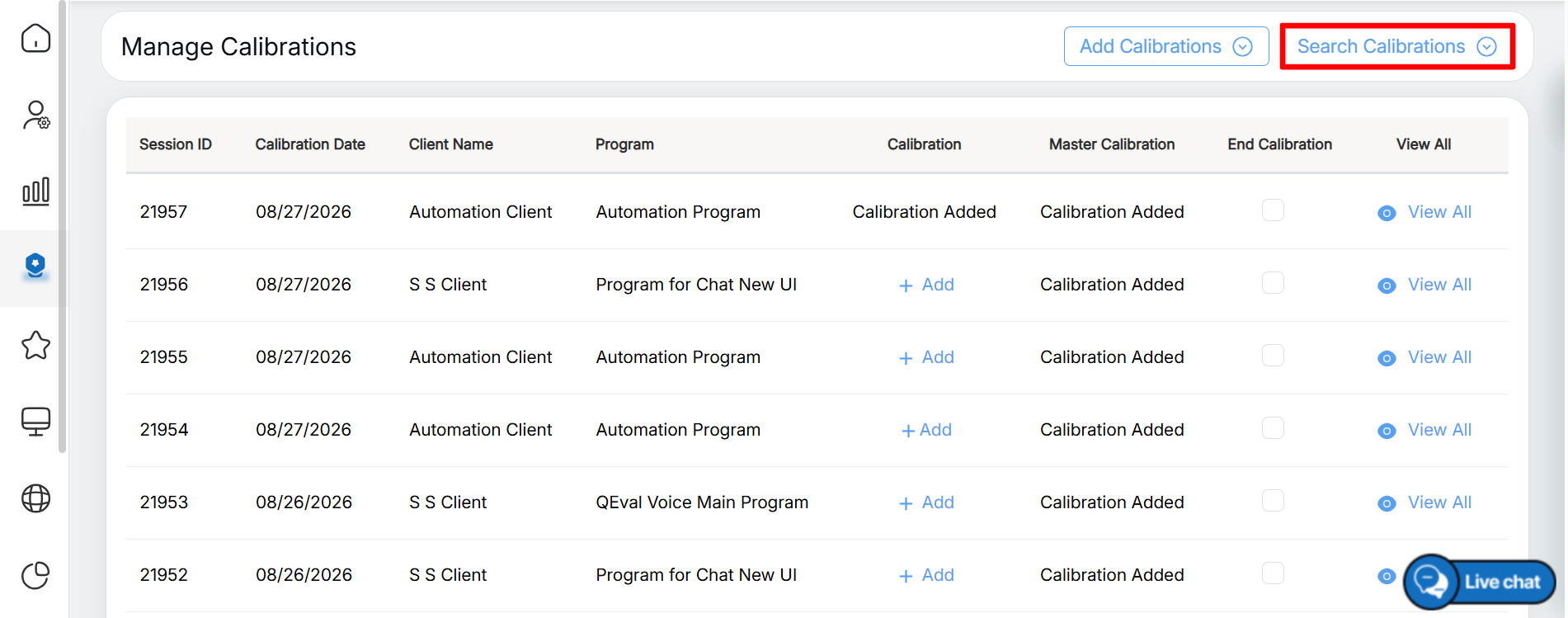
Search Calibrations
The Search Calibrations screen is displayed.
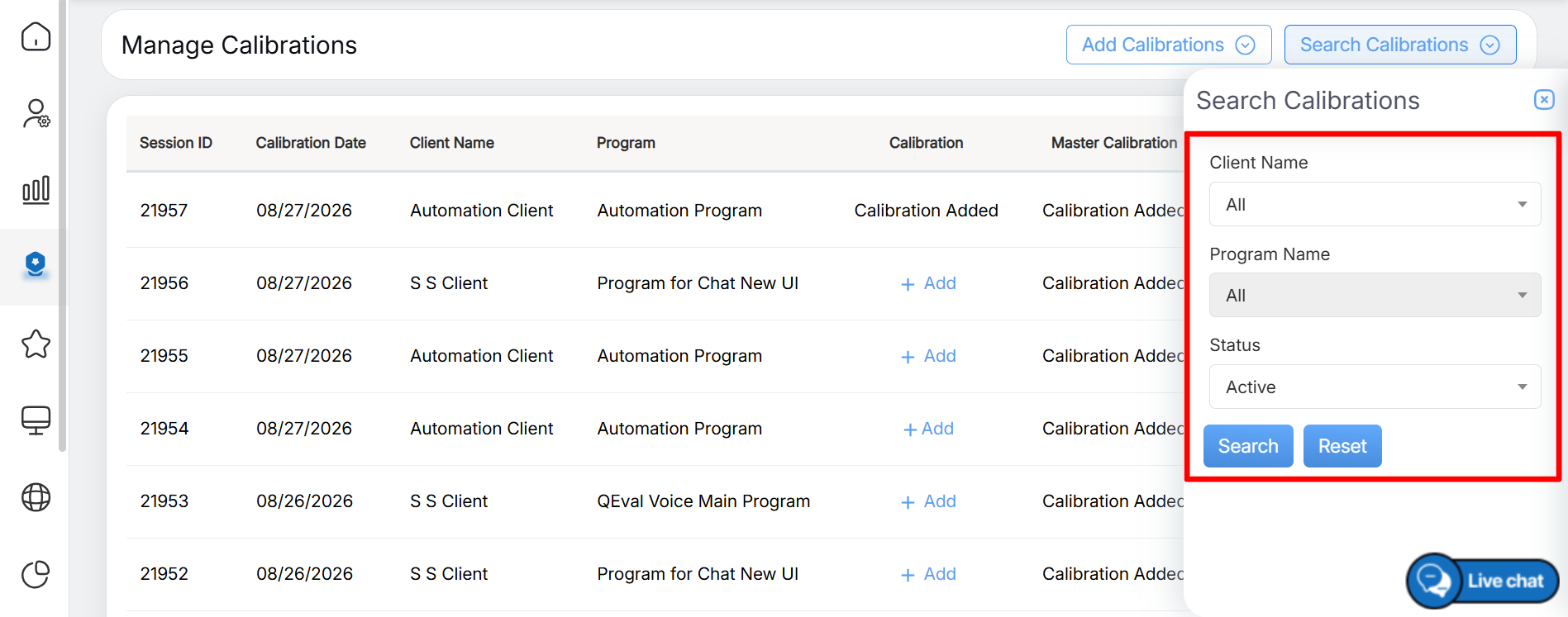
Search Details
Set the required filters by selecting the Client Name, Program Name, and Status.
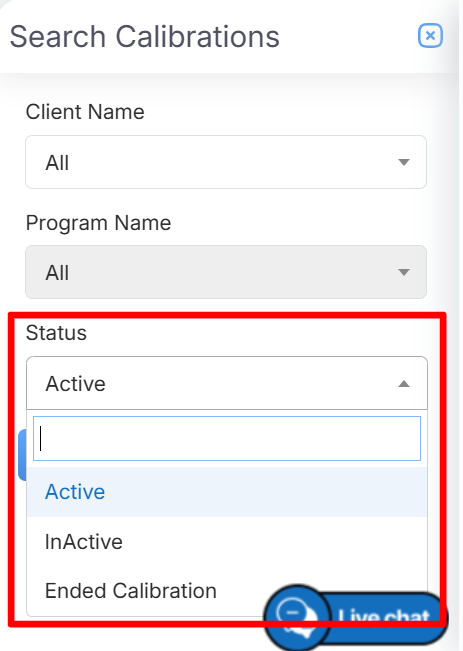
Status Dropdpwn List
Based on the selected filters, the Manage Calibrations page displays the matching calibrations.
Active Calibrations:
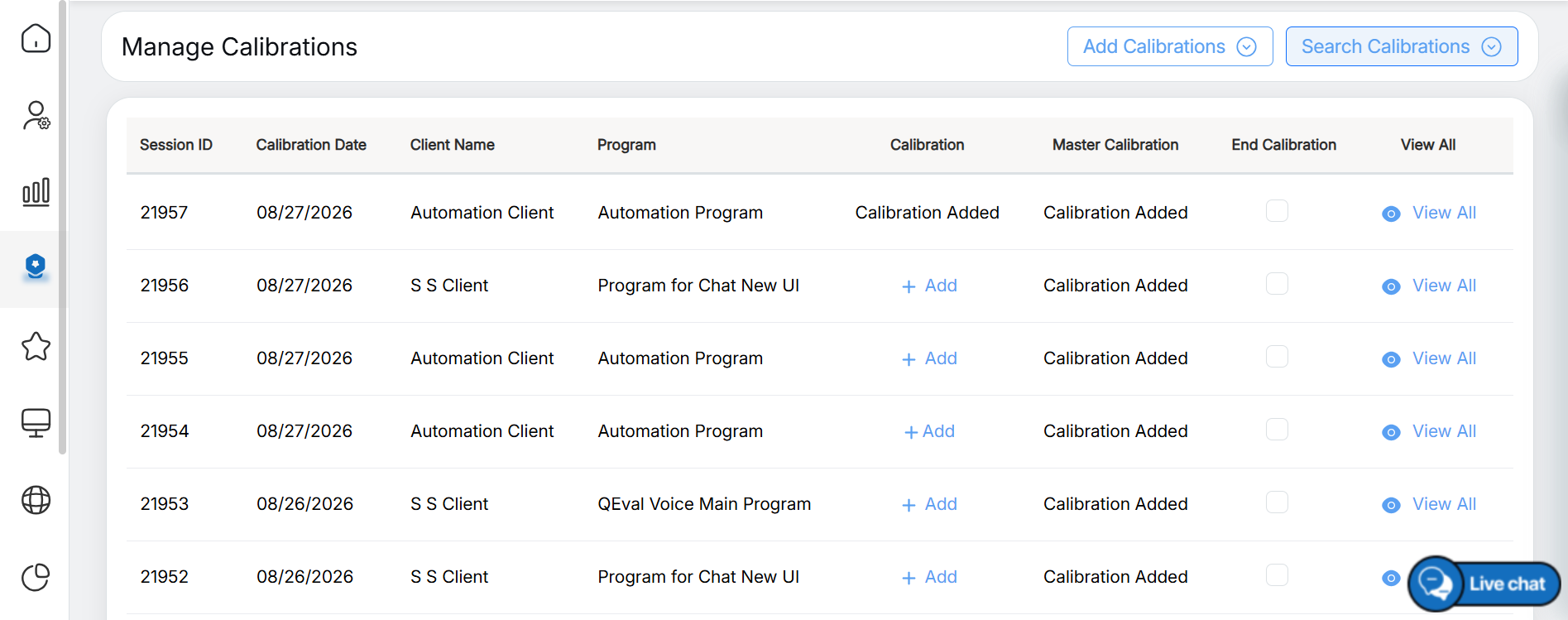
Active Calibrations
Inactive Calibrations:
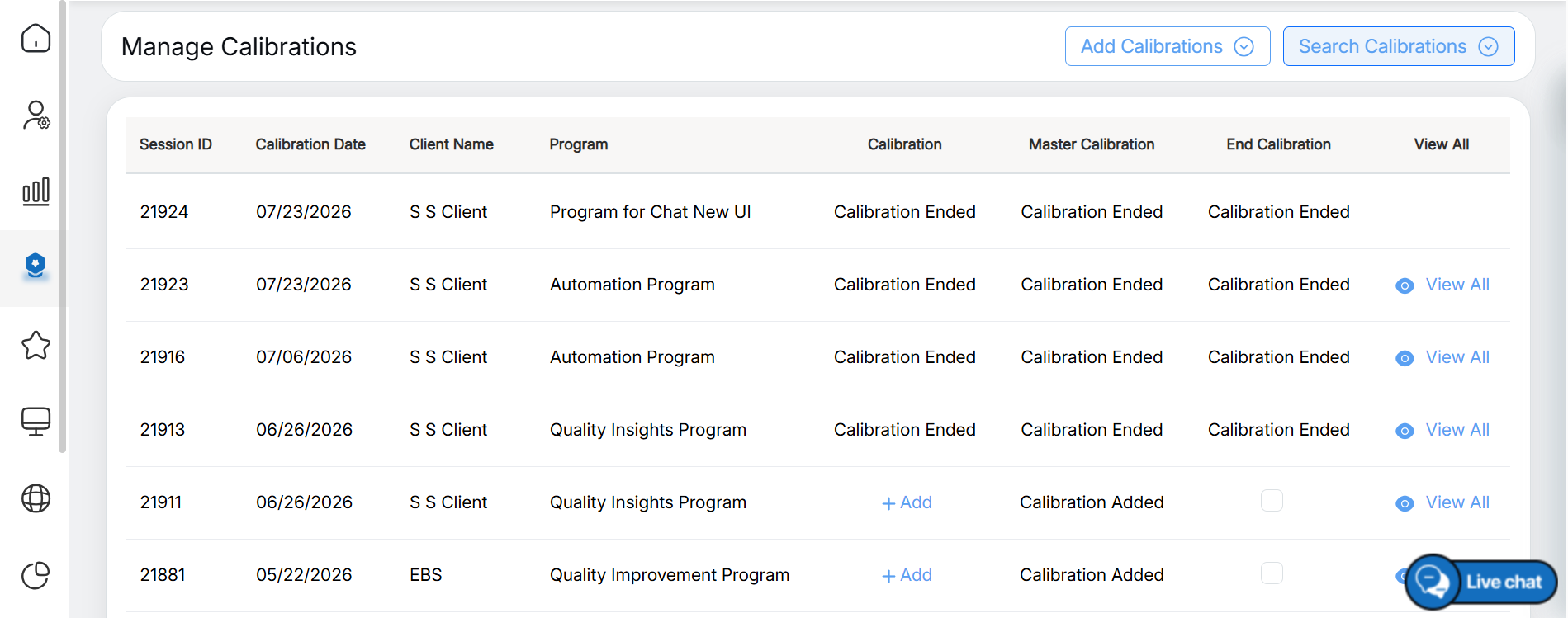
Inactive Calibrations
Ended Calibrations:
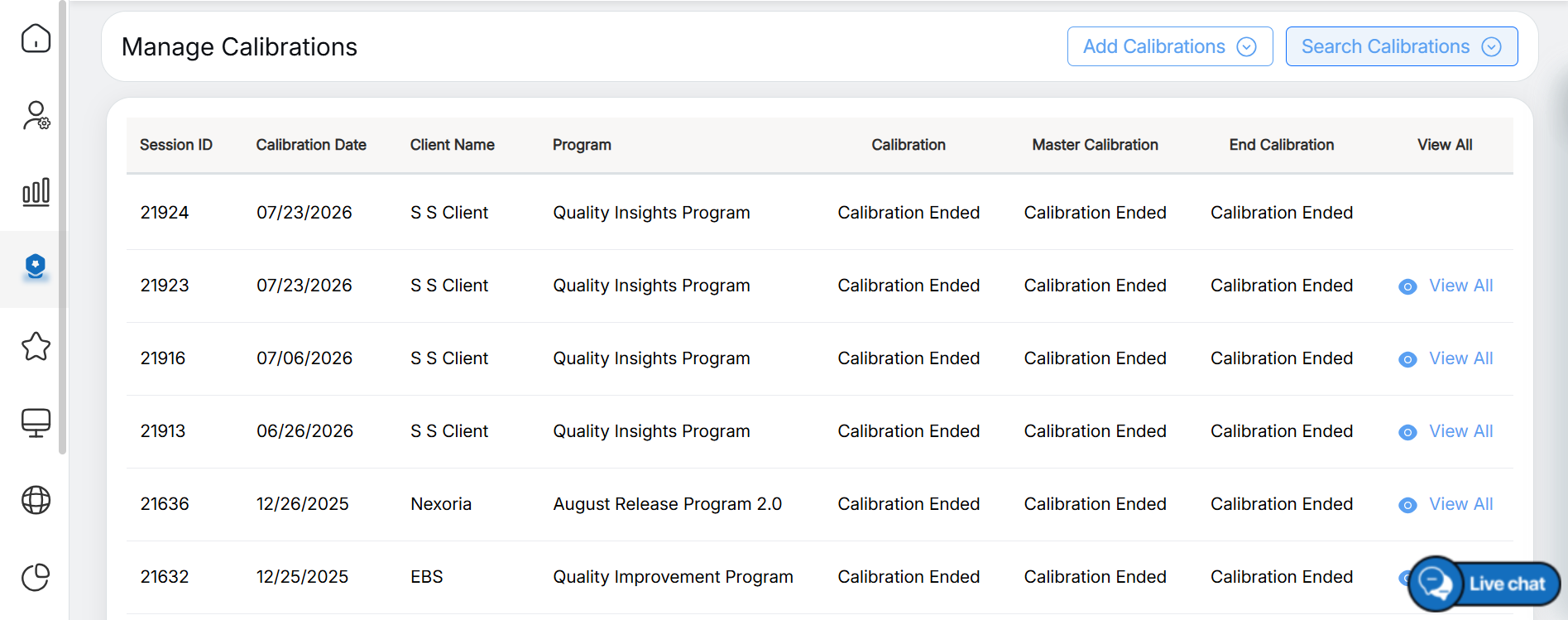
Ended Calibration
View All Calibrations
The View All option allows you to view details of all calibrations completed by Calibrators and Master Calibrators.
To view the calibration details, click the View All link in the View All column.
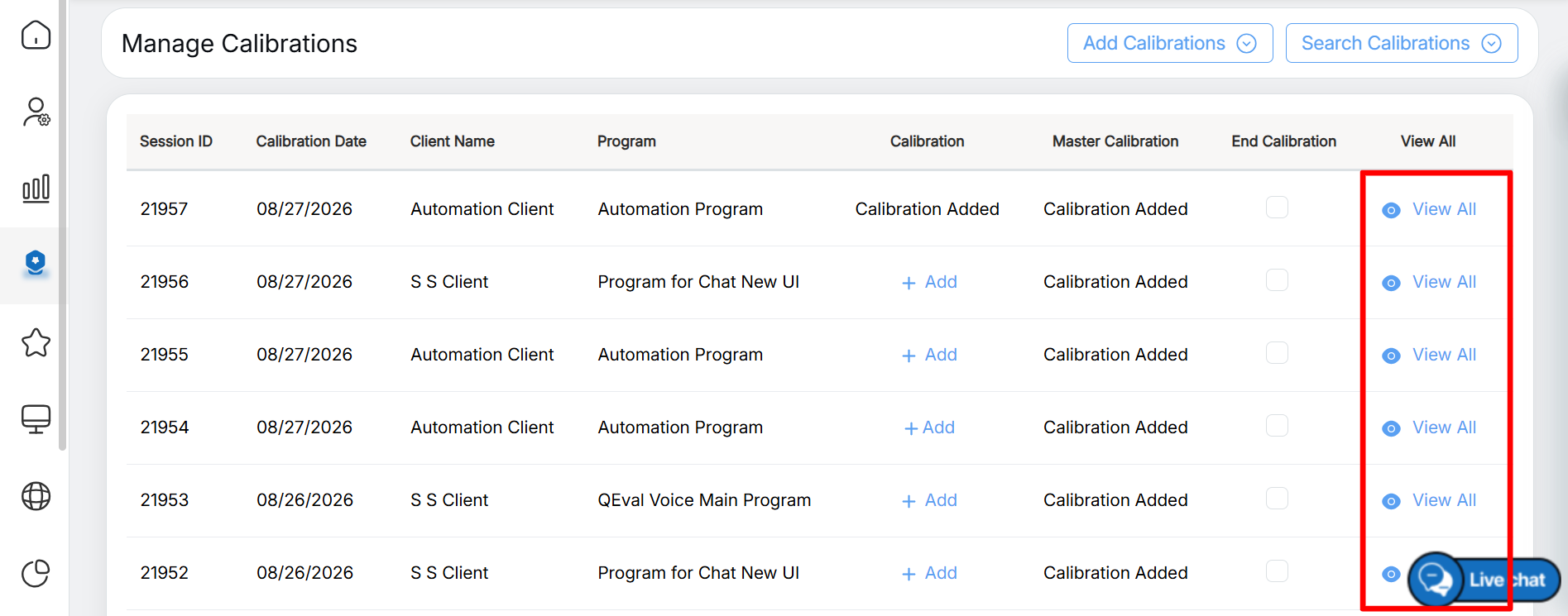
View All
The Calibration Details screen is displayed, showing details of all calibrations completed by Calibrators and Master Calibrators.
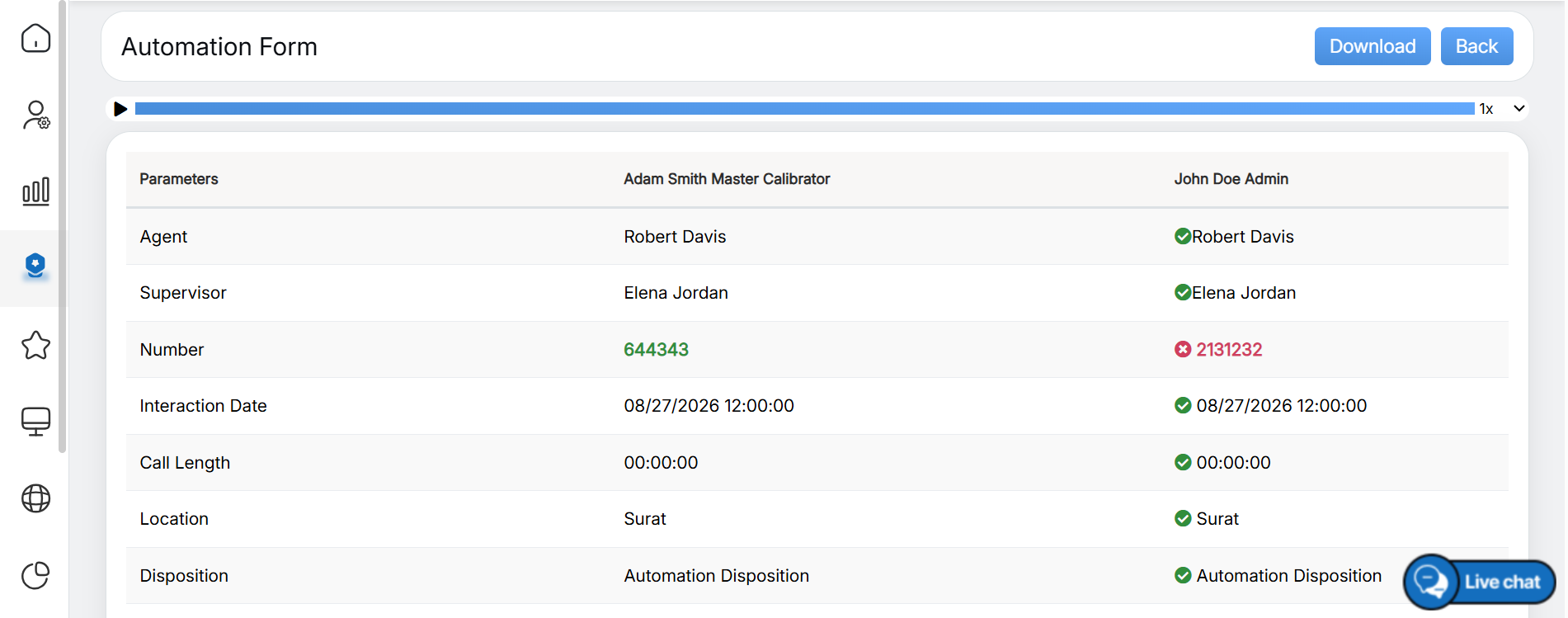
Calibration Details
End Calibration
Once calibration for an evaluation form is complete, a user with End Calibration permission can end the calibration for a specific program. Ending a calibration prevents any further calibrations from being added to that program.
To end a calibration, select the checkbox in the End Calibration column, as highlighted below.
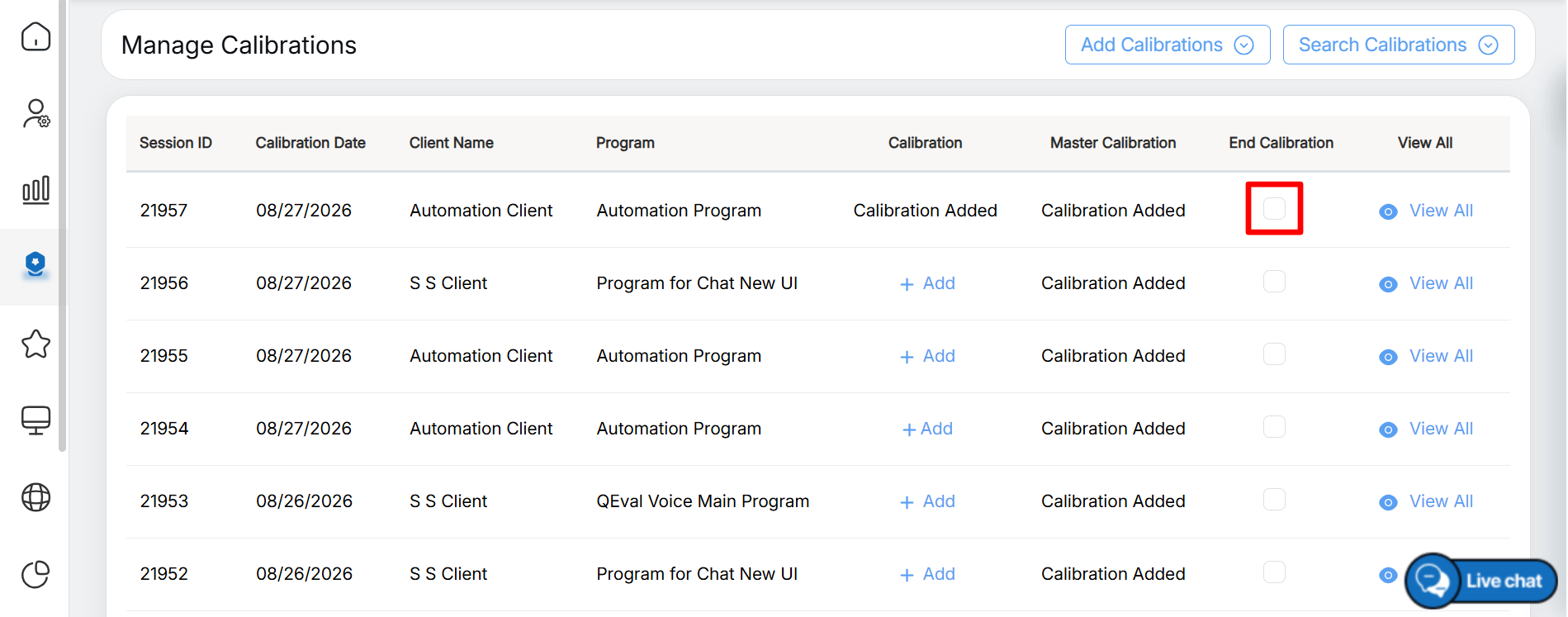
End Calibration
When you select the checkbox, a confirmation message is displayed.
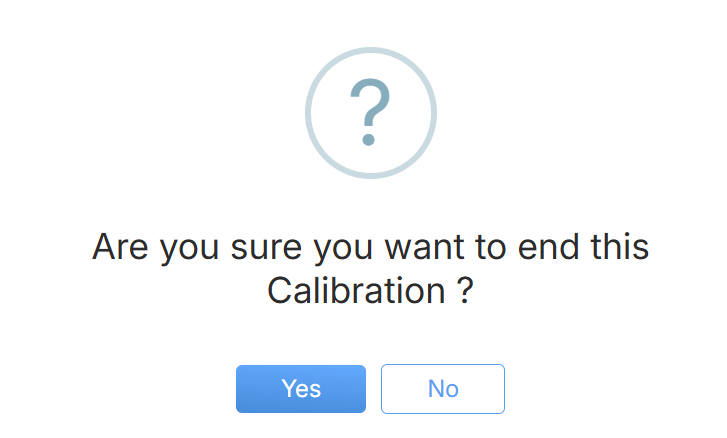
Confirmation Message
Click Yes to end the calibration or click No to cancel the process.
Edit Calibration
To edit a calibration, click the Edit icon in the Action column. The Edit Calibration window is displayed, as shown below.
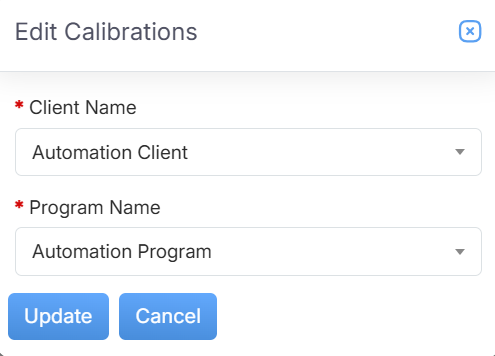
Edit Calibrations
Once you have made the required changes, click Update to save the changes.
An acknowledgment message is displayed confirming that the changes have been updated successfully.
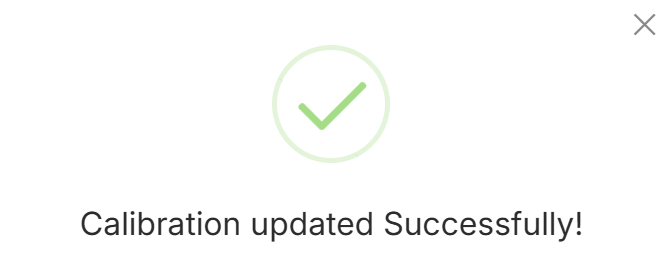
Acknowledgement Message
Delete Calibration
To delete a calibration, click the Delete icon in the Action column. A confirmation message is displayed.
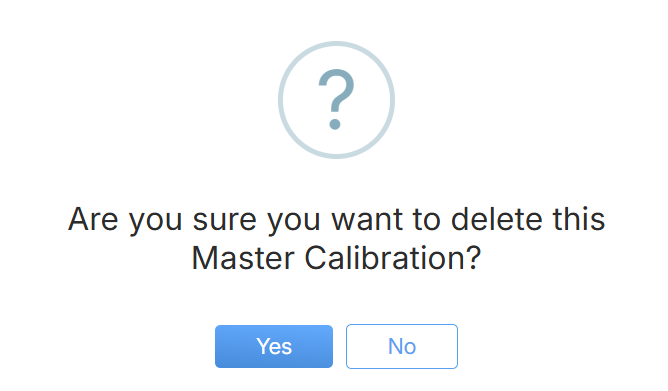
Confirmation Message
Click Yes to delete the calibration or click No to cancel the process.
Video