Table of Contents
Introduction
The Admin and Supervisors can generate the Work Allocation Report to view the status of work allocations created for evaluations and review evaluator-wise performance.
Work Allocation Report
To access this report, select Manage > Work Allocation > Work Allocation Report from the left panel, as shown below:
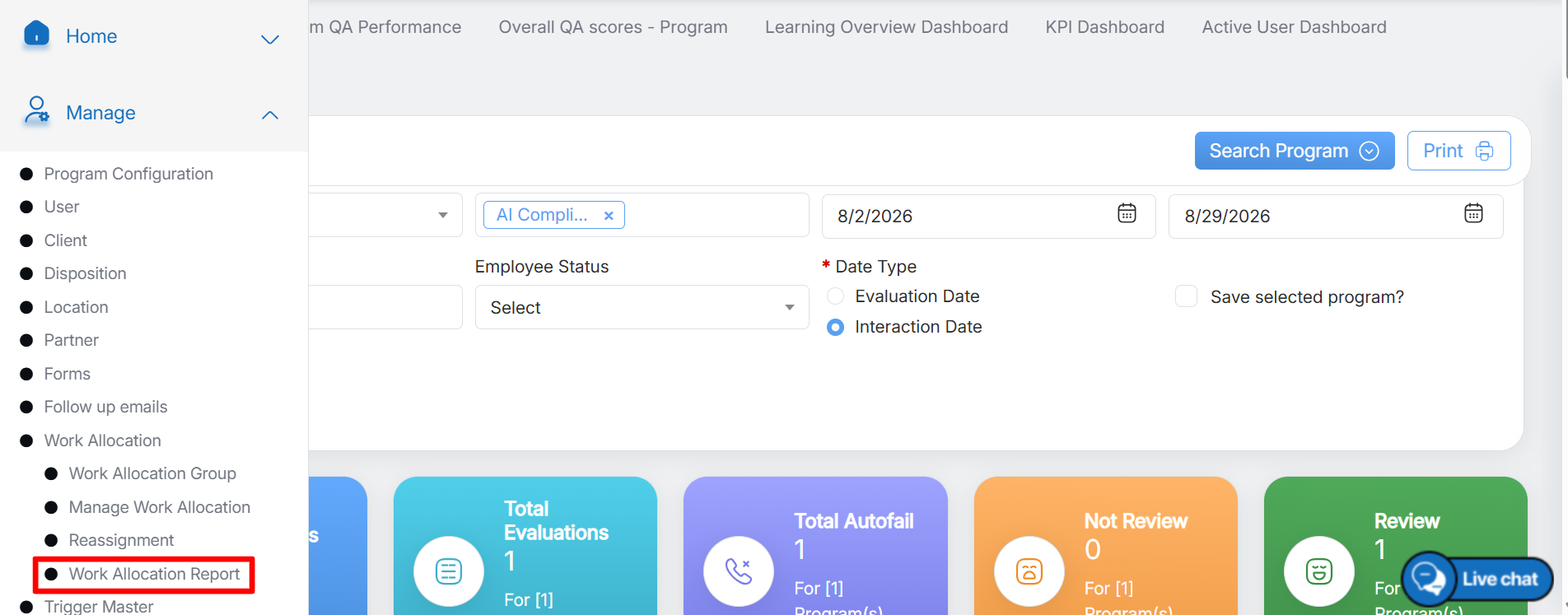
Work Allocation Report
The Work Allocation Report page is displayed, as shown below:
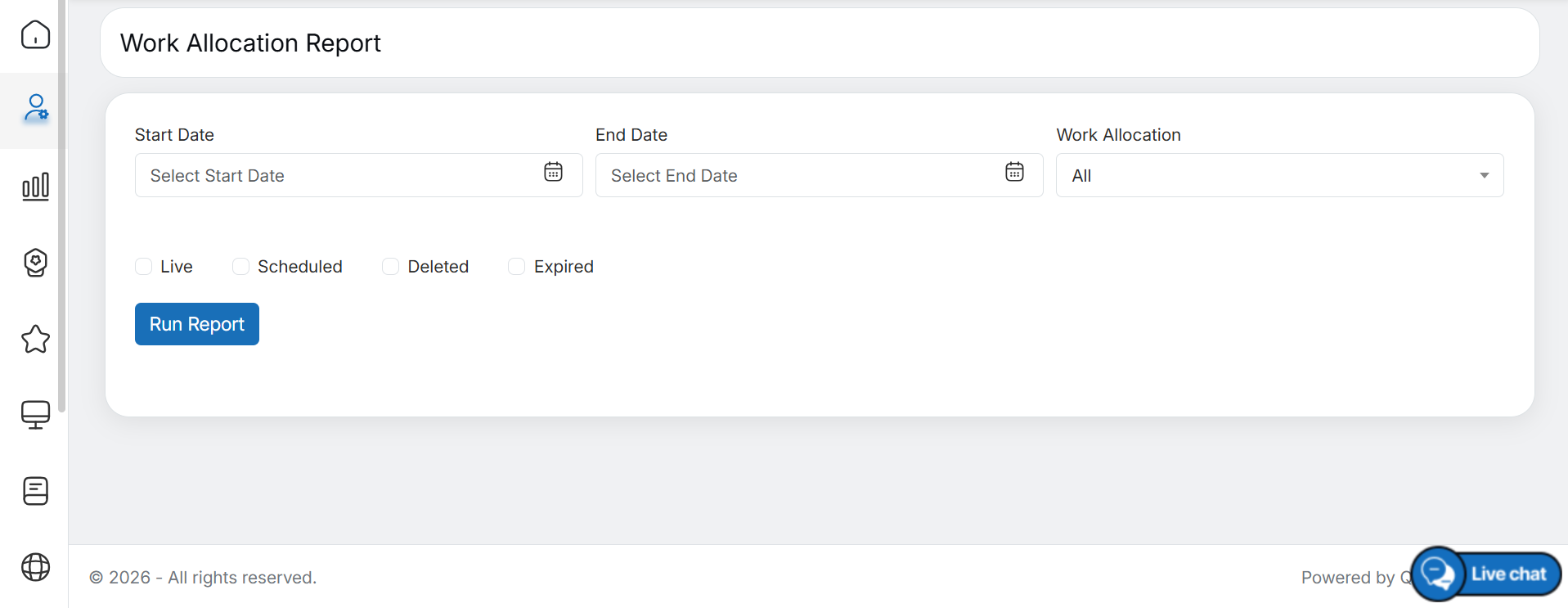
To generate a specific report, configure the required filters on the Work Allocation Report page:
- Start Date and End Date – Select the required date range from the date pickers.
- Work Allocation – Select the required work allocation from the dropdown list.
- Live – Select this checkbox to include work allocations that are currently in progress.
- Scheduled – Select this checkbox to include work allocations scheduled to be processed in the future.
- Deleted – Select this checkbox to include work allocations that have been deleted.
- Expired – Select this checkbox to include work allocations whose processing period has ended.
Once the required filters are configured, click the Run Report button, as shown below:
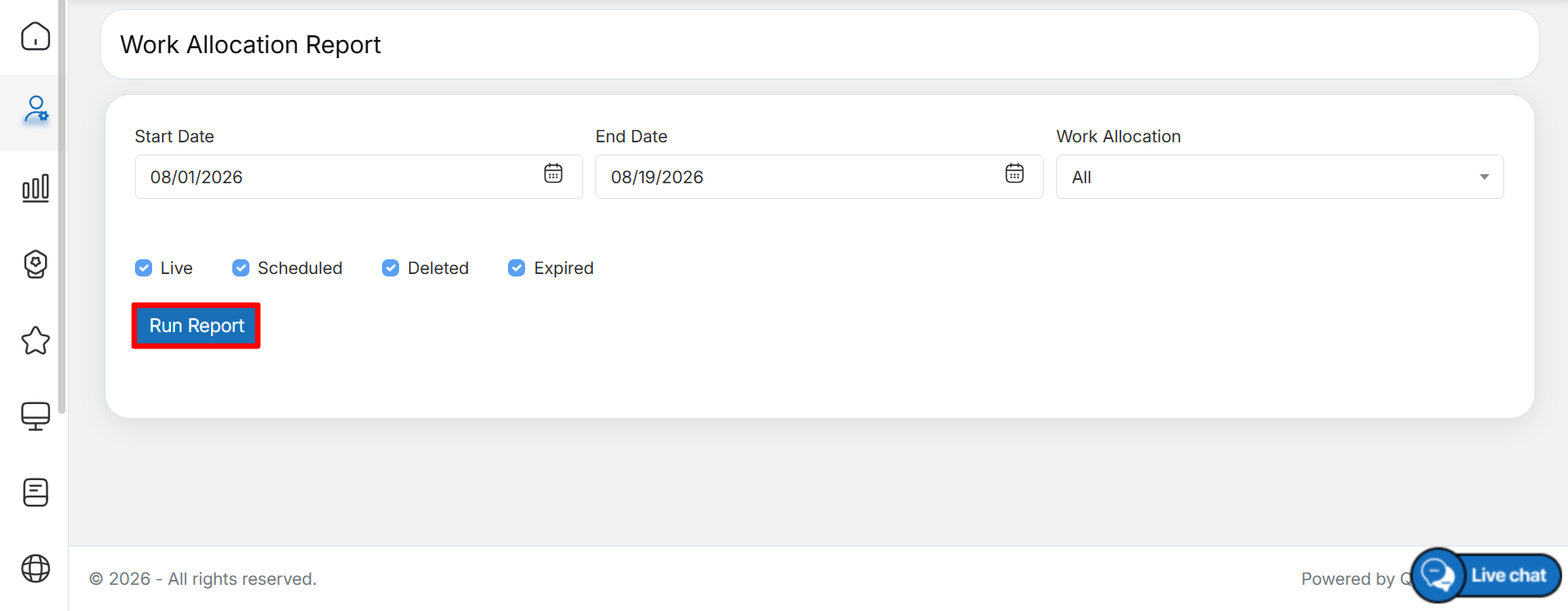
Run Report
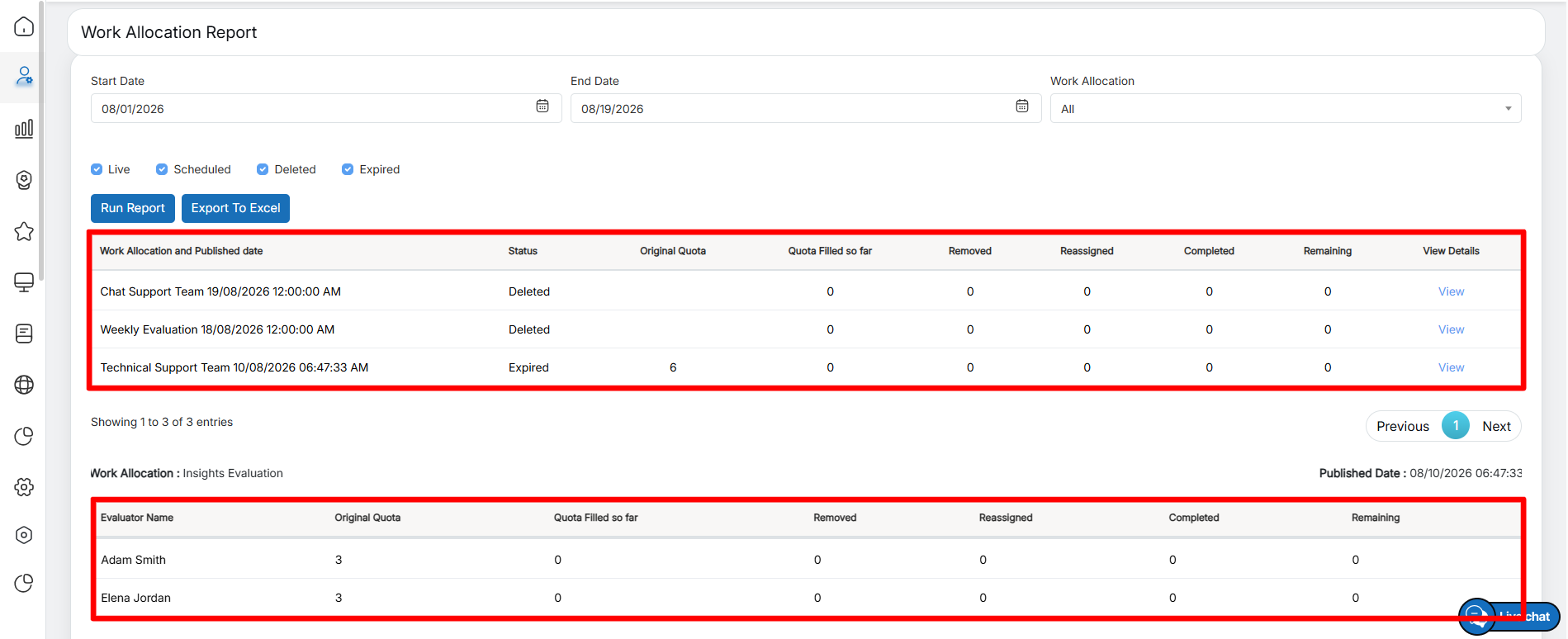
Based on the selected filters, the report is generated and displayed on the same page, as shown below:
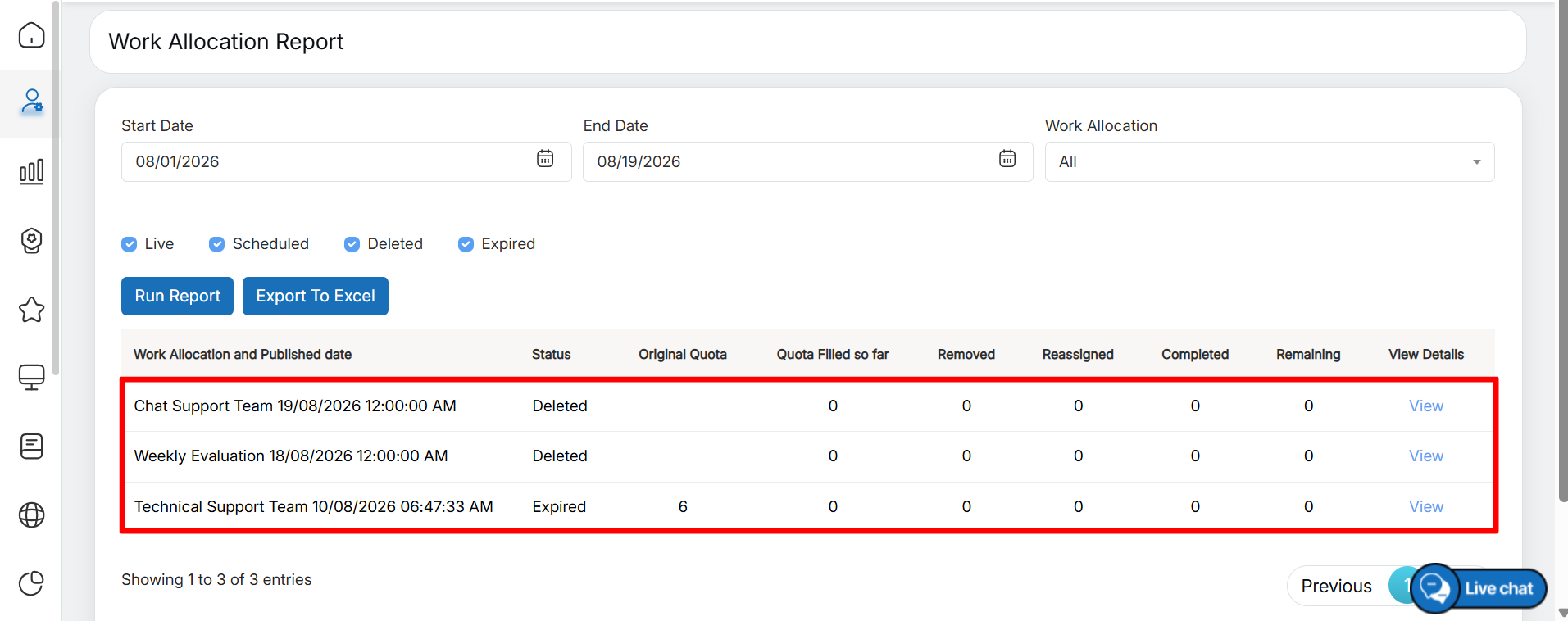
- Work Allocation and Published Date – Displays the name of the work allocation and the date and time when it was published.
- Status – Displays the current status of the work allocation: Live, Scheduled, Deleted, or Expired.
- Original Quota – Displays the total number of evaluations planned for the work allocation, as configured by the Supervisor or Admin.
- Quota Filled So Far – Displays the number of evaluations completed by the QAs for the work allocation.
- Removed – Displays the number of evaluations removed from the work allocation.
- Reassigned – Displays the number of evaluations reassigned to other QAs by the Supervisor or Admin.
- Completed – Displays the number of evaluations verified by the QAs.
- Remaining – Displays the number of evaluations that are yet to be verified by the QAs.
- View Details – Click this link to view QA-wise (evaluator-wise) details for the selected work allocation.
Once View Details is clicked, the QA-wise details are displayed in a table below the main report on the same page, as shown below:
Detailed Report
- Work Allocation – Displays the name of the work allocation for which the QA-wise (evaluator-wise) details are displayed.
- Published Date – Displays the date and time when the work allocation was published.
The following columns are displayed in the table:
- Evaluator Name – Displays the name of the QA verifier (evaluator) assigned to the specific work allocation.
- Original Quota – Displays the number of evaluations assigned to the individual QA verifier as part of the work allocation.
- Quota Filled so Far – Displays the number of evaluations completed by the QA verifier.
- Removed – Displays the number of evaluations removed from the QA verifier’s allocation.
- Reassigned – Displays the number of evaluations reassigned to another QA verifier by the Supervisor or Admin.
- Completed – Displays the number of evaluations verified by the QA verifier.
- Remaining – Displays the number of evaluations that are yet to be verified by the QA verifier.
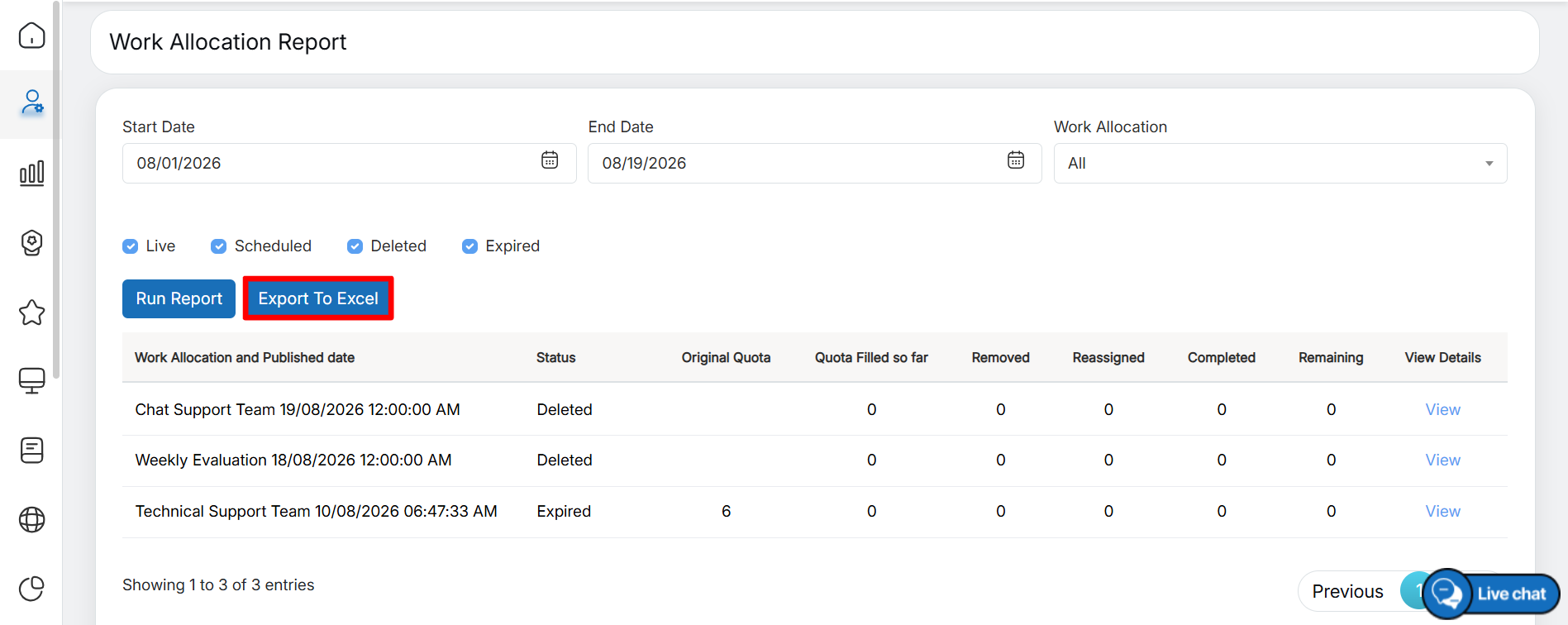
To export the Work Allocation Report in Excel format, click the Export to Excel button, as shown below:
Export to Excel
The report is downloaded to the local system in Excel format. The downloaded file displays the report in the same format as it appears in the QEval application.
Video