Table of Contents
Add Work Allocation Group
To create a new work allocation group, click Add Work Allocation Group. The Add Work Allocation Group page is displayed, as shown in the following screen.
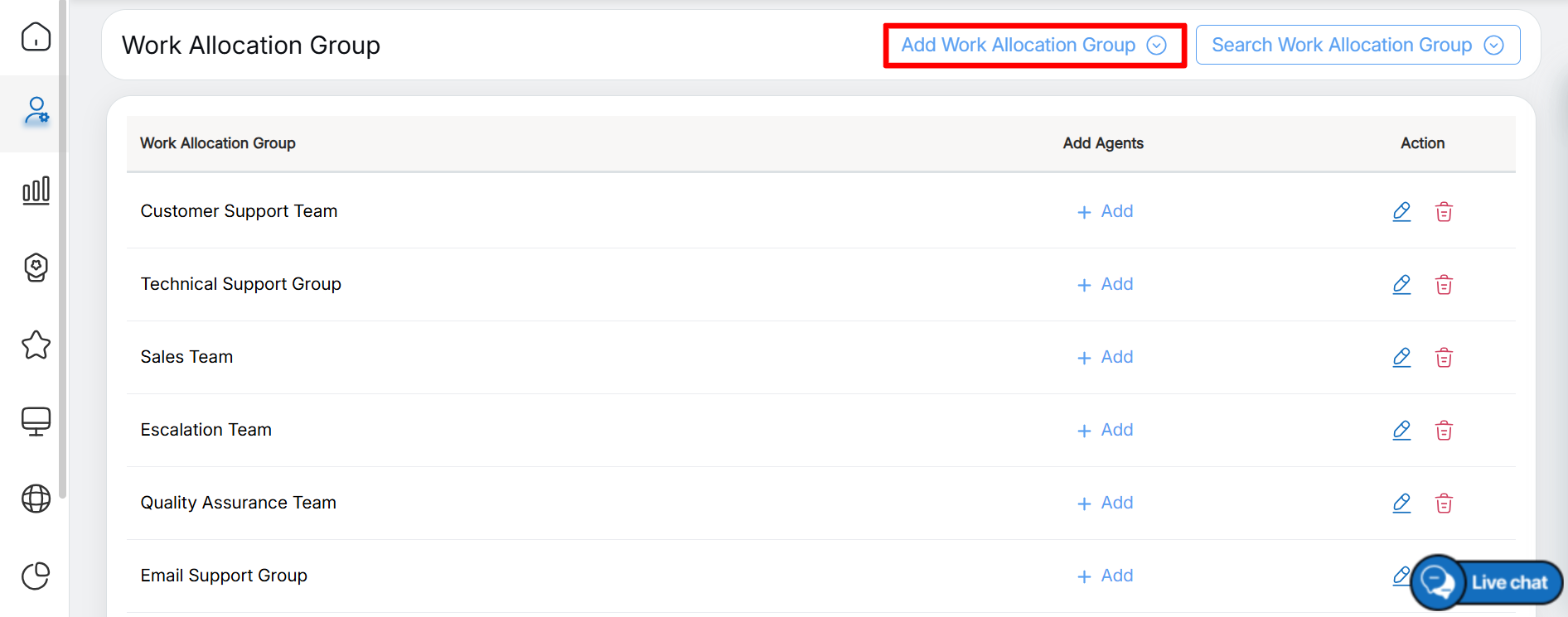
Add Work Allocation Group
The Add Work Allocation Group window is displayed on the same page, as shown in the following screen.
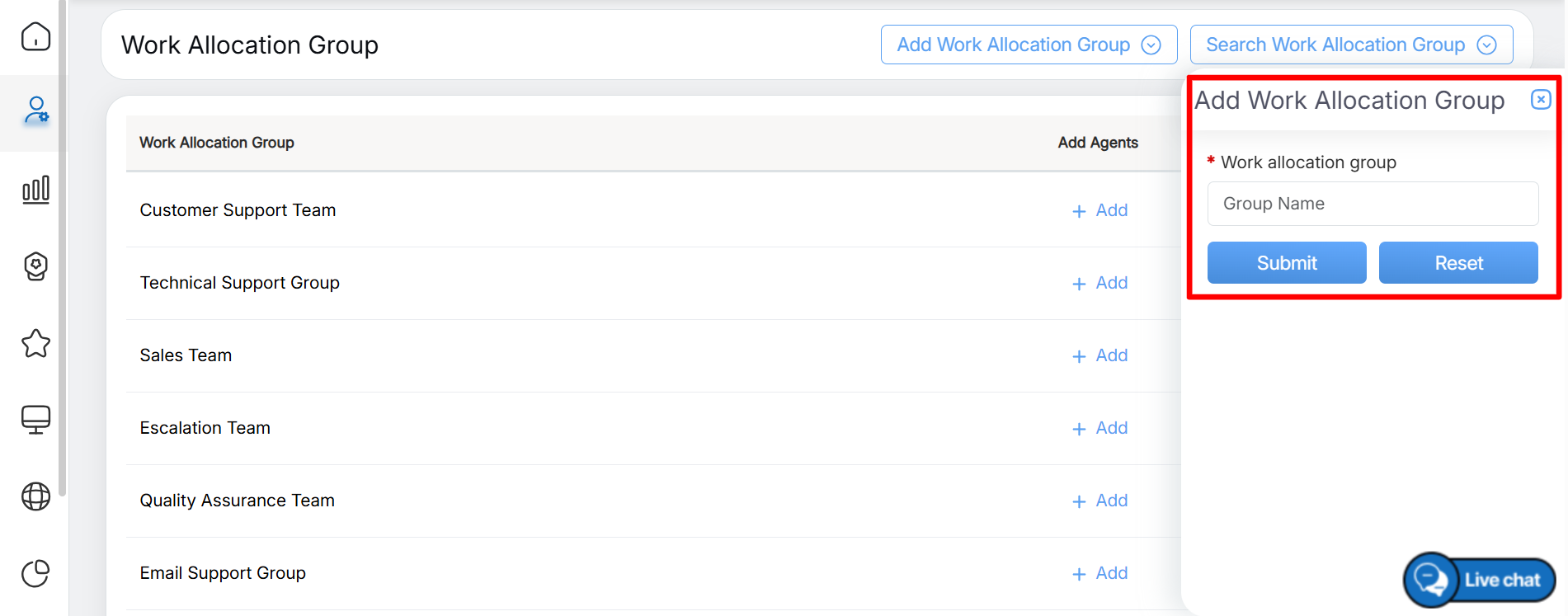
Add Work Allocation Group Details
In the Add Work Allocation Group window, enter a name for the new work allocation group in the Work Allocation Group field. After entering the group name, click Submit to create and save the work allocation group, as shown in the following screen.
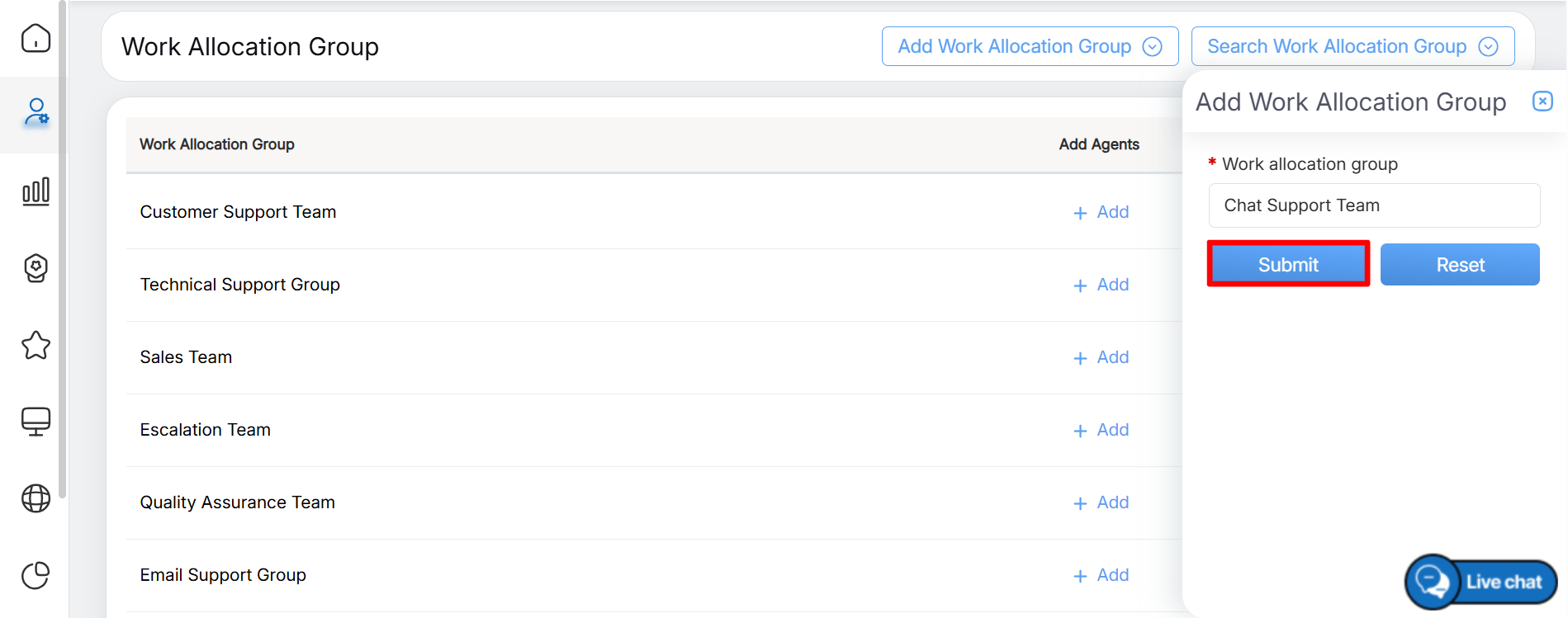
Submit
To restore the field to its default state, click Reset.
After the work allocation group is created successfully, the system displays a confirmation message acknowledging that the group has been added, as shown in the following screen.

Acknowledgement Message
After the work allocation group is created successfully, it appears in the Work Allocation Group list on the Work Allocation Group page, as shown in the following screen.
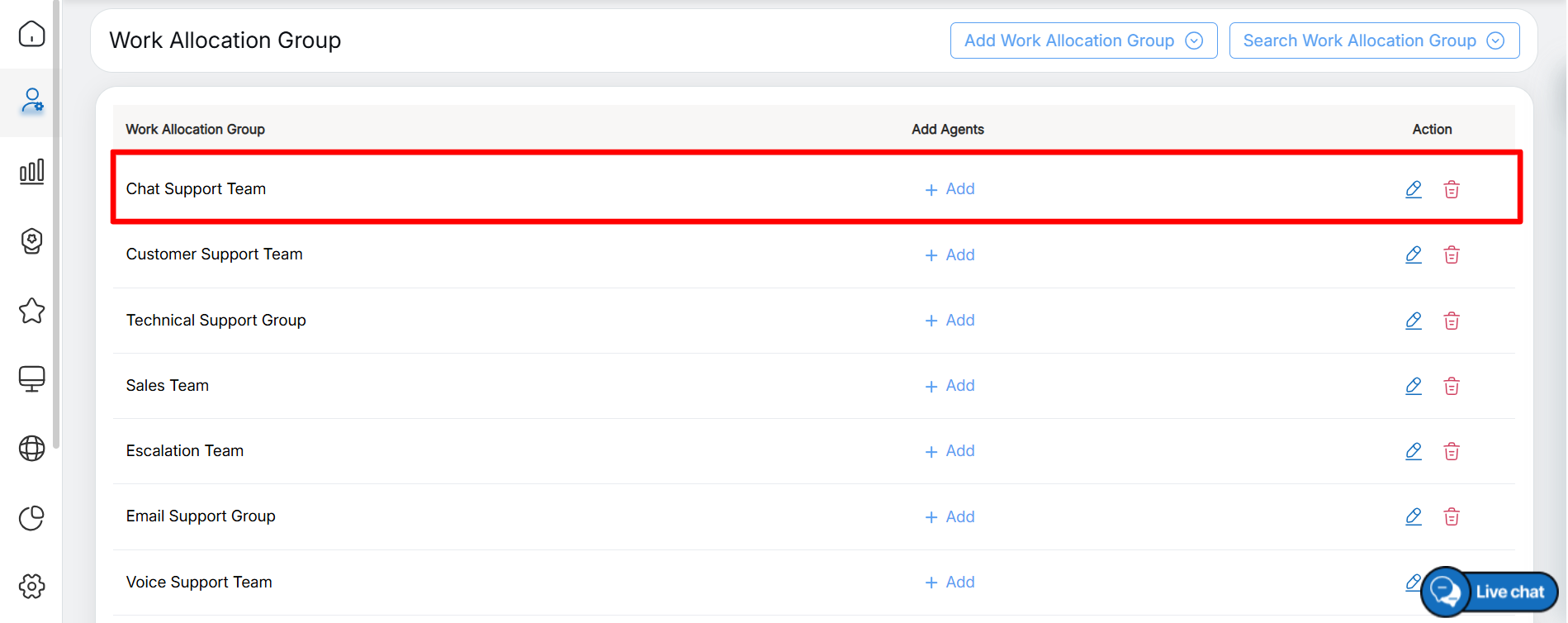
Work Allocation Group List
Video