Table of Contents
- Supervisor Effectiveness Review
- Supervisor QA Score With Autofail
- Auto Performance Score
- Supervisor QA Score Leaderboard
- Supervisor’s Strength and Opportunities
- Autofail Performance
- Open Coaching
Supervisor Effectiveness Review
The Supervisor Effectiveness Review dashboard helps supervisors monitor team performance and identify opportunities for improvement. It provides an overview of team performance, allows supervisors to track their position on the Supervisor Leaderboard, compare performance scores, and review insights into team strengths, areas for improvement, and Open Coaching details. These insights help supervisors take focused actions to improve team performance.
After logging in to QEval using your assigned User ID and Password (refer to QEval Login for detailed login instructions), you will be directed to the Supervisor Dashboard.
You can also access the Supervisor Effectiveness Review at any time by clicking the Menu button or by moving your cursor to the left side of the screen to open the Menu Bar. From the menu, select Home, and then click Supervisor Effectiveness Review:
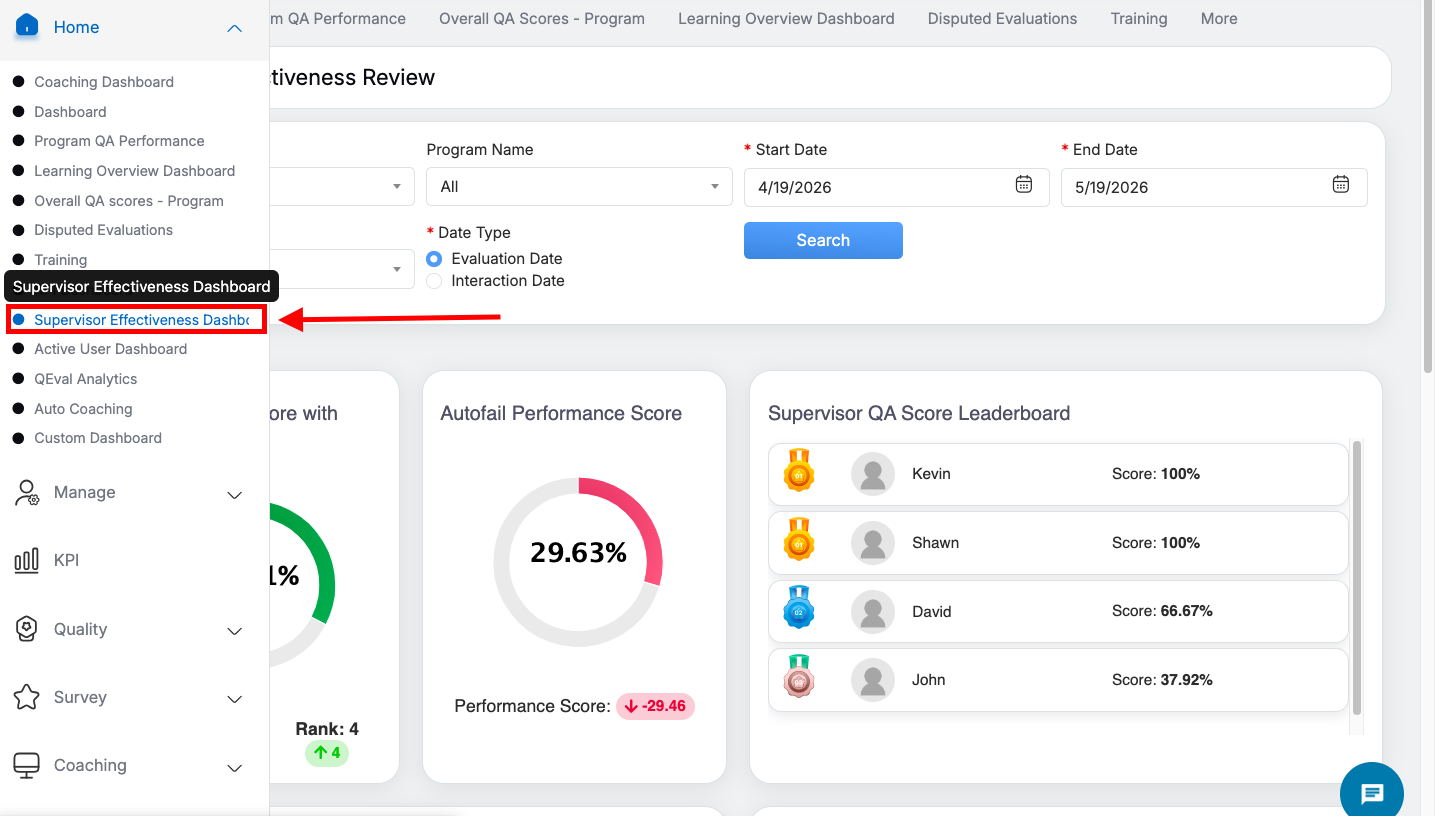
Supervisor Effectiveness Review
The logged-in supervisor will be directed to the Supervisor Effectiveness Review page. Here the supervisor will be able to analyse team’s performance, view ranks and score on the leaderboard to track position, see opportunities, strengths, and Coaching details for performance improvement.
The logged-in supervisor will have an option to search specific details based on client and program names and can review the effectiveness details assigned by their supervisor.
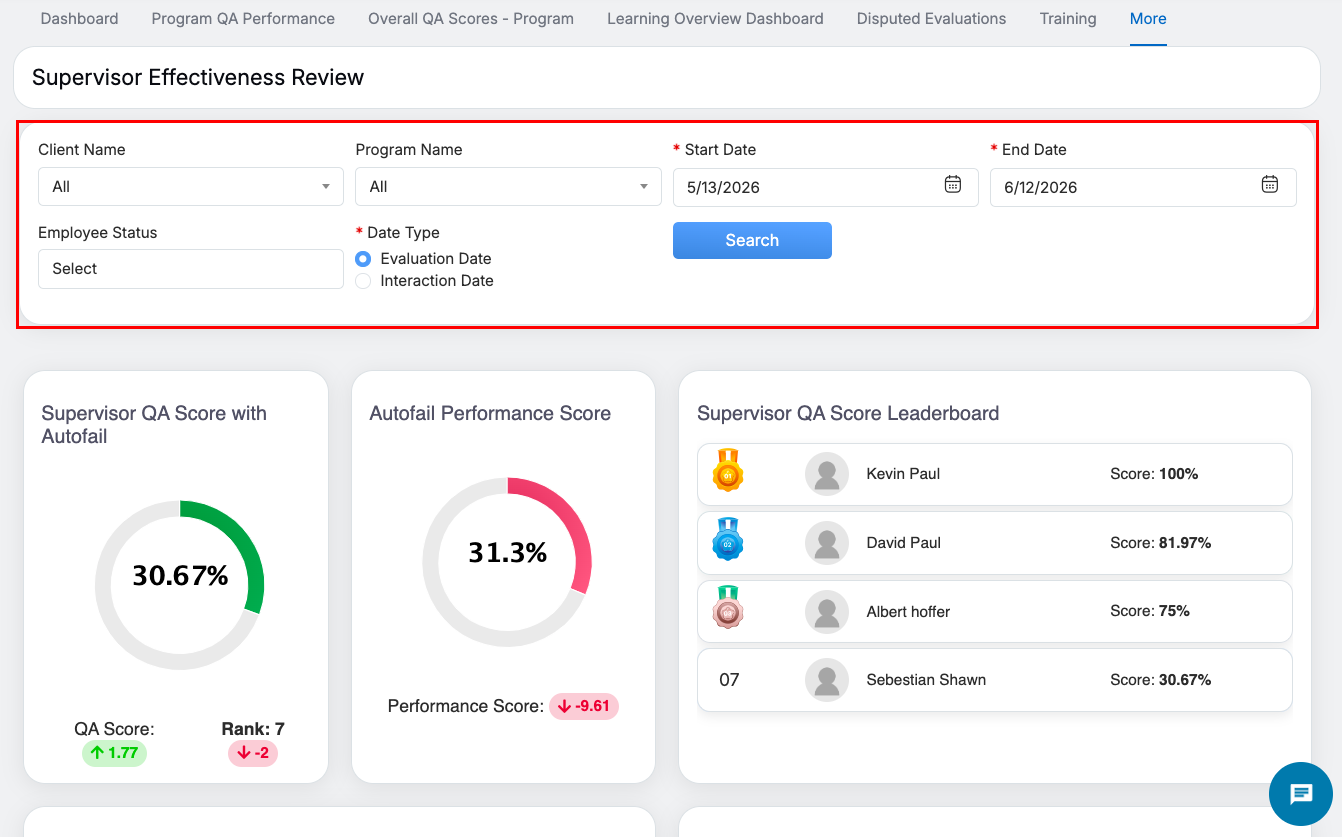
The elements of the search filter are as follows-
| Elements | Description |
| Client Name | Allows users to select a client from a predefined drop-down list, ensuring consistency and accuracy in filtering results. |
| Program Name | Provides a drop-down selection of available programs, enabling users to filter data based on specific program criteria. |
| Start Date | Users can choose a start date from the date-picker calendar, defining the beginning of the search period. |
| End Date | Users can select an end date from the date-picker calendar, specifying the closing range for the search period. |
| Employee Status | Users can select Active, Inactive, or All from the Employee Status dropdown as needed. |
| Date type |
Users can select the Date Type, Evaluation Date or Interaction Date as needed. Note: In QEval AI instances, Interaction Date is selected by default as the Date Type in the filter panel. You can change the Date Type to Evaluation Date whenever required. |
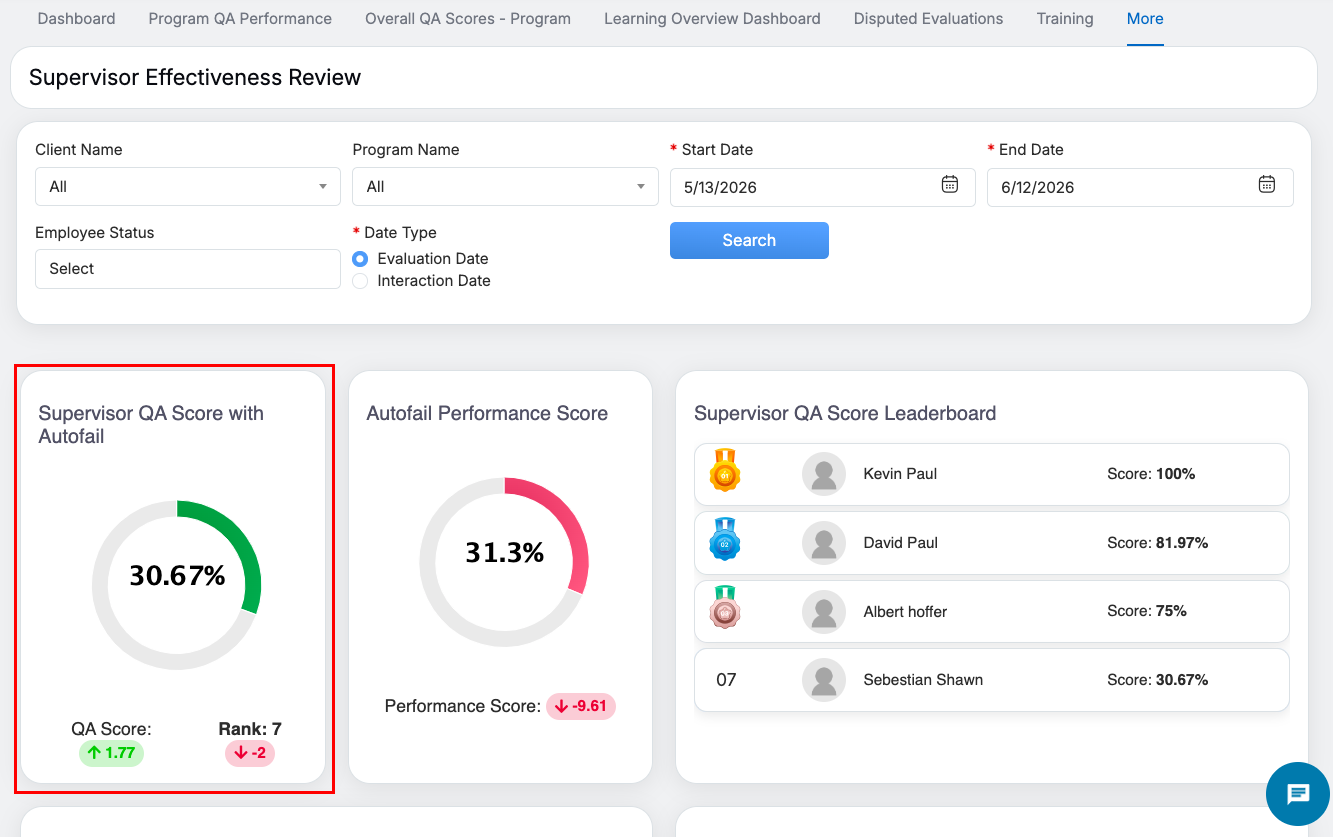
Supervisor QA Score With Autofail
The Supervisor QA Score with Autofail page provides a numerical representation of an agent’s performance based on quality assurance evaluations. It includes the supervisor’s QA score, their ranking among peers, and whether any autofail conditions have impacted their overall assessment. The donut chart visually represents performance trends, with colors and arrows aligned to the progress indicator: A downward red arrow signals a decline, and the chart displays red to reflect this drop. An upward green arrow indicates improvement, and the chart displays green accordingly. This visual alignment ensures quick and intuitive interpretation of performance status.
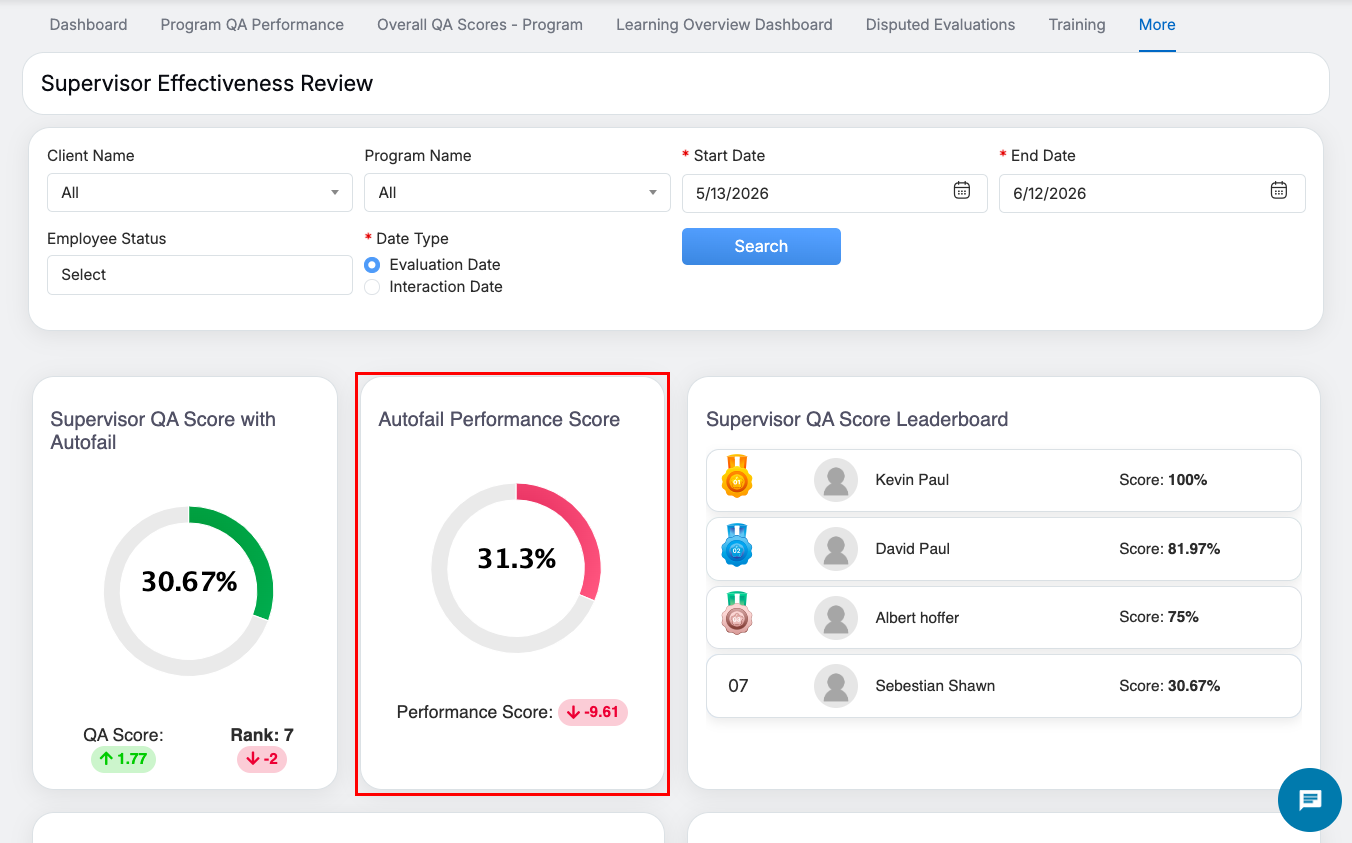
Autofail Performance Score
The Autofail Performance Score section highlights instances where an agent’s performance has triggered predefined autofail criteria. This metric is crucial for identifying critical compliance failures or procedural deviations that significantly impact the overall quality score. The donut chart visually represents performance trends, with colors and arrows aligned to the progress indicator: A downward red arrow signals a decline, and the chart displays red to reflect this drop. An upward green arrow indicates improvement, and the chart displays green accordingly. This visual alignment ensures quick and intuitive interpretation of performance status.
Supervisor QA Score Leaderboard
The Supervisor QA Score Leaderboard displays a ranked list of Supervisor based on their QA scores. It allows for a comparative analysis of supervisor performance across teams, identifying top performers and those who need improvement. This Leaderboard highlights the top performers, placing the logged-in user in fourth if he is not ranked in ‘top four’.
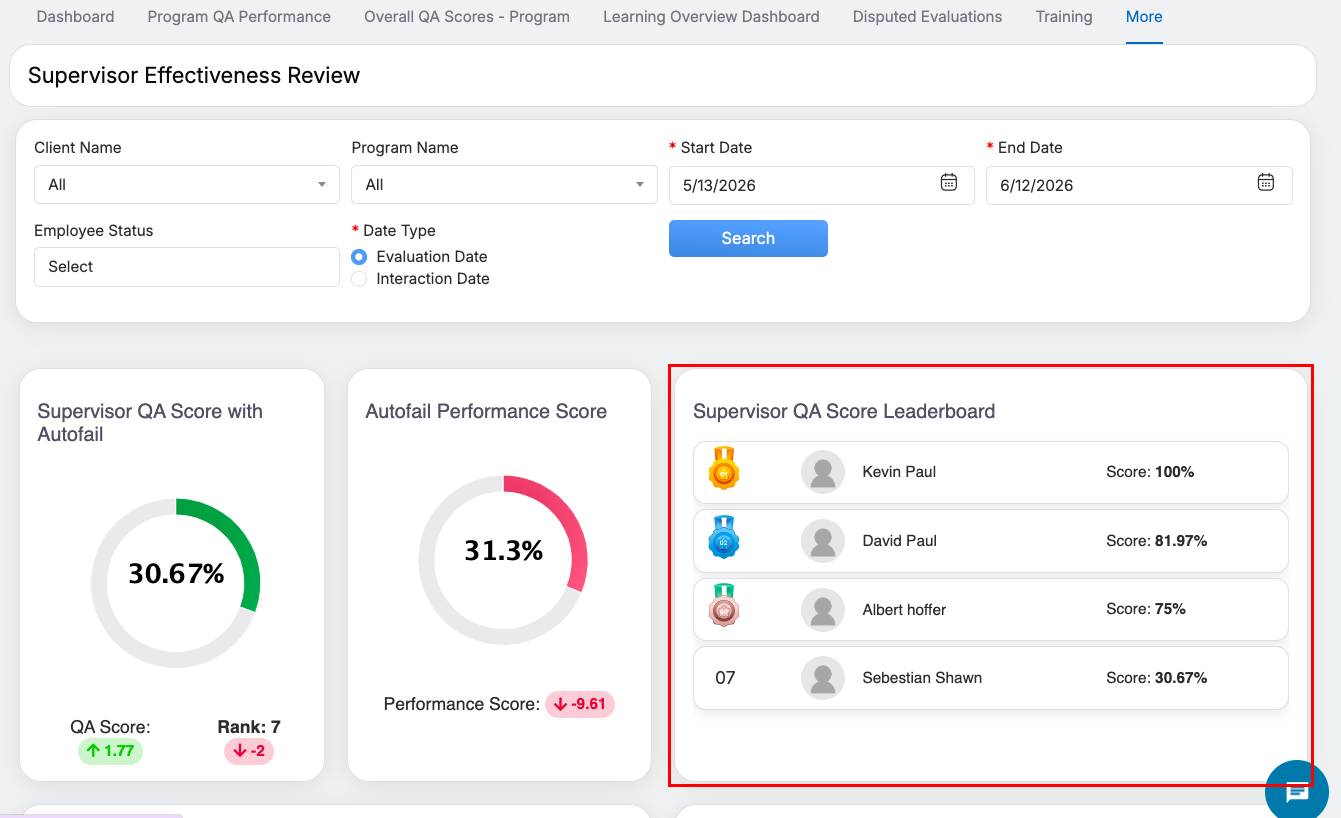
At the top right corner, there is a “View All” option. Clicking this opens a detailed leaderboard tab that displays a complete list of supervisors ranked by their QA scores.
The leaderboard is organised in a paginated format, showing 10 entries per page. Users can navigate through the pages using the pagination controls to view and compare the performance of all supervisors.
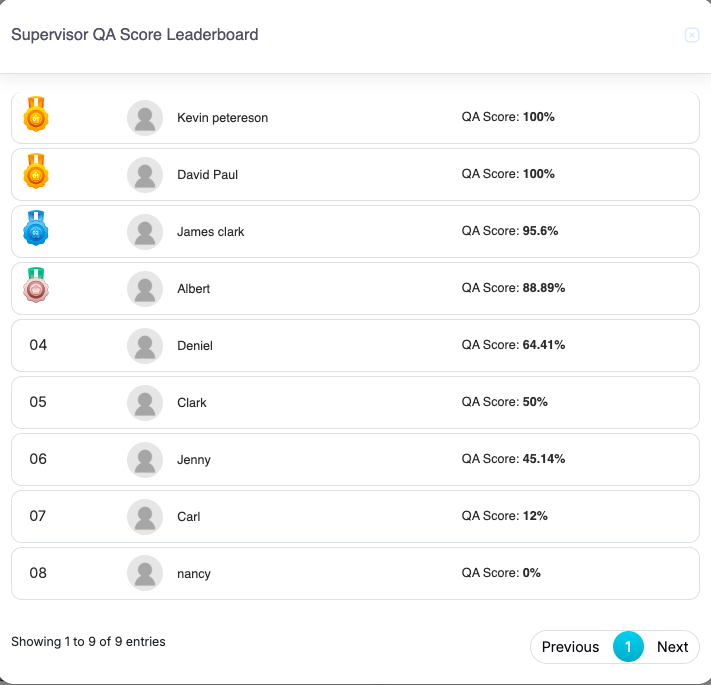
Supervisor QA Score Leaderboard
Supervisor’s Strengths and Opportunities
This section outlines the key strengths where an agent excels and highlights opportunities for improvement based on performance evaluations. It helps supervisors and trainers create targeted development plans for skill enhancement.
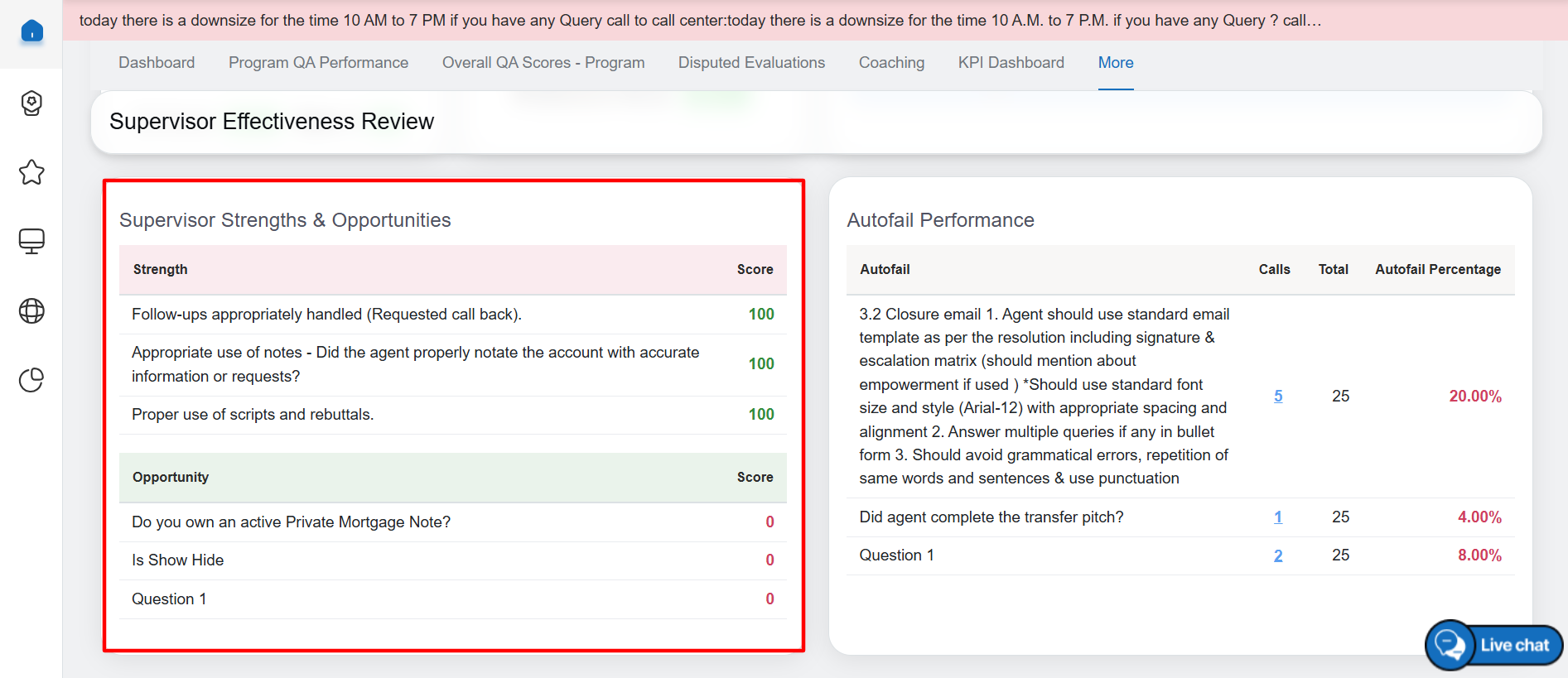
Supervisor Strengths and Opportunities
Autofail Performance
The Autofail Performance section provides a detailed breakdown of incidents where an agent’s actions led to autofail. It categorizes the failures based on severity, recurrence, and compliance impact, ensuring necessary corrective actions are taken.

Autofail Performance
The Calls field under the Autofail section is an interactive element that provides users with a detailed breakdown of autofail evaluations, as highlighted in the image:

Calls in Autofail Performance
Upon clicking the numerical value in the Calls field, a pop-up window appears, presenting comprehensive evaluation records associated with the selected question, as illustrated in the image :
 The elements of the pop-up window are as follows-
| Elements | Description |
| Total Autofail | Displays the total number of autofail cases recorded for the selected question. |
| Score | Indicates the overall autofail score in percentage format, reflecting the impact of the autofail cases. |
| Evaluation ID | Unique identifier assigned to each evaluation entry, allowing users to track specific cases. |
| Score without Autofail | Displays the agent’s performance score if the autofail condition was not applied, helping in performance assessment. |
The pop-up also includes pagination controls to navigate through multiple records.
Open Coaching
The Open Coaching section tracks pending coaching sessions assigned to the agent. It ensures that supervisors follow up on performance feedback and training needs, promoting continuous improvement and skill development.

Open Coaching
Upon clicking on Open Coachings, the user is redirected to the Supervisor Review Effectiveness page’s All Program, which displays all ongoing coaching sessions that require completion.
This page provides a structured view of coaching details, helping Supervisor track progress effectively.
The elements of the Open Coaching, are as follows :
| Field Name | Description |
|---|---|
| Feedback | Displays the summary of key discussion points during the coaching session. |
| Evaluation ID | Displays the unique identifier assigned to each coaching session. |
| Date | Displays the date when the coaching session was recorded. |
| Coach Name | Displays the name of the supervisor conducting the session. |
| Agent | Displays the name of the agent receiving coaching. |
| Duration | Displays the total time spent on the coaching session. |
| Program | Displays the training or performance improvement program linked to the session. |
| DISC Style | Displays the agent’s DISC (Dominance, Influence, Steadiness, and Conscientiousness) behavioral assessment style. |
| Impacted KPI | Displays the key performance indicators affected by the session. |
| Opportunity Type | Displays the category of performance improvement identified. |
| Strength | Displays the areas where the agent excels. |
| Opportunity | Displays the areas requiring improvement. |
| Improvement in KPI | Supervisor needs to provide detailed information on key performance indicator (KPI) enhancements. |
| Opportunity Status | The supervisor must select either “Completed” or “Unsuccessful” using a radio button to confirm the outcome. |
This table provides a clear and professional overview of the Open Coaching – All Programs Page, ensuring accurate documentation and streamlined coaching processes.
Similarly, detailed information on Pending Coachings and Past Due Coachings will be displayed in the same format.
Video