Table of Contents
Introduction
The Supervisor View in QEval allows supervisors to review agent evaluations and manage disputes raised by agents. Supervisors can check evaluation statuses, review disputes, update dispute resolutions, and provide feedback.
Depending on whether an agent raises a parameter-based dispute or a general dispute, supervisors can select the appropriate Supervisor Dispute Status (Disputed, Supervisor Agree, or Supervisor Disagree) and add comments.
Supervisors can also electronically sign and date reviewed evaluations to maintain records and confirm their approval.
Case 1: No Dispute
If no dispute has been raised for a particular evaluation form, the following screen appears with the Review radio button.
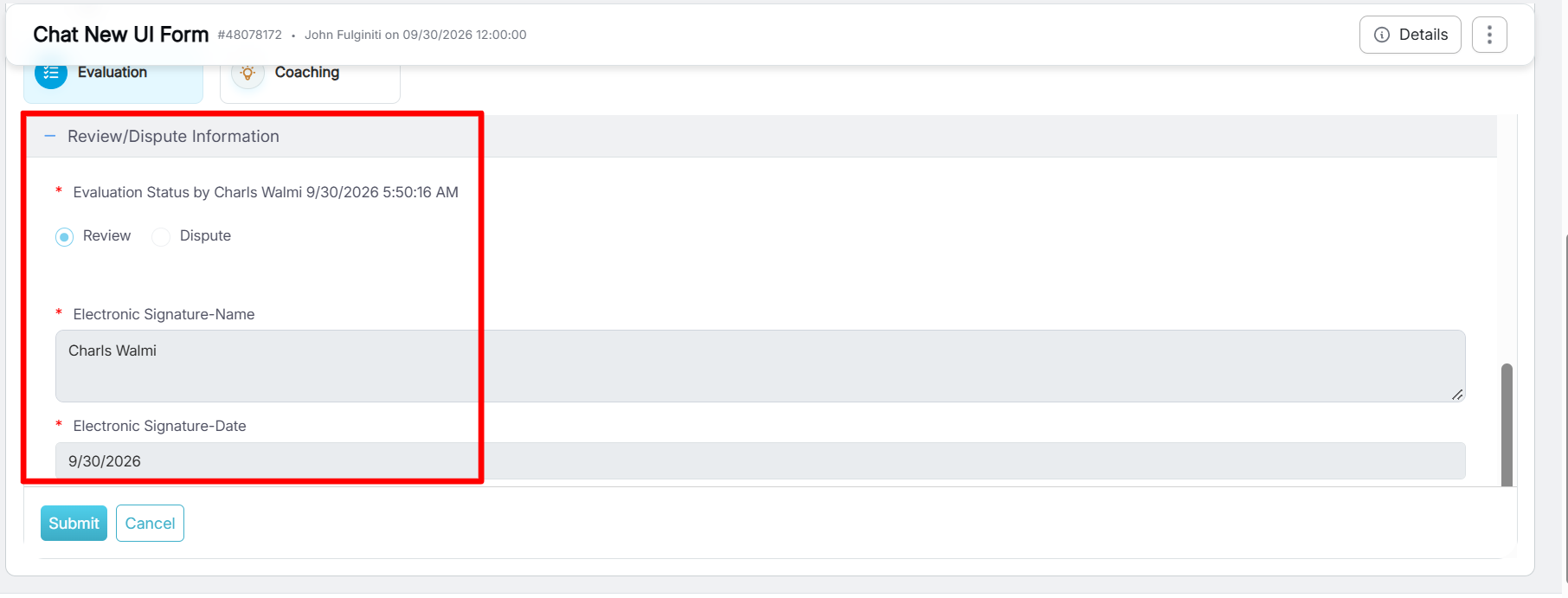
No Dispute
Electronic Signature
- Electronic Signature – Name – Automatically displays the logged-in user’s name when the dispute is submitted. This field is read-only and cannot be edited.
- Electronic Signature – Date – Automatically displays the current system date when the dispute is submitted. This field is read-only and cannot be edited.
Note: When a Proxy User reviews or submits a dispute on behalf of another user, the Electronic Signature – Name field automatically displays the logged-in Proxy User’s name.
Case 2: Overall Dispute
If an agent has already reviewed an evaluation and raised a general dispute (not at the parameter level), the evaluation will be displayed along with the agent’s dispute comments, as shown in the screen below.
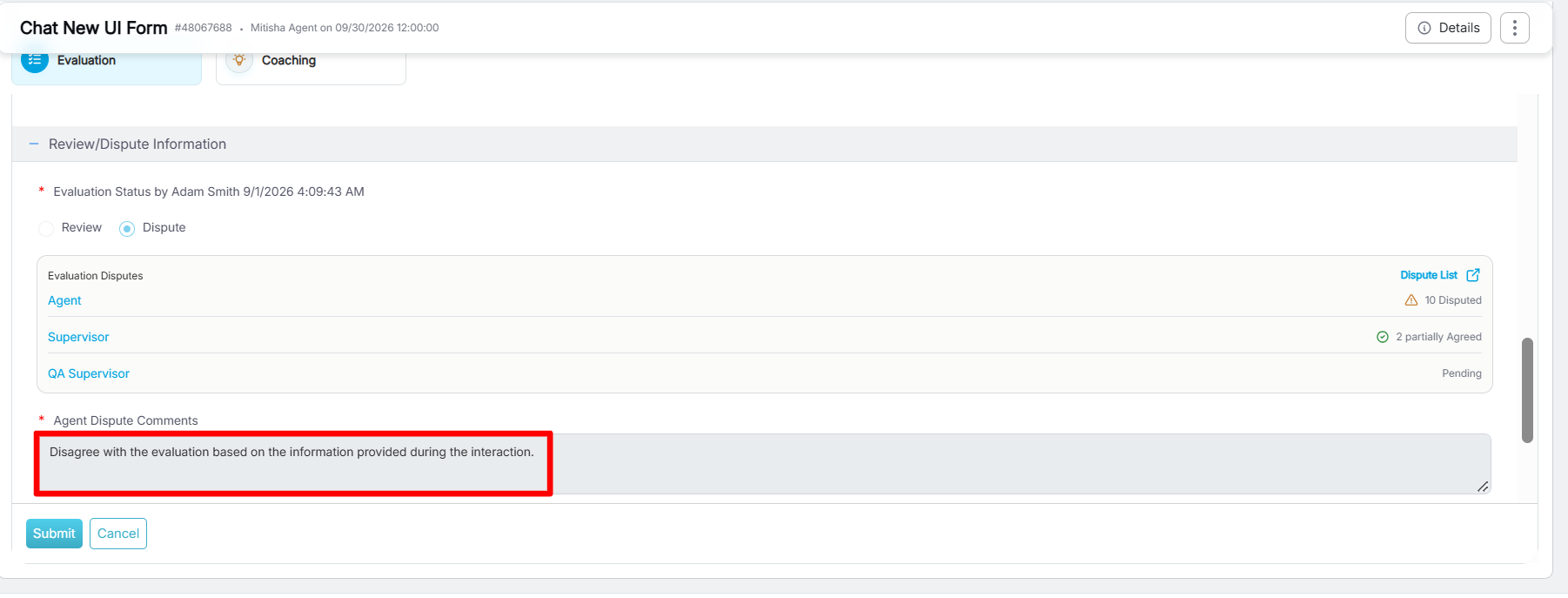
Agent Dispute Comments
After reviewing the agent’s dispute comments, follow these steps:
- Select Supervisor Dispute Status: Choose the appropriate status from the available options: Disputed, Supervisor Partially Agree, or Supervisor Disagree.
- Enter Supervisor Dispute Comments: Add relevant comments in the designated text box.
Electronic Signature
- Electronic Signature – Name – Automatically displays the logged-in user’s name when the dispute is submitted. This field is read-only and cannot be edited.
- Electronic Signature – Date – Automatically displays the current system date when the dispute is submitted. This field is read-only and cannot be edited.
Note: When a Proxy User reviews or submits a dispute on behalf of another user, the Electronic Signature – Name field automatically displays the logged-in Proxy User’s name.
Case 3: Question Based Dispute
If an agent raises a parameter-level dispute for specific questions, the disputed evaluation is displayed along with the agent’s Dispute Comments.
Select the relevant evaluation to review the disputed questions and the comments provided by the agent. After reviewing the dispute, follow these steps:
- Select Supervisor Dispute Status: Choose the appropriate status based on the review.
- If the Supervisor Partially Agrees: Select the checkbox for each disputed question the supervisor partially agrees with.
- If the Supervisor Disagrees: Select Disagree and enter the required Supervisor Dispute Comments explaining the decision.
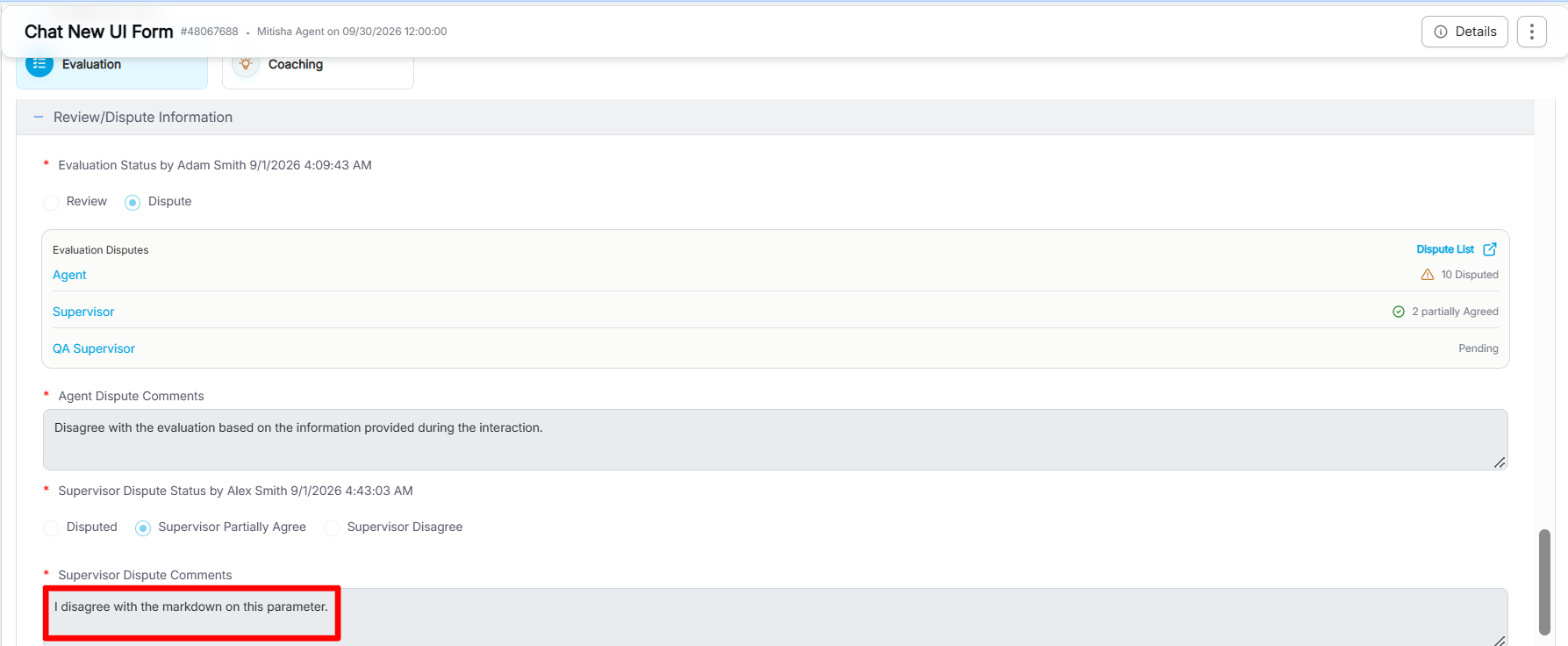
Supervisor Dispute Comments
- Select Supervisor Dispute Status: Choose the appropriate status from the available options: Disputed, Supervisor Partially Agree, or Supervisor Disagree.
- Enter Supervisor Dispute Comments: Provide relevant comments in the designated text box.
Electronic Signature
- Electronic Signature – Name – Automatically displays the logged-in user’s name when the dispute is submitted. This field is read-only and cannot be edited.
- Electronic Signature – Date – Automatically displays the current system date when the dispute is submitted. This field is read-only and cannot be edited.
Note: When a Proxy User reviews or submits a dispute on behalf of another user, the Electronic Signature – Name field automatically displays the logged-in Proxy User’s name.
Video