The Agent View offers a user-friendly interface enabling agents to review evaluations, raise disputes, and provide feedback on supervisory coaching. It is structured into specific scenarios based on the presence of features such as Overall Disputes, Question-Based Disputes, or No Dispute, as well as the coaching status provided by supervisors.
Following displayed is the Review/Dispute Information category for agents:
Case 1: No Dispute
The following screen will be displayed if the Question Based Dispute is not enabled for the specific form-
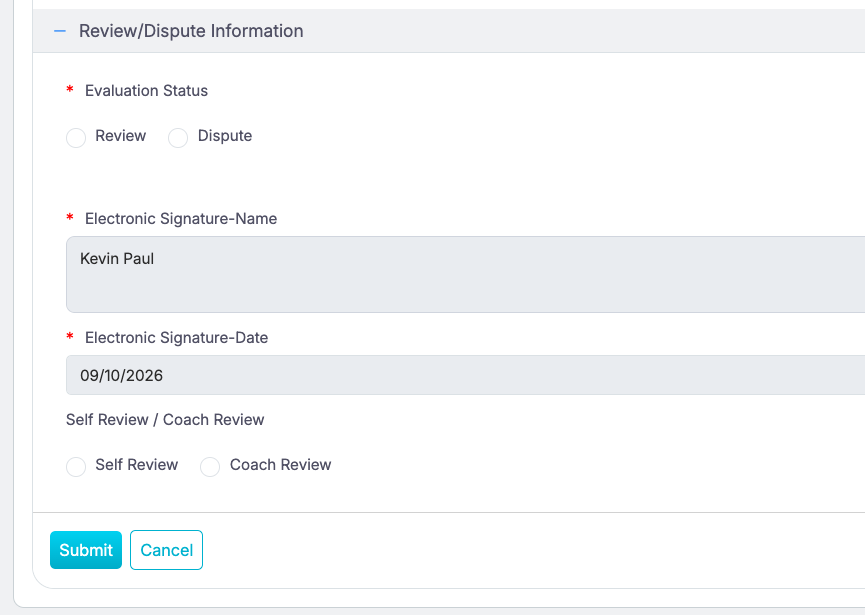
Self Review
Configure the following fields:
- Once the evaluation form is reviewed, select the Review radio button for the Evaluation Status field.
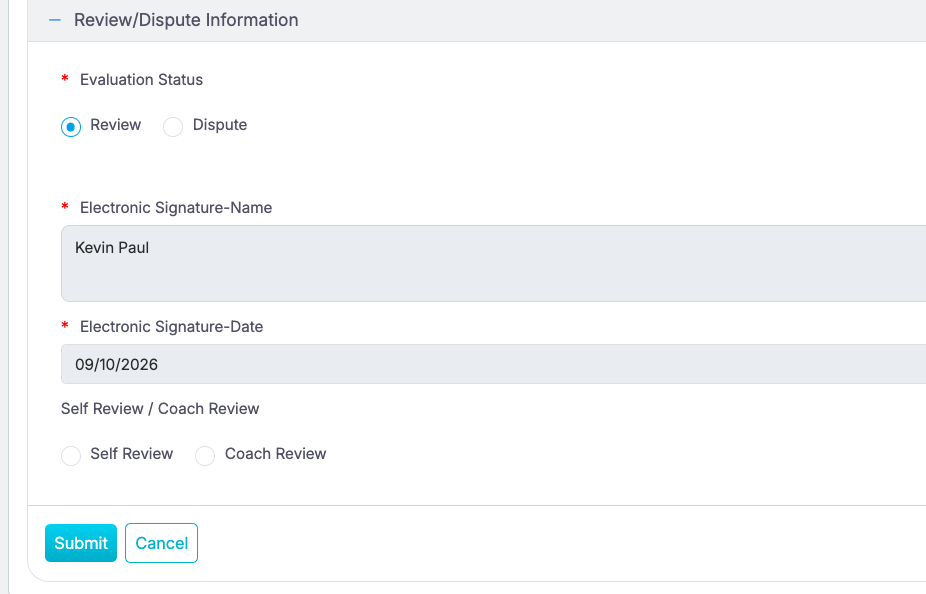
Configuring Fields
- Electronic Signature – Name – Auto-populated with the agent’s name.
- Electronic Signature – Date – Auto-populated with the date of the electronic signature.
- To self-review the particular evaluation form, select the Self Review radio button under Self Review/Coach Review. To rate the coach, select the Coach Review radio button.
Case 1.1
- If the supervisor has not provided any coaching, then the agents have to click on the Self Review radio button for the field Self Review/Coach Review and submit the evaluation.
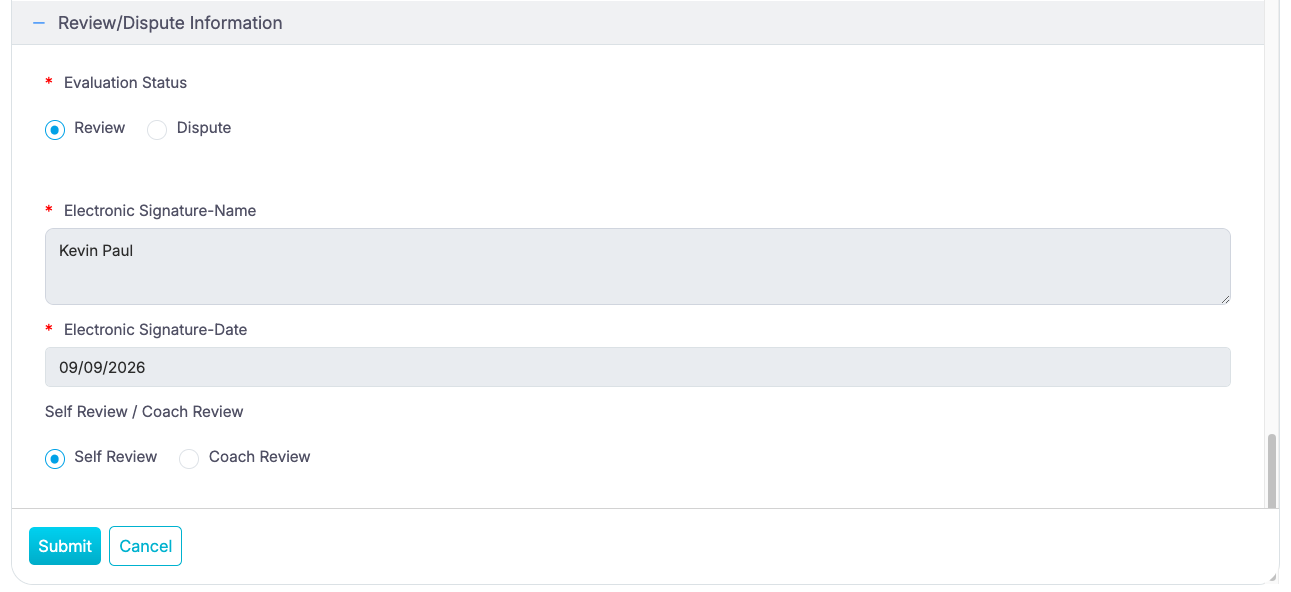
Self Review
Case 1.2
- If the supervisor has provided the coaching, then the agent has to click on the Coach Review radio button for the field Self Review/Coach Review which will display the coaching feedback survey.
- The agent has to rate his/her supervisor’s coaching on a scale between 1 and 5, with 1 being the worst and 5 as the best.
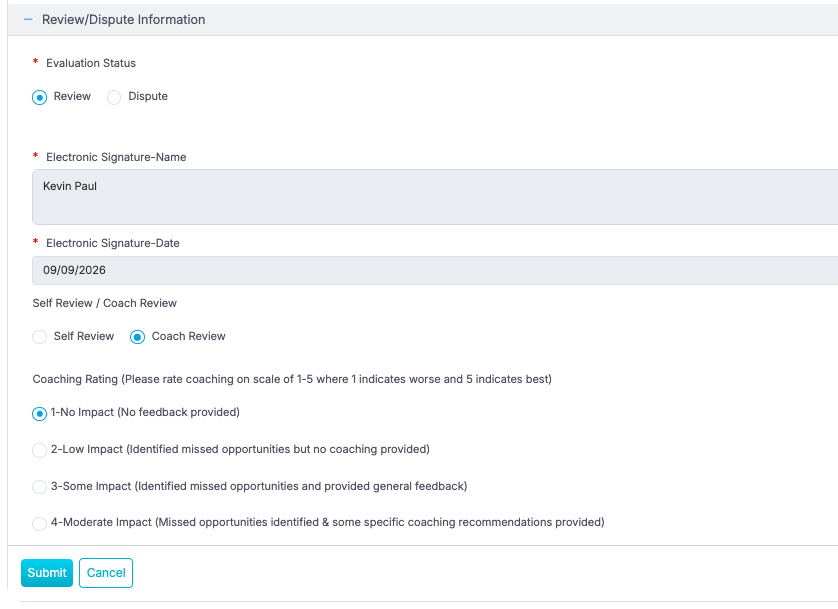
Coach Review
Once reviewed, click on the Submit button.
Case 2: Overall Dispute
The following screen will be displayed if the Dispute feature is enabled but not on the parameter level for the specific form-
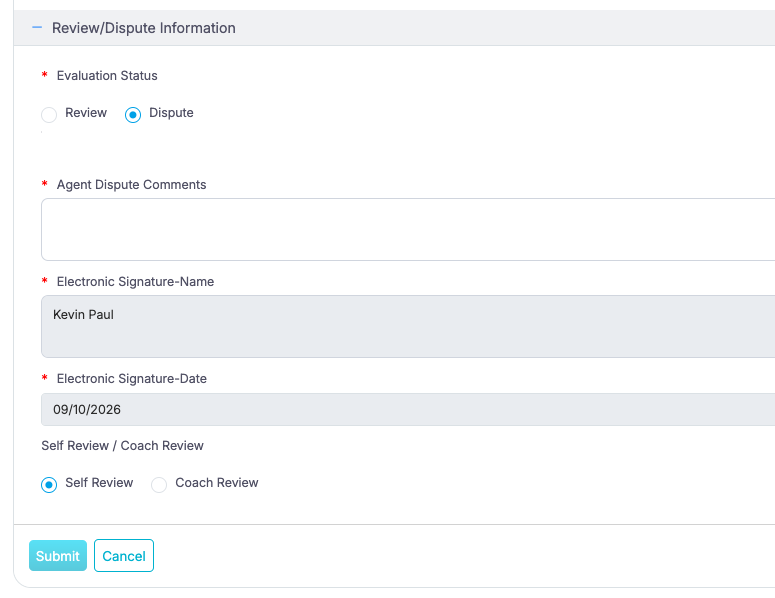
Overall Dispute
- Enter the required comments under the Agent Dispute Comments field.
- Electronic Signature – Name – Auto-populated with the agent’s name.
- Electronic Signature – Date – Auto-populated with the date of the electronic signature.
- To self-review the particular evaluation form, select the Self Review radio button under Self Review/Coach Review. To rate the coach, select the Coach Review radio button.
Notes: On selecting Dispute evaluation status, it is mandatory to add a comment.
Once reviewed, click on the Submit button.
Case 3:
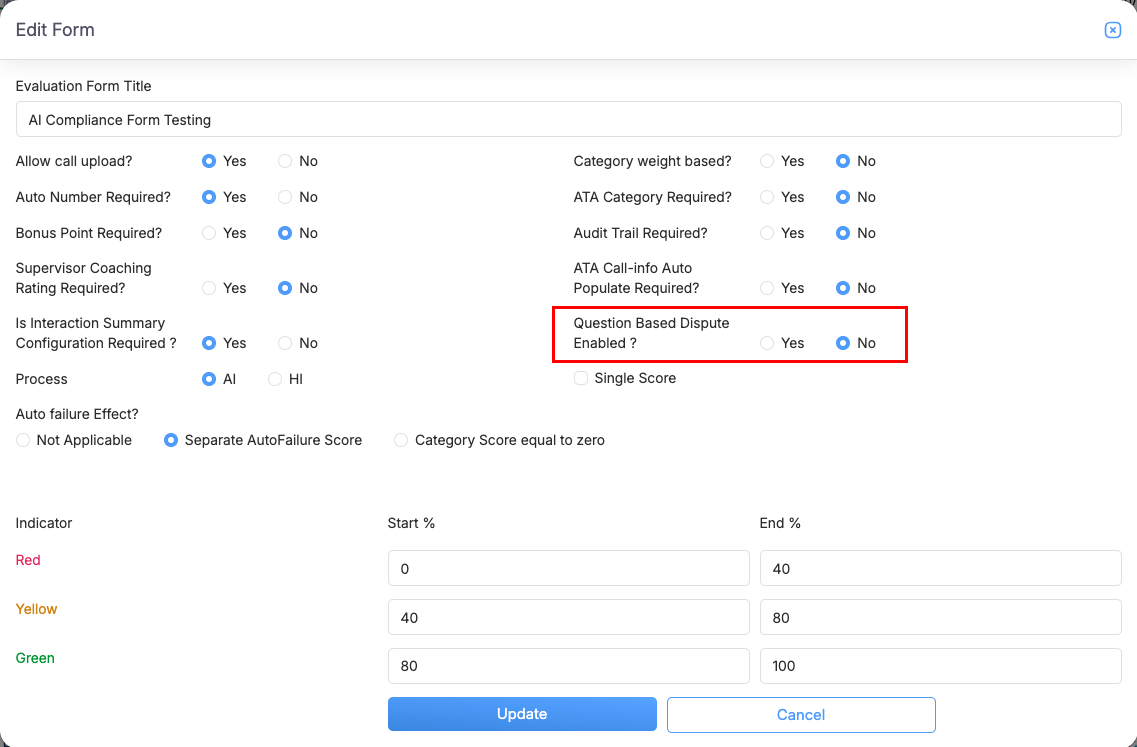
When the Question-Based Dispute feature is enabled for an evaluation form, agents can dispute individual parameters instead of disputing only the overall evaluation. After selecting Dispute under the Evaluation Status field, the message “You can also dispute at the parameter level” is displayed. Select the checkbox for the parameter(s) you want to dispute, enter comments for each selected parameter, and then submit the dispute.
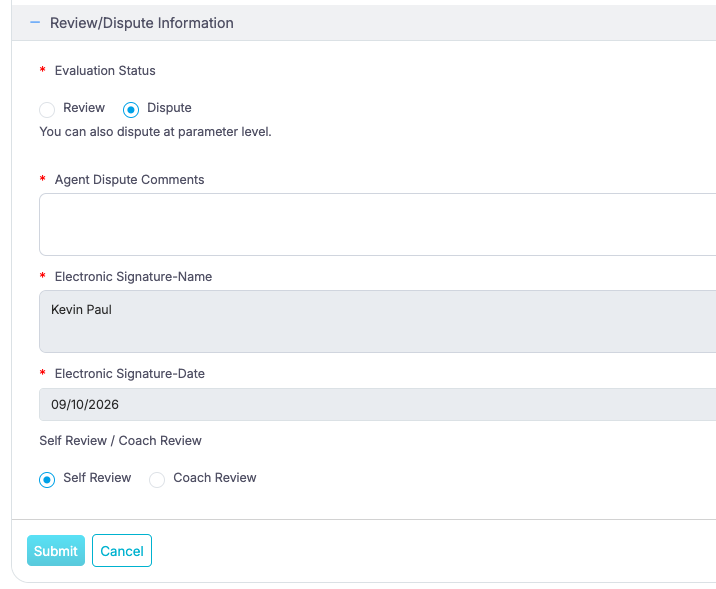
Dispute Button
Configure the following fields:
- Enter the reason for raising the dispute in the Agent Dispute Comments field.
- Select the checkbox corresponding to each parameter you want to dispute, and provide the required comments for every selected parameter.
- Electronic Signature – Name – Automatically populated with the name of the agent associated with the disputed evaluation.
- Electronic Signature – Date – Automatically populated with the date the electronic signature is generated.
- To self-review the particular evaluation form, select the Self Review radio button under Self Review/Coach Review. To rate the coach, select the Coach Review radio button.
Notes:
- On selecting the Dispute evaluation status, it is mandatory to add a comment.
- For forms with Question-Based Dispute Enabled, agents must select at least one parameter before submitting a dispute.
Upon selecting the Dispute radio button, agents can raise disputes at the question level across all question types, including those within Scorable and Non-Scorable categories. To submit dispute comments, agents must select at least one relevant question checkbox. Once a checkbox is selected, the corresponding comment box becomes available, allowing the agent to provide question-specific dispute remarks for the selected item.
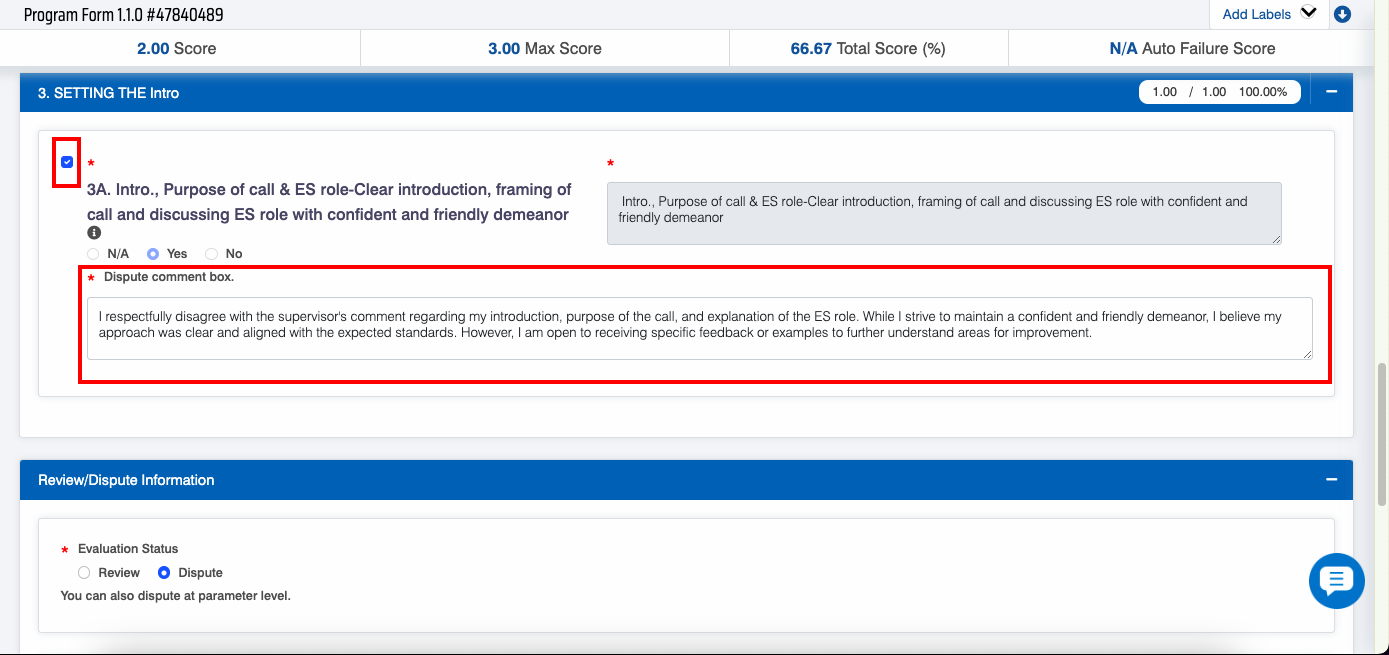
Parameter level Dispute
Agents may select multiple parameters and provide comments for each selected parameter. The Agent Dispute Comments field remains available for overall dispute feedback; however, overall comments alone do not satisfy the parameter-level dispute requirement.
If an agent attempts to submit a dispute without selecting any parameter, the system displays the validation message:
“Please select at least one parameter to proceed with the dispute.”
The dispute cannot be submitted until at least one parameter is selected. Once the requirement is met, the dispute can be submitted successfully.
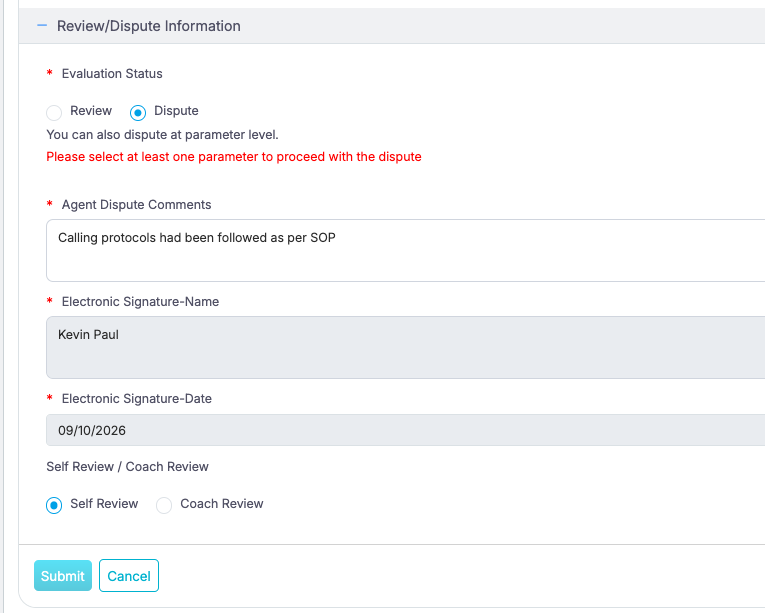
Question based dispute validation
Video