Table of Contents
- Coaching Dashboard
- Supervisor Coaching Dashboard
- Search Coaching
- Initiate Coaching
- Open For Supervisor
- Supervisor’s User Hierarchy
Coaching Dashboard
The Coaching Dashboard provides a centralized view of performance and coaching information, helping users monitor performance, identify areas for improvement, and manage coaching activities effectively. It brings key evaluation, performance, and coaching metrics together in a single view, with the information displayed based on the user’s assigned role and access.
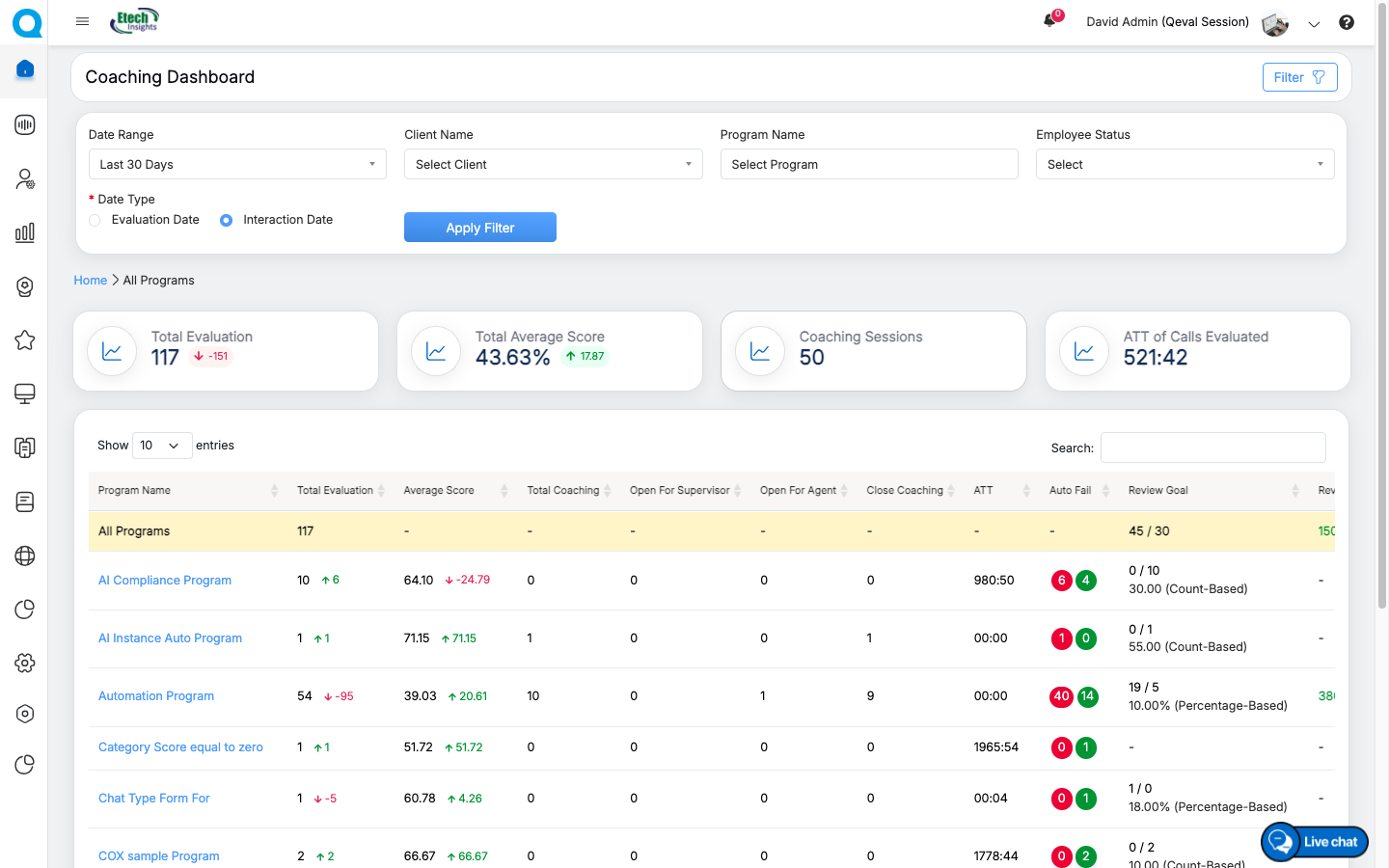
The Coaching Dashboard is available to users across supported QEval roles, including Admin, Agent, Supervisor, QA Manager, QA Verifier, QA Supervisor, and VP, when the Coaching Dashboard permission is assigned under Access Rights.
Note: Access to the Coaching Dashboard is controlled through the Coaching Dashboard permission. The data and actions available to users continue to follow the access rules applicable to their assigned role.
Assign Coaching Dashboard Access Rights
Administrators can provide Coaching Dashboard access to users by enabling the Coaching Dashboard permission under Access Rights while creating or editing a user.
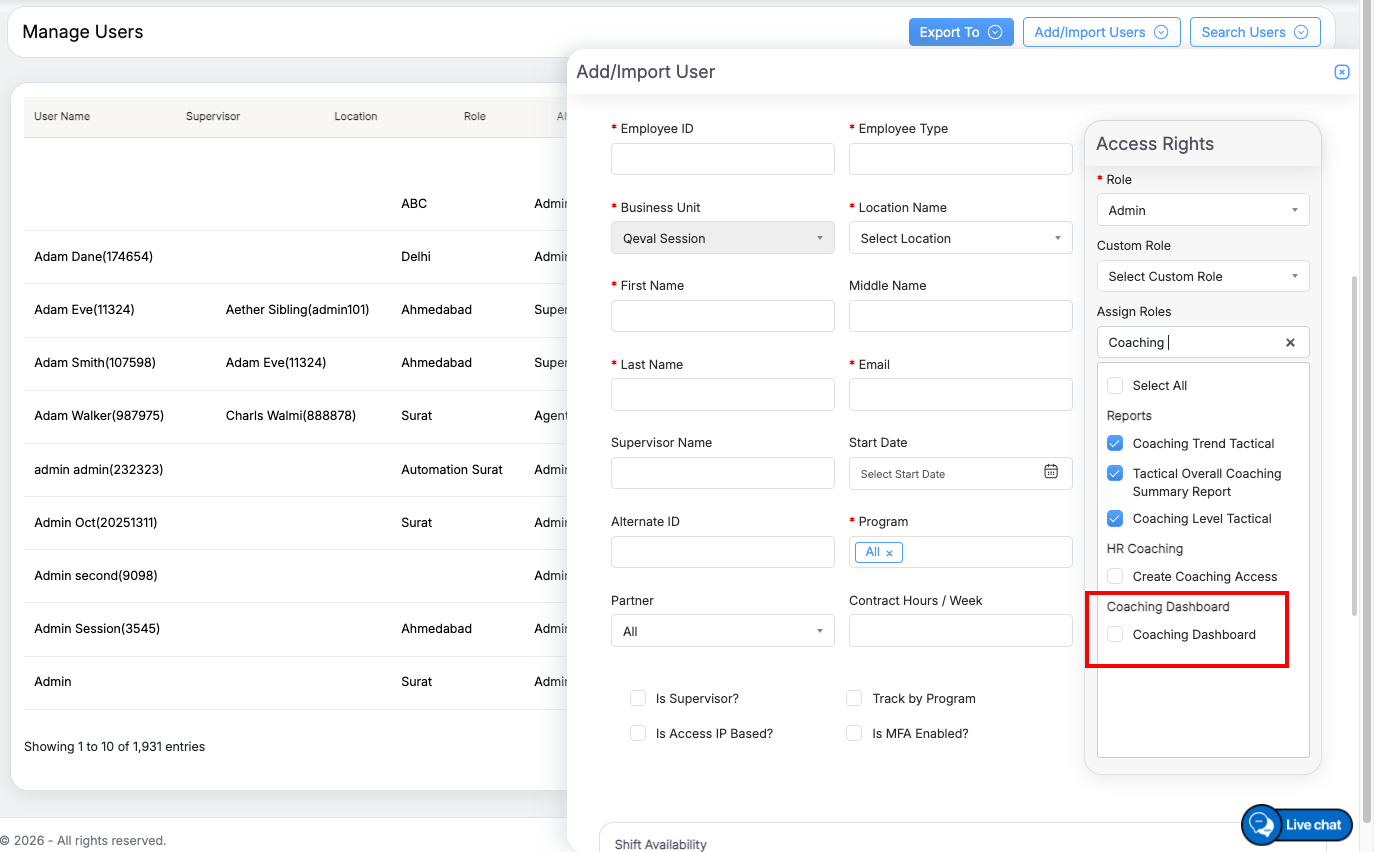
For Agent and Supervisor roles, the Coaching Dashboard permission is enabled by default. For other roles, the permission can be enabled by an administrator when access is required.
Once the Coaching Dashboard permission is assigned, the user can access the Coaching Dashboard based on the data visibility and functionality applicable to their role.
Accessing the Coaching Dashboard
Users with the required role and Coaching Dashboard permission can access the dashboard from the QEval portal.
After logging in with their assigned user ID and password, click the Menu button or move the mouse to the left side of the page to open the Menu Bar. Navigate to Home and select Coaching Dashboard.
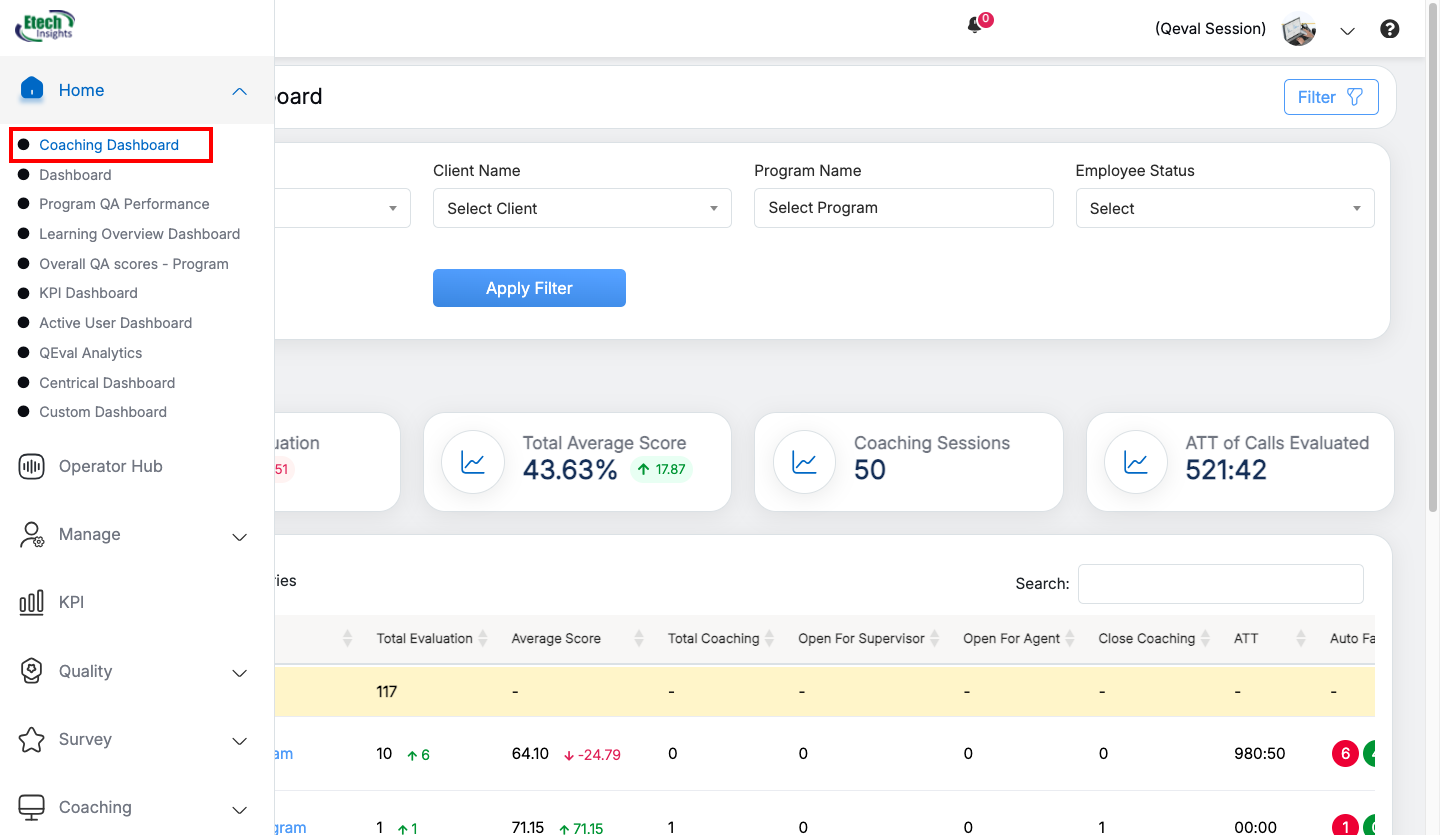
The system displays the Coaching Dashboard based on the user’s assigned role and access.
Note: If the Coaching Dashboard permission is not assigned, the user is redirected to the default dashboard.
Coaching Dashboard Views
The Coaching Dashboard provides role-specific views to support different coaching and performance management requirements.
Supervisor Coaching Dashboard
The Supervisor Coaching Dashboard provides supervisors with a centralized view of agent performance and coaching activities. Supervisors can monitor team performance, review coaching details, identify areas for improvement, and initiate or manage coaching activities.
Supervisors can also use available filters and program selections to review performance information for specific clients, programs, employees, and date ranges.
For detailed information, see: Supervisor Coaching Dashboard.
Agent Coaching Dashboard
The Agent Coaching Dashboard provides agents with a personalized view of their performance and coaching information. Agents can review their own performance results, coaching activities, and related improvement information.
Agents can access only the data applicable to their own profile.
For detailed information, see: Agent Coaching Dashboard.
Coaching Dashboard for Other Roles
Users with roles such as Admin, QA Manager, QA Verifier, QA Supervisor, and VP can also access the Coaching Dashboard when the Coaching Dashboard permission is assigned.
These users can view applicable coaching and performance information without reporting hierarchy restrictions, subject to their assigned access.
Note: For Agents and Supervisors, existing role-based and hierarchy-based access rules continue to apply. For other supported roles, Coaching Dashboard access is determined by the assigned Coaching Dashboard permission.
Supervisor Coaching Dashboard
The Supervisor Coaching Dashboard helps supervisors monitor agent performance and provide coaching more effectively. It offers a single view of team performance, making it easier to track progress, identify areas for improvement, and manage different programs using filters and program selection options. The dashboard also includes trend analysis tools to help supervisors review team performance over time and make informed decisions.
After logging in with their assigned user ID and password (see QEval Login for the login process), supervisors are taken directly to the Supervisor Dashboard.
Supervisors can also open the Supervisor Coaching Dashboard by clicking the Menu button, or by moving the mouse to the left side of the page to open the Menu Bar. Then, select Home and click Coaching Dashboard:
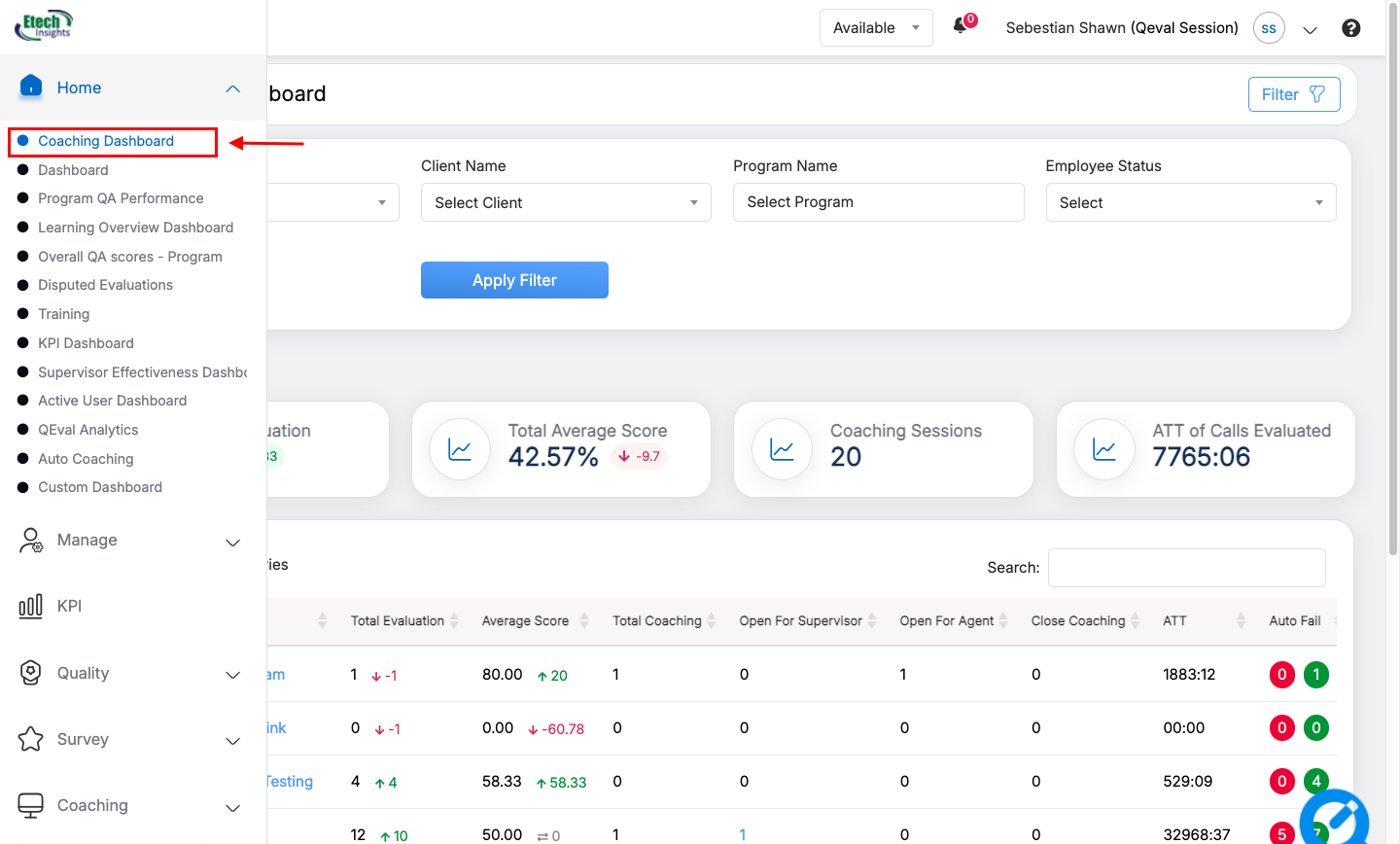
Supervisor Coaching Dashboard
The logged-in supervisor will be directed to the Supervisor Dashboard page. Here the supervisor will be able to view, monitor, search and coach agent’s performance. Furthermore, the supervisor can also initiate the coaching for specific agent based on program names.
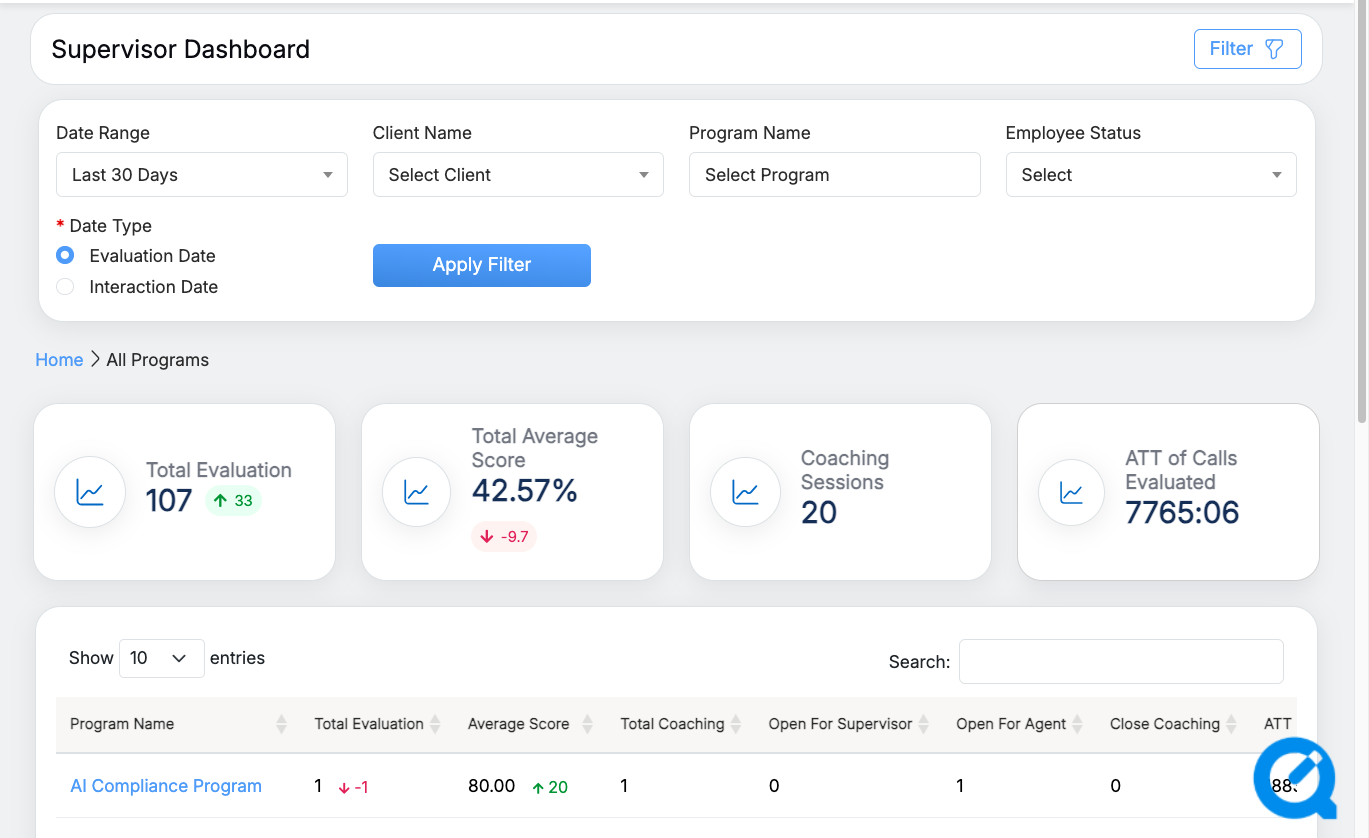
Supervisor Dashboard
Supervisor Dashboard
The Supervisor Dashboard page displays the numeric data of various categories of Total Evaluation, Total Average Score, Coaching Sessions, and ATT of Calls Evaluated. The default view displays the summary of the last four week’s data on the dashboard.
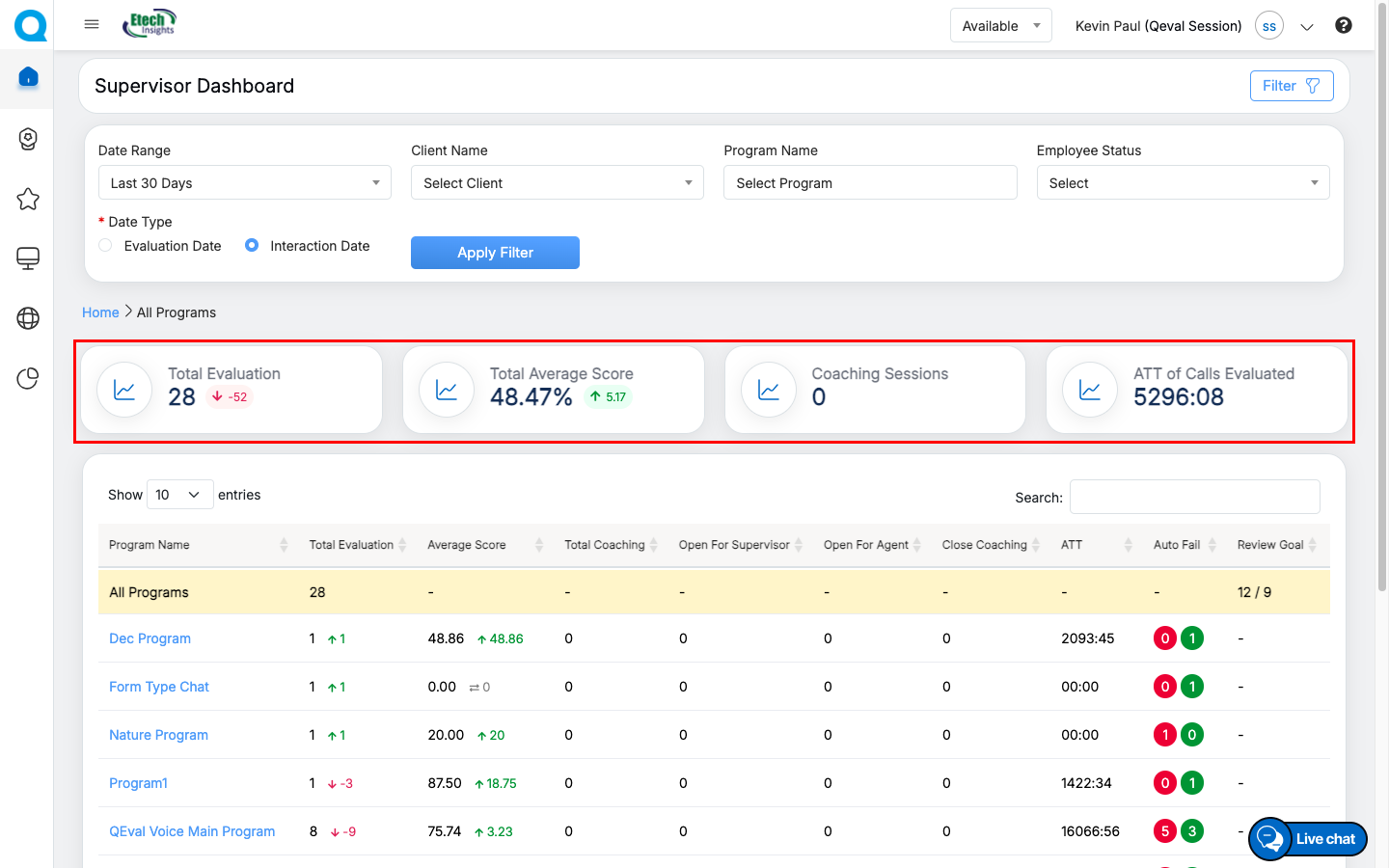
Supervisor Dashboard: Numeric Data
- Total Evaluation: Displays the number of total evaluations of the agent and the numeric value displays the data for each program. It also shows the difference with the previous date range with Up Arrow
 and numeric value in green color or with Down Arrow
  and numeric value in red color.
 - Total Average Score: Displays the total average score of the agent in percentage and the numeric value displays the data for each program. It also shows the difference with the previous date range with Up Arrow and numeric value in green color or with Down Arrow and numeric value in red color.
- Coaching Sessions: Displays the total number of coaching sessions of agent and the numeric value displays the data for each program.
- ATT of Calls Evaluated: Displays the agent’s average time handling of the evaluated calls, the numeric value displays the data for each program.
By default, 10 program entries will be displayed in the table grid. To view more entires on the same page, click on the Show drop-down menu, and select the number of entries to view the coaching details.
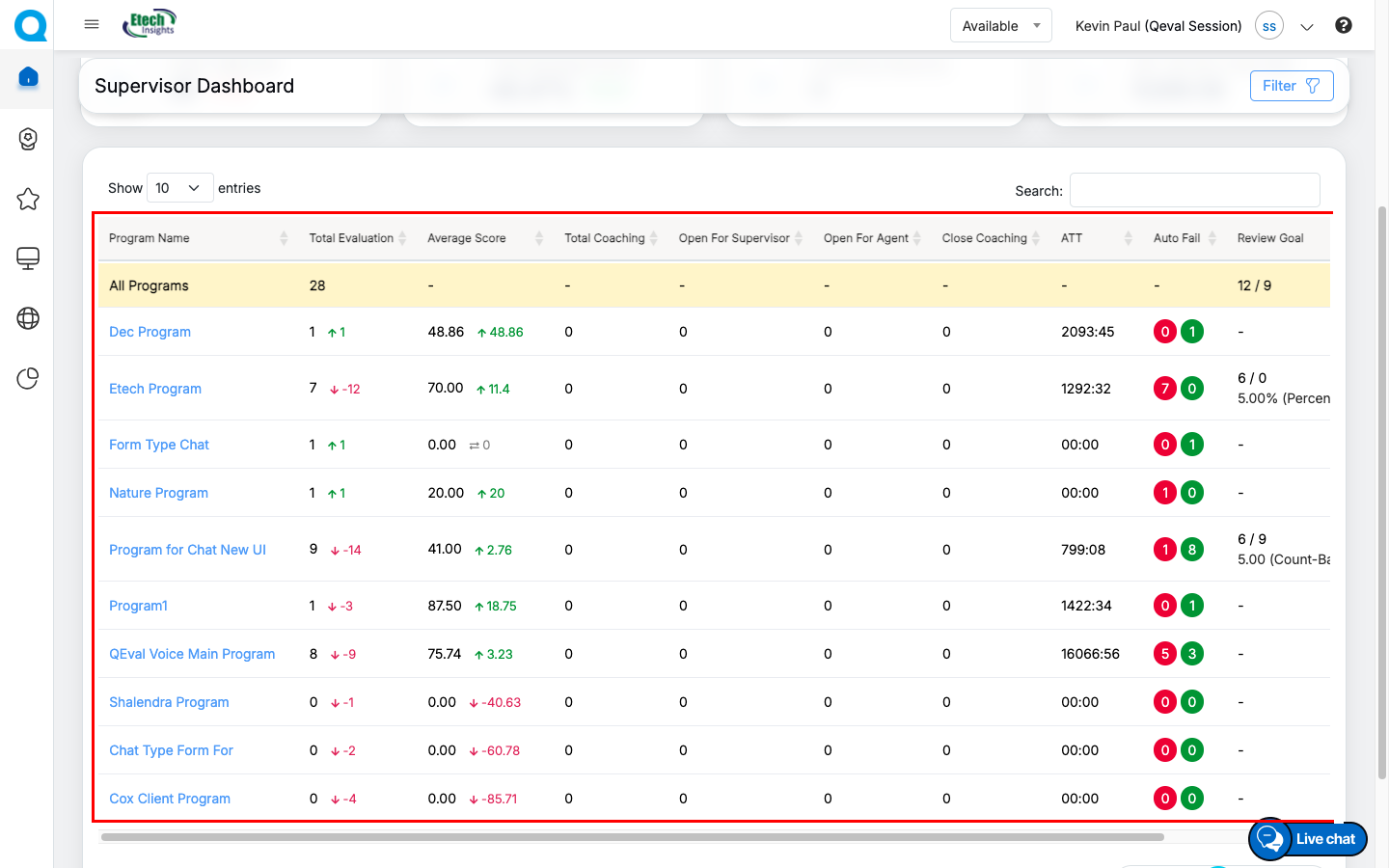
The All Programs row, displayed at the top of the table, summarizes the combined metrics for all programs. The rows below display review and performance details for each individual program.
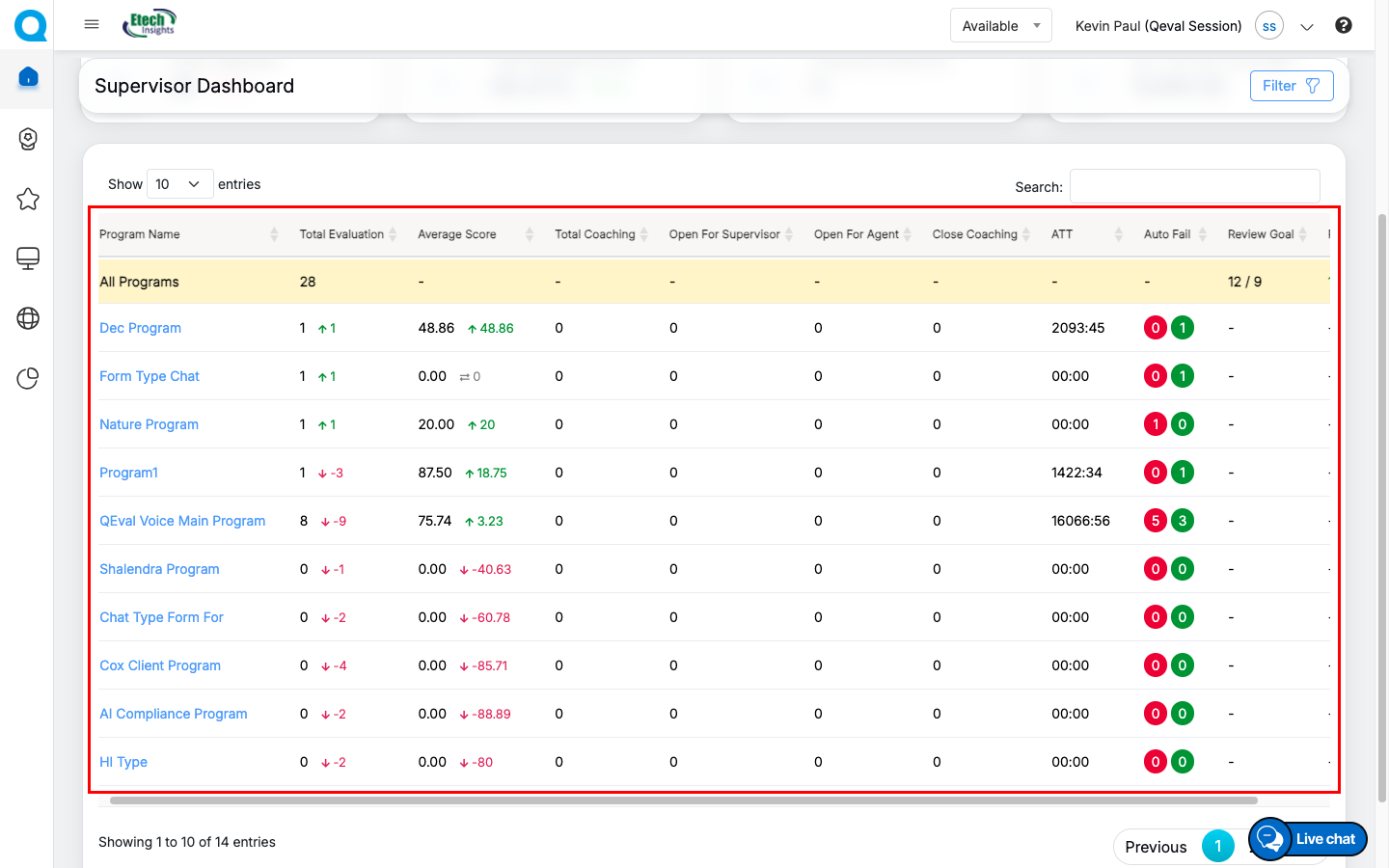
Supervisor Dashboard: Numeric Data
The logged-in supervisor can search specific coaching details displayed in the table grid by entering the keywords in the Search Bar Text-Box. Based on the entered keyword, the specific coaching details will be displayed in the table grid.
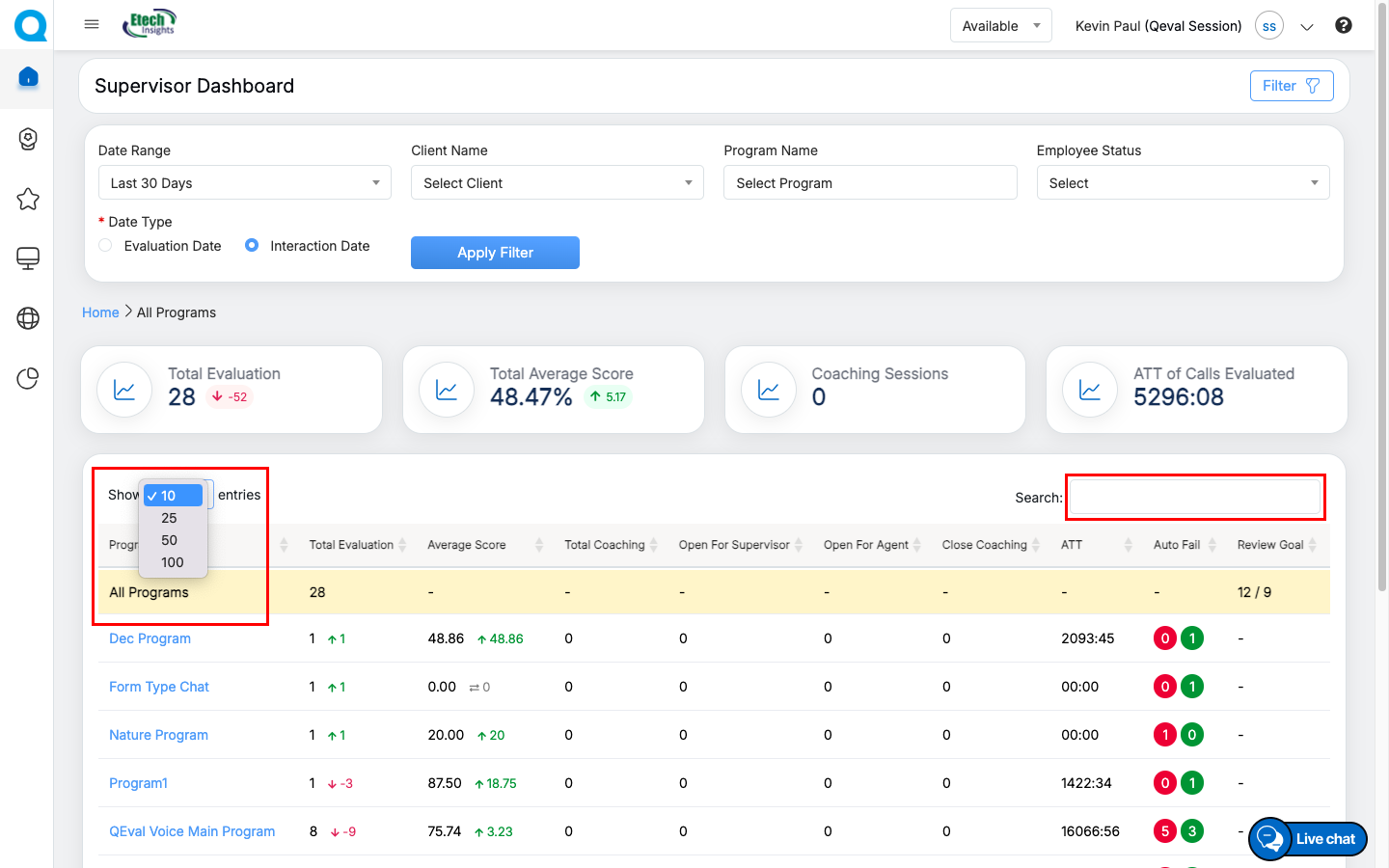
Supervisor Dashboard
The data elements displayed on the table grid are explained below:
| Table Elements | Description |
| Program Name |
Displays the name of the programs. The program name link allows the supervisor to Initiate Coaching for the specific agent. |
| Total Evaluation | Displays the number of the total evaluations of the agent and the numeric value displays the data of the specific program. It also shows the difference with the previous date range with Up Arrow and numeric value in green color or with Down Arrow and numeric value in red color. |
| Average Score | Displays the average score of the agent and the numeric value displays the data for specific program. It also shows the difference with the previous date range with Up Arrow and numeric value in green color or with Down Arrow and numeric value in red color. |
| Total Coaching | Displays the total number of coaching sessions of the agent for the specific program. |
| Open for Supervisor |
Displays the total number of coaching open for supervisor of all the agents for specific program. The number link allows the supervisor to view all the coaching details completed by agent, submit the feedback and close the coaching completed by the agents for specific program. |
| Open for Agent | Displays the total number of assigned coaching open for the agent for specific program. |
| Close Coaching | Displays the total number of assigned coaching completed and closed by the supervisor. |
| ATT | Displays the agent’s average time handling of the evaluated calls for specific program. |
| AutoFail | Displays the agent’s autofail scores of the evaluated calls for specific program. |
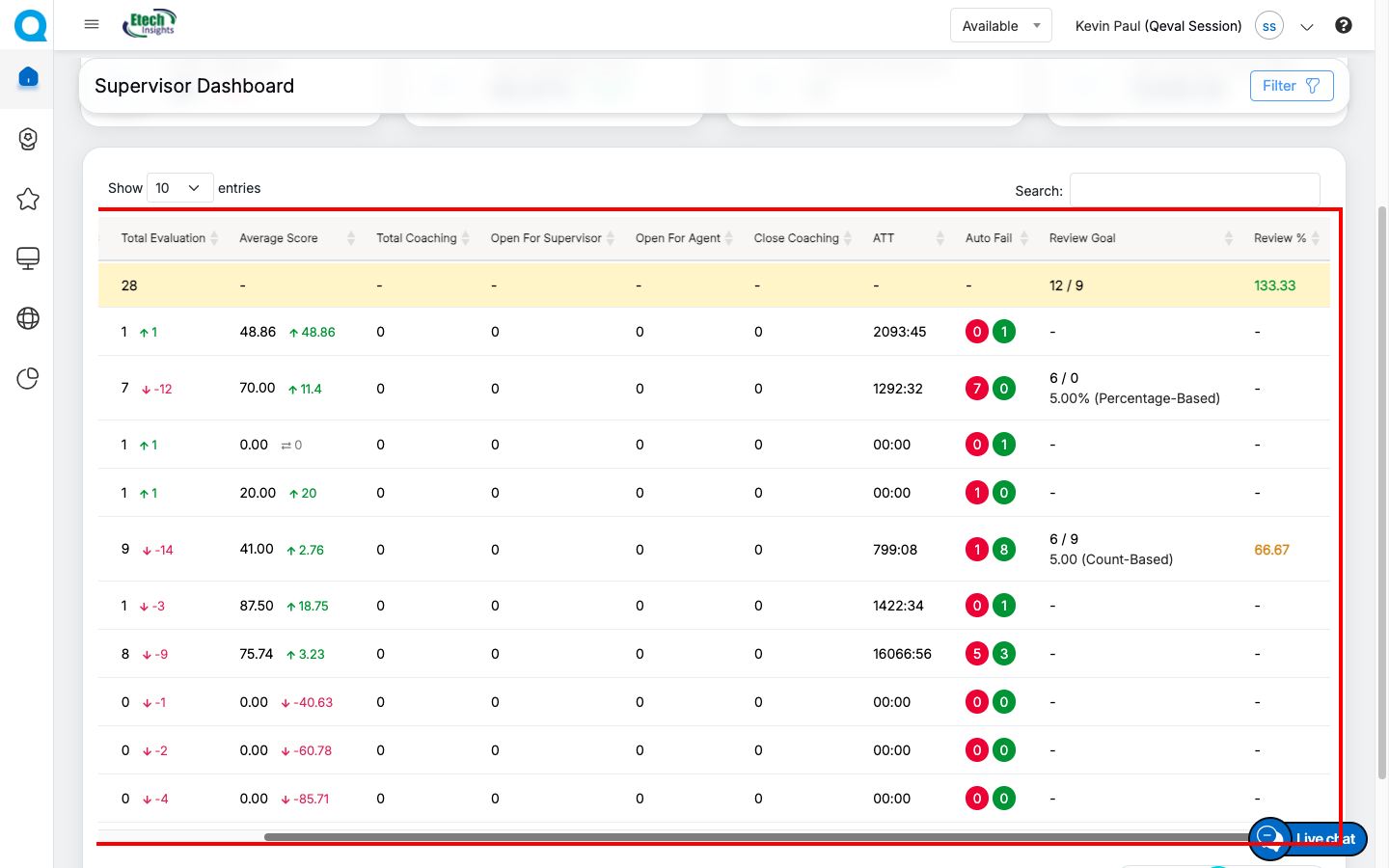
| Review Goal | Displays the number of completed reviews against the required review target for the program. For Count goals, it shows Completed Reviews / Configured Review Goal. For Percentage goals, it shows Completed Reviews / Calculated Required Reviews based on the configured review percentage. |
| Review % | Displays the review goal achievement percentage, calculated by comparing completed reviews against the required review target. The value is color-coded to indicate performance: Red (0–40%), Yellow (41–80%), and Green (Above 81%). |
Supervisor Dashboard
Supervisor Dashboard
Search Coaching
The logged-in supervisor will have an option to search specific coaching details based on client and program names and can initiate the coaching for specific agent based on program names.
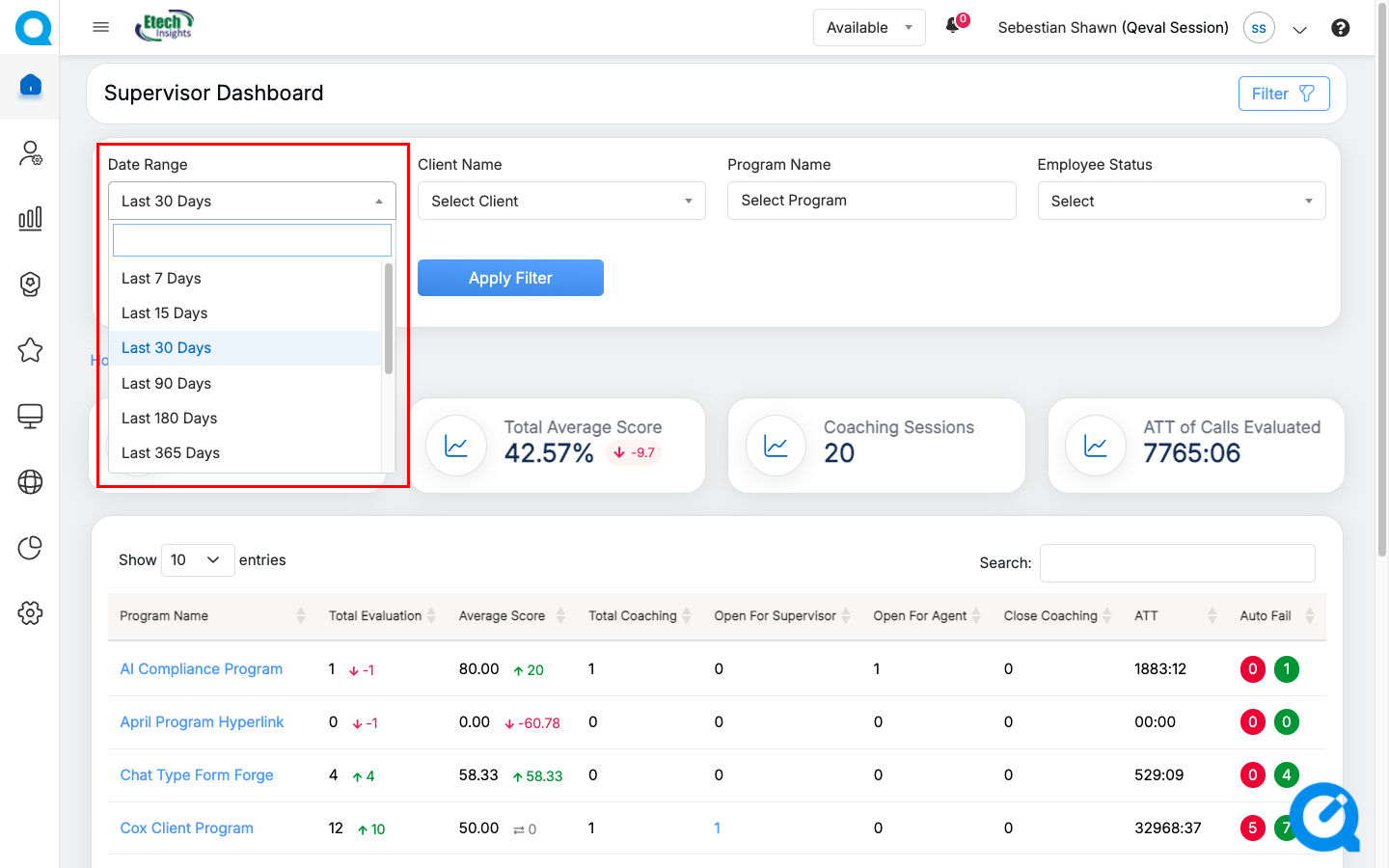
To access this feature, on the Supervisor Dashboard page select the Date Range, Client Name, and Program Name from the respective drop-down fields as explained below:
- Select the Date Range from the drop-down menu for the specific program which includes:
- Last 7 Days
- Last 15 Days
- Last 30 Days
- Last 90 Days
- Last 180 Days
- Last 365 Days
Search Coaching
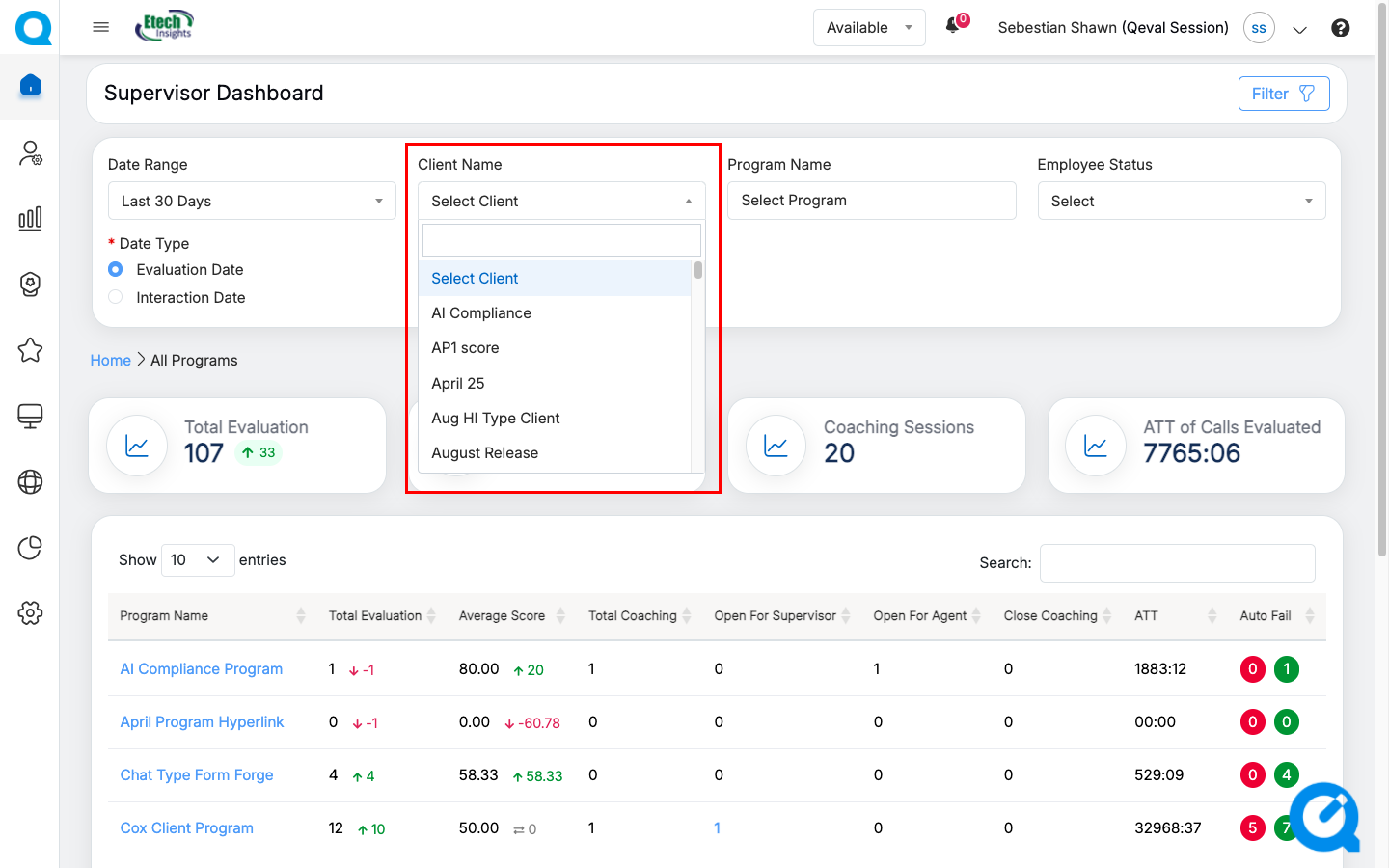
- The Client Name drop-down menu displays the list of clients. Select the name of the client from the list. One can also search for the name of the client by entering keywords in the Search Bar Text-Box displayed under the drop-down field.
- The Program drop-down menu displays the list of program names as per the selection of client name. Select the name of the program from the list. One can search the name of the program by entering the keywords in the Search Bar Text-Box displayed under the field.
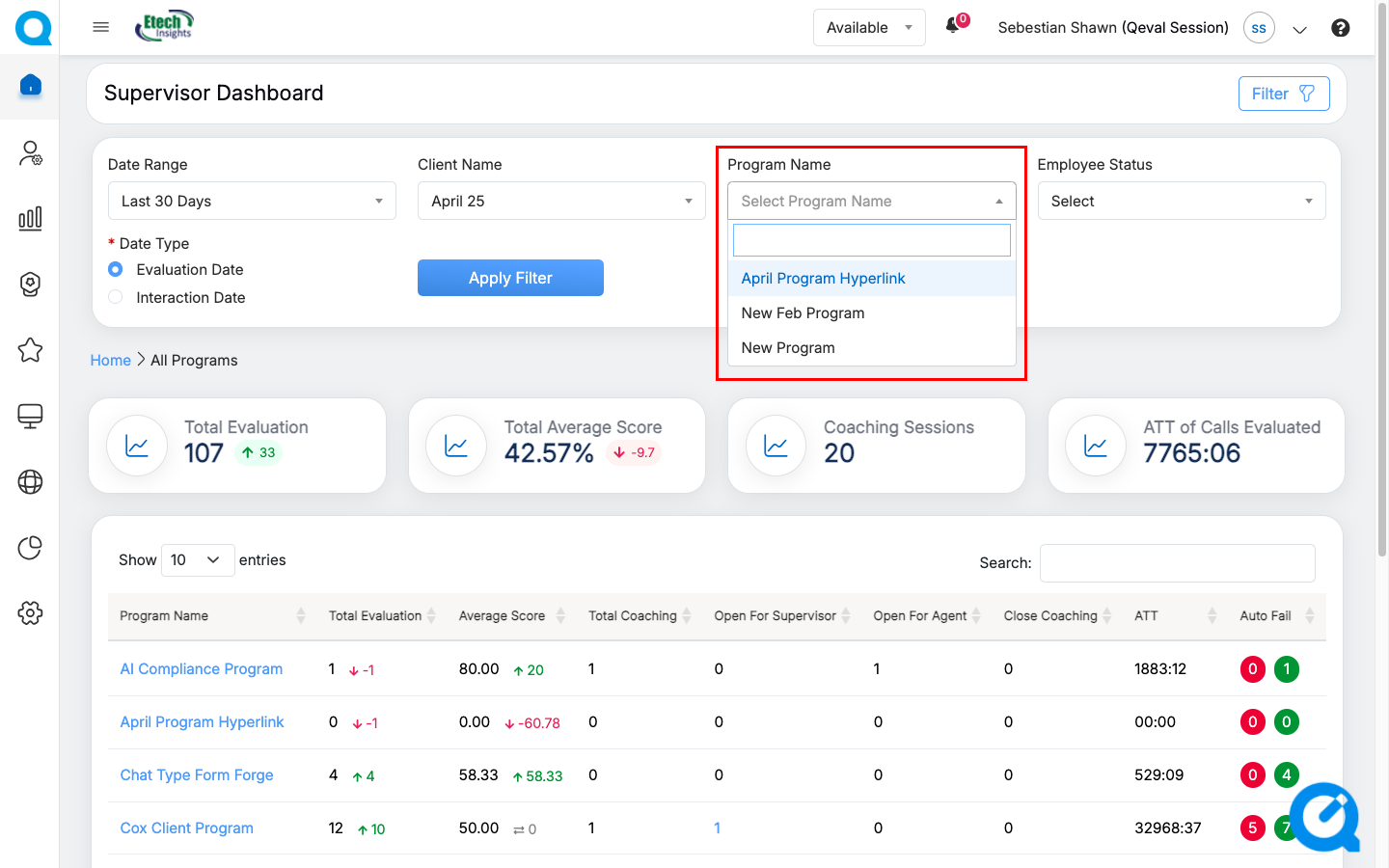
Program Name Drop Down Menu
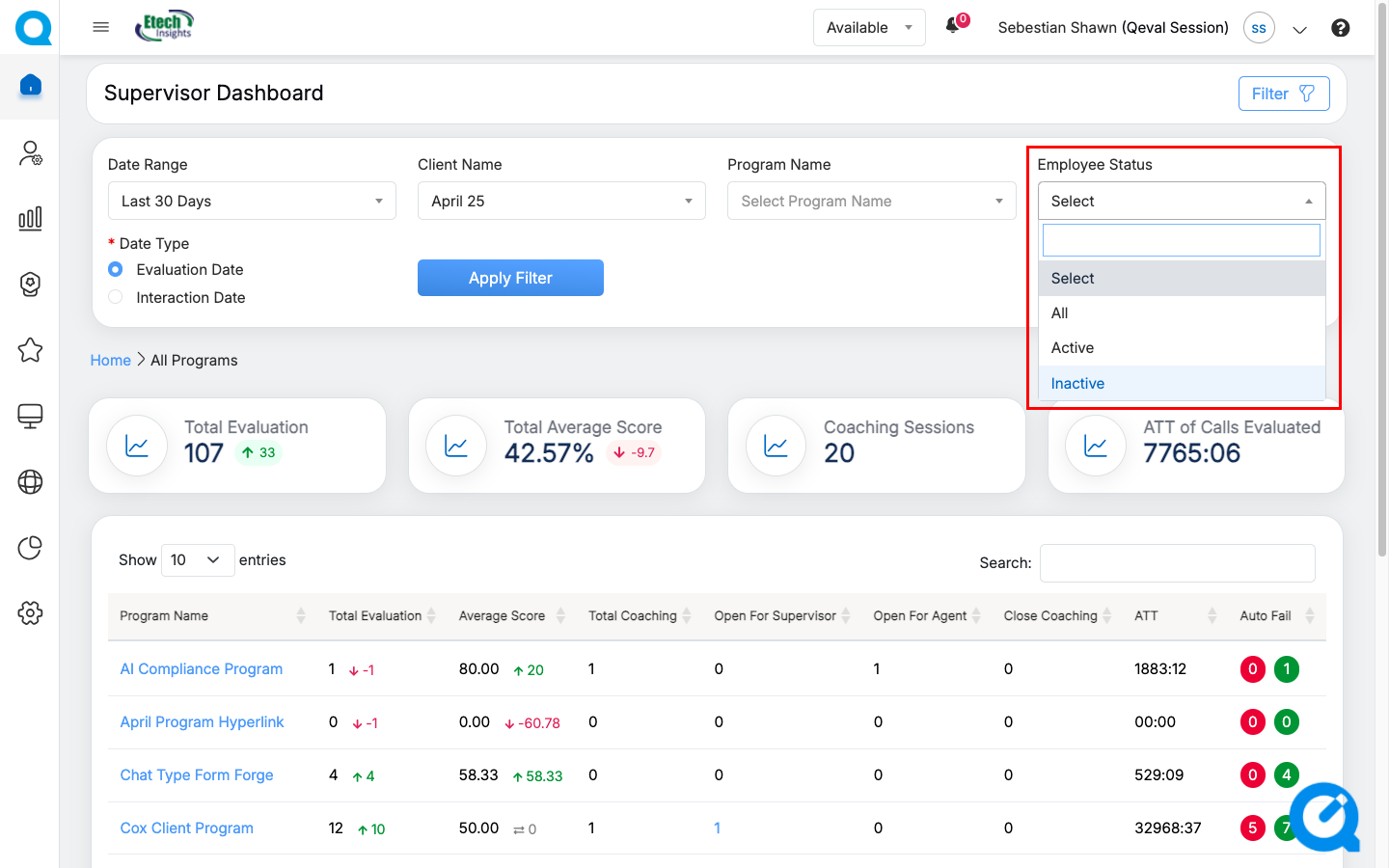
- Employee Status: Select the Employee status as Active, Inactive, or All to filter the results accordingly.
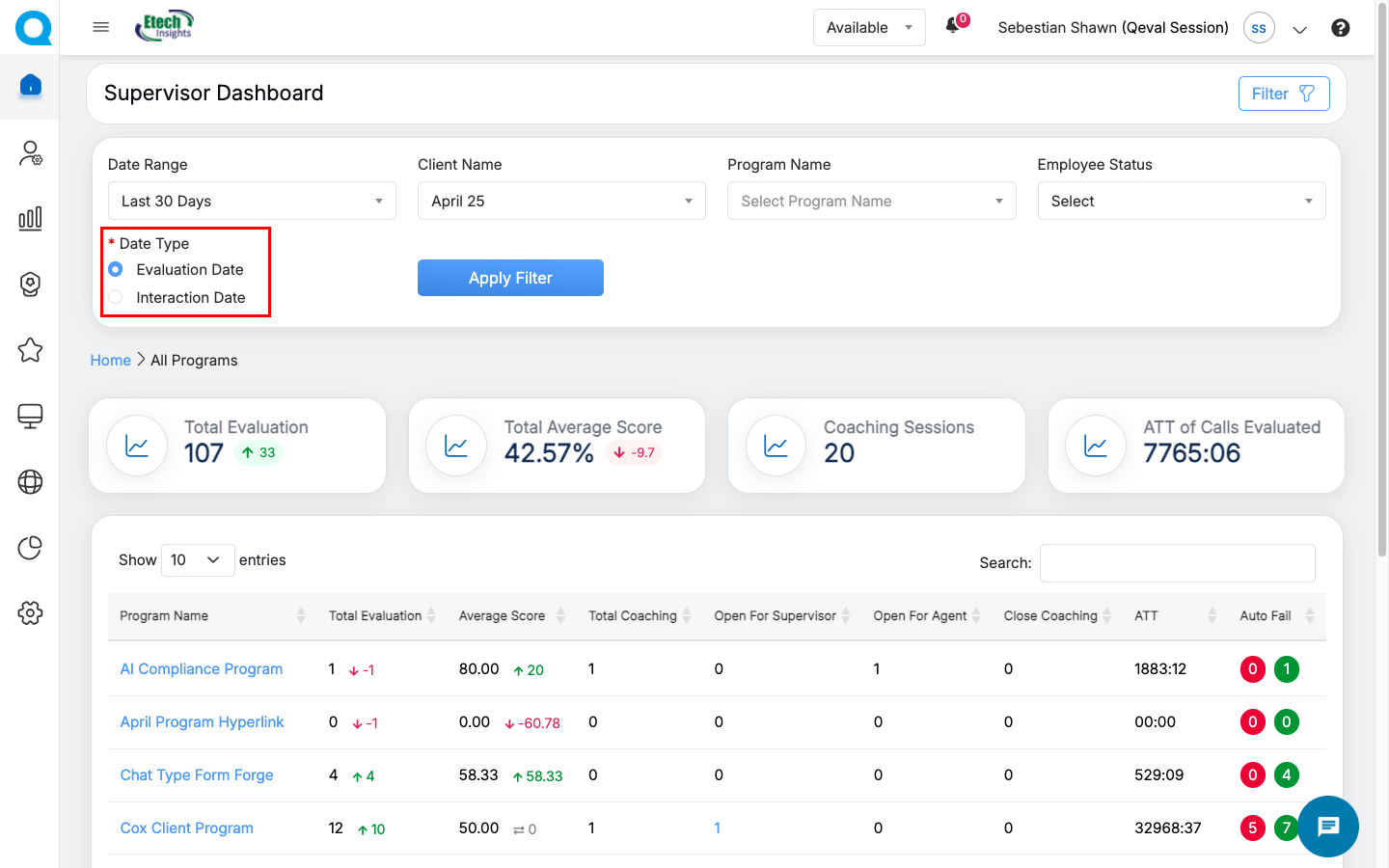
- Date Type: Select the required date type as Evaluation Date or Interaction Date.
Note: In QEval AI instances, Interaction Date is selected by default as the Date Type in the filter panel. You can change the Date Type to Evaluation Date whenever required.
Once the necessary specific details are selected, click on the Apply Filter button to search specific coaching details.
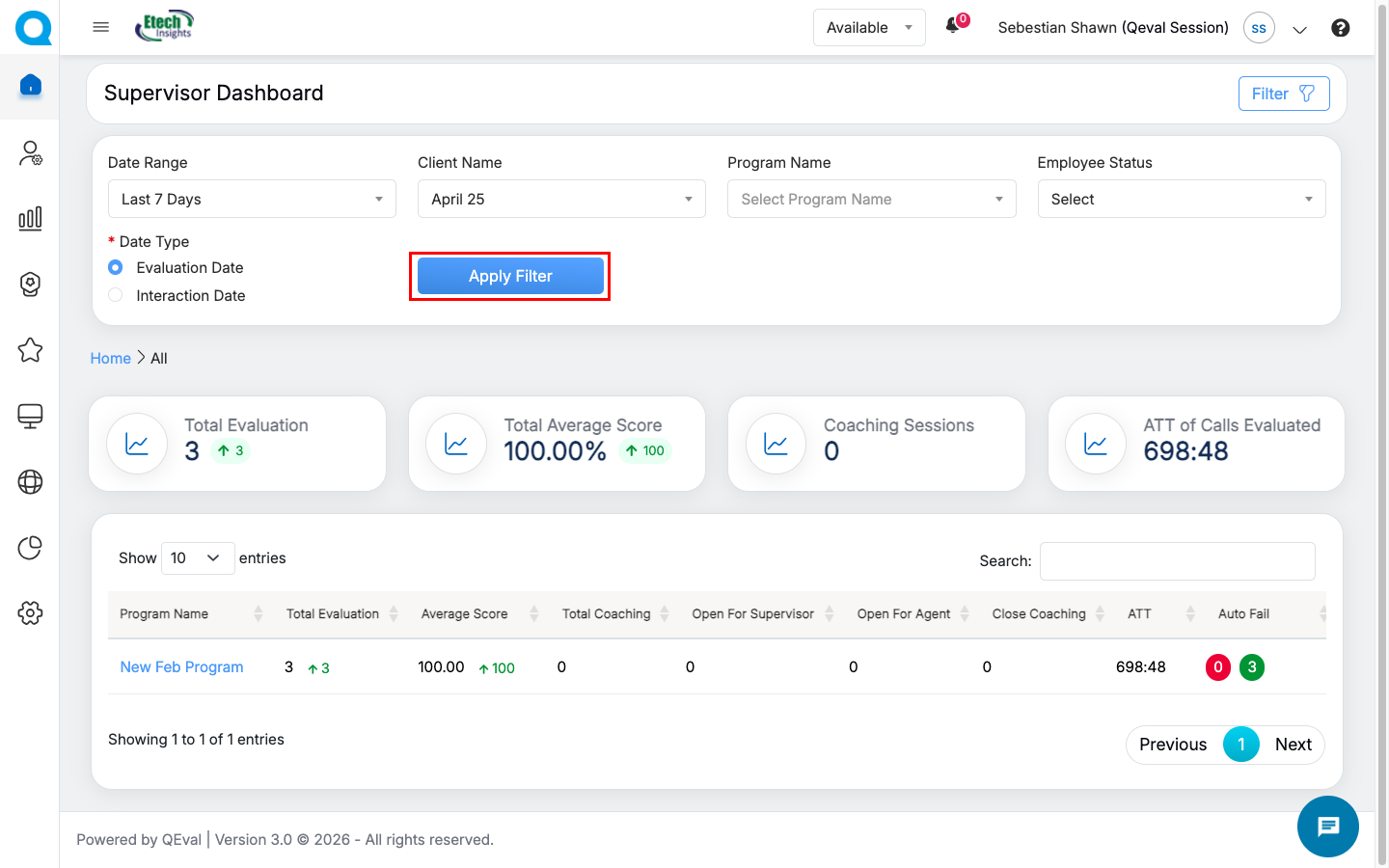
Apply Filter Button
Based on the selected criteria the search results will be displayed in the table grid as shown below:
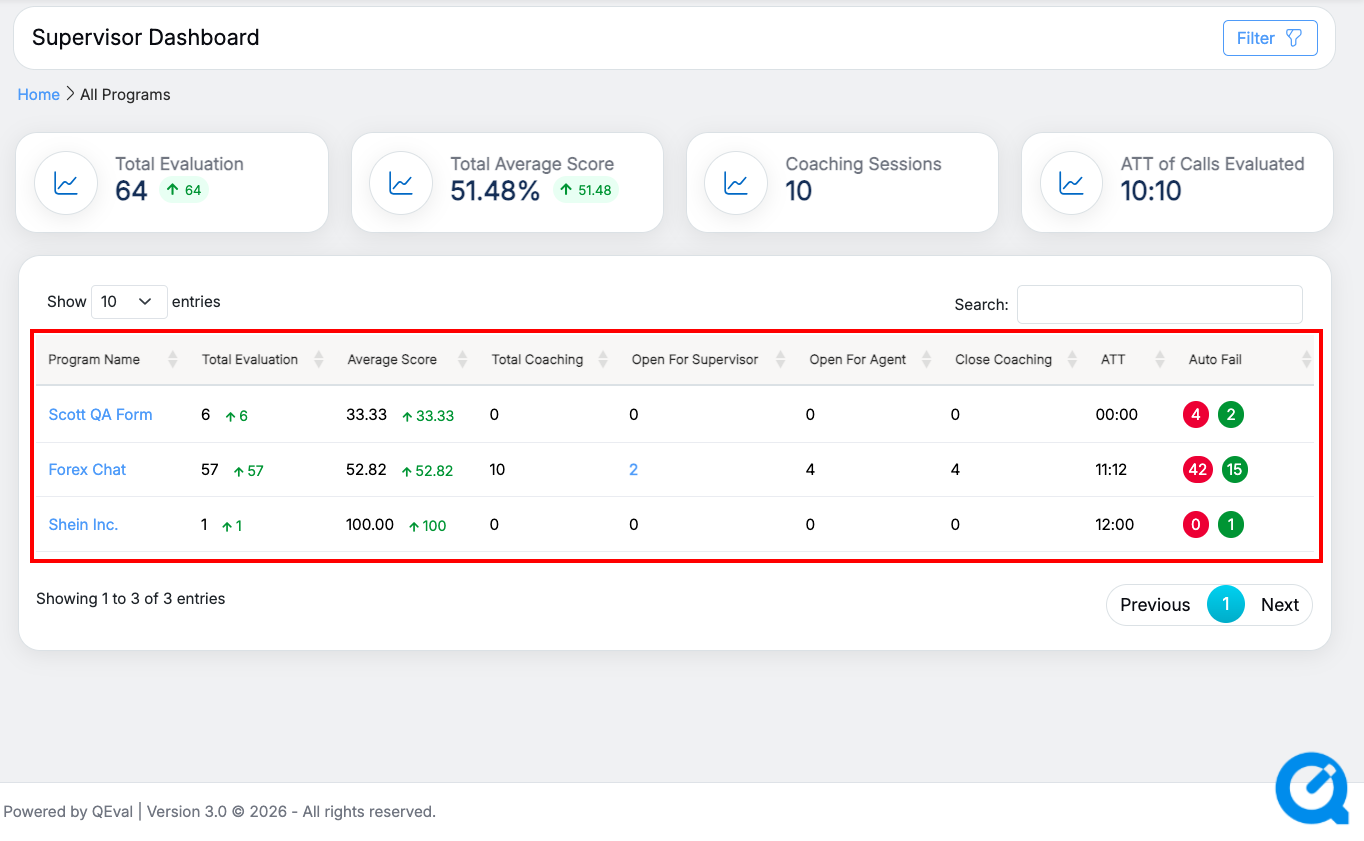
Search Results
The data elements displayed on the table grid are mentioned below:
| Table Elements | Description |
| Program Name |
Displays the name of the programs. The program name link allows the supervisor to Initiate Coaching for the specific agent. |
| Total Evaluation | Displays the number of the total evaluations of the agent and the numeric value displays the data of the specific program. It also shows the difference with the previous date range with Up Arrow and numeric value in green color or with Down Arrow and numeric value in red color. |
| Average Score | Displays the average score of the agent and the numeric value displays the data for specific program. It also shows the difference with the previous date range with Up Arrow and numeric value in green color or with Down Arrow and numeric value in red color. |
| Total Coaching | Displays the total number of coaching sessions of the agent for the specific program. |
| Open for Supervisor | Displays the total number of coaching open for supervisor of all the agents for specific program. The number link allows the supervisor to view all the coaching details completed by agent, submit the feedback and close the coaching completed by the agents for specific program. |
| Open for Agent | Displays the total number of assigned coaching open for the agent for specific program. |
| Close Coaching | Displays the total number of assigned coaching completed and closed by the supervisor. |
| ATT | Displays the agent’s average time handling of the evaluated calls for specific program. |
| AutoFail | Displays the agent’s autofail scores of the evaluated calls for specific program. |
Initiate Coaching
The Supervisor has the option to view and initiate the coaching for specific program by clicking on the Program Name link displayed in the table grid as shown below:
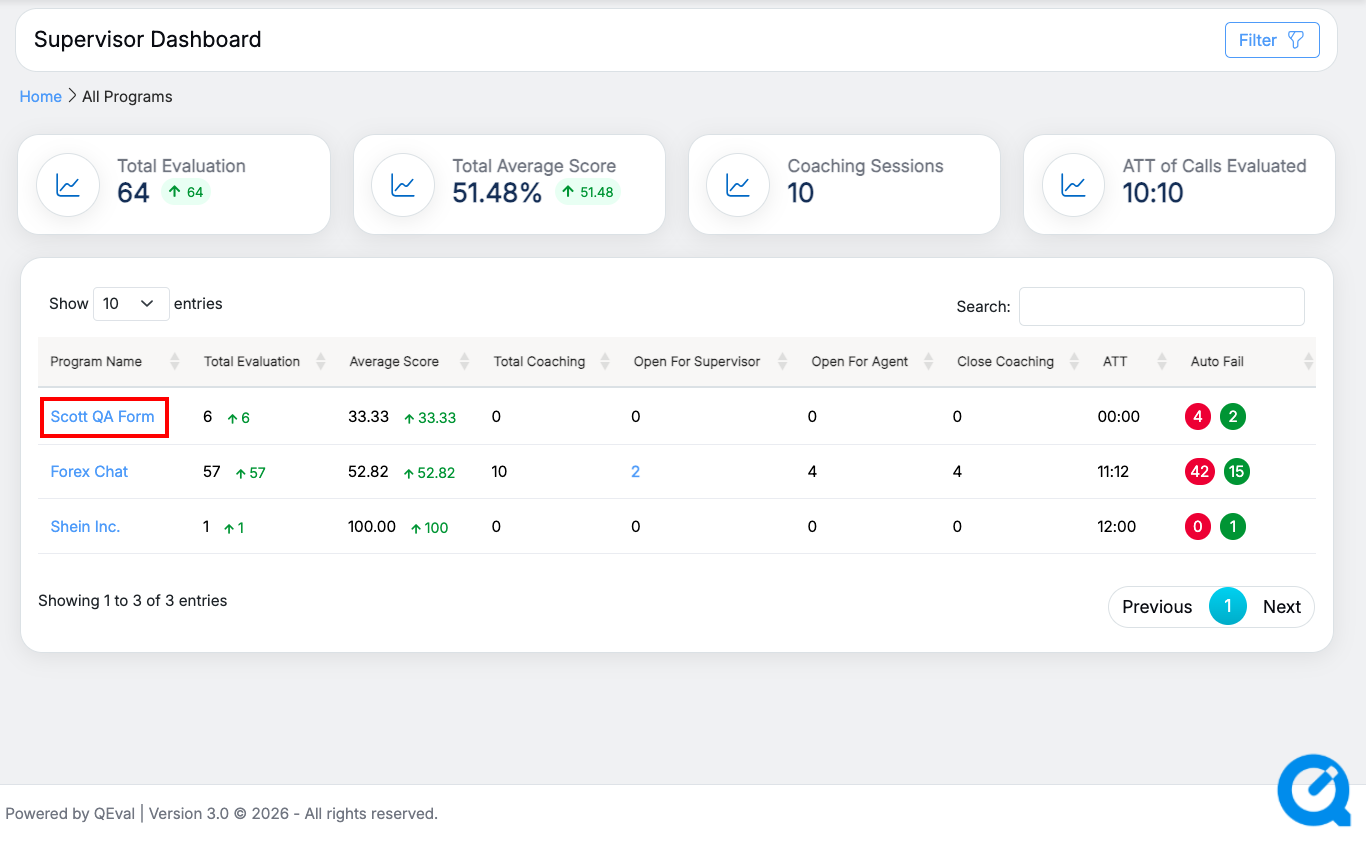
Program Name Link
The Supervisor Coaching Drawer of specific program will be opened on the same table grid.
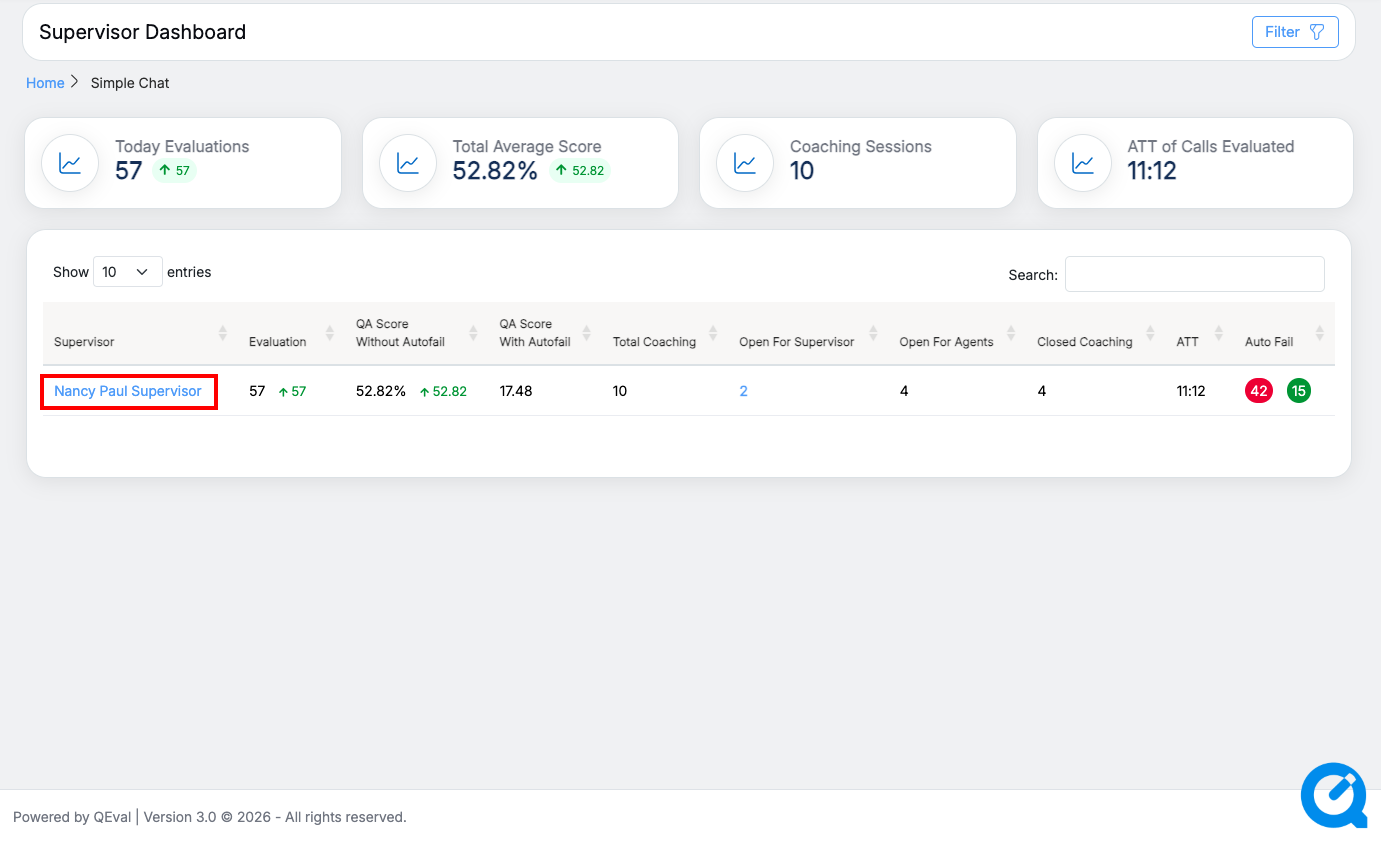
Supervisor Coaching Drawer
The data elements displayed on the table grid are explained below:
| Table Elements | Description |
| Agent Name | Displays the name of the agents. By clicking on the specific agent’s name link, the supervisor will be able to initiate the coaching. |
| Evaluation | Displays the number of the total evaluations of the agent and the numeric value displays the data of the specific program. It also shows the difference with the previous date range with Up Arrow and numeric value in green color or with Down Arrow and numeric value in red color. |
| QA Scores Without Autofail | Displays the total QA scores without autofailure gained by the specific agent in the percentage. It also shows the difference with the previous date range with Up Arrow and numeric value in green color or with Down Arrow and numeric value in red color. |
| QA Scores With Autofail | Displays the total QA Scores with autofailure gained by the specific agent on completion of assigned coaching. |
| Total Coaching | Displays the total number of coaching assigned to the specific agent. |
| Open for Supervisor | Displays the total number of coaching open for supervisor of all the agents for specific program. The number link allows the supervisor to view all the coaching details completed by agent, submit the feedback and close the coaching completed by the agents for specific program. |
| Open for Agent | Displays the total number of assigned coaching open for the agent for specific program. |
| Close Coaching | Displays the total number of assigned coaching completed and closed by the supervisor. |
| ATT | Displays the agent’s average time handling of the evaluated calls for specific program. |
| Autofail | Displays the agent’s autofail scores of the evaluated calls for specific program. |
The supervisor will be able to view and initiate coaching of selected agent for specific program by clicking on the Agent Name link displayed in the table grid as shown below:
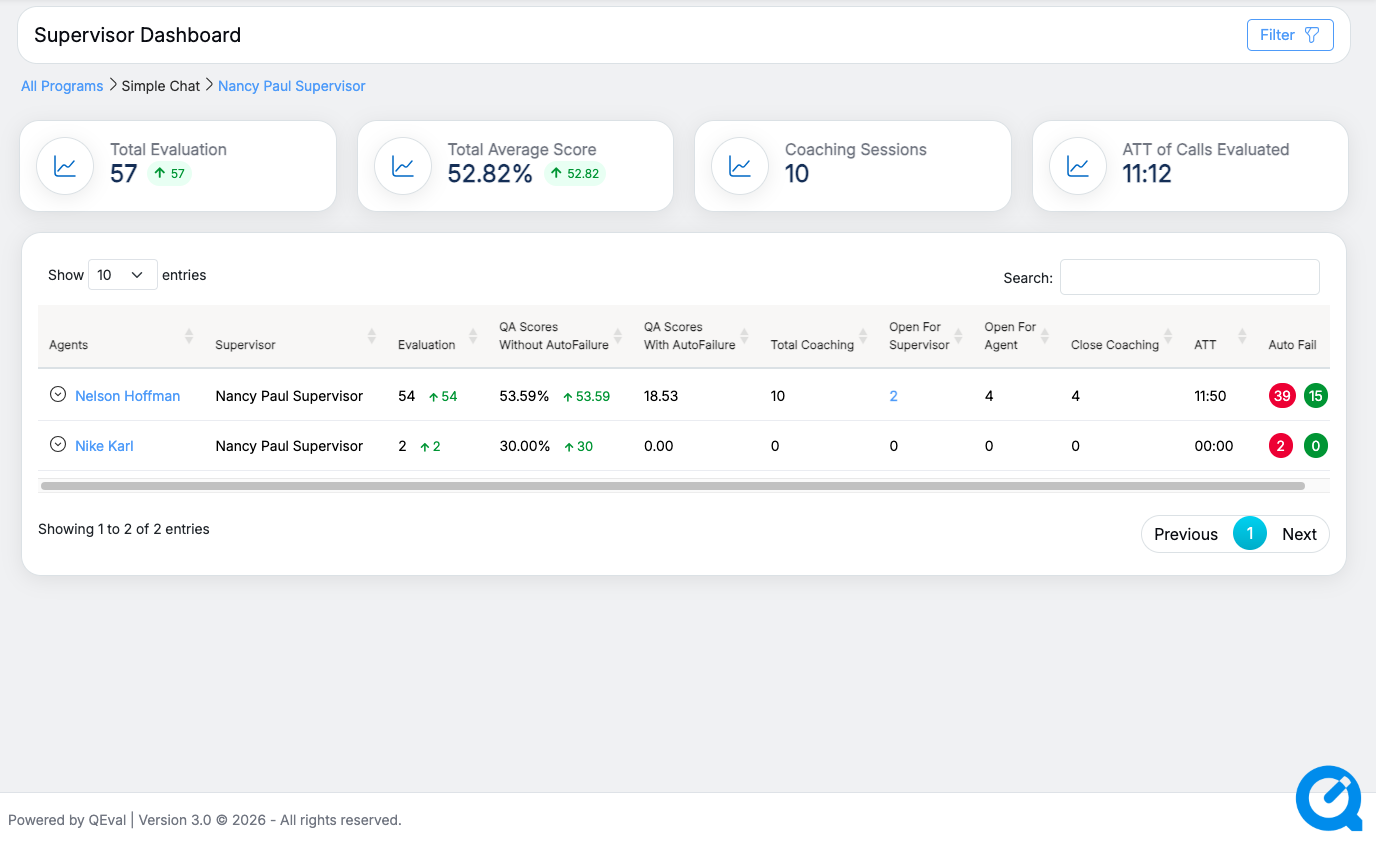
Agent Name Link
The list of coaching parameters for selected program will be displayed under the selected agent name as highlighted in the screen below:
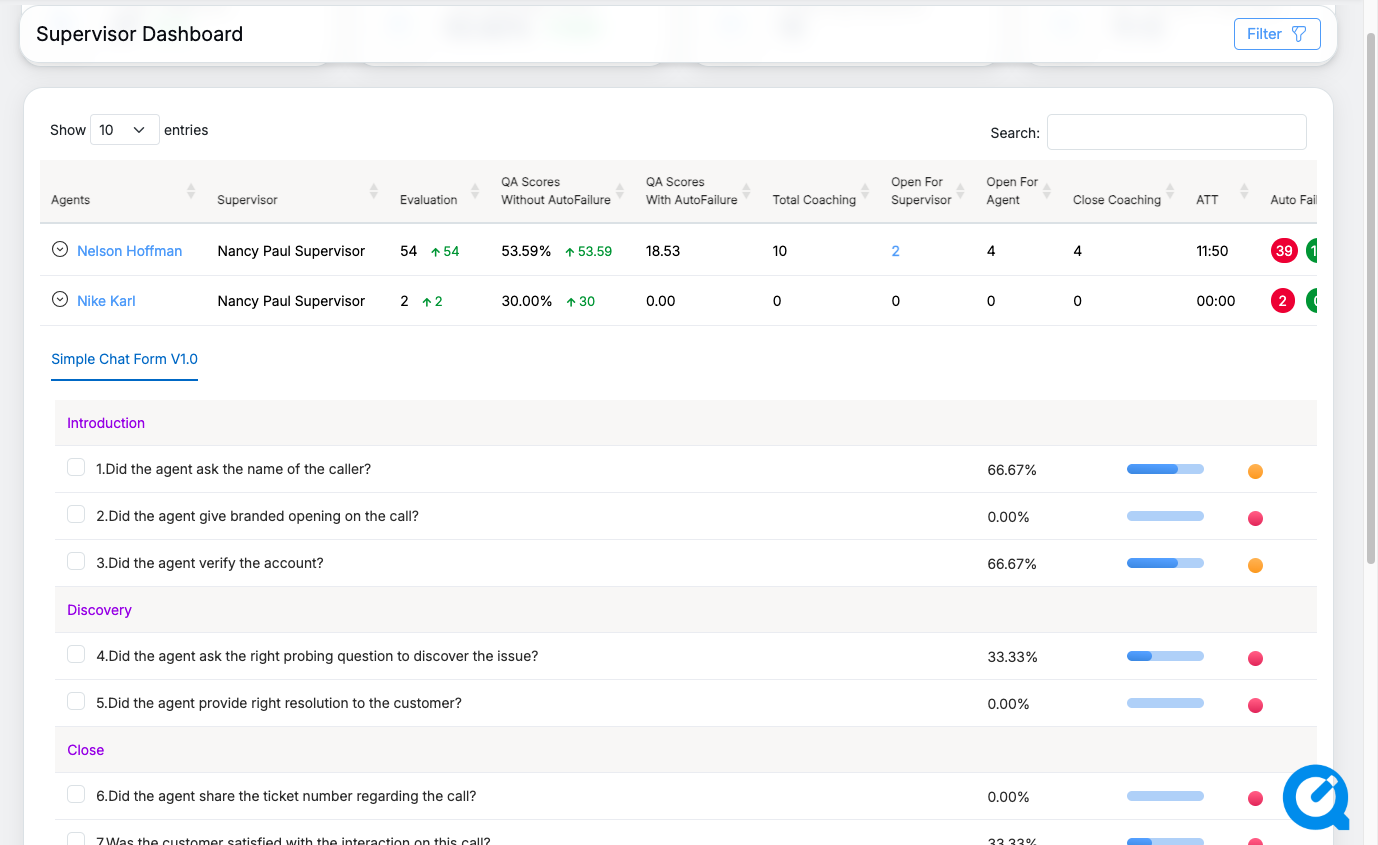
List of Coaching Parameters for Specific Program
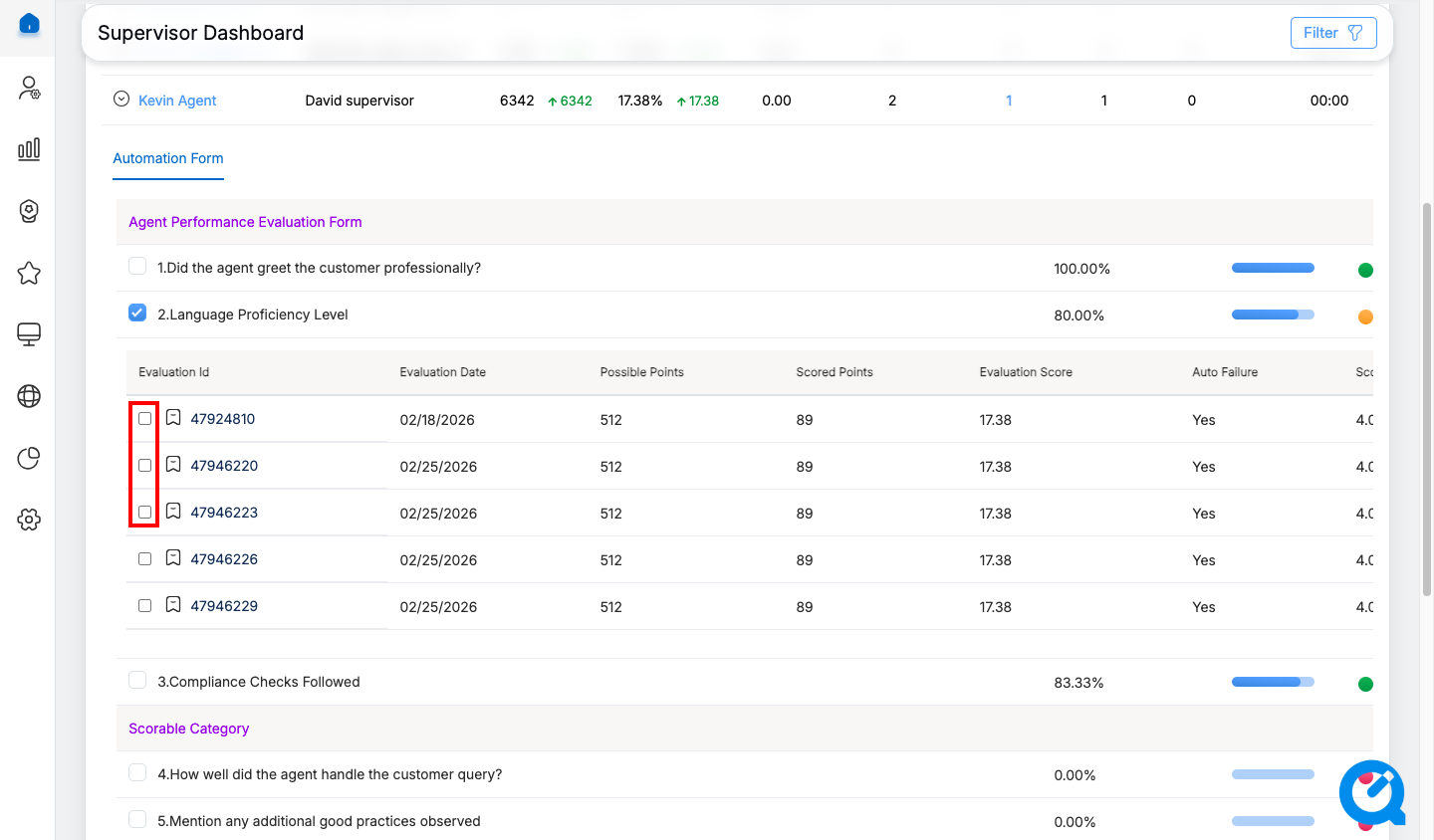
The supervisor can initiate and assign the coaching to the agent based on the performance by clicking on the checkbox displayed besides the coaching parameter.
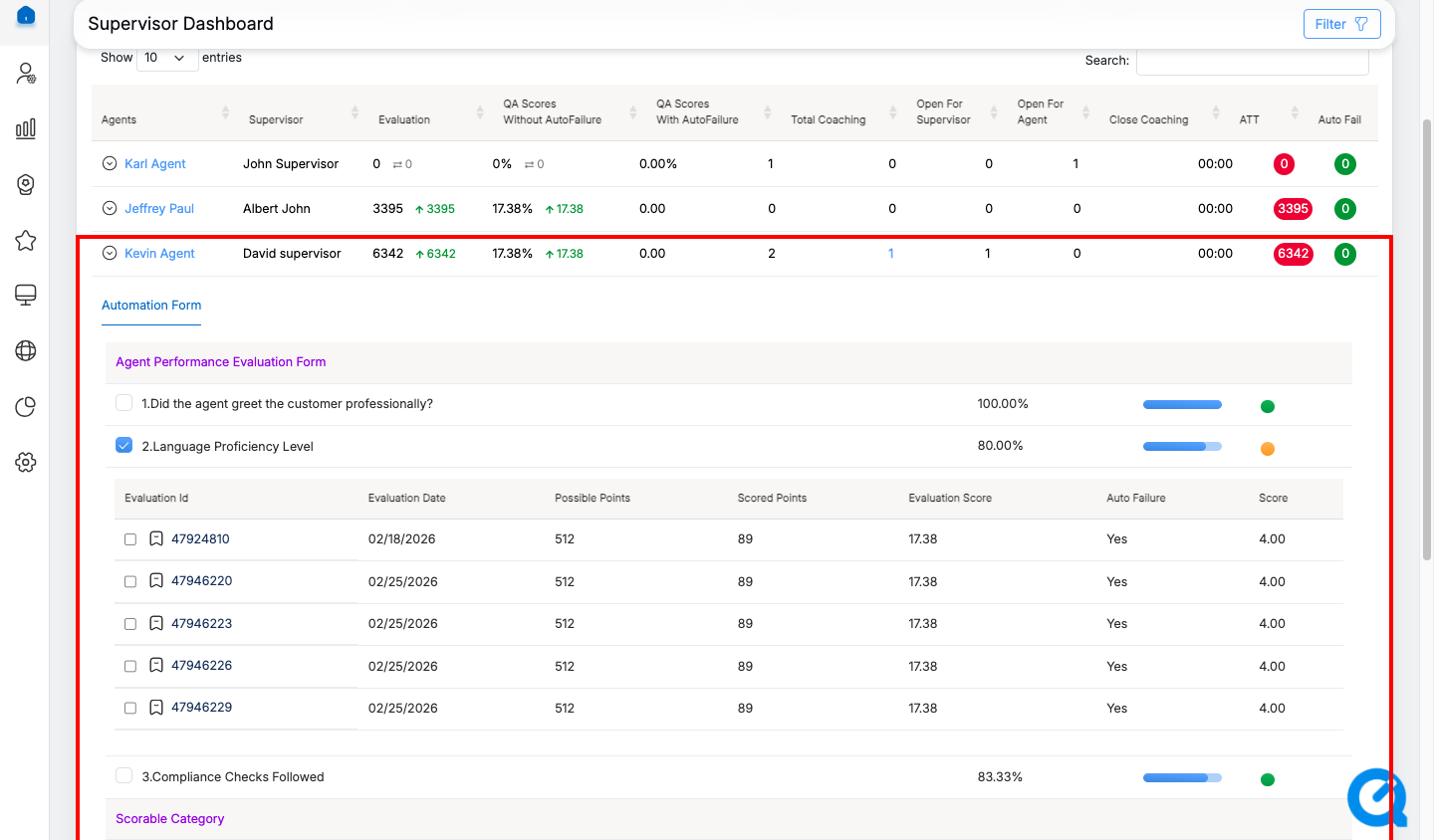
After selecting a coaching parameter, the Evaluation Details are displayed in a table grid containing the following columns: Evaluation ID, Evaluation Date/Interaction Date, Possible Points, Scored Points, Evaluation Score, Auto Failure, and Score.
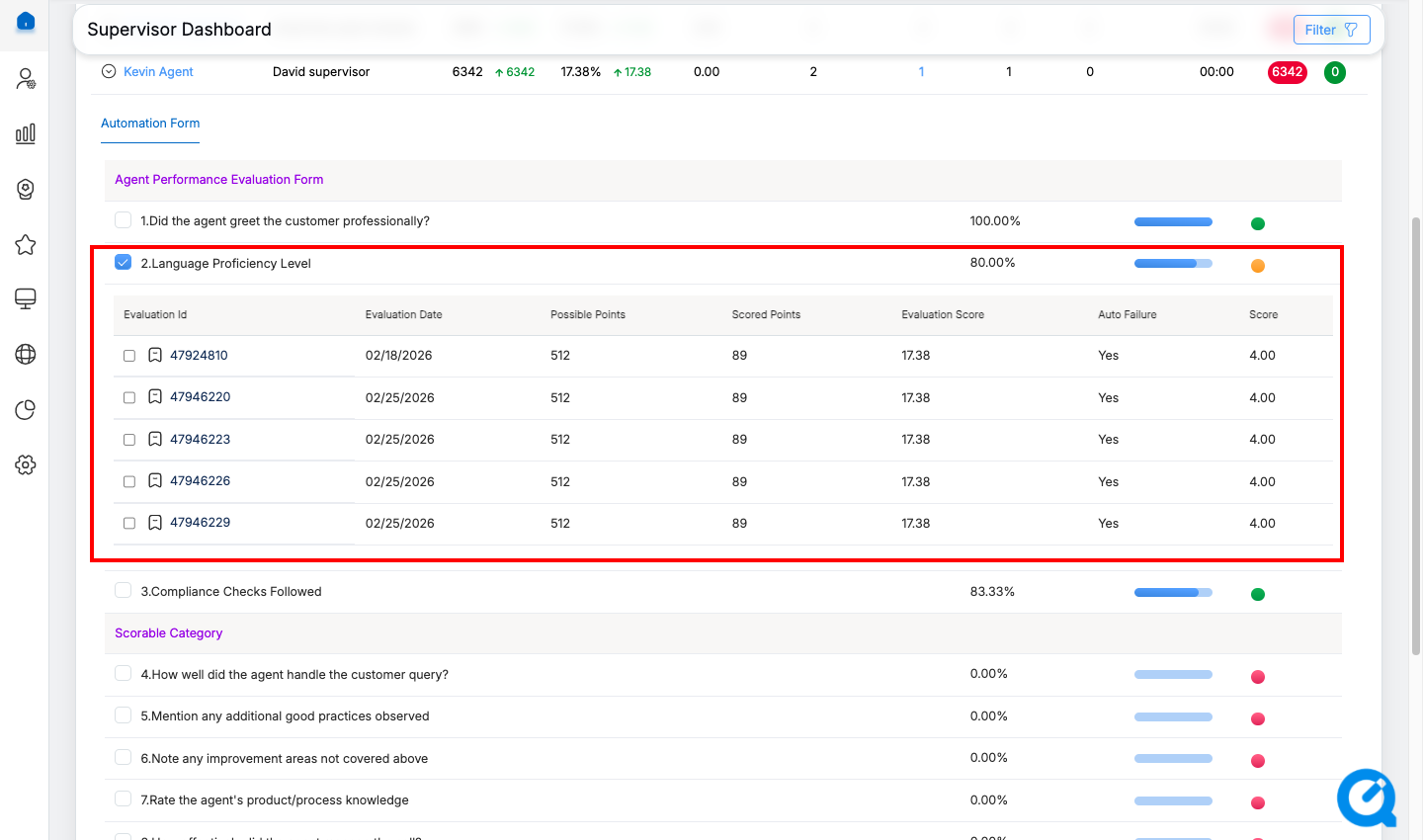
Refer to Evaluation/ATA to know how to generate new evaluations and search the existing ones.
The Date column is displayed next to the Evaluation ID column and dynamically updates based on the selected Date Type filter:
- Evaluation Date – Displays the date on which the evaluation was completed.
- Interaction Date – Displays the date of the associated Call, Chat, or Email interaction.
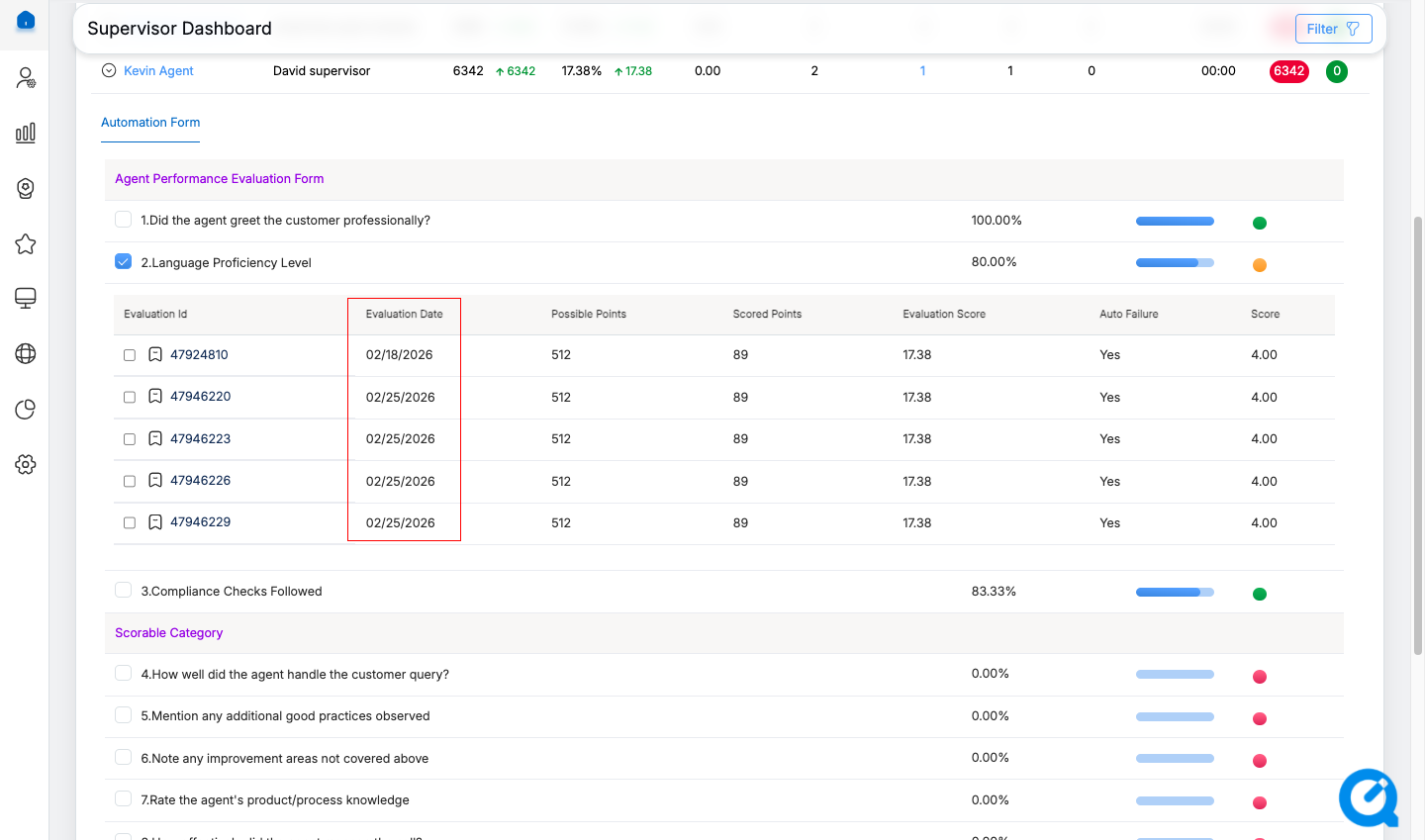
To initiate coaching for one or more evaluations and assign the coaching session to the selected agent, select the checkbox displayed beside the Evaluation ID.
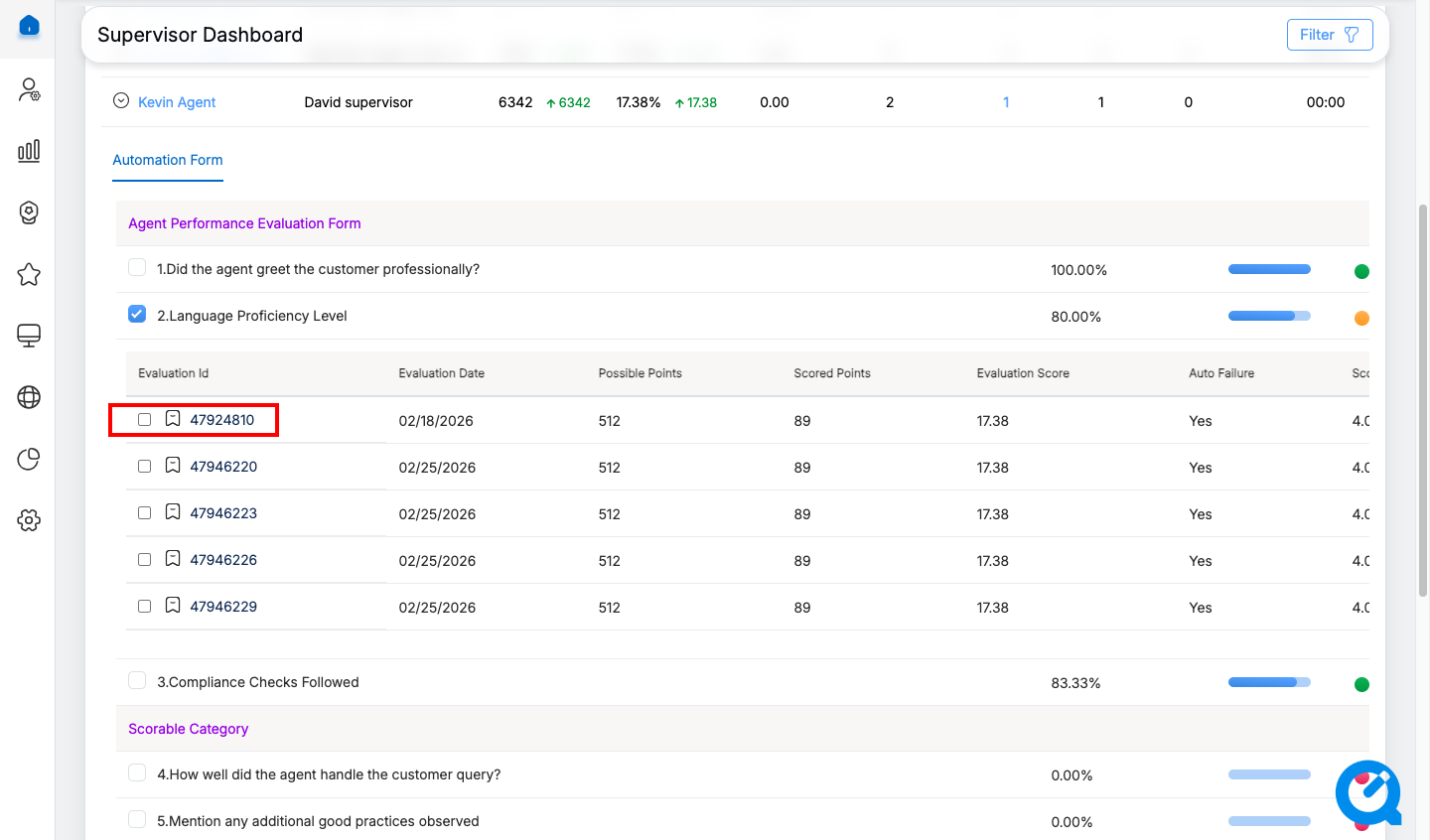
To view the evaluation form details, click on the Evaluation ID link as shown below:
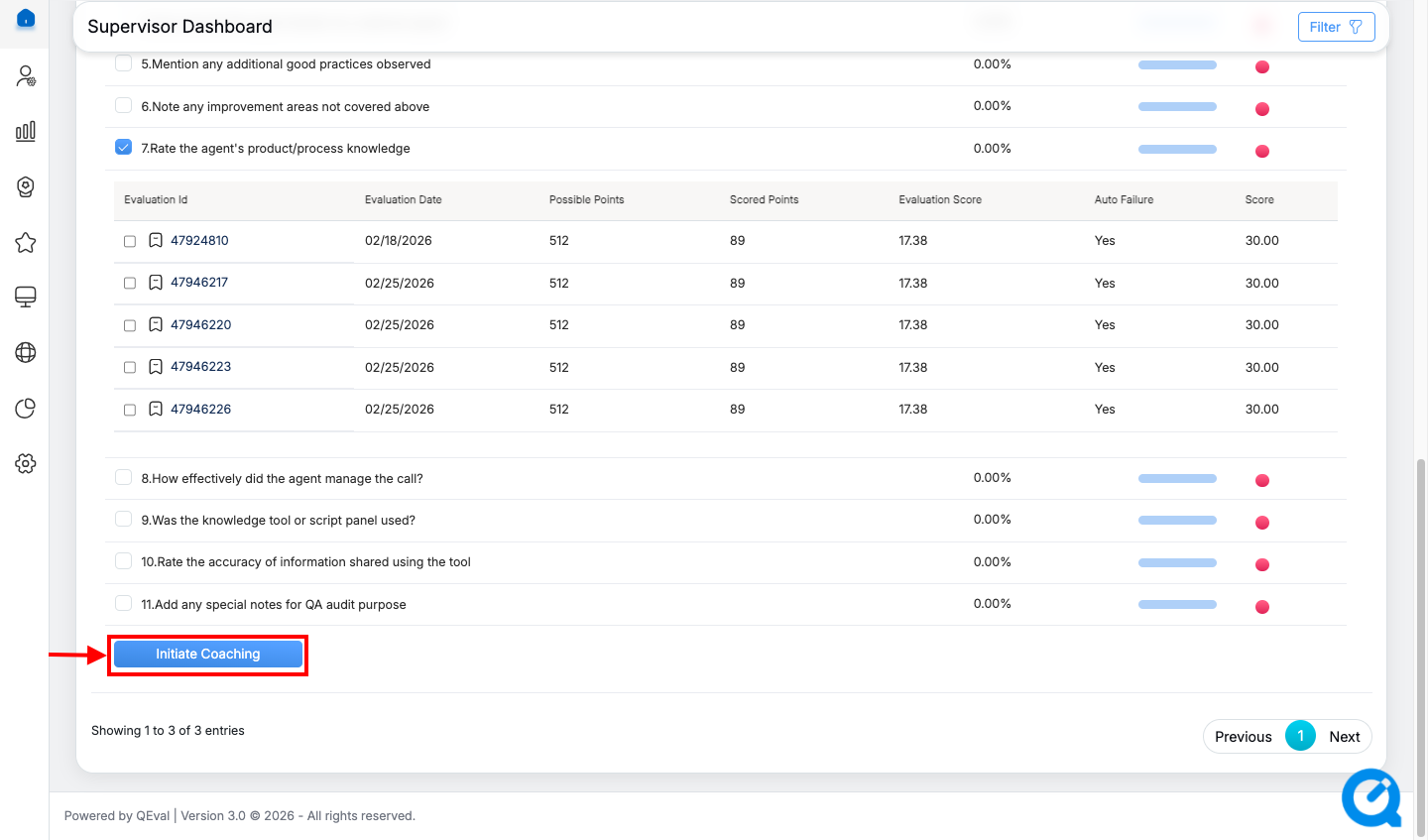
Once the details are configured, click on the Initiate Coaching button to assign the specific coaching to the agent as shown below:
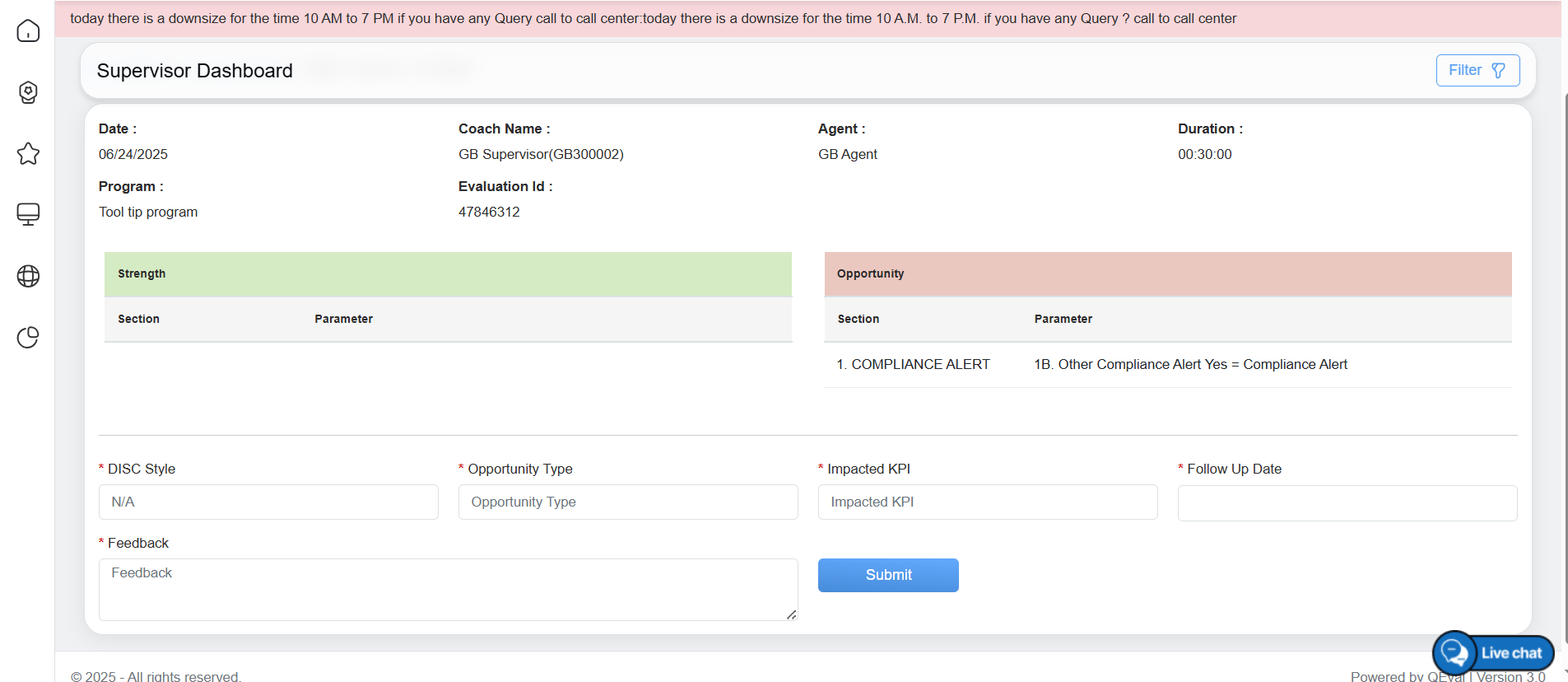
After initiating the coaching, the user will be directed to the Create Coaching page as shown below:
Create Coaching Page
On the create coaching page, the supervisor will be able to view the strengths and opportunities details added for the selected agent for specific program as shown below:
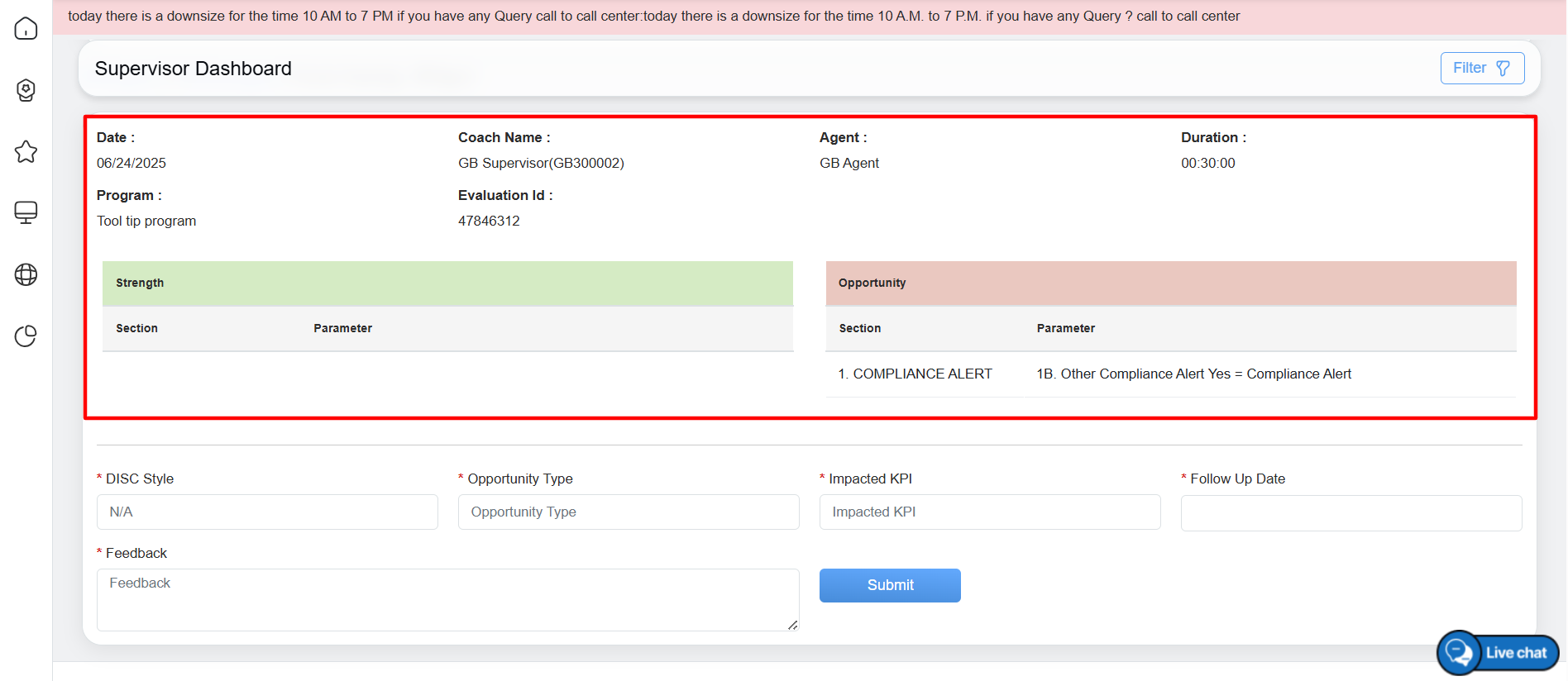
Coaching Details
Configure the following fields displayed on the page to initiate the coaching:
- DISC Style: DISC stands for Dominance, Influence, Steadiness, and Compliance which are the personality types. Enter the DISC styles of the coachee – Eagle, Peacock, Dove, or Owl.
- Opportunity Type: Enter the opportunity type for the coachee.
- Impacted KPI: Enter the impacted KPI for the coachee.
- Follow Up Date: Select the follow up date for the agent’s coaching using date picker option. The date will be displayed in MM/DD/YYYY format.
- Action Plan: Enter the action plan for the agent to improve the KPIs.
Once the necessary details are entered, click on the Submit button to initiate the coaching.
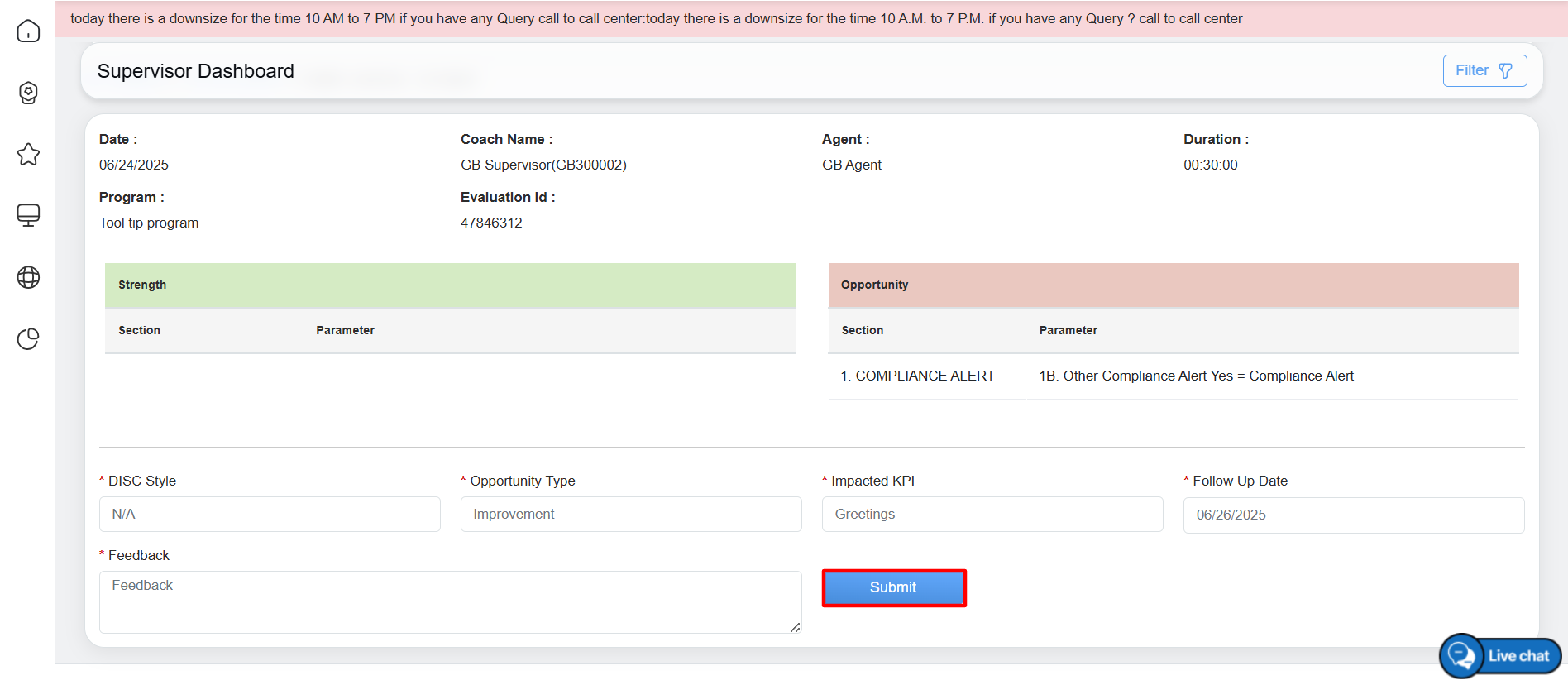
Submit Details
Once the coaching details for the specific agent are submitted, the logged-in user will be directed to the Supervisor Dashboard page and the coaching details will be updated and displayed on the table grid as shown below:
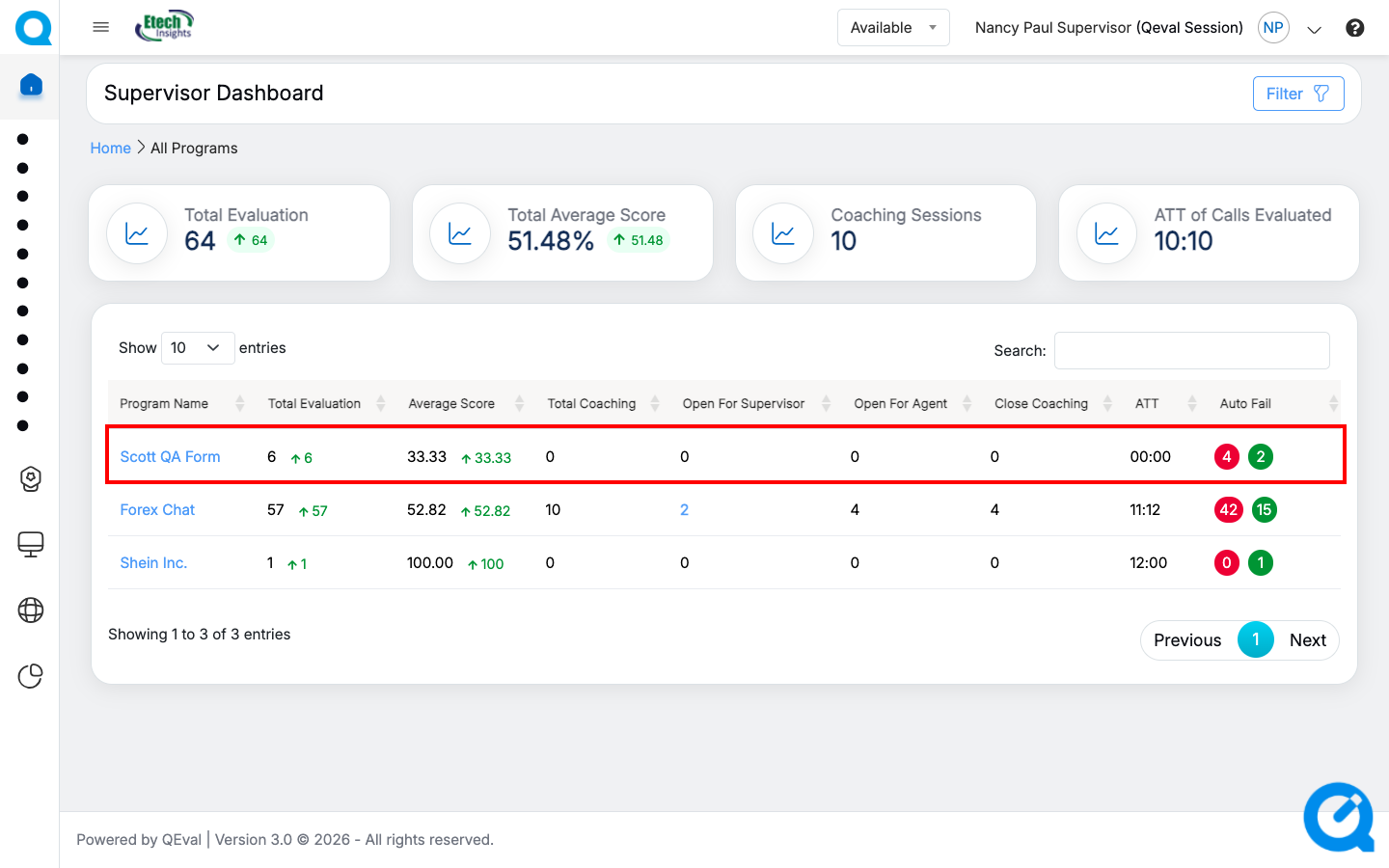
Updated Coaching Details
The data elements displayed on the table grid are mentioned below:
| Table Elements | Description |
| Program Name |
Displays the name of the programs. The program name link allows the supervisor to Initiate Coaching for the specific agent. |
| Total Evaluation | Displays the number of the total evaluations of the agent and the numeric value displays the data of the specific program. It also shows the difference with the previous date range with Up Arrow and numeric value in green color or with Down Arrow and numeric value in red color. |
| Average Score | Displays the average score of the agent and the numeric value displays the data for specific program. It also shows the difference with the previous date range with Up Arrow and numeric value in green color or with Down Arrow and numeric value in red color. |
| Total Coaching | Displays the total number of coaching sessions of the agent for the specific program. |
| Open for Supervisor | Displays the total number of coaching open for supervisor of all the agents for specific program. The number link allows the supervisor to view all the coaching details completed by agent, submit the feedback and close the coaching completed by the agents for specific program. |
| Open for Agent | Displays the total number of assigned coaching open for the agent for specific program. |
| Close Coaching | Displays the total number of assigned coaching completed and closed by the supervisor. |
| ATT | Displays the agent’s average time handling of the evaluated calls for specific program. |
| AutoFail | Displays the agent’s autofail scores of the evaluated calls for specific program. |
Open For Supervisor
The Open for Supervisor allows the logged-in user to view all the open coaching details assigned to the agents for specific program. Based on the coaching feedback and coaching status shared by the agent for specific program, the supervisor can enter the opportunity status as well as comment on the agent’s improvement.
To view all the open coaching details for specific program, click on the Number link displayed under Open For Supervisor column available in the table grid as shown below:
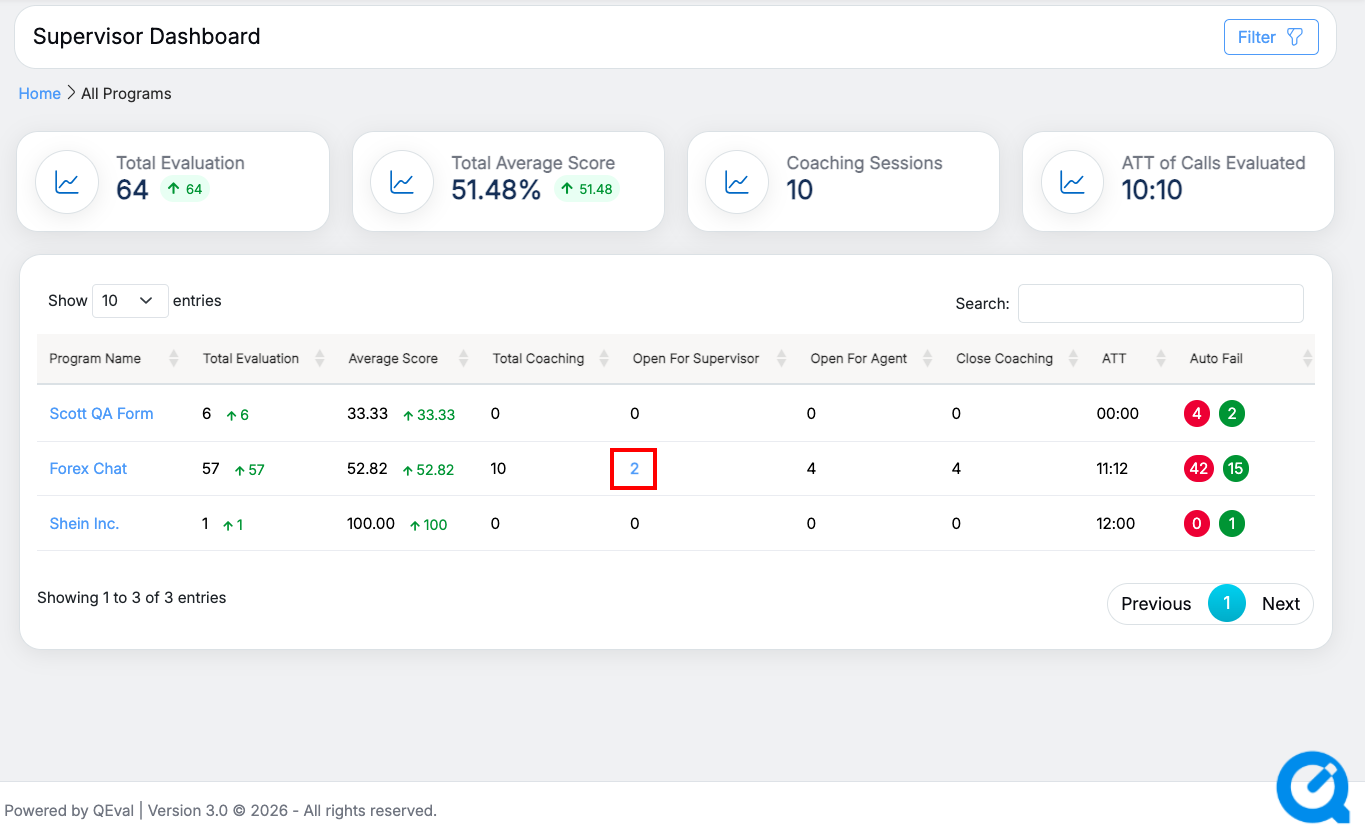
Number Link: Open for Supervisor
The logged-in supervisor will be directed to specific program page where the agent’s coaching details will be available as shown below:
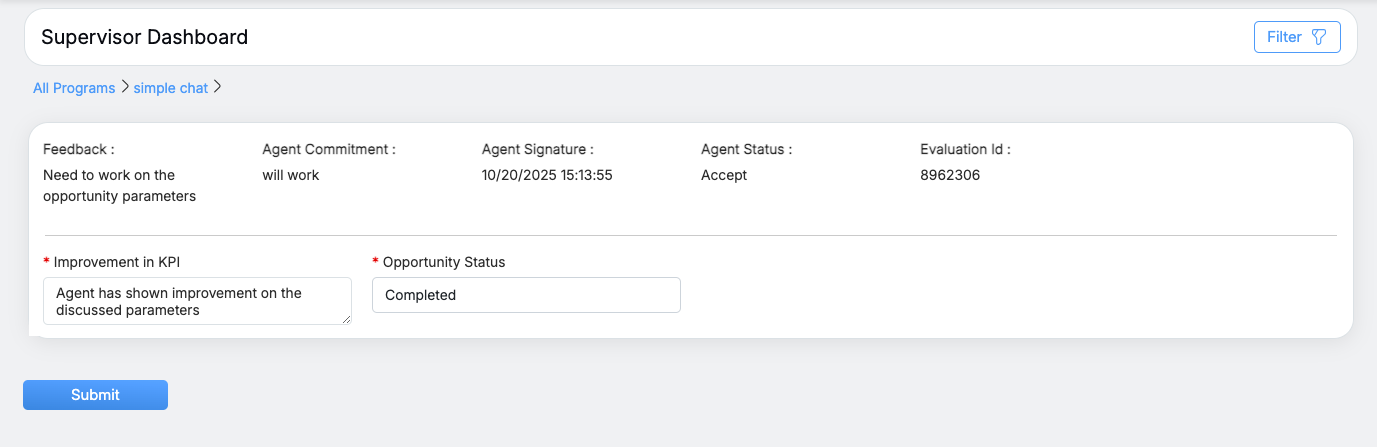
Agent’s Coaching Details
Based on the coaching feedback shared by the agents for specific program, the supervisor needs to enter the comments in the Improvement in KPI text-box and select whether the assigned coaching was Completed or Unsuccessful from the Opportunity Status drop-down menu for all the open coaching.
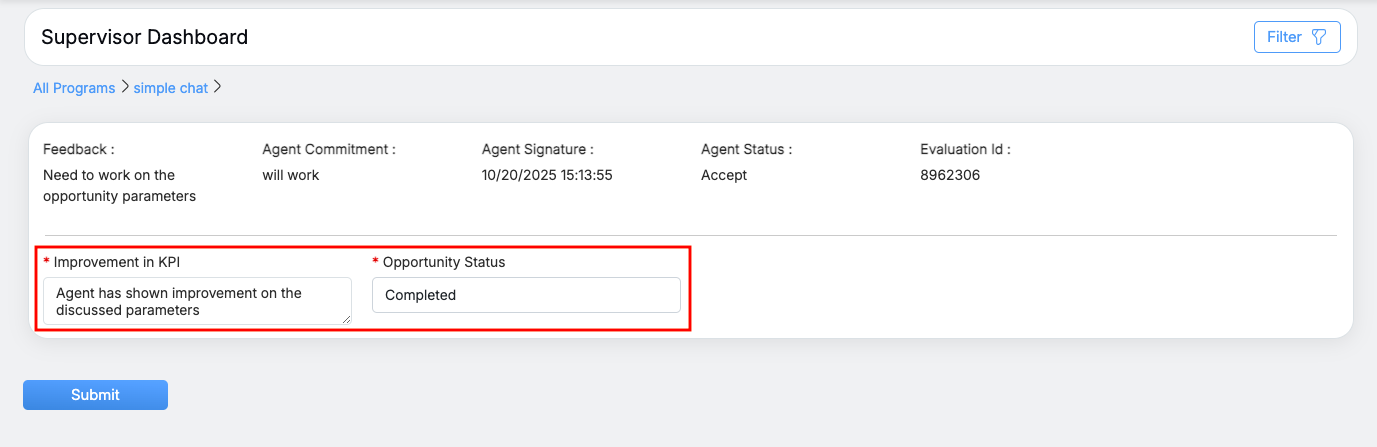
Supervisor’s Feedback
Once the coaching feedback is entered by the logged-in supervisor, click on the Submit button to close the open coaching completed by the agents.
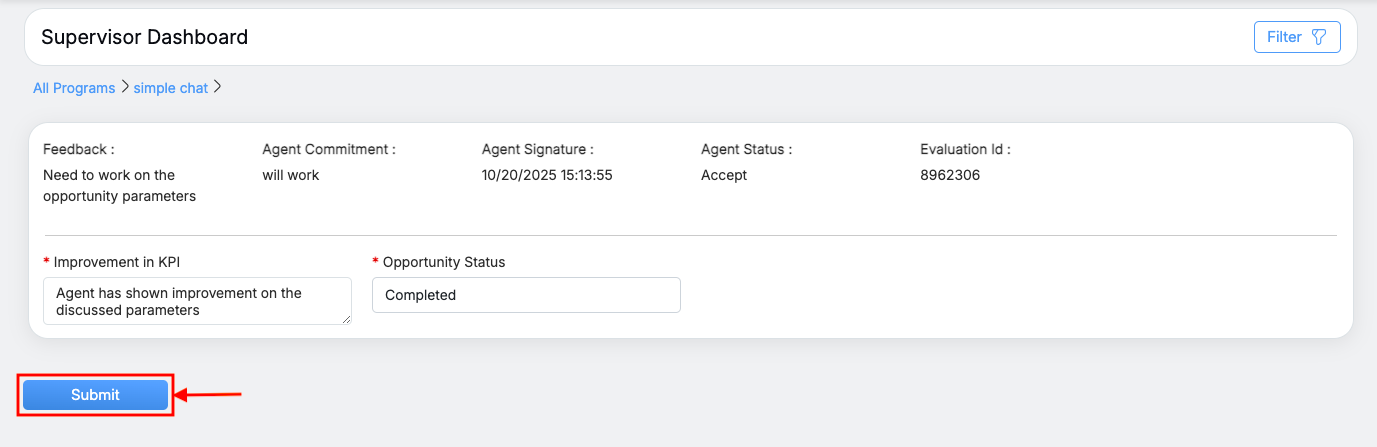
Submit Coaching Feedback
After submitting the coaching feedback, the logged-in supervisor will be directed to the Supervisor Dashboard page where the Open For Supervisor and Close Coaching details will be updated.
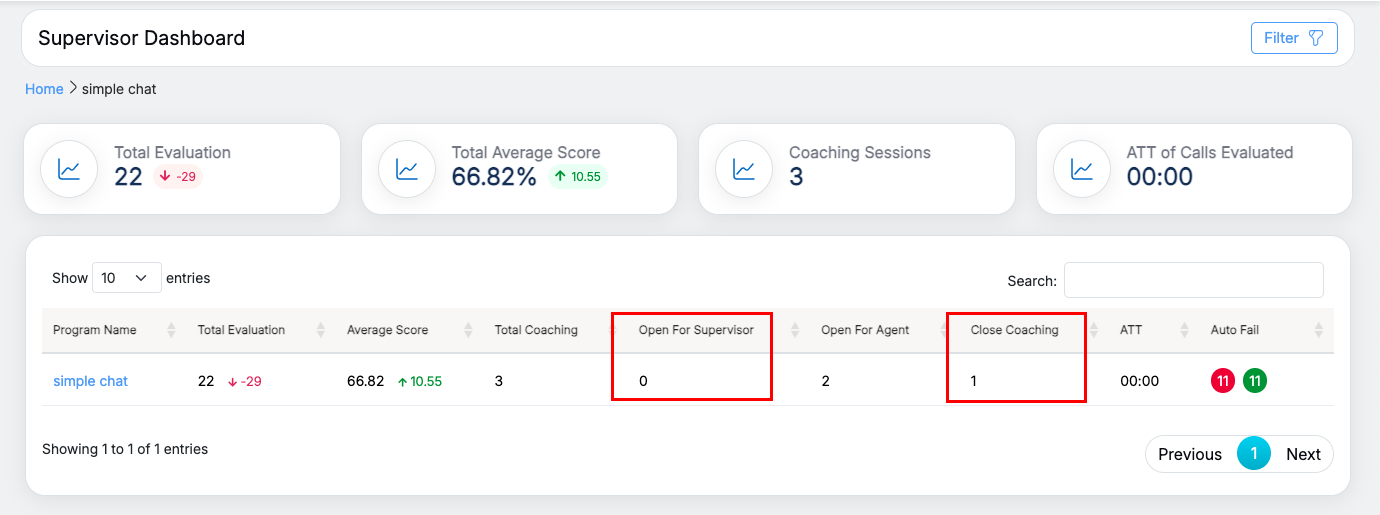
Updated Coaching Details
Auto-Fail
The Auto-Fail feature allows the logged-in user to view all evaluations that have been flagged with critical errors resulting in an immediate failure. This feature enables quick identification of essential issues, facilitating efficient follow-up and corrective coaching actions within the Supervisor’s Coaching Dashboard.
To view all the auto-fail coaching details for specific program, click on the auto-fail box displayed under Auto-Fail column available in the table grid as shown below:
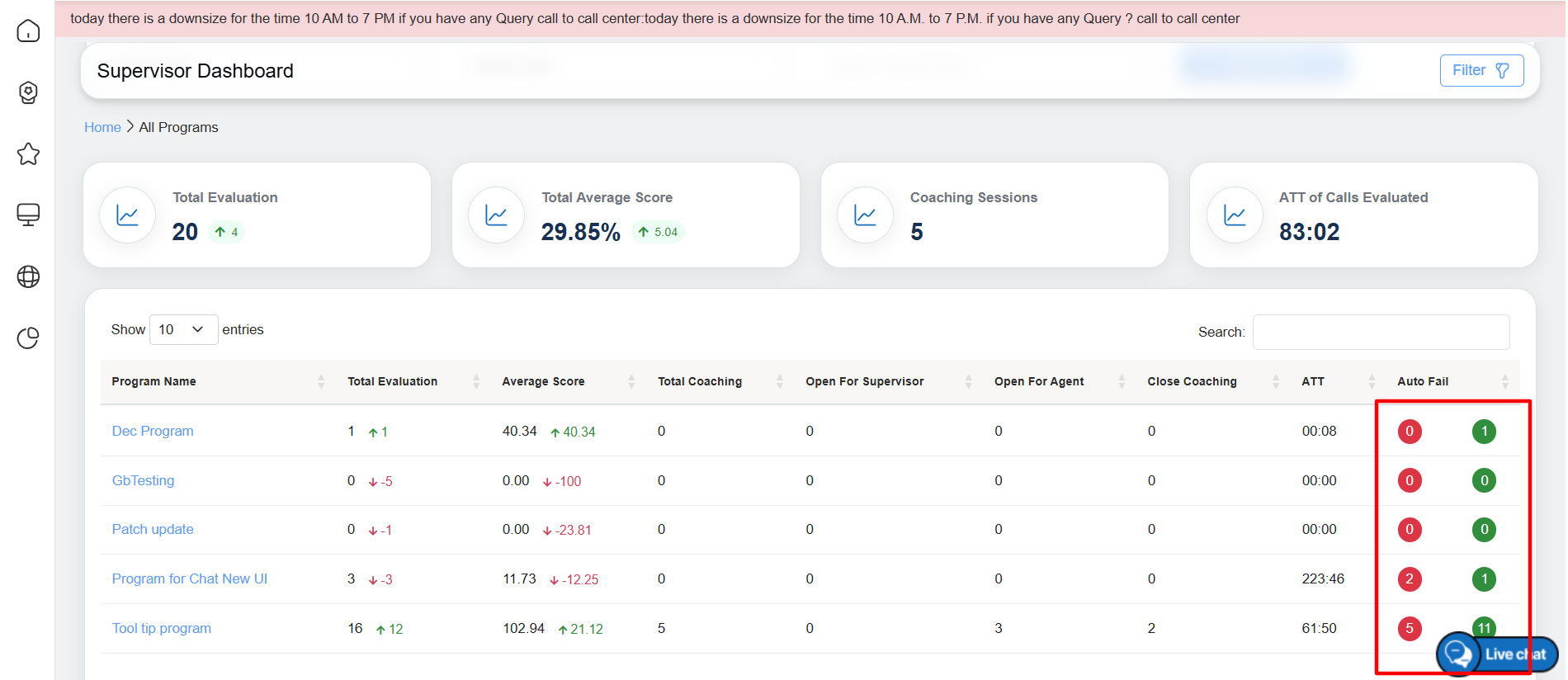
Autofail Count
Upon clicking on the Auto-Fail box, the Auto-Fail pop-up will be displayed as highlighted in the screen below-
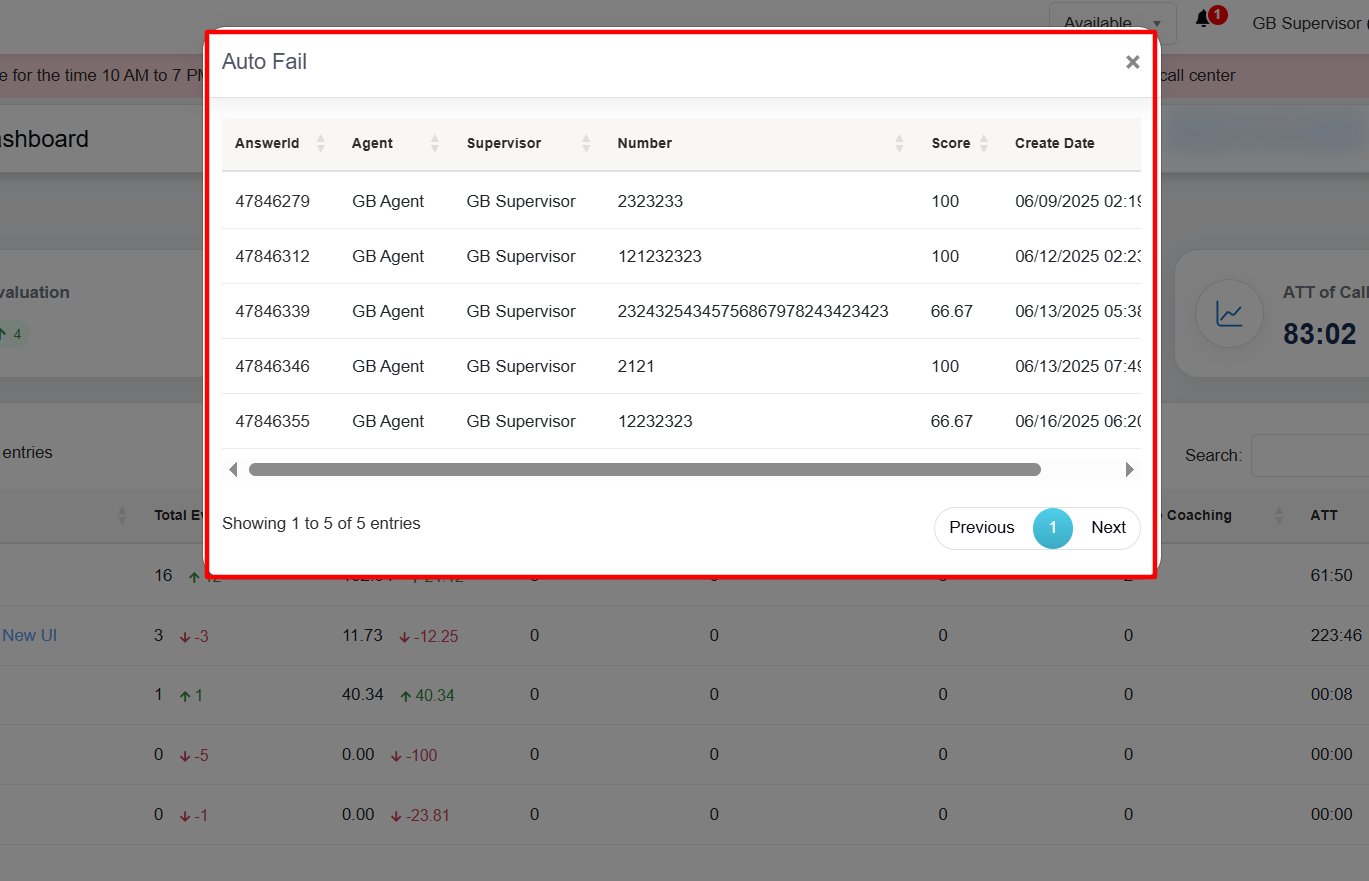
Autofail Pop-up
The supervisor can access a detailed view of a specific evaluation by selecting the highlighted IDs within the “AnswerID” section-
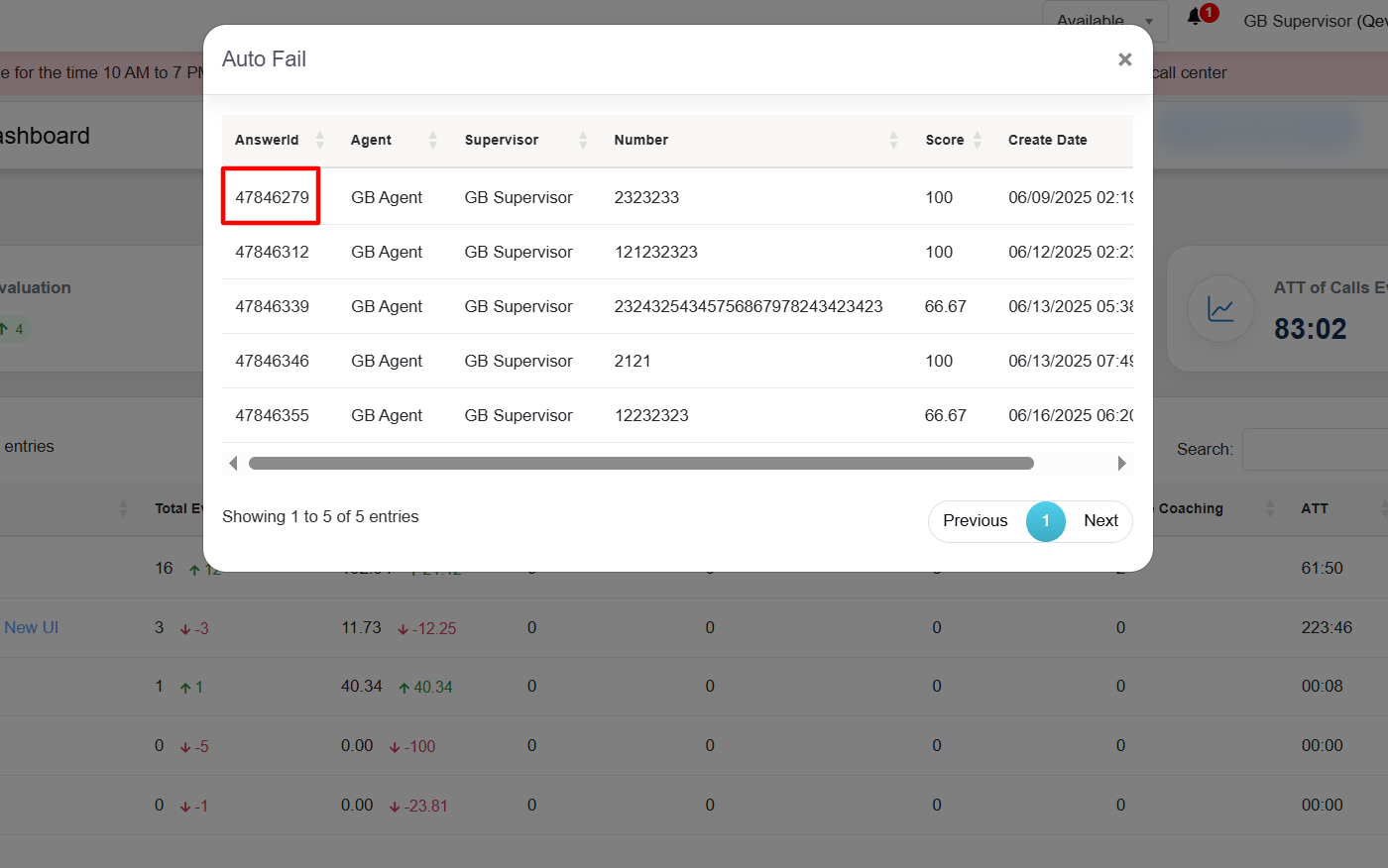
Clickable IDs
Upon clicking on the specific IDs, the supervisor will redirect to the detailed evaluation page.
The data elements displayed on the table grid are mentioned below:
| Table Elements | Description |
| Program Name |
Displays the name of the programs. The program name link allows the supervisor to Initiate Coaching for the specific agent. |
| Total Evaluation | Displays the number of the total evaluations of the agent and the numeric value displays the data of the specific program. It also shows the difference with the previous date range with Up Arrow and numeric value in green color or with Down Arrow and numeric value in red color. |
| Average Score | Displays the average score of the agent and the numeric value displays the data for specific program. It also shows the difference with the previous date range with Up Arrow and numeric value in green color or with Down Arrow and numeric value in red color. |
| Total Coaching | Displays the total number of coaching sessions of the agent for the specific program. |
| Open for Supervisor | Displays the total number of coaching open for supervisor of all the agents for specific program. The number link allows the supervisor to view all the coaching details completed by agent, submit the feedback and close the coaching completed by the agents for specific program. |
| Open for Agent | Displays the total number of assigned coaching open for the agent for specific program. |
| Close Coaching | Displays the total number of assigned coaching completed and closed by the supervisor. |
| ATT | Displays the agent’s average time handling of the evaluated calls for specific program. |
| AutoFail | Displays the agent’s autofail scores of the evaluated calls for specific program. |
Supervisor’s User Hierarchy
The Supervisor’s User Hierarchy feature is an enhanced tool that provides hierarchical visibility within an organization, allowing a supervisor’s supervisor to take actions on coaching sessions on behalf of their subordinate supervisors. This includes initiating, updating, and closing coaching sessions. Additionally, a supervisor’s supervisor has the authority to close any coaching sessions created by their subordinate supervisors.
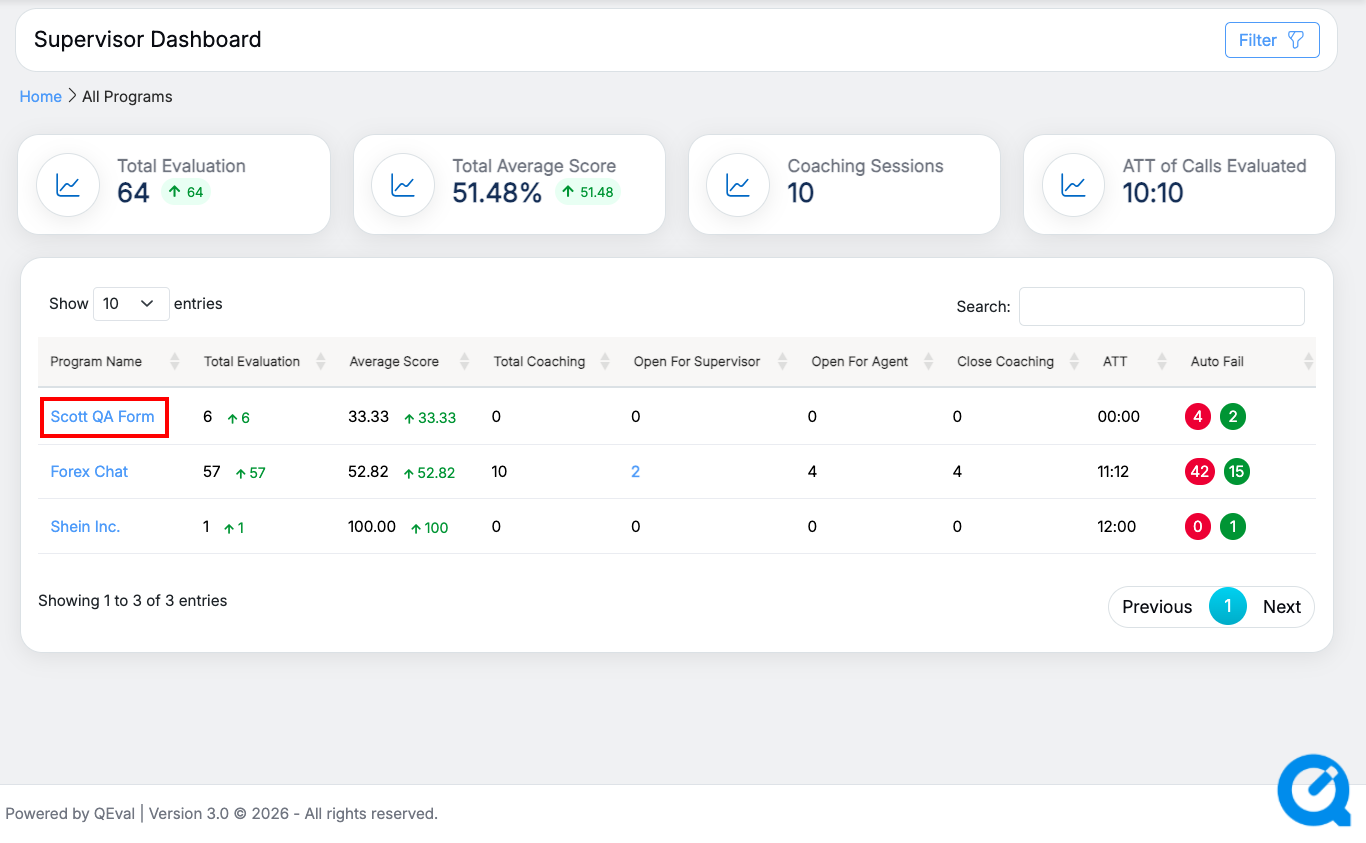
Select program
When a program name is selected, a detailed data table is displayed. This table contains comprehensive information about the supervisor responsible for the chosen program. It provides insights into the specific supervisory details for the selected program name, allowing users to view the relevant supervisory hierarchy and associated responsibilities.
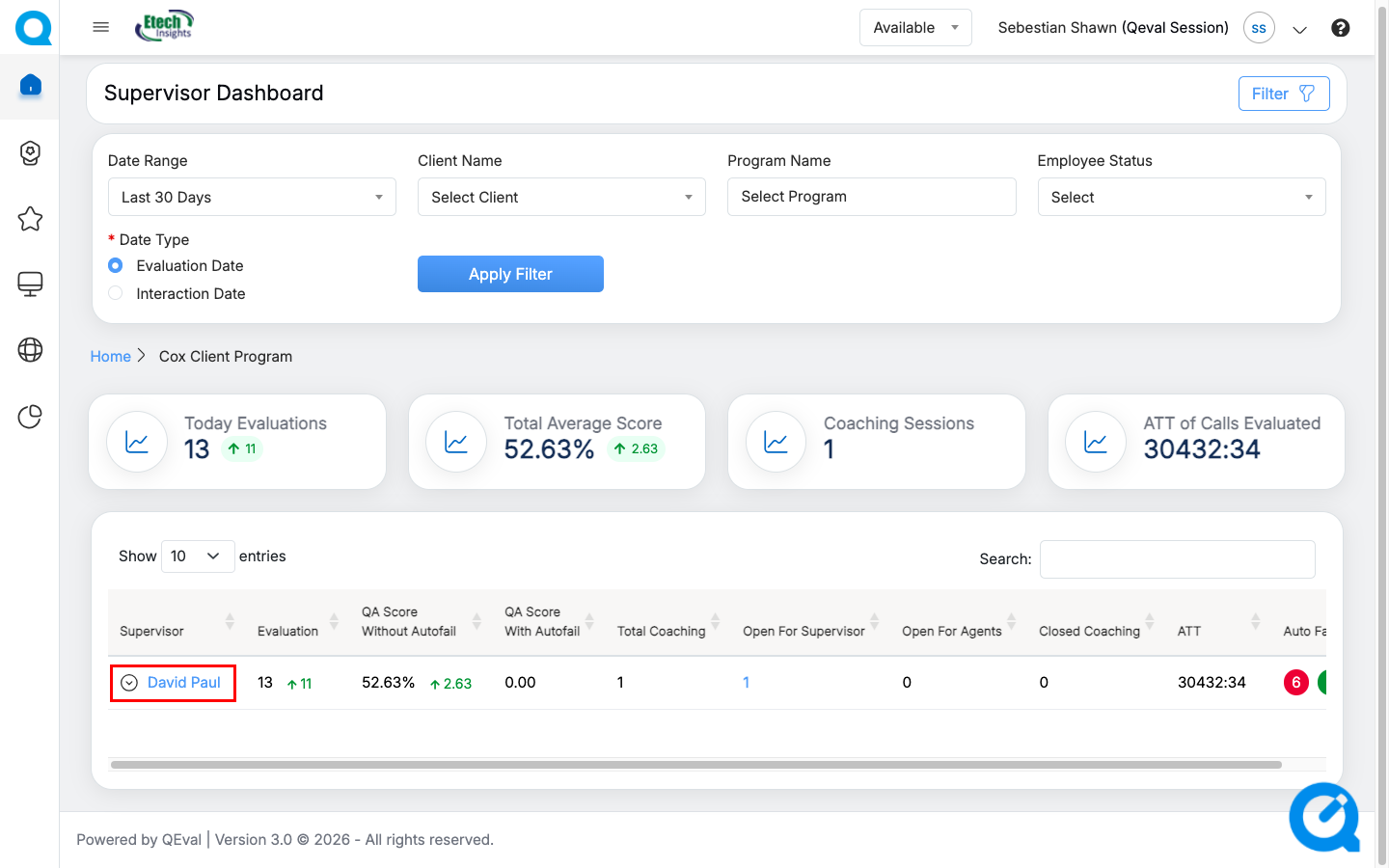
Now, click on the  button, to view the supervisor’s hierarchy –
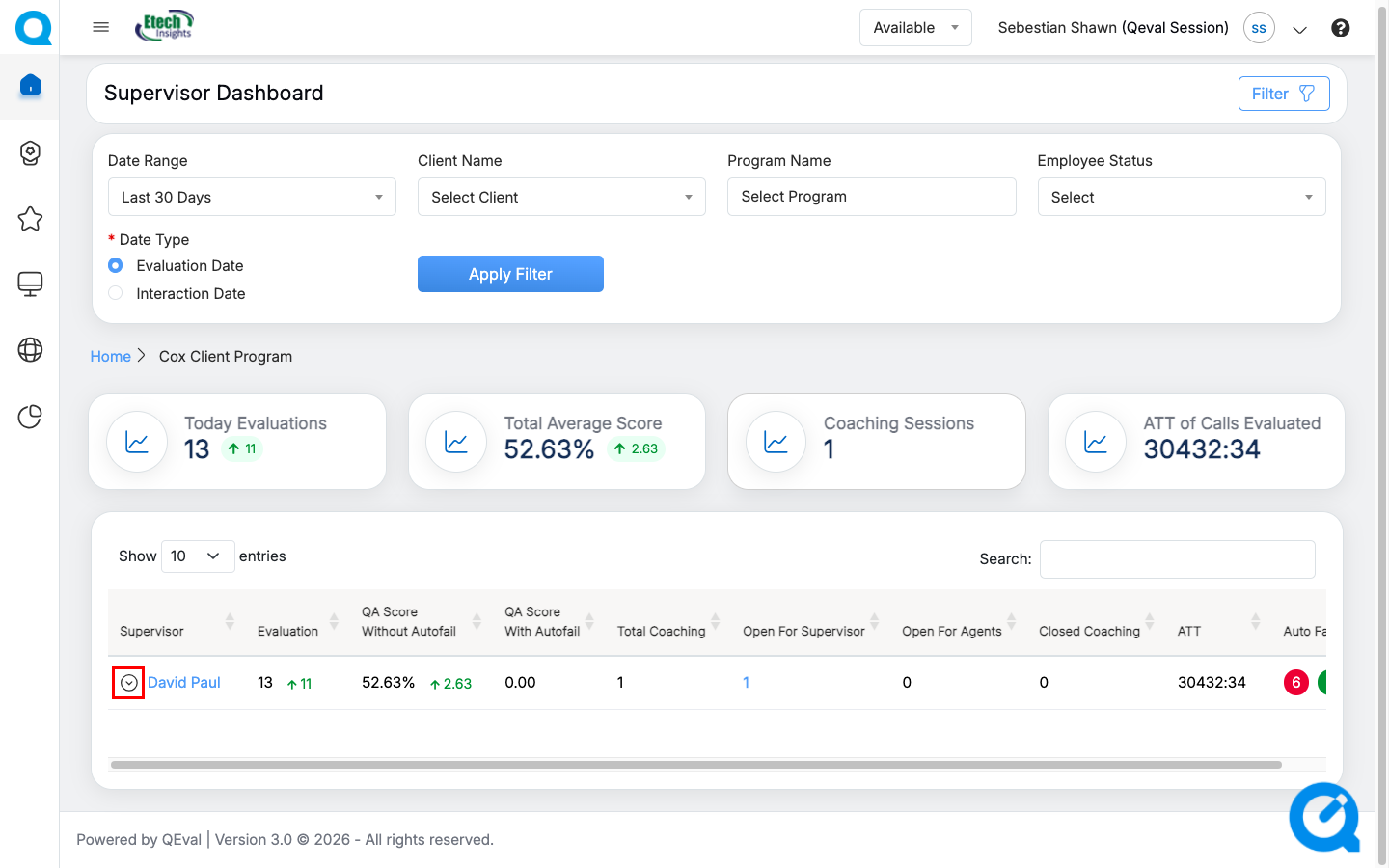
Upon clicking on the button, the supervisor’s supervisor names will be displayed –
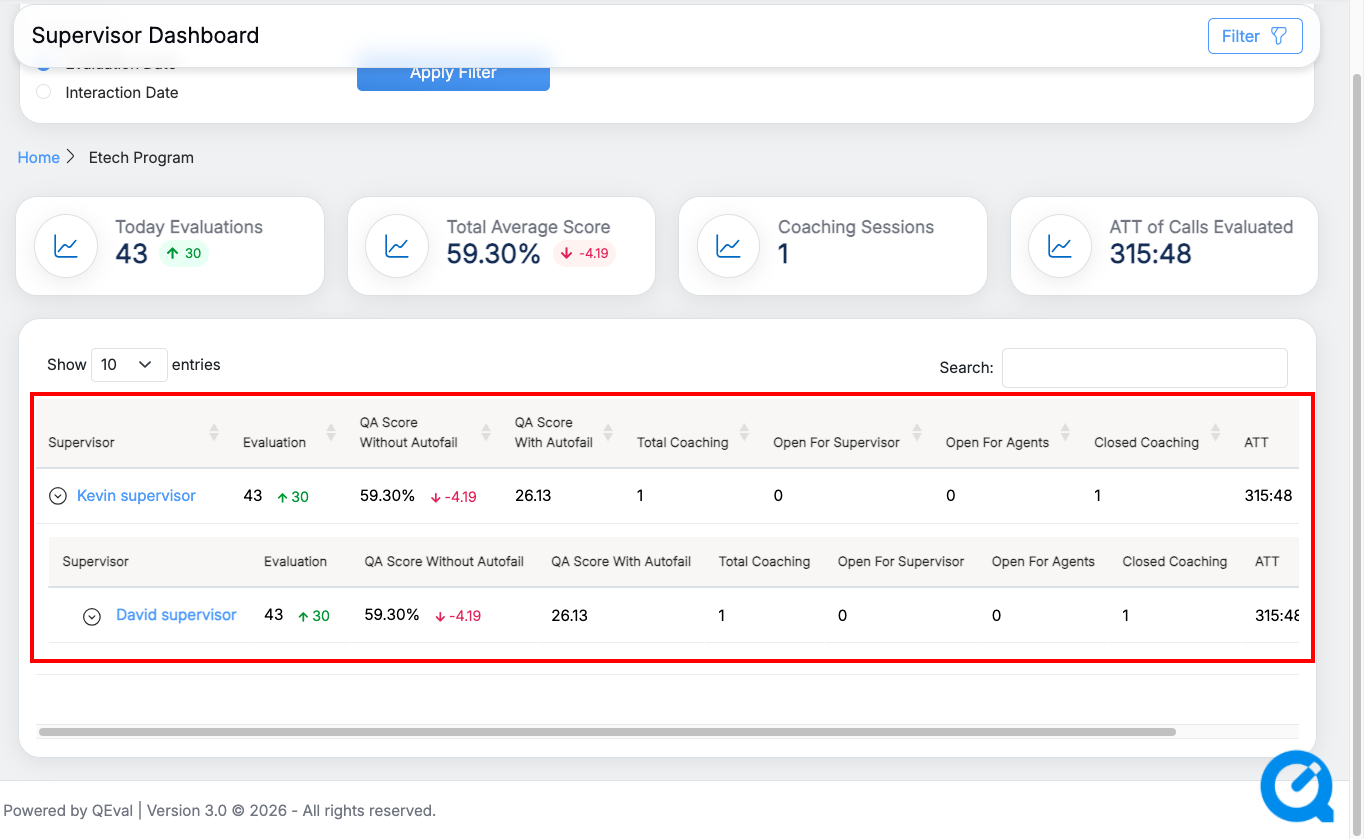
Supervisor’s Supervisor Name
Supervisors also have the ability to click on any of the names of the supervisors displayed within the hierarchy. Upon doing so, the system will present the report data for the selected supervisor, including detailed information about the agents under their supervision.
Additionally, the scorable category details associated with those agents will be visible, providing further insights into their performance metrics.
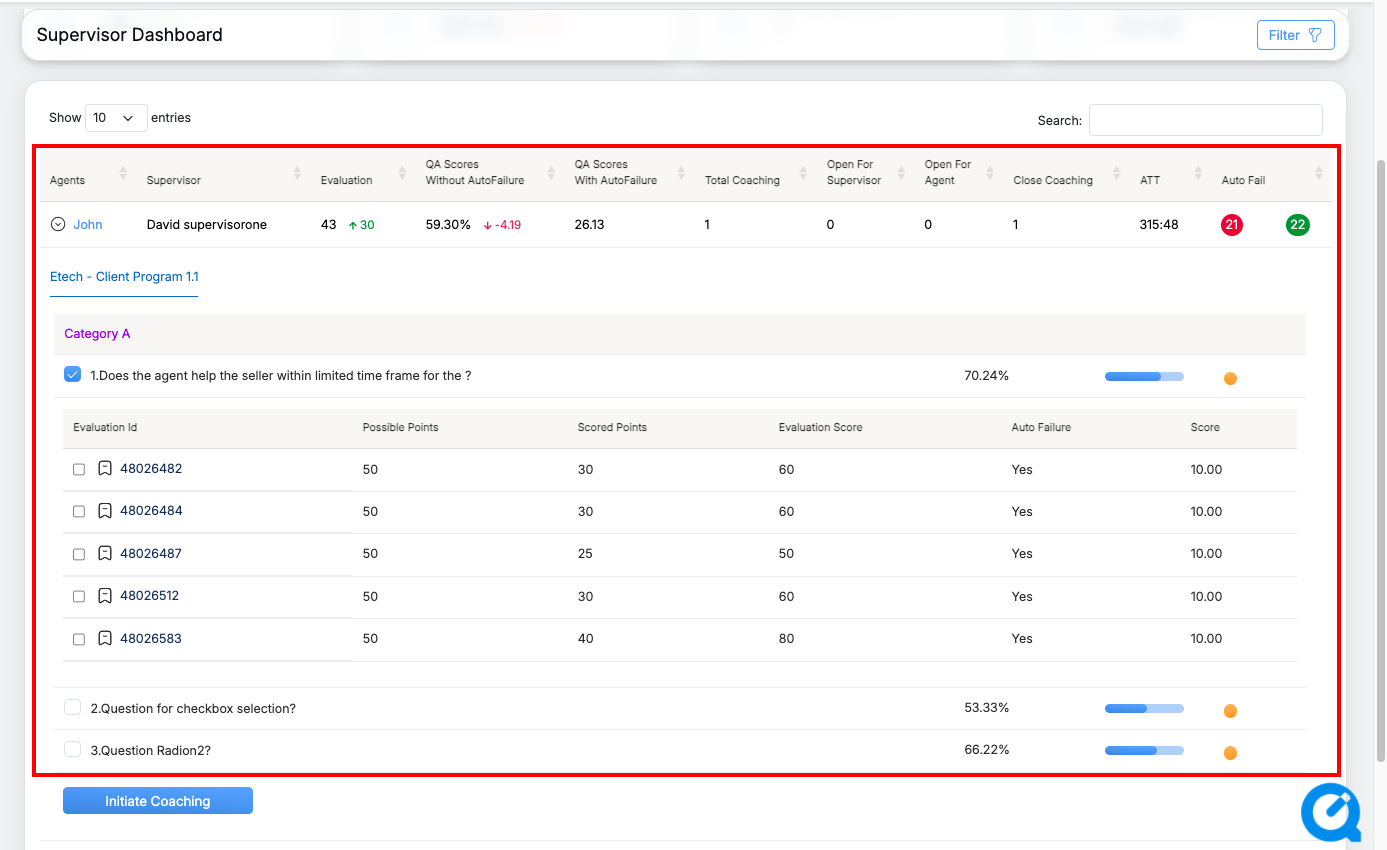
Agent’s Scorable Categories
Upon evaluating an agent’s scorable categories, the supervisor has the option to choose any category that requires improvement. To proceed, the supervisor clicks on the main category and then selects the specific evaluation id associated with the agent from the dropdown menu.
Once the relevant evaluation id is selected, the supervisor can initiate the coaching process by simply clicking the “Initiate Coaching” button, as displayed on the interface-
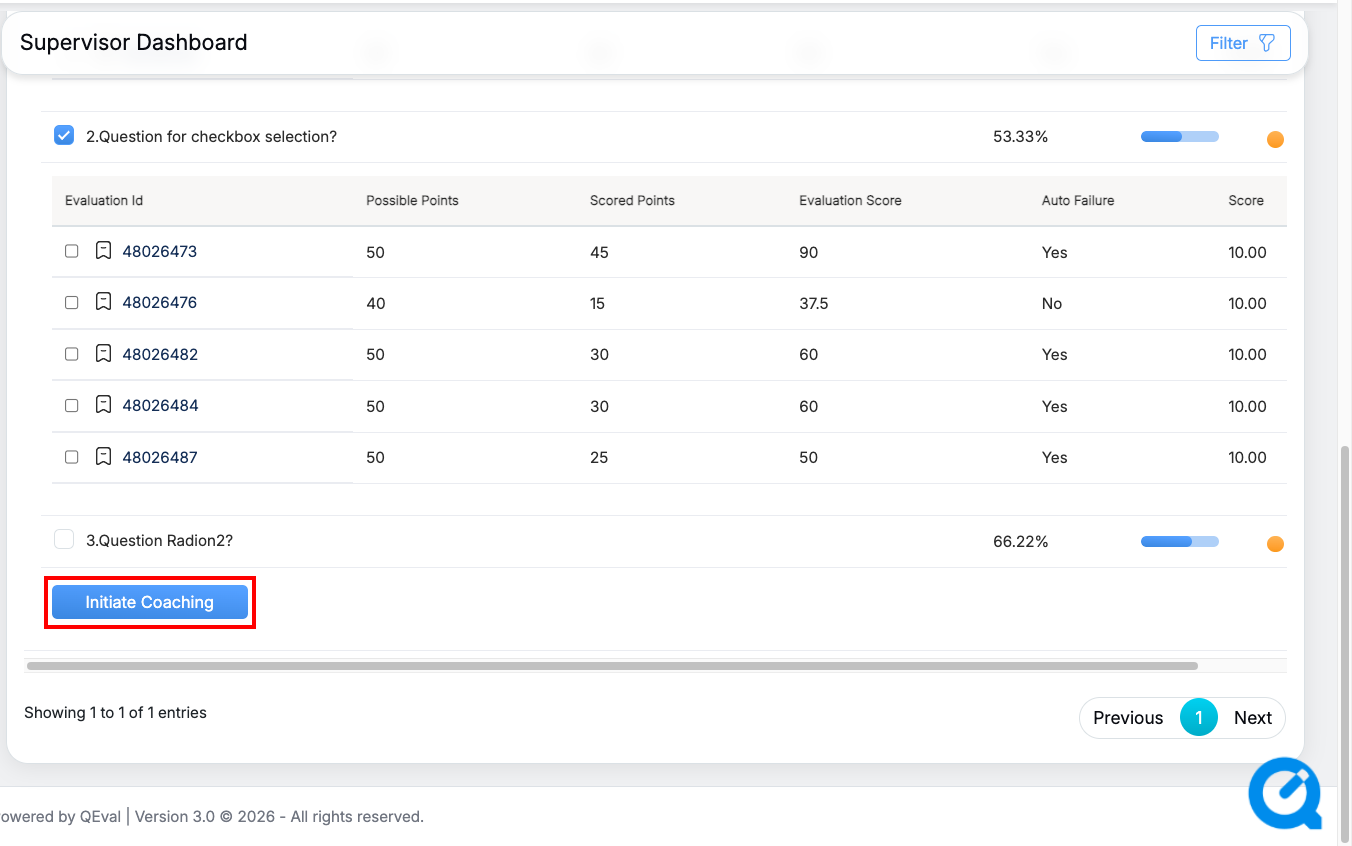
Initiate Coaching Button
Video