Table of Contents
Search Work Allocation
To search for a specific work allocation, select Manage > Work Allocation > Manage Work Allocation from the left panel, then click the Search Work Allocation button.
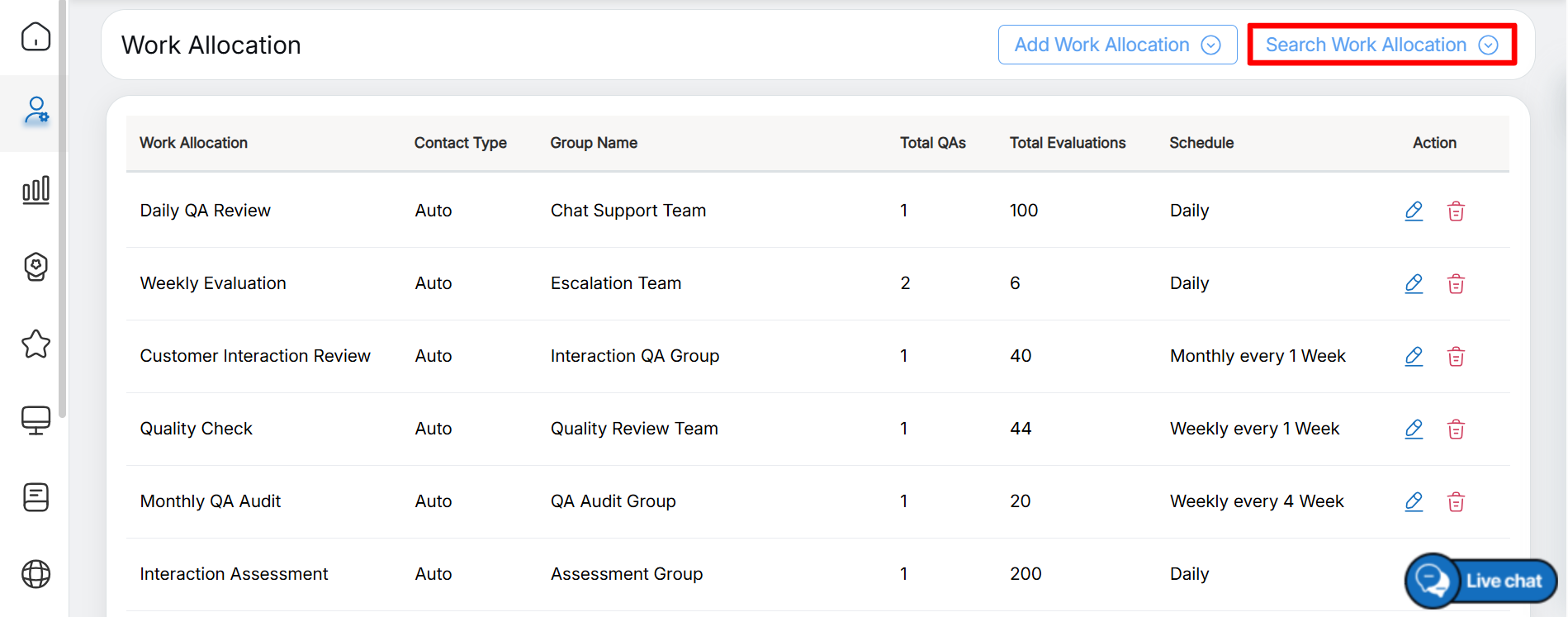
Search Work Allocation
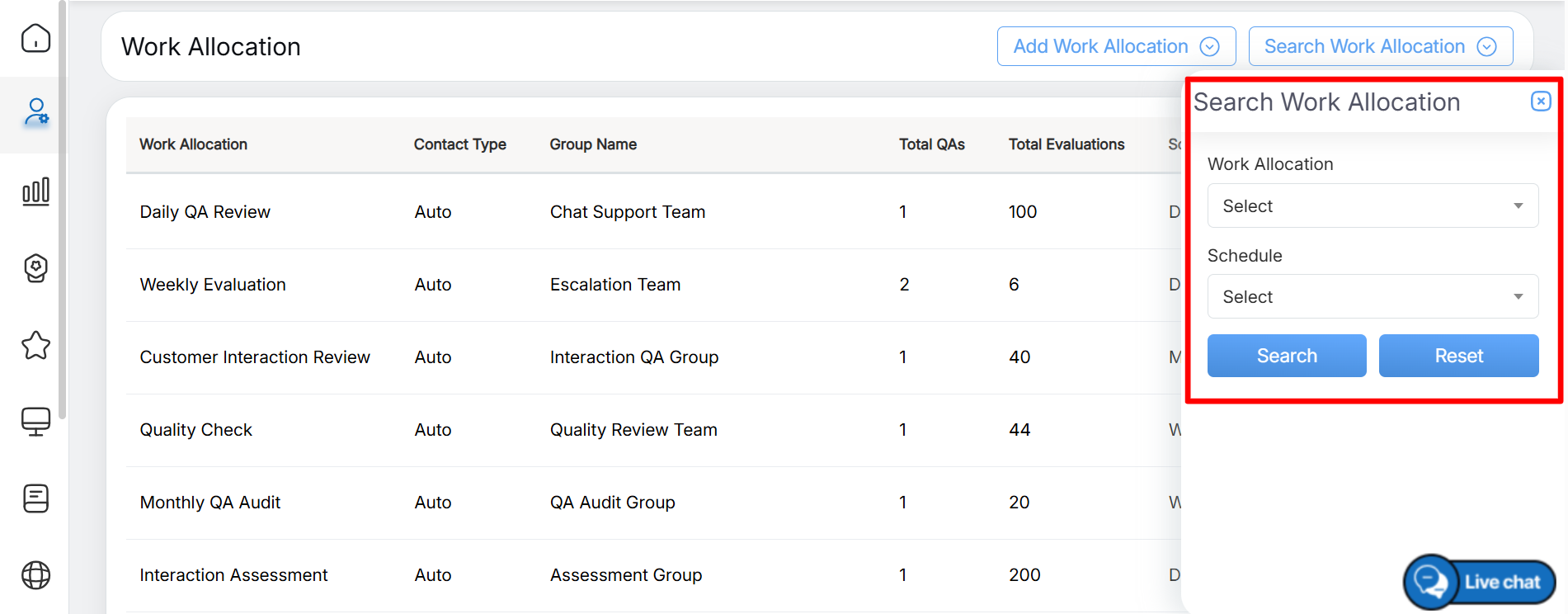
The Search Work Allocation screen is displayed, as shown below:
Search Details
On this screen, set the following filter to search for a specific work allocation:
- Work Allocation – Select the required work allocation from the dropdown list. You can also search for a specific allocation by entering relevant keywords in the search box. The matching work allocations are displayed based on the entered keywords.
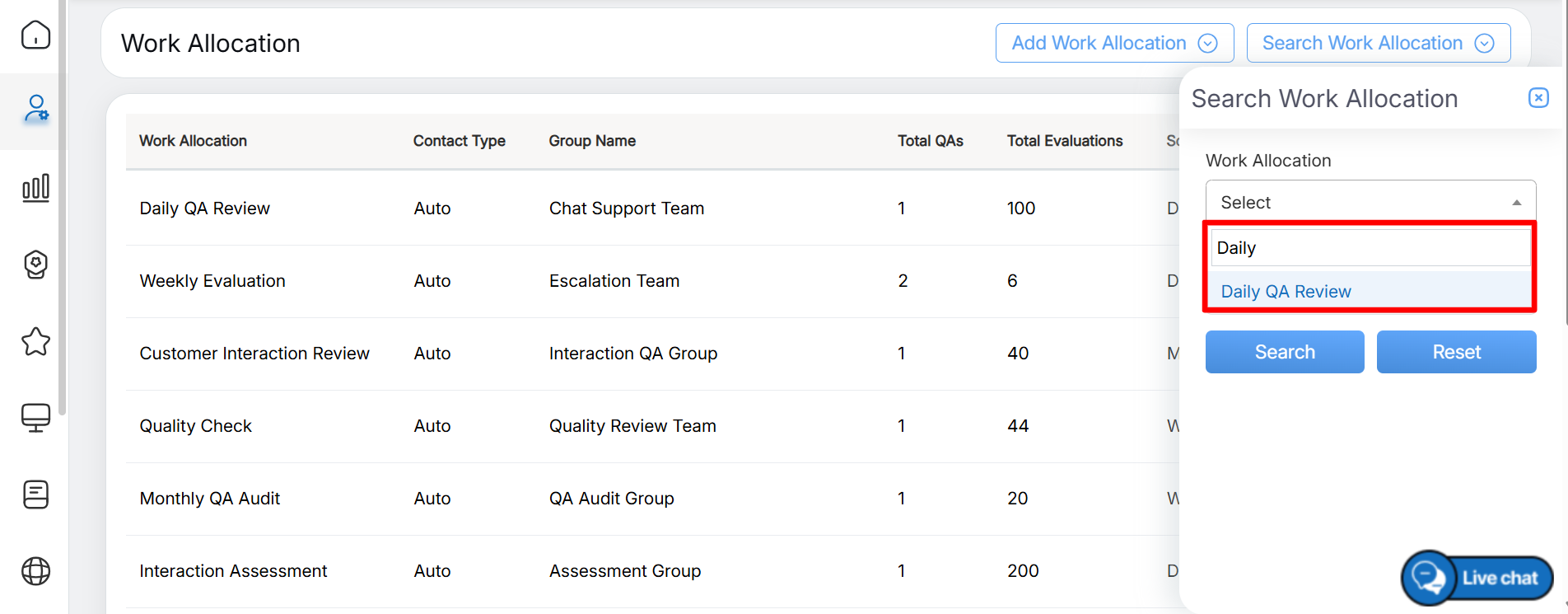
Search by Keywords
- Schedule – Select the required schedule type from the dropdown list: Daily, Weekly, or Monthly.
Once the required filters are set, click the Search button, as shown below:
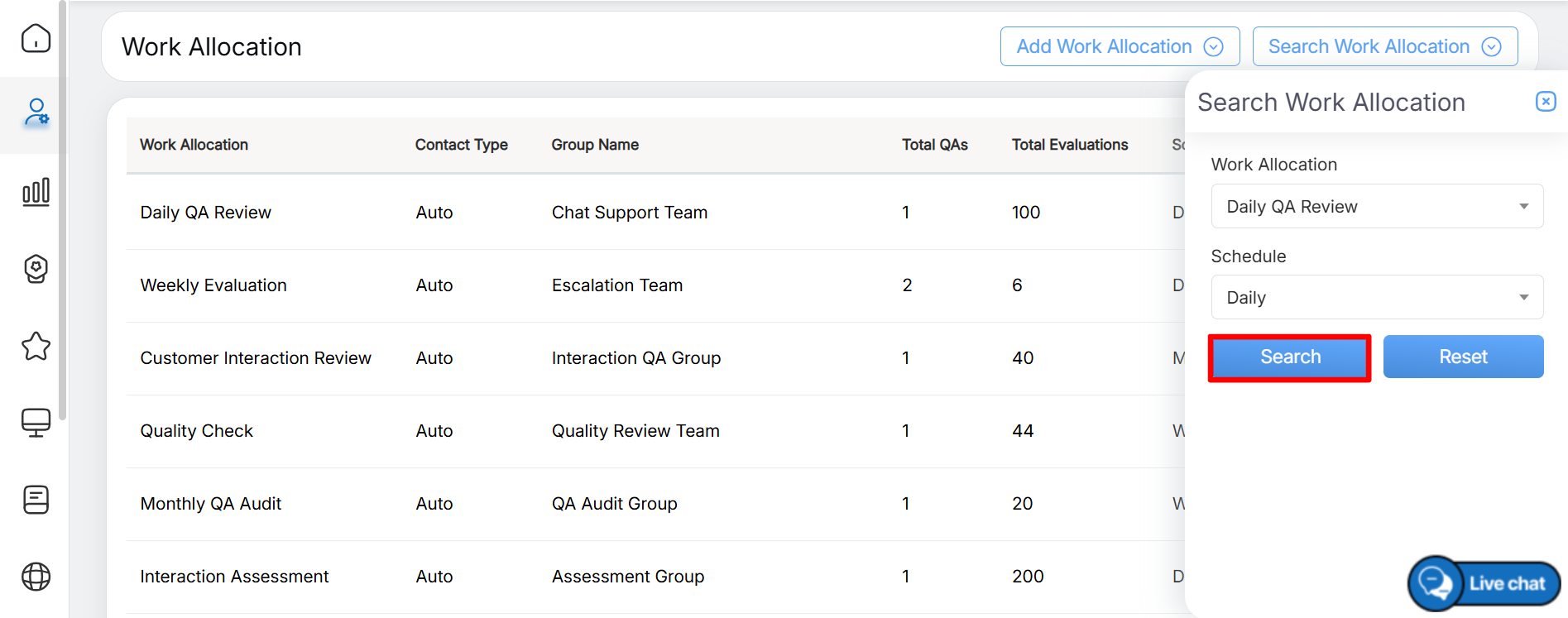
Search
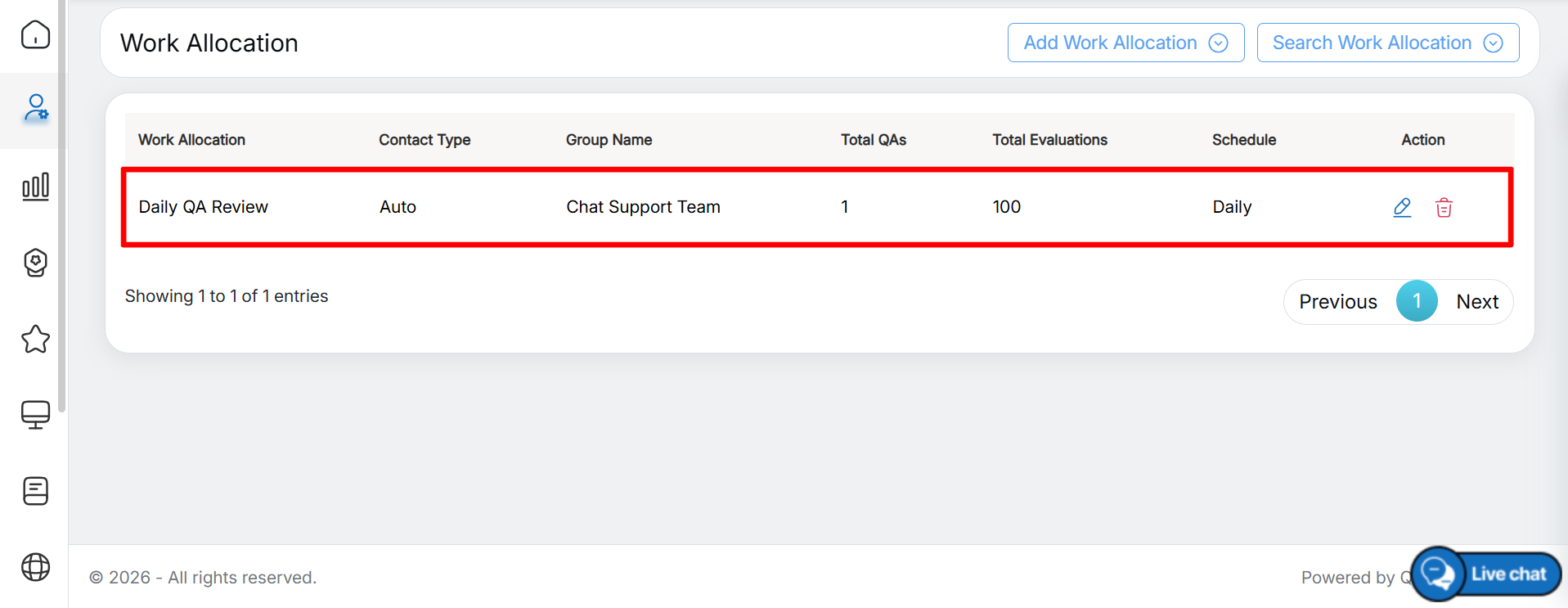
Search Results
In this way, users can search for any specific work allocation as required.
Video