Table of Contents
Search Work Allocation Group
To search for a specific work allocation group from the list of existing groups, click the Search Work Allocation Group button.
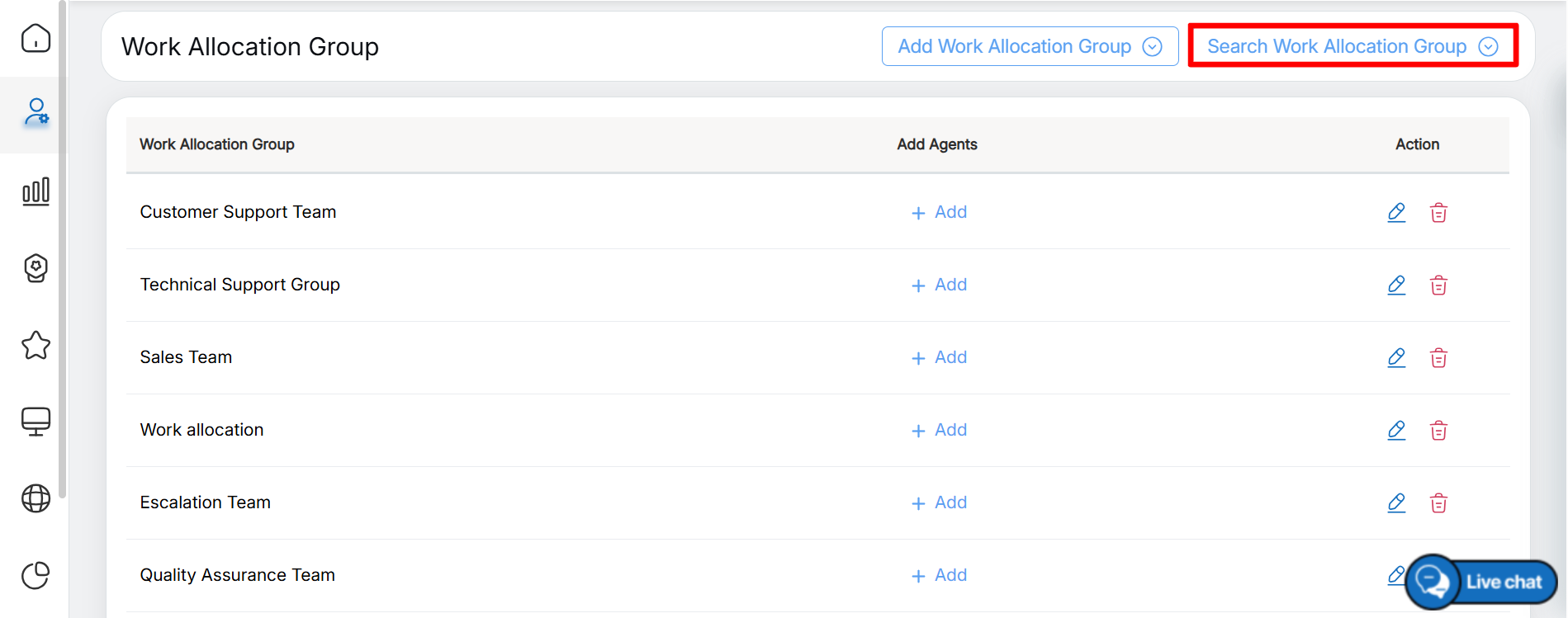
Search Work Allocation Group
The Search Work Allocation Group screen is displayed, as shown in the following screen.
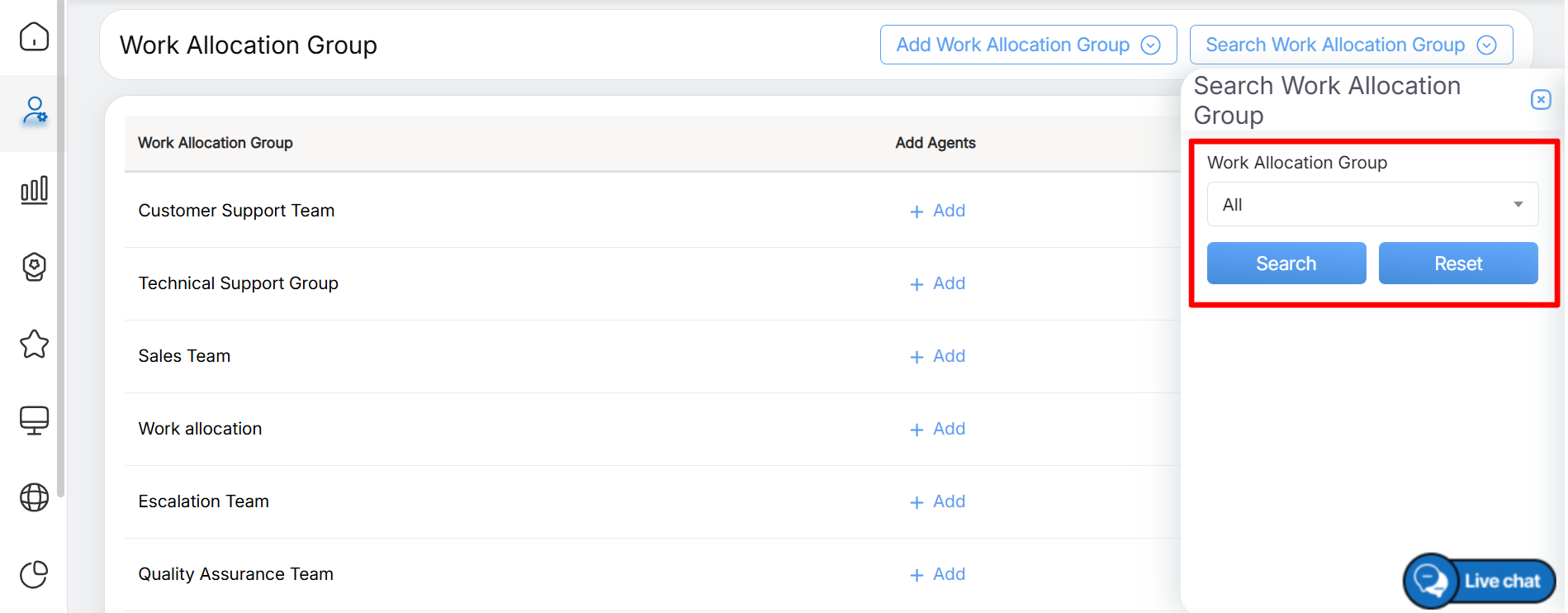
Search Details
On the Search Work Allocation Group screen, select All to view all work allocation groups, or choose a specific group name from the Search Work Allocation Group drop-down list to search for that group, as shown in the following screen.
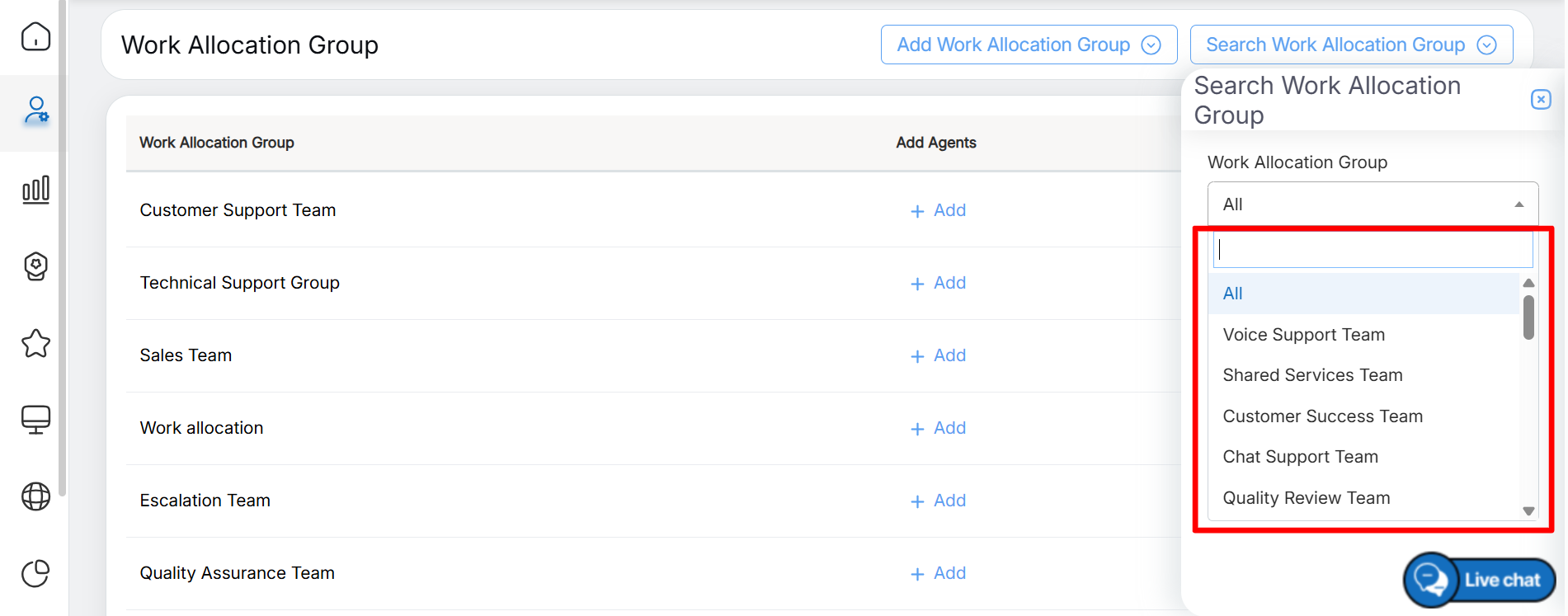
Work Allocation Group List
Users can also search for a specific work allocation group by entering relevant keywords in the search box available within the drop-down list. Based on the entered keywords, the system filters and displays the matching work allocation group(s), as shown in the following screen.
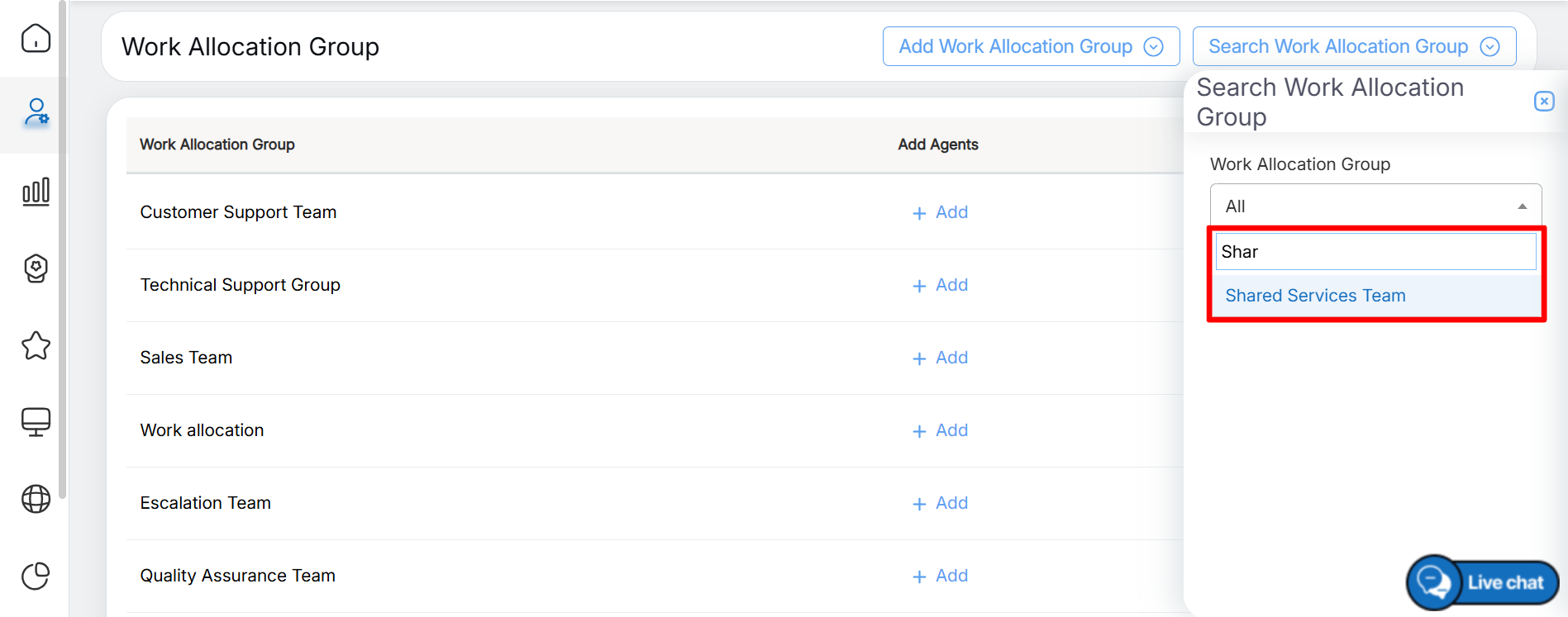
Searching based on keywords
After selecting the required work allocation group, click the Search button to display the matching results, as shown in the following screen.
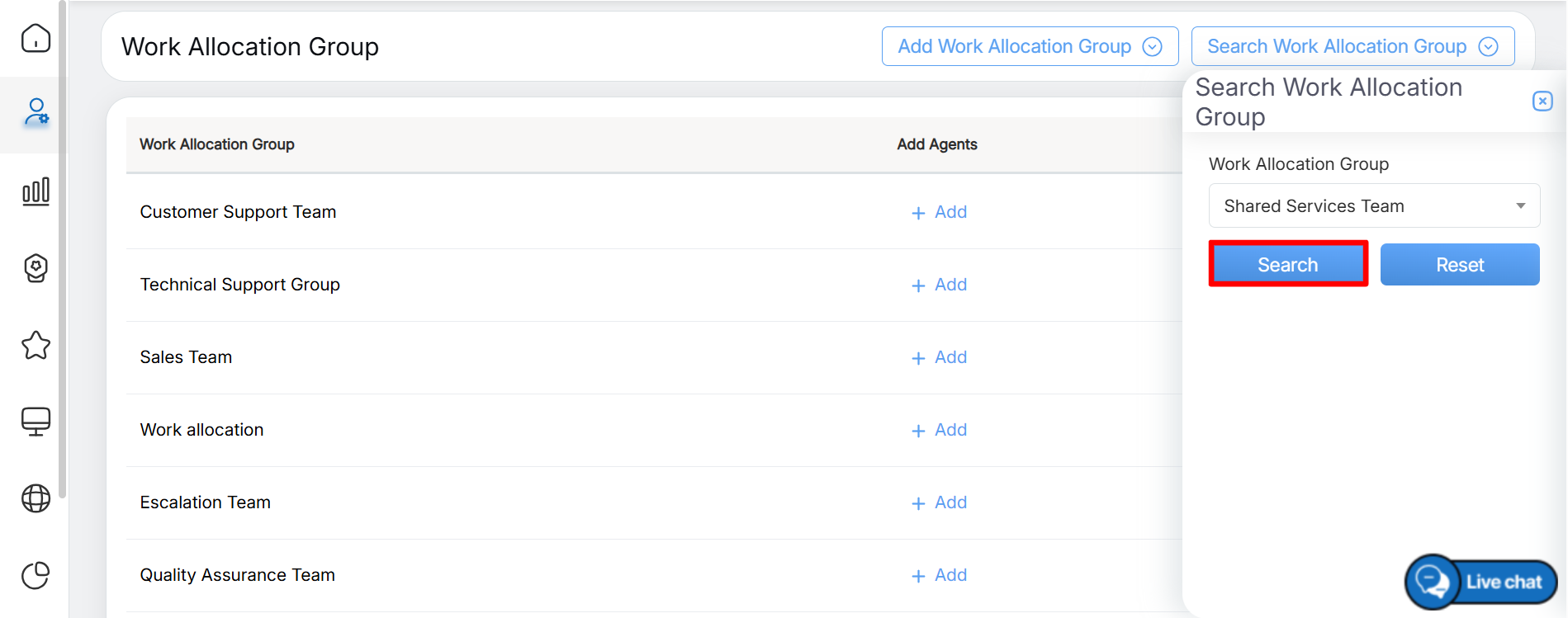
Search
To clear the selected search criteria and restore the default values, click the Reset button.
Based on the selected search criteria, the Work Allocation Group page displays the matching work allocation group(s), as shown in the following screen.
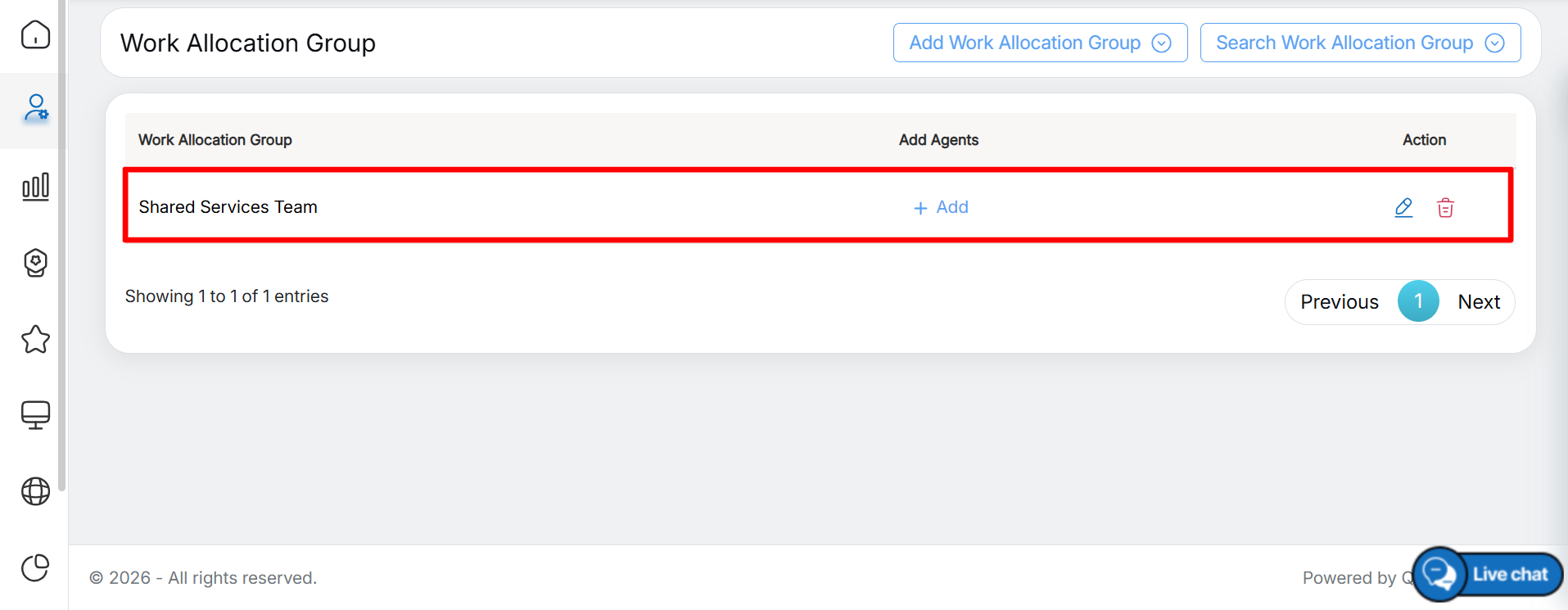
Search Results
Using the Search Work Allocation Group feature, users can quickly locate a specific work allocation group from the list of existing groups.
Video