Table of Contents
Introduction
Once the admin provides the required View Training rights, the agent can view any pending training assigned to them from their account.
Agent Dashboard
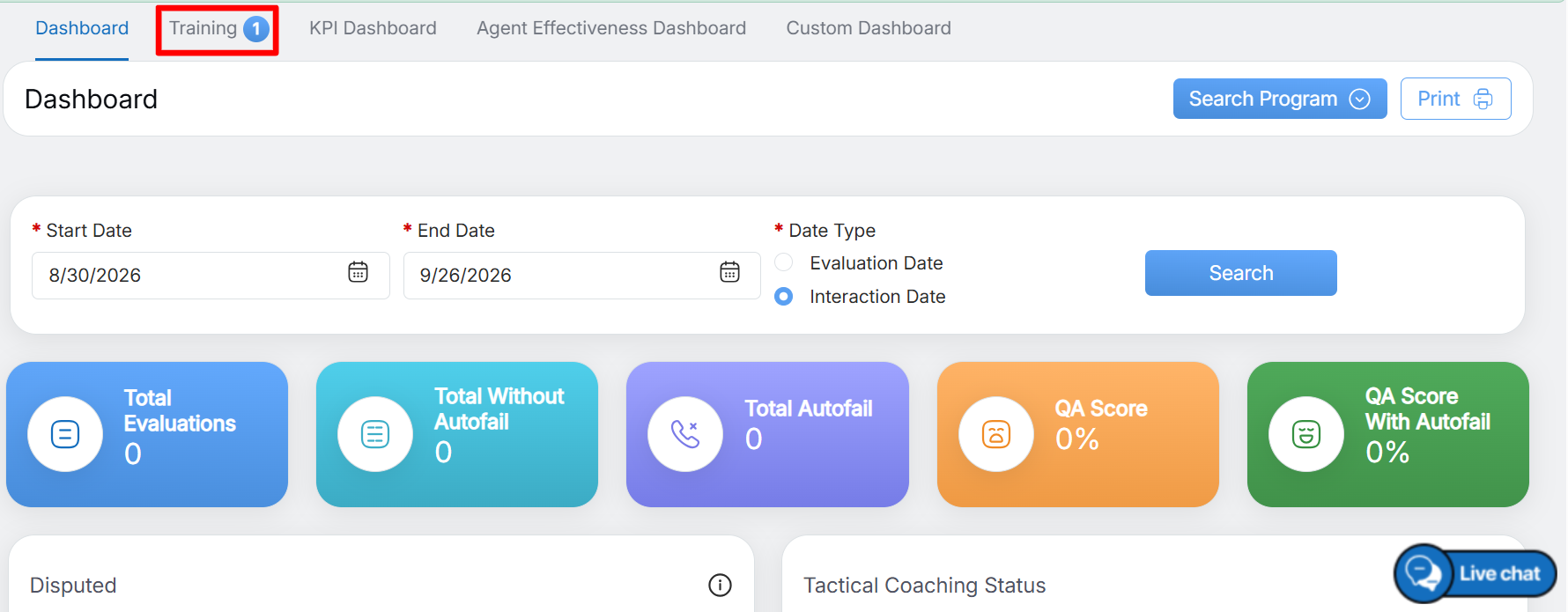
The Agent Dashboard includes a Training tab, as shown in the screen below.
Training
The Coaching page displays the number of trainings based on their current status: Open or Closed.
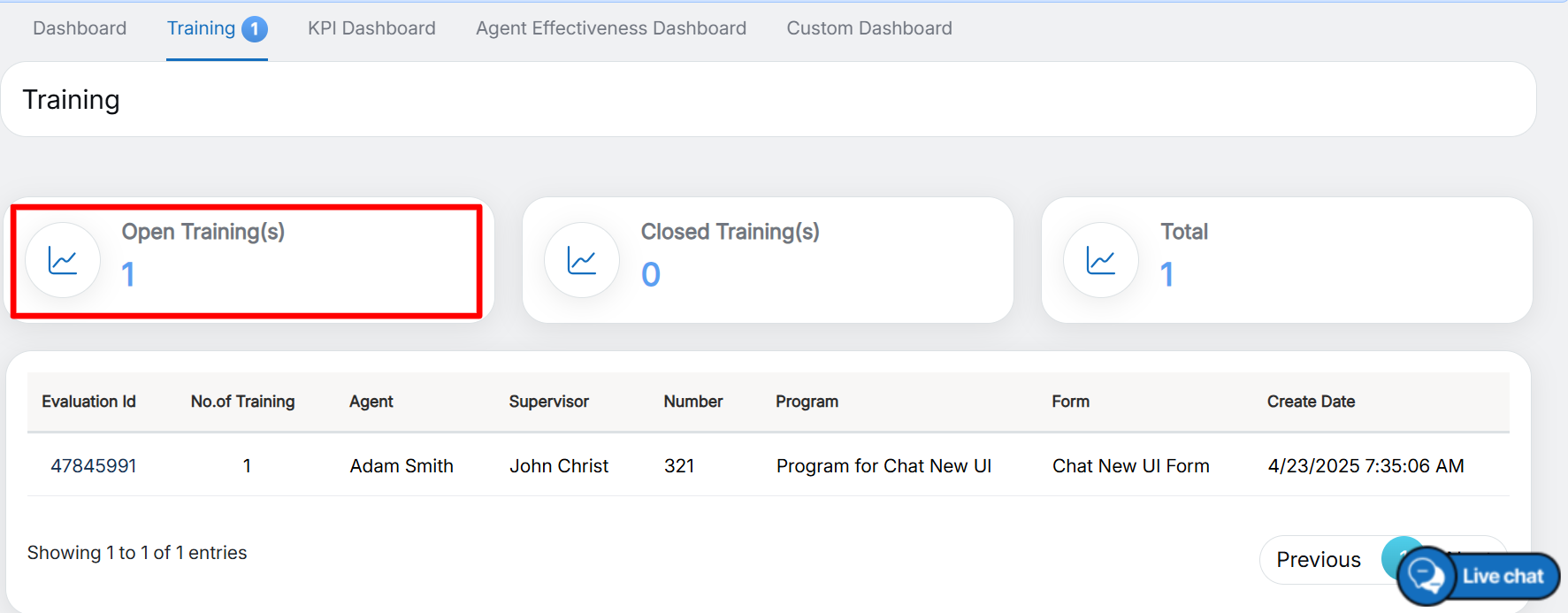
- Open Training: Displays the number of pending coaching that the logged-in agent needs to complete.
- Closed Training: Displays the number of coaching that the logged-in agent has completed.
- Total: Displays the total number of trainings assigned to the logged-in agent, including both Open and Closed trainings.
The grid on this page displays the details of the trainings based on the selected training status.
-
To view the details of all trainings that are currently Open or Pending, click the Open Training tab.
Open Training
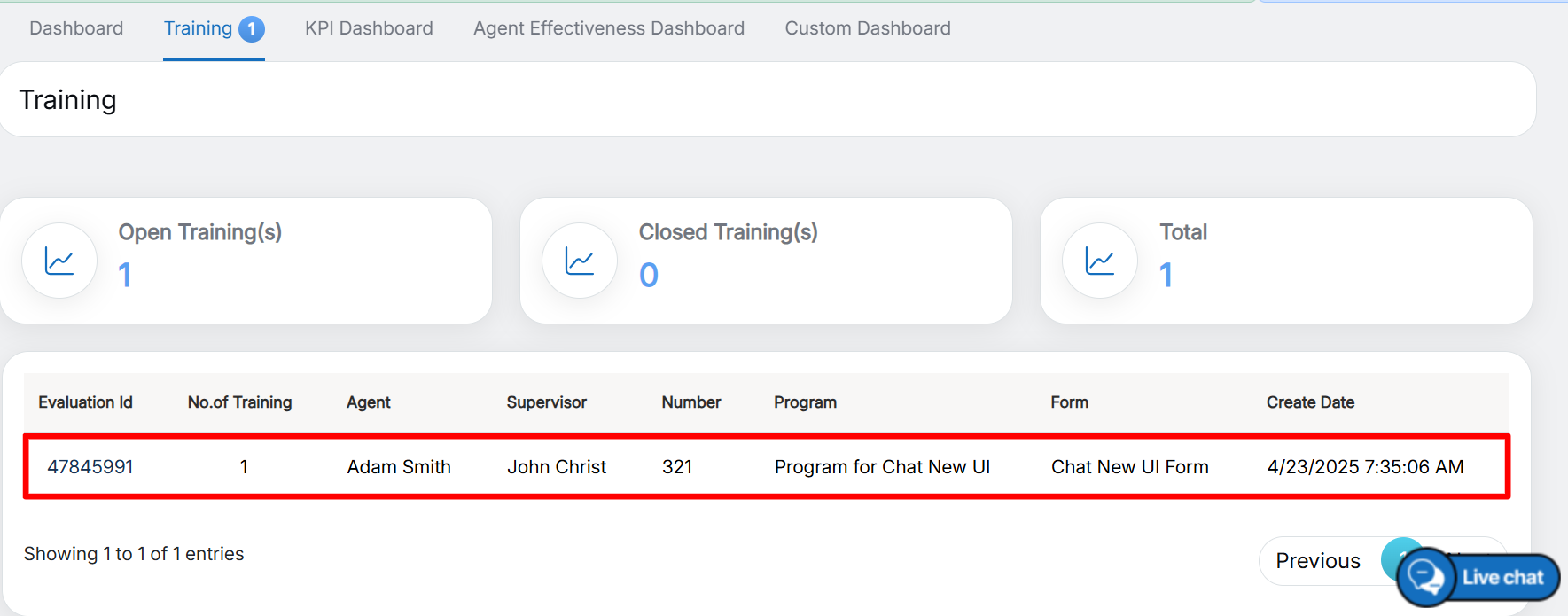
The training details are displayed in the grid, as shown in the screen below.
Open Training List
On this grid, the following training details will be displayed:
- Answer ID
- No. of Training
- Agent
- Supervisor
- Number
- Program
- Form
- Create Date
Similarly, click the Closed Training tab to view the details of all trainings that are in the Closed state. To view the details of all Open and Closed trainings, click the Total tab.
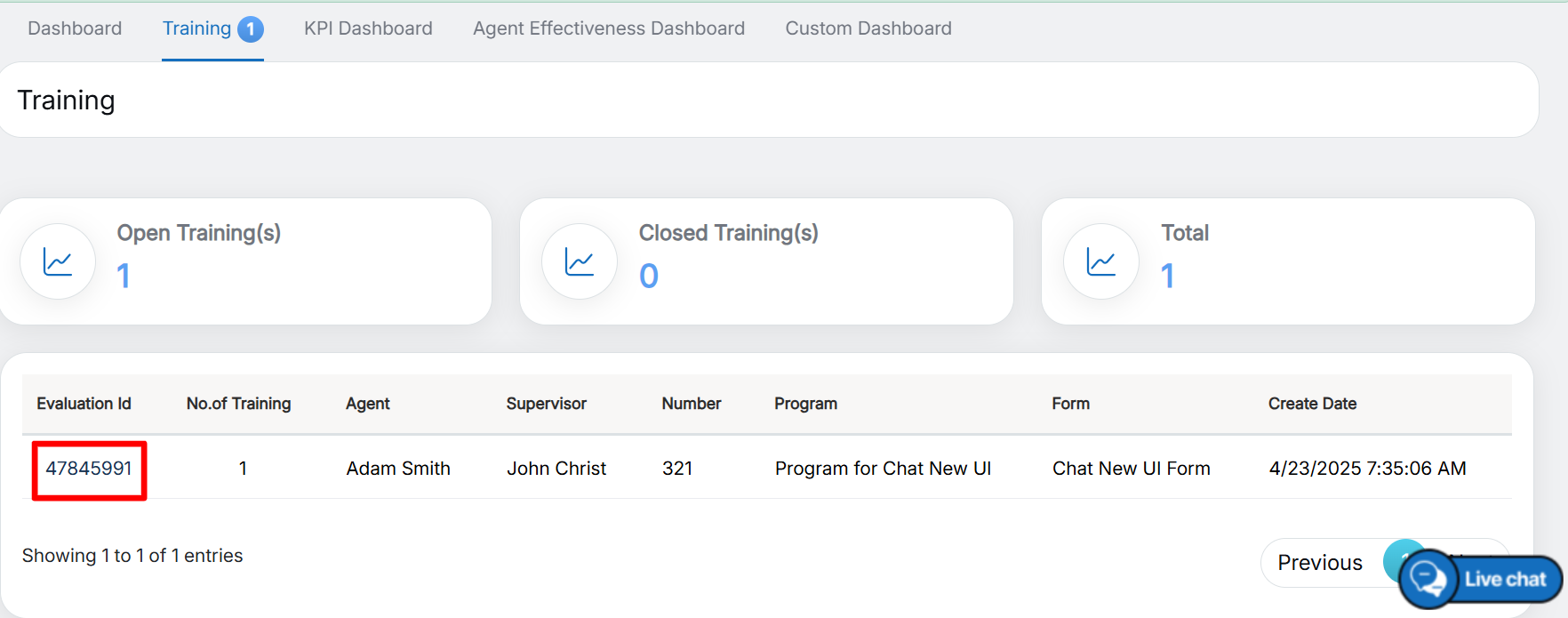
The logged-in agent can view and complete the assigned coaching by clicking the Evaluation ID link in the grid, as shown in the screen below.
Evaluation ID
When the agent clicks the Evaluation ID link, they are directed to the View Evaluation page for the selected form and program, as shown in the screen below.
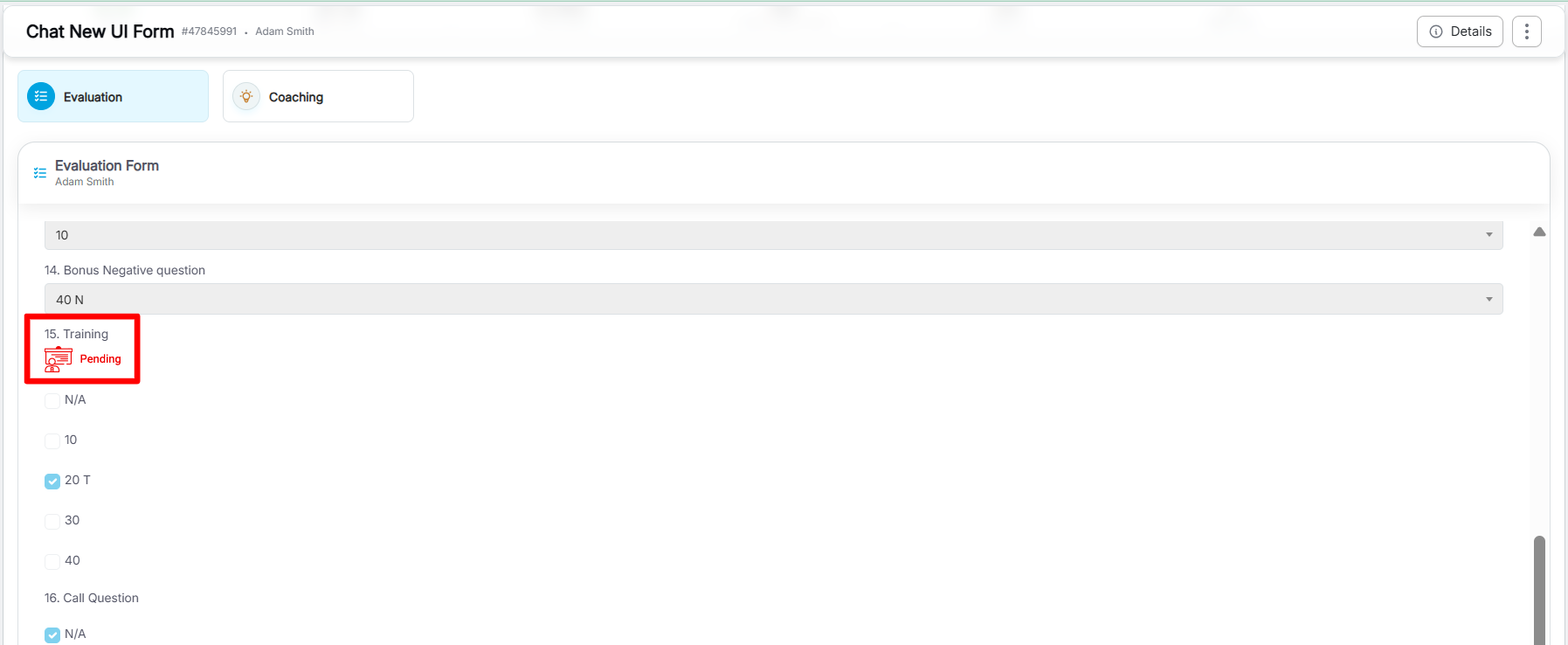
View Evaluation Page
The Pending symbol indicates that training is available for the corresponding question. To access the training, click the Pending symbol. The Training Guideline window is displayed, as shown in the screen below.
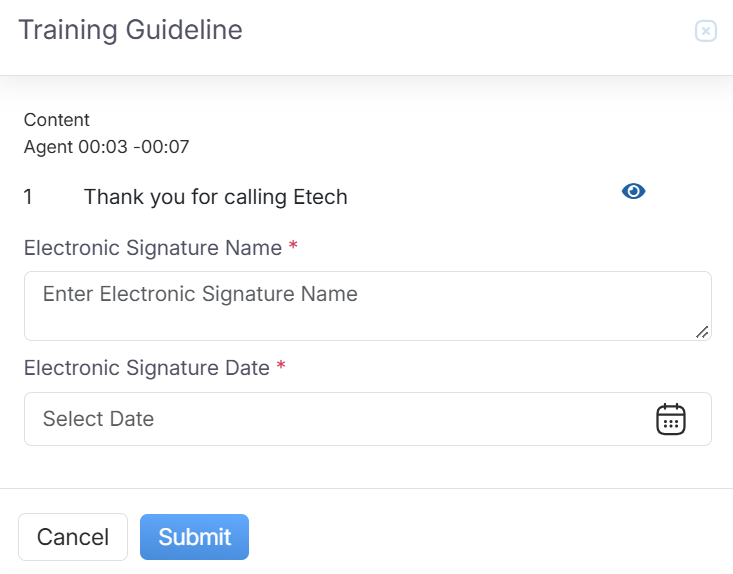
Training Guideline
The Training Guideline window also displays the training files provided for reference. The agent can view a training file by clicking the View button, as highlighted in the screen below.
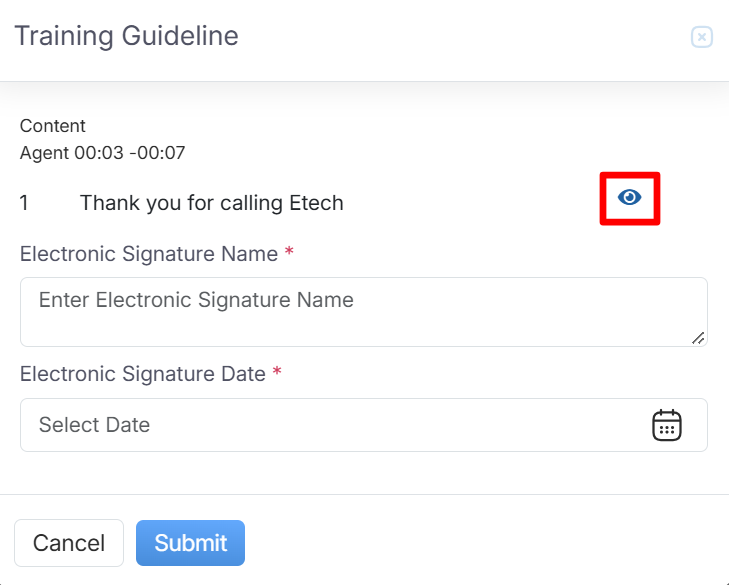
View Training File
Once the training is completed for the question, enter the Electronic Signature Name and Electronic Signature Date.
After providing the required digital signature details, click the Submit button.
Notes:
- A question included under training will have no effect on the score.
-
The Closed Training view displays the agent’s digital signature along with the date on which the training was completed.
Video