Table of Contents
- Accessing Agent Profile
- Add Agent Profile
- Agent Profile Details
- Edit Agent Profile
- Delete Agent Profile
This feature has been developed to assign or set a KPB Index benchmark for a specific agent.
Accessing Agent Profile
To access this feature, select the KPI menu and select the Agent Profile tab.
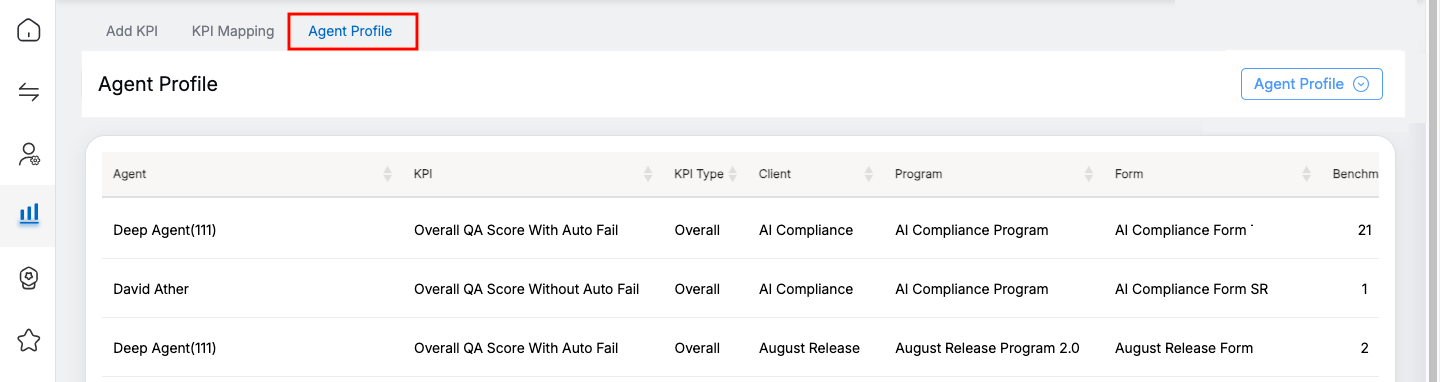
Agent Profile
The following screen will be displayed.
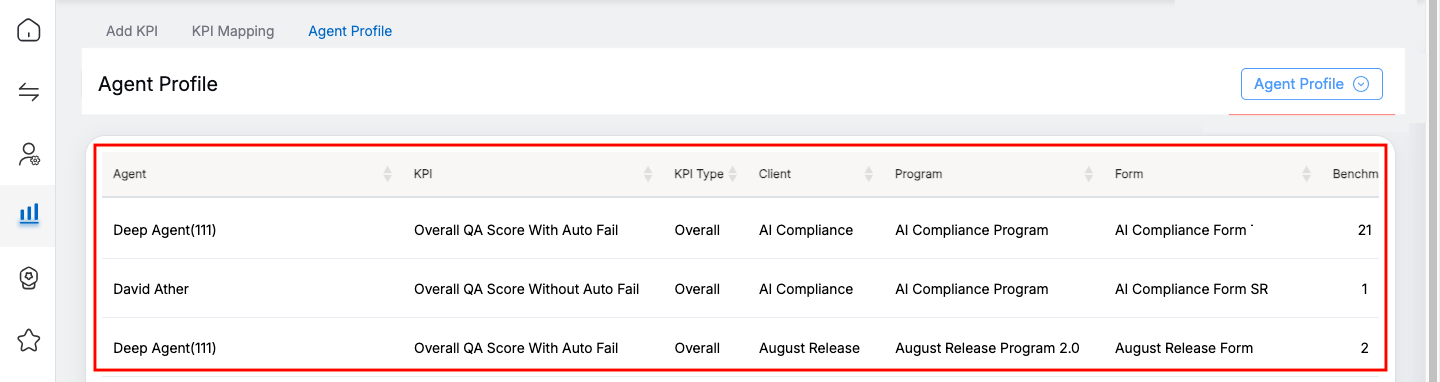
Agent Profile
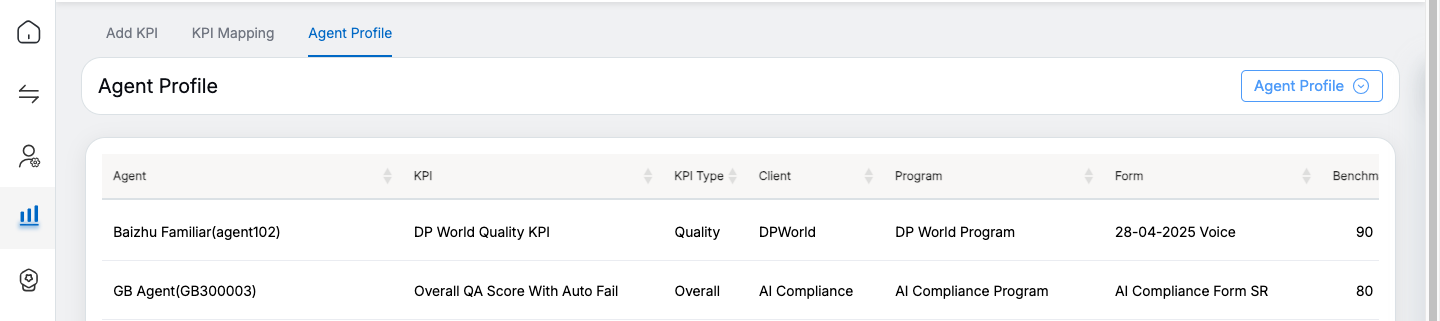
On this page, the list of KPIs added for different agents will be displayed.
Add Agent Profile
To assign a KPI to any agent, click on the Agent Profile button.
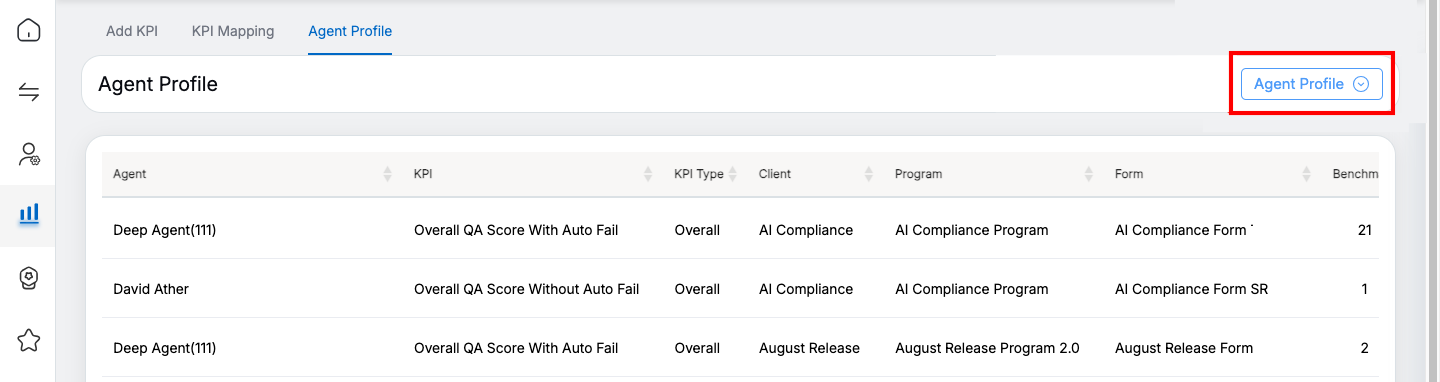
Agent Profile button
The following screen will be displayed.
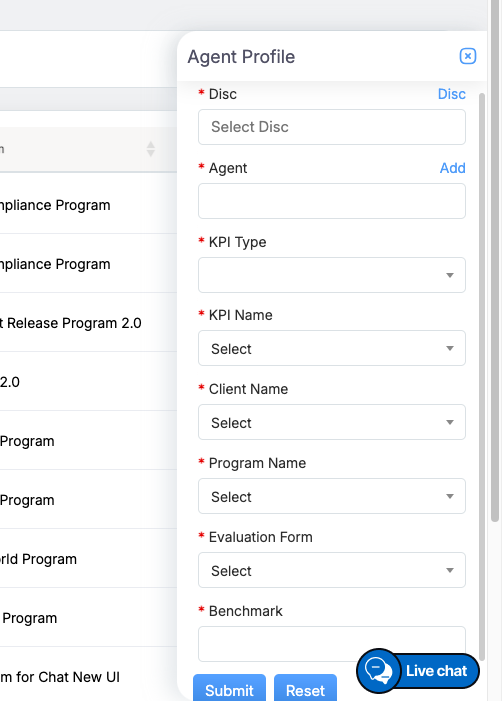
Configure the following fields:
|
Screen Elements |
Description |
|---|---|
|
DISC |
DISC stands for Dominance, Influence, Steadiness, and Compliance which are the personality types. Select the DISC option from the dropdown field – Eagle, Peacock, Dove, or Owl.
|
|
KPI Type |
Select the KPI type from the dropdown list. |
|
KPI Name |
Select the KPI name from the dropdown list. |
|
Agent Name |
Enter the initial letters of the agent’s name and the list of matching names will be displayed. Then, select the name of the agent from the dropdown list. |
|
Client Name |
Select the name of the client from the dropdown list. |
|
Program Name |
Select a program from the dropdown list which will display the Program Names as per the selection of the Client Name. |
|
Evaluation Form Name |
Evaluation Forms are displayed as per the client name and program name selected. |
|
Benchmark |
Enter the benchmark for the selected KPI. |
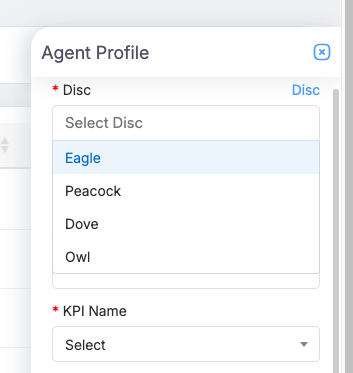
Once the necessary fields are added, click on the  button to add the agent profile, or click
  button to reset the fields.
On clicking the submit button the following acknowledgment message will be displayed as shown on the screen below.
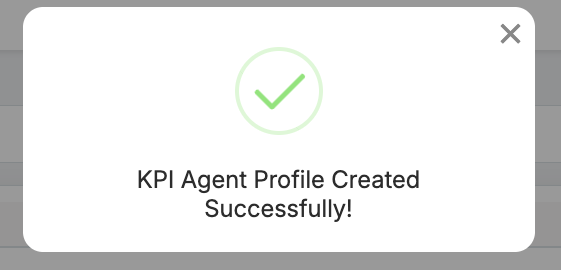
The newly added profile will be displayed on the list on the Agent Profile page.
Agent Profile Details
The following details will be displayed on this list:
- Agent: Displays the name of the client for him the agent profile has been created.
- KPI: Displays the name of the KPI.
- KPI Type: Displays the type of the KPI.
- Client: Displays the name of the client.
- Program: Displays the name of the program.
- Form: Displays the name of the form.
- Benchmark: Displays the set benchmark for this agent profile.
- Action: Two action icons will be displayed – Edit and Delete.
Edit Agent Profile
Click on the Edit  icon displayed under the Action column to edit a particular agent profile and the Edit Agent Profile window will be displayed as shown below:
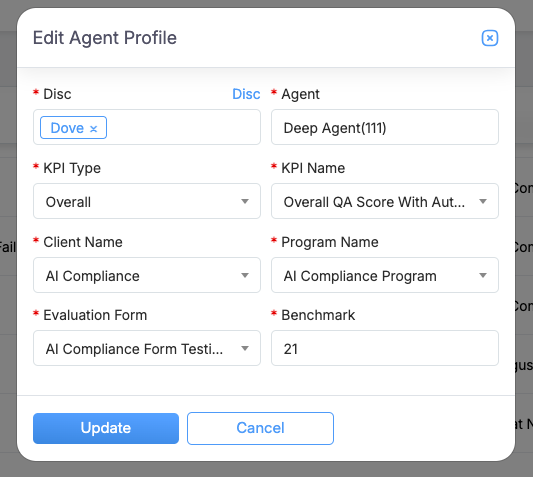
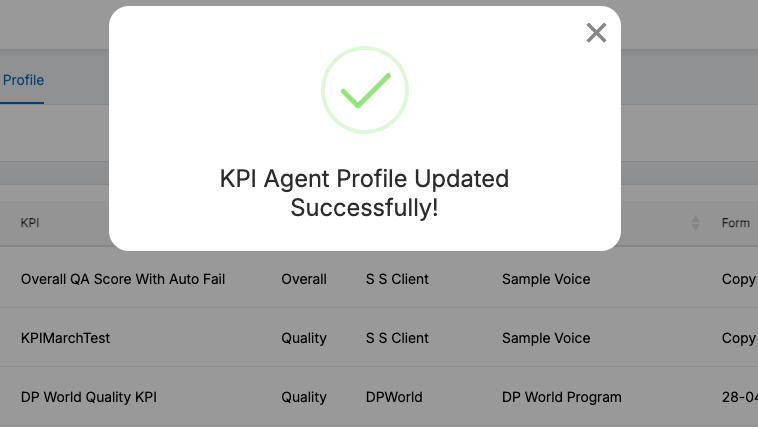
Once the updates are done, click on the Update button to update the changes made. Then, the acknowledgment message will be displayed as shown below.
Delete Agent Profile
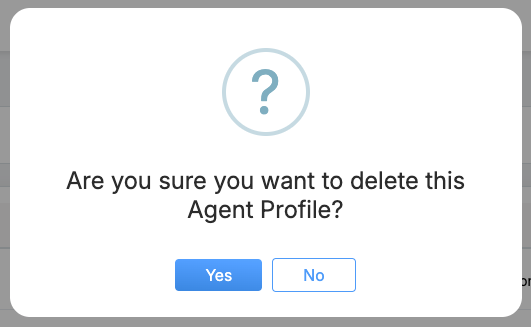
Click on the Delete  icon displayed under the Action column to delete the agent profile and the following confirmatory message as shown below:
Click  button to continue with the deletion of the agent profile or click
  button to cancel the process.
Video