Login Logout Report displays the login/logout records of the user.
To view this report, select Reports > Report > QA Performance Report > Login Logout Report.
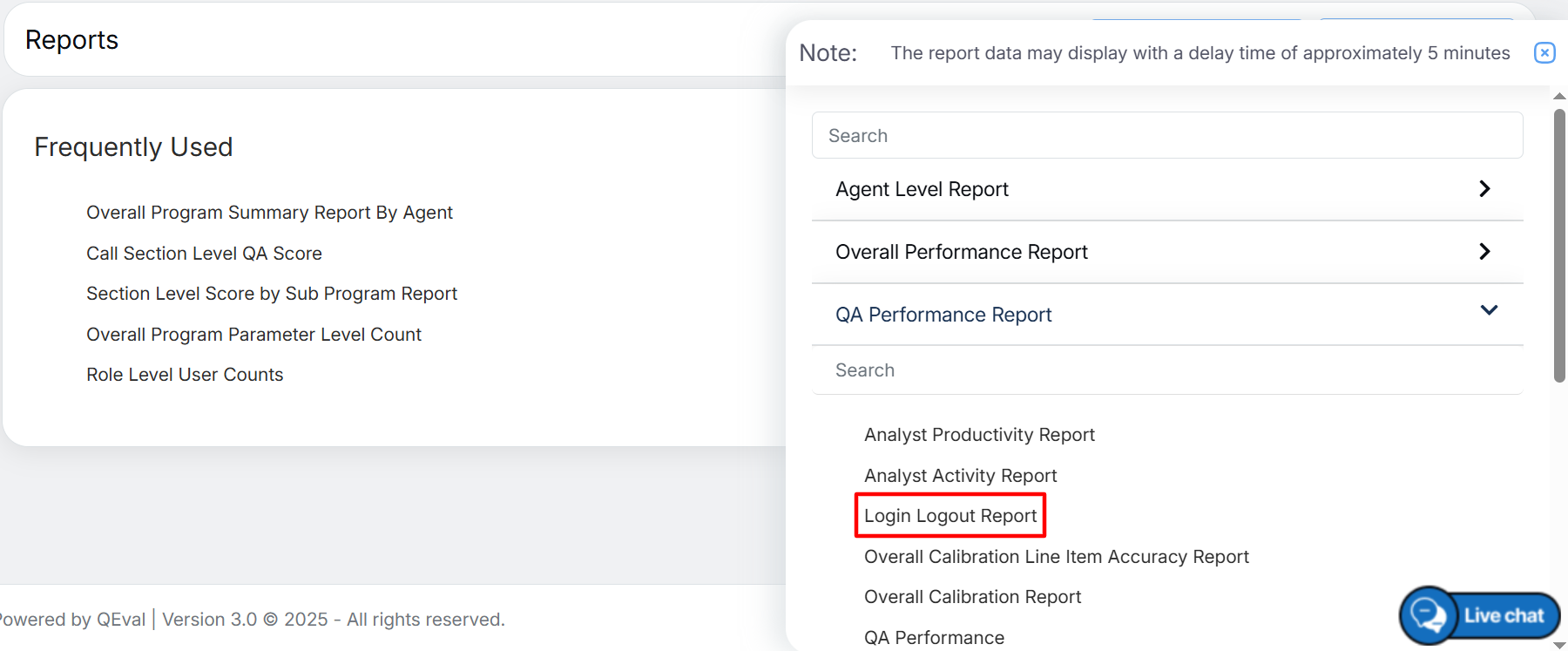
Login Logout Report
The following page will be displayed.
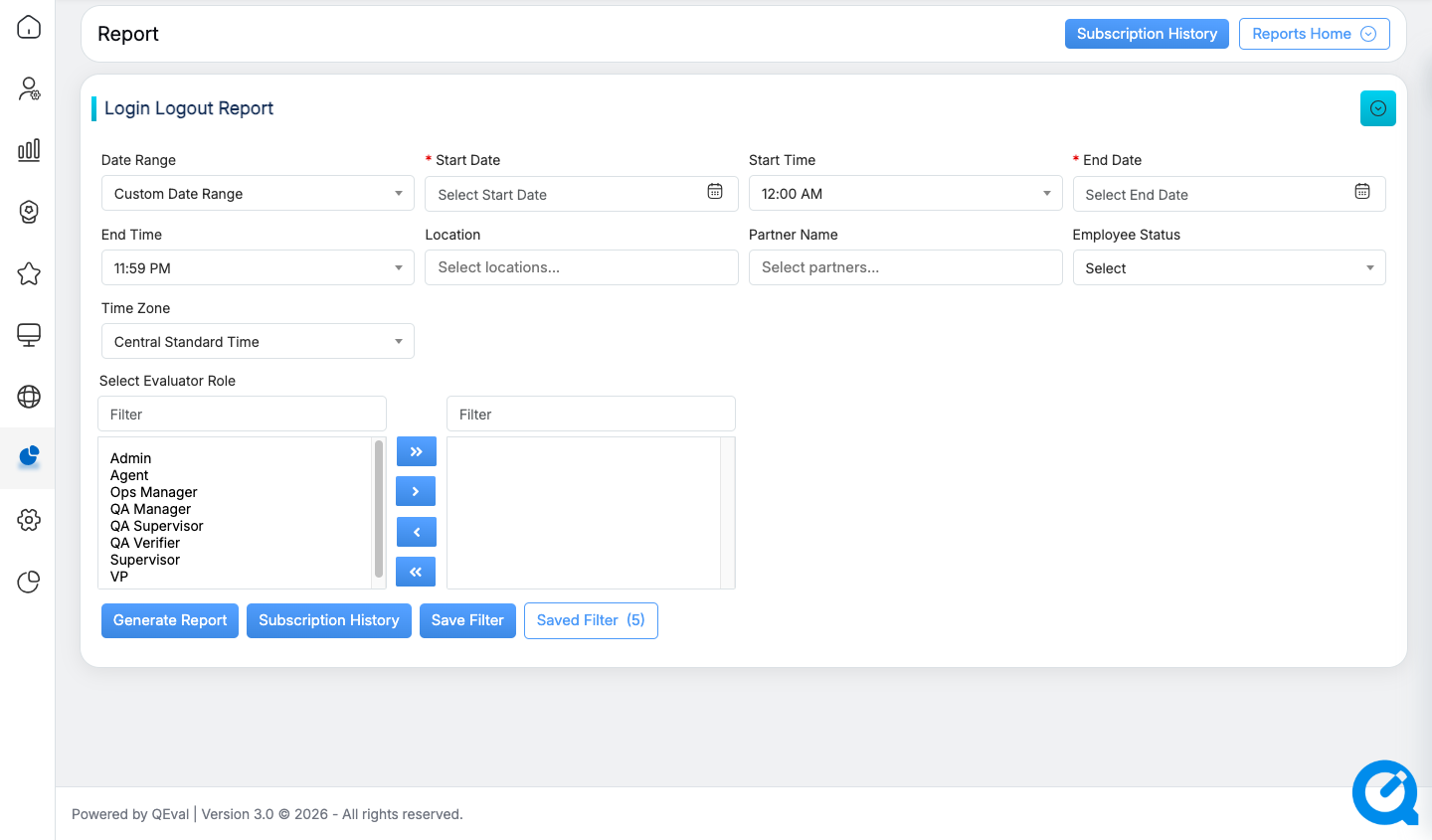
Login Logout Report
|
Screen Elements |
Description |
|
Date Range |
User can define a date range by either selecting from predefined timeframes in the dropdown or specifying a custom range based on the need. Available filters include Today, Last 7 Days, Last 10 Days, Last 30 Days, Last 12 Weeks, Last 6 Months, Week to Date, Month to Date, Previous Day, Previous Week, Previous Month, and Custom Date Range. Select the option that best suits your requirements. |
|
Start Date |
Start Date Available only when Custom Date Range is selected. Choose the start date for the report period using the date picker. |
|
Start Time |
Start Time Available only when Custom Date Range is selected. Select the start time to define the beginning of the reporting period. |
|
End Date |
End Date Available only when Custom Date Range is selected. Choose the end date for the report period using the date picker. |
|
End Time |
End Time Available only when Custom Date Range is selected. Select the end time to define the end of the reporting period. |
|
Location Name |
Select one or more locations from the dropdown list to filter report data by location. Note: A maximum of 10 locations can be selected at a time. |
|
Partner Name |
Select one or more partner names from the dropdown list to filter report data by partner. Note: A maximum of 10 partners can be selected at a time. |
|
Employee Status |
Select the required employee status from the dropdown list. Available options are Active, Inactive, and All. |
|
Time Zone |
Select the time zone from the dropdown list with the options:
|
|
Evaluator Role |
Select the required evaluator role(s) from the Available Roles list displayed on the left side.
The report will be generated based on the roles added to the Selected Roles list. |
 to move the selected role(s) to the Selected Roles list on the right.
 to move all available roles to the Selected Roles list at once.
 to move them back to the available roles list.
 to remove all selected roles and move them back to the available roles list.
Once the search criteria are set, then, click on the  button.
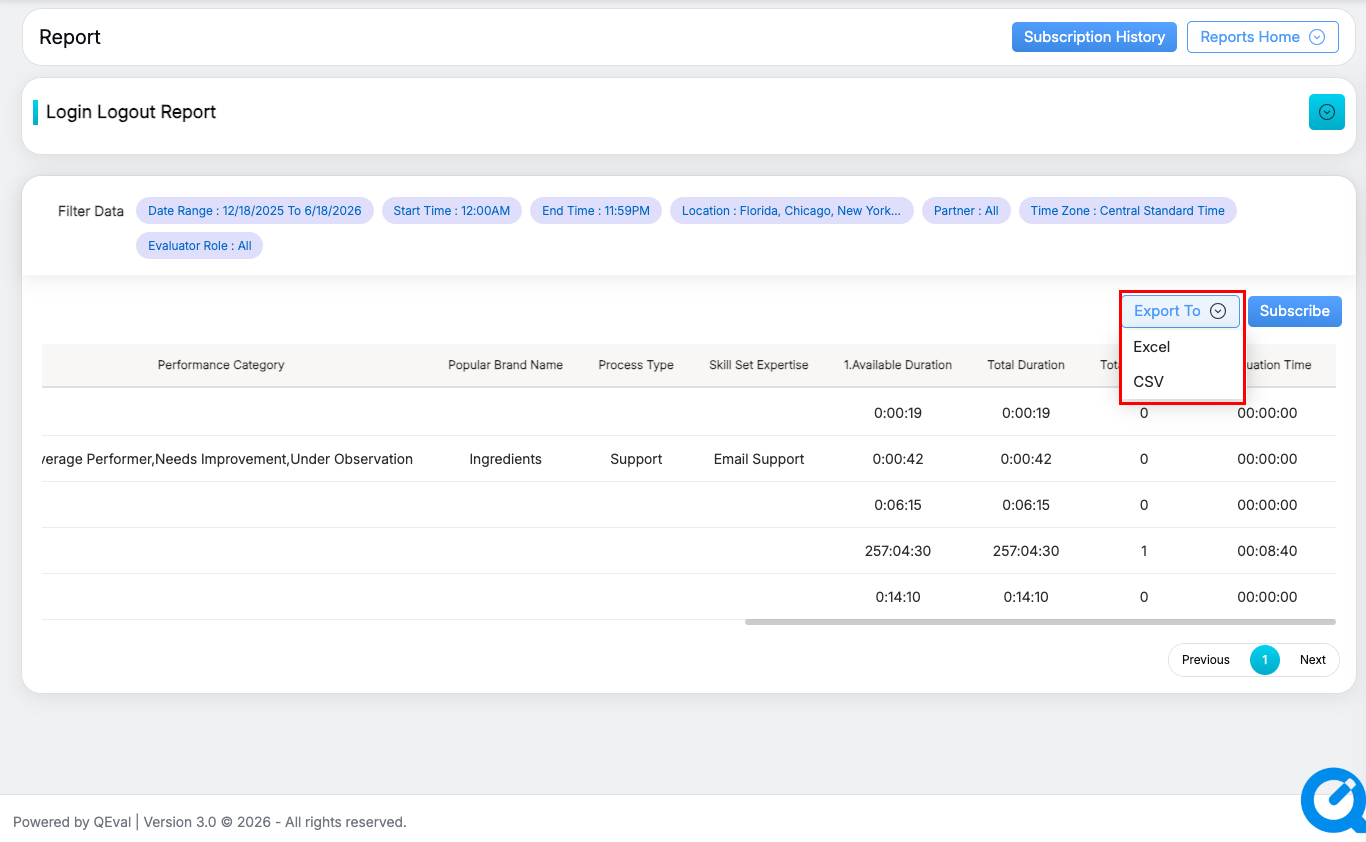
The report for the specified will be displayed as shown below:
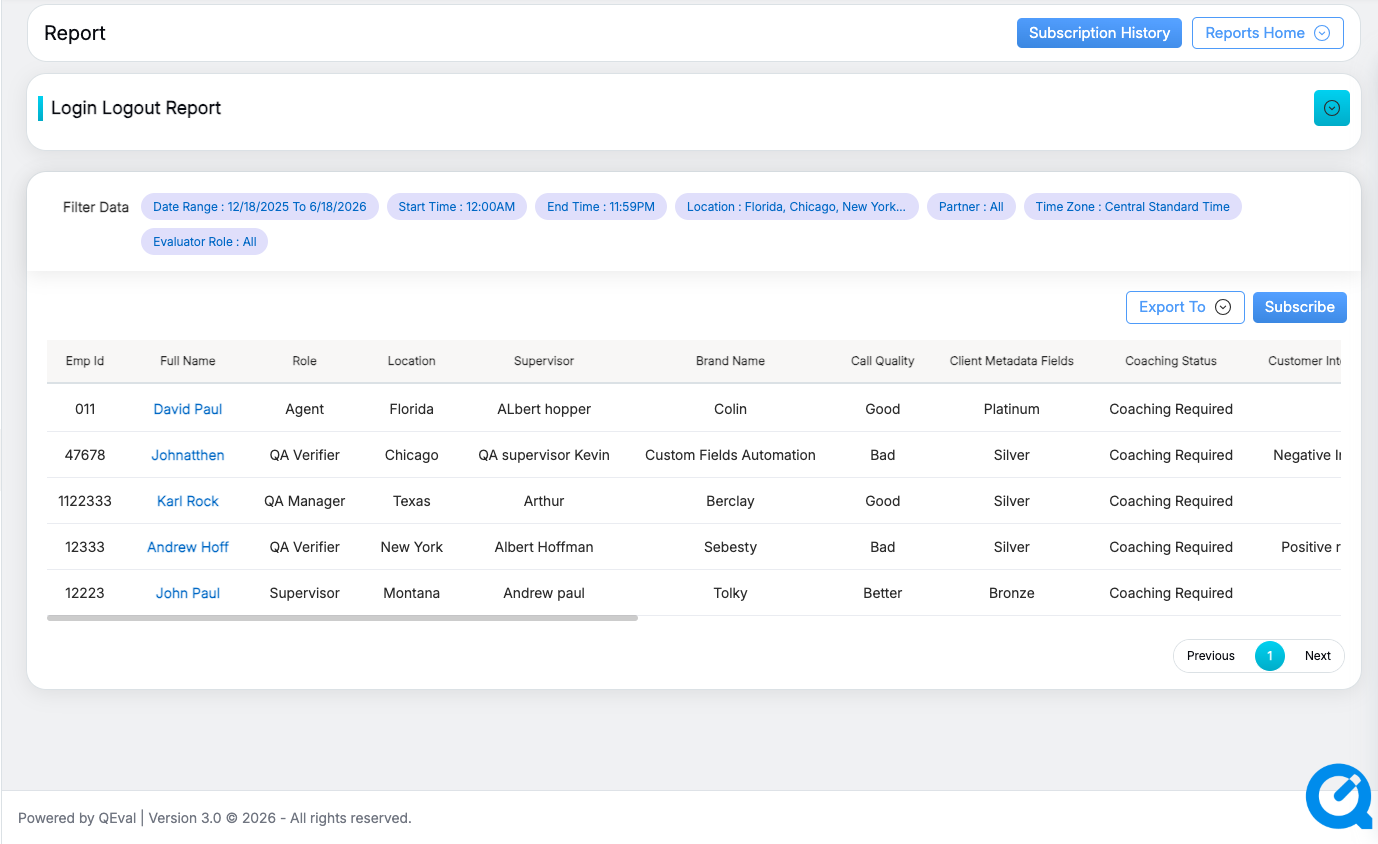
Generated Report
The above report displays the total duration of the login-logout timings of the agents.
The generated report also includes any custom fields configured in User Details Configuration, which will automatically appear as additional columns based on the active setup.
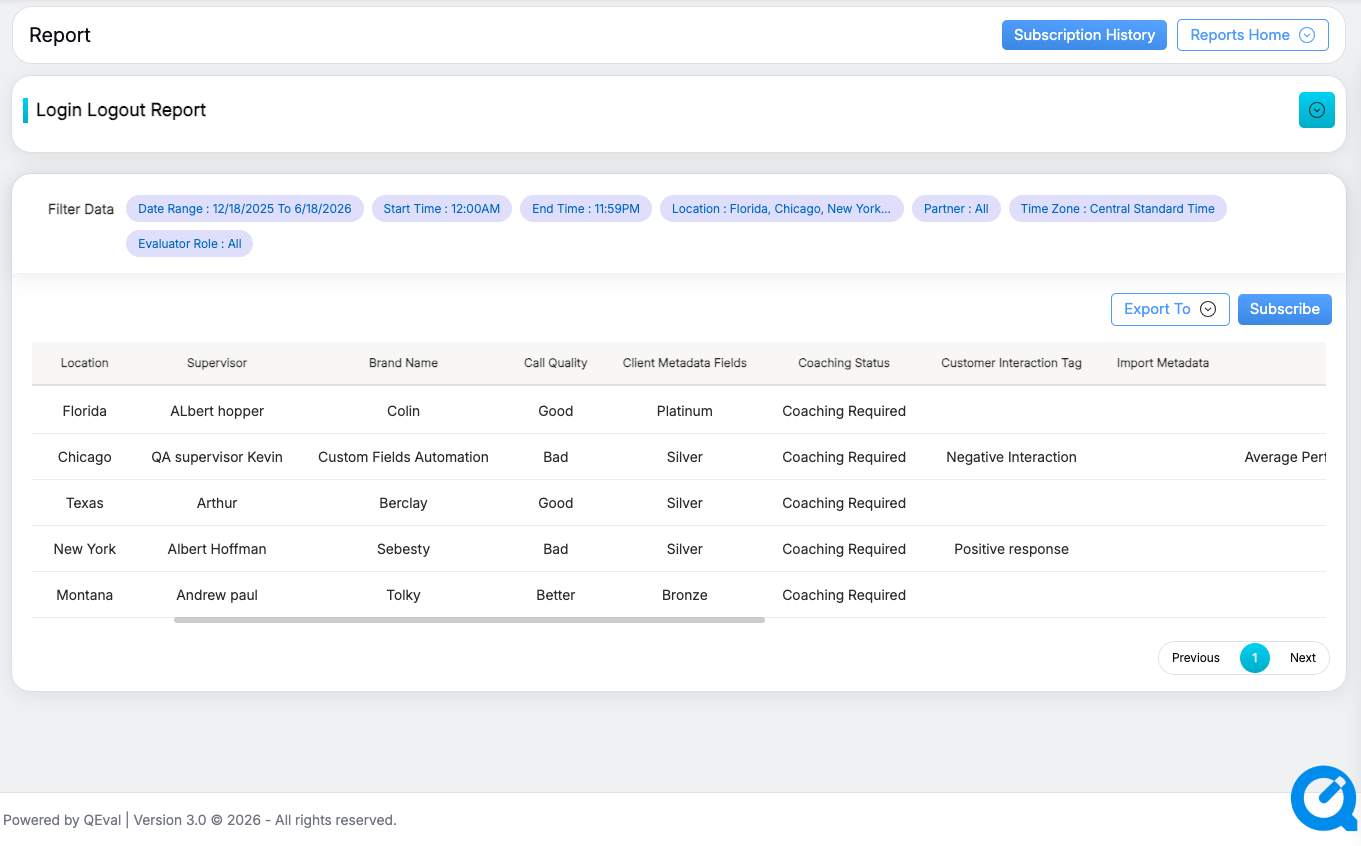
Generated Report
A user can also check the same report of the individual Employee. This could be done by clicking on the Full name and a separate report of the Employee will be generated as shown:
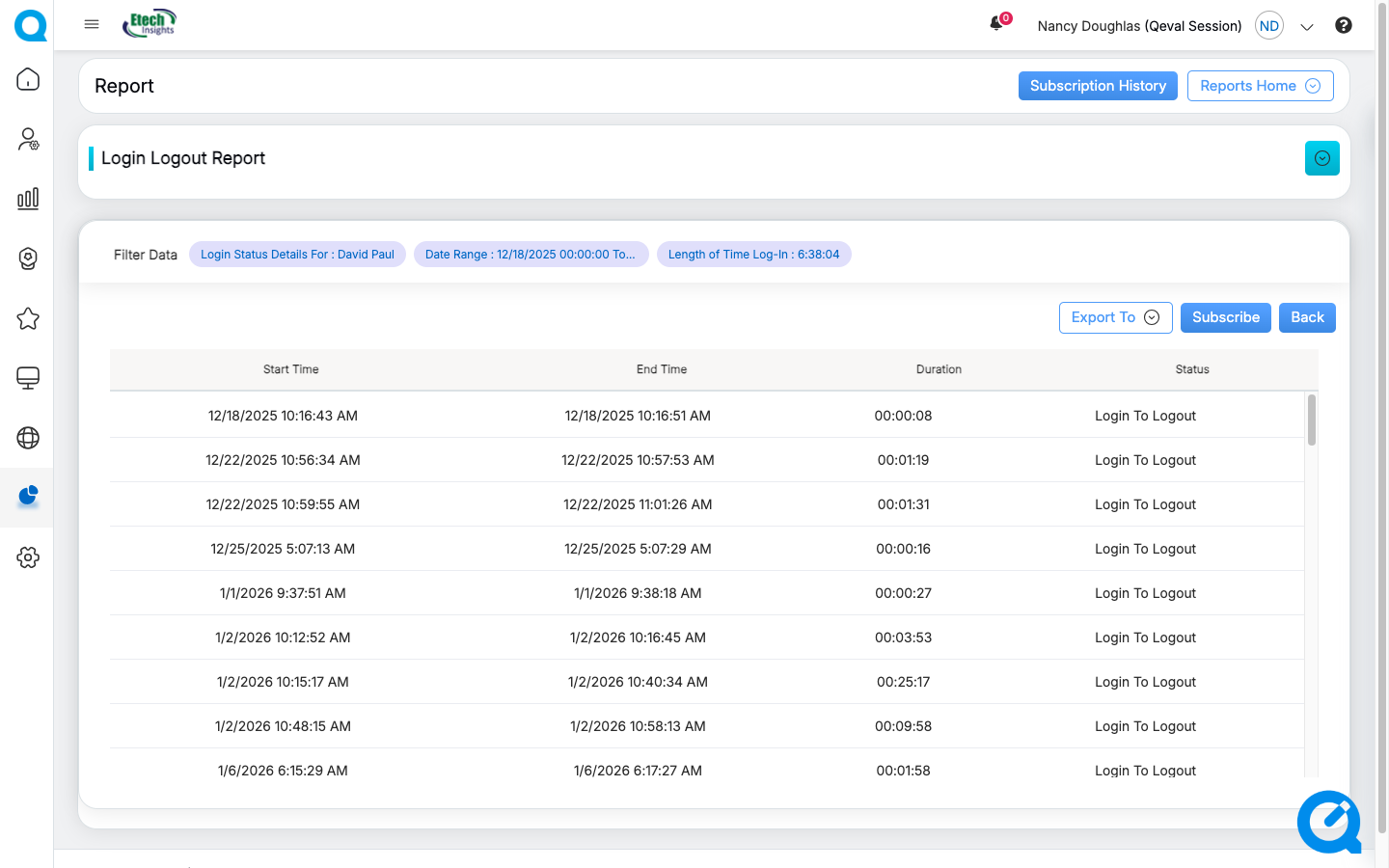
Login Logout Timings
Video