Table of Contents
The Show/Hide Question functionality allows users to control question visibility within an evaluation form. When enabled, a question can be configured to display or hide based on the option selected for another question.
Open Design Form
From the Design Form page, one can access this function. Follow the steps for Show/Hide Question functionality:
1. On the Design Form page, click on the Create Evaluation Form button as shown on the screen:
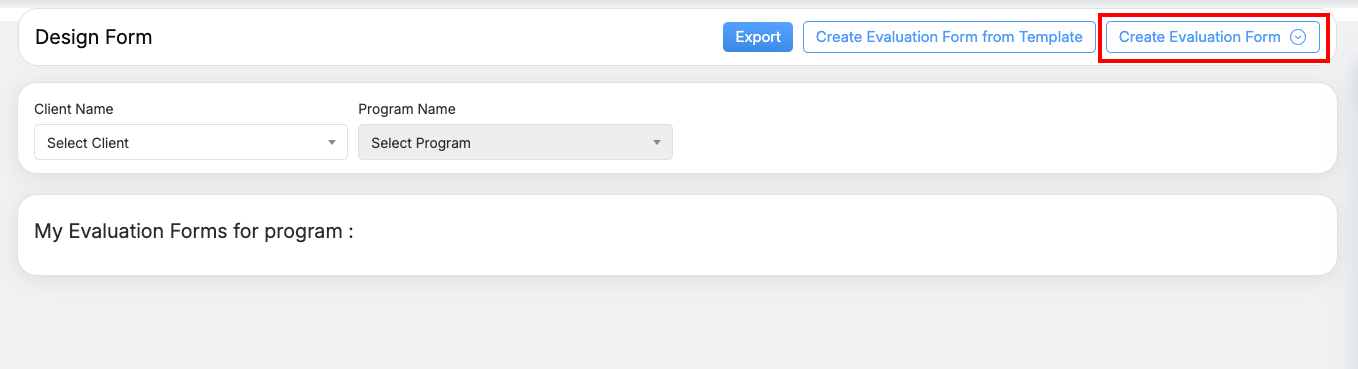
Design Form page
2. Select Start with a blank evaluation form from the screen:
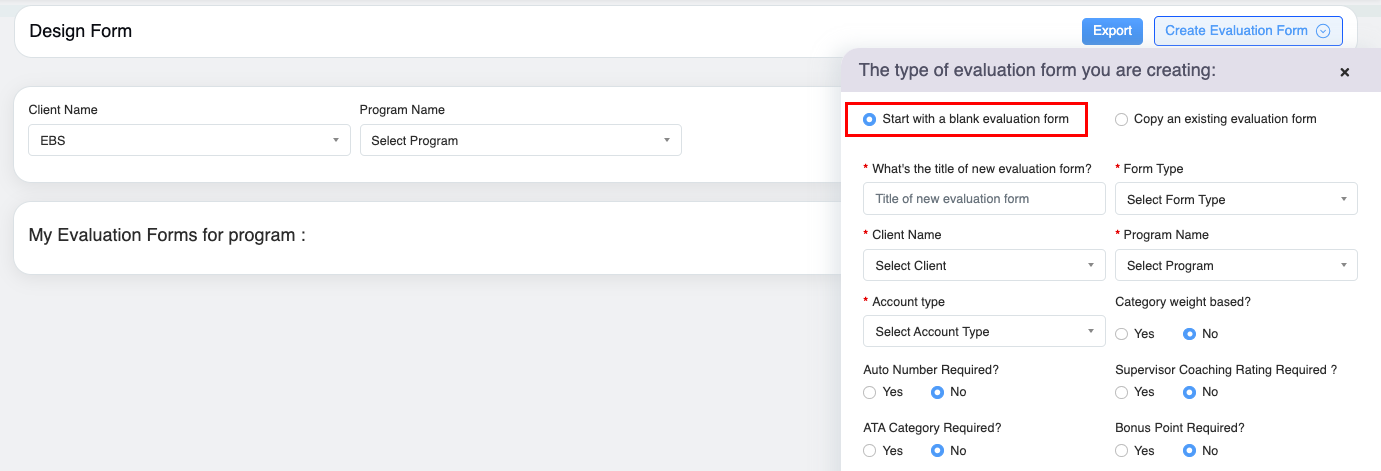
3. Once the new form configuration is done, click on the  button to create the evaluation form.
4. To access Show/ Hide functionality, click on the Add New Category while designing the newly created form as shown highlighted on the screen below:
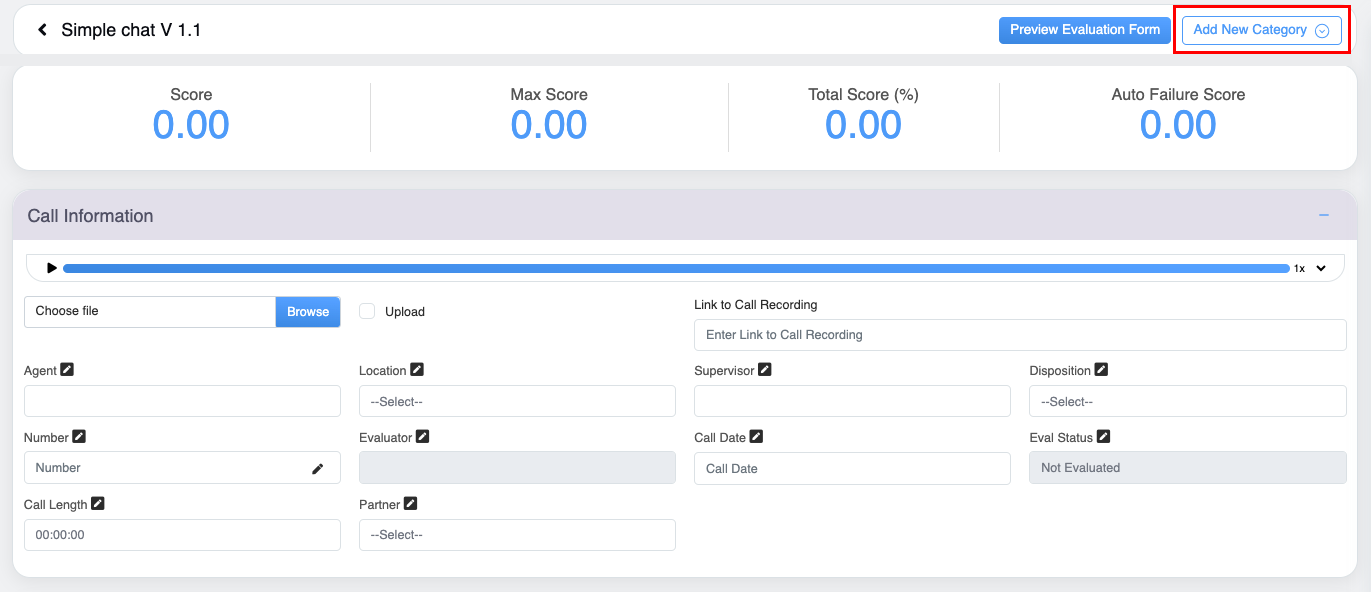
5. Select Start with a blank Category when the below screen appears:
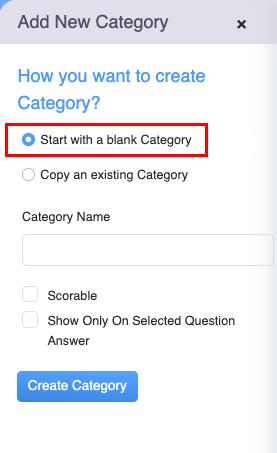
6. Configure all the details and click on the  button to create a category.
7. Then, click on the Add Question button displayed at the bottom of each category of the form.

8. Select the Basic field type option displayed on this screen.
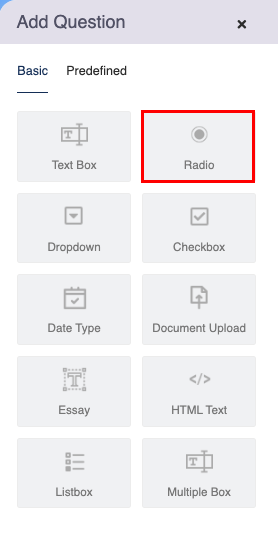
Configure Show/Hide
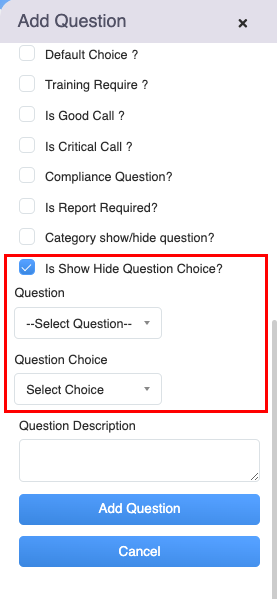
9. Configure the details of the question, then select the Is Show Hide Question Choice option followed by selecting the question and choice of question to show or to hide and click on Add Question button from the list of options from the Add Question screen as shown below:
10. Once the questions are added, one can preview the questions of the designed form, by clicking on Preview Evaluation Form as shown on the screen:
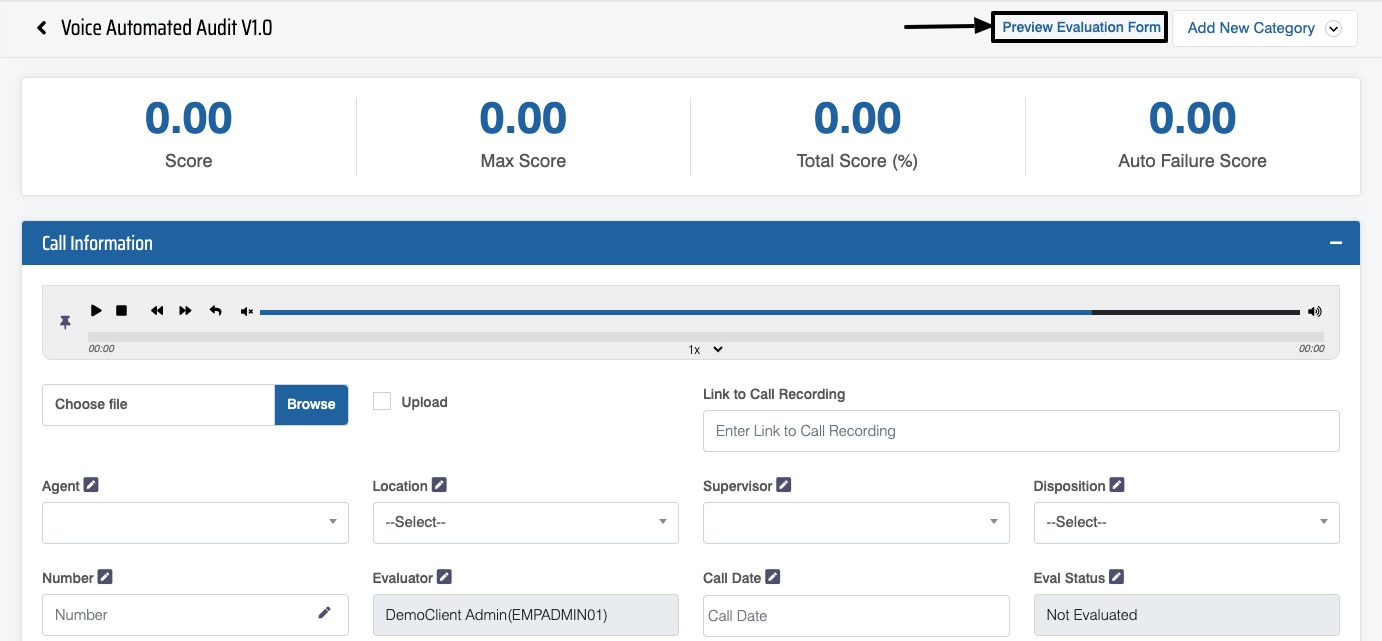
Preview Evaluation Form
The questions will be displayed in the preview mode:
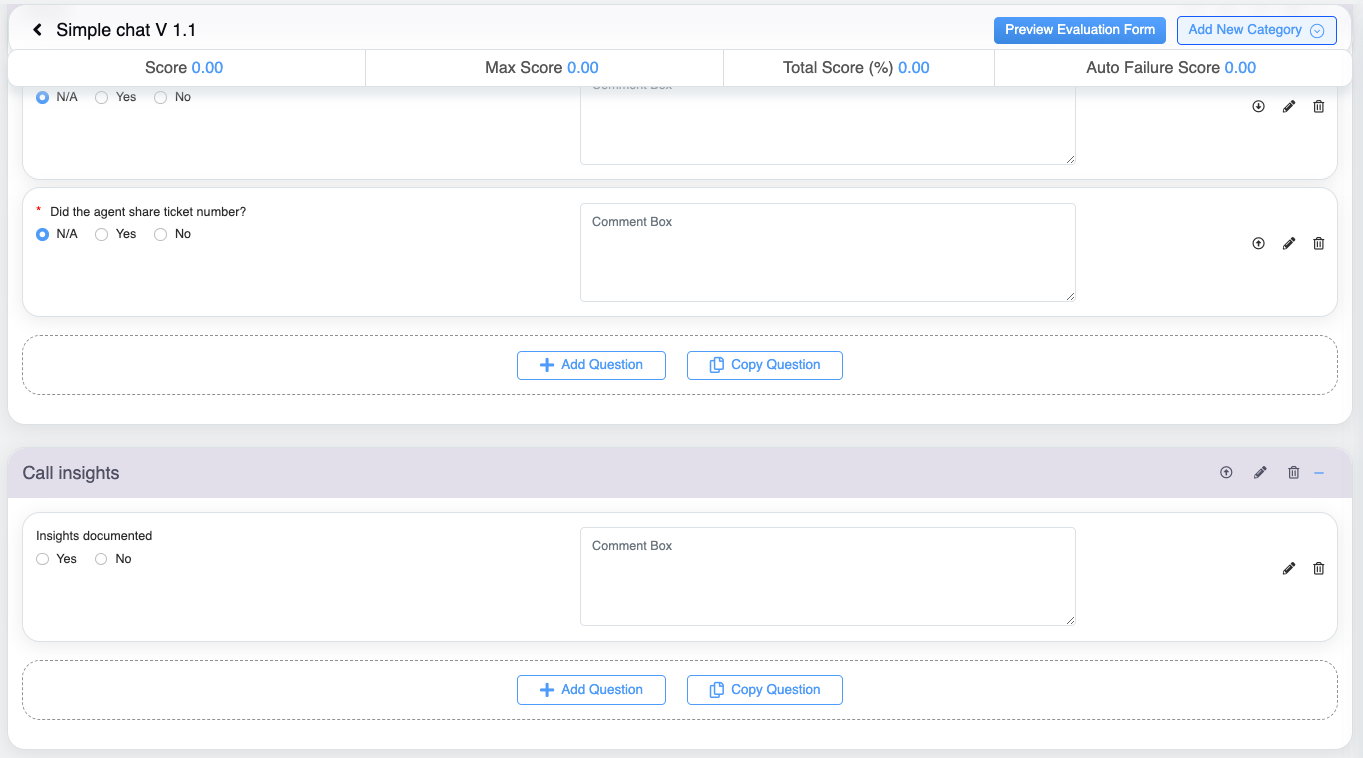
11. To enlist the form click on the  button to submit the evaluation form. To know more about the Preview Evaluation Form, refer to Preview Form.
The form will be listed in the evaluation form list for a program displayed on the Design Form page.
Video