Table of Contents
Introduction
The Follow-up Emails feature automatically sends emails to the assigned Supervisor or Manager when an agent’s performance falls below the defined evaluation score or when the agent has not been evaluated for a specified period.
To configure the Follow-up Emails feature, specify the following details:
- Program: Select the program for which the Follow-up Emails feature will be enabled.
- First Follow-up Mail Days: Enter the number of days after which the first follow-up email should be sent.
- Second Follow-up Mail Days: Enter the number of days after which the second follow-up email should be sent.
- Team: Select the team of the Supervisor or Manager who should receive the follow-up email notifications.
- Evaluation Score Cut-off: Enter the minimum evaluation score.
The following example explains how the Follow-up Emails feature works.
Assume the Follow-up Email configuration is set as follows:
- Client Name: Etech Wireless
- Program: Etech Wireless Chat
- Email Subject Line: Evaluation
- First Follow-up email days: 7
- Second Follow-up email days: 7
- Evaluation Score Cut-off: 80
- Team: QA
Consider an agent who is assigned to the Etech Wireless Chat program for the Etech Wireless client. Based on the example configuration, the system monitors the agent’s evaluation results.
If the agent receives one or more evaluations during the first 7 days and the evaluation score is below the defined cut-off score of 80, the system automatically sends the first follow-up email to the assigned QA Supervisor or Manager.
If the agent’s performance still does not improve after the first follow-up email and the evaluation score remains below the cut-off after the next 7 days, the system sends a second follow-up email to the Supervisor or Manager of the assigned QA Supervisor.
To access the Follow-up Emails feature, navigate to Manage > Follow-up Emails. The Follow-up Emails page is displayed, as shown in the following screen.
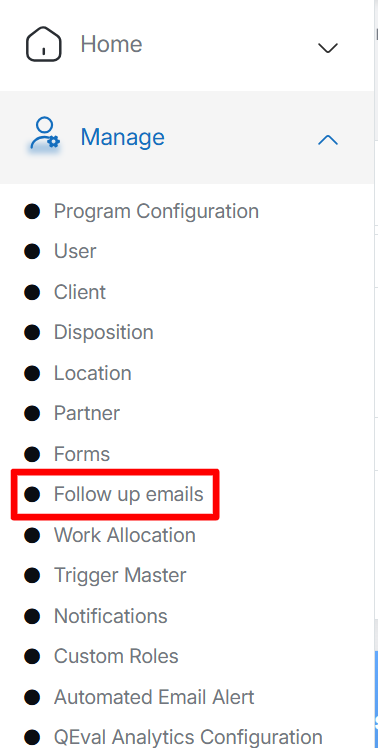
Follow up emails
The Manage Email Schedule page is displayed, as shown in the following screen.
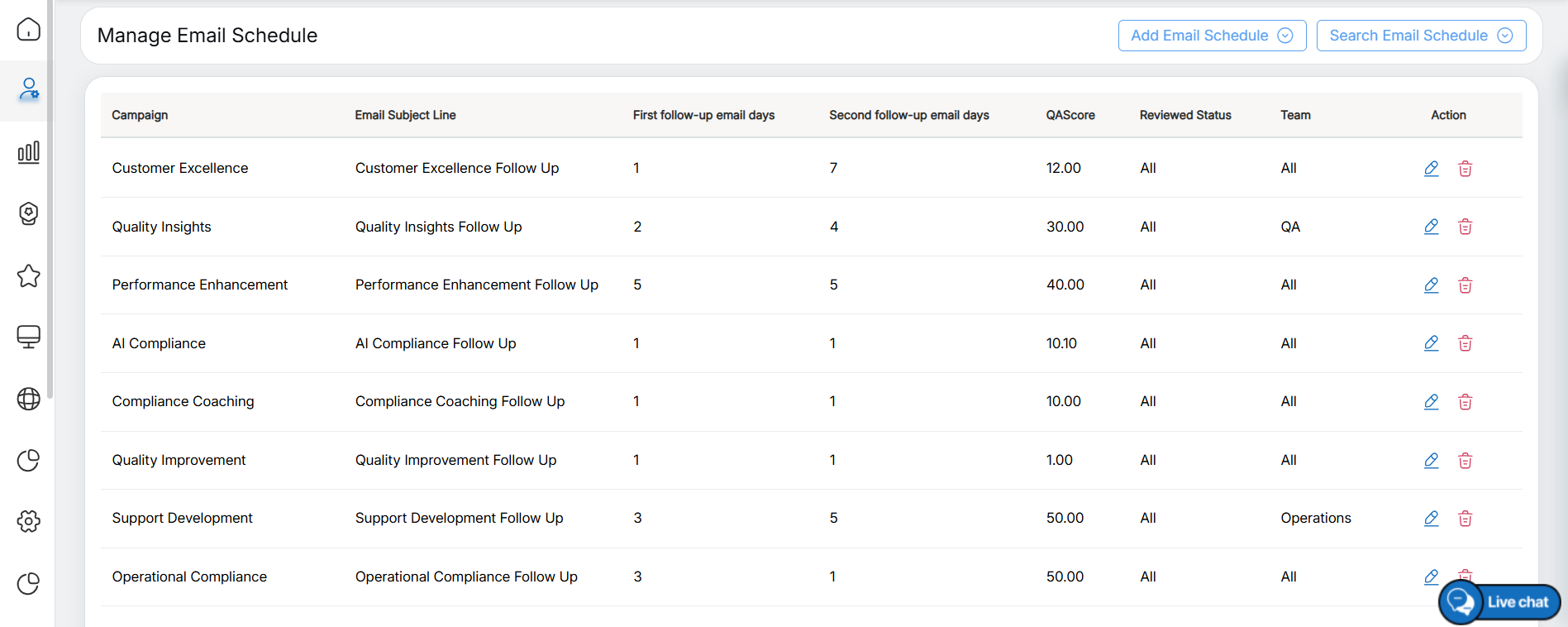
Manage Email Schedule
The Manage Email Schedule page displays a list of all configured follow-up email schedules for different campaigns.
Using this page, an administrator can:
- View all existing follow-up email schedules.
- Create a new follow-up email schedule.
- Search for an existing follow-up email schedule.
- Edit the details of an existing follow-up email schedule.
- Delete a follow-up email schedule that is no longer required.
Add Email Schedule
When an agent’s evaluation score falls below the configured Evaluation Score Cut-off, the system automatically triggers follow-up email notifications to the designated recipients based on the configured schedule.
This page allows administrators to configure follow-up email schedules for specific clients and programs. Administrators can define the number of days after which the first and subsequent follow-up emails should be sent.
Follow the steps below to create a new follow-up email schedule:
- Click Add Email Schedule to create a new follow-up email schedule.
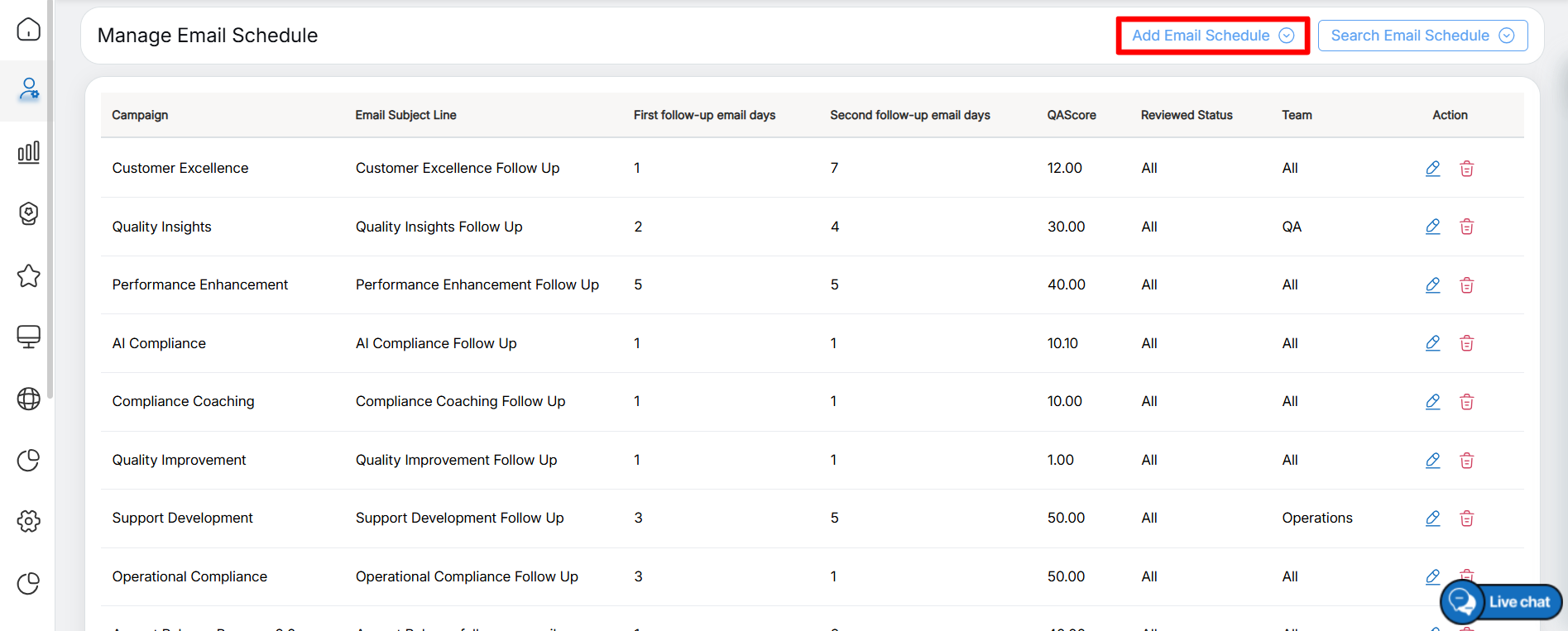
Add email schedule
The Add Email Schedule page is displayed, as shown in the following screen.
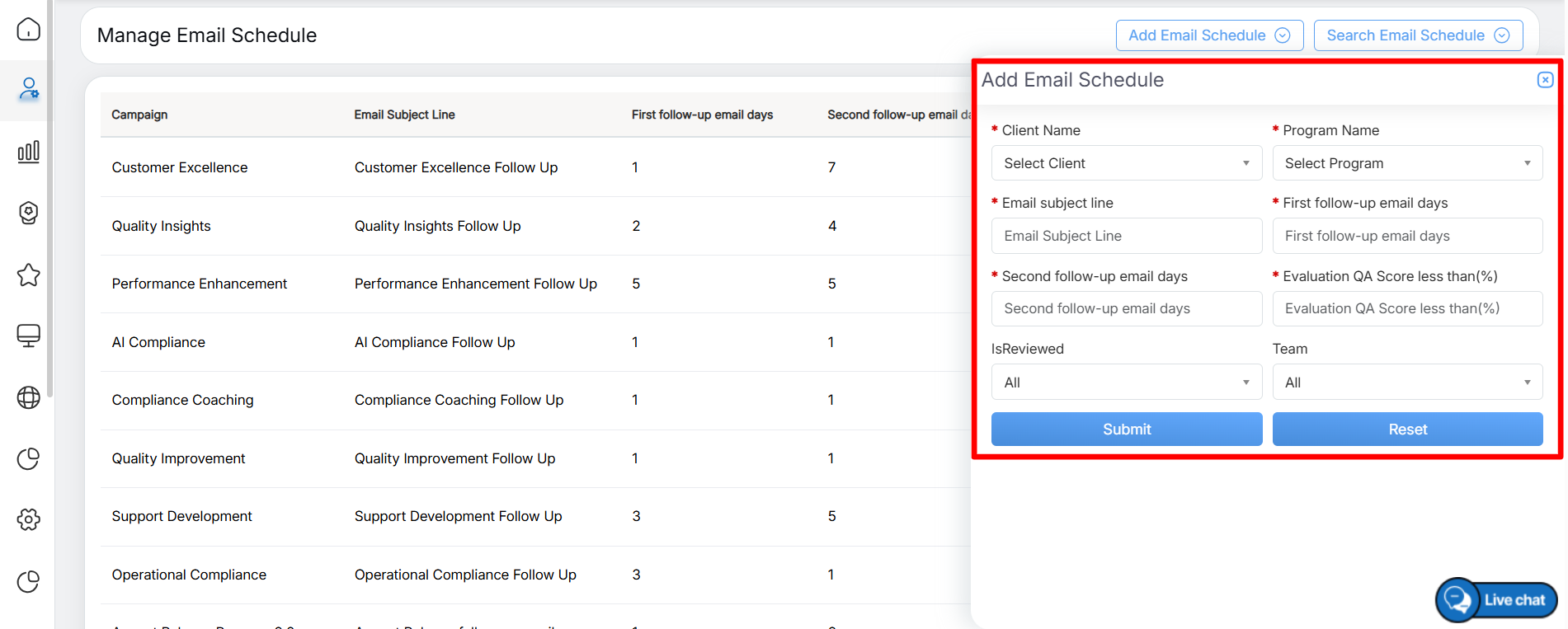
Add email schedule details
- Enter the following details to configure the follow-up email schedule.
|
Screen Elements |
Description |
|
Client Name |
Select the client name from the dropdown list for which the follow-up email is to be set up. |
|
Program |
Select the program for the selected client from the dropdown list. |
|
Email Subject Line |
Enter the email subject line that will appear in the follow-up email. |
|
First Follow-up Email Days |
Enter the number of days after which the first follow-up email needs to be sent. |
|
Second Follow-up Email Days |
Enter the number of days after which the second follow-up email needs to be sent. |
|
Evaluation QA Score less than(%) |
Enter the cut-off score of the evaluation or audit. If the score of an agent is less than this configured score then he/she will receive the configured follow-up email. |
|
Is Reviewed |
Select the status of the evaluation for which a follow-up email is sent, from the dropdown list – All, Reviewed, and Not Reviewed. |
|
Team |
Select the team to whom the follow-up email needs to be sent. |
- Click Submit to save the email schedule. To clear all the entered values and restore the default fields, click Reset.
The newly added email schedule will be displayed on the Manage Email Schedule page as shown on the screen below:
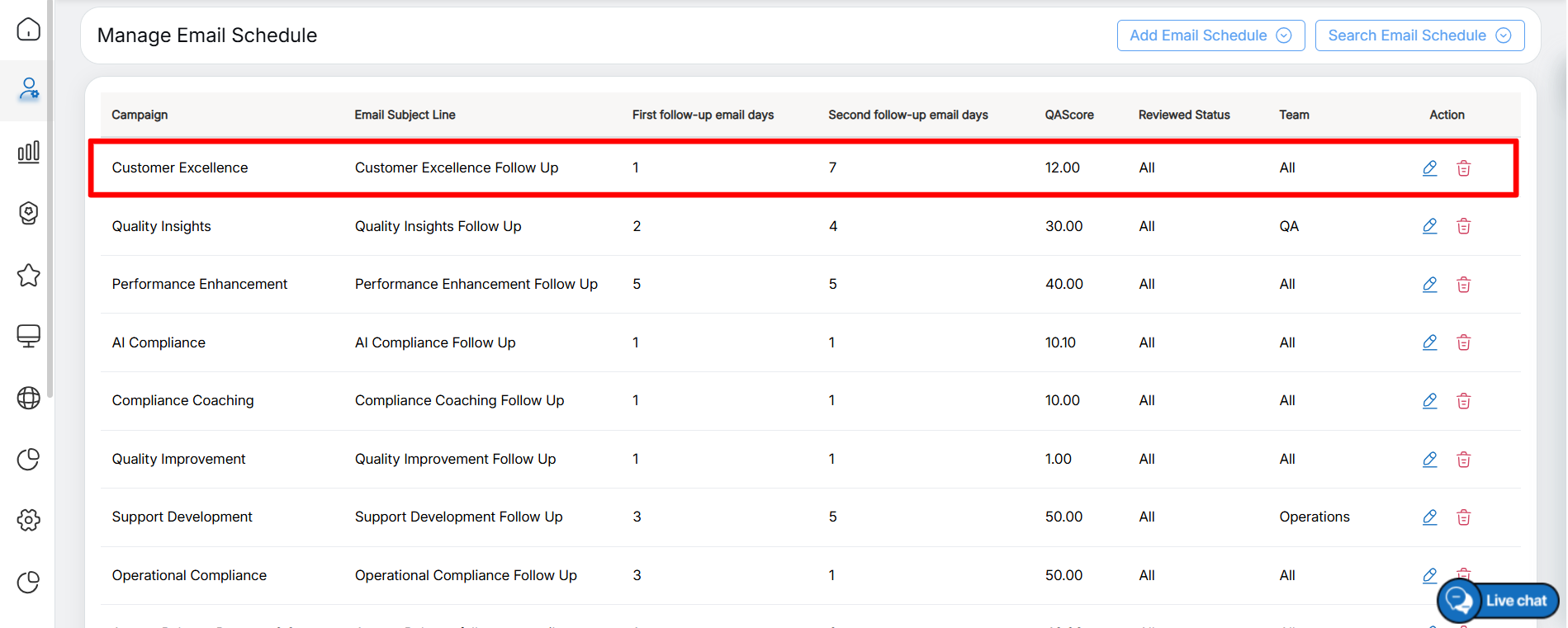
Newly added email schedule
Search Email Schedule
The Search Email Schedule feature allows administrators to locate follow-up email schedules for a specific client and program. From the search results, administrators can also edit or delete existing follow-up email schedules.
To search for a follow-up email schedule, click Search Email Schedule. The Search Email Schedule page is displayed, as shown in the following screen.
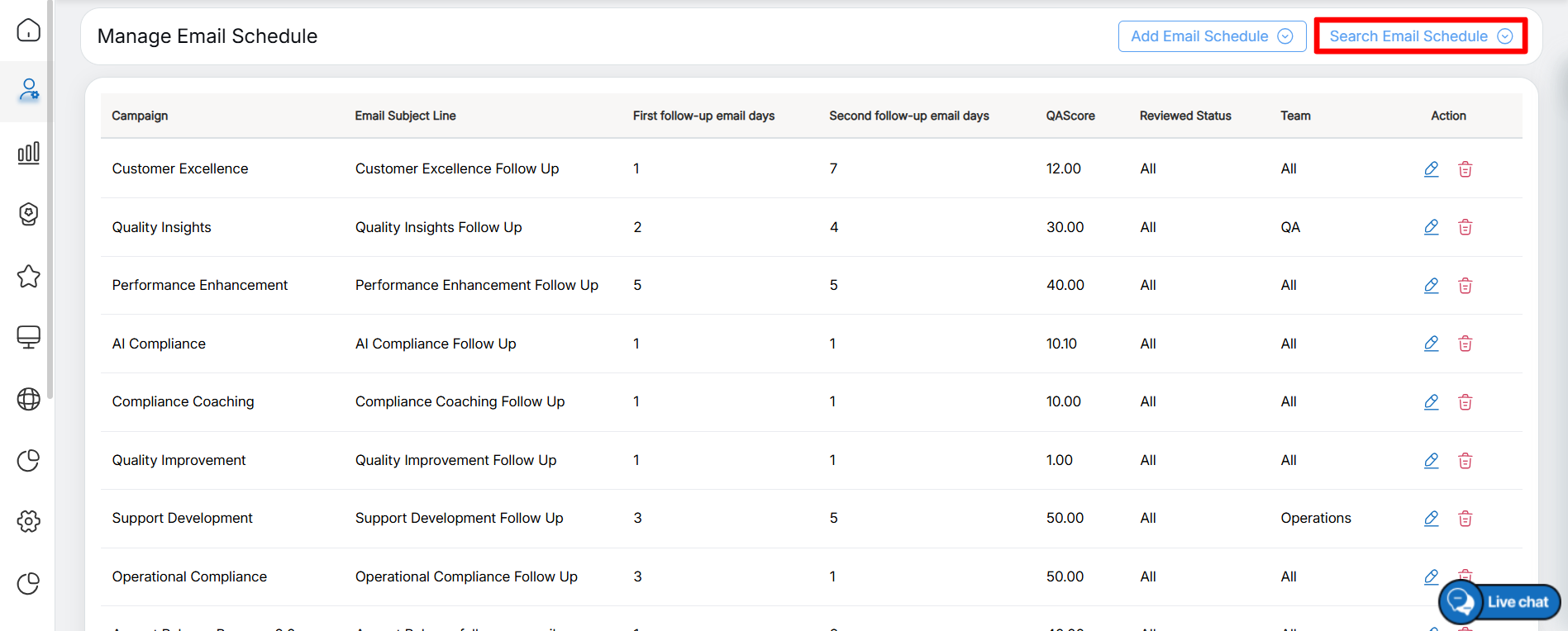
Search email schedule
The Search Email Schedule page is displayed, as shown in the following screen.
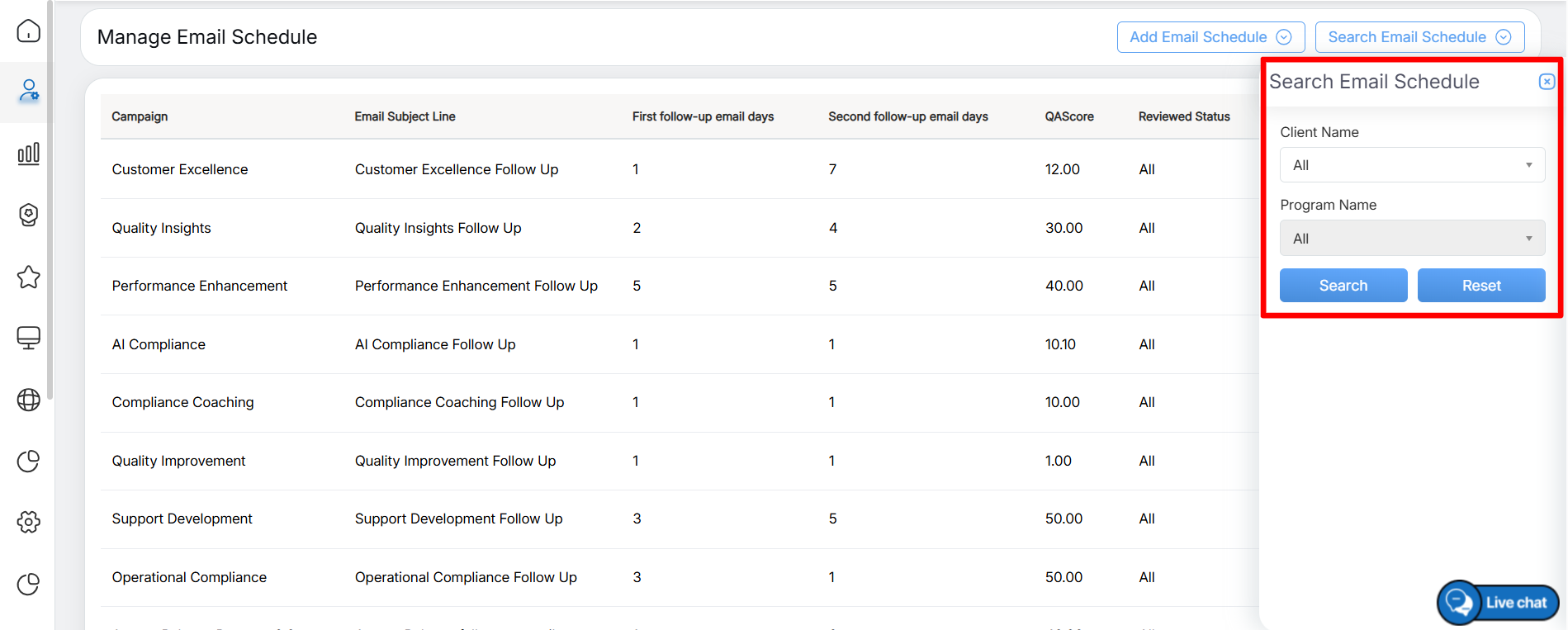
Search email schedule details
The Search Email Schedule page provides search filters to help you quickly locate a specific follow-up email schedule. You can search for an email schedule by selecting the Client Name and Program Name.
Click Search to display the follow-up email schedules that match the selected search criteria. To clear the selected filters and restore the default values, click Reset.
After the search is completed, all follow-up email schedules that match the selected search criteria are displayed on the Manage Email Schedule page, as shown in the following screen.
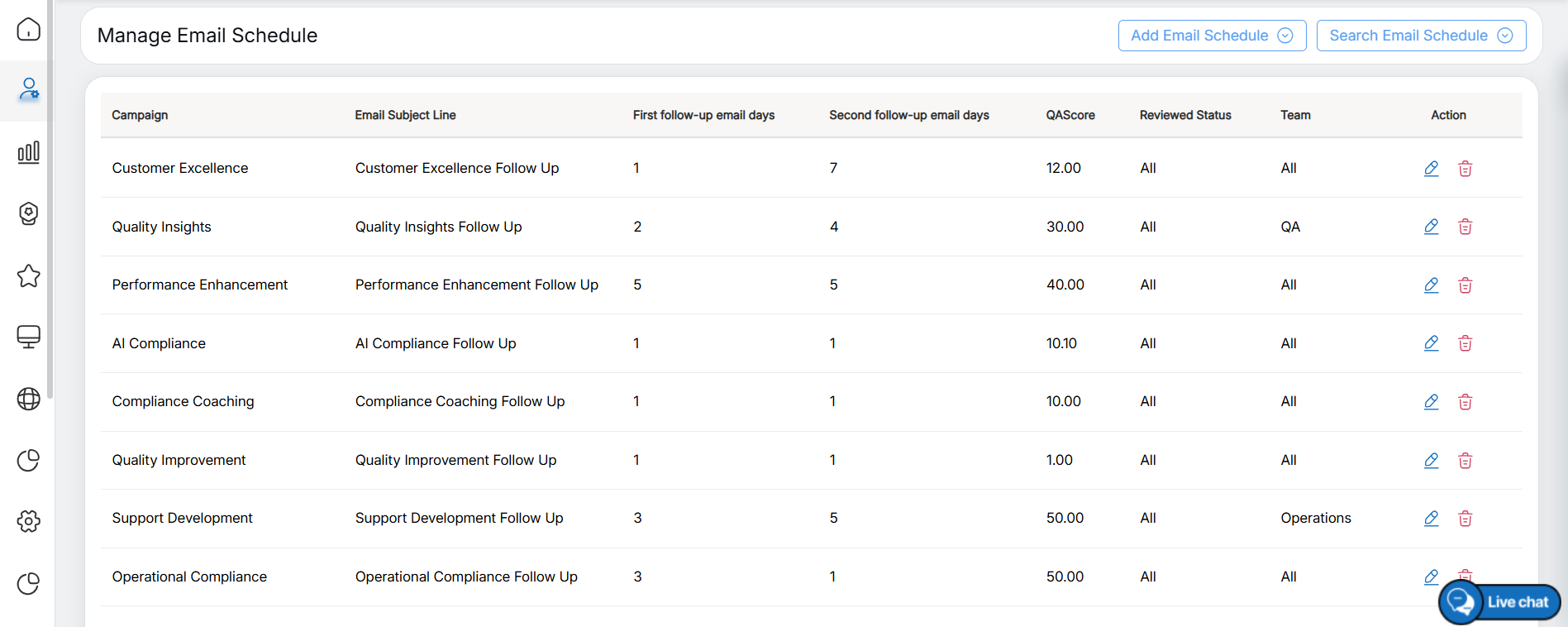
Search Results
The search results display the following information for each follow-up email schedule:
- Campaign: Displays the name of the campaign.
- Email Subject Line: Displays the subject line of the follow-up email.
- First Follow-up Email Days: Displays the number of days after which the first follow-up email is sent.
- Second Follow-up Email Days: Displays the number of days after which the second follow-up email is sent.
- QA Score: Displays the configured evaluation score cut-off.
- Reviewed Status: Displays the evaluation status associated with the follow-up email schedule.
- Action: Displays the available actions for the email schedule. Click Edit to modify the configuration or Delete to remove the follow-up email schedule.
Edit Email Schedule
To modify an existing follow-up email schedule, click the Edit icon in the Action column corresponding to the required email schedule. The Edit Email Schedule page is displayed. After making the required changes, click Update to save the modifications.
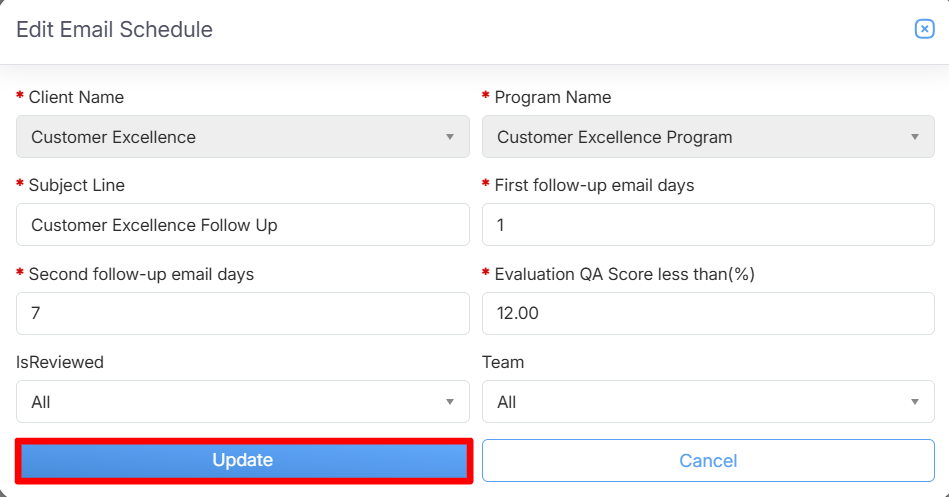
Update Button
After the update is completed successfully, the system displays a confirmation message acknowledging that the follow-up email schedule has been updated.
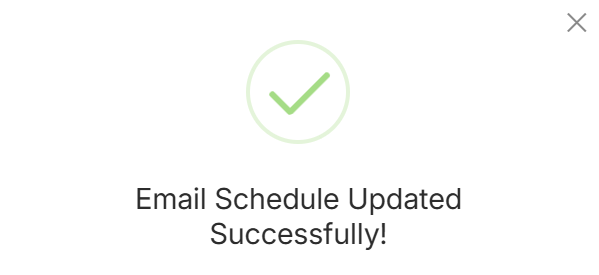
Acknowledgement Message
Delete Email Schedule
To delete a follow-up email schedule, click the Delete icon in the Action column corresponding to the required email schedule. The system displays a confirmation message asking you to confirm the deletion, as shown in the following screen.
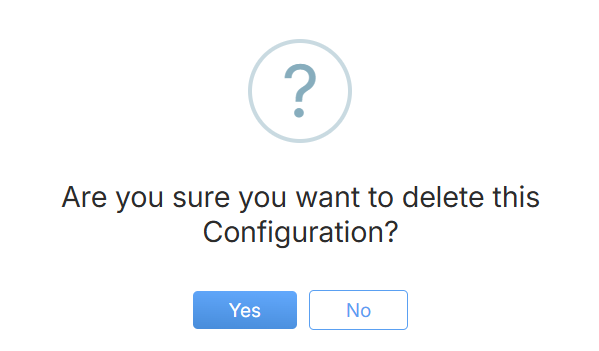
Delete Dialog Box
Click Yes to confirm and delete the selected follow-up email schedule. To cancel the deletion and return to the Manage Email Schedule page without making any changes, click No.
Video